How to Wipe iPad without Passcode


Locked out by screen time? Learn how to remove screen time password on iPhone, iPad or Mac, including solutions to turn off screen time without passcode or Apple Account.

When you need to remove your screen time passcode, here's a step-by-step checklist:
There are a few ways of removing the screen time password for yourself or a child effectively.
Screen Time Passcode is a useful feature built into iPhone, iPad, and Mac. It puts you in control how your device is used - whether you're a parent enforcing digital boundaries to monitor and control your child's time spent on the device, or an individual aiming for boosting productivity or limit device usage or apps scrolling.
However, there are moments when the 4-digit security code feel more like roadblocks. If the restrictions and constant alerts are hindering your productivity rather than helping it, you may wonder how to remove screen time passcode.
In this guide, we'll walk you through how you can remove the passcode for screen time from Settings on iPhone, iPad, or Mac. It doesn't matter if you forgot your screen time passcode—we also cover the removal of screen time without password, making your iphone a lot more usable.
Table of Contents
Removing a screen time passcode from an Apple device is pretty easy, as long as you truly know the code you've set. If you just want to get rid of the restrictions and bypass the need to enter the passcode for unlocking the screen time settings, here's how to turn off the screen time passcode directly from your iPhone, iPad, Mac Settings using the current credential.
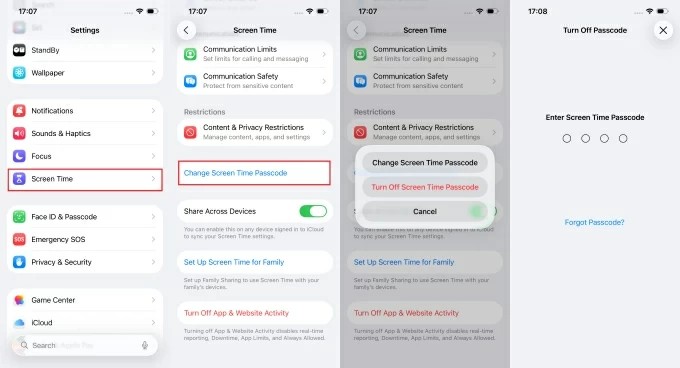
Remove iPhone or iPad screen time passcode
1. Go to Settings > Screen Time.
2. Locate and tap on Change Screen Time Passcode.
3. When prompted, choose Turn Off Screen Time Passcode.
4. Enter your existing screen time password to confirm that you're sure to remove it completely.
Done! There's no passcode for screen time settings any more.
Remove a Mac screen time password
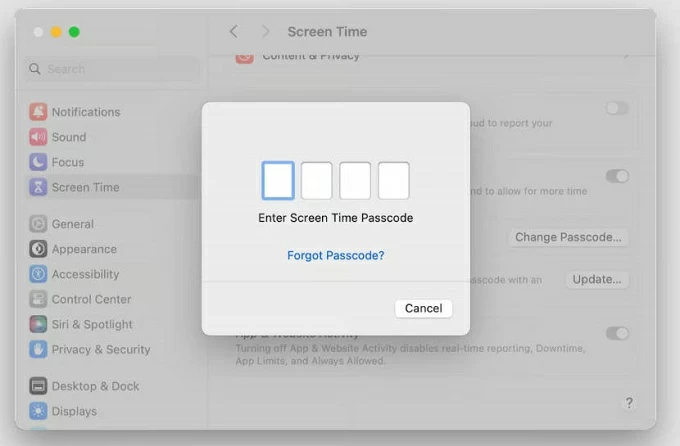
If you use a passcode to lock the screen time settings for preventing unauthorized changes, it can be also be removed through System Settings.
1. Click Apple Menu, then choose System Settings. You can also open System Settings app from the Dock.
2. In the sidebar, click Screen Time.
3. Toggle off Lock Screen Time Settings if you don't need to set the limits.
4. Enter the four-digit passcode for verification. If it's correct, the screen time passcode removal should take place immediately.
In the event that you have forgotten your screen time passcode, you still have a handy screen time unlocker to remove the lock code by verifying the original Apple Account and password that was used for setting it up.
Instead of factory resetting your device to fully delete the passcode from screen time, Apple has added a Forgot Passcode option since iOS 13.4, enabling you to turn off a restriction passcode after you forget it in Screen Time Settings without erasing any data.
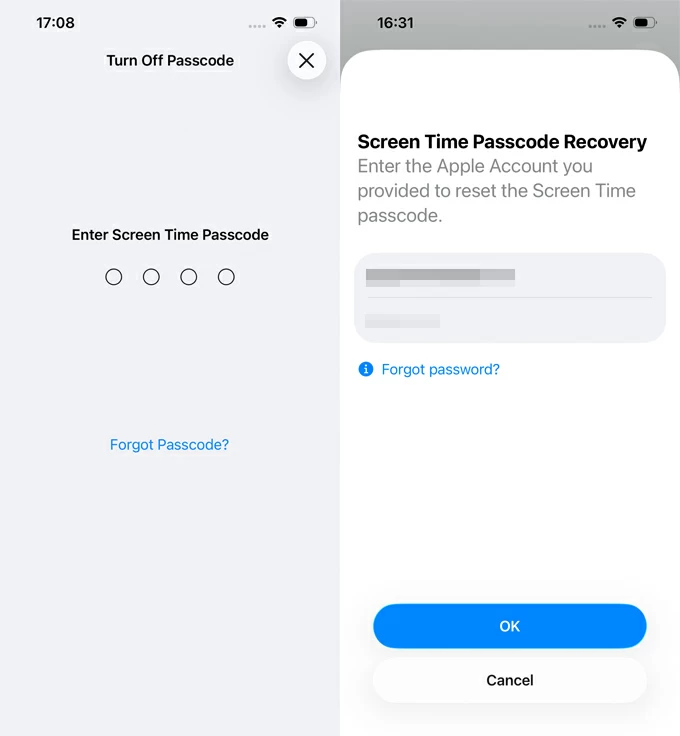
Disable a forgotten passcode on iPhone, iPad Screen Time
1- Open Settings app.
2- Navigate to Screen Time > Change Screen Time Passcode > Turn Off Screen Time Passcode.
3- Since you can't remember the current password, tap Forgot Passcode? option.
4- On the Screen Time Passcode Recovery screen that appear, Input the Apple Account credentials (email/ phone number and password) correctly, and you're good to go.
Remove a screen time passcode you forgot on Mac
For Mac users, turning off a forgotten lock code of screen time if you'd rather not have one at all can also be done using the linked Apple Account thanks to the on-device Forgot Passcode option.
When you're in System Settings, click on Screen Time, then turn OFF Lock Screen Time Settings. To eliminate the passcode that do not know, click Forgot Passcode instead. Then, enter your Apple ID and password to finalize the removal and unlock the settings.
Setting a screen time passcode can also work as a parental control through Family Sharing, helping parents or guardians limit time on apps, screen or online, and track the activities on a child's device. Without the passcode, the children cannot change the settings or bypass the restrictions when exceeding limits.
Only the Family Organizer has the administrative rights to reset or remove the screen time passcode on their child's Apple device. This is a remote password deletion for screen time, and has to be done on parent's device Settings app - whether or not you know the current passcode for locking your child's screen time settings.
Removing your child's screen time passcode when you remember it
After the parental control passcode is removed, your child or family member can access the screen time settings without any locks.
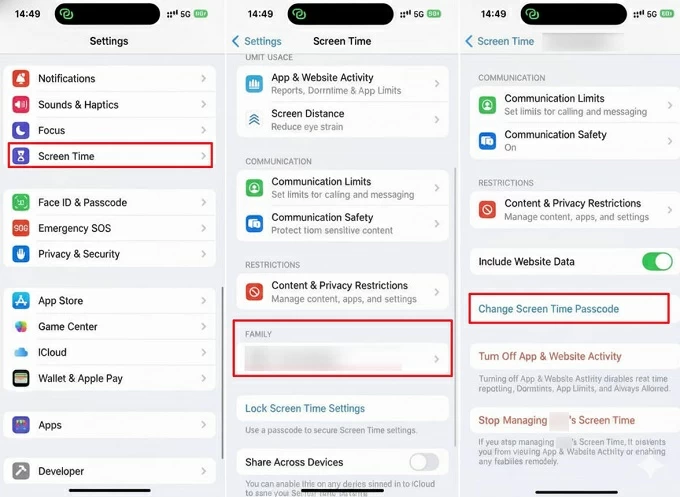
Remove a lost or forgotten screen time passcode using Apple Account
Even you forgot the password that you set for your child's screen time, there's a good chance of bypassing the screen time passcode and removing the restrictions. Parent or guardian just tap on the Forgot Passcode option and type in the Apple account login details which are first created for kid's screen time passcode recovery within a family group, and the password lock gets deleted afterwards.
You can also reset the screen time passcode rather than turning it off completely to prevent children from changing the screen time limits.
Whether you forgot both the passcode and the Apple Account, or the "Forgot Passcode" option is missing, Apple's official solutions will not help with removing a screen time password from your personal or child's device. No worries, Appgeeker iPhone Unlocker comes in handy by providing a straightforward solution to turn off the passcode for screen time without the old one or without Apple ID.
The software is featured with a powerful Unlock Screen Time mode, letting you bypass the Apple ID recovery process and get rid of the screen time passcode directly with no need to perform a factory reset.
Besides forgotten screen time password removal, you can use the program to unlock the lock screen passcode, MDM, iCloud Activation lock, SIM card lock, etc. All can be done through a cable connection on it clear interface.
If you don't remember the screen time passcode of your own device or your child's device, or if you don't have the originally-used Apple Account info, here's how to remove the existing screen time lockouts without passcode, Apple ID or data loss in a few clicks, and regain full access to the screen time settings.
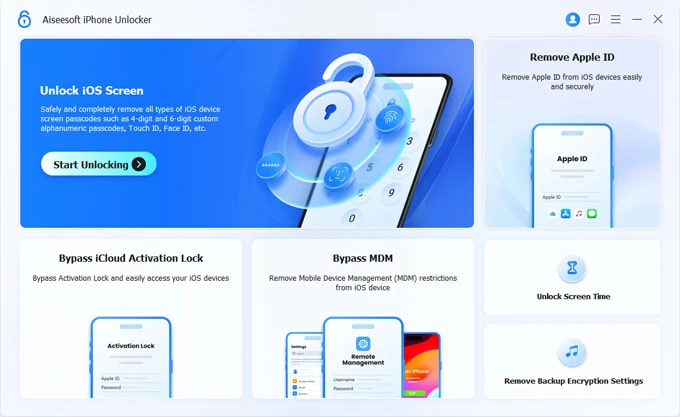
Step 1. Launch iPhone Unlocker on your PC or Mac, and choose Unlock Screen Time module on the main interface.
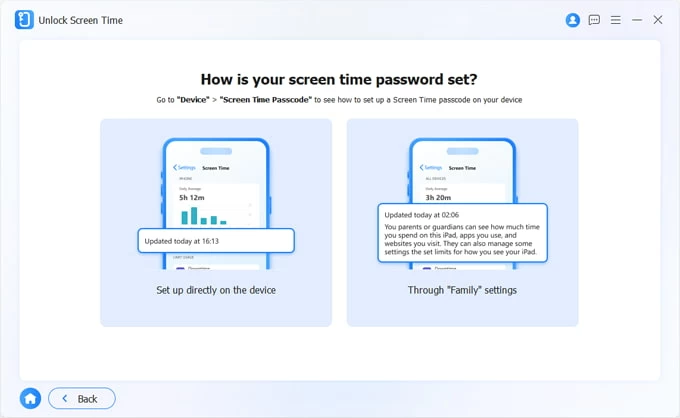
Step 2. Choose to bypass the screen time passcode on your own device or your child's device within Family Sharing.
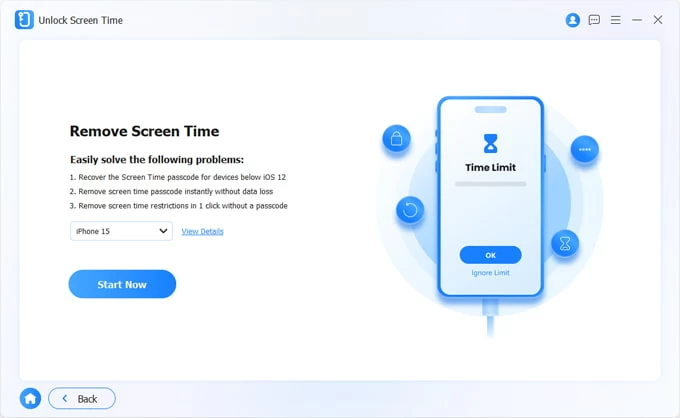
Step 3. Use a lightning cable to attach your screen-time-locked iPhone or iPad to your computer.
When it's connected, confirm the device model and click Start Now button.
You will need to unlock your device and tap "Trust" to allow access.
Step 5. To ensure a seamless iPhone screen time passcode removal, go and disable Find My feature through Settings > [Your Name] > Find My.
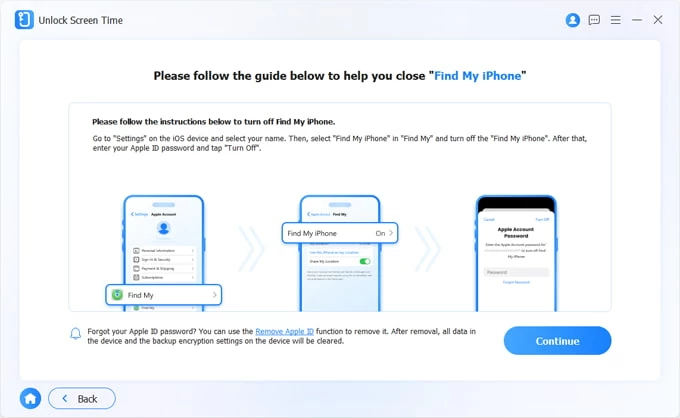
Step 6. Begin removing Screen Time passcode
When everything looks fine, hit Continue button to let the utility remove and unlock your screen time passcode that has been forgotten.
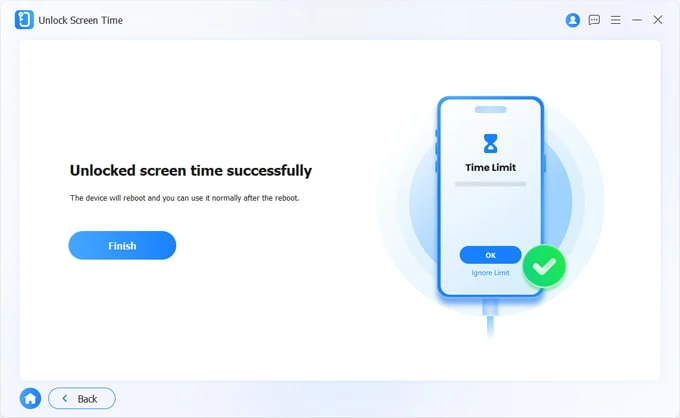
When done, your device will restart to the Hello screen. Continue to complete the initial setup process. IMPORTANT! In the Transfer Your Apps & Data screen, choose Don't Transfer Anything to keep all of your phone data intact after disabling screen time passcode without knowing it.
By far, there's no frequent request for screen time password while you're trying to access to the screen time settings on your own iPhone or iPad or a child/ family member's device.
Read also: iPhone Unavailable. How to fix
The last resort is to factory reset the iPhone that is locked by a screen time passcode. This is a nuclear option to remove your screen time password and turn off App & Website Activity fully as part of deleting all content and settings.
Restoring an iPhone from Settings app involves turning off the screen time passcode first. In case you forgot your last used code and the related recovery Apple ID, you have to use a computer to put your iPhone into recovery mode to be able to erase your entire phone and its screen time restrictions with iTunes/ Finder.
1. Plug one port of the lightning cable to a Windows PC or Mac.
2. Shut down your iPhone.
3. Plug another port of the cable to your device while pressing and holding a certain button until the recovery mode screen appears. The button varies from your phone model.
4. On your computer, open iTunes, Apple Device app (Windows 10 & 11), or Finder, and locate your iPhone if necessary.
5. When a dialog box opens asking if you need to Update or Restore your iPhone, choose Restore.
6. Wait for your computer to download the software and begin the reset, permanently deleting the screen time passcode without verifying Apple Account, as well as wiping anything off.
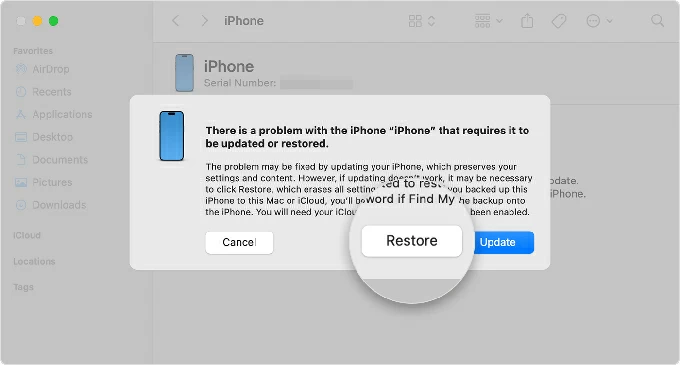
Once done, set up your iPhone from the scratch. You can restore a backup that was made before the screen time passcode was enabled so you won't lose anything. If you restore a backup that contains the passcode, the screen time lockout will return.
Apple eases the pain of how to remove a screen time passcode when forgotten by introducing the Forgot Passcode? button, which appears if you've set up an Apple Account at the moment you first locked the screen time settings with a passcode.
It can be incredibly frustrating to find that the Forgot Passcode button isn't showing up for Apple ID-based recovery in the event that you need to unlock screen time due to a forgotten passcode. Here's a breakdown of why Forgot Passcode for screen time is gone and is there any other way to help turning off screen time without a passcode or Apple Account details.
1- Skip the Screen Time Passcode Recovery step during setup
When the Screen Time passcode was originally set up on an Apple device, there is an optional step called "Screen Time Passcode Recovery", during which users are asked to link their Apple ID so the passcode can be reset later if it's forgotten.
If the Apple ID recovery option was not added during the setup, the device will not have any identity verification method stored for resetting or turning off the passcode later. As a result, the "Forgot Passcode?" option is missing or will fail to work.
2- Family Sharing / Parental Controls
If your device is part of a Family Sharing group and a parent or guardian set the code for screen time settings, the "Forgot Passcode" option will not appear on the managed device. The administrative power lies solely with the Organizer's device.
3- MDM (Mobile Device Management) Profiles
If the phone was issued by a school or workplace, they may have installed a management profile that blocks passcode changes entirely. You can only manage your device yourself and ger rid of the passcode for unlimited access to the Screen Time Settings until the organizer removes MDM from your iPhone effectively.
If there is no Apple ID connected to Screen Time recovery, your options for removing a passcode are limited—but it's possible.
If you enter the Screen Time passcode incorrectly multiple times while verifying the code to disable Screen Time, the system triggers time-based lockouts and access restrictions. As you enter incorrect codes repeatedly, the wait time between attempts grows significantly, and ranges from 1 minute to 1 hour. The good news is that failing the Screen Time passcode 10 times will not disable your iPhone or iPad or erase your data.
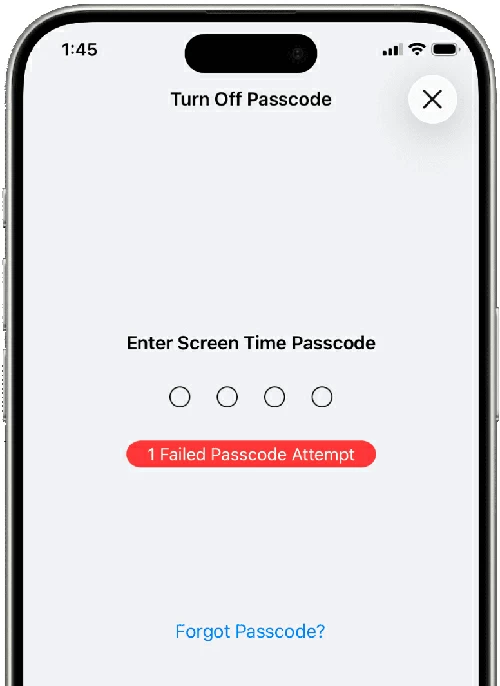
While you are in a Screen Time lockout after 10 wrong passcode guesses, the following occurs:
Simply try again after the waiting period ends. If you truly forget the screen time passcode and keep failing to verify the code for removal, you can resolve the lockout by using the "Forgot Passcode recovery or Appgeeker iPhone Unlocker tool. Both of them can bypass the screen time limit after forgetting the passcode with no factory reset needed.