How to Wipe iPad without Passcode


Don't want Screen Time to record and restrict your iPhone or app usage, or expose private information? This article will tell you how to delete Screen Time history on your iPhone.

By using Appgeeker iPhone Unlocker, you can remove Screen Time limitations without needing a password or Apple ID, allowing you to easily clear Screen Time history on iPhone.
Deleting Screen Time on iPhone actually refers to clearing Screen Time history.
Apple introduced the Screen Time feature to help users understand how they interact with their devices. It tracks app usage duration, how often you pick up your phone, and the number of notifications received throughout the day. However, not everyone wants their iPhone activity to be permanently recorded.
Over time, Screen Time reports accumulate a large amount of usage data, which may become inaccurate and take up storage space. Additionally, some users want to delete their past Screen Time activity history to clear certain private information or to free themselves from the restrictions imposed by Screen Time, letting them use their iPhones without feeling burdened.
In short, deleting Screen Time history on iPhone is not just about removing numbers from reports—many people want to protect their privacy and relieve the anxiety of being monitored. This article will show you how to delete Screen Time on your iPhone, helping you regain full control over your device and app usage.
Table of Contents
Screen Time is a built-in feature of the iPhone, not a standalone app; therefore, it cannot be deleted directly from the iPhone. In most cases, when people say "delete Screen Time," they actually mean deleting or clearing the Screen Time data on the iPhone.
Once you choose to delete the Screen Time history, all activity records will be wiped clean, including usage time for each app, website browsing history, number of pickups, notifications, and more. It is important to note that you cannot delete records for a single app or a specific website; it is an all-or-nothing process. Besides, once this historical data is deleted, it cannot be recovered.
All in all, deleting Screen Time on an iPhone is more like resetting Screen Time, allowing you to start recording your activity from scratch or helping you break free from established Screen Time restrictions.
Starting with iOS 17, the key to displaying all your activity logs and usage time within Screen Time is enabling App & Website Activity. Disabling this feature will delete all previously recorded Screen Time history on your iPhone and prevent iOS from tracking the time you spend in apps and on websites. This means future reports will no longer accumulate or display usage statistics.
For users who want to keep parental controls or device usage restrictions in place but do not want ongoing activity logging, this method offers a more targeted solution.
1. Open the Settings app on your iPhone.
2. Scroll down and tap Screen Time.
3. Locate the Turn Off App & Website Activity option at the bottom and tap on it.
4. Tap Turn Off App & Website Activity again.
5. Or, enter your Screen Time passcode if prompted for verification, then tap Turn Off App & Website Activity.
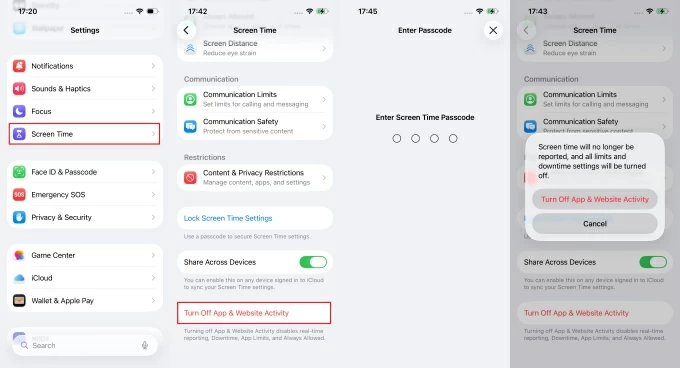
Once this option is disabled, your iPhone will delete all Screen Time data and stop usage tracking. If you turn App & Website Activity back on later, all historical Screen Time data will be completely cleared, and your activity will start being tracked and recorded again from that point.
Tip: If your iPhone is part of a Family Sharing group, you (as the child) cannot delete Screen Time history directly on your device, as these settings are managed by Parental Controls. These actions must be performed on the Family Organizer's device.
As activity logging is a core component of Screen Time, disabling the Screen Time entirely is another way to delete your Screen Time history on an iPhone. When you turn off Screen Time, iOS clears the existing usage database associated with the device. Consequently, all charts displaying daily activity, app usage duration, notification counts, and pickup statistics will be deleted.
However, be aware that this action does more than just clear your Screen Time history; it also removes all previously configured App Limits, Downtime schedules, and Content & Privacy Restrictions.
1. Unlock your iPhone and go to Settings > Screen Time.
2. Scroll to the bottom and tap Turn Off Screen Time.
3. If a Screen Time passcode is set, enter it to proceed.
4. Select Turn Off Screen Time again to confirm.
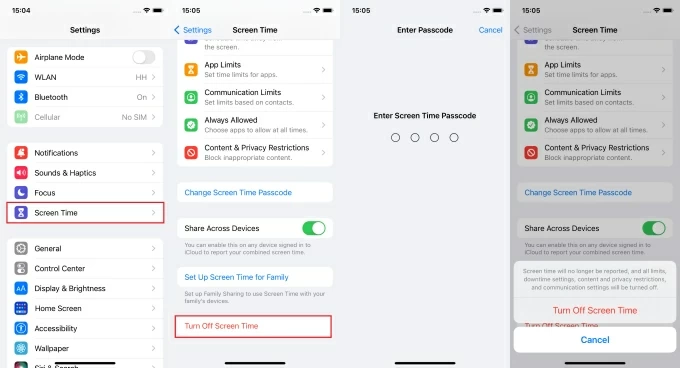
Upon completion, the Screen Time dashboard will be cleared, and all usage records will be deleted. If you still want to report device usage in the future but wish to clear the previous Screen Time statistics, you can simply re-enable the Screen Time—it will start fresh with no prior data.
Note:
Also see: How to erase an iPhone
Many users also find themselves in a situation where they have forgotten their Screen Time passcode. Without this passcode, you cannot delete or clear Screen Time on your iPhone. In this case, you must first reset your Screen Time passcode before you can proceed to remove or disable Screen Time restrictions, a process that requires the Apple account credentials originally used to set up Screen Time.
1. Open the Settings app on your iPhone and tap Screen Time.
2. Select Change Screen Time Passcode.
3. Tap Change Screen Time Passcode again from the pop-up menu.
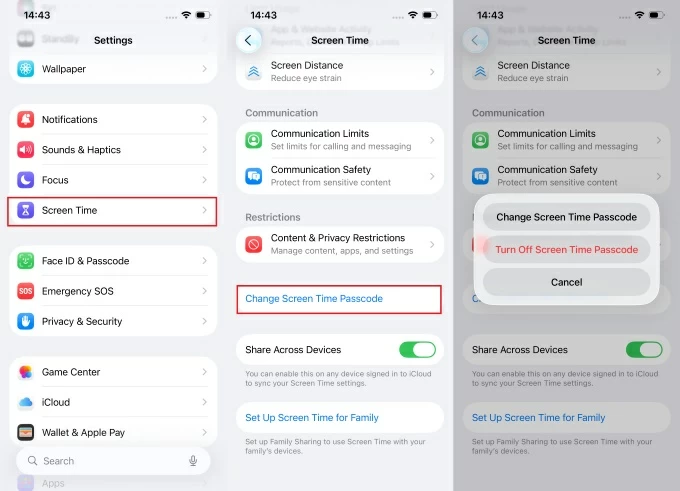
4. Select the Forgot Passcode? option at the bottom of the screen.
5. Enter the Apple ID email address and password associated with the device.
6. Create and verify your new Screen Time passcode.
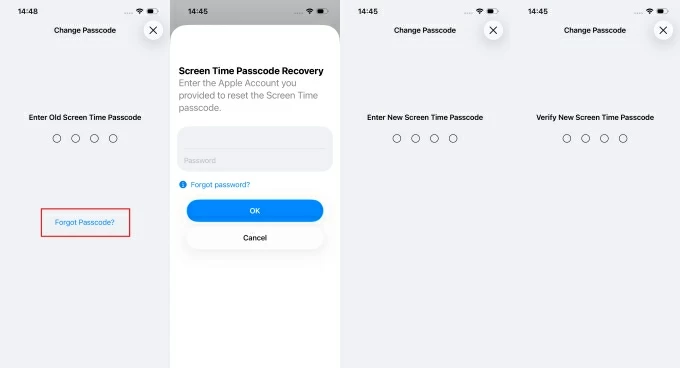
Once you regain access to the Screen Time settings, to clear your Screen Time on the iPhone, simply tap "Turn Off App & Website Activity" (or "Turn Off Screen Time", depending on your iOS version), then enter your updated Screen Time passcode.
The worst-case scenario is when you don't even know the associated Apple account information, or you don't see the Forgot Passcode? option at all because no Apple ID was linked to protect Screen Time during the initial setup. This is where a professional tool like Appgeeker iPhone Unlocker comes into play. It can remove Screen Time from your iPhone without requiring a passcode or the original Apple account credentials.
iPhone Unlocker is designed to bypass device locks and remove certain iOS restrictions, including the Screen Time passcode. With its clear, step-by-step wizard, you simply follow the on-screen instructions to quickly disable the Screen Time passcode on your iPhone to delete your activity history. And the entire process is done without erasing your device's existing data, making it safe and reliable.
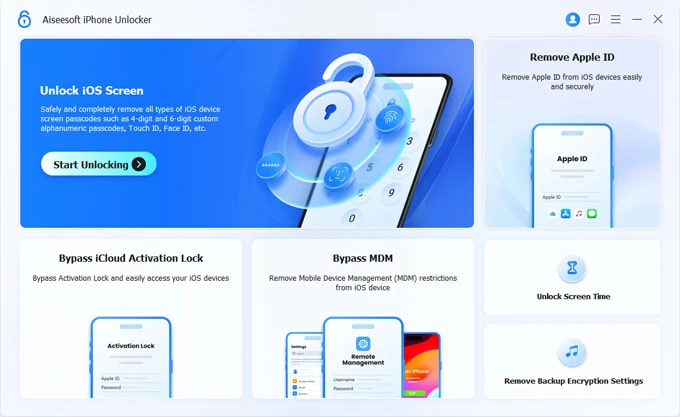
1. Download and launch iPhone Unlocker on your computer. Select the Unlock Screen Time mode and plug your iPhone into computer via a compatible USB cable.
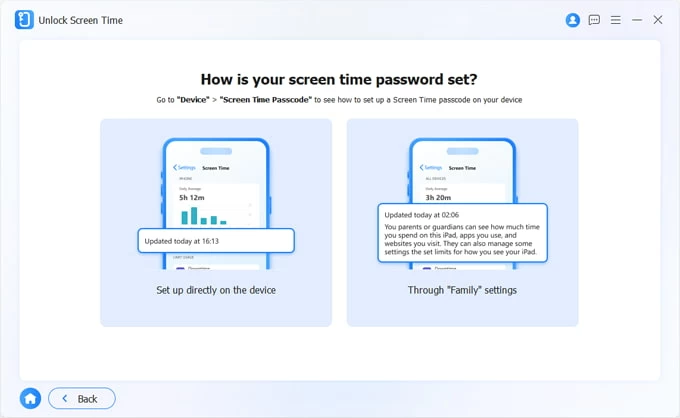
2. If you are the owner of the device, choose Set up directly on the device. If the device is under Family Sharing control, select Through "Family" settings.
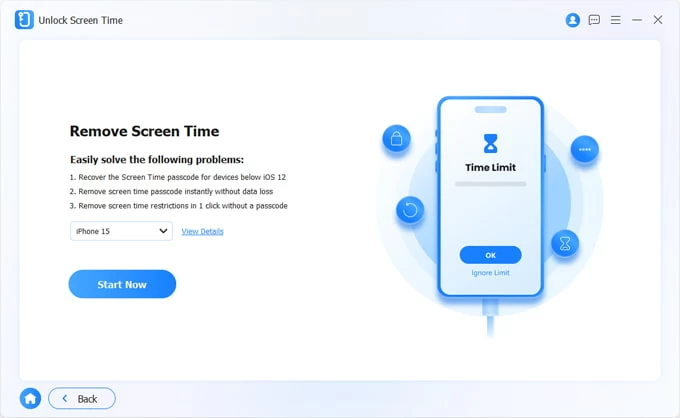
3. Confirm your iPhone model and click Start Now.
4. If Find My iPhone is enabled, navigate to Settings > [Your Name] > Find My > Find My iPhone to turn it off.
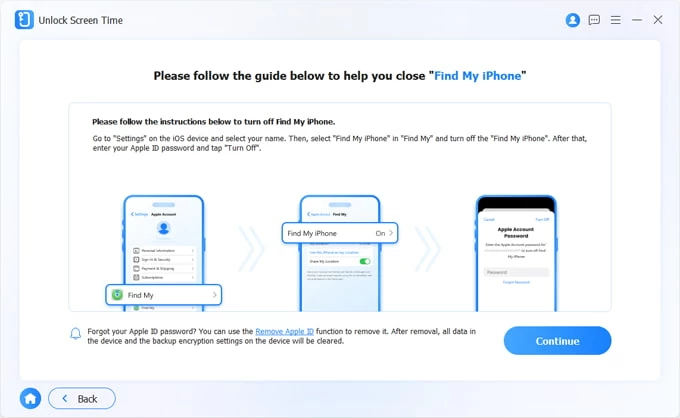
5. When everything is ready, click Continue to begin removing the Screen Time passcode.
After completion, your iPhone will restart. During setup, select "Don't Transfer Apps & Data" to ensure your current data remains safe. You can then clear your historical records by disabling Screen Time without a passcode.
For users who can no longer access Screen Time settings but still want to regain full control of their device, this is a practical solution. It can also help you resolve the Security Lockout issue or fix this Apple ID is not valid or not supported.
Sometimes, even after following every manual method, your Screen Time simply refuses to delete. These persistent data glitches usually stem from deep-seated sync loops or hierarchical management structures rather than simple software bugs.
The most common reason for deletion failure is parental permission issues. If your iPhone is set up with Family Sharing and you are designated as a "Child" account, the deletion must be initiated from the Organizer's device. A parent must navigate to their own Settings > Screen Time > [Your Name] and turn off the feature there. Only then will Apple's servers accept the command to delete Screen Time data from the target iPhone.
Furthermore, when "Share Across Devices" is enabled, your Screen Time data is stored in a dedicated iCloud container. If your iPhone clears its history but your iPad continues to report data to the cloud, the system will detect the discrepancy and restore the old data to your iPhone to maintain consistency. To fix this, you should turn off Share Across Devices on iPhone.
Lastly, if your iPhone was issued by a company or school, it likely contains an MDM profile that restricts your ability to delete Screen Time history. If such a profile exists, it must be removed before you can clear Screen Time—this usually requires administrator credentials or a specialized bypass tool such as Appgeeker iPhone Unlocker.
1. Does turning Screen Time off and on again truly permanently delete all history?
Yes, it permanently wipes the entire history ledger from your iPhone and any synced devices (if you enable "Share Across Devices"). This includes daily and weekly reports, app usage totals, pickup counts, notifications, and trends.
Once cleared, the data cannot be recovered through any standard iOS methods—Apple does not store hidden backups of Screen Time history. After you turn Screen Time back on, tracking starts again from that moment.
2. Can I delete the Screen Time record for just one specific app?
No. Screen Time is an all-or-nothing reporting system. If an app is used, it will be logged. If you wish to use an app without it being tracked, your only option is to disable App & Website Activity entirely, though this will also deactivate all your App Limits and Downtime settings.
3. Will resetting Screen Time affect Family Sharing on my child's device?
It depends on your role. If you are the Family Organizer and reset Screen Time on your own device, only your personal history will be cleared—your child's device remains unaffected. On a supervised child's device, the Organizer's Apple account controls the passcode; Resetting Screen Time will remove the restrictions, but you may need to re-approve the Family Sharing connection afterward.
4. Why does my Screen Time data keep reappearing after I delete it?
This usually happens because "Share Across Devices" is turned on. When active, usage data is synced across multiple Apple devices signed into the same Apple account. If one device still holds the old data, it may "re-infect" your iPhone via the cloud. Disabling this option prevents the merging of cross-device statistics and stops the Screen Time data from coming back.