
How to transfer photos from iPhone to MacBook


Forgot your iPad passcode? Getting locked out of your device can immediately stall your productivity. We're going to walk you through how to get into an iPad that's locked.

No clue on how to get into your locked iPad when you forgot the passcode or the device says iPad Unavailable, Security Lockout after multiple incorrect passcode attempts? Now you can unlock the iPad with Appgeeker iPhone Unlocker easily. Despite the name, it can get rid of all kinds of screen locks for iPads and iPhones, regardless of the models.

If you forgot passcode to your iPad and are locked out, you need to erase all your data and reset the iPad to regain control.
We've become so reliant on our iPad for everyday entertainments and kids study that being unable to get into a locked iPad due to a forgotten passcode is a pretty big deal.
Fortunately, Apple builds robust recovery mechanisms into iPadOS, and third-party developers have created tools to fill in the gaps when official methods feel too restrictive. If you input the wrong passcode too many times, your iPad will display the dreaded "iPad Unavailable" or "Security Lockout" screen.
When this happens, you aren't completely out of luck. To bypass a disabled screen and get into your locked iPad again, here is exactly how to do it.
Since the release of iOS and iPadOS 15.2, Apple has made it much easier to reset and get into a locked iPad directly from the lock screen, provided you know your Apple ID credentials and are connected to the internet. But what happens if your tablet is offline, or if you can't remember your iCloud password either? Depending on your exact situation, you can use built-in system features, a desktop computer running iTunes, or specialized utility software to unlock your screen.
Be warned: Except for a very narrow exception involving recent passcode changes on iPadOS 17 or later, getting into a locked iPad will erase all data and settings on the device. If you have a recent iCloud or desktop backup, you can restore your files easily. If not, this process will return your iPad to its factory defaults.
Newer iPad models with iPadOS 15.2 or later have a much easier route to get into a locked iPad without passcode by resetting the device directly from the lock screen through your Apple Account and password. Once it verifies your iCloud identity, you're able to wipe your locked iPad without a computer.
Note that this method only works if your iPad has an active Wi-Fi or cellular connection.
Here's how to get into a locked iPad through the reset feature on the screen:
Step 1. If you don't see the screen read "iPad Unavailable" or "Security Lockout," keep entering your passcode 5 times in a row. Continue entering incorrect passcodes until an option appears at the bottom of the screen. On older iterations of iPadOS 15, this button says "Erase iPad." On iPadOS 17 and later, it typically reads "Forgot Passcode?."
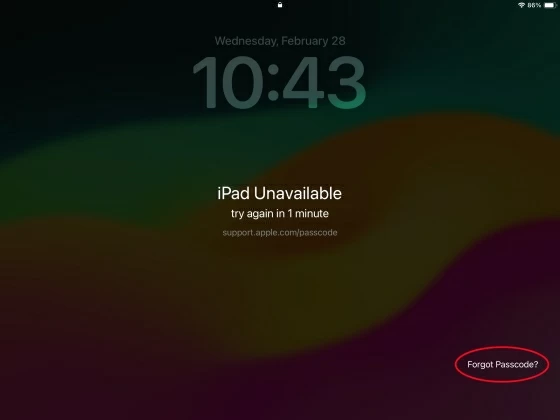
Step 2. Tap the "Forgot Passcode?" or "Erase iPad" option in the bottom corner of the screen.
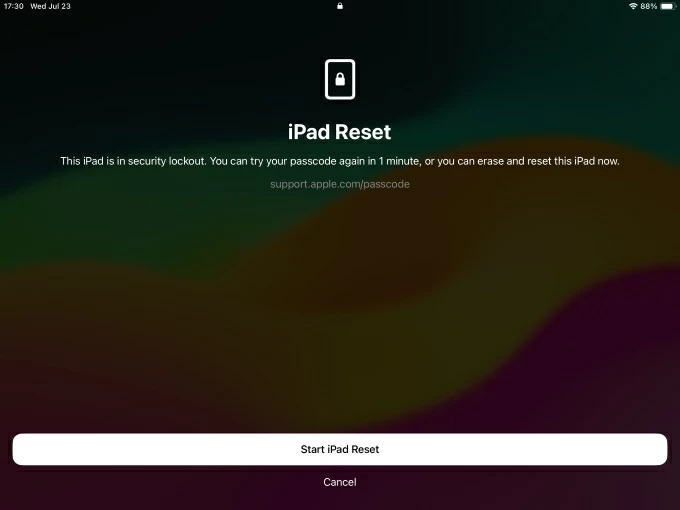
Step 3. In the Security Lockout screen that opens, it will warn you that a reset will delete all data. Tap "Start iPad Reset" to proceed.
Step 4. The iPad will prompt you to enter the Apple ID password associated with the account on the tablet. This security layer ensures that a thief cannot easily wipe and repurpose a stolen device.
Step 5. Once you enter the password, the screen will go dark, and an Apple logo with a progress bar will appear. Wait until it to completes the reset process.
After the reset process is finished, you can get into your iPad without locks. When it restarts with the standard "Hello setup screen, configure it as new or restore your data from an iCloud backup.
Related: iMessages not showing up in iPhone
If you recently changed your passcode and forgot the new one, Apple introduced a feature in iPadOS 17 called "Passcode Reset" that gives you a 72-hour grace period to use your old passcode to get back into your locked iPad without wiping your data.
1. When locked out, tap the "Forgot Passcode?" option at the bottom of the screen.
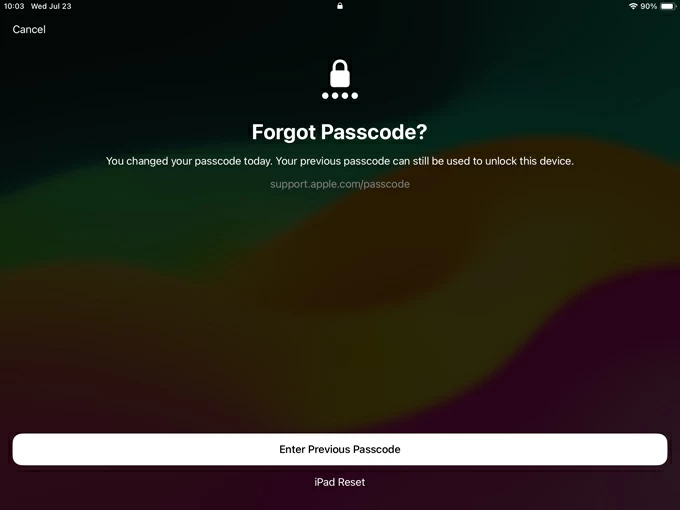
2. If you are within 72 hours of a passcode modification, you will see an option labeled "Enter Previous Passcode." Tap it. If you don't have this option, you must select "iPad Reset" there instead to perform a factory reset.

3. Type in the old passcode that you used before the recent change.
4. The iPad will temporarily unlock and immediately prompt you to create a brand-new passcode.
If your iPad is completely offline, doesn't show the "Forgot Passcode?" option, or if you don't know your Apple ID password, you will want to force the tablet into Recovery Mode using a desktop computer. Doing so will wipe your iPad clean and remove the lock screen, allowing you to set it up and set a new passcode.
Here's how to use a Mac or PC to get and reset a locked iPad to regain access.
1. Turn the iPad off using the buttons
If your iPad comes with Face ID, press and hold the Top button and either Volume button until the power off slider appears; if you have an older iPad with Home button, press and hold the Top button for a while.
Drag the slider all the way to the right to power off your iPad.
2. Boot into recovery mode while connecting
For iPad with Face ID: quickly press and release the Volume Up button, press and release the Volume Down button, and then hold the Top button until you see screen showing a computer cable pointing toward a laptop or an iTunes icon..
For iPad with a Home button: press and hold both the Home button and the Top button for a few seconds until the Recovery Mode screen appears.
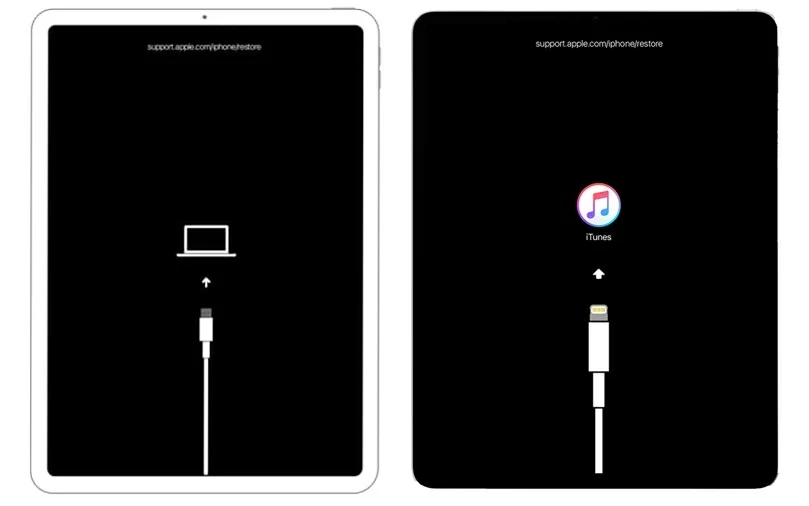
3. Locate your locked iPad
On your Mac, your iPad will show up under Locations in the sidebar of the Finder window. Click on it to select it.
On your PC, you'll have to open iTunes in order to connect your iPad. Click on the iPad icon in the upper-left corner of the iTunes window.
4. Select Restore option
After selecting your iPad on your computer, you need to click on the Restore option when a pop-up asks how you want to get rid of the locked iPad.
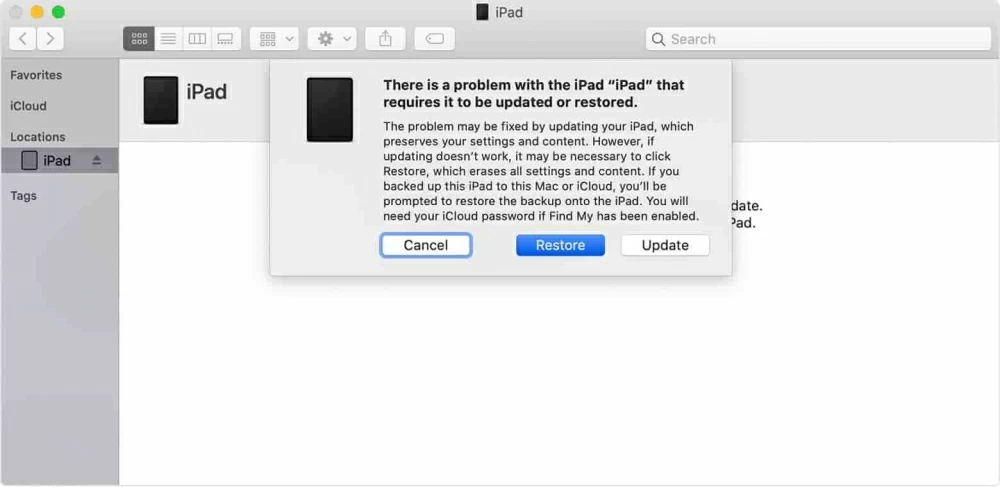
5. Restore the locked iPad to get in
iTunes or Finder will download the latest iPadOS firmware package for your tablet. Once the firmware install finishes, the computer will wipe the lock screen passcode and load a fresh operating system copy onto the iPad. This results all of your data, apps, and settings getting wiped.
You may also transfer photos from PC back to iPad if you have them locally.
If iTunes persistently throws mysterious error codes (like Error 4013) that stop the restore process in its tracks, you may consider using a dedicated program to bypass iOS and iPadOS lock barriers,
One of the great is Appgeeker iPhone Unlocker (iKnockin). Despite the name, it can often handle the screen unlocking job more reliably on iPads and iPhones. No matter you forgot the lock screen passcode, the Touch ID or Face ID doesn't work, or you don't remember the Apple ID associate with the device, the program has get you all covered.
The other features of the program include the abilities to bypass Screen Time password, remove MDM, as well as get rid of backup encryption settings.
Download and install the program on your computer, and then connect your locked iPad. Note, the same results apply to this method as above — This process erases your data and settings, including your passcode.
If you're ready, follow the steps below to learn how to use this iPad unlocking software to get into an iPad when you're locked.
1. Launch Appgeeker iPhone Unlocker, and select "Unlock iOS Screen" from the main interface.
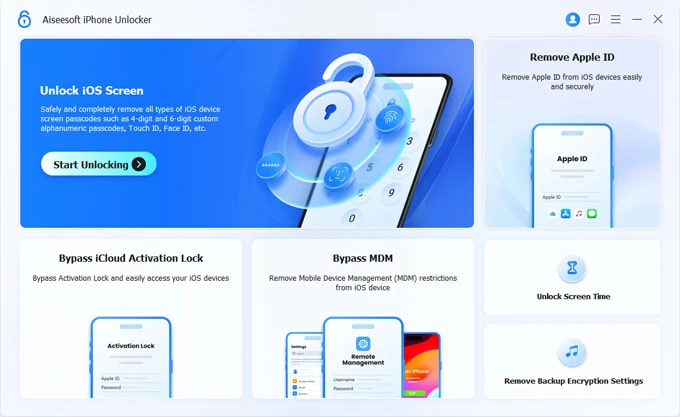
Your tablet should be detected automatically. If not, follow the steps on the screen to get the iPad into recovery mode.
2. Check your iPad model. In the most cases, you won't do anything here.
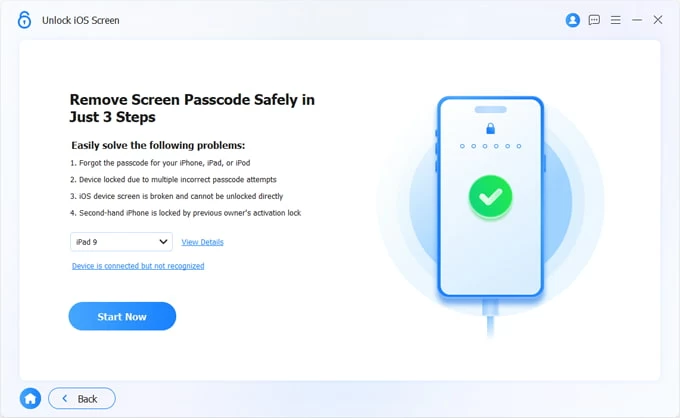
3. Press the "Start Now" button to begin download the appropriate firmware for your model. It often utilizes optimized download pipelines that can pull the massive multi-gigabyte files faster than iTunes.
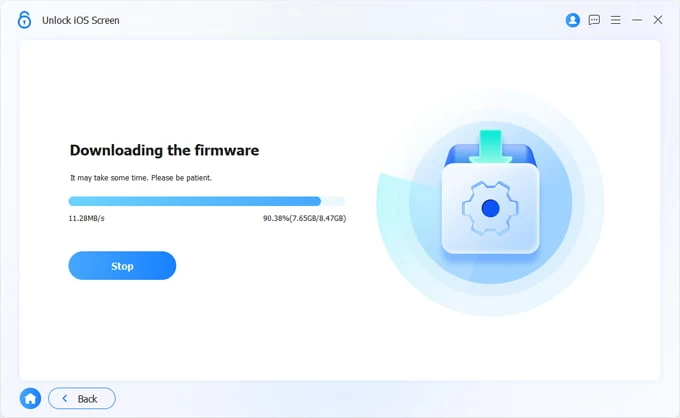
After the firmware is downloaded, click "Start Removing" button. Click "OK" button to confirm to initial the unlocking process.
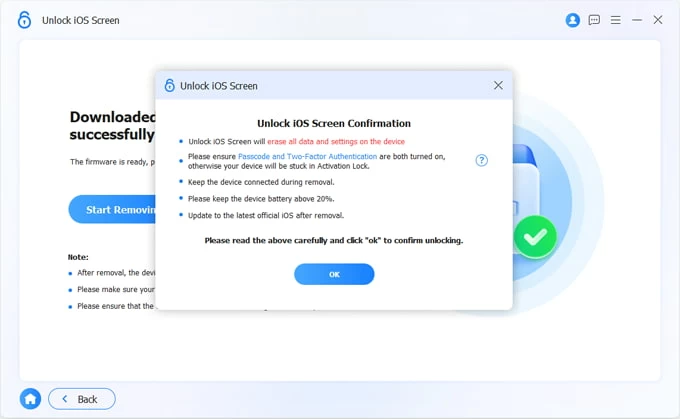
Keep the device securely plugged in until the desktop app shows a confirmation screen stating that the process is complete.
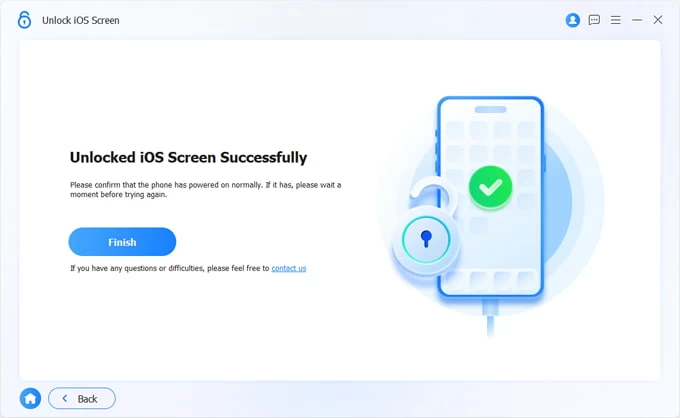
After completion, you may set the iPad up again as you did the first time you got it, and restore an iTunes or iCloud backup to recover your data.
Also see: How to factory reset locked iPhone.
Actually, iCloud Find My does the exact same thing as that of "Forgot Passcode?" feature, just remotely. No matter what version of iPadOS your device has, what error message on the screen - Disabled, Unavailable, or Security Lockout, you can sign into iCloud website and remotely reset your iPad that's locked to factory settings, giving you chance to set up your iPad again.
To get into iPad when locked, ensure the Find My has been turned on, which it is by default in Settings > [Your name] > Find My > Find My iPad.
1. Visit iCloud Find My page from your computer browser. If you haven't signed in, enter your Apple ID and password.
2. Select your iPad that has been locked due to multiple failed passcode entries or you forget the passcode from the "All Devices" list.
You can see a map with all your other registered devices (iPhone, AirPods, Apple Watch, etc.) automatically displayed.
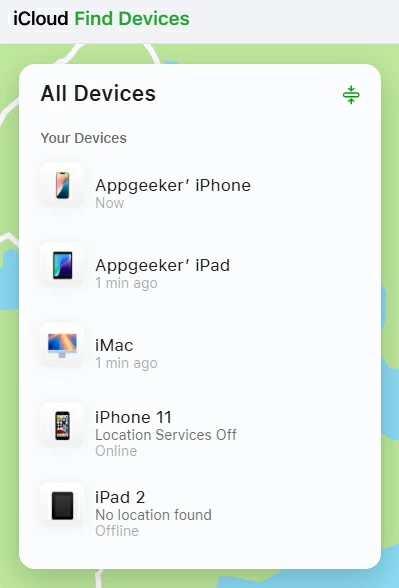
3. In the iPad's menu that newly appears, click "Erase This Device."
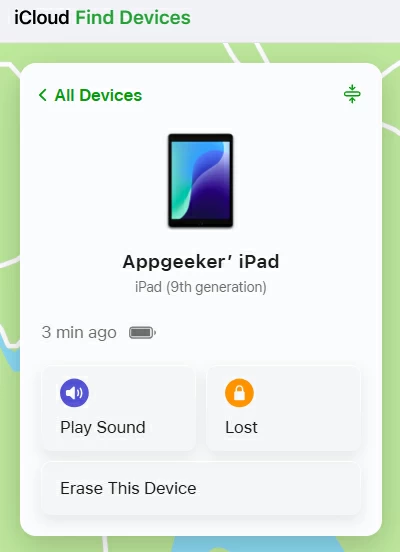
4. Enter your Apple ID password to confirm your iCloud identity.
5. Click "Next" to begin restoring the locked iPad to its factory state. You will lose any data that you haven't recently backed up.
You can also erase your iPad if it's locked using the Find My app on another Apple device.
It's a similar story to that of unlocking Samsung phone forgotten password, but just using Google Find My feature.
Being Locked out of an iPad and experiencing a necessary factory reset process is not a good feeling, especially if you have a lot precious photos and files on the tablet. To avoid the disaster in the future, you may do the following things:
1. Disable the screen lock feature if you just use the iPad at home. It's not recommended as it compromise the security.
2. Write your passcode to a paper and put it in a safe place.
3. Turn on iCloud Backup in your iPad to make regular backup of your data.
Hopefully, you're no longer struggling over the "how get into an iPad when locked without passcode" question. The fixes described above should help you solve the problem. If nothing helps though, you might need to bring your locked iPad to the nearest Apple store for help.
Getting locked out of an iPad is incredibly inconvenient, but it is rarely terminal for the hardware. If you run a modern operating system version and keep an active cloud connection, you can clear the barrier right from your couch and eventually get into the locked iPad. For trickier scenarios involving bad internet connections or broken hardware buttons, turning to a computer with iTunes or a dedicated third-party unlock tool like Appgeeker iPhone Unlocker provides a dependable backup strategy.