
How to transfer music from iPhone to iPad, or vice versa


Discover wired and wireless ways to transfer data from one iPhone to another, whether during initial setup or after setup, with options for full migration or selective file transfer.

For post-setup transfers without data loss, Appgeeker iPhone Data Transfer offers a practical solution that enables you to move data from one iPhone to another without resetting. It supports various data types, including photos, music, videos, contacts, messages, and more.
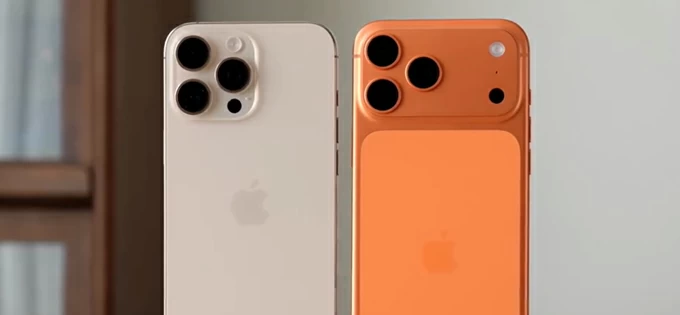
Explore both wired and wireless methods for data transfer from iPhone to iPhone, whether during or after setup.
Apple introduces a new generation of iPhone every year, and many users decide to upgrade. Whether you're moving to the latest model or simply switching devices, you may want to transfer your data from iPhone to iPhone safely. This ensures your digital content remains intact on the new device, including apps, photos, messages, contacts, and other personal data and settings.
This guide explores how to transfer data from iPhone to iPhone efficiently, and walks you through the most reliable methods step by step, including both cable-based and wireless options. Whether you're setting up a brand-new device, or transferring data from one iPhone to another after setup, this guide covers practical options that make the process straightforward and secure.
Table of Contents
When transferring data from one iPhone to another, the right method depends on whether you prefer a wired or wireless approach, need to move everything or only selected content, and whether the target device has already been set up.
Apple's official tools Quick Start and iCloud Restore are designed to work during the initial setup of a new or newly-reset iPhone, which helps you transfer all data before using the new device.
If the target device has already been in use and you don't want to perform a factory reset, there are still options that allow you to transfer data between iPhones after setup, offering better flexibility to move specific data without erasing anything that already exists on the target device.
For full iPhone-to-iPhone transfer, Quick Start enables you to migrate all data and settings wirelessly during the initial setup. Alternatively, you can create a full backup of your current iPhone with iCloud or a computer via iTunes / Finder, then restore that backup to the new iPhone.
Before you transfer: Reset the target iPhone if necessary
Whether you use Quick Start or restore from an iCloud or computer backup, the target iPhone should be in initial setup state. If it's already set up, a factory reset is required before proceeding.
To make a full data transfer from one iPhone to another, Quick Start is the most efficient built-in option. As the name suggests, it allows you to quickly set up a new or newly reset iPhone using your current iPhone, with no need for backups or restores.
Quick Start performs a complete device migration, transferring your app data, settings, Apple ID configuration, media libraries, messages, contacts, and other personal information to the target iPhone. The result is a near-identical replica of your previous device. Below is how to transfer everything from iPhone to iPhone wirelessly via Quick Start:
1. Connect your current iPhone to an active Wi-Fi network and place it close to the new iPhone.
2. Turn on the new iPhone and follow the initial setup steps until a Set Up New iPhone prompt appears on the source device.
3. On the source iPhone, tap Continue and verify its current passcode to proceed.
4. Use source iPhone's camera to scan the animation that shows up on the new iPhone.
5. Tap Set Up for Me on the old iPhone and enter your current passcode on the new device.
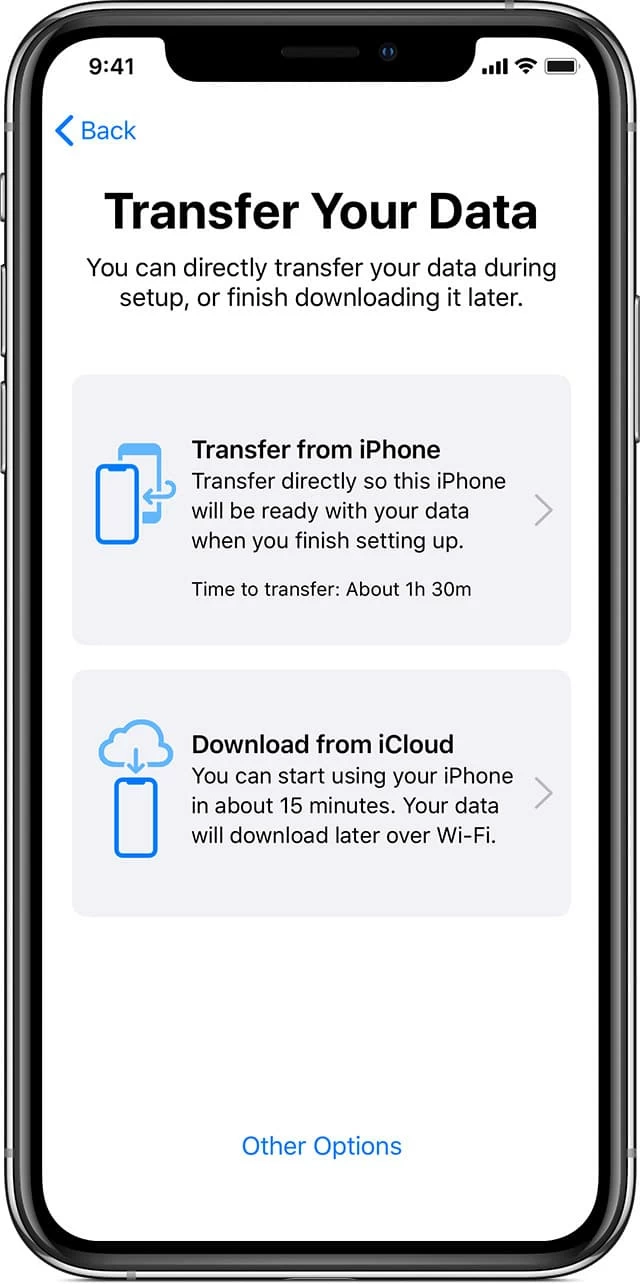
6. When the devices pair successfully, go through the onscreen prompts until you reach the Transfer Your Data screen with Download from iCloud and Transfer from iPhone options.
7. Select Transfer from iPhone and complete the setup process. All data from the source iPhone will be transferred to your new iPhone and stay intact.
Another wireless method to transfer data from one iPhone to another is through iCloud. This option is convenient as long as you have sufficient iCloud storage (Apple provides 5 GB of free storage by default) and a stable Wi-Fi connection.
In fact, iCloud doesn't transfer data between iPhones directly. Instead, it creates a full backup of your current iPhone in the cloud. During the setup of a new or newly reset iPhone, you can restore from that iCloud backup to transfer all previous iPhone data and settings.
Step 1. Back up your current iPhone to iCloud.
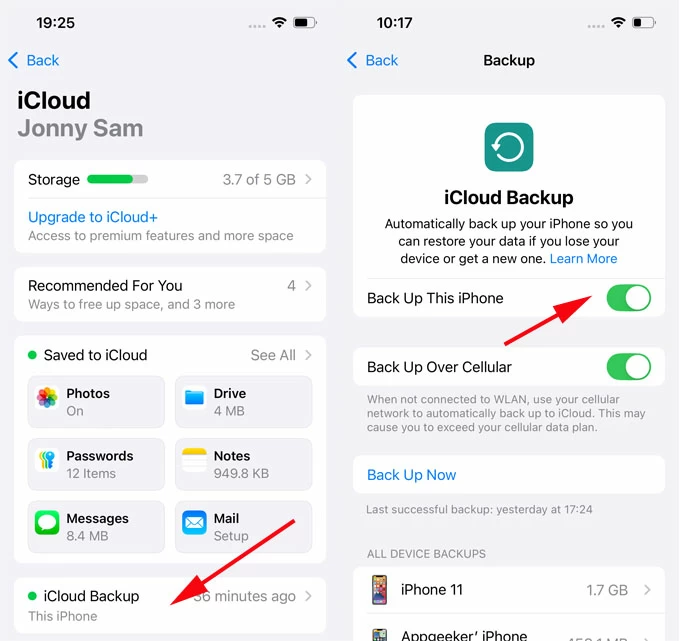
Step 2. Restore the iCloud backup onto the new iPhone during setup.
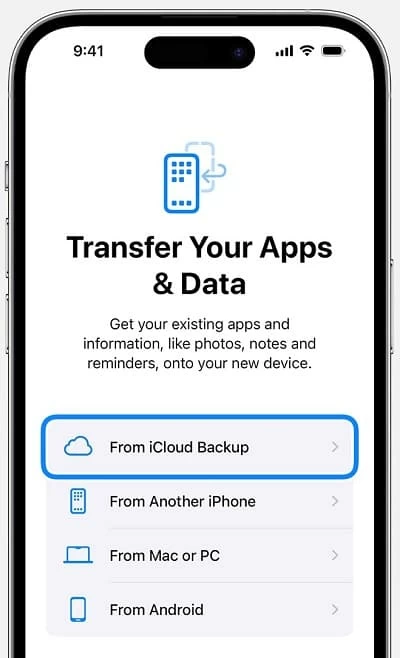
Without needing a USB cable, iCloud will download all previously backed-up data to your new iPhone. It may take much time, depending on the backup size and your network speed.
Similar to restoring from an iCloud backup, a computer-based backup with iTunes/Finder allows you to create a full copy of one iPhone and restore everything to another iPhone. Instead of using the cloud, this method stores the backup on computer and transfers data via a cable connection.
Simply follow the steps below to transfer data from your current iPhone to another iPhone with a computer using iTunes or Finder, no need for iCloud.
1. Open iTunes or Finder on your computer, depending on your operating system:
2. Connect the source iPhone using a USB cable. If asked, allow it to trust this computer.
3. Click the phone icon in the top-left corner of iTunes window. In Finder, select your phone under Locations on the right-side menu.
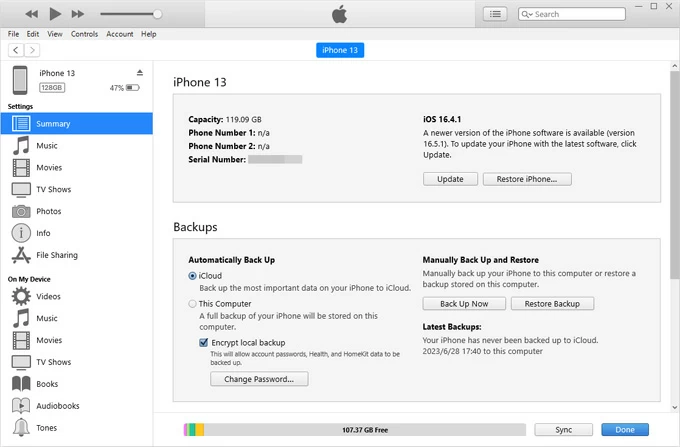
4. Locate Summary > Backups, check This Computer option.
5. Click Back Up Now button to create an updated backup of your current iPhone data.
6. Disconnect the device when the backup is complete.
7. Turn on the target iPhone and follow the onscreen prompts to set it up from the initial screen.
8. When you see the Transfer Your Apps & Data screen, select From Mac or PC.
9. Link the target iPhone to your computer and choose Restore Backup to go on.
Do not unplug the device until the restore process is complete. After that, all data on your previous iPhone will be transferred to the new iPhone.
Instead of performing a full iPhone migration during initial setup, you may prefer to transfer specific data types or individual files, particularly when the target iPhone has already been set up or contains existing data. Thankfully, several methods allow you to transfer iPhone data to another without a reset, offering greater flexibility and control.
iPhone-to-iPhone data transfer becomes straightforward with Appgeeker iPhone Data Transfer, even after setup. Unlike methods that require erasing and resetting, it allows you to transfer data from one iPhone to another while preserving all data that's already stored on the target device.
This tool supports the transfers of multiple data types, including photos, videos, music, contacts, messages, and more, making the process more flexible and efficient. Whether you prefer to move your data all at once or selectively, it provides a practical solution for safe data transfer between iPhones without data loss.
It's compatible with all iOS models and versions. The click-through process below will show you how to transfer data from iPhone to iPhone after setup, without resetting or using iCloud / iTunes.
Step 1. Install and open Appgeeker iPhone Data Transfer on your computer. It works on both macOS and Windows system.
Step 2. Connect the source and target iPhones using proper USB cables. If prompted, tap Trust on both devices to allow data transfer.

Step 3. Choose the source iPhone from the drop-down box at the top.
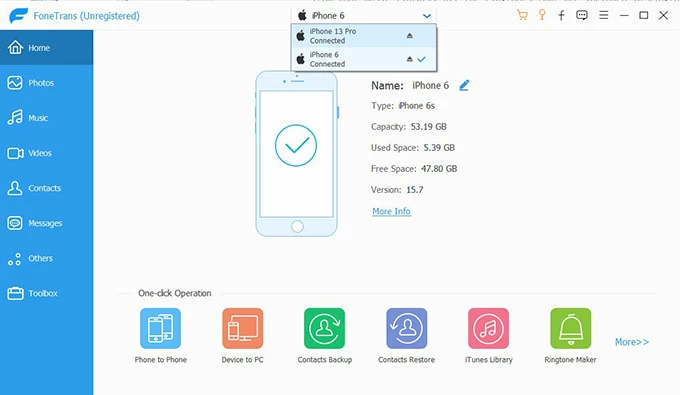
Step 4. In the left sidebar, select data categories that you want to transfer from one iPhone to another. The options include Photos, Music, Videos, Contacts, Messages, and Others.
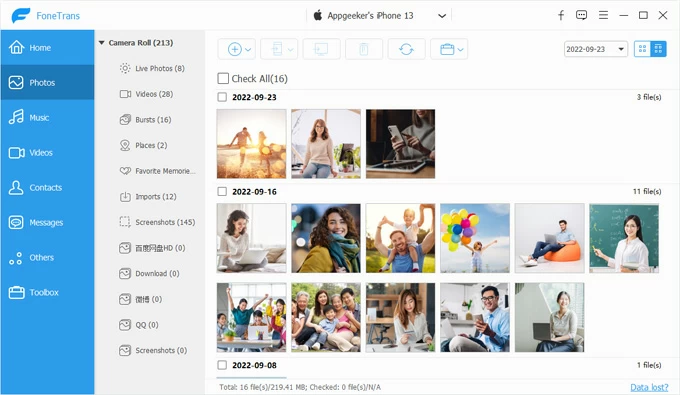
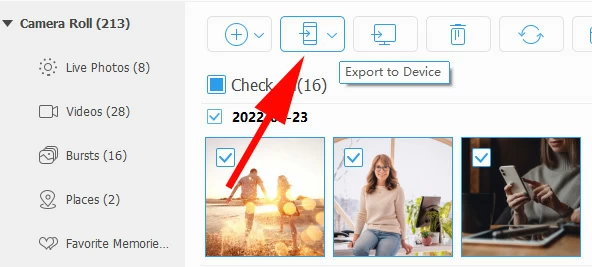
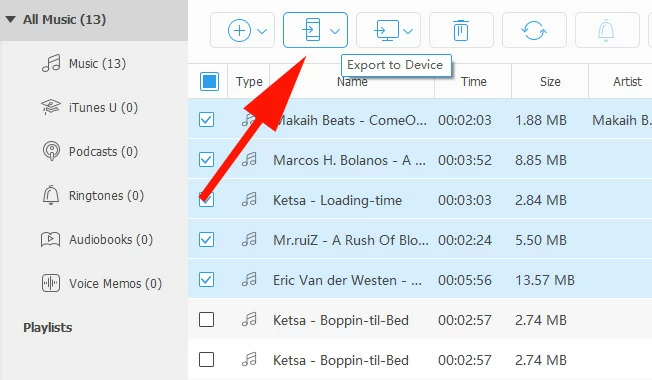
If you select Photos, choose the individual pictures you want or simply select Check All, then click Export to Device (a phone icon) in the top toolbar. Target the other iPhone, and that's it!
Likewise, you can select Music tab, choose your desired tracks, hit the Export to Device icon, and select the target device to transfer music from iPhone to iPhone.
Advanced one-click data transfer from iPhone to iPhone
Additionally, this tool also offers a quick shortcut for transferring all data from one iPhone to another setup iPhone without resetting, working for photos, music, videos, contacts, messages, and more.

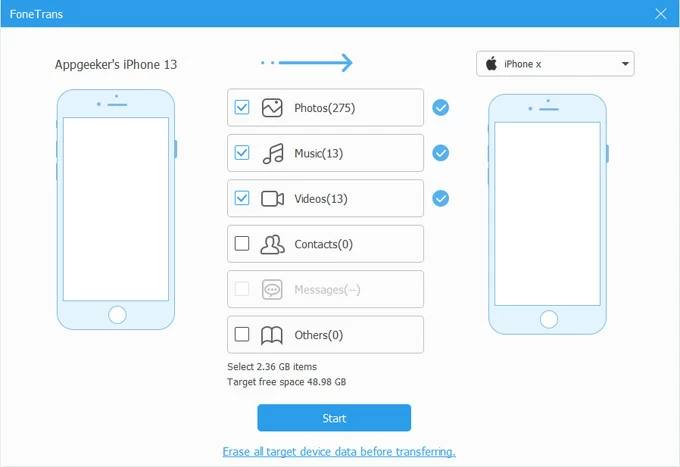
This allows you to complete the transfer while preserving all existing data already on the destination iPhone. No data loss occurs.
Beyond full-device backups, iCloud also supports app-specific data syncing between iPhones. When both devices are signed in with the same Apple Account and have the relevant sync options enabled, the data saved on one iPhone will automatically transfer to the other over the internet.
This real-time data syncing applies to supported data types such as photos, messages, contacts, files, notes, mails, etc. Instead of performing a one-time transfer, iCloud keeps your app data updated across devices. Steps to transfer iPhone data to another iPhone wirelessly with iCloud:
1. On both source and target iPhones, open Settings and tap your Apple Account. Ensure the devices are signed in with the same account.
2. Tap iCloud and tap See All (or Show All) next to Save to iCloud option.
3. In the opening list of all supported apps, select individual app that you prefer to sync data across your iPhones.
4. On the app screen, turn on the toggle next to Sync this iPhone option.
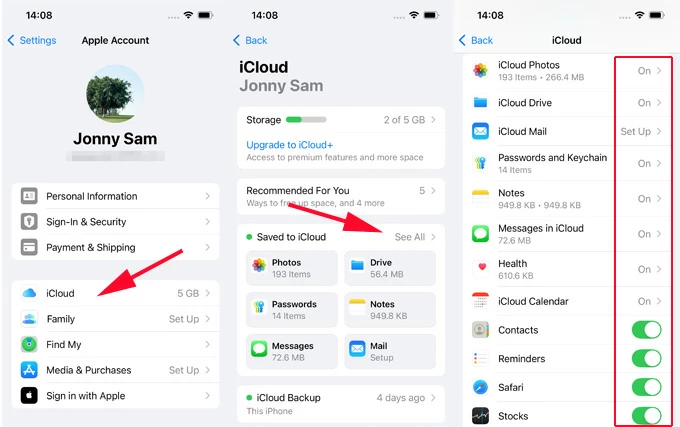
Once done, open the app(s) on the target iPhone; all synced data should appear gradually. If anything goes wrong, explore what to do if the text messages are not showing up on iPhone.
Note: The more content you sync, the more iCloud storage is required. If your data exceeds the limit of the free 5GB, you may upgrade to iCloud + for additional storage capacity.
Built into the Apple ecosystem, AirDrop offers a quick and convenient way to wirelessly transfer a small amount of data from iPhone to iPhone. It's particularly useful for sharing photos, videos, contacts, and other relatively small files.
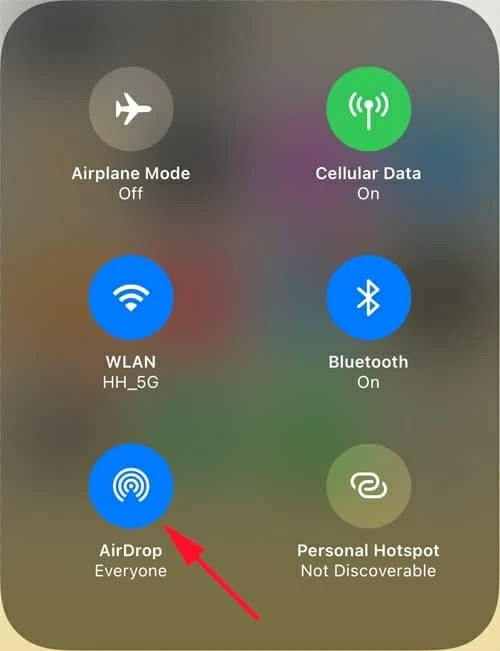
To use AirDrop for iPhone-to-iPhone data transfer, simply place the devices near each other, enable Wi-Fi and Bluetooth, and select the files you want to share, no cables required.
1. Enable AirDrop on both iPhones.
2. Transfer data from the source iPhone to the target one.
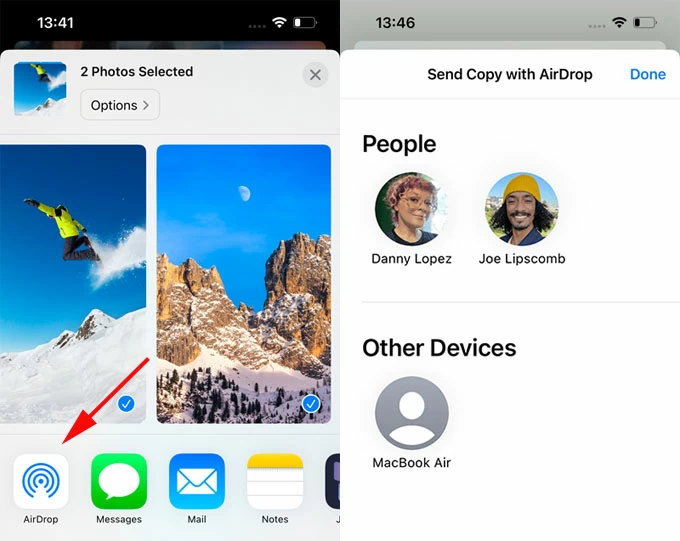
3. Accept the transferred data on the target iPhone.
Q1 - How can I transfer everything from my old iPhone to my new iPhone?
For a complete data migration to a new iPhone, Apple provides several official methods to move your apps, settings, photos, messages, contacts, and more.
Q2 - Does Quick Start work if my iPhone is already set up?
No. Quick Start is only available during the initial setup of a brand-new or newly erased iPhone. If the device has already been in use, you cannot reach the Quick Start option.
To use it, you can either perform a factory reset to return the iPhone to the setup screen, or consider alternative methods that support iPhone data transfer after setup, such as iCloud syncing, AirDrop, or third-party transfer tools.
Q3 - How do I transfer data to a new iPhone after setup?
If the new iPhone has already been set up, Apple's full-migration methods, such as Quick Start or iCloud Restore, require you to erase the device and return it to the setup screen before proceeding.
If you prefer not to perform a factory reset, here are some alternative solutions that allow selective transfers while preserving the existing content on the destination iPhone:
Q4 - If I skipped the transfer option during setup, how can I transfer my iPhone data without resetting?
If you skipped the Quick Start or restore-from-backup option during initial setup, you still have the option to transfer data without resetting the target iPhone.
You may enable automatic data syncing in iCloud for supported apps, or rely on 3rd-party transfer tools that can move data between iPhones selectively without needing a reset.




