iPhone Unavailable No Timer. The Fix


No cloud backup available? Discover the best ways of how to transfer WhatsApp messages to a new phone without Google Drive or iCloud backup.

You've finally upgraded to a new phone. You're excited—but you quickly feel stressful when you realize your WhatsApp messages weren't backed up. No Google Drive backup. No iCloud backup. Just years of chats, photos, videos, voice and memories seemingly stuck on your old device.
If this sounds familiar, you're not alone. Millions of users switch phones every year without realizing their WhatsApp data isn't backed up. Whether you disable automatic backups to save storage, forget to back up manually, or discover too late that the last backup is outdated, the good news is that the way of transferring WhatsApp chats has changed - you do not need a backup to move your entire WhatsApp history from your old phone to your new one.
In this guide, we explain all practical, safe, and proven ways to transfer your WhatsApp data to a new phone without backup. Whether you're switching from Android to Android, iPhone to iPhone, iPhone to Android, or Android to iPhone, you'll find a suitable tool for WhatsApp transfer even with no backup available.

Even when no cloud backup exists, it's still possible to export your WhatsApp chats to your new phone seamlessly.
Appgeeker WhatsApp Transfer is an all-in-one tool that comes in handy and streamlines WhatsApp chat transfer process to migrate all WhatsApp messages and other data to a new phone without needing a backup. All device transfers are supported.
Table of Contents
For years, Google Drive or iCloud was the gold standard for WhatsApp transfers to the same operating system by backing up data to the cloud server and restoring it to another phone. However, several shifts in the tech landscape have made "no-backup" local transfers the preferred choice of migrating chats, media library, account information, documents and more. Modern WhatsApp migrators bypass the backup and cloud storage limits entirely just to copy your data over.
Here's why transferring WhatsApp without backup is possible:
1- WhatsApp now supports direct device-to-device transfers
WhatsApp's official Chat Transfer feature allow you to move chats using a cable or QR code from Android to another iPhone or from iPhone to another iPhone — no cloud backup required.
2- Android and iOS both support local data migration
Tools like Move to iOS, Google's Switch to Android or Samsung Smart Switch can copy WhatsApp data directly to the new phone without relying on a backup. Usually, the transfer happens during the initial setup.
3- Third-party WhatsApp transfer software can move full chat history and media without backup
These tools are safe to use, and can access WhatsApp's encrypted local files, letting you import and rebuild your chat history without any backups onto the new phone.
With that in mind, you don't have to worry about how to transfer WhatsApp chat history to a new phone without a backup. Below are all reliable approaches to get your chats (individual & group), photos, videos, voice messages, account info, profile photo, documents and settings in WhatsApp moved over to a different device without using Google Drive or iCloud backup.
The native WhatsApp Chat Transfer feature is designed specifically for the scenario where you want to gets past the cloud backup or even "Storage Full" errors. It uses the QR-code-based transferring technique to migrate the WhatsApp data between phones if they are physically present and close to each other.
In case you're switching phones and staying in the same iOS or Android system, follow these steps to use the Chat Transfer feature and kick off a direct transfer of WhatsApp messages without uploading to Google Drive or iCloud.
The requirements:
The step-by-step guide:
Step 1. Locate Transfer Chats option on old phone
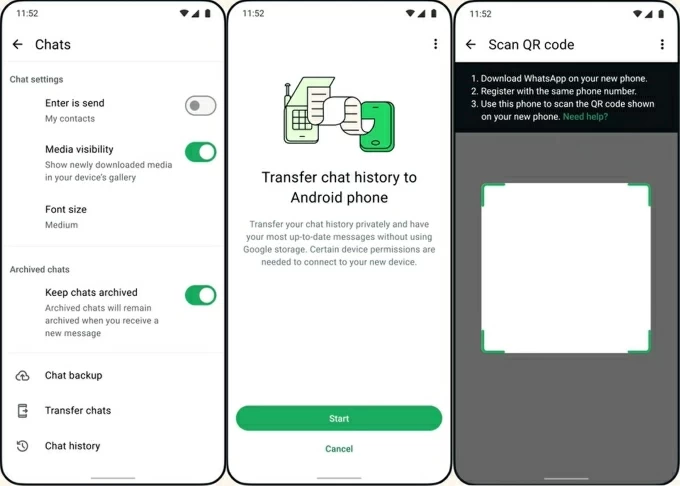
In WhatsApp, go to More Options > Settings > Chats > Transfer chats > Start, then accept requested permissions. Your phone will now open a camera scanner to scan a QR code on your new phone.
Step 2. The new phone setup for importing WhatsApp
Note that your new phone must not be registered on WhatsApp. If you did, uninstall WhatsApp and reinstall it.
Step 3. Begin the QR code WhatsApp data transfer new phone without backup
With the iOS WhatsApp Chat Transfer, you no longer need to rely on the iCloud backup & restore or pay for an iCloud+ subscription just for a one-time move. Here's the way you can take to make a seamless, 1:1 transition of your chats from one iPhone to your new one - no backup and zero data loss.
The requirements:
The step-by-step guide:
Step 1. On your old phone, open WhatsApp, go to Settings > Chats, tap on Transfer Chats to iPhone, and then tap Start. You will see a camera interface open, ready to scan a QR code.
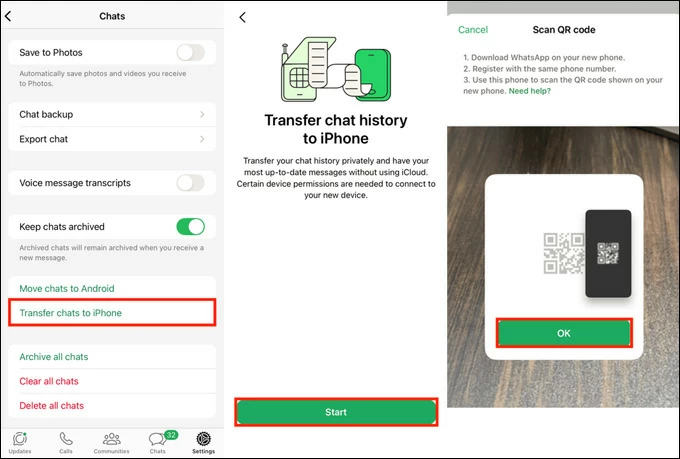
Step 2. Configure WhatsApp on the new phone for the transfer
Step 3. Scan the QR code and initiate the migration
Your old chats will now populate your inbox!
WhatsApp direct Chat Transfer is the gold standard to switch between Android phones or between iPhones. Your WhatsApp messages could move directly to the new phone without cloud backup transfers.
Pros:
Cons:
For users moving between Android and iPhone, or those who want a stable process, WhatsApp migration tools are the most reliable solution, and Appgeeker WhatsApp Transfer stands out among them.
The software is known for its cross-platform WhatsApp transfer to a new phone without the need of a backup. Whether you upgrading from Android to Android, iPhone to iPhone, iPhone to Android or Android to iPhone, it's quick and easy to copy your years of WhatsApp memories straight to another device hassle-free, preserving the original quality and structure of all files upon migration: chat messages, media files, audio files, documents, account profile and other info, and more.
Plus, the tool is excellent if you've already set up your new phone and don't want to factory reset it. It can merge WhatsApp data rather than just overwriting it. You're even allowed to transfer the WhatsApp to a new phone number.
With the user-friendly interface along with the clear instructions, transferring WhatsApp chat to a new phone without backups is a simple matter of connect both phones to the computer via data cable, and the program read WhatsApp data directly from the old device and transfer it to the new phone smoothly.
If you wondering how to move WhatsApp messages to a new device after setup without backup or without factory reset using Appgeeker WhatsApp Transfer, follow the guide below for Android-to-Android switch. For any other transferring journey like from Android to iPhone, iPhone to Android, or iPhone to iPhone, check out our guide.
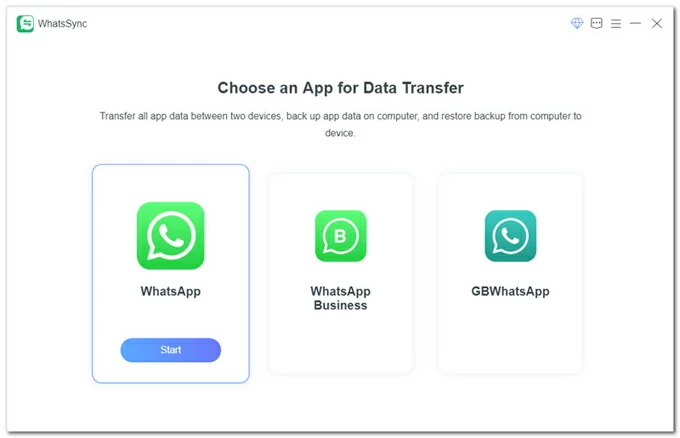
Step 1. Launch the software on your Windows computer, then choose WhatsApp.
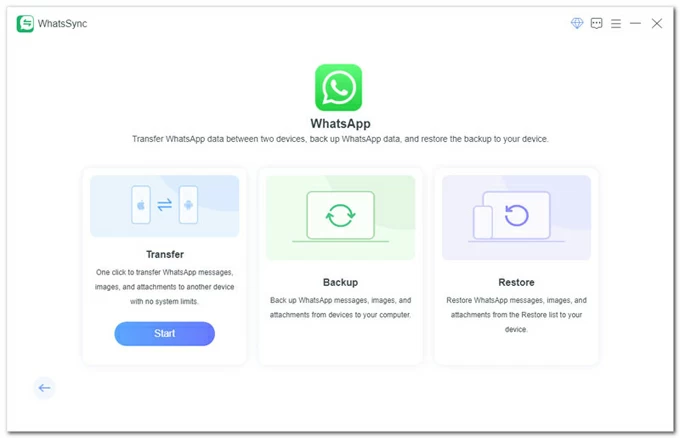
Step 2. Then, click on the Transfer mode for WhatsApp data import without backup.
Step 3. Use two data cables to connect both your phones to the computer.
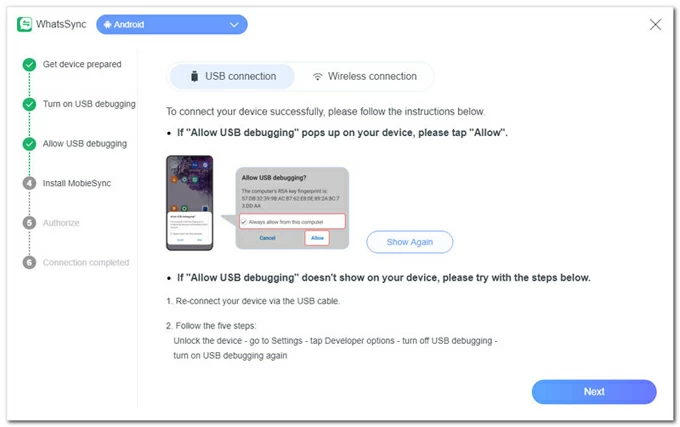
On the source Android phone, tap "Allow" to enable USB debugging mode.
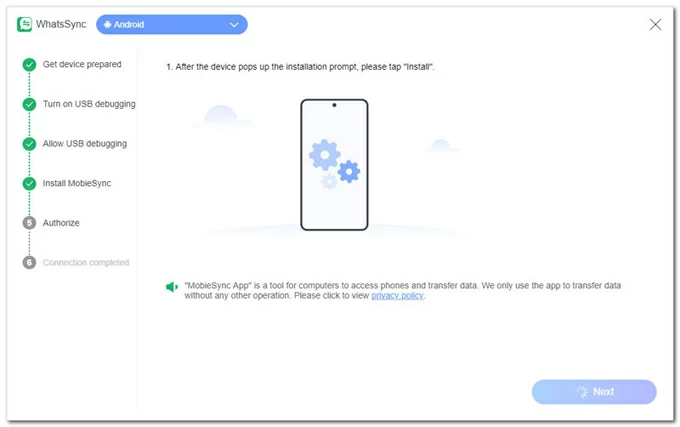
After USB debugging activation, tap "Install" button to get the MobieSync app installed.
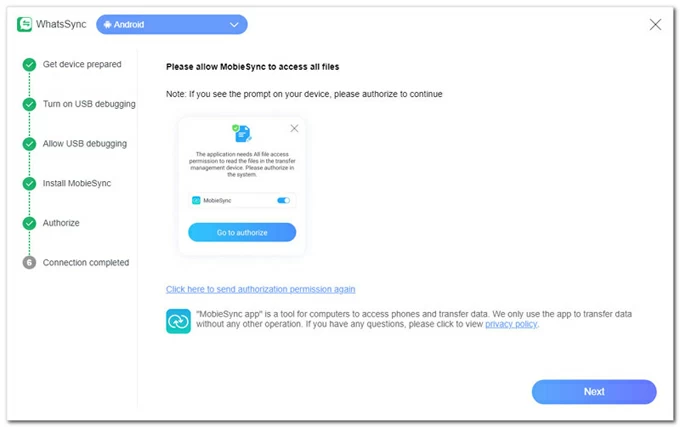
When MobieSync app is installed, tap "Go to authorize" button for accessibility of your WhatsApp database on the phone.
Step 4. Confirm your source phone and target phone are in the correct position, and then hit the Transfer button.
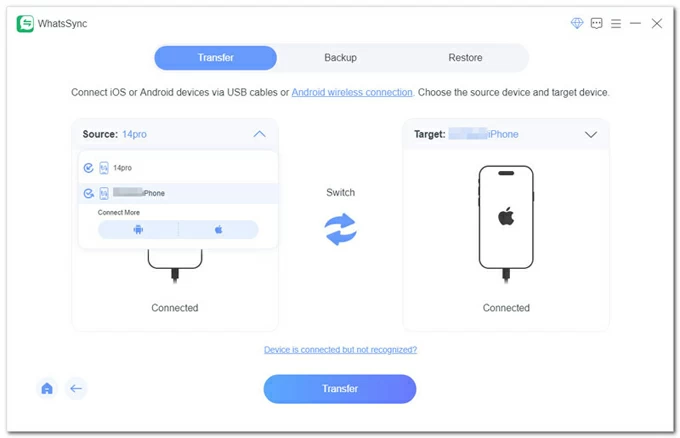
If your new phone is already set up or WhatsApp is registered, you can click the Backup button. The software will restore your WhatsApp data after transferring and merge with your old phone's so you won't lose your existing chats.
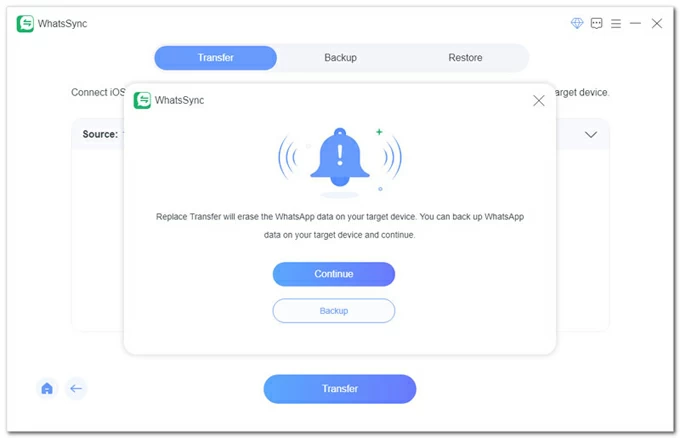
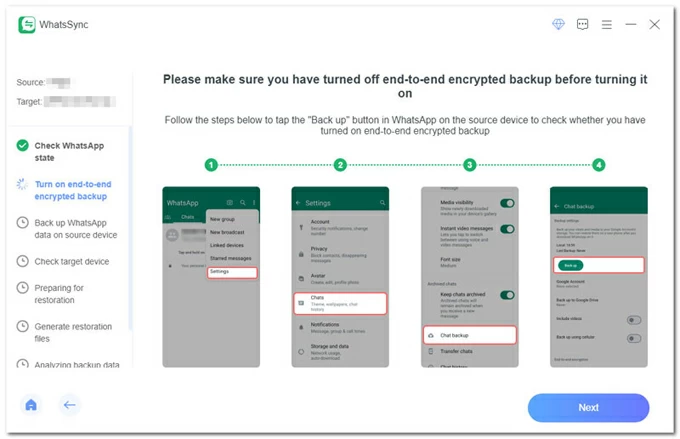
Step 5. Start moving WhatsApp chat history to any new phone without backup. You'll need to make some configurations to have entire WhatsApp inbox transferred over successfully.
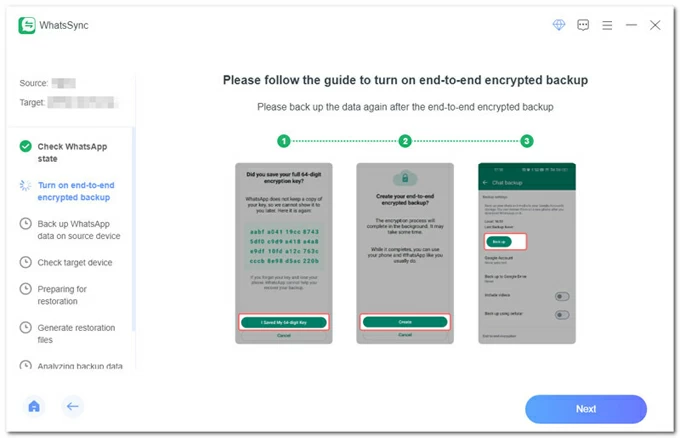
In your source Android device, go to WhatsApp > Settings > Chats > Chat backup > Backup. If end-to-end encrypted backup is turned on, turn it off.
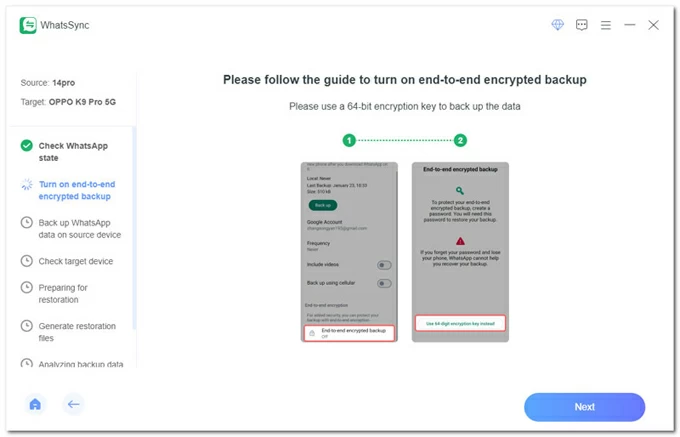
Then, turn on end-to-end encrypted backup again, and then tap Use 64-digit encryption key instead.
Proceed to tap Turn on > Generate your 64-digit key. Once the 64-digit encryption key is presented click the Scan button on the software window to read that.
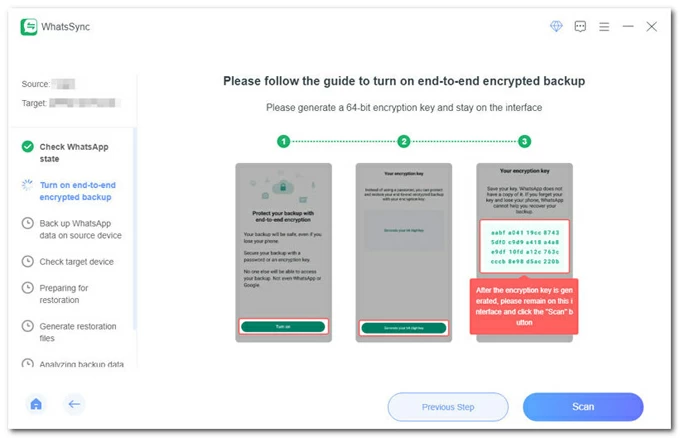
After that, tap I Saved My 64-digit Key > Create > Backup. Then, it takes a while to back up WhatsApp data from your source device.
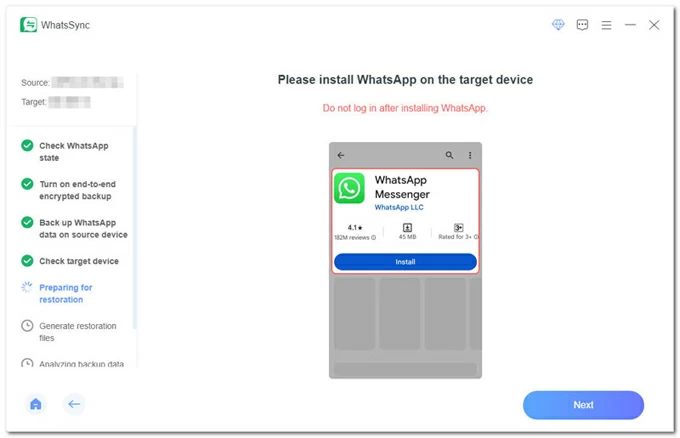
When done, install WhatsApp Messenger on the target device. Do not sign in after the installation.
If you're using Google Drive, you'll be promoted to log it out. Otherwise, click Never Used Google Drive button to go ahead.
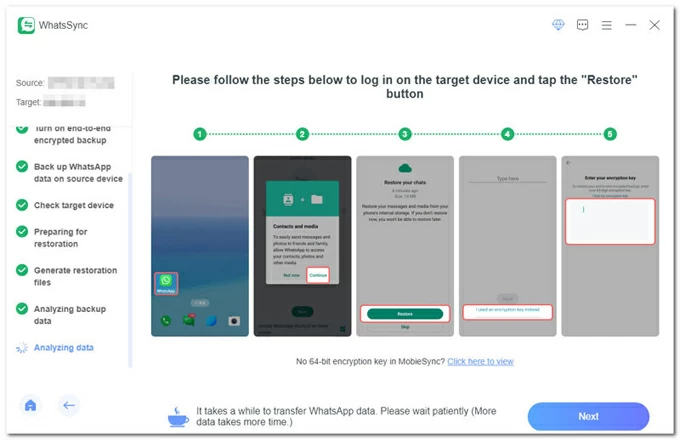
Now, open WhatsApp on the new device, and follow the onscreen wizard to set it up and restore WhatsApp data that's on your old phone.
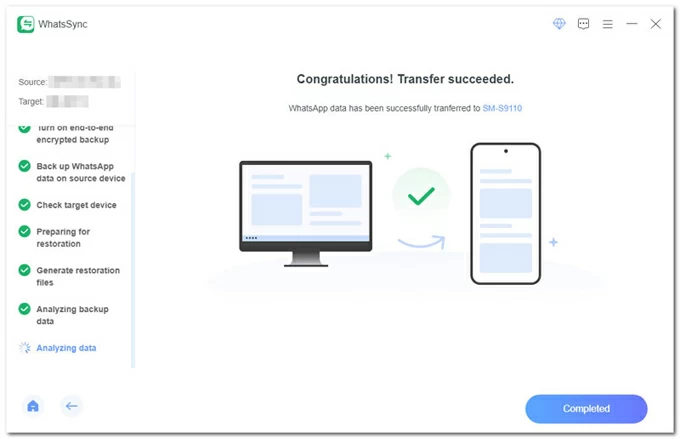
Do not unplug both phones until the WhatsApp transfer without backup is completed.
Related: How to transfer WhatsApp from Android to iPhone smoothly
Appgeeker WhatsApp Transfer utility is an all-in-one phone-to-phone transfer solution that works without Google Drive or iCloud Backup, making it convenient to transfer full WhatsApp messages across any phones without losing chat data, especially when switching platforms.
Pros:
Cons:
Moving your WhatsApp history to a new iPhone from an Android used to be a technical headache, but Apple's official Move to iOS app has simplified the process significantly. This method is unique because it allows for a direct device-to-device migration of your messages, photos, and videos without requiring you to upload your data to Google Drive or iCloud first. It essentially packages your local Android database and copy it over a private Wi-Fi connection.
The process is designed for users setting up a brand-new iPhone or those willing to factory reset their current one. During the initial setup of your iPhone, you'll reach a specific "Transfer Your Apps & Data" screen where you can choose to pull data from your old Android device. Once the link is established, WhatsApp will encrypt and wirelessly transfer your personal chats, group messages, and media even you don't have a backup. Here's how.
1- On Android, install the Move to iOS app, open it and follow the prompts.
2- Turn on your new iPhone and begin the setup process. When you reach the Transfer Your Apps & Data screen, select From Android.
3- A 6-digit or 10-digit code will appear on your iPhone. Enter this code into the Move to iOS app on your Android. This creates a temporary Wi-Fi network between your Android and iPhone for data transfer.
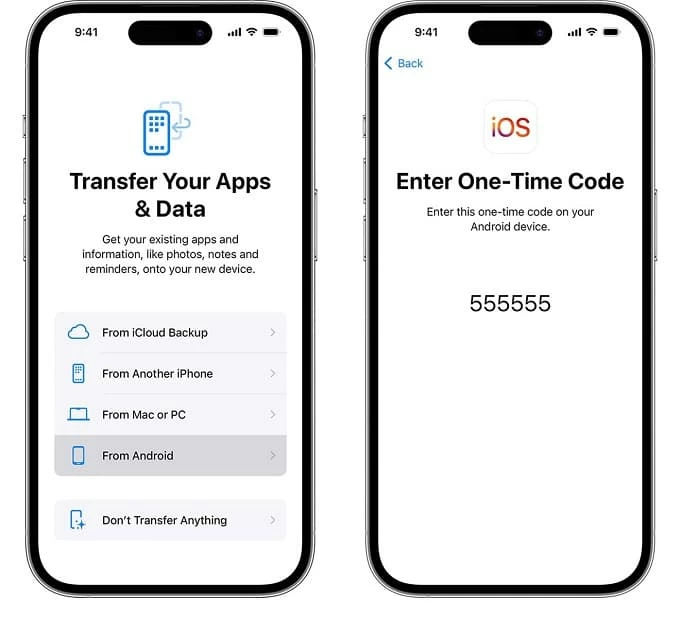
4- On the Transfer Data screen of your Android, select WhatsApp from the list of items to move.
5- Tap Start on your Android. WhatsApp will begin preparing your data for export. You will be signed out of WhatsApp on the Android once this is complete.
6- Tap Next to return to the Move to iOS app, then tap Continue to start the wireless WhatsApp data transfer to your new mobile phone.
7- Once the progress bar on your iPhone finishes, complete the remaining iOS setup steps.
8- Download WhatsApp from the App Store. Open it and log in using the exact same phone number you used on your Android.
9- When prompted to move chats from Android, tap Start to allow the iPhone to import the transferred chats. Once finished, your messages will appear in your chat list.
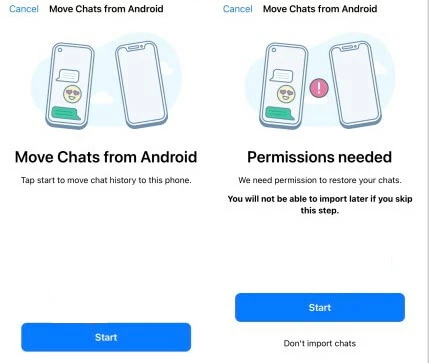
Pros:
Cons:
Google's "Switch to Android" system now utilizes a direct, encrypted cable-to-cable transfer to make your iPhone WhatsApp move over to a new Android phone, bypassing the need for a traditional cloud backup during the transition.
When you connect the two devices via a USB-C to Lightning cable, the Android setup wizard (via the Data Restore Tool) communicates directly with the WhatsApp app on your iPhone. Once you scan a specialized QR code, the iPhone transfer your local chat database and media files and put them through the cable to the Android device. This is a local migration, meaning your data stays private and isn't uploaded to a third-party server during the move.
To ensure a successful transfer, your Android phone should be in its factory-fresh setup state.
1. Connect your iPhone to your new Android device using a USB-C to Lightning cable (or a USB-C to USB-C cable for iPhone 15 or new models).
2. Power on your brand new Android phone and follow the on-screen prompts. When you reach the "Copy apps and data" screen, tap Next.
3. A QR code will appear on the Android screen. Open Camera app on your iPhone and scan it.
Tip: If the QR code doesn't appear, open WhatsApp on your iPhone, go to Settings > Chats > Move Chats to Android.
4. On your iPhone, tap Start to fire up the export. Keep the phone unlocked and the WhatsApp app open. Do not disconnect the cable.
5. While the data transfers in the background, continue the remaining setup steps on Android.
6. When you reach the home screen, go and download WhatsApp from the Play Store.
7. Open WhatsApp, and log in using the same phone number.
8. WhatsApp will automatically detect the transferred data. Tap Start to begin the local import process without any backup.
Pros:
Cons:
Tip: If you are upgrading to a Samsung Galaxy phone from an iPhone or another Android device, you can use the Smart Switch app to trigger the WhatsApp migration without creating a backup or bothering by the cloud storage limits. Similar to Google Switch to Android app, it won't be able to transfer the chats after setup.
Also see: How to move WhatsApp conversations from iPhone to Samsung phone
The last solution is to use Export Chat feature within WhatsApp to move your messages from one phone to another phone through your own email without using a cloud backup. This is technically an archiving process rather than a true transfer, which exports a conversation as a readable text file (.txt) and sending it to an email address. This allows you to view your chat history on a new phone through an email app, but it cannot be imported back into the WhatsApp application itself.
Since WhatsApp handles the exports on a chat-by-chat basis, you must follow these steps for every individual conversation you wish to save even after new device's setup.
From iPhone to any other new device:
From Android to any other new device:
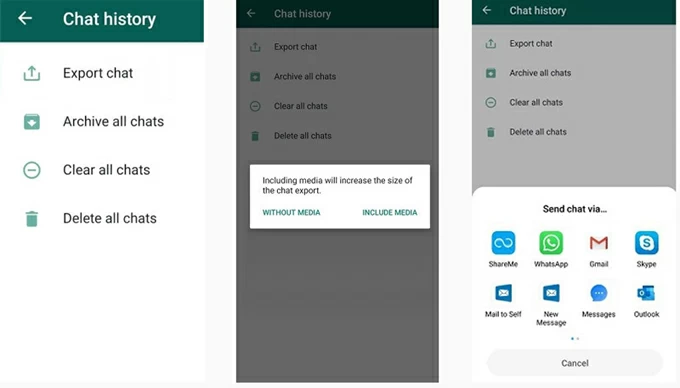
WhatsApp allows exporting individual chats via email—but this is not an actual migration. You will receive the conversations as text files or ZIP attachments.
Pros:
Cons:
Leaving your WhatsApp messages behind during a phone upgrade is a big sort of frustration—but no backup doesn't mean no solution. As long as your old phone is accessible, there are multiple proven ways to transfer WhatsApp messages to a new phone without backup.
Depending on your transfer directions (between iPhones, Android devices, or crossing between platforms), you've learned multiple different tools that frees you from using a cloud backup to move everything in WhatsApp - even without data loss if the new phone was setup.
Key takeaways - WhatsApp chats transfer without any backup