How to Reset iPad without Password or Computer


Here's a complete guide to upload videos from iPhone 15 to computer without quality loss, whether you prefer a physical cable or a cloud-based wireless connection.

For a seamless, high-speed wired transfer of a large batch of videos from iPhone 15 to computer, Appgeeker iPhone Data Transfer is the reliable path. It uses a USB connection to access iPhone media library, and transfer videos, photos, music and other files between iPhone and computer (two-way) in a fast manner.
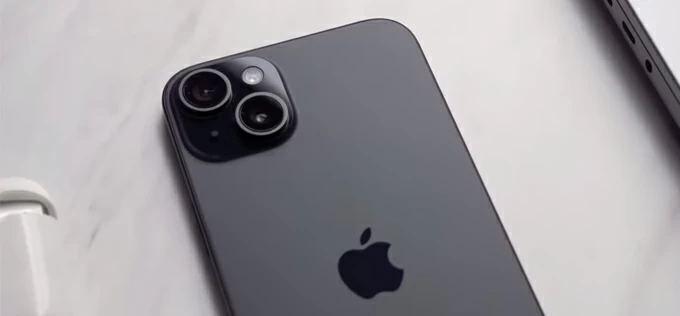
iPhone 15 video transfer to computer is a simple process if you know the right tools.
Your media library on iPhone 15 (15 Pro, 15 Pro Max, 15 Plus) are bulging with stunning high-resolution videos, and it's a common affair to transfer those videos to a computer.
Whether you want to get the videos from your iPhone 15 to the computer and afterwards delete them for freeing up device's space, backing up precious memories, editing footage, or sharing large video files, there are several ways to transfer videos from iPhone 15 to Windows PCs and Mac computers with or without a cable.
To make the video imports easier, we've thoroughly tested the leading wired and wireless transferring methods for both platforms while preserving the original video quality. Simply choose any strategy to quickly send videos from an iPhone 15 to computer in bulk or individually.
Table of Contents
Moving videos across ecosystem doesn't have to feel like an obstacle. Apple makes it incredibly seamless whether you stay entirely within the macOS environment or you'd like to put the videos onto a Windows computer from your iPhone 15 library.
If you prefer a complete solution that manages your large library in an intuitive interface, and supports bulk video transfers and selective exports, a dedicated third-party file manager like Appgeeker iPhone Data Transfer is a robust route.
Unlike native tools that often treat your iPhone like a generic camera or force a clumsy sync process, this utility displays your video library via categorized albums. You can transfer all videos files from an iPhone to a computer at the original resolution and format, including the Camera Roll videos in iOS Photos app, as well as any other clips in iOS Videos app.
After hooking up your iPhone 15 to your PC or Mac via a certified USB-C cable, the software loads the entire video library in just seconds, which makes it easy and quick to batch-select your desired videos files and transfer them to a local desktop folder—all without encountering the dreaded "Device is unreachable" error. You can even transfer your iPhone 15 video library to your computer without iTunes or iCloud.
Step 1. Download and install iPhone Data Transfer on your PC or Mac. Then, launch it.
Step 2. Connect your iPhone 15 to your computer using your USB-C cable. Tap Trust on your phone screen if prompted.

Step 3. Click Videos tab in the left-hand sidebar menu.
Tip: To move camera roll videos from Photos app, click Photos tab, followed by Videos.
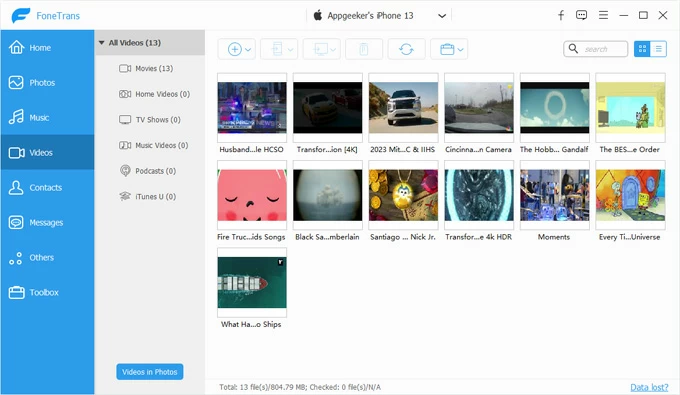
Step 4. Browse through your media categories and select the specific videos you wish to export.
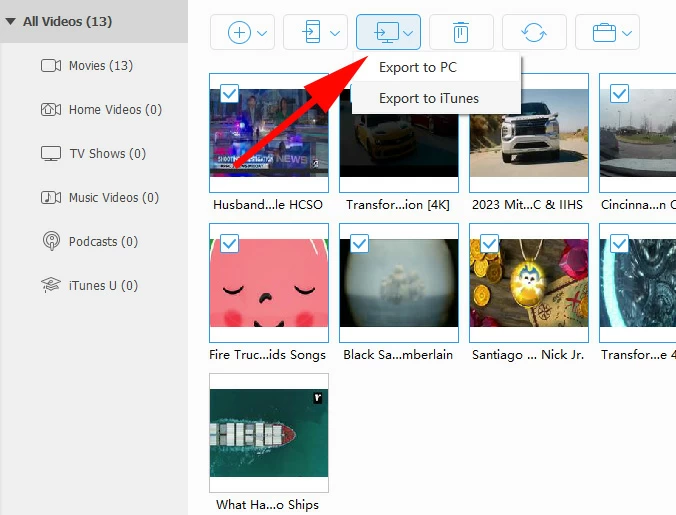
Step 5. Click the Export to PC (or Export to Mac) icon at the top menu bar, choose your target folder, and let the software handle the wired video migration without compression.
Both macOS and Windows system come with the Photos app for transferring videos from iPhone to computer directly using a cable. Here's how to perform a USB-based transfer to have your large number of videos copied over from your iPhone 15 to your Windows or Mac.
When your iPhone is connected firmly to your computer, a notification from Microsoft Photos app pops up, asking for whether you want to import your photos and videos from your iPhone 15. A simple click on the Open Import on the prompt will guide you to access your iPhone Photo Library and select any video clips or screen recordings to transfer straight to your computer's folder.
1. Use your USB-C cable to plug your iPhone 15 into your PC. Unlock your iPhone and tap Trust when asked if the computer can access your photos and videos.
2. Click the Windows Start menu and click Photos app to open it.
3. Click the Import button in the top-right corner of the window and select Apple iPhone.
4. Wait for a while to let Photos app scan your device.
5. Choose the videos you wish to move, or check the box next to Select All if you need to download all of your videos.
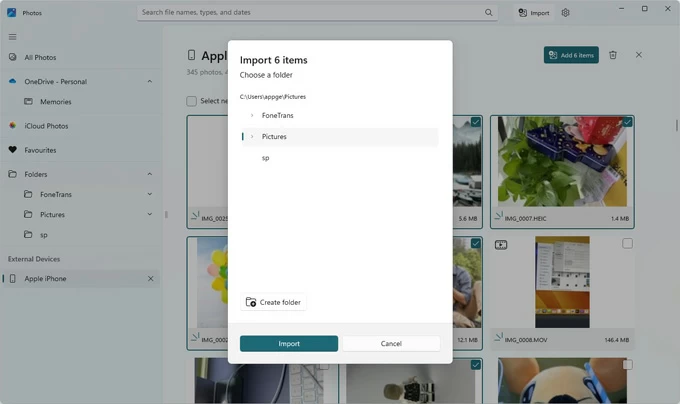
6. After selections, click Add [X] items button at the upper right corner.
7. On the window that appears, select your target folder (Pictures folder by default), and hit Import button to get your iPhone 15 videos onto your computer.
If you are within the Apple ecosystem, the native macOS Photos app makes a wired transfer effortless in case you need to upload videos from an iPhone 15 to a computer for a local backup or device's clean-up.
You're able to move some of your favorite video files individually or an entire library at once, while keeping the original quality.
1. Unlock your device and attach it with your computer.
2. Run macOS Photos app from Launchpad or Applications folder.
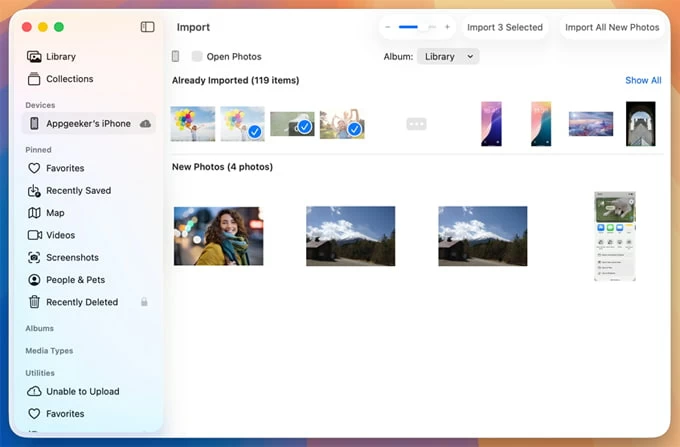
3. Select [your iPhone] under "Devices" on the left column.
4. Choose the videos you want to import to your Mac.
5. If necessary, click the drop-down selector next to "Album", and specify a folder within Photos to save the imported videos.
6. Click Import Selected button at the top. The Imported All New Photos button lets you instantly copy every new photo and video on the iPhone 15 without need to fiddling with all items.
Windows treats an iPhone as a digital camera when connected via USB. This allows you to dig directly into the phone's root DCIM folder through File Explorer to manually copy and paste videos from your iPhone 15 to your computer.
Before exporting your videos with a cable connection, you need to know that the DCIM folder includes subfolders grouped by year and month, and doesn't preserve iPhone-like album's structure. This means you'll need a bit patience to find your desired videos for the transfer.
To drag and drop long videos from iPhone 15's Photos library to the computer without additional software, do the following:

Note: If your computer drops the connection midway through a drag-and-drop transfer, it is likely due to the Windows MTP driver choking on large 4K videos. For massive file sizes, consider utilizing the Appgeeker iPhone Data Transfer tool mentioned above.
If you don't have a USB-C cable handy, wireless solutions utilize local networks or cloud services to download videos from the iPhone 15 to the computer safely.
iCloud Photos automatically synchronizes your photos and videos across all devices tied to your Apple Account, whether it's an iPhone, an iPad, a Mac, or even a Windows PC. With iCloud Photos enabled on the devices, transferring photos between iPhone 15 to a computer without using a cable is a pretty simple task.
Here's how to sync videos from iPhone 15 to a PC or Mac wirelessly using iCloud Photos. Make sure that you have enough iCloud storage to upload your video files.
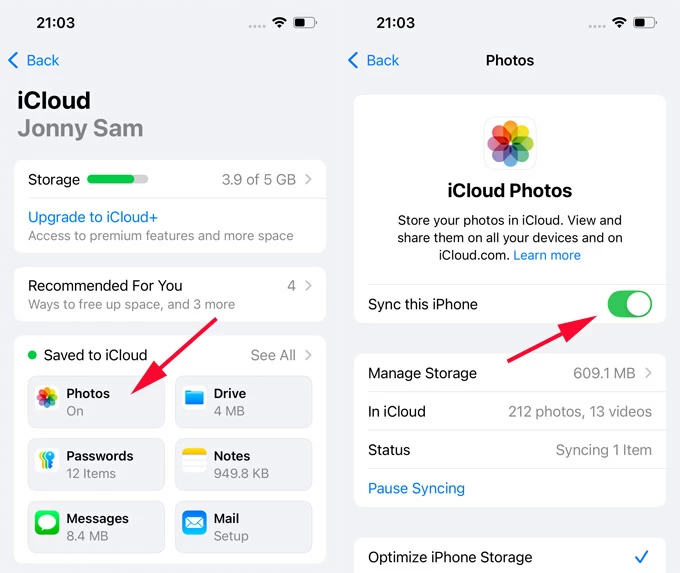
1- On your iPhone 15, go to Settings > [your name] > iCloud > Photos, then turn on the Sync this iPhone switch.
This uploads all videos and photos from your iPhone 15, allowing you to download the library onto your PC or Mac right after.
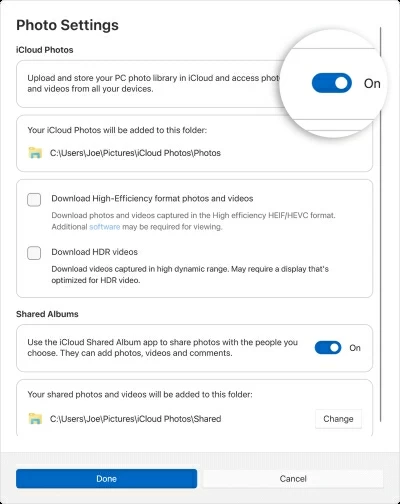
2. On a PC, download iCloud for Windows, sign into the same Apple Account credentials, then check the Photos, and toggle on iCloud Photos to kick off the synchronization.
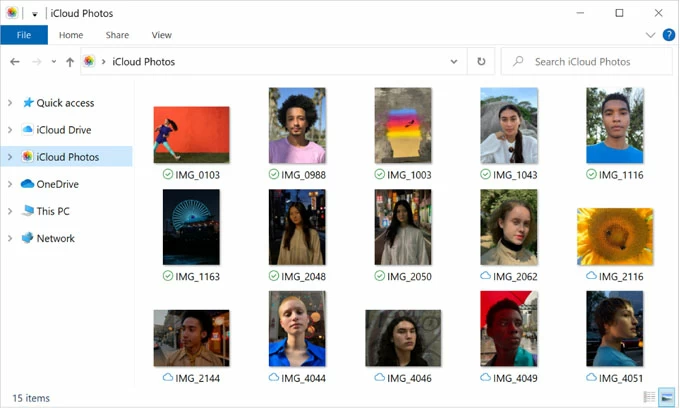
After that, navigate to iCloud Photos in Windows File Explorer, and download the videos directly onto your computer for offline viewing.
3. If you're using a Mac, go to System Settings > [Your Name] > iCloud > Photos and then enable Sync this Mac.
Keep both devices connected to the Wi-Fi connection to have the iPhone 15 to computer video transfer completed. You can view the videos in macOS Photos app.
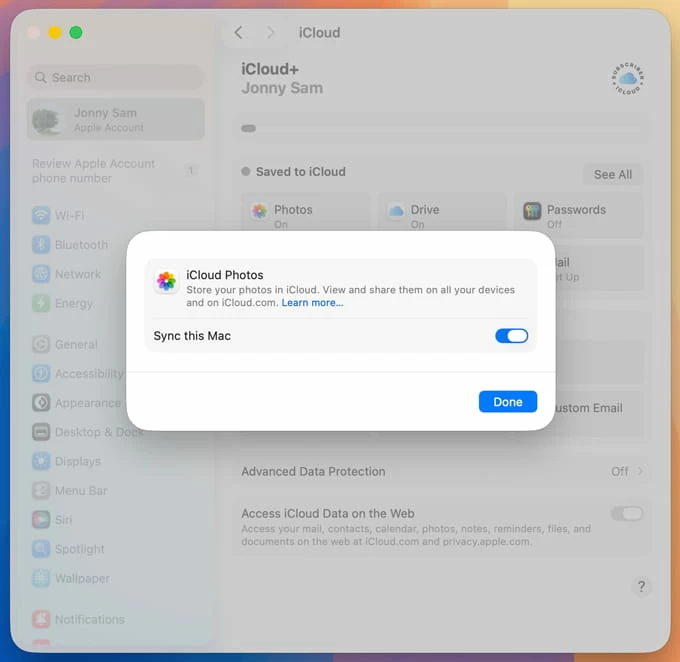
You can also go to icloud.com website on your PC or Mac, in an attempt to download iPhone 15 videos to the computer's hard drive, rather than syncing entire media library.
Also: How to recover permanently deleted photos on iPhone
Apple's AirDrop makes sending videos between iPhone and Mac a seamless process. In order to share a video, both devices should have Wi-Fi and Bluetooth turned on and be placed within close proximity. You also need to make sure the receiving Mac has its AirDrop settings configured to accept incoming files, usually set to Contacts Only or Everyone for 10 Minutes in the Control Center.
Once all these requirements are met, you should be ready to airdrop videos from the iPhone 15 to your computer without a cable or without degrading the resolution or quality.
Bring your iPhone near the Mac, open the iOS Photos app and navigate to the video(s) you wish to send from your iPhone, then tap the Share button on the video you want to move. Select AirDrop from the menu options, tap your Mac's name from the populated list of nearby devices, and a transfer prompt should pop up on your Mac's screen. Click Accept on the Mac to give the video access to your computer and save it directly into your Downloads folder.
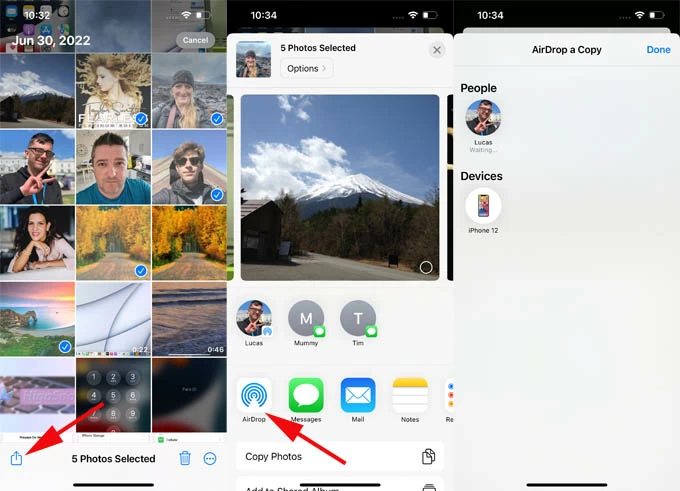
AirDrop is ideal for transferring short video footages or a few videos. For moving hundreds of videos or getting large 4K ProRes videos from iPhone to Mac or PC, it's wise to use the wired solutions mentioned above which offer more flexible control and stable connection.
By far, you've done video transfers from iPhone 15 to your computer — whether it's a Windows PC or a Mac machine, for backup, storage, management or editing.
Why won't the transferred iPhone 15 videos play on Windows PC?
If your videos are using the modern HEVC format, they won't play on the PC after being transferred as Windows do not ship with this codec installed out of the box.
Luckily, Apple cares about the compatibility and offers a function to convert the videos to a friendly format during the transfer. Before you set about importing HEVC videos to PC, go to Settings > Apps > Photos, then choose Automatic under "Transfer to Mac or PC" section.
Which is the best method to transfer 4K videos from iPhone 15 to a computer?
Generally, the wired methods are more stable and faster when moving large 4K videos from the iPhone to the computer. The wireless methods may take longer because of larger file sizes, and could run into frozen transfers due to interrupted internet network.