How to Erase an iPhone


If you're stuck with the "Sign out is not available due to restriction" error on your iPhone or iPad, this article will explain why it happens and show you exactly how to fix it.

With the help of Appgeeker iPhone Unlocker, you can quickly and easily remove the Screen Time passcode on your iPhone or iPad without needing an Apple account, effectively resolving the "Sign out is not available due to restrictions" issue.

The "Sign out is not available due to restrictions" prompt displayed on your iPhone or iPad is usually related to Screen Time.
Normally, signing out of an Apple account on an iPhone or iPad is a straightforward process: you simply open Settings, tap your Apple ID at the top, scroll down, and select Sign Out. However, many users suddenly find the Sign Out option greyed out, accompanied by the message: "Sign out is not available due to restrictions." What should be a routine account change turns into a confusing technical hurdle.
This situation is frustrating because it blocks essential actions. You might be trying to switch to a different Apple account, preparing to sell your device, or stopping personal data syncing. When the "Sign Out" button is disabled, it can feel like your Apple ID is locked into the device, even though you are the rightful owner.
Many people wonder why "Sign out is not available due to restrictions" occurs and how to fix this problem. Don't worry, this guide will provide full explanation of the causes behind the "sign out is not available due to restrictions" message and show you how to fix the sign out is not available due to restrictions issue on your iPhone or iPad, letting you regain full control over your device and Apple account.
Table of Contents
Typically, the "Sign out is not available due to restrictions" error is unrelated to your Apple account security. Instead, it is triggered by iOS / iPadOS restriction mechanisms, such as Screen Time settings, parental controls, or device management policies, designed to prevent unauthorized account changes on your iPhone or iPad.
This is the most common reason preventing you from signing out of your Apple account. The "Content & Privacy Restrictions" section can lock certain settings to disable the ability to sign out of an Apple ID. This is mainly used for parental controls to restrict children from signing out of a monitored Apple account or bypassing usage limits.
iPhones/iPads previously used in schools, companies, or other organizations may have management profiles installed. If such a profile exists, the MDM system might grey out the sign-out option to enforce compliance policies.
When "Stolen Device Protection" is enabled, attempting to sign out of an Apple account will trigger a security delay, requiring you to wait one hour before the action can proceed.
iOS and iPadOS include security measures to maintain account integrity. If the system detects that certain protective rules are active—such as specific Focus modes, Sleep schedules, or supervised configurations—it may temporarily block account changes.
Sometimes, the restriction is not due to a policy, but rather system congestion. There may still be background activities associated with the Apple account running on your iPhone, and the Sign out button remains disabled to prevent the device from entering an "orphaned" state.
Once you identify which restriction layer is blocking access to your Apple account, you can apply the appropriate fix and restore the Sign Out option.
Part 1. Quick fixes for "Sign out is not available due to restrictions"
For many iPhone and iPad users, the "Sign out is not available due to restrictions" message is not caused by a complex system error. In most cases, the restriction stems from Screen Time settings. Adjusting the relevant configuration usually regains access to the "Sign out" option.
Within the Screen Time settings, there is a feature called Content & Privacy Restrictions. When you enable this restriction and set Account Changes to Don't Allow, the system immediately locks all sensitive operations related to the Apple ID. At this point, the Apple ID name in Settings menu becomes grayed out, and the "Sign out" button at the bottom will display "Sign out not available due to restrictions".
Therefore, allowing account changes will make the sign-out option available again. Note that if your iPhone or iPad is under Family Sharing controls, make this change on the organizer's device.
1. Open Settings on your iPhone or iPad, scroll down, and tap Screen Time.
2. Select Content & Privacy Restrictions and turn on Content & Privacy Restrictions at the top.
3. If this feature is enabled, navigate to the Allow Changes to section.
4. Tap Accounts and make sure you select the Allow option. The system will no longer block modifications to account-level settings.
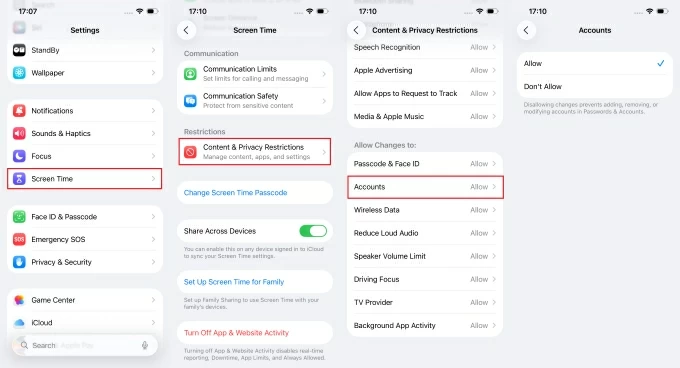
After adjusting this permission, return to Settings > [Your Name] and scroll to the bottom. In most cases, the Sign Out option will be immediately available again.
Completely disabling Screen Time will remove all restrictions, including those affecting account changes, thereby resolving the "Sign out is not available due to restrictions" issue. This method is particularly useful when multiple restrictions are active and difficult to identify individually.
1. Open Settings > Screen Time on your iPhone or iPad.
2. Tap Change Screen Time Passcode and select Turn Off Screen Time.
3. When prompted, enter your four-digit Screen Time passcode to clear all associated restrictions.
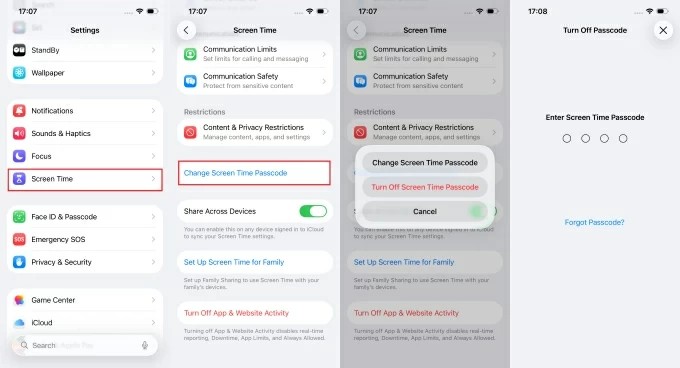
If you have forgotten your Screen Time passcode:
Note:
Another less obvious reason for the sign-out option being unavailable is that certain Focus modes—especially the Sleep Focus linked to a Sleep Schedule—can temporarily restrict specific settings and notifications.
1. Go to the Settings app on your iPhone or iPad.
2. Tap the Focus settings.
3. Toggle the Focus Status at the bottom to Off.
4. Alternatively, select the currently active Focus mode (such as Sleep) and switch it to Off.
If Stolen Device Protection is the reason your iPhone or iPad says "Sign out is not available due to restrictions," you will need to go through a one-hour Security Delay window. Once the hour has passed, you must authenticate again using Face ID or Touch ID before the "Sign Out" button becomes active and usable.
Part 2. Advanced fix for "Sign out is not available due to restrictions"
If the simple fixes above fail to resolve the "Sign out is not available due to restrictions" issue—perhaps because you forgot the Screen Time passcode, lost access to your Apple account credentials, or are stuck with a restricted MDM profile—you may need a professional solution like Appgeeker iPhone Unlocker.
iPhone Unlocker can remove Screen Time from your iPhone or iPad to lift all restrictions, restoring your access to locked system settings and allowing you to sign out of your Apple ID successfully. The tool does not need to factory reset the entire device; instead, it focuses solely on removing the passcode that enforces the restrictions. It is compatible with a wide range of iPhone and iPad models.
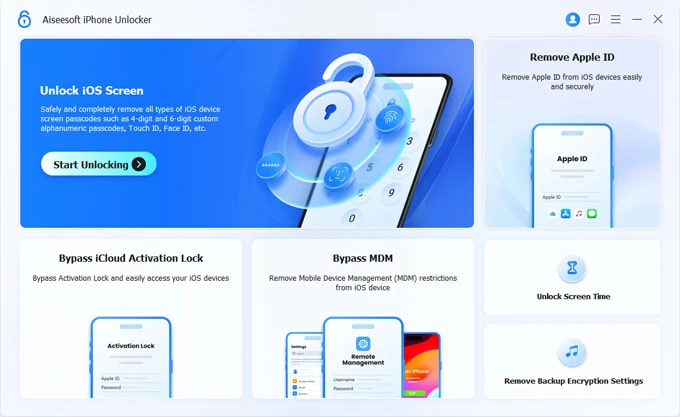
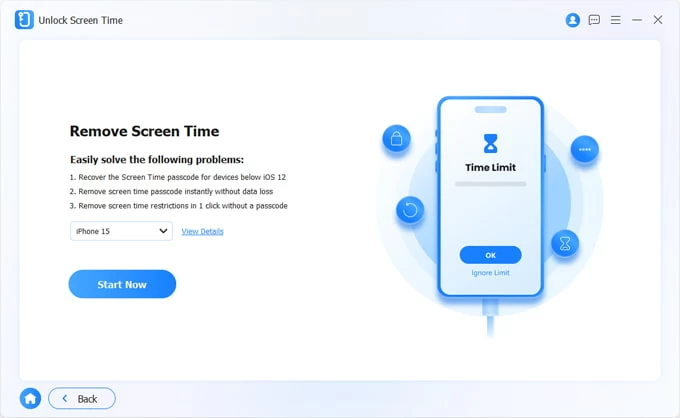
1. Run the software on your computer and connect your iPhone/iPad using a compatible USB cable. Then, select the Unlock Screen Time mode.
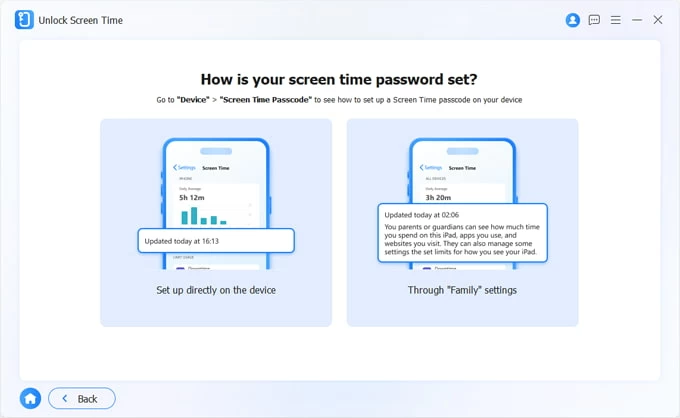
2. Depending on how your Screen Time was configured, choose between Set up directly on the device or Through Family settings.
3. Confirm your device model and click Start Now. You may need to tap Trust on your device and enter your screen passcode to grant the software access.
4. Follow the on-screen instructions to head to Settings > [Your Name] > Find My and turn off Find My iPhone. If it is already disabled, you can skip this step.
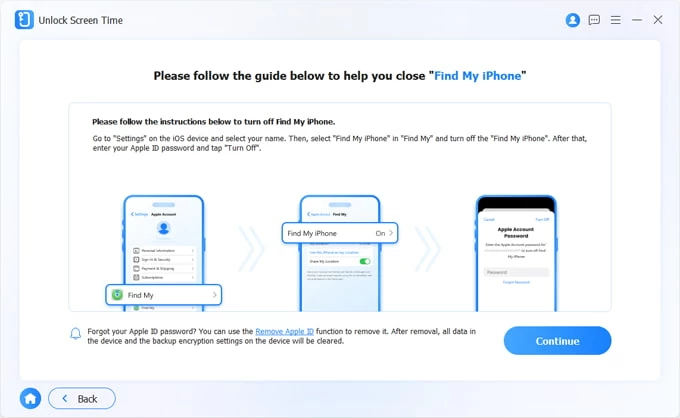
5. Once everything is ready, click Continue to begin removing your Screen Time passcode without needing the original code.
After the process is complete, your device will restart, and the Sign Out option will be available again. Beyond fixing restriction issues, the software can also resolve "iPhone Unavailable" screens or reset iPhone without Apple account password.
Conclusion
To resolve the "Sign Out is not available due to restrictions" issue on your iPhone or iPad, it is best to first determine what is actually causing the problem, and then apply targeted solution to fix this glitch effectively.
1. Why is the "Sign Out" option still grayed out even though Screen Time is turned off?
This usually happens because of "permission residue" or a security delay within the system. For example, if Stolen Device Protection is enabled and the device is currently in an unfamiliar location, the system may enforce a one-hour security delay even after Screen Time is turned off. any changes to your Apple ID are strictly prohibited.
Additionally, if your iPhone or iPad was ever connected to a corporate or school email, a management profile might have been silently installed. You should go to Settings > General > VPN & Device Management to manually delete the profile if one is present.
Also see: How to remove MDM from iPhone
2. Can restarting my iPhone fix "Sign Out is not available due to restrictions"?
Generally speaking, no. Restarting your iPhone will not remove the "Sign Out is not available due to restrictions" prompt because a reboot does not disable Screen Time. The associated restrictions will remain active. You should use the methods mentioned above to bypass the Apple ID sign-out limitation.
3. Why does "Sign Out is not available due to restrictions" appear even though I never enabled Screen Time?
In some cases, Screen Time may have been enabled previously or configured via parental controls in Family Sharing. If the device belongs to a child's account, a parent's device might be controlling these restrictions. This means the limitations can remain in effect even if the user did not set them up personally.
Another possibility is that you have a Focus mode active with a Sleep Schedule enabled on your device; simply turning it off should resolve the issue.