iPhone Passcode Expired. Why and How to Fix It


This guide covers efficient ways to unlock a SIM card on iPhone and restore network access easily, whether it's due to a forgotten SIM PIN or restrictions from a specific carrier.

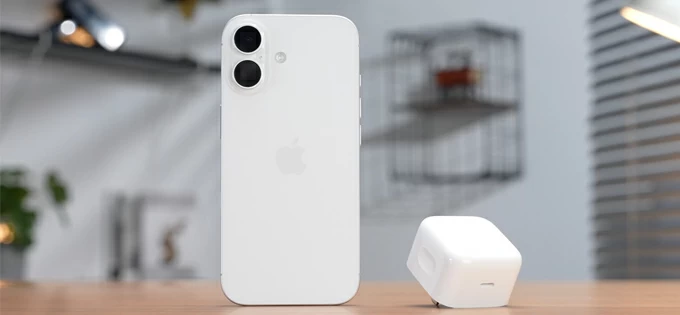
Explorer proven ways to unlock a SIM card-locked iPhone, even if you don't know SIM PIN or cannot contact the carrier.
If your iPhone says SIM Locked or asks you to enter a PIN when using calls and mobile data, it means that the access to your iPhone SIM card is being restricted. To unlock a SIM card on iPhone, it's important to identity which situation applies.
Typically, a SIM-locked iPhone results from either a SIM PIN lock (a security feature tied to the SIM card), or a carrier lock (a network restriction that prevents the device from using SIM cards from other carriers). Depending on situation, the process of unlocking an iPhone SIM card varies:
Whether your SIM card is PIN-locked or your iPhone is restricted to a specific carrier, this guide will show you how to unlock SIM card on iPhone step by step and restore full network access.
Table of Contents
To unlock iPhone from a SIM PIN or carrier restriction, Appgeeker iPhone Unlocker is regarded as a reliable tool to remove SIM locks efficiently, letting you use calls and data as normal.
Before diving into the solutions to unlock SIM card on iPhone, it's essential to identify which lock is activated. There are common reasons why your iPhone is SIM locked:
If your iPhone repeatedly prompts you to enter a PIN when using the SIM card, you are dealing with a SIM PIN lock.
A SIM PIN is built-in security feature on SIM cards that prevents unauthorized access to your mobile network if the SIM is removed and inserted into another device. When enabled, it requires a 4- to 8-digit PIN to unlock the iPhone SIM card for calls and mobile data. It usually appears after restarting the iPhone or re-inserting the SIM card.
Note: A factory reset on an iPhone will not erase or affect a physical SIM card. If you don't remember your SIM PIN, don't guess it. After 3-10 incorrect attempts, the SIM card will be locked permanently and require a PUK (Personal Unlocking Key) from your carrier.
If your iPhone displays SIM Lock, SIM Not Supported or Invalid SIM, the devices is carrier-locked.
A carrier lock means the iPhone is restricted to a specific carrier and won't accept SIM cards from other carriers until the original provider authorizes a SIM unlock on your iPhone. This restriction commonly applies to devices that are still under a contract or not fully paid off. It may also occur when you're attempting to switch to a different carrier.
Importantly, the limitation is tied to the iPhone. The SIM card itself is not locked and can function normally in other unlocked devices.
To confirm that your iPhone needs to unlock the SIM card for normal use, simply follow:
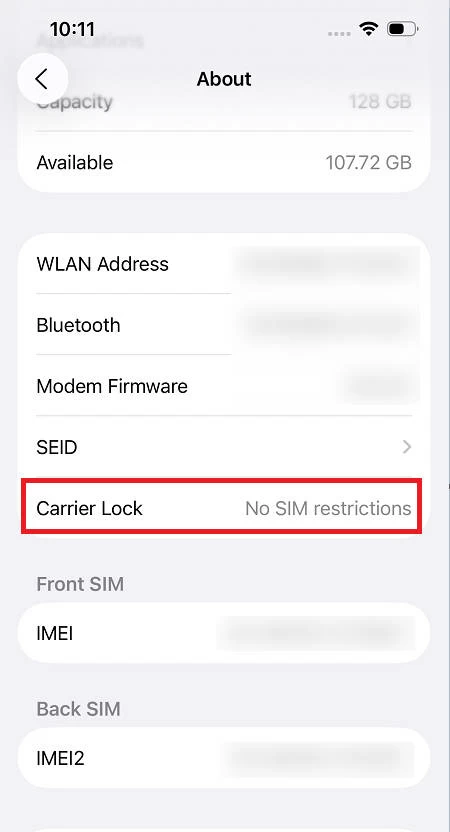
TIP: Apple cannot unlock your iPhone for use with a different carrier. Only the original carrier can unlock your iPhone for a new SIM card. Also see: Apple ID not valid or supported.
The SIM PIN is designed to prevent unauthorized use of your SIM card in another device. When this feature is enabled, you're asked to enter the PIN every time you restart your iPhone or re-insert the SIM card. To unlock a PIN-locked SIM card on iPhone, you can follow these steps:
If you remember your SIM PIN, the unlocking process is straightforward. When prompted, simply enter the correct PIN on your iPhone to unlock the SIM card when you're using calls and mobile data. Or, you can manually unlock the SIM PIN in iPhone Settings to disable it:
TIP: If you never set up a custom PIN, check the documentation that came with your SIM card or mobile plan. Many carriers assign a default PIN.
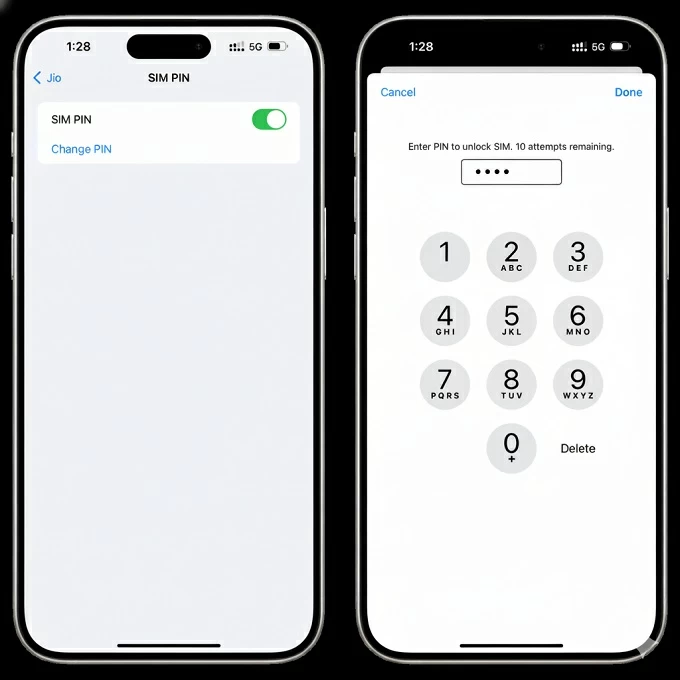
If you've forgotten your SIM PIN, there are still 3 attempts remaining to enter the correct PIN. After 3 incorrect entries, the SIM card will be locked. In that case, you may contact your carrier and request a PUK (Personal Unlocking Key) for unlocking. They can verify your account and provide the required PUK to unlock the locked SIM card on your iPhone and restore functionality.
Below are customer service contacts for major mobile carriers that you can reach for iPhone SIM unlocking assistance:
If you insert a SIM card from a different carrier and cannot access the mobile network, your iPhone is likely carrier-locked. To unlock your iPhone for a new SIM, you may contact the original carrier and submit a formal unlock request.
In most cases, the carrier will approve the unlock for free if the iPhone is fully paid off and is not under any contractual restrictions. If you've purchased a second-hand phone, you may ask the previous owner to request the carrier unlock for your iPhone, as some providers require a verification from the account holder associated with the device.
1. Check iPhone SIM status and identity the carrier.
2. Contact the carrier and request an unlock on your iPhone.
3. Use a new or different SIM card on your unlocked iPhone.
After unlocking, your iPhone is able to use a SIM card for any carrier.
If official standard methods are not available, third-party SIM unlock tools and online services may offer alternative solutions to use your iPhone SIM card without restrictions.
Whether you're switching carriers or attempting to unlock a PIN-locked SIM card, the reliable tool Appgeeker iPhone Unlocker is promoted as a solution that can help remove SIM locks and carrier restrictions, particularly in situations where official carrier assistance is unavailable or when the device was purchased second-hand.
This tool features a streamlined interface. You can simply connect your iPhone and perform the SIM unlocking process in simple clicks. In addition to SIM unlock, it also supports passcode reset, Apple ID removal, MDM bypass, Screen Time passcode erasing, and more.
No advanced technical skills are required. Below is how to unlock an iPhone SIM card without PUK code or carrier assistance, working for all iOS versions:
Step 1. Install and open Appgeeker iPhone Unlocker on your PC or Mac.
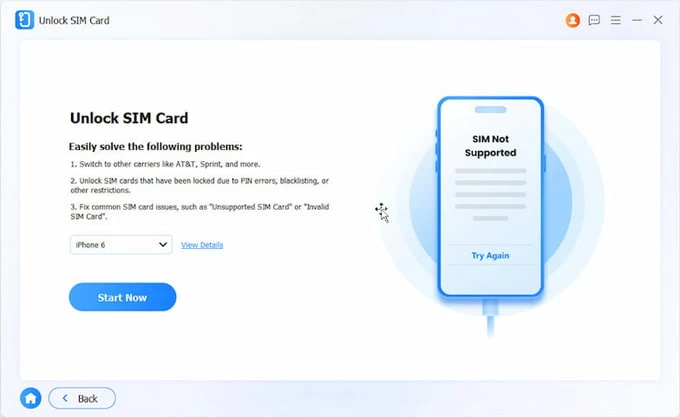
Step 2. Select Unlock SIM Card mode from the main interface.
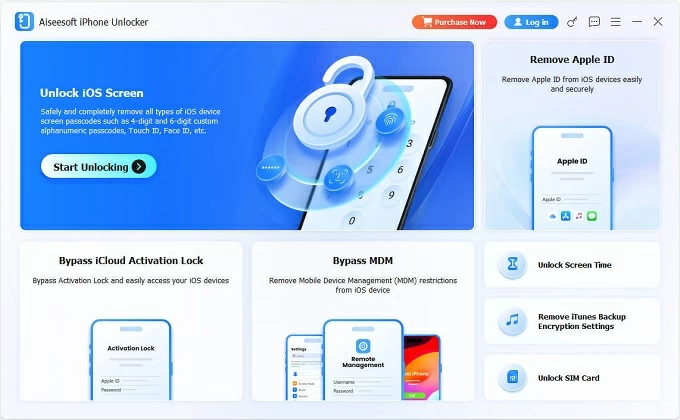
Step 3. Connect your iPhone with a proper USB or Lightning cable.
Step 4. Select the device model from drop-down menu and click Start Now for SIM unlock.
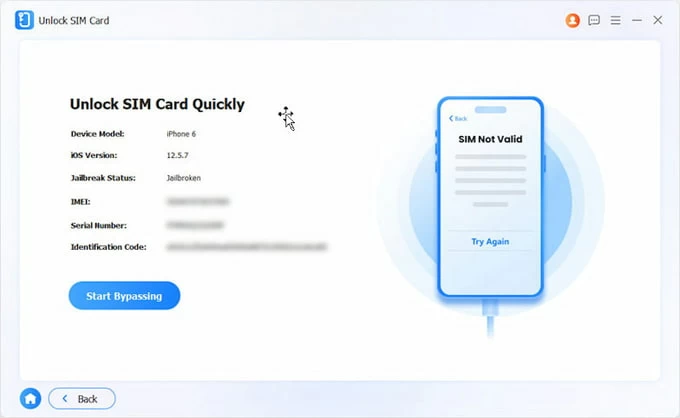
Step 5. The software will detect your iPhone and display the device information; confirm and click Start Bypassing to proceed.
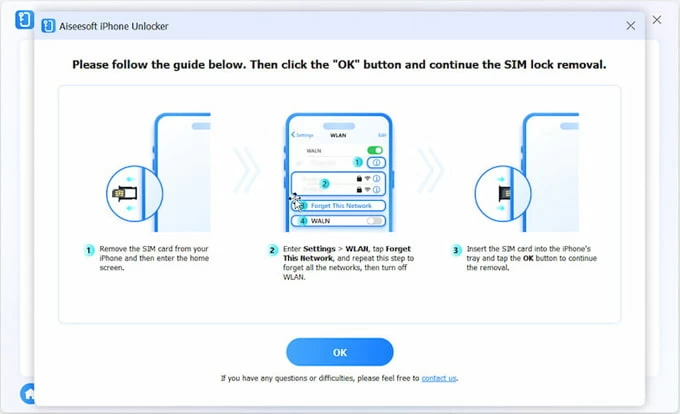
Step 6. When prompted, follow the onscreen steps to operate your iPhone. The process involves removing the SIM, disabling network, and re-inserting the SIM card; then click OK button start SIM card unlocking.
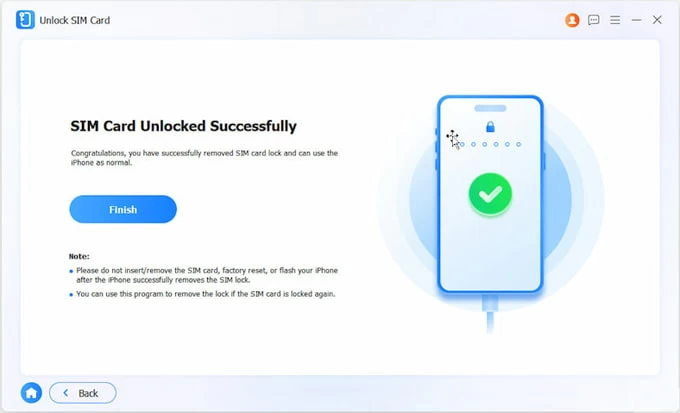
What shortly until the SIM card is unlocked successfully. You can then use calls and mobile network on your iPhone without restrictions, or switch to any carrier you prefer.
This powerful tool also helps if you want to unlock the passcode when your iPhone is in Security Lockout or Unavailable screen.
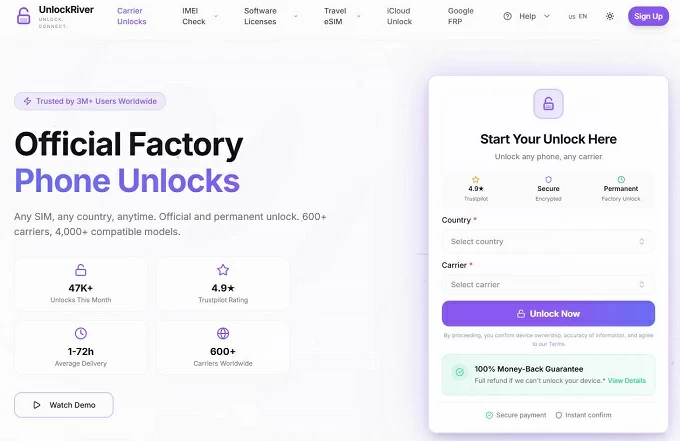
UnlockRiver is an online service that provides carrier unlock for iPhone users. By using your device's IMEI number, the service submits an unlock request through the appropriate carrier channels. Once the unlock is approved, your iPhone can accept SIM cards or eSIMs from other compatible network providers.
Simply visit the UnlockRiver website from any internet-connected browser, and enter the basic information of your iPhone, including the IMEI number. After that, they will assist in unlocking your iPhone carrier lock remotely. When completed, your iPhone should be released from the carrier restriction, allowing you to use other supported SIM cards.
While a SIM PIN prevents the use of your SIM card in other unauthorized devices, it requires you to enter the PIN each time you restart your iPhone or reinsert the SIM card. To avoid this repeated prompt, you can disable the SIM PIN in your iPhone settings to prevent locks.
After that, there's no unlock PIN required when accessing your iPhone SIM card.
Q1 - Why does my iPhone say SIM card locked?
If your SIM card is protected by a SIM PIN, your iPhone will display "SIM Locked" after a device restart or when the SIM card is reinserted. This security feature prevents unauthorized access to your SIM card.
Q2 - How can I find the SIM PIN on my iPhone?
Your carrier typically provides a default SIM PIN when you receive your SIM card. It may be included in the original packaging or account documents.
Alternatively, some users may enable an iPhone SIM PIN in Settings > Cellular > SIM PIN. If you're unsure, contact your carrier for help.
Q3 - How do I unlock a SIM-locked iPhone without the PIN?
If you've forgotten your SIM PIN or cannot find the default one, contact your carrier to request a PUK code (Personal Unblocking Key). It can help unlock the SIM card after incorrect attempts.
Also, some third-party tools like Appgeeker iPhone Unlocker can remove the SIM-related locks from an iPhone even without a PIN or PUK code, letting you access full features without restrictions.
Q4 - How can I check if my iPhone is carrier-locked?
On your iPhone, move to Settings > General > About > Carrier Lock.
If it shows SIM Locked, or Carrier Locked, or SIM Not Supported, the device is restricted to a specific carrier. If it says No SIM restrictions, your iPhone is unlocked.
Q5 - Can Apple unlock a carrier-locked iPhone?
No. Only the original carrier that locked the iPhone can authorize and perform a carrier unlock request. If it isn't working, there are some 3rd-party tools and online services that are available for removing the restrictions and unlocking a carrier-locked iPhone with ease.
Q6 - Is it possible to unlock my iPhone SIM card without carrier?
Yes. Generally, you may reach out to the carrier for a PIN or PUK code to unlock a locked SIM card on your iPhone. For carrier locks, only the original network provider can officially unlock the device.
However, with efficient tools like Appgeeker iPhone Unlocker, it's possible to unlock an iPhone SIM card without requiring carrier assistance. It works by removing the SIM locks directly from the iOS device, even if you have no access to PIN or PUK code.