
How to transfer data from iPhone to PC


Forgot the passcode to your iPhone 18? Here's how to get back in — whether you're still inside the 72-hour reset window or you're staring down a full factory erase.

You never once imagined you'd forget the passcode to your iPhone 18 — the one device you touch hundreds of times a day, the one that's practically an extension of your own hand. Yet here you are: every familiar number you dredge up from memory is met with the same cold flash of the screen, the same terse command to Try again. And the worst part? There's no back door, no support line, no recovery option that can recover your passcode. So what now?
Forgetting your passcode on iPhone 18 normally forces a full reset. But honestly? If you've got a backup, it's no big deal.
Apple knows this happens — which is why it keeps shipping new safeguards meant to balance security with convenience. If you changed your passcode within the last 72 hours, you're in luck. Thanks to a feature called "Passcode Reset," you can get back into your iPhone 18 and set a new passcode using your previous one, with zero data loss. No computer, no restore, no panic.
If that window has closed, though, security wins. You will have to erase the device and reset it to factory settings before you're allowed back in. And even then, you're not home free: you'll still need to verify your identity with the Apple Account (Apple ID) tied to the phone.
For anyone who just wants back into their iPhone — fast — and has zero patience for Apple's slow, fiddly recovery dance, there's a third option named Appgeeker iPhone Unlocker worth considering. Here's what to do when you have forgotten iPhone 18 passcode.
For iPhone 18 users, you've got a real leg up over longtime users: iOS 18 bakes in a feature called "Passcode Reset" that can get you back to the lock screen without wiping the phone — as long as you changed your passcode within the last 72 hours. The whole thing takes seconds. After a few wrong attempts, iOS walks you through verifying your identity with your previous passcode. Once that's accepted, you're in — and you can set a new passcode on the spot.
Before you start, check the three conditions. This only works if:
Here's how to use "Passcode Reset" when you can't remember iPhone 18 passcode.
1. After five incorrect attempts, the "iPhone Unavailable" screen appears.
2. Tap "Forgot Passcode?" that sits in the bottom corner of the screen.
3. Tap "Enter Previous Passcode." This is the actual Passcode Reset entry point, not the erase option.
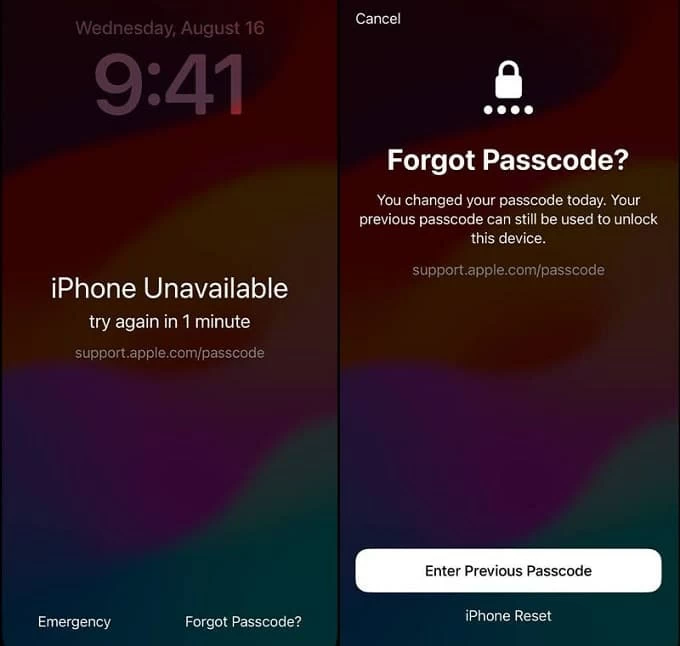
4. Type in your old passcode.
5. The moment the old one is accepted, iOS kicks you straight into creating a fresh passcode. Your data, photos and settings stay exactly where they were — nothing gets wiped.
That's the whole thing. No computer, no restore, no backup required.
See also: How to transfer videos from laptop to iPhone
If you don't have an old passcode (the 72-hour window) available to use, you're back to the erase-and-restore path. The tradeoff is harsh but honest: the phone itself goes back to factory condition, and anything that lived only on the device — never backed up, never synced to iCloud — goes with it. Photos in iCloud Photos, contacts, notes and app data that were already syncing will sail back once you sign in again.
Here's how to erase from the lock screen when you've forgotten passcode on iPhone 18:
1. Tap "Forgot Passcode?" in the bottom corner.
2. On the Security Lockout screen, tap "Start iPhone Reset" to confirm.
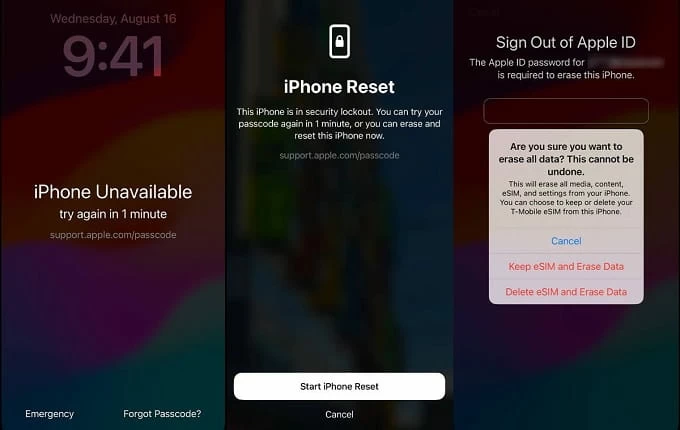
3. Enter your Apple Account password to sign out of the account on the device.
4. Tap "Erase iPhone." This permanently deletes every local file and setting. On iOS 17 or later with an eSIM, you'll be asked whether to keep the eSIM or delete it too.
When the iPhone 18 reboots, walk through setup, restore from a backup if you have one, and set a brand-new passcode
If the first two methods are off the table, it's time to look at a third-party professional screen unlocking utility. Apple does leave a few more doors unlocked — recovery mode being the last of them — but on sheer speed and ease of use, a dedicated tool is hard to argue with, and it's usually where I'd point you first.
Our favorite is Appgeeker iPhone Unlocker (iKnockin). It's a desktop app for Windows and Mac that handles the whole "iPhone Unavailable" class of lockout: 4- and 6-digit codes, custom numeric or alphanumeric passcodes, even a device where Face ID or Touch ID is stuck and won't accept the right code anyway. Plug the phone in, pick Unlock iOS Screen, let it fetch the matching firmware from Apple's servers, hit Start Removing, and you're good to go.
It also removes forgotten Screen Time passcodes and downtime limits, strips an MDM / Remote Management profile, and get rid of inactive Apple ID.
Here's how to use Appgeeker iPhone Unlocker to unlock iPhone 18 when you forgot passcode.
Step 1: Launch iPhone Unlocker
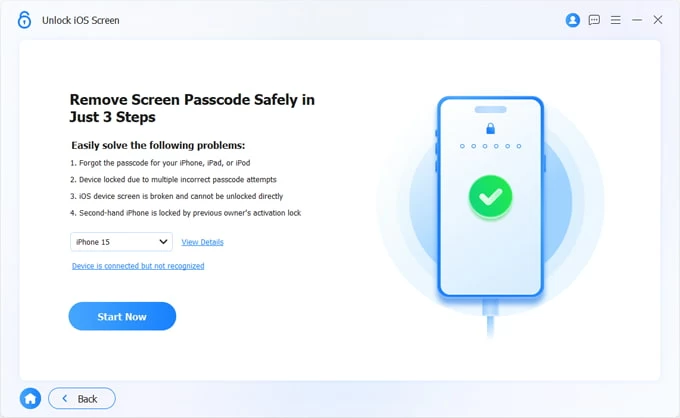
Launch it, and on the dashboard choose Unlock iOS Screen.
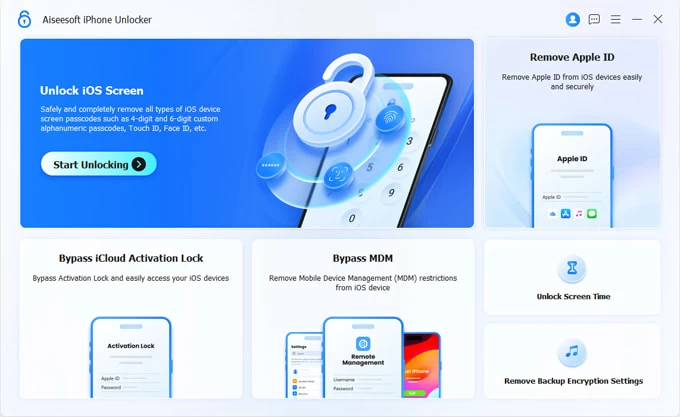
Connect the iPhone 18 to your computer with the USB cable. If it can't get a detection, the application will automatically pop up a wizard, prompting you to force the device into restore mode. It's pretty easy.
See also: How to sign out Apple ID without password
Step 2: Confirm your device information
Once you're in, double-check that the model shown is actually yours, followed by "Start Now."
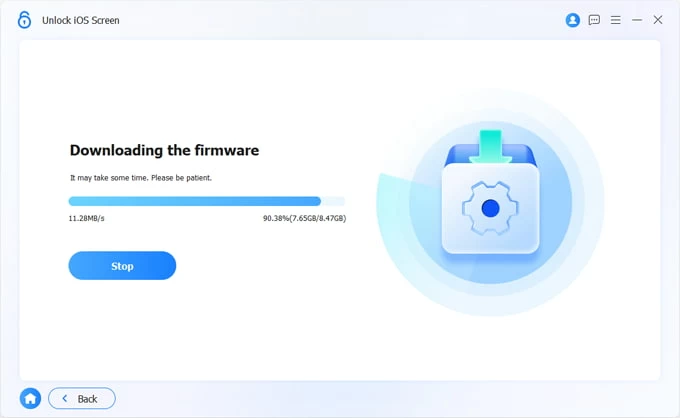
Wait for it to grab the proper firmware for your phone model. The package is several gigabytes pulled straight from Apple's servers, so this is where the clock is: typically 10–15 minutes on a normal connection.
Step 3: Begin unlocking passcode
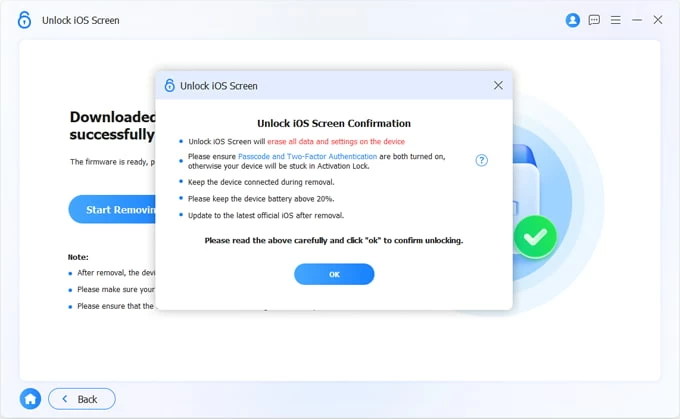
After download, click "Start Removing" button on the screen. When a warning dialog box opens up, read the messages carefully, then click "OK" to confirm it
Appgeeker iPhone Unlocker verifies the firmware, pushes it to the device, and the phone reboots a couple of times. Don't unplug it, don't let the machine sleep. The actual flash usually finishes in a few minutes.
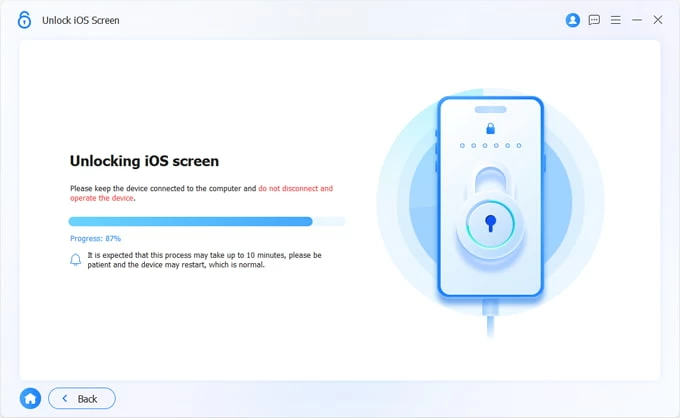
When the "Unlocked iOS Screen Successfully" screen appears, the phone restarts to the setup wizard. Set a new passcode, re-enable Face ID or Touch ID, sign back in with the Apple Account that was on the device, then restore from iCloud or your computer backup if you have.
Recovery mode isn't an unlock button — it's the built-in "reset the whole thing" state Apple built to rescue a phone when things go wrong, and the only reason it works on a forgotten passcode is that your keychain lives inside the system partition, so the only way over the lock is to wipe that system and reinstall iOS from a computer.
Steps to use Recovery mode to restore iPhone 18 when you forgot the passcode:
1. Power the phone off
Hold Side button + Volume Down until the slider appears, then slide to shut down.
2. Boot from recovery mode
Plug the cable into the computer first, then into the phone, quick-press Volume Up, release. Quick-press Volume Down, release. Then hold the Side button — keep holding through the Apple logo — and release only when the computer icon appears.
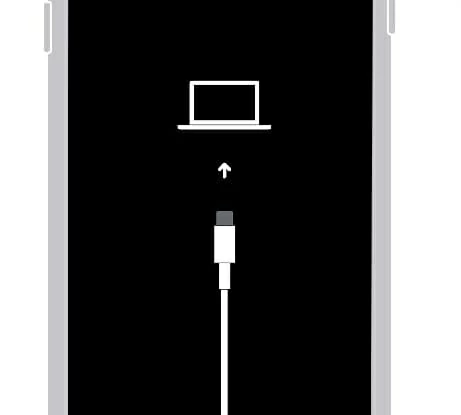
3. Get the computer to recognize it
On a Mac, open Finder and look for the iPhone in the sidebar. On Windows, open Apple Devices (or iTunes). Select the device and a dialog pops up asking whether you want to Update or Restore.
4. Restore the phone
Click "Restore." Read the wording carefully: it explicitly tells you the device will be erased and updated to the latest iOS Apple signs for that model. Confirm, and the clock starts.
Your iPhone 18 will reboot two or three times during the flash. A progress bar on the device means it's writing — leave it alone.
5. Set the phone up again
When the setup screen appears, the passcode lock is gone. You're ready to rebuild your iPhone 18 again.
See also: Pictures now showing on iPhone camera roll
This method has same requirements as Method 2 above, but the phone can be in your pocket — or across town. You can erase the iPhone 18 on any browser of a phone, a PC, a tablet, or anything.
Here's how to use Find My to unlock and erase your iPhone 18 that you forgot passcode to.
1. Go to icloud.com/find and sign in with your Apple Account. Ensure that it's the one registered on your phone.
2. Select your iPhone 18 from All Devices on the left
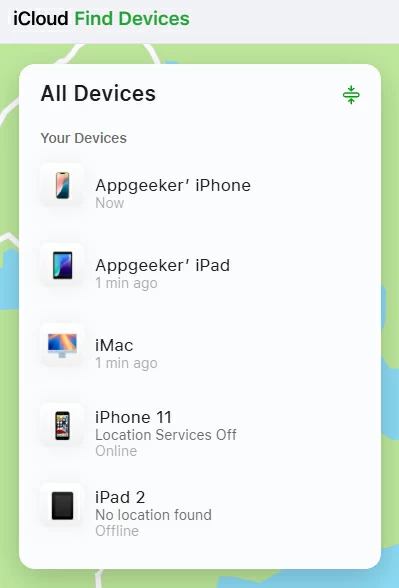
3. click Erase This Device.
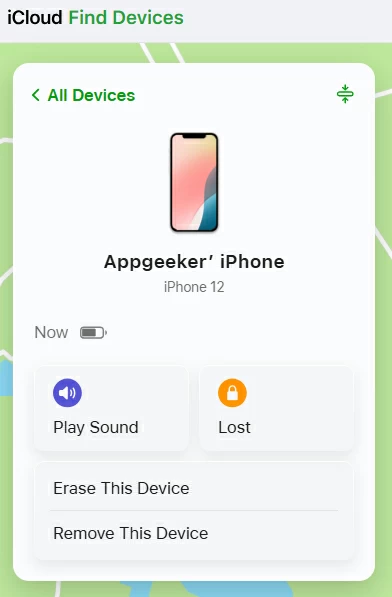
4. Authorize with your Apple Account password.
If you're on an untrusted browser you'll also field a verification code sent to a trusted device or number, or answer your security questions. The moment it's accepted, Apple queues the command.
You'll get a confirmation email at your Apple Account address — keep it, it's your receipt that the erase was genuinely requested.
5. The erase starts immediately.
The phone wipes itself, reboots, and lands on the Hello screen.