What to do when the iPhone is in Security Lockout


Want to transfer music files from computer to your iPhone but can't find out any way to do that? Here's how to get music collection onto iPhone with Apple routes and other options.

You can sync music with iPhone using iTunes, or use third-party tools to add them from computer directly to your device.
Are you thinking about transferring music from your computer to your iPhone but don't know where to start? Or you have used iTunes to sync the music library but it fails? Regardless of what Windows or macOS version you have, there are a few ways you can have your music onto iPhone from a computer.
Sure, there are dedicated file transfer tools like Appgeeker iPhone Data Transfer that allows you to drag and drop the songs directly onto the iPhone's library to keep things simple, and you can then create new playlists, edit ID3 tags, remove duplicate items, and more.
Here are complete, step-by-step instructions for how to transfer music from a computer to an iPhone with a few different ways.
Table of Contents
This method is best for a complete synchronization of your computer's music library to your iPhone. To use this Apple's method, you will have to install the Apple Devices app on your PC, which replaces iTunes for managing Apple devices, and you can't have "Sync Library" enabled in your Apple Music settings, as this cloud-based feature restricts manual data management.
Here's how to connect your iPhone to your computer to transfer your favorite music and albums.
1. Download both Apple Music app and Apple Devices app from Microsoft Store.
2. Add music files to Apple Music.
You can do this by opening Apple Music app, clicking on "Library" in the sidebar, dragging and dropping your music files (MP3, AAC, etc.) from a folder on your computer directly into the window.
Alternatively, go to the sidebar, click the three dots (...) or the sidebar menu, and choose "Import" to select your music folder.
Once your music is in the computer library, use the Apple Devices app to sync it to your iPhone.
3. Connect your iPhone to your computer using a USB cable. You may need to trust it.
4. Open the Apple Devices app and select your iPhone from the sidebar.
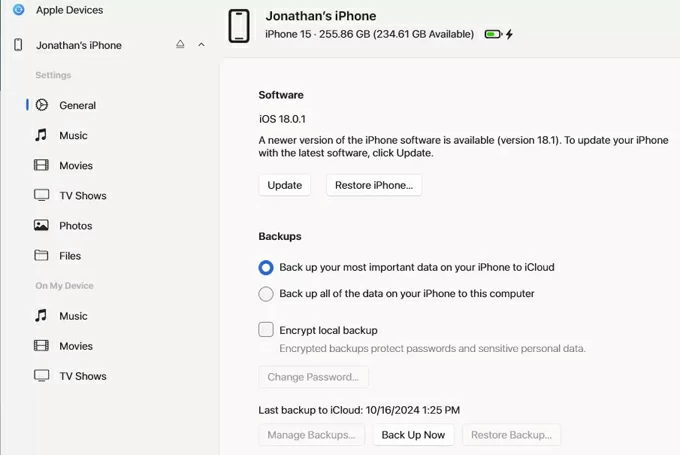
5. Click on "Music" in the sidebar menu.
6. Check the box for "Sync music onto [Your iPhone's Name]."
7. Select "Entire music library" to sync every song with your iPhone, or opt for "Selected artists, albums, genres, and playlists" if you want to manually choose specific portions of your music library to transfer to the iPhone.
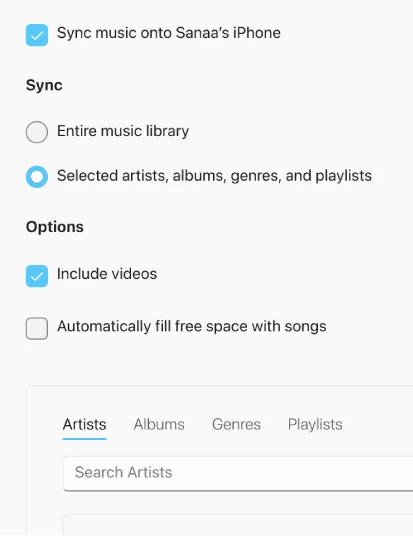
8. Click "Apply" (or Sync) in the bottom-right corner.
Please note that if you have music on your iPhone that is not in your computer's library, syncing can overwrite and delete that music first.
If you're still using iTunes on your Windows computer, for example, Windows 10, you may follow these similar steps to add music files from computer to iPhone.
See also: iPad Unavailable no timer
1. Open iTunes, click "File" in the top-left corner and select "Add File to Library" or "Add Folder to Library" to import your songs.
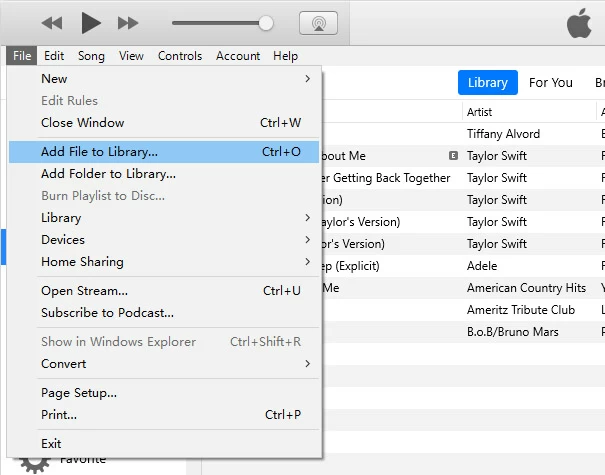
2. Select your device icon that appears near the top-left of the iTunes window once it's connected.
3. Check the box for "Sync Music."
4. Choose from "Entire music library" or "Selected playlists, artists, albums, and genres."
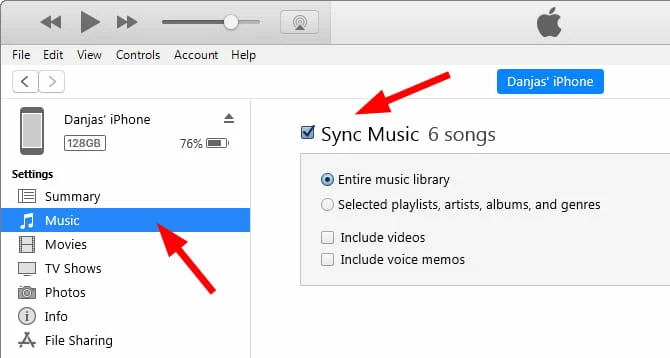
5. Click the "Apply" (or Sync) button in the bottom-right corner.
For Mac users, if you want to import music library from a Mac computer to iPhone, Apple has preinstalled Finder app for such tasks. Before that, your music files must be organized within the Music app on your Mac.
Ensure the songs play correctly on your Mac computer before attempting the transfer.
See also: How to get ringtone to iPhone without iTunes
1. Connect your iPhone to your Mac computer.
2. Open Finder and click on your iPhone's name under Location in the sidebar.
3. In the main window, click on the "Music" tab from a row of tabs (General, Music, Movies, etc.).
4. Check the box that says "Sync music onto [Your iPhone's Name]."
5. Choose to sync all your music library or just pick specific tracks if you have a large library but limited storage on your iPhone.
6. Check "Include videos" if you have music videos in your library you want to move.
7. Click the "Apply" (or Sync) button in the bottom-right corner. Music will copy to the iPhone into the Music app.
Tried iTunes or Apple Devices app with no success? Or you're looking for a simple way to drag and drop your music to iPhone directly? You can do this with a reputable program named Appgeeker iPhone Data Transfer. It's an all-in-one file management suite that serves as a versatile alternative to iTunes and Finder, enabling seamless two-way data transfers between iPhones, iPads, and computers without the risk of erasing existing content.
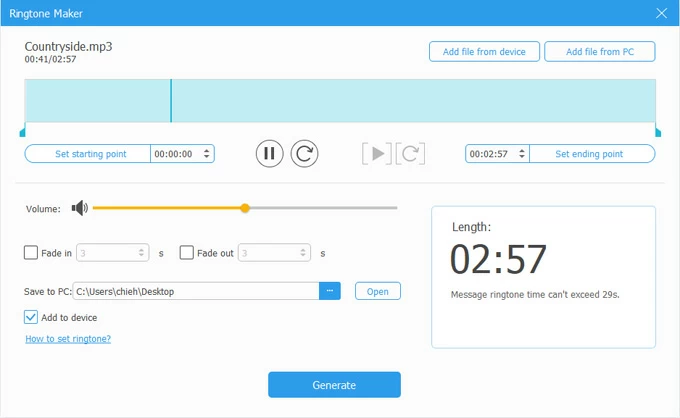
Beyond its core ability to manage over 20 types of data—including photos, music, videos, messages, contacts and WhatsApp chats—the software features a set of tools such as 1-click for backing up your device content locally, making custom ringtones, and managing iCloud drive.
As for music transfer from computer to iPhone, it gives you full control of adding music tracks, allowing you to implement both drag-n-drop and click-to-add. No matter in which format (MP3, FLAC, WAV, MKA, etc.) your music file is. it can convert them to the supported format by the device automatically during transfer.
Ready to go? Here're steps to transfer music from computer to iPhone without iTunes through Appgeeker iPhone Data Transfer.
Step 1: Connect the iPhone to computer
Open the program and ensure your device is connected and recognized.

Step 2: Open your device's music library
From the sidebar, click the "Music" icon. The program will scan your iPhone and load all of your current music files on the window, allowing you to filter by Name, Time, Size, Artist, Album, and Date.
You can click the specific album and playlist on the center pane to check details.
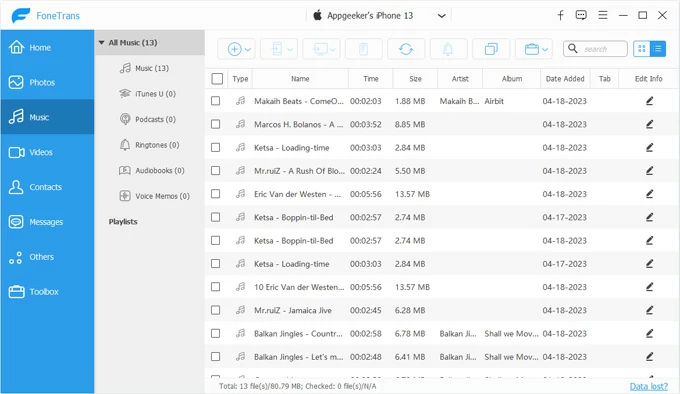
Step 3: Add computer's music to iPhone
Open the folder on your computer where your music files are located. Drag the music files directly from your Windows File Explorer into the program's window. You should go for a similar operation on Mac computer.
Alternatively, click the "Add" icon in the top menu bar. Then choose from "Add File(s)" or "Add Folder." At this point, a dialog box opens, browse your computer's folders, select the songs or folders you want to import, and click "Open."
Tip: You can create a new album to store your new imported tracks if necessary.
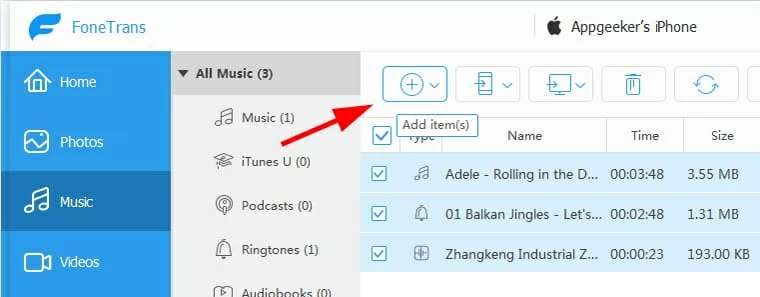
The program will automatically begin the import process. You don't first wipe out the existing music library – all the tracks present on your iPhone will remaining untouching.
Once the transfer has been finished, the songs will appear instantly in your iPhone's Music app.
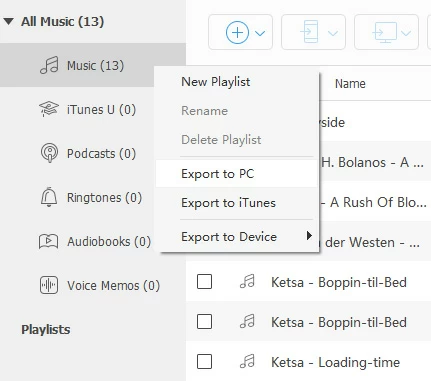
More features in right-click context menu:
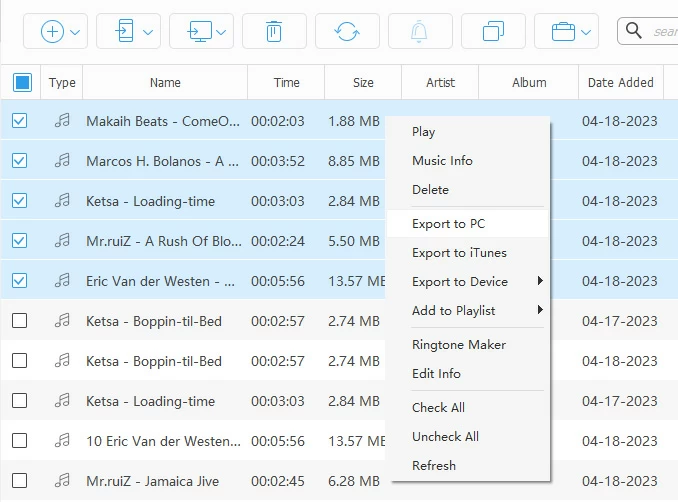
Right-click context menu for album:
Ringtone Maker:
Benefit of using Appgeeker iPhone Data Transfer:
See also: iPhone contacts disappeared
VLC for iOS contains a powerful, often-overlooked feature called "Sharing via WiFi." It essentially turns your iPhone into a localized web server. You don't need to install anything on your laptop; a simple web browser (Chrome, Edge, or Firefox) is all that's required to perform the transfer.
Here's how to use the open-source power of VLC to drag and drop music files from any computer browser directly into your iPhone's storage.
1. For VLC to work, both your computer and your iPhone must be on the same Wi-Fi network.
2. Open the VLC app on your iPhone. If you haven't installed it, download it from App Store.
3. Tap the "Network" icon at the bottom of the screen.
4. Find the toggle for "Sharing via WiFi" and switch it ON.
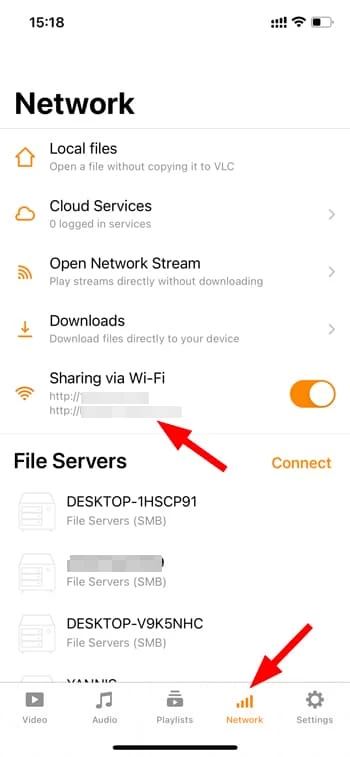
5. You will see a URL. It will look like an IP address (e.g., http://192.168.1.15)
6. On your laptop, open your preferred web browser.
7. Type the exact address shown in the VLC app into the browser's address bar and hit Enter.
8. A "Sharing via WiFi" dashboard will appear. This is your direct window into your iPhone's VLC storage.
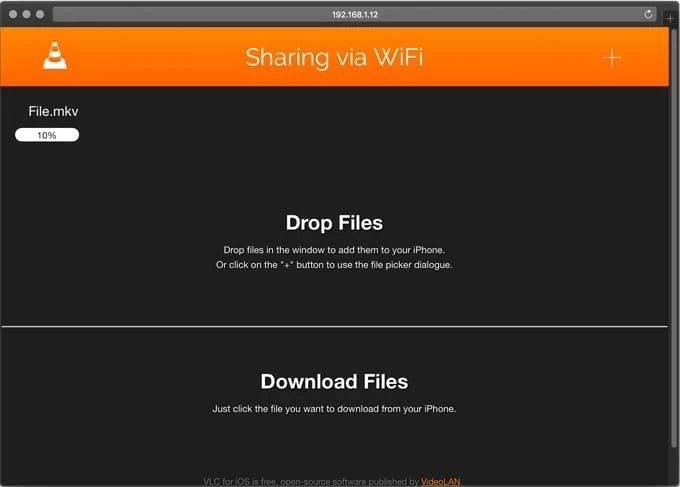
9. Simply select the music files on your computer and drag them into the browser window.
Once completed, the songs will instantly appear in the Audio tab of your VLC app on the iPhone.