Factory Reset iPhone without Passcode


Sometimes a forgotten iPhone passcode completely locks you out of your device. Here's how to safely reset your iPhone password so you can get back to everything.

Things to know when resetting passcode on an iPhone:
To reset a password on iPhone, you have to factory reset the device and erase everything to regain access.
Apple essentially offers no way to simply perform a passcode reset for lock screen if you forget it, but guides you through the process of factory-resetting iPhone.
Forgot iPhone passcode? It happens. Maybe you reset a passcode in Settings app but the next moment you can't remember it completely. Or maybe you guess the way to get into the phone but with the repeatedly incorrect guesses. Eventually, it displays a stark "iPhone Unavailable" or "Security Lockout" message on the screen.
This can be a huge hassle, but there are several reliable paths you can take to reset iPhone password when you forgot it before you head to the Apple Store or call for professional support.
Apple distinguished this: The digits on the lock screen is called 'passcode', while the one used to sign in to Apple account is named 'password'. Quite a few users call the passcode as password.
Light up your phone, face the screen and you'll see "Face ID or Enter Passcode" screen (or "Touch ID or Enter Passcode" in earlier models). Here we talk about resetting the iPhone passcode.
Resetting password is generally for Apple ID password. Apple offers several ways to reset it. This is an essential step since your Apple account are required to bypass Apple's Activation Lock in the setup process followed by resetting an iPhone.
Related: How to unlock iPad passcode without restore
Depending on the specific version of iOS running on your phone, your access to a computer, and whether you remember your Apple ID credentials, you can resolve this problem entirely on your own. Let's break down exactly how to narrow down your situation and systematically reset iPhone passcode to bypass that locked screen.
If you're using a computer to reset your iPhone password, make sure that your Mac or PC has Finder or iTunes installed, and get it updated if necessary.
Have you actually been permanently locked out, or are you simply facing a cooling-off period? Before attempting a hard factory reset on the iPhone to reset the password, pay close attention to what the lock screen says.
Apple uses an incremental security timer to protect your data from brute-force guessing attacks:
If your device is displaying a countdown timer, wait it out. Do not rush your next guess. Try to recall your numerical pin. If you guess correctly when the timer expires, you bypass any data loss entirely. Should a factory reset prove inevitable, adhere to the following procedure.
Related: How to transfer iPhone photos to external hard drive
If you know your Apple account and password, the process of resetting an iPhone passcode is significantly easier than ever and can often be done directly on the device. While this is the quickest method to reset the password, your iPhone needs to be connected to Wi-Fi or a cellular network for this method to work.
Here's how to use the "Forgot Passcode?" on the lockout screen (iOS 17 and Later) to directly reset your iPhone and passcode.
1. Intentionally type an incorrect passcode until the device triggers the iPhone Unavailable or Security Lockout screen.
2. Tap Forgot Passcode? at the bottom right-hand corner of the screen.
3. On the next iPhone Reset screen, select Start iPhone Reset option. This action will permanently delete all data and settings from your device.
4. You will be prompted to enter your Apple ID password to sign out of your iCloud account and deactivate Find My.
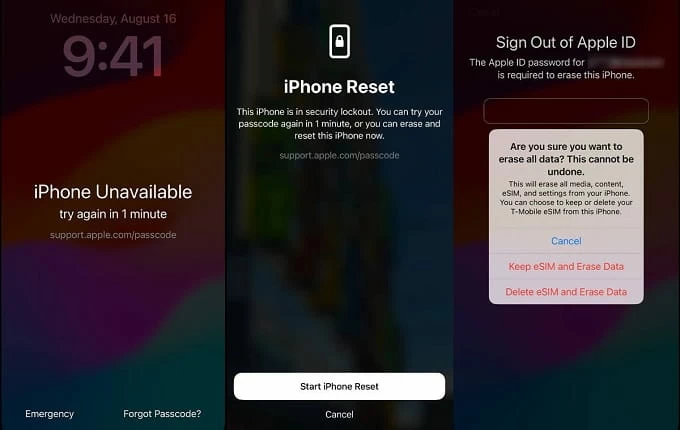
The iPhone will reboot, show the Apple logo, and completely hard reset itself. Once done, you can restore your data directly from your latest iCloud or desktop backup.
If there isn't a "Forgot passcode?" option, or it doesn't work, you can then use a dedicated screen unlocking tool, something like Appgeeker iPhone Unlocker to help you out. The program is overall intuitive and easy to use. You'll quickly grasp the utility and implement an iPhone password reset - connect iPhone to the computer, let the program detect it, download the iOS firmware, and you're good to go. Download here:
As an all-in-one suite, it allows to reset 4-digit/6-digit passcodes, Touch ID, and Face ID, while also offering advanced tools to remove Apple ID, Screen Time passcode, and Mobile Device Management (MDM) restrictions without requiring technical expertise.
The program gives you a straightforward, step-by-step bypass to completely reset your lock screen password on iPhone. Here's how.
1. Open iPhone Unlocker (iKnockin) on your either PC or Mac, choose Unlock iOS Screen function to start.
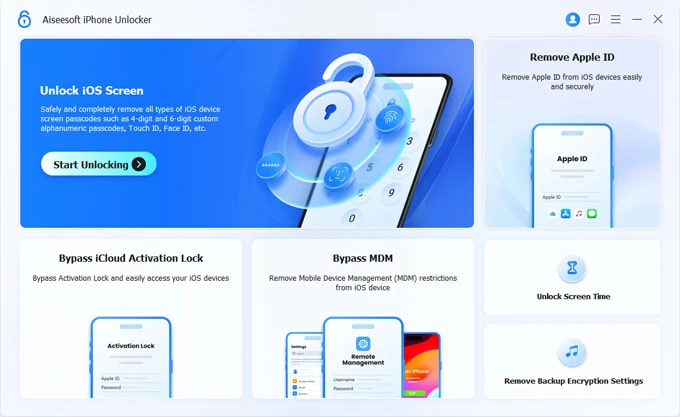
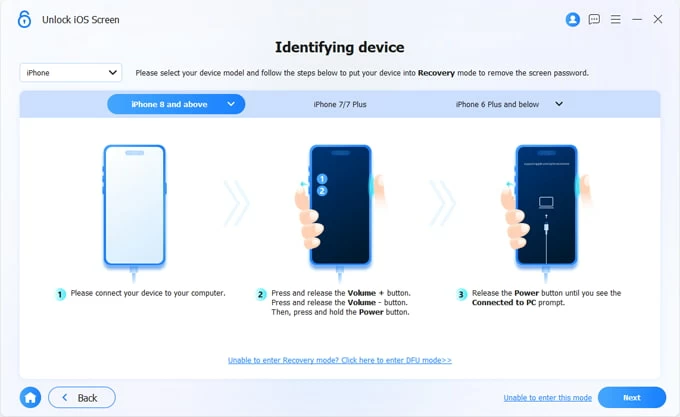
2. Plug iPhone into computer with a working USB cable. If the program doesn't recognize the device, it will pop up onscreen instructions automatically, guiding you through the steps to put the phone into Recovery mode.
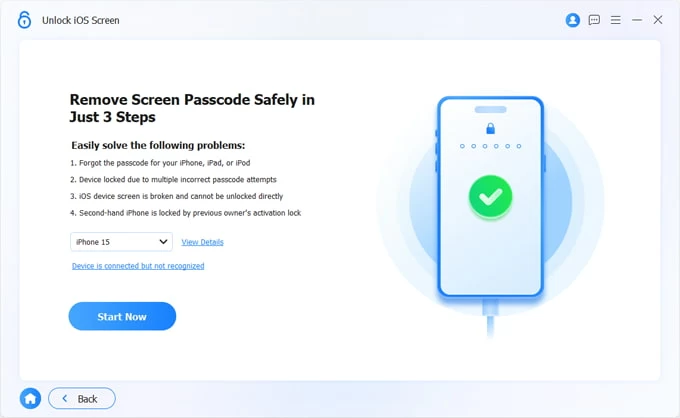
3. Once recognized, check the details and click Start Now button to move on.
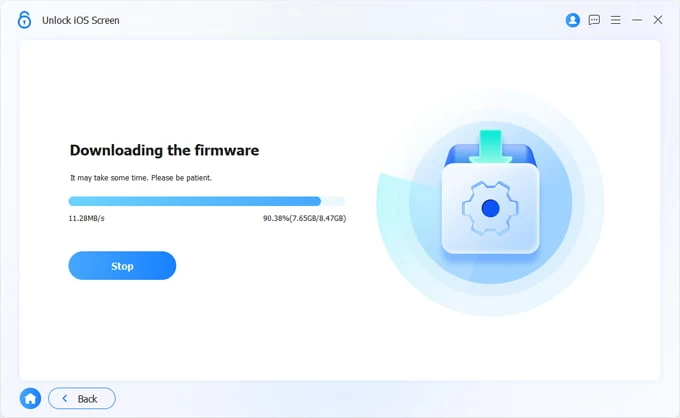
Now, it will begin downloading the most appropriate iOS firmware package for your device. Wait the process to finish. You can stop the process at any time.
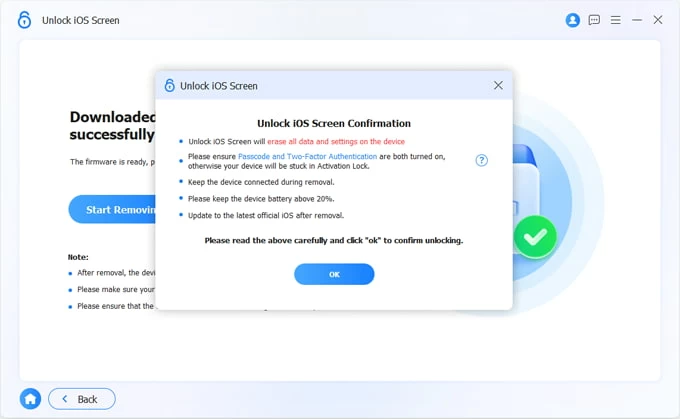
4. Once done, click the Start Removing button, and confirm the OK button in pop-up.
5. Wait for the program to reset the passcode and iPhone. Don't disconnect your device until the process completes. You're set.
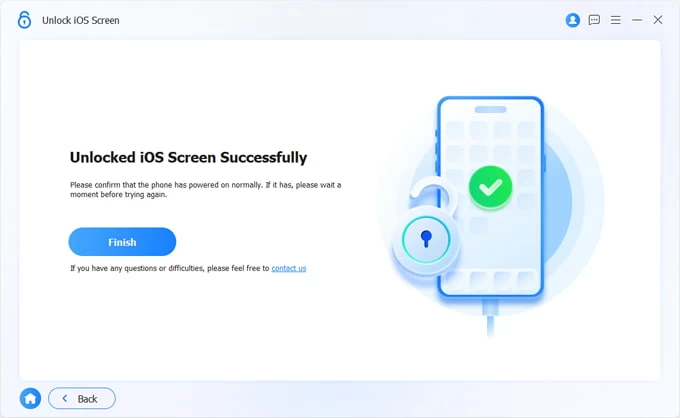
By far, your iPhone is reset as a brand new device. It's time to set it up with the help of Set-Up Assistant. Hopefully you have an iCloud or computer backup beforehand to restore your photos, messages, and other important files. Don't forget to reset a new passcode during the setup - after all, you don't want anyone get into your phone without permission.
Afterward, reinstall your apps from the App Store.
Related: How to recover deleted call history on iPhone
If you don't disable Find My option manually on your iPhone—by default, the function is already toggled on—you can access a secondary screen like a laptop, tablet, or a family member's phone, sign into iCloud, then initiate a secure iCloud command to reset the iPhone remotely. This will also reset the iPhone passcode and lock screen completely, giving you option to set the device up again.
1. Open an internet browser on your computer or mobile device, navigate to iCloud.com/find.
2. Log in iCloud with the exact same Apple ID and password currently linked to your locked iPhone that you want to reset the password.
3. Once you're in, click All Devices on the bar at the top to reveals all your iOS devices.
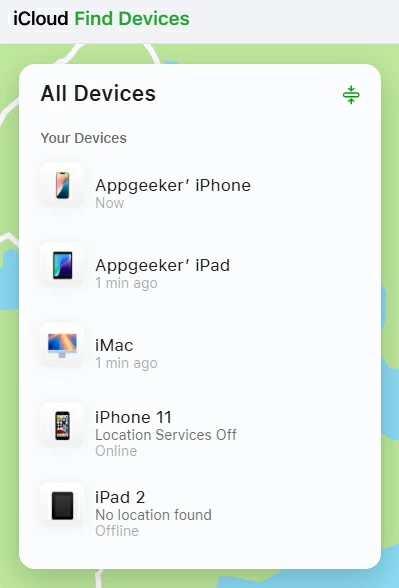
4. Choose your phone and click on Erase This Device when a control panel card slides out.
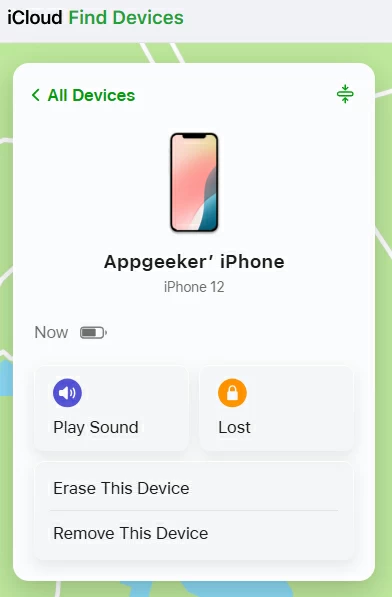
5. Confirm your selection to begin resetting the iPhone. This will erase all content and settings.
As soon as your locked iPhone connects to the internet, it will receive the remote wipe command, wipe the forgotten passcode, and boot back up into the initial Hello setup configuration screen.
Your phone lacks an active internet connection, fails to show the "Forgot Passcode?" button, or runs an older iOS operating system? This option is for you. This process requires a USB cable and a computer running either the latest version of iTunes (on Windows) or the Finder app (on macOS).
To reset passcode for iPhone, follow those steps to enter the device into Recovery mode:
For iPhone 8 and later model, press and hold both the Volume Down button and the Power button simultaneously until the power-off slider appears. Slide to power off.
Once the phone is completely dark and powered off, connect it the computer while pressing and holding the Side button. Keep holding the button down as the phone starts up. Do not release it even if you see the Apple logo. Only let go when you see the Recovery mode screen, which depicts a laptop icon and a support cable graphic.
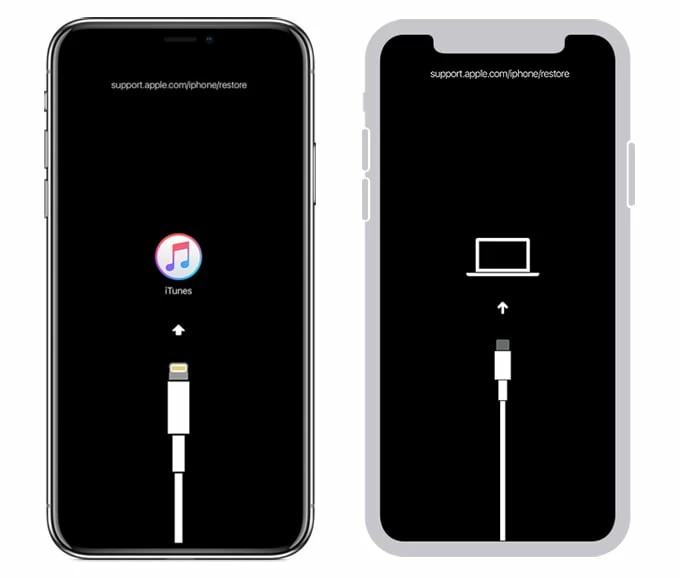
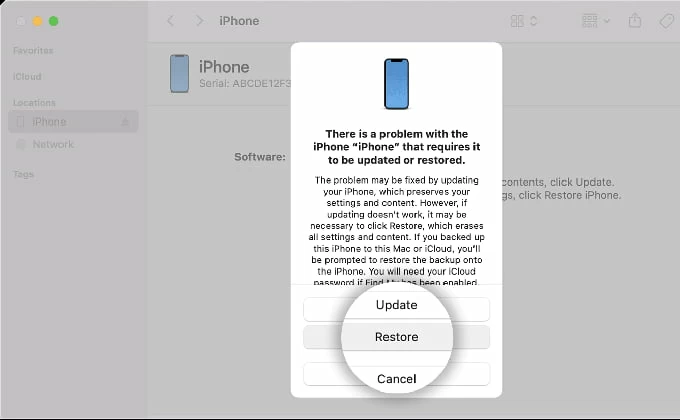
Once you successfully get into recovery mode, launch iTunes or Finder on your computer.
In Finder, locate your phone on the left sidebar. You should see it at the top left corner of iTunes window.
A message saying that your iPhone needs to be updated or restored will pop up. Choose Restore
The computer begins downloading fresh firmware file and install it onto your device, erasing the passcode barrier, and resetting it to its factory settings.
Related: How to Unlock iPhone with iTunes
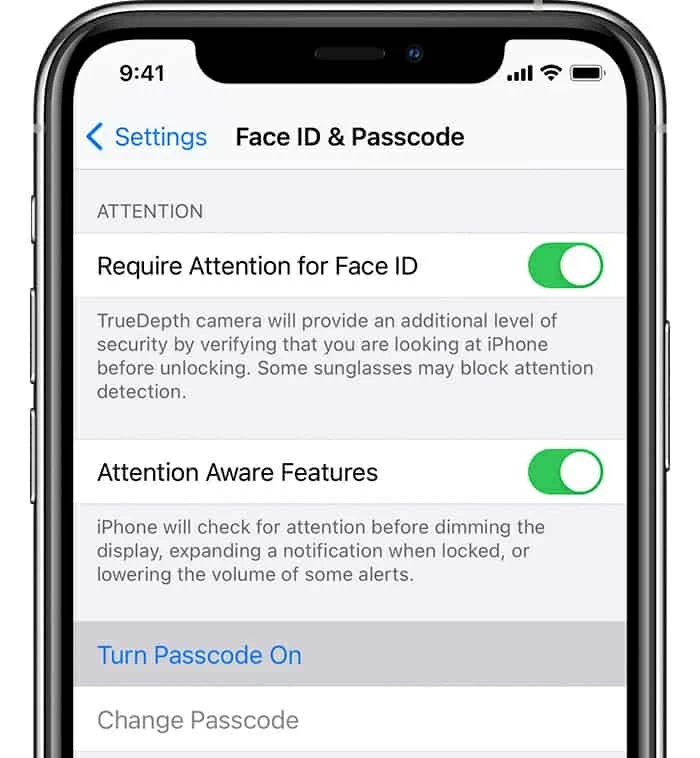
You're given option for resetting password on iPhone when you know the current passcode and have access to the device. Or maybe you ignored creating a passcode in the setup by tapping Set Up Later in Settings. Use these steps.
1. In Settings app, tap Face ID & Passcode (or Touch ID & Passcode on earlier models.)
2. Tap Turn Passcode On and set a new passcode.
3. To change or reset the passcode, tap Change Passcode.