
How to unlock iPad without Apple ID


By default, a factory reset on the iPhone 18 Pro still asks for the one thing you don't have: your passcode. Here's how to erase the phone without it through different options.

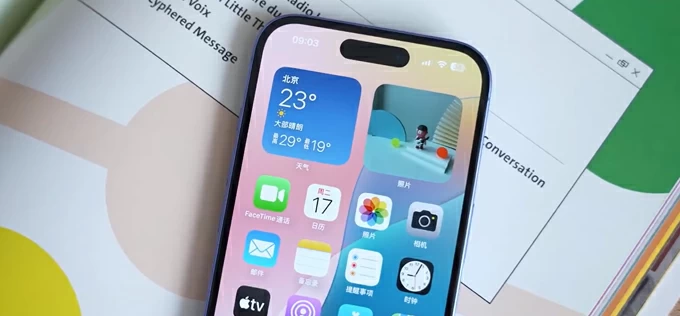
You can reset the iPhone 18 to factory settings without passcode through device's screen or remotely.
With Apple's latest flagship in 2026, the iPhone 18 series, there's rarely a good reason to reset it back to factory settings. Nine times out of ten, if it's being stubborn, a plain restart or a force restart is all you need. That changes the moment you find yourself locked out.
Whatever the reason, the rule is simple: unless you changed that passcode within the last 72 hours, you're going to have to factory reset the iPhone 18 if you forgot the passcode to regain access. And yes, that means every bit of data on it is gone — the phone goes right back to the day you lifted it out of the box.
Resetting your iPhone 18 from inside the Settings app is one thing. Erasing it without knowing the passcode is another — this takes more patience, more time, and a few extra steps. In this guide, we'll walk you through 5 ways to reset an iPhone 18 without a passcode.
If you want the least painful route to getting back in, go with Appgeeker iPhone Unlocker.
This is the only method that won't wipe your data and reset the iPhone 18 to its factory settings — and it only works if you changed your passcode within the last 72 hours. Starting with iOS 17, Apple lets you temporarily sign back into a forgotten-passcode device using your old passcode. Once that grace period expires, there's no avoiding a full erase.
Follow these steps to reset an iPhone 18 when you forgot passcode through an old passcode:
Step 1 — Wait for the lock screen to offer a way in.
Enter the wrong passcode on the lock screen until you see "iPhone Unavailable" (or "Security Lockout"). Don't keep tapping — after too many tries the device triggers a timed lockout, which is fine, but you want the screen that shows the bottom link.
Step 2 — Tap "Forgot Passcode?"
On the bottom of the lock screen, tap "Forgot Passcode?"
Step 3 — Select "Enter Previous Passcode"
On the next screen that appears, confirm to select "Enter Previous Passcode." If you have an old code available to use, you have to choose "iPhone Reset" instead.
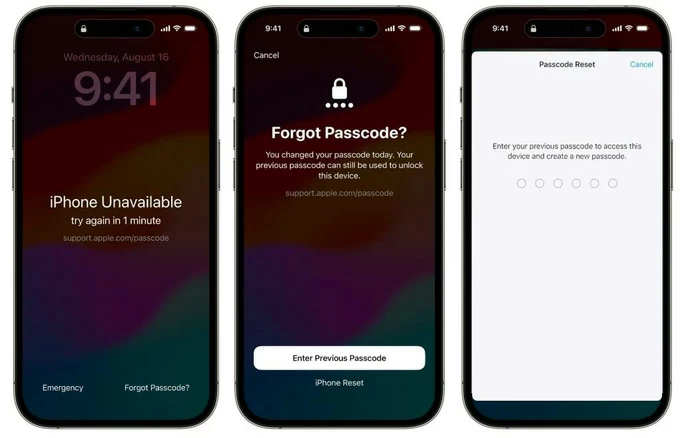
Step 4 — Enter your old passcode.
When prompted, type the previous passcode — the one you were using before the recent change. This is the whole point of the 72-hour window: Apple keeps a short-lived copy of your old code exactly for this scenario.
Step 5 — Set a new passcode.
You'll now be asked to create a fresh passcode. Enter it twice to confirm.
Step 6 — You're back in. You won't have to reset the iPhone without passcode. No data erase, no system restore.
The home screen returns as you left it — photos, messages, apps, and local files all intact. The phone is unlocked and the 72-hour reset window closes behind you.
See also: Text Messages disappeared from iPhone
If you didn't change your passcode in the last 72 hours, an iPhone 18 reset becomes unavoidable. This isn't a policy quirk you can talk your way around — it's baked into Apple's security architecture, and even verifiable proof of ownership won't override it.
What softens the blow is that resetting iPhone 18 without passcode can be kicked off directly from the iPhone itself, no Mac or PC required. For Apple, that's a genuinely big step forward.
What you'll need: the iPhone 18 itself, an active Wi-Fi or cellular connection, and the Apple Account (iCloud) password tied to the device. Yes, the passcode is gone — but Apple still checks the account password before it lets you wipe.
1. On the lock screen, tap in a wrong passcode repeatedly. You'll see the timer climb — 1 minute, 5 minutes, 15. Keep going until the screen reads "iPhone Unavailable."
2. Tap "Forgot Passcode?" that appears in the corner.
3. Read the warning carefully: it tells you the phone will be erased and you'll need your Apple Account password to set it up again. Tap "Start iPhone Reset" to confirm.
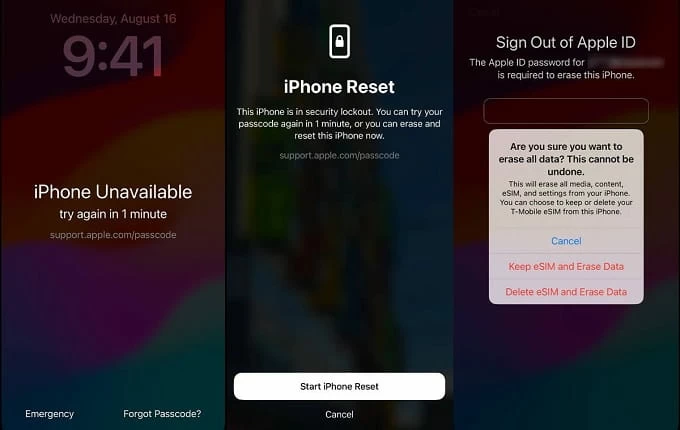
4. The device now asks for the password of the Apple Account signed into this iPhone. Enter them. This is Apple's last gate — ownership verification happens here, not with the passcode.
5. Wait for the reset to finish.
When you see the phone reboot into the Hello screen. The internal storage has been wiped; the device is now factory-fresh.
Run through the setup steps (language, region, Wi-Fi) until you reach the Apple Account sign-in prompt. You must log in with the same Apple account that was on the phone before the erase.
See also: How to add ringtone to iPhone
If you're looking for a way to quickly reset the iPhone 18: third-party unlockers exist precisely for the "I'm locked out of my iPhone 18 and I don't have the screen passcode either" corner case. We tested several; Appgeeker iPhone Unlocker is the one we'd reach for first. It handles different kinds of screen locks on iPhones and iPads.
Step 1: Install and launch iPhone Unlocker
Download AppGeeker iPhone Unlocker on a Mac or Windows PC and open it. Pick the "Unlock iOS Screen" module on the home screen.
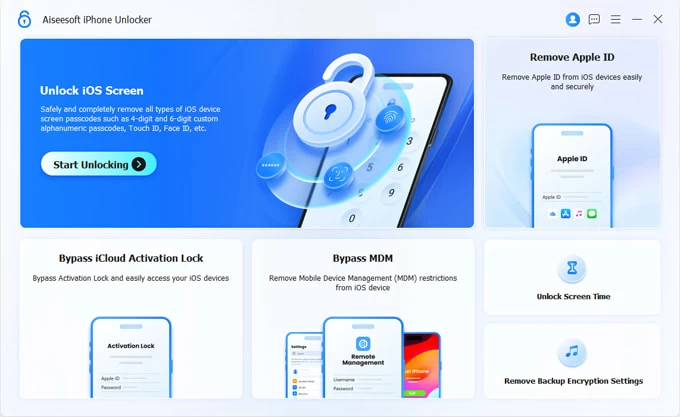
Plug in the iPhone 18 with a working USB cable. If it doesn't detect the device, you should be presented with a wizard asking you to put the phone into restore it. Do it as required, it's pretty easy.
Step 2: Confirm your phone info
The app should detect the model and iOS version within a few seconds. Click "Start Now" to proceed.
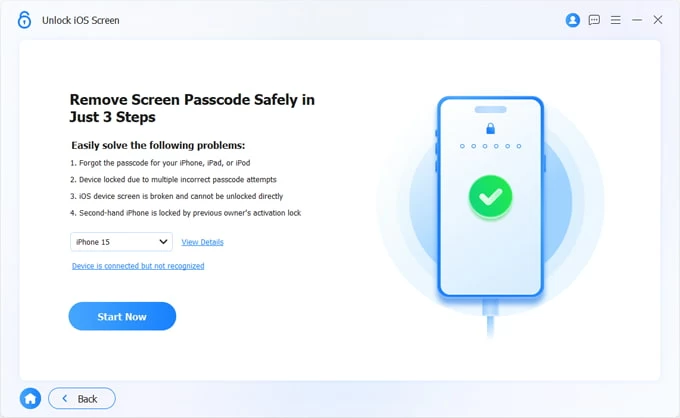
Step 3: Download the matching firmware
The tool fetches the firmware package that matches your iPhone 18 from Apple servers. This is the same signed IPSW a computer restore would use
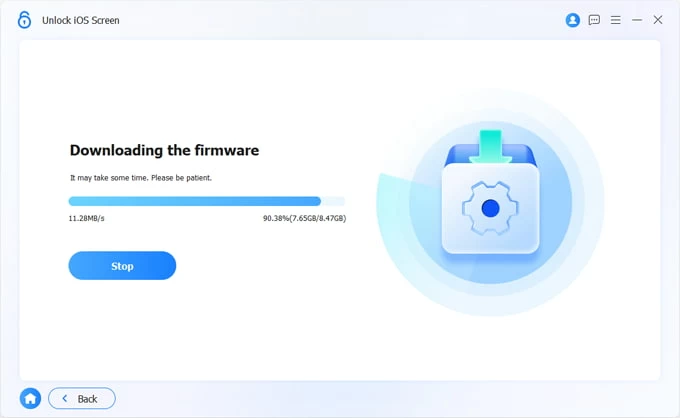
Step 4: Begin resetting iPhone 18 without a passcode
When you're ready, click "Start Removing" button. At this point, a dialog pops up. Reading the warning carefully, and then press "OK" to confirm.
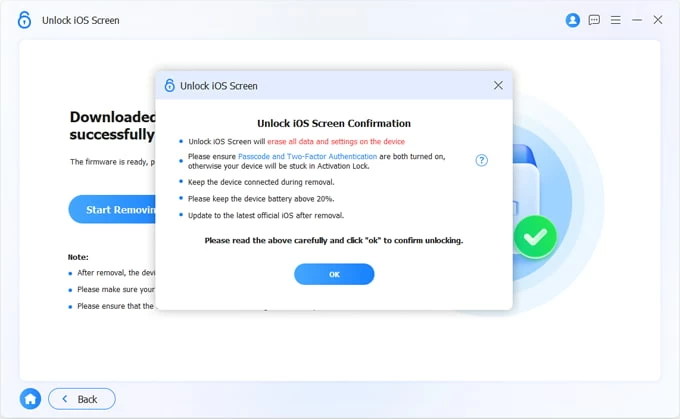
The app installs the firmware on the iPhone 18 and restores it for you, no passcode and no Apple Account password asked during the wipe.
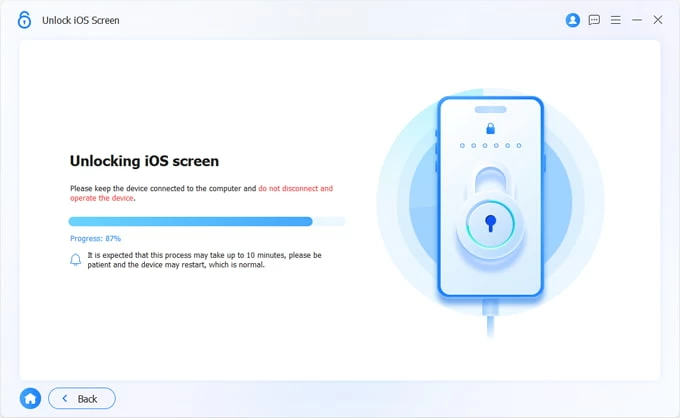
After the reset, your iPhone 18 should reboot to Hello screen. Sign back in with your own Apple Account to re-download apps and restore from iCloud Backup if you had one.
See also: How to remove device management from school iPad
Find My is the one method on this list that was never really about being locked out — it was built for the moment your iPhone 18 isn't in your hands at all. That's also what makes it useful when you're sitting in front of the phone, blocked by a passcode you can't remember: the remote reset couldn't care less about your screen passcode.
What you'll need:
Here're detailed steps on how to use Find my to reset iPhone 18 without having passcode:
1. On any phone, tablet or laptop, go to icloud.com/find and sign in with the Apple Account that was on the locked iPhone 18.
2. Click "All Devices" (or the back-arrow in the map view) and select your iPhone 18 from the list.
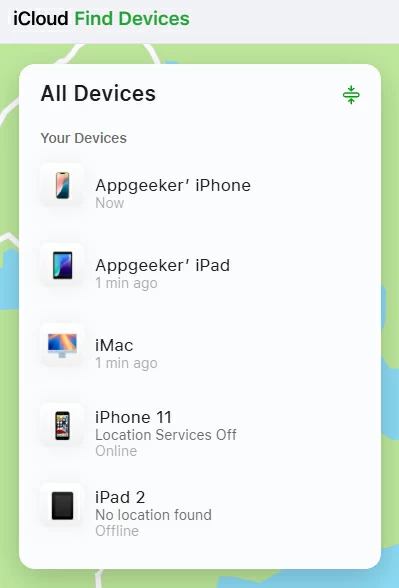
3. In the device info panel, click "Erase This Device," then work through the on-screen confirmation.
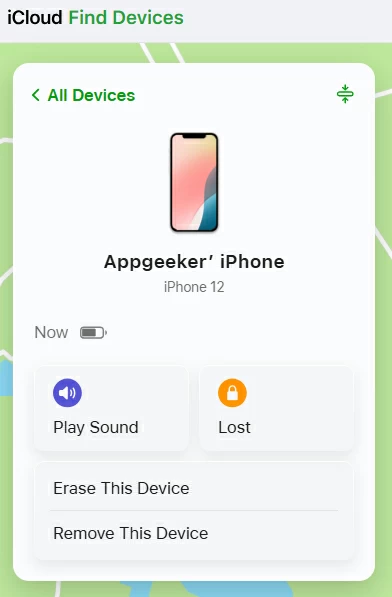
4. Enter the Apple Account password when asked, then confirm Erase a final time. The moment the device is online, the wipe begins; if it's offline, you'll see Erase Pending instead.
5. Apple sends a confirmation email to the account's email address once the erase is done. The iPhone reboots to Hello screen, factory-fresh and still demanding the original Apple Account at setup.
Alternatively, you can reset the iPhone 18 from a family member's or spare Apple device:
1. Open the Find My app on the other device and make sure it's signed into your Apple Account (or, if it's a family member's phone, your device appears under their Family list).
2. Tap the Devices tab at the bottom, then scroll and tap your iPhone 18.
3. Tap the More (...) button, then Erase This Device > Continue.
4. Type your Apple Account password, tap Erase again to confirm.
See also: How to fix "This Apple ID is not active" issue
Recovery Mode is the blunt instrument in this list — and that's exactly why it earns a spot. It doesn't care whether your device has Find My enabled or not, or whether the "Forgot Passcode?" button decided not to show up today. All it needs is a cable, a computer, and a working internet connection. Where methods above is the polite, Recovery Mode is the fallback that always works on a stock iPhone — the one Apple engineers themselves reach for when the software layer above it has stopped listening.
To reset your iPhone 18 when forgetting passcode, do the following:
1. Plug the iPhone into a Mac (Finder, macOS Catalina 10.15+) or a Windows PC with the latest Apple Devices app (or iTunes 12.12.5+ on older setups). Keep the cable connected for the whole procedure.
2. Press and quickly release Volume Up, then quickly release Volume Down, then hold the Side button. Don't let go when the Apple logo appears — keep holding until you see the Recovery Mode screen: a laptop icon with a cable, or a computer-and-cable graphic.
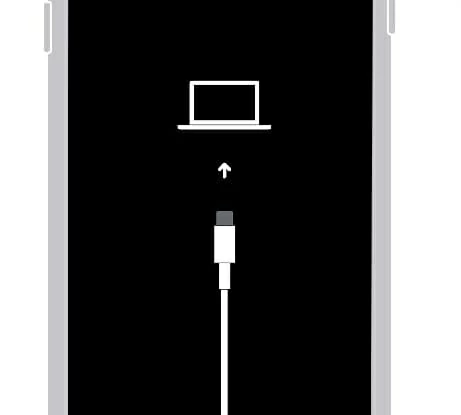
3. Finder / Apple Devices will pop up: "There's a problem with this iPhone that requires it to be updated or restored." Click Restore.
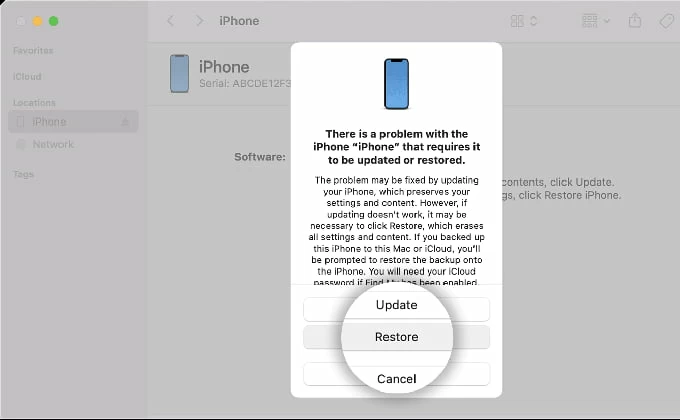
4. The computer downloads the latest signed firmware and erases the device. This can take 15-30 minutes. Don't unplug. If the download times out, the process restarts the fetch — just let it finish.