How to recover deleted photos on iPhone 17


Forgot your iPhone 18 passcode? Here's how to unlock the iPhone 18 from its screen, a browser, or force it into Recovery Mode so you can get the device back in working order.

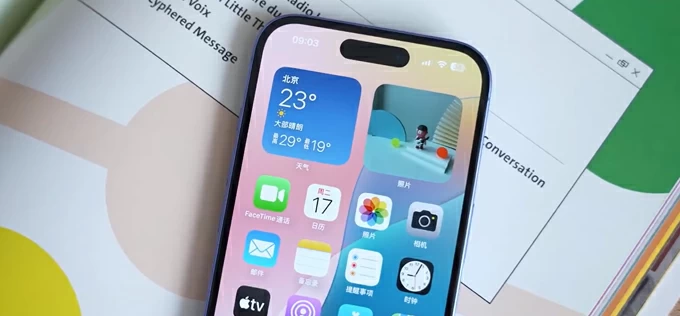
Erasure is the cost of security. Without passcode, unlocking your iPhone 18 is only possible by wiping it clean.
You may never have imagined the day you would forget the passcode to your iPhone 18. You type in what you are certain is the right code, only to be denied access and told to try again. Panic sets in. Worse still, with every failed attempt, the wait grows longer—five minutes, then fifteen, then thirty, the intervals stretching relentlessly. Eventually, the screen stops asking for a code altogether and greets you with a blunt message: "iPhone Unavailable." No timer left.
Apple never stored your passcode in the cloud, and it never gave you a way to recover it. If you want to unlock your iPhone 18 without passcode, the only path left is to reset it — erasing not only the "iPhone Unavailable" message, but the passcode you forgot along with everything on the device. Even the rightful owner is subject to the same rule. It is a brutal logic, but it is the same reckoning every user faces when the lock screen wins.
Fortunately, Apple does provide several native ways to unlock the iPhone 18 when you forget the passcode— though every one of them demands the same price: a full erase that returns the device to its factory state. If you would rather move faster than Apple's built-in routes allow, there are also reputable third-party tools like Appgeeker iPhone Unlocker (iKnockin) designed to take you through the process with less friction.
Under normal circumstances, unlocking your iPhone 18 is uneventful — you enter the right passcode and you're in. Forget that code, however, and the experience changes. The first five wrong attempts are met with nothing more than a polite "try again," with no delay attached.
It is only from the sixth attempt onward that the clock is introduced: fifteen minutes, then progressively longer, until an hour-long wait stands between you and the next keystroke. Until the timer expires, there is nothing to do but wait. That, too, is part of the design. Of course, you don't have to sit through it — the alternative is to skip ahead and begin the reset process described below. This is Apple's security mechanism, and it is not one you can negotiate with.
Actually forgot your passcode — and need back in fast? Here's how to unlock an iPhone 18 without passcode.
To unlock iPhone 18 without a passcode, the path back in is simpler than it used to be — a genuine lifeline if there is no computer within reach. Starting with iOS 17, Apple built a "Forgot Passcode?" option right into the lock screen, so you can reset the device from the device itself.
As long as the iPhone has an active cellular or Wi-Fi connection, the option appears on the iPhone Unavailable screen; from there, you simply follow the onscreen prompts to begin the reset, then verify your identity by signing out of your Apple Account with its password. Here is how to do it:
1. Enter the wrong passcode six times in a row. On the sixth attempt, the iPhone Unavailable screen will show a Forgot Passcode? link in the bottom-right corner.
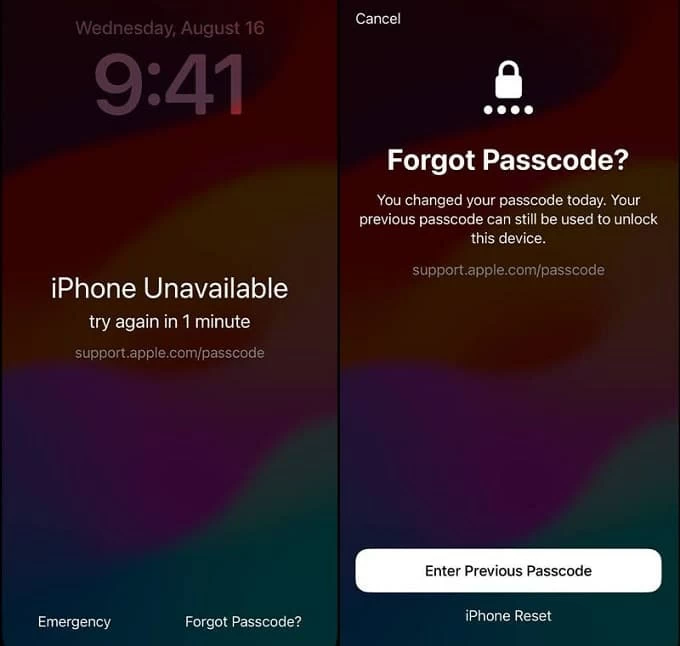
2. Tap "Forgot Passcode?" to begin.
3. Select "iPhone Reset."
If you changed your passcode within the last 72 hours, Apple leaves you a kinder door open. Tap "Enter Previous Passcode?" instead, then type in the old passcode — and the iPhone 18 unlocks normally, no reset required. It is the only recovery route that spares your data. Most users will never get to use it, but if you're in that narrow window, it is an outright lifesaver.
4. Enter your Apple ID password to sign out of your Apple account in the next screen.
Once Apple verifies that your Apple Account credentials are correct, the iPhone 18 begins resetting itself — the same process you'd trigger from Settings app. All that's left is to let it finish. Give it time; the device will restart when the wipe is complete.
That's it! Once the reset finishes and the iPhone 18 unlocks without passcode, you won't be looking at your old home screen — you'll be greeted by the setup assistant, as if the device were brand new. Apple makes you walk through the configuration again from scratch. If you have a backup, this is the moment it pays off: restore your data during setup and the iPhone will rebuild itself into the one you remember.
The second route is a dedicated third-party tool named Appgeeker iPhone Unlocker — one of the well-established names in the market. It is aimed squarely at anyone who would rather not struggle with tedious configurations: a streamlined alternative for the impatient, where the trade-off is the same but the path is shorter and the steps are fewer.
The software handles more than a forgotten screen-lock passcode. It can also remove an Apple Account lock and lift an MDM (Mobile Device Management) restriction on iPhone or iPad — taking you from a bricked lock screen to a usable device in one workflow. As an all-in-one screen unlocker, it is genuinely capable of the job.
Follow these steps to unlock and iPhone 18 without knowing passcode using Appgeeker iPhone Unlocker app.
1. Launch the application, to unlock your iPhone 18, select the big "Unlock iOS Screen" card from interface.
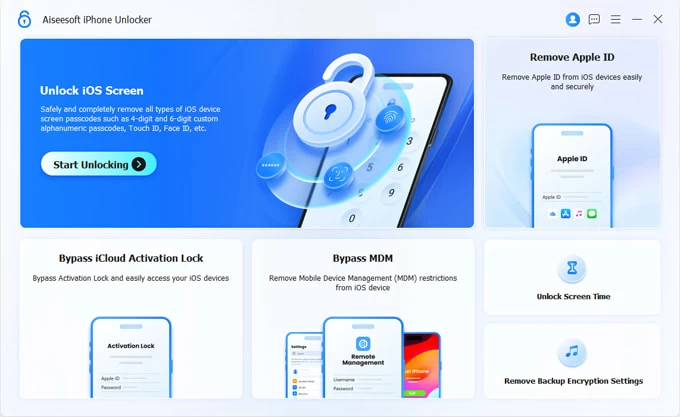
2. Next, plug your device to the computer using an USB-C cable and click "Start."
If the app doesn't detect your phone, follow the onscreen prompts to put it into restore mode. It's pretty easy.
3. Once in Restore mode, verify that the detected model and iOS system version match your device.
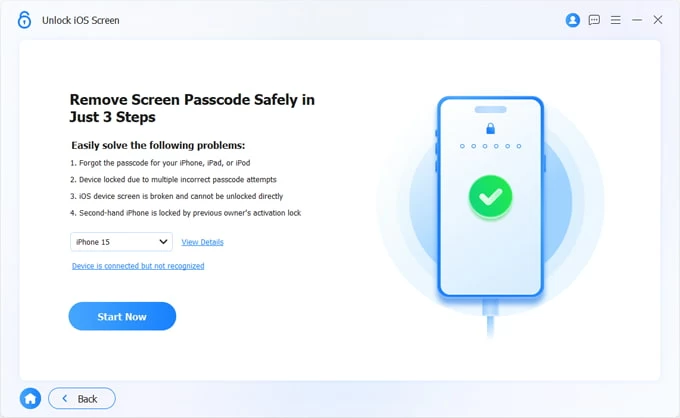
4. Click "Start Now" button to proceed. It will begin download proper firmware package for your iPhone 18.
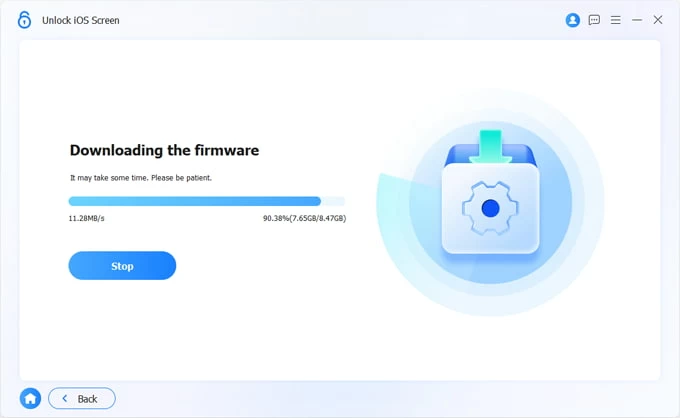
5. After firmware is finished downloading , click "Start Removing" button on the screen.
Read the on-screen safety warning messages and click "OK" button to confirm.
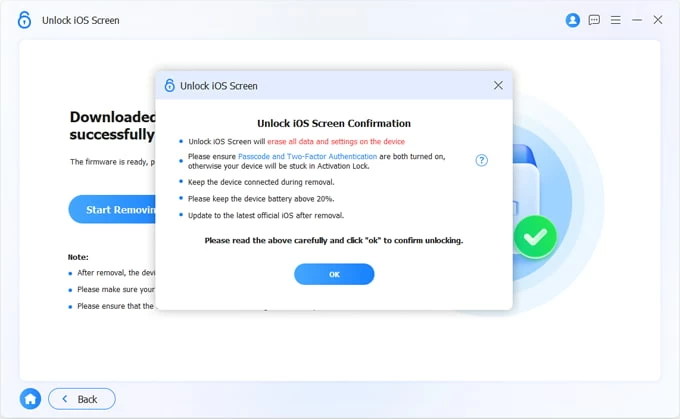
Now, the app will start resetting the iPhone 18 to its factory settings. The process will remove the forgotten passcode and erase all personal data.
When you see a Hello word, you've successfully unlocked your iPhone 18 without passcode.
All that remains is to walk through the on-screen setup and re-set up the phone — the same out-of-the-box assistant you met after the reset.
See also: How to add photos from laptop to iPhone
In a sense, Recovery Mode is the catch-all. The glitches that survive a normal restart — and the ones that laugh off a forced reboot — tend to fold the moment the iPhone is plugged into a Mac or PC. Including, yes, a forgotten passcode. This is the safety net Apple built for when everything else fails.
If there happens to be a computer within arm's reach, you can put the iPhone 18 into Recovery Mode and choose the built-in Restore feature: the device wipes itself, pulls down a fresh copy of iOS, and lands you back at the Hello screen.
Here's how to unlock iPhone 18 without passcode through Recovery mode:
1. Plug the iPhone 18 into the computer with the cable, then open Finder (or the Apple Devices app) on that machine. Leave the window open. Do not wait until the phone is already in Recovery Mode to go looking for it.
2. Press and quickly release the Volume Up button. Press and quickly release the Volume Down button. Press and hold the Side button — and keep holding it.
Here is the part everyone gets wrong: the Apple logo will appear on screen. Do not let go. Keep holding the Side button until the display switches to the Recovery Mode screen — the one showing a cable pointing at a computer, with the words Connect to Computer. Only then should you release the button.
If you saw the Apple logo and the iPhone 18 booted normally, you let go too early. Start the sequence again — it usually takes two or three tries before the timing feels natural.
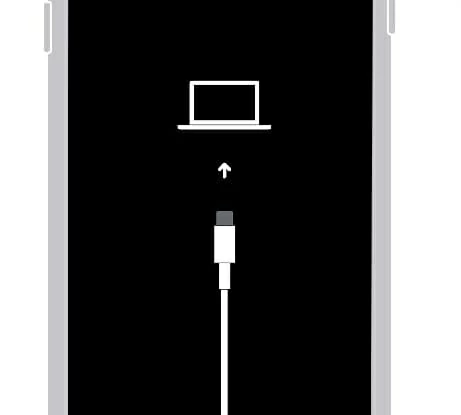
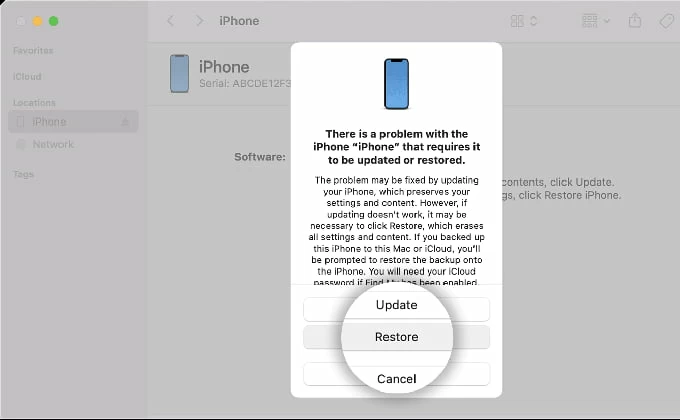
3. Once the phone is in Recovery Mode, the computer will pop up a dialog offering two buttons: Restore or Update.
Update: Reinstalls iOS and tries to keep your data intact.
Restore: Securely erases everything, then installs a fresh copy of the latest iOS.
4. Click Restore and let the computer download the firmware. Do not unplug the cable and do not let the computer sleep. If the download takes longer than about 15 minutes, the iPhone 18 may time out and exit Recovery Mode on its own — just let the download finish, then run the Step 2 sequence again.
5. When the restore finishes, the iPhone reboots itself to the "Hello" setup screen. Walk through the prompts, and if you have a backup, choose "Restore from iCloud Backup" or "Restore from Mac/PC" when asked. Anything newer than your last backup will not come back.
See also: iMessages disappeared on iPhone
Apple built Find My into iCloud so that a missing iPhone could be wiped clean before its data ever fell into the wrong hands — a remote killswitch for exactly that nightmare. It turns out the same lever works on a phone you simply cannot get into yourself: as long as the device is online and still tied to your Apple Account, you can erase it from anywhere, no cable and no passcode required.
Here're steps to unlock iPhone 18 without passcode remotely via iCloud:
Step 1: Sign in to Find My from any browser
On a phone, tablet, or computer — anything with a browser — go to icloud.com/find and sign in with the Apple Account that was signed in on the locked iPhone 18.
If two-factor authentication kicks in, approve the sign-in on a trusted device or enter the six-digit code sent to a trusted phone number.
Step 2: Select the iPhone 18 you forget passcode to
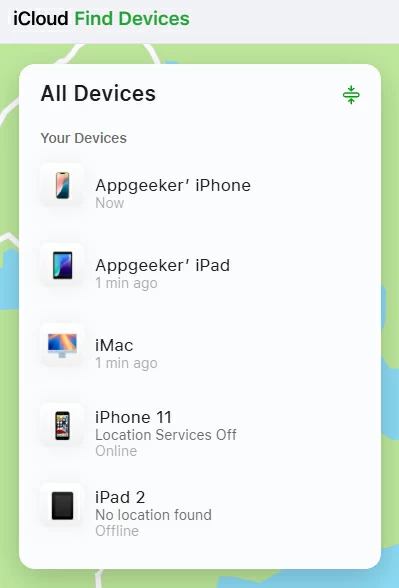
You'll see a map and a device list. Click "All Devices," then pick the iPhone you want to wipe from the list
Step 3: Unlock iPhone without passcode
In the device's info panel, click "Erase This Device" (labeled "Erase iPhone" on some versions of the page) .
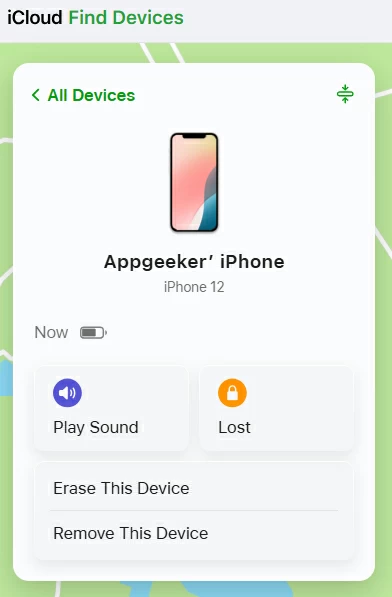
You'll be asked for the Apple Account password tied to that device. Type it in and confirm.
If the iPhone 18 is online, the wipe begins immediately, and you'll get a confirmation email at your Apple Account address when it's done .
During the wipe process, photos, messages, and files already synced to iCloud are untouched — only the device's local copy is gone.
Step 4: Set up the device again
The iPhone 18 reboots to the Hello setup screen, clean and empty. From here, activate it with the same Apple Account password that was on it, then restore from your iCloud or computer backup when setup offers the choice.