How to Wipe iPad without Passcode


Whether your new iPhone is brand new out of the box or has already been formatted, this article provides a full guide on how to transfer data from old iPhone to new iPhone.

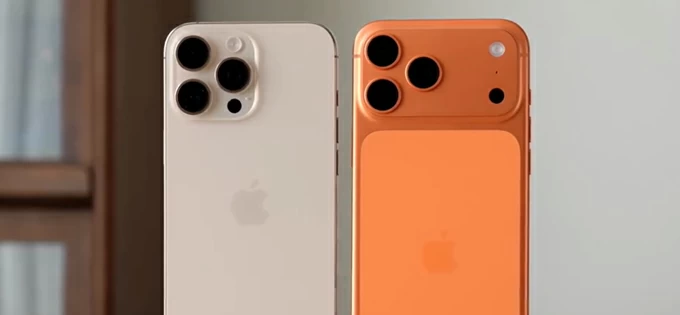
The real challenge of getting a new iPhone is ensuring your data remains intact during the transition.
Whenever a new iPhone is released, a wave of users upgrades to the latest model, such as the iPhone 17. Upgrading to a new iPhone is certainly exciting, but what truly matters is how to transfer data from your old iPhone to the new iPhone — including photos, messages, notes, apps, saved passwords, health records, settings, and more. This is a crucial step in preserving and continuing your important data and cherished memories.
Transferring data from one iPhone to a new iPhone isn't just about copying files; it's about maintaining data continuity — while understanding which methods require erasing the iPhone and which don't.
Today, there are several effective ways to transfer data from an old iPhone to a new one: from seamless cloud-based wireless connections and fast, dependable wired cables, to specialized one-click Appgeeker iPhone Data Transfer software that allows you to move virtually all data types between iPhones without any loss.
But before choosing any method to transfer data to from your current iPhone to your new iPhone, we need to redefine what "new" really means.
Table of Contents
When we talk about a "new iPhone," we usually assume it is a device fresh out of the box, typically the newest model. But any unactivated or unused iPhone can also be considered "new."
In the context of data transfer, a "new iPhone" can also refer to a device that has recently been erased and restored to the "Hello" screen, even if it was previously used. This is because most methods for full data transfer between iPhones require the new iPhone to be in an unconfigured state — either never set up or erased before the process begins.
If your new iPhone is already in use, you will generally need to factory reset it first before transferring data from the old iPhone to the new iPhone.
Quick Start is Apple's built-in peer-to-peer migration system. It creates a secure, temporary wireless channel between two iPhones to transfer data directly, without relying on cloud storage or computer backups. This method allows for a complete clone of your old iPhone's data and system settings onto your new iPhone.
For users with a brand-new iPhone that hasn't been set up yet, this is typically the most convenient way to transfer data from the old iPhone to the new one without cable.
Quick Start only works under the following conditions:
1. Turn on your new iPhone and place it next to your old iPhone.
2. Follow the onscreen instructions to select your language and region, then proceed to the "Quickly Set Up iPhone" screen.
3. On your old iPhone's screen, a "Set Up New iPhone" pop-up window will appear, asking if you want to use your Apple account to set up the new device. Tap Continue.
4. Verify your identity using Face ID or your lock screen passcode.
5. When the blue swirling animation appears on the new iPhone, hold your old iPhone over the new one, centering the animation in the camera's viewfinder to pair the devices.
6. Choose the Apple account you wish to use for your new iPhone.
7. When prompted, enter your old device's passcode on the new iPhone.
8. On the "Transfer Your Data" screen, tap Transfer from iPhone.
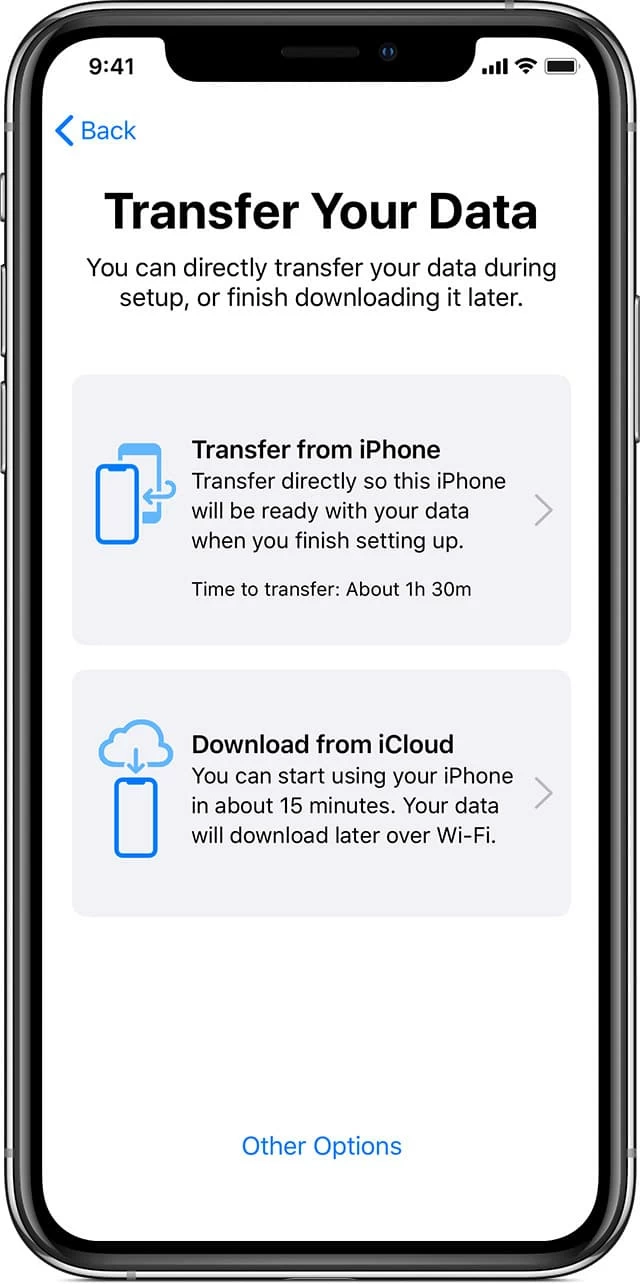
9. Set up Face ID, Apple Pay, and Siri as desired. A progress bar will then appear, indicating that the data transfer is underway.
Wait for the data transfer to finish — depending on the amount of data, this may take anywhere from a few minutes to over an hour. If you specifically need to migrate your WhatsApp data, you can refer to specialized guides on how to transfer WhatsApp from iPhone to iPhone.
Note:
Traditional methods for transferring data between iPhones often require a device reset and can be incredibly time-consuming when dealing with large databases. To bypass these conventional limitations, you can use professional Appgeeker iPhone Data Transfer, which allows for the efficient migration of data from your old iPhone to the new iPhone without erasing your device.
This software enables one-click transfer of all your previous iPhone data—including photos, music, videos, contacts, text messages, and more—directly to your new iPhone. It also offers the flexibility to selectively transfer only the data you need. Thanks to its excellent handling of large data volumes, the transfer speed is impressively fast, saving you a lot of time.
Because this software does not overwrite existing data on your new iPhone, it is the perfect solution for users who need to transfer data from an old iPhone to new iPhone after setup.
Here's how to use iPhone data transfer software for a one-click data transfer from your old iPhone to your new iPhone:
1. Connect both iPhones to your computer using compatible Apple official Lightning/USB-C cables (depending on the models), and tap Trust on each iPhone if prompted to authorize the connection.
2. Launch the program on your computer and navigate to the One-Click Operation section at the bottom. Select the Phone to Phone feature.

3. On the right side, click the drop-down list and make sure your new iPhone is selected as the target device.
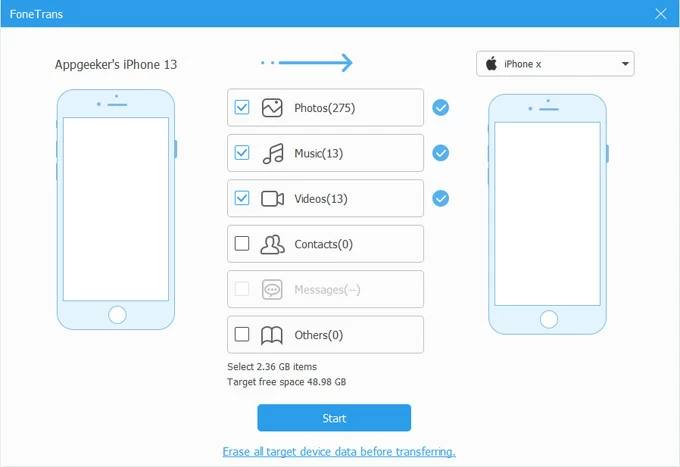
4. Check the boxes for the data types you want to transfer (such as photos, messages, contacts, videos, music, etc.), then click Start to begin transferring data from your old iPhone to your new iPhone.
For users who plan to trade in their old iPhone right away, use the new iPhone in a different location, or simply prefer a wireless method to transfer data from old iPhone to the new one, iCloud Backup is an excellent choice. Unlike direct iPhone-to-iPhone transfers, iCloud Backup restores a snapshot of your data previously saved to Apple's cloud during the setup process.
Key prerequisites:
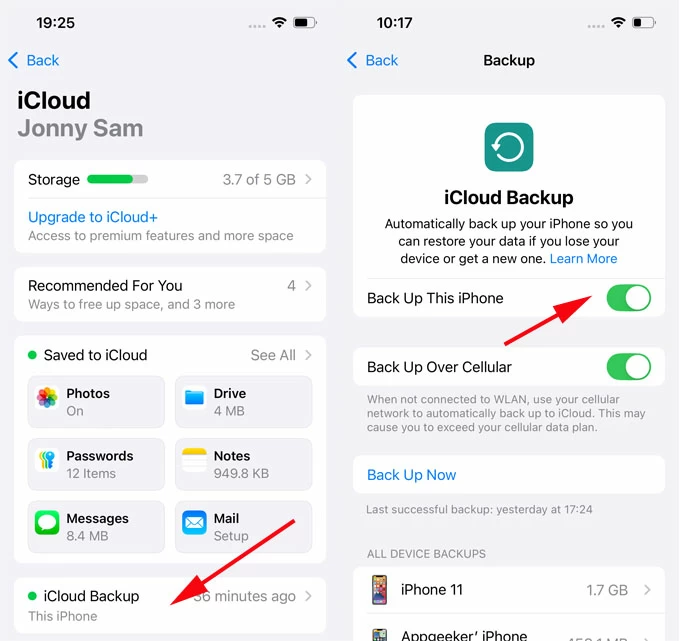
1. Open Settings on the old iPhone.
2. Tap your Apple ID at the top.
3. Select iCloud > iCloud Backup.
4. Tap Back Up Now.
5. Stay connected to Wi-Fi until the process completes.
6. Confirm the latest backup timestamp.
1. Power on the new or factory-reset iPhone.
2. Proceed through initial setup steps.
3. When you reach "Transfer Your Apps & Data", choose From iCloud Backup.
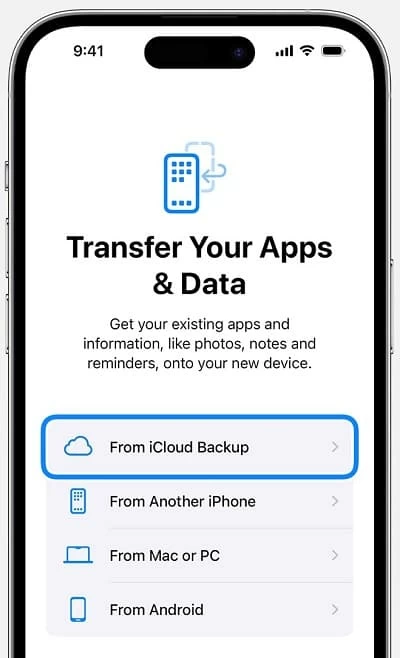
4. Sign in with your Apple account.
5. Select the most recent backup.
6. Keep the device connected to Wi-Fi during restoration. Then you can get the transferred data on your new iPhone.
Also see: How to transfer photos from iPhone to PC
For users with massive databases or unstable network connections, wired computer-based transfer remains one of the most reliable methods to move data from an old iPhone to a new iPhone. Depending on your operating system, you can use:
All three apps allow you to create a full local backup, ensuring all your data is securely transferred from your previous iPhone to your new iPhone via your Mac or PC.
1. Plug your old iPhone into your Windows PC or Mac using a compatible data cable.
2. Use Finder, iTunes, or the Apple Devices app to create the latest backup, and choose whether to encrypt it.
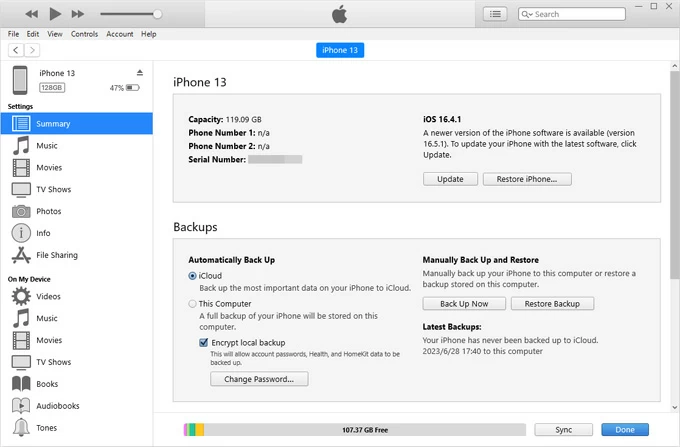
3. Once the backup is complete, disconnect your old iPhone, then connect your new iPhone to the computer.
4. Use Finder, iTunes, or the Apple Devices app to restore the backup to your new iPhone.
5. If necessary, enter the backup password.
Your new iPhone screen will show the restore progress. Wait until the progress bar completes, your new iPhone will restart, and all your data will be ready for use.
Read more: How to transfer videos from PC to iPhone
Not every upgrade requires a full device clone. Sometimes, your new iPhone is already set up — apps are installed, settings are customized, and you may have even taken new photos. In such cases, using an official method to completely migrate all data from your old iPhone to the new one may feel unnecessary. This is where iCloud Sync becomes particularly valuable.
iCloud Sync does not restore a full backup or overwrite your system. Instead, it synchronizes specific categories of data associated with your Apple account and merges them into your new iPhone.
On your old iPhone, go to Settings > [Your Name] > iCloud, view the list of Apps using iCloud, and toggle on the categories you want to transfer (such as Photos, Messages, Contacts, Notes, Calendars, Reminders, Drive, etc.). Then, sign in with the same Apple account on your new iPhone and enable the corresponding iCloud Sync features in Settings.
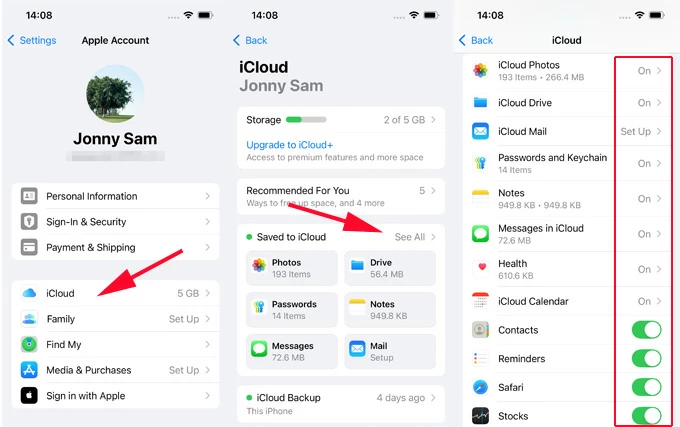
This way, you can get the specific data you want from your old iPhone on your new iPhone without losing any of the existing data already on it.
1. Do I have to erase my new iPhone before transferring data from my old iPhone?
In most full-transfer scenarios, yes. Methods such as Quick Start, iCloud Backup, and Computer Backup restoration all require the new iPhone to be on the "Hello" screen. If your new iPhone has already been set up, a factory reset is typically required. However, iCloud Sync and specialized Appgeeker iPhone Data Transfer tool allow for selective transfers without wiping your device.
2. What is the best way to transfer data to a new iPhone?
The best method depends on your specific situation.
3. Can I still transfer data after setting up my new iPhone?
Yes, but your options are more limited. Full restoration methods will require you to erase the new iOS device. If you wish to avoid a reset, you can use iCloud Sync to merge selected data categories or utilize dedicated Appgeeker iPhone Data Transfer that supports direct device-to-device migration.