
How to transfer WhatsApp from Pixel to iPhone - 3 ways


Whether you're moving from Android or iOS, there are official methods and trusted tools to help you transfer WhatsApp chats to your iPhone 14, even after setup.

Top solution: Whether you're transferring WhatsApp to iPhone 14 from an old Android or another iPhone, Appgeeker WhatsApp Transfer enables seamless cross-platform transfers in just a few clicks — without requiring a factory reset.
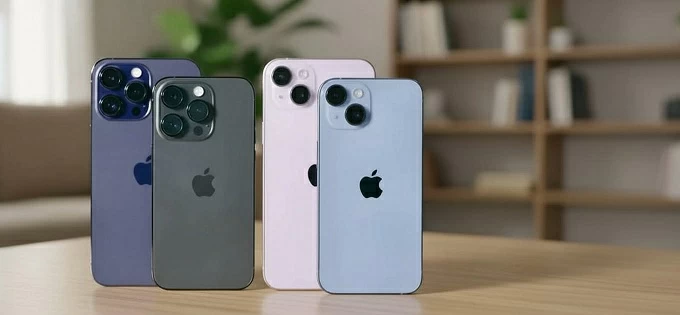
Explore different ways for iPhone 14 users to transfer their WhatsApp chats from an Android phone or another iPhone.
WhatsApp often holds years of conversations that you may want to keep when switching to an iPhone 14. Whether you are moving from an Android device or another iPhone, there are officially supported ways to transfer WhatsApp to an iPhone 14 securely.
For transferring WhatsApp from Android to a brand-new iPhone 14, Apple's Move to iOS app allows you to migrate all data entirely. However, if your device is already in use, the standard process typically requires a full factory reset to initiate the transfer during iPhone setup.
If you're upgrading from an old iPhone, WhatsApp's Chat Transfer and Backup features let you move your full chat history to your iPhone 14 easily.
In this guide, we will walk through the most effective methods to transfer WhatsApp to iPhone 14, so you can bring all important conversations with you and get back to chatting in no time.
When transferring WhatsApp to an iPhone 14, the available method depends on whether you are switching from an Android or another iOS device. Some transfer options work only when setting up a new iPhone, while others can support transferring WhatsApp to an iPhone 14 after setup.
Regardless of which platform you're switching from, ensure you have access to your WhatsApp account and are using the same phone number on both devices. Via a stable internet connection, you can follow the methods below to complete WhatsApp transfer to iPhone 14 successfully.
For WhatsApp transfer from an Android to iPhone 14, Move to iOS is typically the first option to consider. Supported by Apple, it's a data migration tool to help users transfer data when switching from Android to iPhone. Using Move to iOS, you can transfer your WhatsApp account information, individual and group chats, communities, and WhatsApp channel updates.
Note:
The essentials before you start:
1. Set up your new iPhone 14.
Power on the iPhone and follow the onscreen prompts to set it up. On Quick Start screen, tap Set Up Without Another Device to continue.
When Transfer Your Apps & Data screen appears, select From Android.
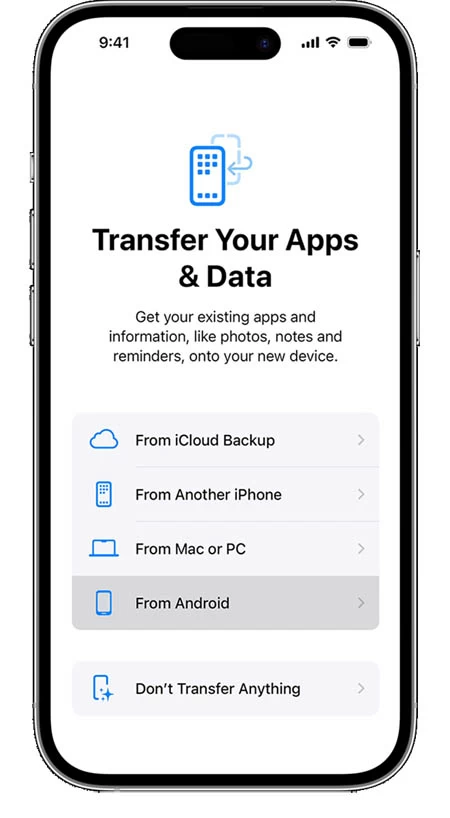
If necessary, reset iPhone through Settings > General > Transfer or Reset iPhone > Erase All Content and Settings. Confirm Erase iPhone option by verifying your Apple Account password.
2. Prepare Move to iOS on the source Android phone.
Install and open the latest Move to iOS app on your Android; tap Continue and agree the terms and conditions.
3. Pair the Android device with your iPhone 14.
On iPhone 14, tap Continue to see Move from Android screen, and wait for a 6- or 10-digit code to appear. Then, enter the one-time code on your Android phone, and tap Connect to join the temporary connection with your iPhone.
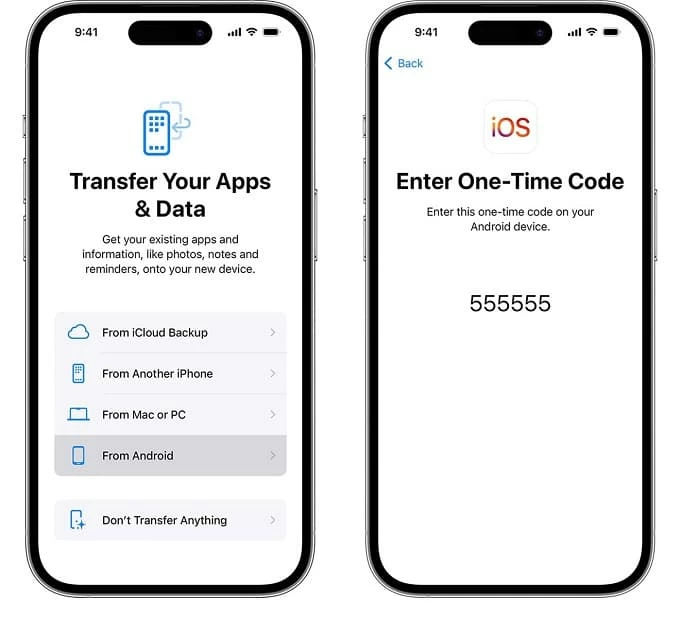
4. Transfer WhatsApp from Android to iPhone 14.
When your Android displays Transfer Data screen, select WhatsApp from the list. Tap Start and let WhatsApp prepare for the transfer. You'll be signed out from the device once it gets ready.
Then, tap Next to return to Move to iOS app, and tap Continue to start the WhatsApp transfer.
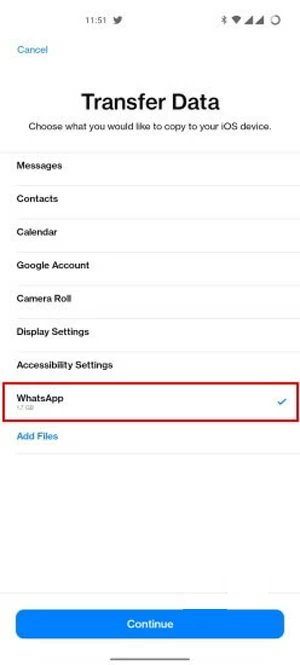
5. Sign in to your WhatsApp on iPhone 14 after the transfer.
When the loading bar finishes on your iPhone 14, tap Continue and complete the setup steps. Install the latest version of WhatsApp from App Store and open it.
Sign in with the same phone number used on your old Android, and tap Start to go through the onscreen setups. All transferred WhatsApp chats will be accessible on your iPhone 14 afterward.
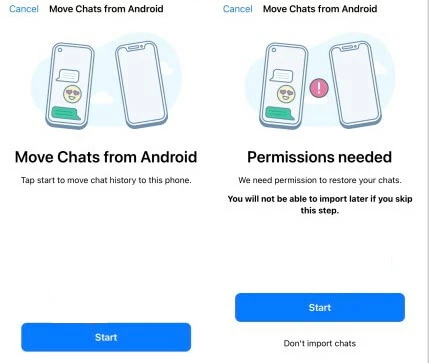
The process may take a while, depending on how much data you're transferring. To avoid interruption, keep your devices near each other and plugged to power.
Whether you are upgrading from an Android device or another old iPhone, you can transfer your WhatsApp to an iPhone 14 easily with Appgeeker WhatsApp Transfer.
Without requiring a factory reset, it lets you transfer WhatsApp data to an already set-up iPhone 14 from either an Android or iOS device. In just a few clicks, you can bring your full WhatsApp chat history to your iPhone 14 within minutes, including messages, photos, documents, videos, audios, and other data.
This reliable tool is compatible with major Android and iOS versions and supports cross-platform WhatsApp transfers to all iPhone 14 models, including iPhone 14, iPhone 14 Plus, iPhone 14 Pro, and iPhone 14 Pro Max.
The essentials before you start:
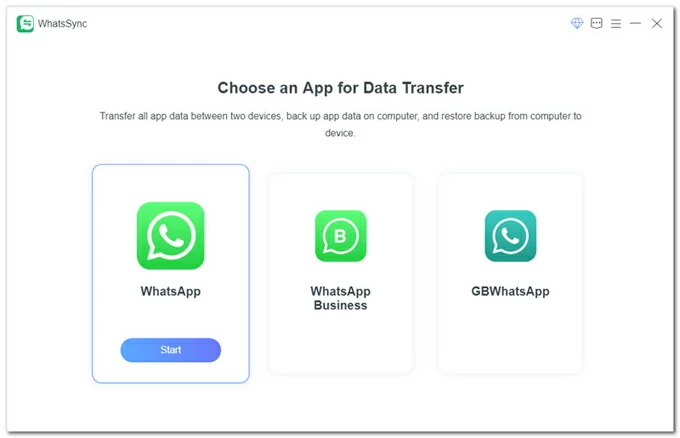
Step 1. Launch WhatsApp Transfer on PC and select WhatsApp to start.
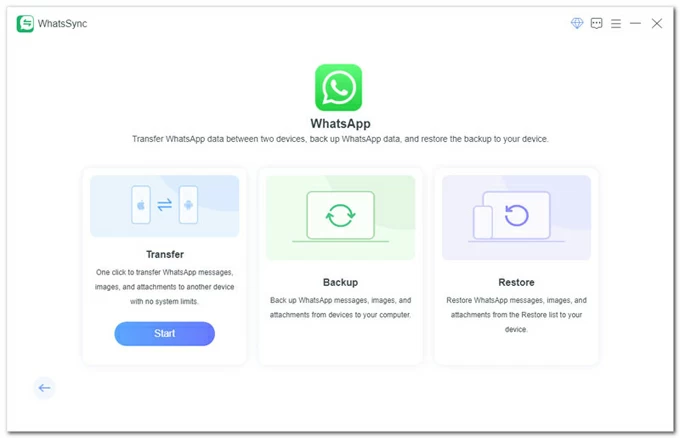
Select Transfer mode on the next screen.
Step 2. Connect the source Android to computer.
Connect the Android phone, and tap Allow when you see the Allow USB debugging prompt. If it doesn't appear, follow the onscreen instructions to re-enable USB debugging option.
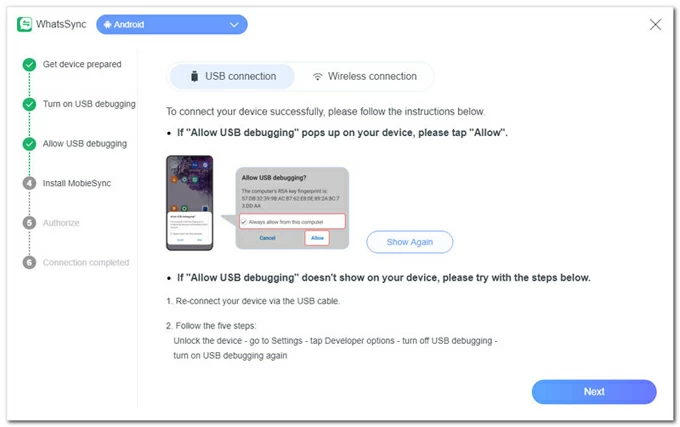
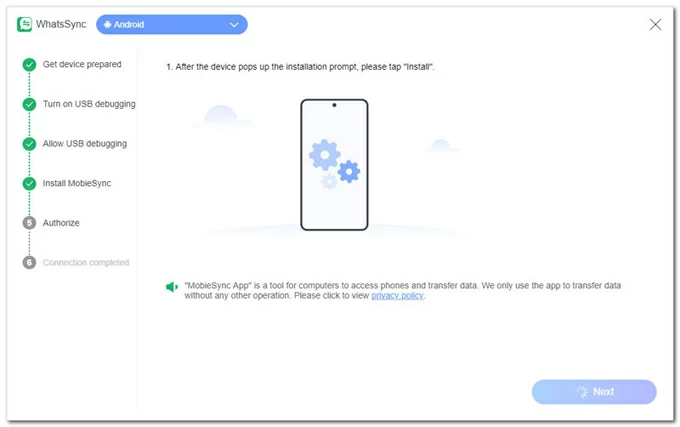
Next, tap Install button on the prompt to install the MobieSync app for WhatsApp transfer.
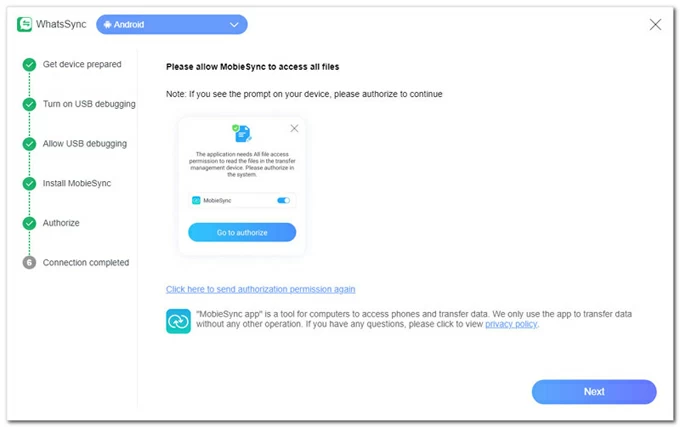
After the installation, tap Go to authorize button to grant the permissions to access the WhatsApp data on the device; then click Next.
Step 3. Link the target iPhone 14 using a USB cable.
If asked, tap Trust on Trust This Computer prompt and enter your passcode. Ensure the Find My iPhone feature is turned off beforehand.
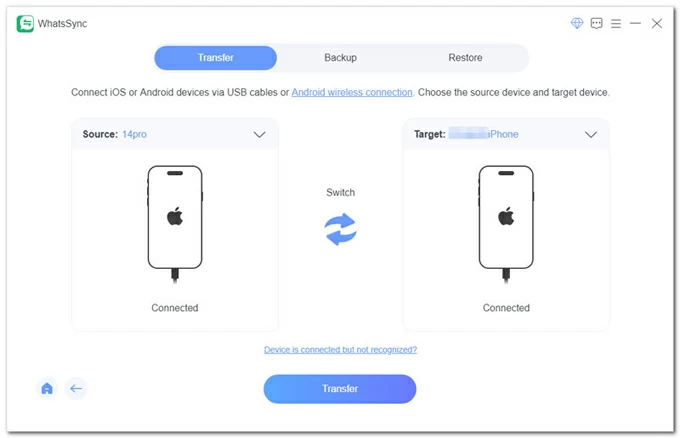
Step 4. Check source Android and target iPhone 14 to start WhatsApp transfer.
Select your Android phone from Source box; and select the iPhone 14 from Target.
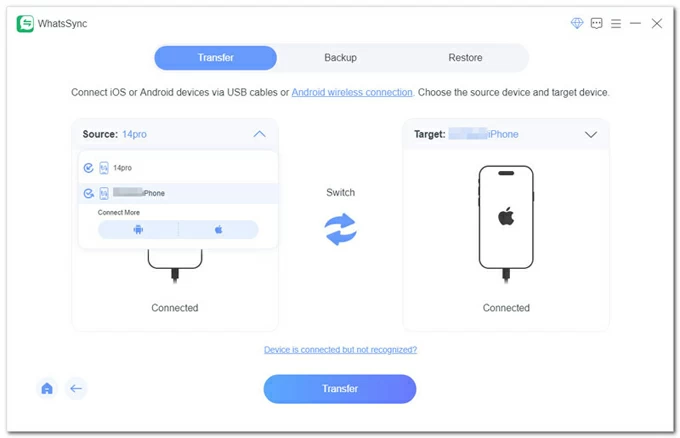
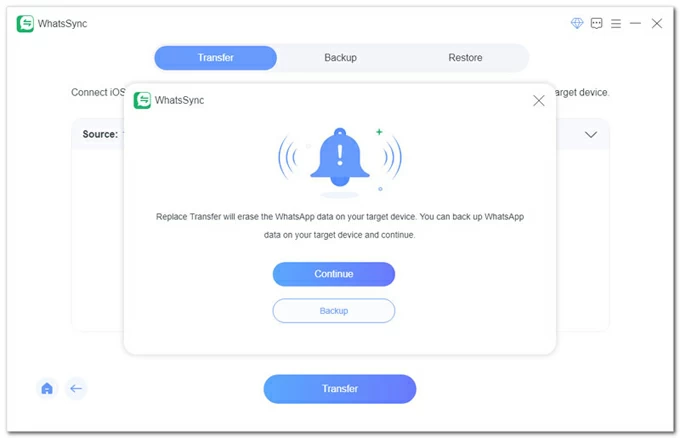
Once ready, click the Transfer button and confirm with Continue.
Note: The transfer process will replace the existing WhatsApp data on the target iPhone. Or, you can click the Backup button to create a separate backup.
Step 5. Transfer WhatsApp chats from Android to iPhone 14.
On your Android phone:
To transfer WhatsApp data successfully, follow the onscreen steps to turn on end-to-end encrypted backup in WhatsApp. If it's already on, turn it off first, and then turn it on again.
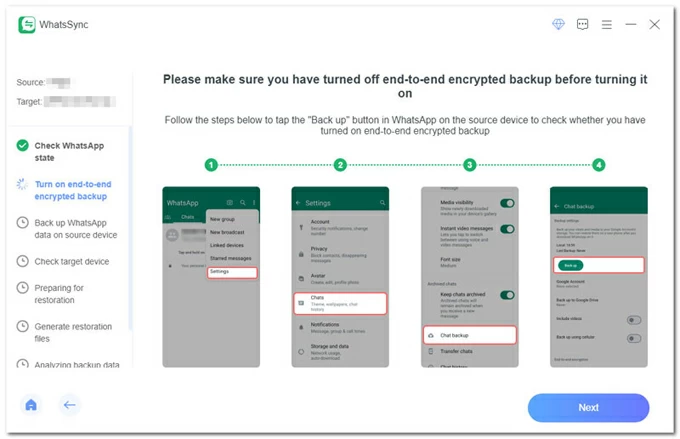
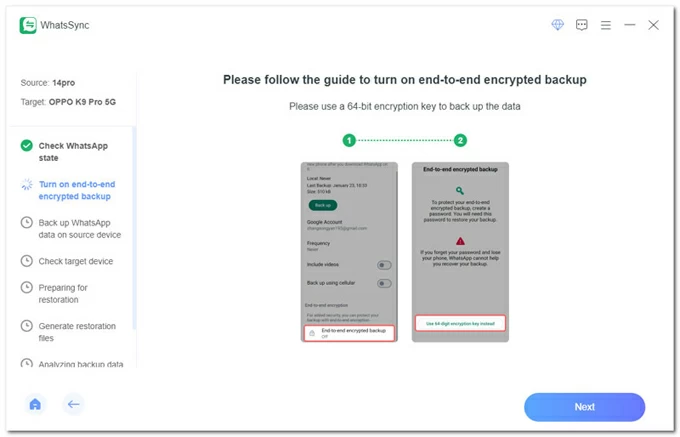
On Android's WhatsApp screen, tap End-to-end encrypted backup, and choose Use 64-digit encryption key instead. Then, click Next at the bottom of the program window.
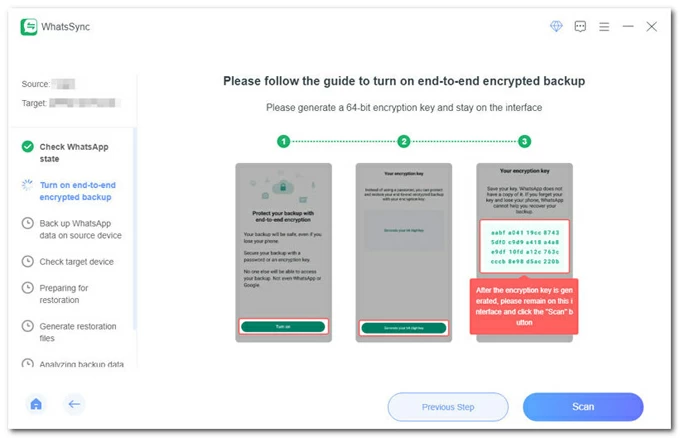
Tap Turn on and tap Generate your 64-digit key on your Android. When you have the key code, stay on this phone screen and click Scan button on your computer.
Wait for it to scan the key code on your Android device. If it fails, you may enter the code manually.
After scanning, tap Saved My 64-digit Key > Create > Backup to create an end-to-end encrypted backup of your Android WhatsApp data.
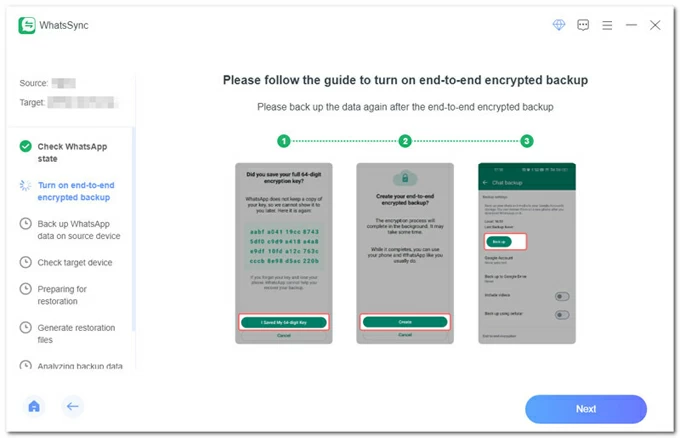
Click Next in the software window. It will start backing up WhatsApp data from the source phone.
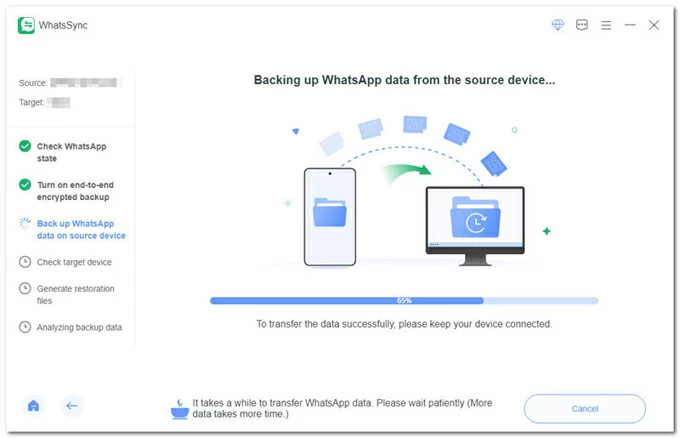
On the target iPhone 14:
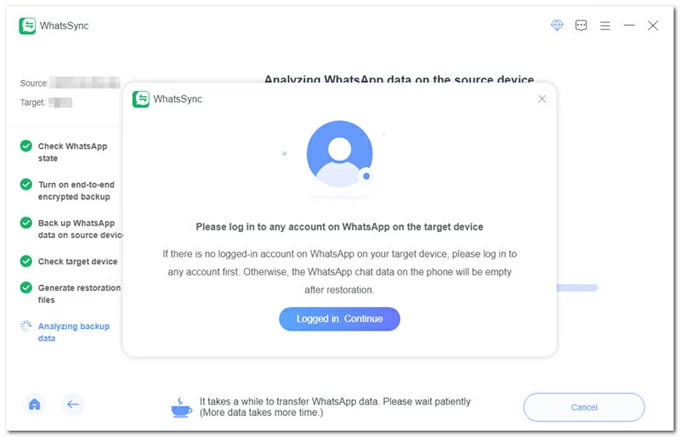
Open the WhatsApp app and log into any account. Then, click Logged in. Continue to go on.
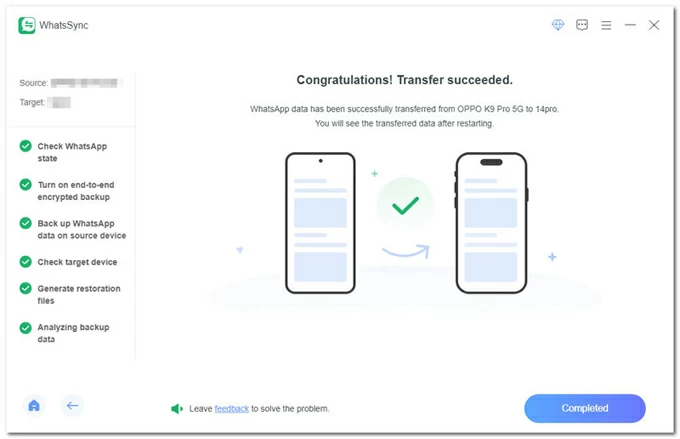
Let the transfer tool move WhatsApp data from your Android phone to your iPhone 14. Once done, open the WhatsApp on your iPhone to view all transferred chats.
In addition to transferring WhatsApp from Android to iPhone without factory reset, this tool also supports iPhone-to-iPhone WhatsApp transfer.
Follow the steps above to launch Appgeeker WhatsApp Transfer and connect both source and target devices. Make sure Find My is turned off on both iPhones and keep them unlocked. The final step differs when transferring WhatsApp from an old iPhone to an iPhone 14:
1. Select the source iPhone and target iPhone 14 correctly from the provided drop-down menu.
2. Check Transfer button and click Continue to begin. If needed, hit Backup to create another backup of the current WhatsApp data on the target device. Otherwise, it will be replaced.
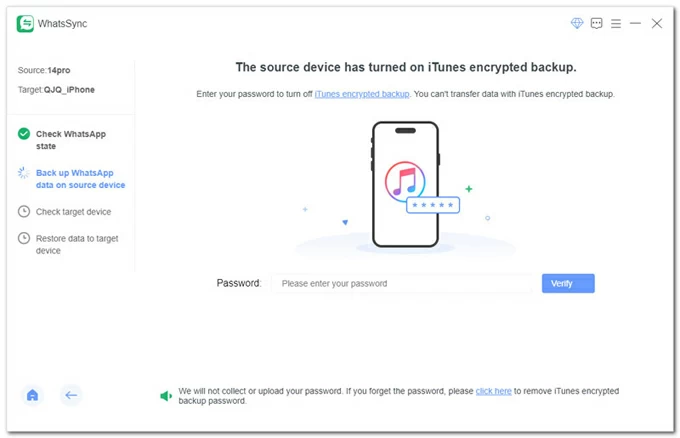
3. If your source iPhone has turned on iTunes encrypted backup, enter your password to verify.
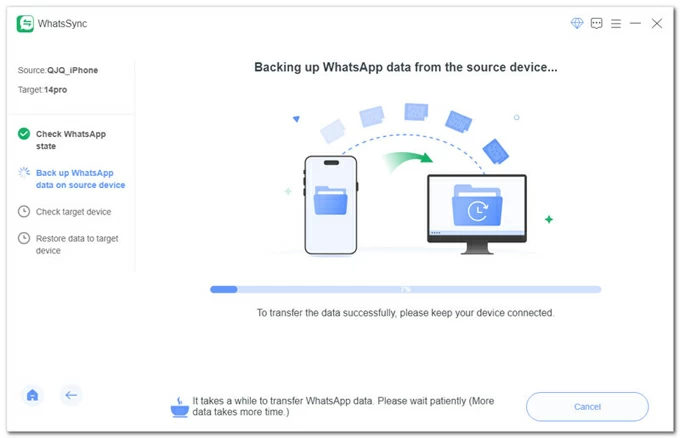
4. The transfer tool will back up WhatsApp data from your source iPhone and transfer everything to the target iPhone 14.
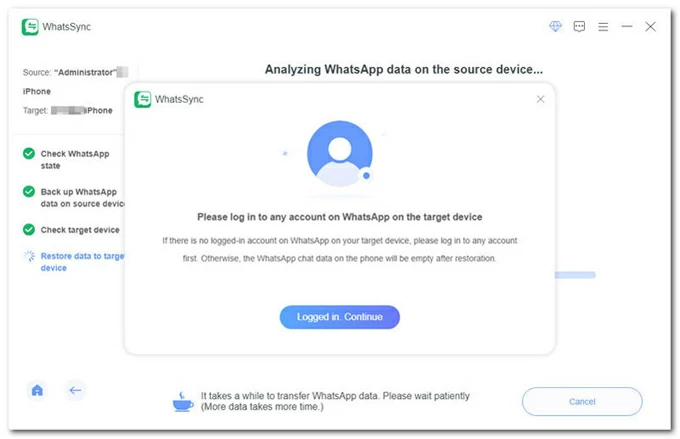
5. When prompted, log in to any WhatsApp account on your iPhone 14, and click Logged in Continue button.
6. After it completes the WhatsApp transfer, your iPhone 14 will restart. You can then click the Completed button and choose whether to keep or delete the WhatsApp backup on your computer.
When you're moving from another iPhone to an iPhone 14, WhatsApp's Chat Transfer feature provides a straightforward way to transfer WhatsApp data between iPhones. This feature allows you to transfer your full chat history, including personal messages, photos, videos, and other documents. However, peer-to-peer payment messages, call history, and media received through WhatsApp Channels are not included in the transfer.
The essentials before you start:
Steps to transfer WhatsApp chats from old iPhone to iPhone 14:
1. Open the WhatsApp on your old iPhone, and navigate to Settings > Chats > Transfer chats to iPhone. When asked, tap Start and allow the camera access.
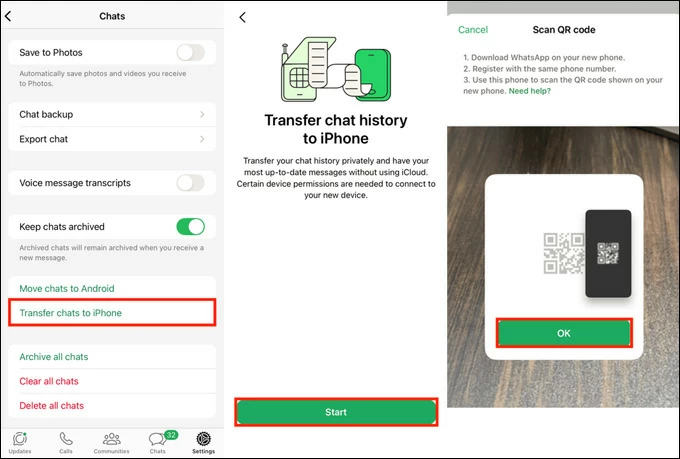
2. Open the WhatsApp on iPhone 14, and enter your phone number to verify your account by receiving a 6-digit code. Once you get the code, enter it correctly and tap Next.
3. When the Transfer Chat history from old phone screen, tap Continue and accept the permissions to use your local network.
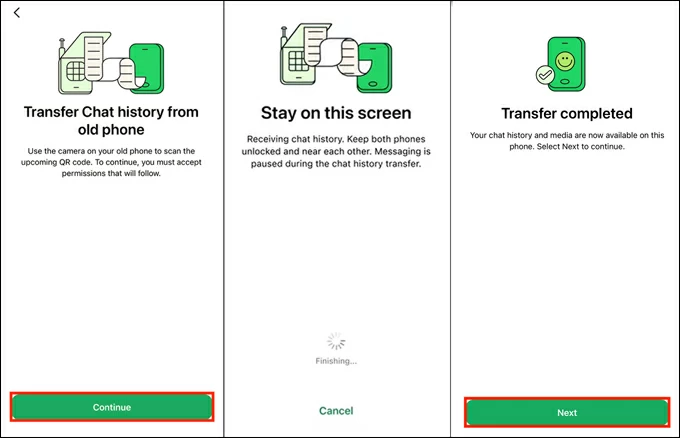
4. Use the old iPhone's camera to scan the QR code on your iPhone 14 and accept local network permissions. This will link the two iPhones for WhatsApp transfer.
5. WhatsApp will start transferring your chats. Keep the devices unlocked and near each other.
6. Stay on the transfer screen until the progress bar is complete. It may take some time, depending on the size of your chat history.
7. Once the transfer is complete, tap Done on the source phone. You'll be logged out automatically.
8. Tap Next on the new iPhone 14 and enter the name of your profile. After that, all your previous WhatsApp chats will be listed now.
If you accidentally delete some important messages, click here to recover WhatsApp conversations on iPhone.
Another way is to back up WhatsApp chat history from the old iPhone to iCloud, then restore that WhatsApp backup to your iPhone 14 quickly. To ensure a successful transfer, confirm that you're using the same phone number and Apple ID. Also, to avoid losing the most recent conversations, it's recommended to manually back up your WhatsApp before transferring to your iPhone 14.
The essentials before you start:
Steps for WhatsApp transfer from one iPhone to iPhone 14:
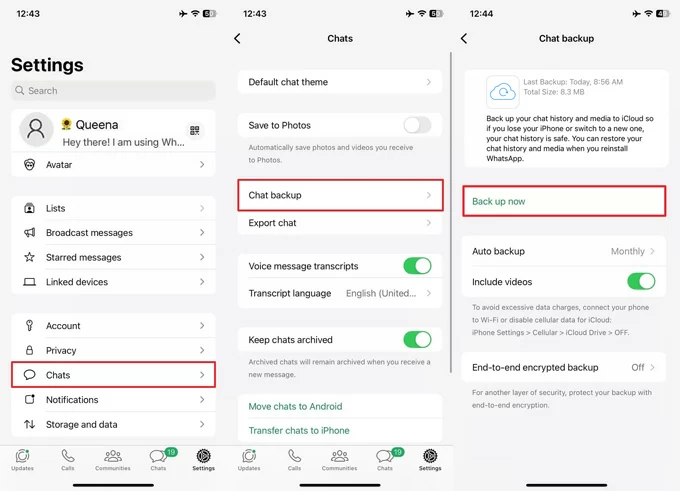
1. Open WhatsApp on the source iPhone and go to Settings > Chats > Chat Backup > Back Up Now. Allow it a few minutes to complete the backup.
2. On your target iPhone 14, install and open the latest WhatsApp. Or, re-install the app if you already have it.
3. Follow the onscreen instructions and log in with the same phone number and Apple ID.
4. Tap Restore from backup when you're prompted with Restore or transfer chats screen.
5. Tap Continue and confirm the Restore option.
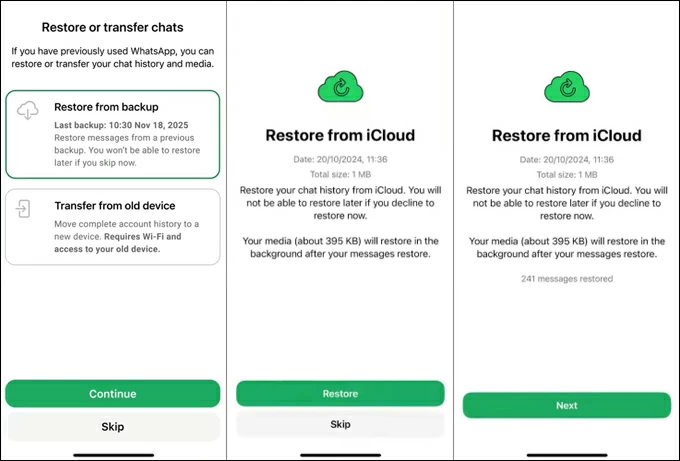
If two-step verification is enabled, verify your account by entering the code sent via text message or phone call. Then, wait for the process to finish. All chat and media history from the WhatsApp backup will be restored to your iPhone 14 from iCloud.
Q1 - Can I transfer WhatsApp from my Android to an iPhone 14 after it has already been set up?
Yes. The official method Move to iOS require the iPhone to be new or factory-reset. However, third-party tools like Appgeeker WhatsApp Transfer tool can move WhatsApp data to a setup iPhone 14 without a reset or erasing existing data.
Q2 - Does transferring WhatsApp include all chats and media?
In most cases, yes. Messages, group chats, photos, videos, voice messages, and documents are transferred. However, call history, peer-to-peer payment messages, and some WhatsApp Channel content are not included, depending on the transfer method you use.
Q3 - How do you transfer everything from WhatsApp to a new iPhone?
You can transfer WhatsApp to a new iPhone by using the official tools:
These methods restore your chat history, media, and account information when you sign in with the same phone number.
If you want an all-in-on solution, third-party tools like Appgeeker WhatsApp Transfer can help migrate WhatsApp data to a new iPhone from either an Android or iOS device, even after setup.
Q4 - Why can't I transfer my WhatsApp from Android to iPhone?
WhatsApp uses end-to-end encryption and device-specific backups, which prevents direct transfer across Android and iOS. To transfer WhatsApp from Android to iPhone, you may use Apple's Move to iOS during the initial iPhone setup or a compatible third-party transfer tool.
Q5 - How can I transfer my WhatsApp chats from an old iPhone to a new iPhone without iCloud?
You can transfer WhatsApp chats without iCloud by using WhatsApp's built-in Chat Transfer feature or third-party WhatsApp transfer tools. Both methods allow you to transfer your chat history directly from one iPhone to another without relying on iCloud storage.




