
How to add ringtone to iPhone without iTunes


Looking to get back those precious shots you accidentally deleted from your brand-new iPhone 18? Here's how to recover deleted photos with confidence.

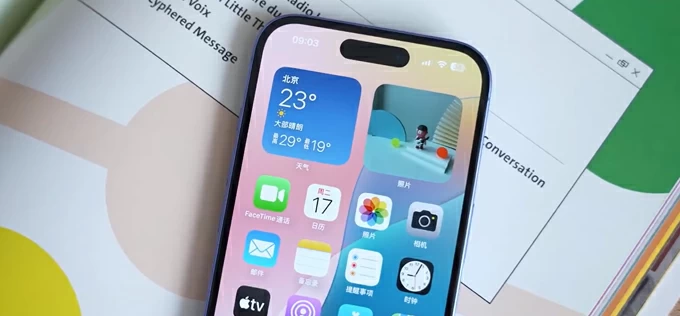
You have several options to retrieve deleted pictures from iPhone 18 and other Apple devices.
Like most people, you've gotten into the habit of regularly clearing out unwanted photos on your iPhone 18—and there's nothing wrong with that. But what happens when you realize you've deleted a picture that you didn't need in the past, but desperately need now? Having never done this on an iPhone before, a wave of panic starts to set in.
Apple understands the need to recover photos on an iPhone 18 and has prepared multiple ways to help you do just that. If this is your first time attempting to restore pictures, please read this article carefully. It provides a detailed explanation of every method and also recommends professional third-party desktop data recovery tools like Appgeeker iPhone Data Recovery, saving you the trouble and hassle of going to a local repair center.
Here's everything about how to recover deleted iPhone 18 photos.
Within Apple's native temporary storage system, you have a 30-day window to change your mind and restore photos back to your album. Generally speaking, this 30-day grace period is ample time for users to spot the mistake and correct it.
Once those 30 days have passed, these temporarily deleted pictures are permanently removed from your iPhone 18. To get them back, you'll need to rely on an iCloud or iTunes backup. This would involve resetting your phone to its factory settings, restoring photos from backup, and reverting the device to a previous state.
If you don't have the habit of backing up, your remaining option is to use a professional recovery tool. This brings us to the concept of data overwriting. In this scenario, whether a photo can be recovered doesn't depend on how long ago it was deleted, but rather on whether new files have been saved to your device, occupying the storage space where the deleted file used to be. Theoretically, the sooner you attempt recovery, the better. Also, using your iPhone 18 as little as possible will significantly increase your chances of a successful photos recovery.
See also: How to transfer music from laptop to iPhone
When you accidentally delete a photo, there's no need to panic. Apple automatically moves it to a folder called Recently Deleted and keeps it there for 30 days. After using Face ID or screen lock passcode to access the folder, you can find the picture and, with a single tap, restore it to its original location. It couldn't be more convenient.
Here're steps to restore your photos deleted from Photos app on iPhone 18:
1. Open the Photos app on your iPhone 18.
2. Tap Collections at the bottom of the screen..
3. Scroll to the Utilities section and select Recently Deleted.
4. Tap View Album.
5. Unlock the album by using Face ID, Touch ID, or your device passcode to confirm it's you. The album is locked by default for privacy.

Each thumbnail in Recently Deleted shows how many days are left before it's permanently erased. If you're in a hurry, recover the oldest images first.
6. Tap Select in the top-right corner, then tap the photo or photos you want to recover. A blue checkmark will appear on each one.
7. Once selected, tap the More button in the top-right corner, then choose Recover.
8. Tap Recover again to confirm. For example, it may say "Recover 1 Photo" or "Recover 3 Photos."

Once recovered, the photo leaves the Recently Deleted album and returns to your main photo library—in its original date and location, not at the bottom of your recent photos.
But what if the 30-day window has already closed or you don't have a backup to restore deleted pictures? This is exactly where a dedicated recovery tool makes sense.
Instead of driving to a repair store, you can scan the device's internal storage from your computer and pull back only the photos you need. Appgeeker iPhone Data Recovery does exactly that: it performs a deep scan of your iPhone 18 (including Pro, and Pro Max models), previews recoverable images, and lets you restore them—even without a backup.
Beyond recovering your deleted photos from your iPhone 18, it can also retrieve deleted text messages, contacts, notes, call history, documents, and other personal info.
What you'll need:
Here's how to scan your iPhone 18 to recover deleted photos via Appgeeker iPhone Data Recovery.
1. Launch the software on your computer, locate the Recover from iOS Device section — this mode scans your iPhone's internal storage directly, with no backup required.
Next, plug the iPhone 18 into the machine and click Start Scan to proceed.
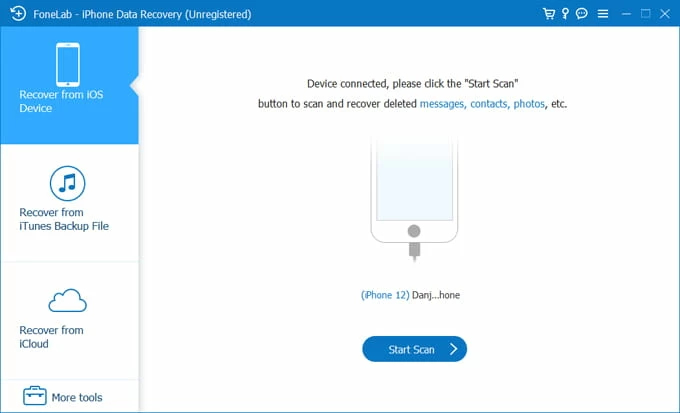
2. Give the software a few minutes to scan your phone's internal memory thoroughly. Don't disconnect the phone during this process.
Once the scan finishes, you'll see a list of recoverable photos organized by category. You can:
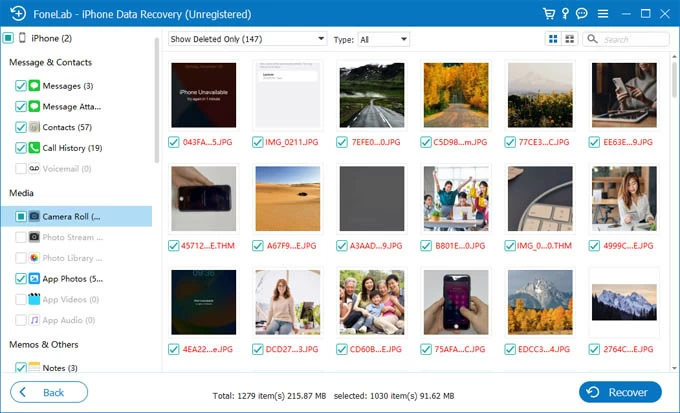
3. In the Media section, preview thumbnails from Camera Roll, Photo Stream, Photo Library.
4. Select the pictures you want to retrieve, and then click Recover in the bottom right corner.
When prompted, select a path on your computer to save the recovered photos.
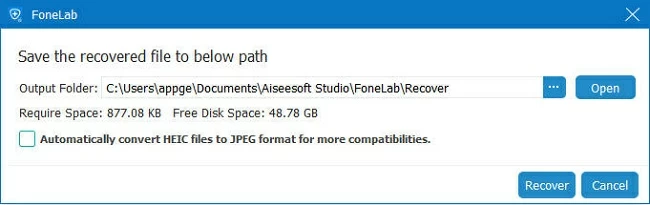
The selected photos will be saved to your computer as original-quality files.
After recovering iPhone 18 photos to your computer, you can re-import them into your phone's Photos app via AirDrop, iCloud Photos, iTunes, or simply dragging them back via Appgeeker iPhone Data Transfer. They'll appear in your library just like any other picture.
If you were tinkering with some options in the Settings app and later noticed that your photos had disappeared from the album, you may have accidentally turned off the iCloud Photos feature. All you need to do is toggle it back on, and your missing pictures will be restored.
Here's how to recover photos via iCloud Photos on iPhone 18:
1. Go to Settings > [Your Name] > iCloud > Photos.
2. Check if the Sync this iPhone option is turned off. If yes, enable it again.

Wait a while, your disappeared photos should re-appear on your Photos library.
See also: How to delete Apple ID without password
If none of the above methods can recover your deleted photos, it's time to check whether you have a backup available. You can go to the Settings app to check the last iCloud backup date—this will tell you whether your lost photos fall within the recoverable range. If things go smoothly, all you need to do is reset your iPhone and choose to restore from an iCloud backup during the setup process. It takes longer than the methods above, but at least you'll get your deleted pictures back to your iPhone 18.
1. Head to Settings > [Your Name] > iCloud > iCloud Backup. Check the date listed under "Last successful backup."
2. If the backup date is earlier than when you deleted your photos on the iPhone 18, you can proceed to recover them.
3. Go to Settings > General > Transfer or Reset iPhone > Erase All Content and Settings. Follow the instructions to factory reset your iPhone.
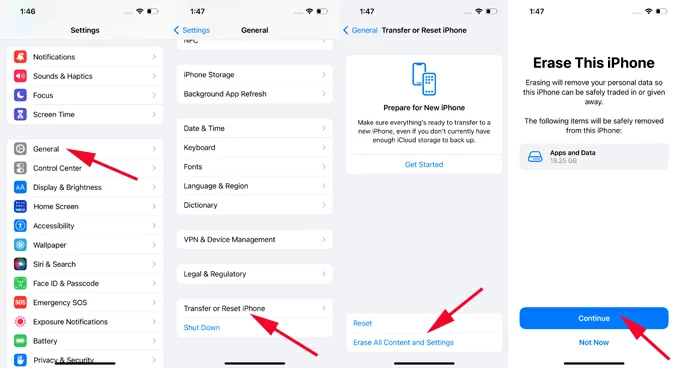
4. When the process finishes, the Hello screen appears. Choose your language and region, connect to a stable Wi-Fi network, Continue through the setup screens until you reach Transfer Your Apps & Data screen.
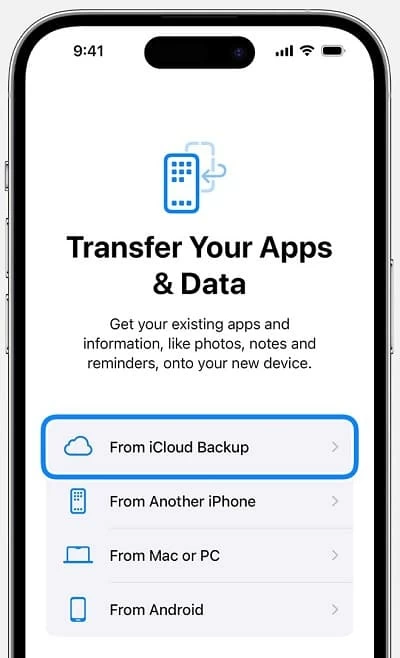
5. Tap From iCloud Backup.
6. Enter the Apple ID and password used to create the backup.
7. Choose a backup from before the photo deletion from the list.
8. The restore begins. Your iPhone will restart and start pulling data from iCloud. Don't disconnect or rush the process.
Apps, photos, messages, and settings download in the background. Once the progress bar completes, finish the remaining setup screens.
Open Photos app and check whether your deleted images are back.
See also: iPad Security Lockout
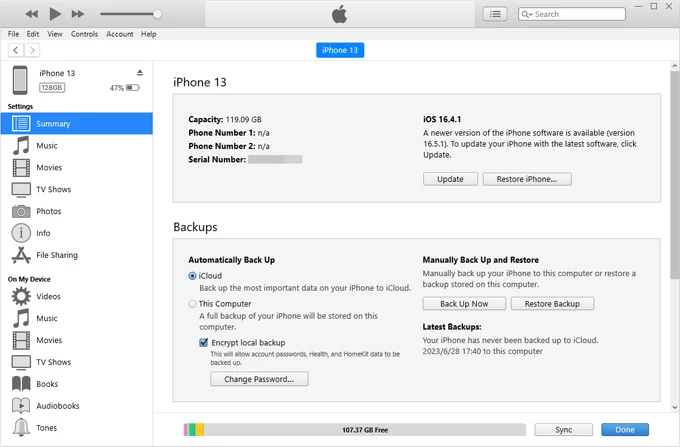
While it's rare these days for people to use a computer and iTunes to back up their data, if you happen to be a heavy iTunes user with a solid backup habit, recovering your deleted photos to iPhone 18 won't be a difficult task
For Windows:
1. Connect your iPhone 18 into the PC used for backups.
2. Unlock the phone and tap Trust if prompted.
3. Click the phone icon near the top-left of the iTunes window.
4. On the Summary tab, click Restore Backup.
5. When a list of available backups appears, choose the backup dated just before you deleted the photos. If the backup was encrypted, enter the password you set earlier.
6. Click Restore and keep the phone connected
For Mac:
1. Open Finder and select your iPhone in the sidebar.
2. Go to the General tab, and choose Restore Backup.

3. Choose the correct backup by date, enter the encryption password if needed.
4. Click Restore and wait until the process finishes
Once the iPhone 18 reboots and finishes setting up, Open the Photos app, your recovered photos should return to their original dates and albums.