
How to Fix iPad Security Lockout


Accidentally deleted iMessages and do not have iCloud or iTunes backup? Here you'll learn how to find deleted iMessages and how to recover iMessages without a backup.

It's possible and easy to undelete iMessages without them being backed up to either iCloud or iTunes.
Accidentally deleting iMessages can be frustrating, especially if you don't have an iCloud or iTunes backup, or the backup does not contain your deleted chats information. Or maybe you've lost iMessage conversations after iOS update or due to some software bugs and find that it's too late to back up. Whatever the case, you'll be wondering how to recover deleted iMessages without backup.
Luckily, there are ways to recover iMessage history if there's no backup for your iPhone—and it's pretty simple. In this post, we'll explain iMessages recovery, and walk you through the steps for getting deleted iMessages back without iTunes or iCloud backup to iPhone's Messages inbox.
Table of Contents
When you're looking for a way to retrieve your deleted messages or iMessages that haven't been backed up to iCloud or iTunes/ Finder, it's important to know five primary technical reasons why a standard backup often fails to save the day when a specific message gets deleted or goes missing.
1. No backup exists before deletion
To restore iMessages from a backup, you must have created one before the texts are deleted. In case iCloud backup wasn't turned on for automatic backups or you never manually backed up your iPhone to iCloud or computer, there's naturally nothing to restore from.
2. Your backup doesn't contain your deleted iMessage history
iCloud typically keeps only the latest backup (or a few recent ones). Over time, older backups get replaced, and the version containing your messages may no longer exist. This makes the recovery of iMessages impossible even if backups were previously enabled.
3. Messages in iCloud syncing trap
If Messages in iCloud is toggled "On" in Settings, your messages are being synced, not backed up. This means that, the iMessages you deleted are not part of the iCloud & iTunes backup file; If you delete an iMessage conversation on your iPhone, it is instantly deleted from the iCloud server and all your other synced devices, and won't come back even if you restore a backup.
4.The iCloud storage ceiling
Many users hit the free 5GB iCloud limit quickly. Once that happens, your iPhone stops backing up entirely. You might think you have a recent backup, only to realize the last successful one was months ago.
5. Restoring a backup is an all-or-nothing process
To restore an iCloud or iTunes backup and attempt to get deleted iMessages back on an iPhone, you must perform a factory reset on your device, which wipes every photo, app, and setting you've added since that backup was made.
For most users, losing a week's worth of new data to recover one old text thread is too high a price to pay.
Yes. Having no backup doesn't mean zero hope of recovering those iPhone deleted iMessages. There are still some tools that can help you find the deleted messages and retrieve them without a backup.
Since iOS 16, Apple facilitates the recovery of iMessages on iPhone without relying on any backup or any extra tool. Thanks to the Recently Deleted album, you don't need to worry about how to restore iMessages that were deleted accidentally. You're able to easily restore recently deleted iMessage conversations for up to 30 days before they are permanently erased.
If you turned on Messages in iCloud on your iPhone as well as your iPad or Mac, your iMessages are likely synced across devices. Sometimes, iMessages disappeared from your iPhone or deleting a message doesn't immediately trigger a deletion on another Apple device if the it was offline or if the Messages in iCloud sync hasn't finalized. This makes it possible to retrieve the deleted iMessages by re-syncing and downloading from the server.
If the iMessages are no longer in Recently Deleted or other synced devices, hope is not lost even there's no iPhone backup available for restoring the text conversations and attachments.
Deleted data on iPhone are not immediately erased but hidden until overwritten by new data. You may be able to retrieve permanently deleted iMessages safely using third-party iPhone data recovery software, which works by scanning the device's memory to find any damaged or hidden data that haven't been overwritten.
Getting back recently deleted iMessages via iPhone's Messages app is straightforward. As long as you deleted the texts in the past 30 days, the in-built Recently Deleted folder is the first place where you can see your deleted text messages or iMessages in the absence of iPhone backups, and force the threads to return to the main inbox.
Steps to recover iMessages you deleted by mistake from the iPhone without restoring a backup — when they're still in the 30-day period for the recovery:
Tip: This works for recovering deleted text messages on iPhone, too.
1. Open up Messages app on the iPhone.
2. Tap Edit at the upper-left corner of the conversation list. If you've enabled Filter Unknown Senders in Messages settings, you may see Filters button instead.
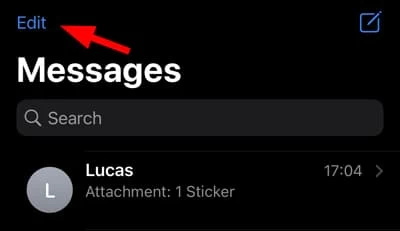
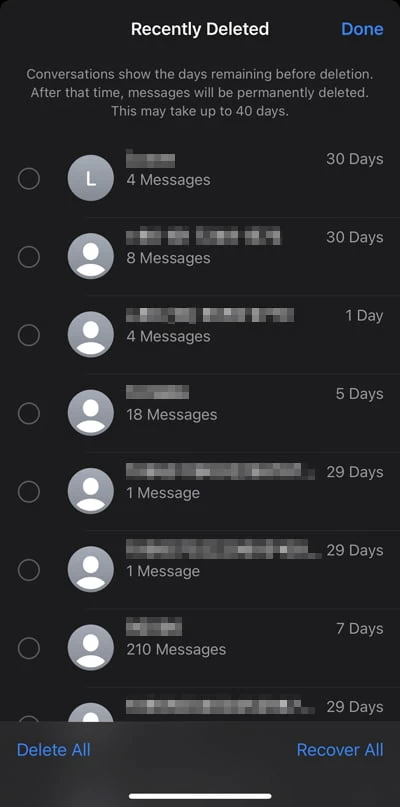
3. Choose Show Recently Deleted. Here, you can access the deleted iMessages and text messages, along with the information about phone numbers or contacts, number of text messages as well as the days left to restore them.
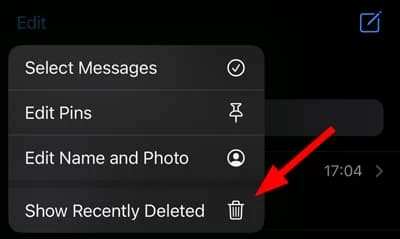
Note: Recently Deleted feature doesn't allow users to view the certain texts within the iMessage chat; you will have to restore the entire conversation.
4. Select the conversations you'd like to retrieve and tap Recover.
This way, your iPhone instantly restore your iMessages without iCloud or iTunes backup.
Don't miss: How to sync music to iPhone without iTunes
Perhaps you manually empty Recently Deleted folder, or the deleted iMessages are gone after 30 days. Or maybe there's no Recently Deleted folder in your Messages app due to older iOS version. Then, how can you recover permanently deleted iMessages from an iPhone without backup file?
No worries, Appgeeker iPhone Data Recovery can help you recovering old, deleted iMessages - without overwriting any current data - even when no iPhone backup exists.
The software uses its powerful algorithm to run a deep scan and access deleted iMessages potentially in the iPhone's storage, letting you view the iMessages and recover individual texts or conversations selectively. You're able to get your iMessages back without being backed up in just a few clicks from accidental deletion, faulty iOS update, or other data loss scenario. The recovery also works for photos, text messages, contacts, notes, call logs, and more.
Here's how to retrieve lost iMessages without iPhone backups or data loss by using the reliable Appgeeker iPhone Data Recovery utility.
Step 1. First run the iPhone Data Recovery application on your computer (Windows & MacOS.)
Step 2. Select Recover from iOS Device mode to start for undeleting iMessage conversations.
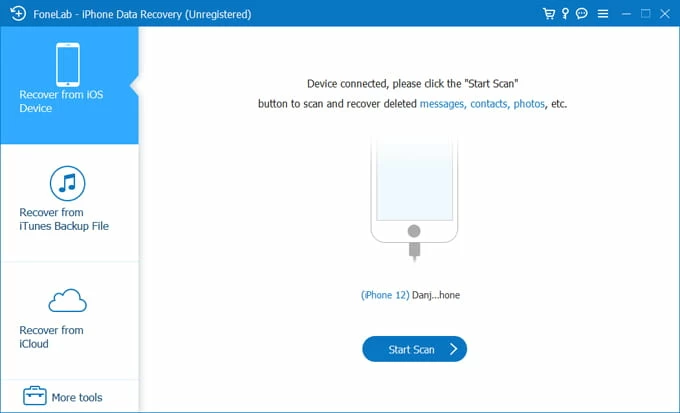
Step 3. Connect your iPhone to the computer via a lightning cable.
Step 4. Click Start Scan button to let the program takes some time to look for deleted iMessages and other data files on your device storage.
Step 5. Once done, click on "Messages" category in the left sidebar and you should see the old iMessages on the interface. The contact's name, texts, photos, attachments are visible.
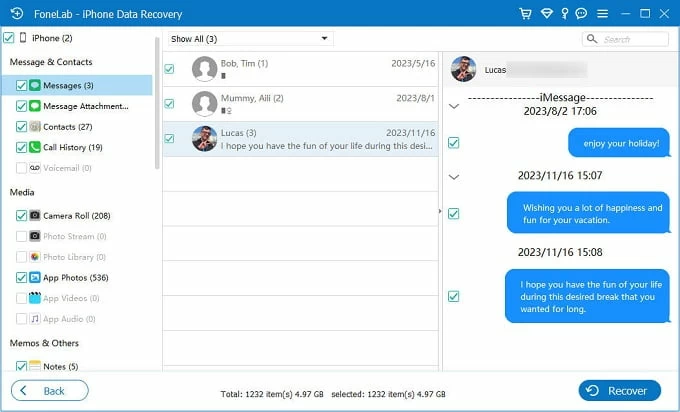
6. Once you've found the missing iMessage threads you wish to get back, click the small box next to them, choose the Recover button in the bottom right corner.
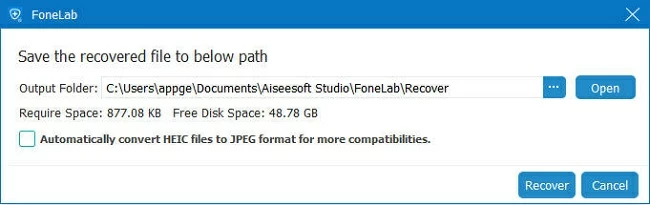
In the dialog that opens, select the directory where you want the retrieved iMessages to be saved on your computer, and hit Recover button again.
Once recovered, you're able to see your iPhone iMessages on your PC or Mac computer.
Also see: What to do when iPhone says unavailable
Chances are that you have Messages in iCloud syncing feature activated and your backup won't restore your iMessages. Instead, iCloud syncs iMessages across iPhone, iPad and Mac signed into the same Apple Account, that you can see the iMessages on any device.
Successfully retrieving deleted iMessages on your iPhone while Messages in iCloud is ON will depend on whether iCloud has synced the deletion command. Follow these instructions to recover iMessages from iCloud to the iPhone without backup.
First, check iPhone deleted iMessages on other Apple devices
1- Turn off the Wi-Fi and cellular network on another device to prevents it from syncing the deletion.
2- Look through the iMessage history that has been deleted from iPhone on those devices.
If the messages are there, you can either copy the text or take screenshots before re-enabling the internet, or kick off a re-synchronization to download iMessages from iCloud to iPhone Messages inbox.
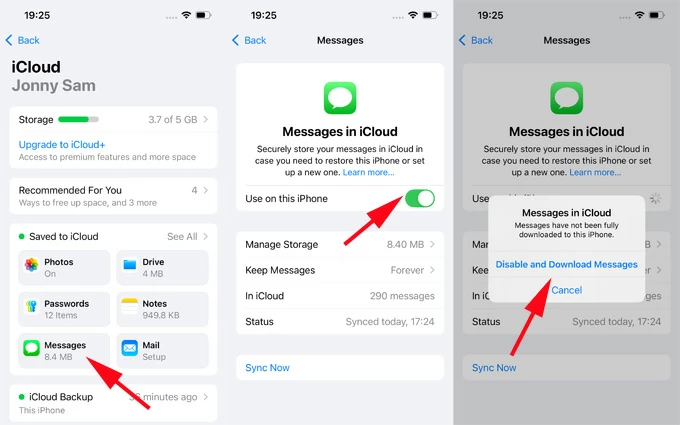
Then, restore iMessages to iPhone from iCloud
iCloud Messages simplifies the iMessage recovery with no need of backup archives by just re-syncing iMessages or text messages from iCloud with your iOS device.
When done, you could see iMessages on iCloud return to the main inbox.
If Recently Deleted is missing, there are two likely reasons: either the deleted iMessages are over 30 days ago, or they are already past the recovery window. Apple's guidance is clear that items in Recently Deleted are available for recovery for up to 30 days.
If the iMessages you've lost are recent enough, or if you don't want to go through an iPhone messages recovery process, a practical fallback to bring back your iMessages is to ask the other person in the conversation to resend the key messages, screenshots, or attachments, because recovering messages on your device does not affect what remains on the recipient's side.
Q1. Do deleted iMessages get permanently erased?
No. You can see deleted iMessages in the Recently Deleted folder if they're deleted in the last 30 days.
Even the iMessages you thought deleted permanently may remain on your iPhone until they are overwritten by new data, making the iMessages recovery possible with the right tools, like AppGeeker iPhone Data Recovery.
Q2. Can I recover deleted iMessages without any backup?
To retrieve deleted iMessage without backup, you can use the Recently Deleted folder in Messages app to get back iMessages you deleted for up to 30 days.
Q3. Does iCloud backup restore iMessages when iCloud Messages is turned on?
No, if you enabled Messages in iCloud before iMessages on iPhone disappeared, iCloud backup does not contain your iMessage information and cannot restore it.
Q4. Can I undelete iMessages that were deleted after 30 days and were not backed up?
When iMessages are removed from Recently Deleted folder after 30 days and not backed up with either iCloud or iTunes, you could try to use AppGeeker iPhone Data Recovery tool to track where your iMessages go once deleted, and bring them back.




