
iPhone is Security Lockout. The Fix


Can't remember the passcode to iPhone Lock Screen? No problem. Apple includes its own iPhone unlocking options to regain access and reset the passcode. Here's how.

If you forget iPhone passcode and Apple's routes don't work as expected, the ultimate solution is to use Appgeeker iPhone Unlocker (iKnockin). It's a simple & efficient 3rd-party tool that can quickly unlock your iPhone without a passcode by resetting the forgotten code.
Apple offers a few ways to reset an iPhone of which you forgot the passcode at the cost of erasing all data and screen locks.
It's a moment of instant panic: you enter your passcode incorrectly, and the screen shakes without getting you back to your iPhone. What happens if you forgot your iPhone passcode? It's a frustrating experience as a forgotten password for iPhone can lock you out of the device, making everything like Photos, messages, apps, etc. suddenly becomes inaccessible.
Whether you just changed your code and can't remember the new one, or your device has been sitting in a drawer for a long time and forgot the iPhone's password, there's still great chance that you can open the phone again.
This comprehensive guide will walk you through what to do after forgetting passcode on iPhone, covering proven methods to unlock an iPhone without passcode and regain full control.
When you have forgotten your iPhone lock screen passcode and need to get back in, the legitimate recovery paths will end in an erase and reset. The process will return the iPhone to its factory settings and delete all data and the passcode that you do not remember.
After the reset, you're able to go through the initial setup process, where you can set a new passcode and restore data from a previously made backup. Hopefully, you have backup created with iTunes or iCloud before forgetting the screen password of iPhone, so you don't have to start your phone fresh new.
Before attempting to factory reset iPhone due to forgotten passcode, do some checks:
Enter correct passcode to unlock iPhone
The code is not truly forgotten, or it's just a mistake typing. Simply recall the code, then carefully enter your passcode again and make sure every digit is correct.
Unlock your iPhone without password via Face ID or Touch ID
If Face ID or Touch ID has already been set up, these built-in biometric features may let you unlock the iPhone screen without passcode.
iOS 17 or later: Reset iPhone passcode without erasing data (The No-Reset option)
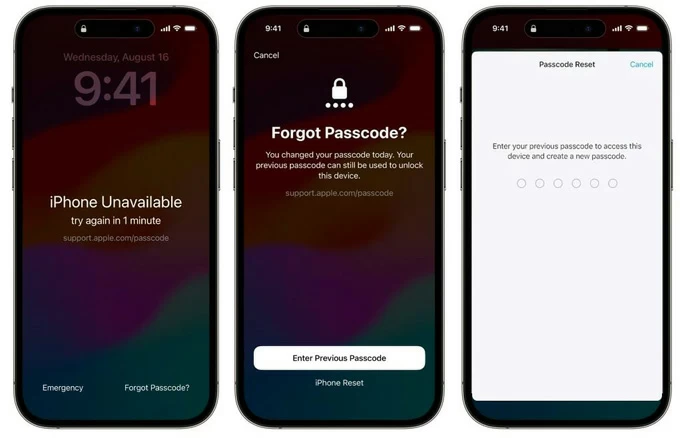
Apple's iOS 17 Passcode Reset feature is the only built-in way to use the previous passcode to get back in and reset a forgotten iPhone passcode without wiping the device, and it only works when you changed your passcode within the last 72 hours.
If you recently changed your passcode and forgot the new one in iOS 17 or above, try these steps to unlock your iPhone without resetting or losing data and get past the lockout.
If that 72-hour window has passed, or you do not remember the old passcode, then the phone must be erased before you can use it again.
In case the iPhone device's passcode was forgotten completely, or you bought a second-hand device that's still locked by previous owner, it's time to perform a factory reset. Below are four effective resetting solutions to unlock an iPhone when you can't remember passcode or even don't know it, or are locked out permanently.
Regardless of your device model or iOS version, the common method to fix the iPhone passcode you forgot is enter recovery mode and choose Restore in iTunes, Apple Devices app or Finder on a computer, which forces a full reset and erase the lock screen.
This computer-based reset method comes in handy if your iPhone isn't connected to Wi-Fi or the "Forgot Passcode" option doesn't appear. Let's see how it works.
1. Power off your device.
2. Grab a lightning cable and connect one port of it to the computer.
3. Plug another port of the cable into your iPhone while holding the correct button to boot the iPhone from Recovery mode.
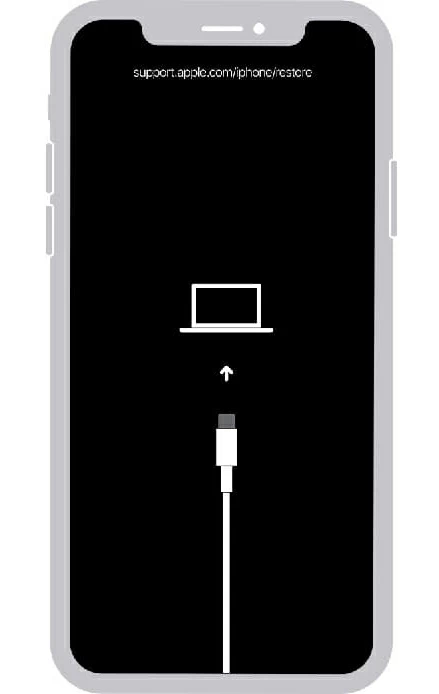
3. Once you're in recovery mode, open iTunes, Apple Devices app or Finder on PC or Mac to restore iPhone, install the latest iOS version, and remove the forgotten passcode.
Apple iTunes for Windows
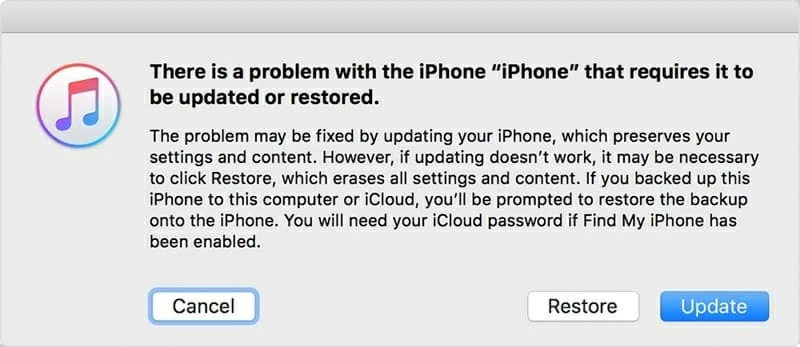
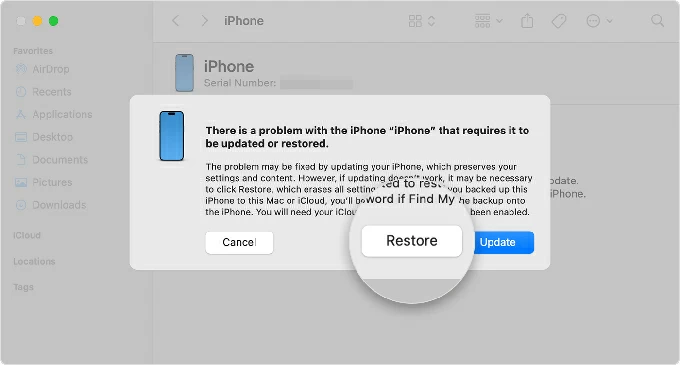
When iTunes detects your iPhone, it will open automatically and prompt you to update or restore your iPhone. Select Restore, and then confirm by Restore and Update.
Apple Devices app for Windows 11 or 10
Open Apple Devices app, and click on your iPhone on the left sidebar. Then follow the prompts to reset iPhone to factory settings even without knowing the passcode.
Finder in macOS 15.2 or later
In Finder, choose Restore when you're given the option for Update or Restore. The resetting process should kick off, restoring your iPhone that you forget the passcode to and deleting all content and settings.
When the restore process is complete, you are able to open your iPhone and set it up again.
Related: How to Unlock iPhone Without iTunes.
When forgotten passcode to an iPhone or the passcode has been entered incorrectly too many times, the "Forgot Passcode" option in iOS 17 and higher allows you to erase or reset the device directly from the lock screen without the need of a computer.
Tip: If you're using iOS 15.2 and up to iOS 16, it could be the "Erase iPhone" option.
As long as you remember the Apple Account & password, you're able to reset your iPhone password without a computer in a few simple taps on the screen if the device has a cellular or Wi-Fi network.
1. Enter passcode randomly until the lock screen shows iPhone Unavailable message.
2. Tap the Forgot Passcode (or Erase iPhone) option in the bottom corner.
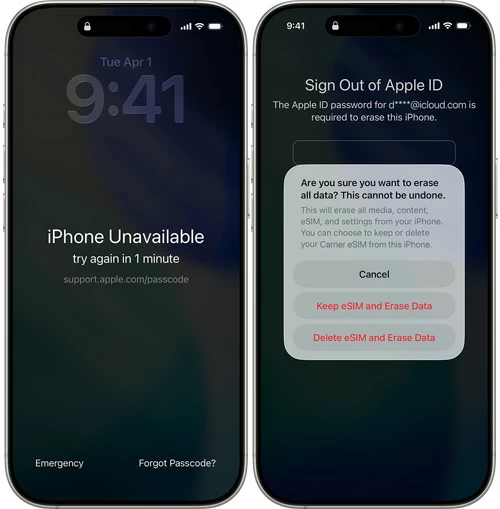
iOS 15.2 or later lets you use Apple ID and password to restore iPhone if it's connected to a cellular or Wi-Fi network.
3. Tap Start iPhone Reset to continue.
4. Enter your Apple ID password to sign out of iCloud account used in this iPhone.
5. Again, tap Erase iPhone to confirm. Your iPhone will be restored and everything will be erased, including the forgotten passcode.
6. Set up your iPhone, and restore iPhone from iCloud & iTunes backup, and set a new passcode.
If Apple's own iPhone restore via recovery mode don't do enough to reset the forgotten password with a computer, then you can use a dedicated program to get rid of it. Appgeeker iPhone Unlocker (iKnockin) has the ability to reset an iPhone when you can't get into it as you don't remember the correct password, letting you remove the 4-digit/6-digit passcode, Face ID, or Touch ID with a few clicks. It also can fix Security Lockout or Unavailable error on the screen. Best of all, it's easy to use.
Using this tool to unlock forgotten iPhone password requires a computer, a USB cable and your phone. If you don't have computer, borrow one from a friend.
Here's how to unlock an iPhone without a passcode or Apple ID using Appgeeker iPhone Unlocker.
1. Plug your phone into any USB port on your computer, and launch the software. From its main interface, click the Unlock iOS Screen mode.
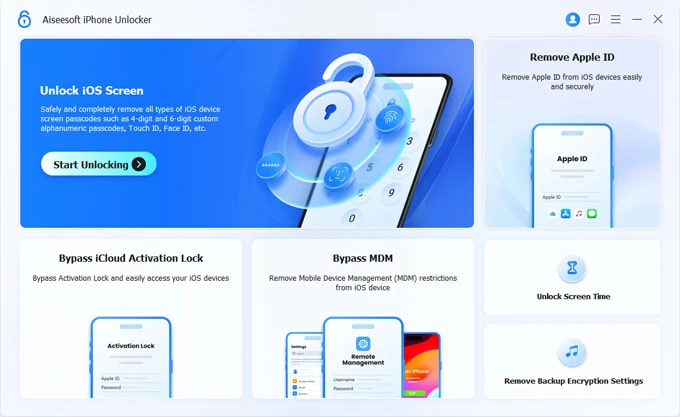
2. The software should detect your iPhone and move to the next step. If not, you can follow the onscreen prompts to enter Recovery mode. It's quick and simple.
The software will scan your device and then display its model in this interface. Click Start Now button to continue.
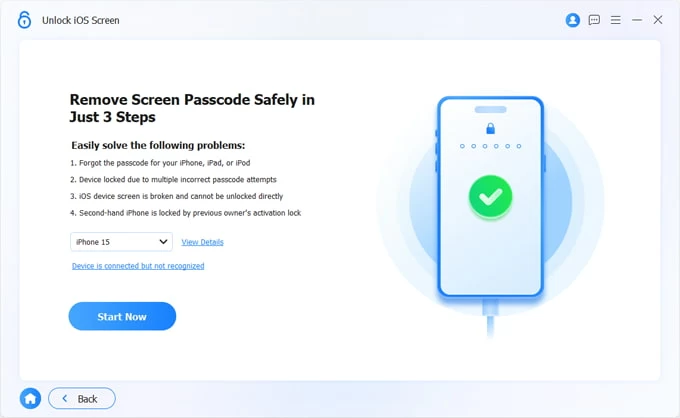
3. The process of downloading firmware package will then begin. Just wait a few minutes.
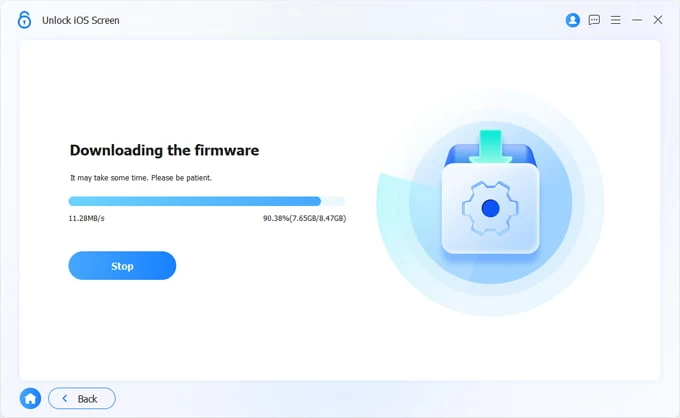
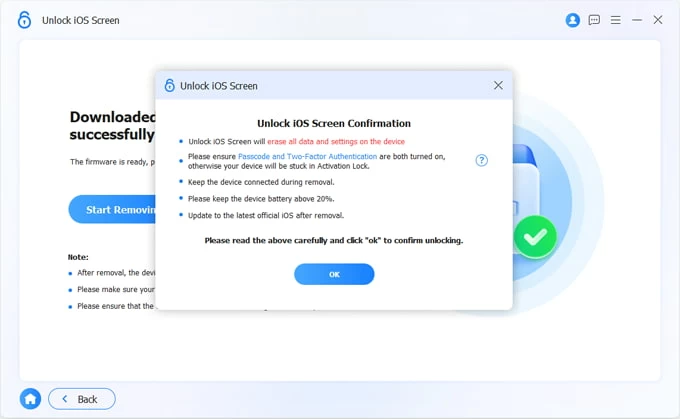
4. OK now, the firmware is downloaded successfully. On the "Unlock iOS Screen Confirmation" screen, hit OK button followed by Confirm Again button.
As the last step, just wait for the software to get your iPhone reset to factory settings and have the forgotten passcode removed.
When it's done, the iPhone is unlocked without needing the passcode, and then you can complete the remaining setup steps.
Video Tutorial: What to do if you forgot the passcode
iPhone Unlocker will erase all your personal data to unlock the lock screen if you can't remember iPhone password. During the setup process:
Provided that Find My iPhone has been enabled, simply head to iCloud Find My website to where you can log into the associated Apple Account and factory restore iPhone remotely when you forget an iPhone password.
To complete the web-based remote reset for a forgotten passcode on a locked iPhone, do these steps. First, navigate to icloud.com/find on a browser of a computer or another accessible device.
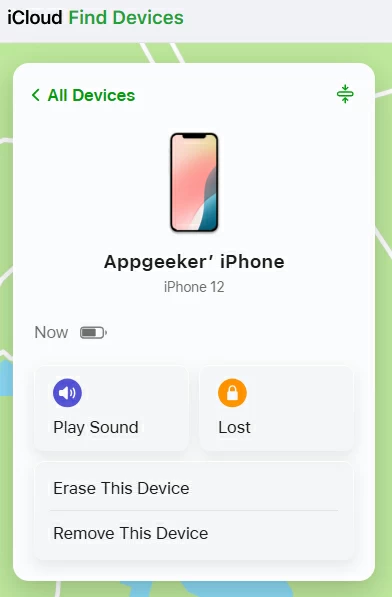
Sign into your iCloud account with Apple ID and password. Under All Devices panel, click on [your iPhone] that you've forgotten the unlocking passcode.
After that, choose Erase This Device option. This is designed to wipe everything on an iOS device that's lost, stolen or locked out without remembering the passcode.
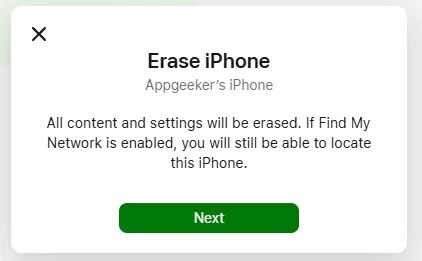
To confirm erasing your iPhone, click Next, and then enter your Apple Account password to begin the process.
If your iPhone is online, the forgotten passcode and Lock screen will be removed in minutes. Afterwards, follow onscreen instructions to finish the setup.
Forgetting your iPhone passcode isn't the end of the world. Even there's no way to recover a forgotten passcode from an iPhone when it's locked, you can still regain access.
In the light of concerns over data security and privacy, Apple requires an iPhone reset to unlock the locked screen when you forgot the password, but at the same time it will get all your personal information deleted permanently and revert everything back to factory settings.
To prevent you from forgetting the iPhone passcode in the future, it's advisable to do the following:
1. How can I unlock my iPhone when I forgot the passcode?
When forgotten passcode for unlocking an iPhone, you have to erase and reset the device through recovery mode on a computer, using iOS 17 Forgot Passcode option (or iOS 15.2 Erase iPhone option) on the lock screen, or iCloud Find My's remote wipe.
The one exception is Apple's iOS 17 "Passcode Reset," which lets you use your previous passcode for a short time after you change it, letting you get into a locked iPhone without fully resetting the device, and create a new passcode.
You can also use Appgeeker's iPhone Unlocker to remove the passcode. It's a cross-platform application that's capable of unlocking a locked or unavailable iPhone in a fast manner.
2. Do I need a computer to reset a forgotten iPhone passcode?
Not always. On iOS 17 or later, you may be able to reset your iPhone if you forget the password without using a computer. The "Forgot Passcode" option will appear after several failed attempts, allowing you to reset the passcode directly from the Lock Screen with your Apple Account and password — if Find My was already enabled and the phone has a cellular or Wi-Fi connection.
3. I've forgotten my passcode for my iPhone. How many wrong passcode attempts trigger the iPhone Unavailable screen?
Apple reported that the iOS device display iPhone Unavailable after you input the incorrect passcode five times, along with "try again in 1 minute."
The timer will increase after repeated wrong entries, varying from 5 minutes, 1 hour, 3 hours, 8 hours. 10 failed attempts will make the device locked permanently, leaving the iPhone Unavailable message without a timer.