
How to Unlock iPhone with Broken Screen


Seeing "iPad Unavailable" but no Erase iPad option? Learn why the Erase iPad button is missing and how to unlock your unavailable iPad with a computer.

When an iPad says iPad Unavailable and there's no Erase iPad option for an on-device reset, Appgeeker iPhone Unlocker offers a simple way to connect your iPad to the computer and unlock the unavailable screen if you forgot the passcode.

Tapping Erase iPad option lets you reset an unavailable iPad and wipe the forgotten passcode without a computer.
Entered the wrong passcode too many times and now your iPad says "iPad Unavailable"—but the Erase iPad option isn't showing up?
Normally, the iPad Unavailable screen is featured with an "Erase iPad" option since iOS 15.2 allowing owners who have forgotten the passcode to use the Apple account credentials to reset the iPad directly from the lock screen without needing a computer and regain full access.
When the Erase iPad option is missing entirely, it usually means your device lacks an active network connection, is running an older iPadOS version, or has Find My disabled. This can feel like there's no way to bypass the unavailable screen for unlocking an iPad without the passcode.
The good news is that, being stuck at the iPad Unavailable screen without a visible on-device reset option doesn't necessarily mean your iPad is permanently locked. This guide explains why is there no Erase iPad option on the Lock Screen when iPad is unavailable, and walk you through alternative solutions to address the lockout issue so you can unlock your iPad when you forgot the passcode and entered the code incorrectly over and over again.
Table of Contents
When an iPad shows the "iPad Unavailable" message, it means the iPad has been locked due to too many failed passcode attempts. In case a passcode is input incorrectly five times in a row, the device automatically enforces iPad Unavailable. Try again in 1 minute. If you continue to enter incorrect codes, the timeout increases, ranging from 5 minutes, 15 minutes, 1 hour, 3 hours, to 8 hours. When the attempts reach to ten times, you will eventually face the permanent iPad Unavailable with no timer screen.
While Apple's security feature protects sensitive information, it can leave users unable to get into their iPad especially when the passcode was forgotten truly.
Under ideal conditions, iPadOS 15.2 and newer systems display the Erase iPad option for fully resetting the whole device and removing the lock screen passcode. If it doesn't appear, you'll need a computer to erase the tablet through recovery mode or other iPad unlocking utilities.
The appearance of the Erase iPad option depends on a very specific set of hardware and software conditions. If even one of these criteria isn't met, you'll find the iPad Unavailable message appear with no Erase option.
Here are the most common reasons why the Erase iPad option is missing from iPad Unavailable screen or Security Lockout screen.
Outdated iPadOS software
Apple introduced the native on-screen Erase iPad option in iPadOS 15.2, iOS 16 and its variations. If your iPad is running an earlier version, the operating system lacks the underlying algorithm required to present this option.
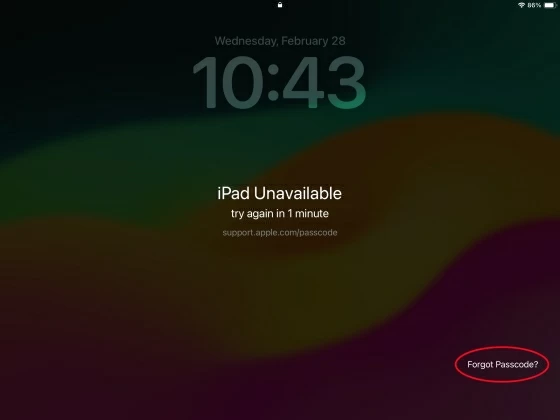
Tip: In iPadOS 17 and higher, the Erase iPad option has been updated to the Forgot Passcode? option, which operates the same way in erasing an unavailable iPad.
Find My iPad is disabled
The built-in reset feature relies on Find My being enabled, as it uses your Apple account to authorize a remote erase. If Find My iPad was turned off before iPad became unavailable, Apple cannot validate your ownership and the Erase iPad option will not appear on the lock screen.
No valid internet connection
The Erase iPad feature requires the device to be online. If your iPad is in Airplane Mode, out of Wi-Fi range, or lacks an active cellular signal, it cannot communicate with Apple's servers, and the Erase option will not show up.
System glitches or unstable state
Occasionally, differences in production batches, software bugs, or memory errors can cause the lock screen to behave unpredictably. In rare cases, the Erase iPad option may fail to load even if all the prerequisites are technically met.
The failed passcode attempts you made might be more than ten times
If you type in the wrong passcode repeatedly ten times, the device is locked out permanently, showing iPad Unavailable, No Timer, No Erase iPad.
Using Erase iPad option to fix iPad Unavailable due to too many failed passcode attempts is an extremely easy process. Once you tap on it, you'll be directed to start an iPad reset after entering the linked Apple Account password — no computer is required. This wipes off all data and settings including the passcode and allows you to set up the device again.
Despite that, it shouldn't be challenging when the lockscreen Erase iPad isn't displayed. There are still three effective computer-based methods you can take to wipe the iPad without passcode and unlock the unavailable screen without relying on the Erase iPad option: iTunes recovery mode, Appgeeker iPhone Unlocker, iCloud Find My.
If you forgot your iPad passcode, the traditional method to resolve iPad Unavailable No Erase iPad problem is to use a computer to put the device into recovery mode, and then restore it to factory settings—thereby bypassing the lockout, through iTunes (Windows, macOS Mojave or earlier), Apple Devices app (Window 11 & 10), or Finder (on macOS Catalina and later).
Whether your iPad is completely offline and you cannot get the on-screen erase button to appear, take these steps for an iPad unavailable unlock without Apple ID using a PC or Mac.
1. Shut down your iPad and do not connect it to computer yet.
2. Plug your iPad into the computer using a USB cable.
3. Keep your iPad connected and press certain buttons to boot it into recovery mode:
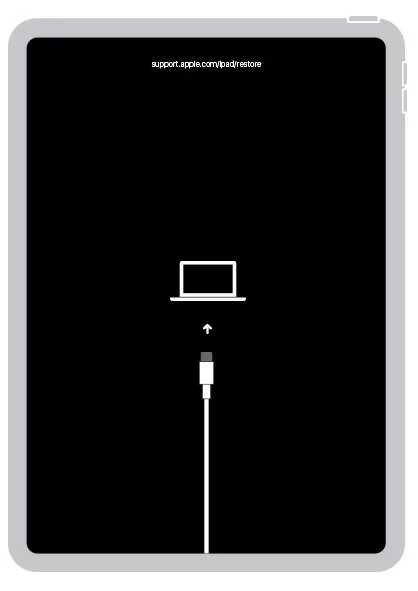
4. On your computer, open iTunes, Finder or Apple Devices app - if it doesn't open automatically, and then locate your device.
5. In the pop-up window with Restore or Update option, select Restore.
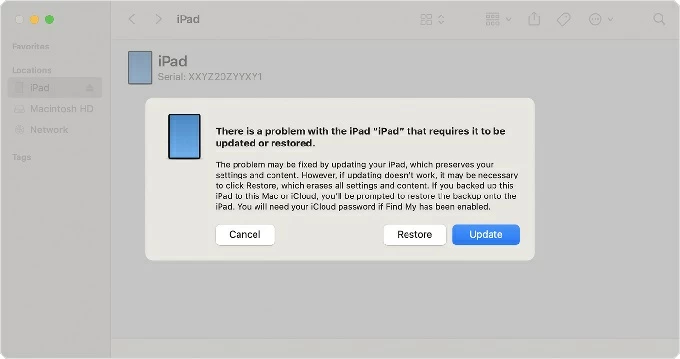
6. Confirm your choice and force the computer to download the latest version of iPadOS. If the download takes more than 15 minutes and the device exits recovery mode, let the download finish, and repeat the process.
7. Once the download finishes, the computer will automatically initiate a factory reset, wiping the locked device including the unavailable screen as well as the passcode.
When done, your tablet should restart to the Hello screen. During the setup process, you may need to verify the previously associated Apple account, and you can also retrieve your erased data and settings from a recent backup.
Let's say: iPad is unavailable and the Erase iPad option won't appear. When you tried to connect it to my computer, it won't connect to Finder or iTunes. Don't worry, a specialized desktop unlocking tool called Appgeeker iPhone Unlocker may help.
Despite its name, this one-stop software can unlock any iPhone or iPad that says unavailable, security lockout with no need of the Erase iPad option or iTunes/ Finder restore. It works to remove the screen locks without connecting to internet network, including 4-digit/ 6-digit passcode you forgot, as well as Face ID or Touch ID that's not working, allowing for a full access to your locked device again.
It supports various models, such as iPad, iPad Air, iPad mini, and iPad Pro, while being compatible with the latest iPadOS versions. Beyond unlocking an unavailable iPad without a passcode, it can also remove Apple ID, Screen Time passcode, MDM, iCloud Activation Lock and more, making it a powerful all-in-one solution for iPhone/iPad password-related issues.
When you can't remember the iPad's passcode or made too many incorrect passcode attempts, you don't have to worry about how to unlock iPad unavailable No Erase option without Apple ID or iTunes by the help of Appgeeker iPhone Unlocker:
1. Download and install the utility on your PC or Mac. Then launch it.
2. Connect your unavailable iPad through a compatible USB cable.
3. On the software interface, choose Unlock iOS Screen module for removing iPad Unavailable screen without the Erase iPad button.
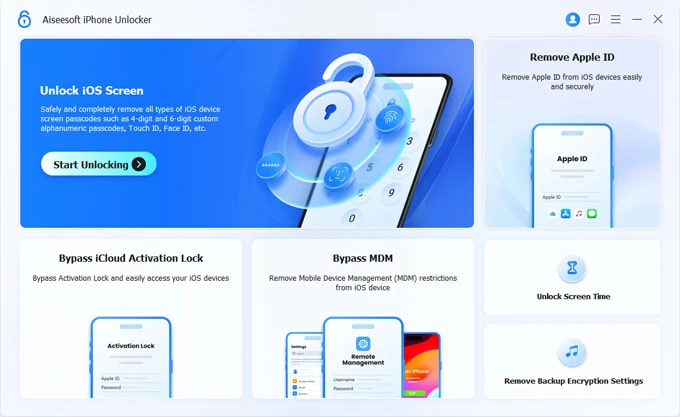
4. If your tablet isn't recognized, follow the on-screen instructions to enter recovery mode for a reset when you're locked out.
5. Confirm your iPad's information, then hit Start Now to begin downloading the relevant firmware package for unlocking the iPad without passcode.
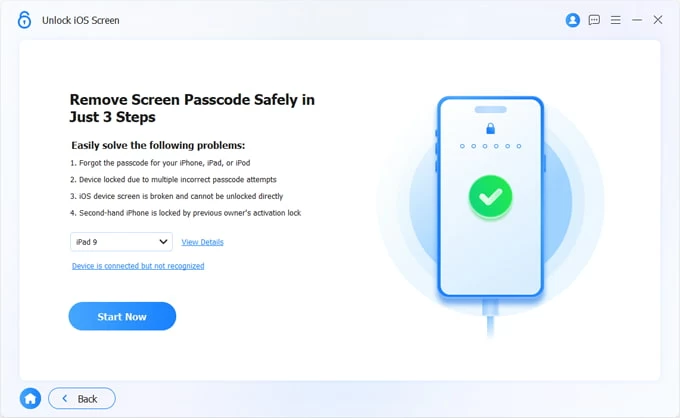
6. Once the download is complete, click OK button, then Confirm Again button to start the unlocking process. This process will restore your iPad to factory settings and install the latest iPadOS, which may take a few minutes.
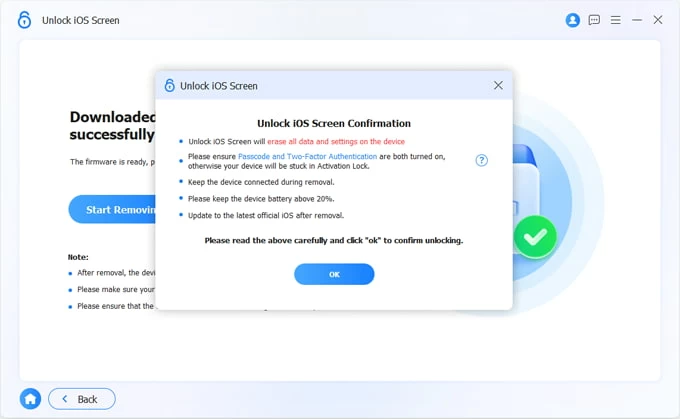
After successfully unlocking, your iPad will restart in setup mode, and the iPad Unavailable message will be gone.
As long as the Find My is enabled within iPad's Settings and the device is actively connected to the internet via Wi-Fi or cellular data before the lockout, iCloud offers a remote solution to unlock your iPad when it is unavailable with no Erase iPad option to directly reset the device without a computer. This approach requires that you know your Apple Account and password as well.
Here's how to fix an unavailable iPad when the onscreen Erase iPad is missing due to an older software version, and restore your access - through iCloud Find My's remote erase feature.
1. On a computer or another device, open a browser and visit www.icloud.com/find website.
2. Sign in with the Apple account and password linked to the unavailable iPad.
3. Locate the All Devices panel and choose the locked iPad from the device list.
4. Click the Erase This Device option.
5. Confirm your choice, and then enter your Apple Account password to verify your identity.
As long as the iPad remains connected to the internet, it will instantly receive the remote wipe command, erasing all content and settings, booting directly to the initial setup screen, and bringing your unavailable iPad back to normal.
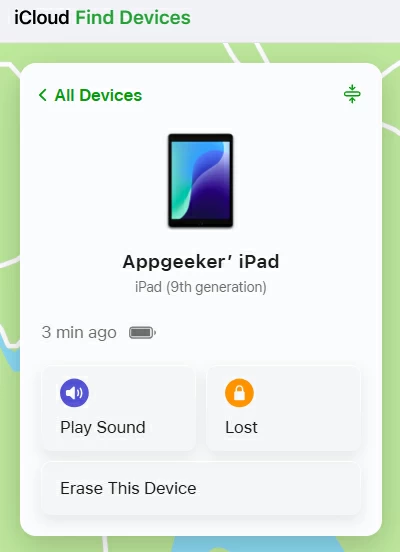
By far, iPad Unavailable No Erase iPad option has been fixed successfully. You're able to get back in your tablet without a passcode.
Also read: How to get into locked iPhone without passcode
Similarly, using Recovery Mode, Appgeeker iPhone Unlocker and iCloud Find My to recover an unavailable iPad with no Erase iPad option involves erasing all data and settings and resetting the tablet to factory settings for a fresh start. This helps removing the unavailable screen and the passcode you forget.
Once the iPad is erased, you will need to set up the device from the scratch, which includes the option to let you restore your data if an iCloud backup or computer backup exists. Make sure to sign in your Apple Account to fully get into and use the device again.
If you get an iPad Unavailable screen along with the Erase iPad option displaying at the bottom, simply tap on it to complete an on-device reset. It's much quicker and easier - as long as you know the Apple Account login details. To fix iPad Unavailable with Erase iPad option, do the following:
1. Enter the wrong passcode repeatedly on your iPad until the Erase iPad option appears at the bottom of the screen.
2. Tap the Erase iPad option, then tap Erase iPad again to confirm.
3. Follow the prompts to enter your Apple ID password.
4. Once verified, your iPad will begin the erasure process, removing all data and settings, including the lock screen passcode
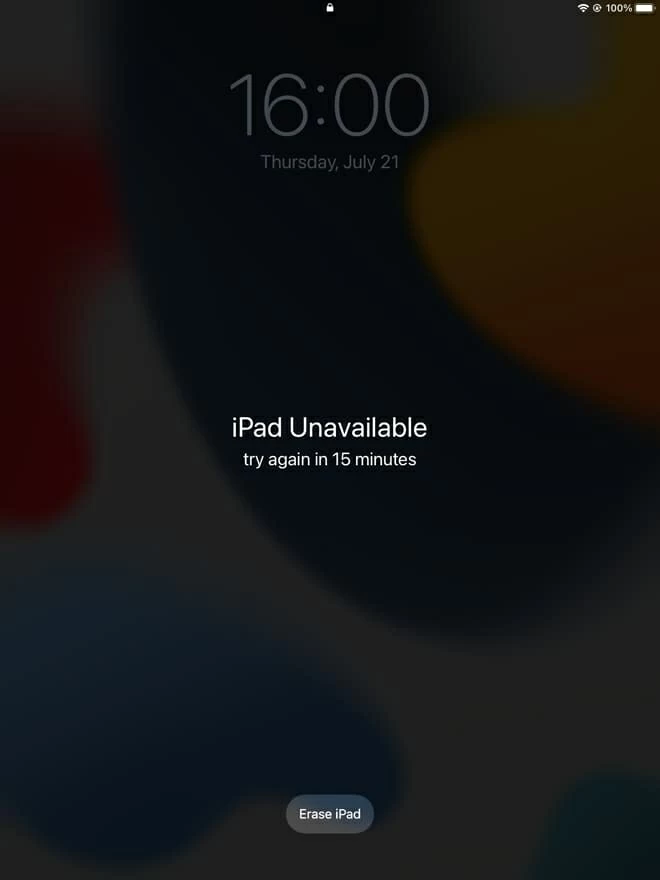
For iOS 17 and later versions, the Erase iPad option has been renamed to the Forgot Passcode? option.
1. On your unavailable iPad screen, tap Forgot Passcode? at the lower right corner.
2. Select Start iPad Reset to proceed.
3. Input the Apple account password associated with your device to sign out of the account.
4. Tap Erase iPad to begin resetting your iPad without passcode.
Conclusion
Seeing iPad Unavailable without the Erase iPad option can be frustrating, but it doesn't mean your device is permanently inaccessible. While a missing "Erase iPad" button makes things a bit trickier, you can easily get your iPad unlocked.
If your device is completely offline or running an older operating system, using a desktop utility like Appgeeker iPhone Unlocker or putting the device into Recovery Mode using iTunes/ Finder/ Apple Devices will bypass the lock screen restrictions safely and restore access. If it's online, iCloud Find My provides a remote reset solution and requires your Apple Account to unlock your unavailable iPad if you do not remember your iPad passcode.
1. Why does my iPad say unavailable but no Erase iPad option?
The iPad may not be connected to the internet, Find My may be disabled, the device may run an older version of iPadOS, or you enter the incorrect passcode ten times leaving the iPad locked permanently.
2. How to unlock iPad unavailable no erase option?
You can unlock the iPad without the Erase option by restoring with iTunes recovery mode, Appgeeker iPhone Unlocker, or remotely erasing the device passcode after you log into iCloud Find My.
3. Can Erase iPad option unlock my unavailable iPad without losing data?
No. The Erase iPad option uses your Apple Account and passcode to reset the iPad when you're locked or forgetting the passcode, which wipes all apps, settings, and personal data, and allows you to set up the device again.
The good news is that, if you have a recent iCloud or iTunes backup, you can restore it during the initial setup to get your data back to the device.