
How to transfer WhatsApp data from iPhone to iPhone


Locked out of your iPhone and don't have the passcode to unlock the lock screen? Here's how to unlock an iPhone passcode without resetting or restoring the device.

Have already tried all possible ways but still can't unlock your iPhone when locked out? Go with a dedicated tool named Appgeeker iPhone Unlocker (iKnockin). With features like passcode wipe, Apple ID removal, Screen Time reset, and remote mobile device management bypass integrated seamlessly, the program truly lives up to its promise of providing a comprehensive screen removal solution under a single interface.

You can unlock an iPhone without resetting or restoring the device if you changed your passcode within 72 hours.
Few digital situations trigger a cold sweat quite like typing in your passcode, seeing the iPhone screen shake violently, and realizing your trusted device has locked you out. Whether an old password slipped your mind, a child experimented too many times with your lock screen, or an accidental pocket-dial put your phone into a multi-hour security cooldown, the question immediately follows: Can I reset the iPhone screen lock without erasing the device?
If you forgot your screen lock passcode and you don't have a local or iCloud backup of your data, obviously, you will want to unlock the iPhone without restoring it. The standard protocol for a forgotten passcode on iPhone is a complete device wipe followed by a system reinstall.
However, before you panic and trigger the nuclear option, it is important to look up Apple's official documentation. You have a 72-hour grace period to unlock your iPhone without restoring your data or resetting the device, but only if you recently changed your passcode. Once those 72 hours pass, Apple's security rules mean the only way to reset a forgotten passcode is to completely erase and restore your phone.
This guide will show you how to unlock a forgotten iPhone passcode without restoring the operating system to a blank slate when you're running iOS 17 and newer software, as well as an iPhone passcode reset that requires the device to be erased.
If you recently changed your passcode and suddenly forgot the new passcode, iOS 17 offers a built-in safety net called 72-Hour Passcode Reset. This feature assumes that if you knew your old passcode within the last three days, you should still be allowed to regain entry without completely restoring your phone.
Here's how to unlock an iPhone with the old passcode temporarily in iOS 17 and later. The process won't revolve restoring your iPhone. Make sure you do this immediately.
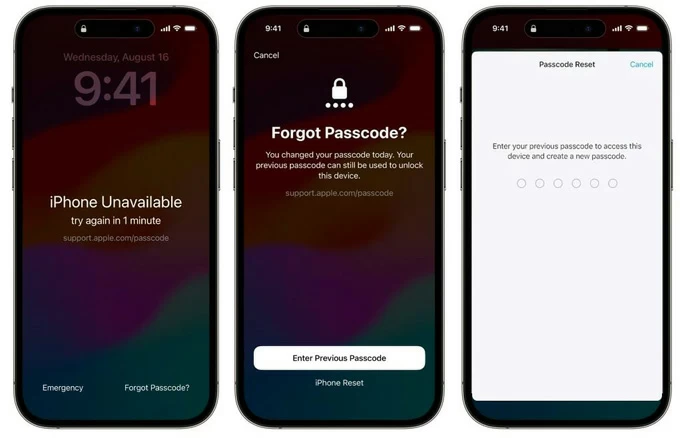
Step 1. Enter any random passcode to your iPhone several times until you see an iPhone Unavailable message on the screen, along with a timer asking you to try again later.
Step 2. Tap Forgot Passcode? option at the bottom. Even if you're locked out of your iPhone, you still can make emergency call through the option shown on the screen.
Step 3. On the next screen, tap Enter Previous Passcode. This screen only appears when Apple detects that you changed the passcode recently.
Step 4. When prompted, type in the passcode you were using before the recent change.
Step 5. Once verified, iOS will bypass the lock screen and immediately prompt you to create a new passcode.
Done! This is the ultimate gold standard for resetting the screen lock passcode on an iPhone without restoring the device to its factory settings and erasing everything. Remember to act quickly within a 72-hour window since you changed the passcode.
Also: How to fix an unavailable iPad
Without an old passcode available to use, you'll unable to unlock passcode on iPhone without restore when locked. But you can use your Apple Account password to reset and erase the device.
Instead of a previous passcode entry, entering the wrong passcode repeatedly will eventually display an "Forgot Passcode" or "Erase iPhone" prompt. While this sounds counterintuitive to the goal of unlocking an iPhone without losing data, it serves as a critical junction.
Here's how to unlock iPhone passcode with Apple ID.
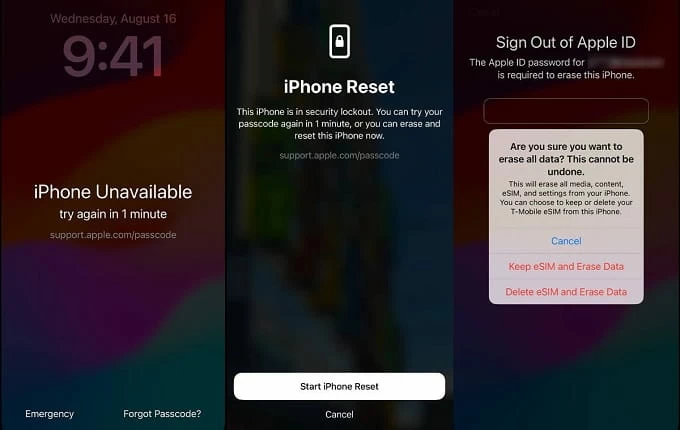
Step 1. Tap Forgot Passcode? at the bottom right corner of the screen. If your phone has an iOS 15.2 - iOS 16, you should see "Erase iPhone." Tap it.
Step 2. Proceed to select Start iPhone Reset.
Step 3. It will prompts to input your Apple ID password used to set up the phone. If your device is actively connected to Wi-Fi or cellular data, verifying your iCloud credentials.
Step 4. If iOS cannot verify a local backup point, executing the screen command blindly can trigger a full local wipe, and your iPhone will restore to its factory defaults.
If native on-screen prompts are absent, your next step moves away from the iPhone itself and onto a stable Mac or PC. Over the past decade, a robust category of specialized desktop-based utility software has emerged to address iPhone passcode unlock issues. Program like Appgeeker iPhone Unlocker (iKnockin) is frequently used by technical writers and repair technicians to interface directly with iOS recovery environments.
The software has made unlocking screen locks on iPhone and iPad extremely easy, letting you wipe the passcode, remove remote management screen, reset Screen Time password, remove Apple ID you forget, and other screen locks that may prevents you from using the device.
How Appgeeker iPhone Unlock processes a lock screen?
When searching for "how do I unlock my phone without restoring it," it is vital to understand the mechanism behind these third-party programs. They operate by placing your iPhone into Recovery Mode or Device Firmware Update (DFU) mode and pushing a clean configuration file over a hardwired USB connection.
Note, follow these steps to restore your iPhone to remove the passcode and screen lock, which allows you to set it up again later.
To unlock iPhone passcode:
1. Install the software on your computer, and then launch it. Select "Unlock iOS Screen" from its main interface.
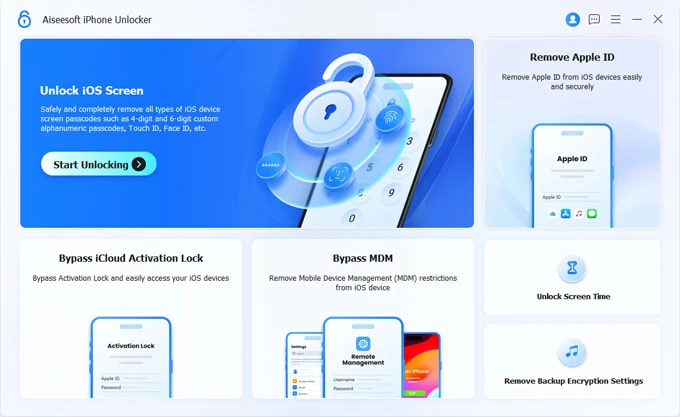
Tip: if you want to remove device management from a school iPad to get full control, select "Remove MDM" tool.
2. Plug the phone into the computer using an authorized Apple Lightning or USB-C cable and ensure it's detected. If not, follow the onscreen instructions to boot the device from recovery mode.
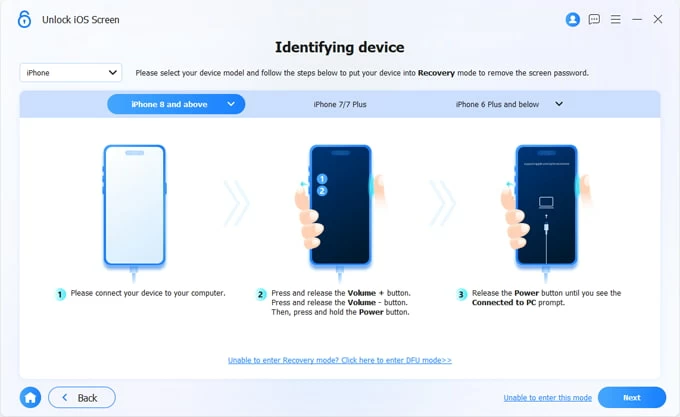
3. The software will try to display the basic information of your phone model. Confirm and click "Start Now" button.
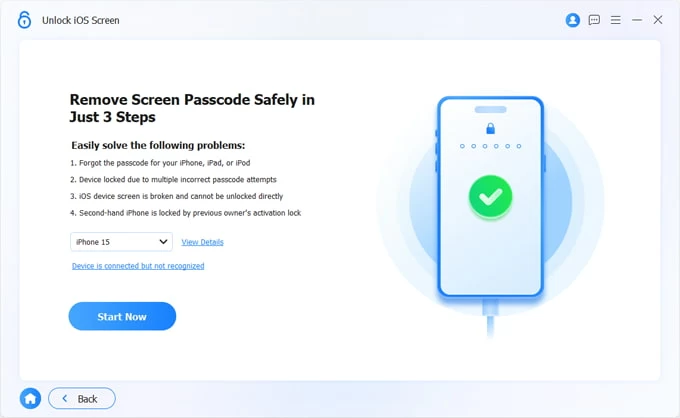
It will begin initial a download process to help you download the corresponding iOS package directly from Apple's servers for your phone.
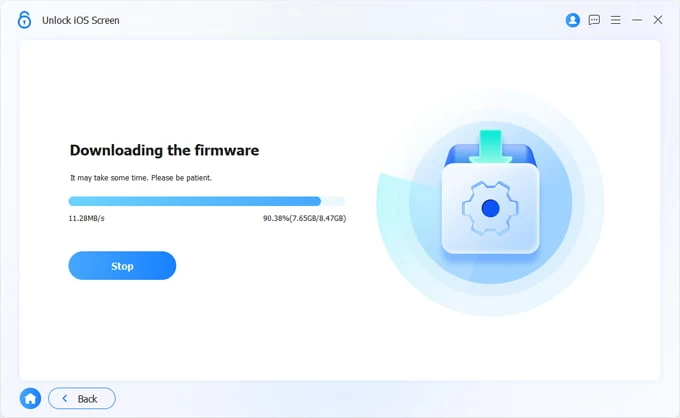
4. When you're ready, press "Start Removing" button on the screen. You'll be presented with a newly-opened dialog, telling you what will happen if you try to unlock an iPhone you forgot the passcode to.
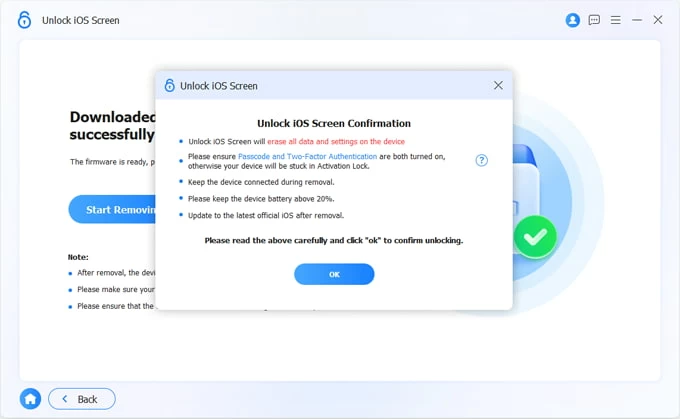
Confirm your action and press "OK," and then "Confirm" to begin the unlock process.
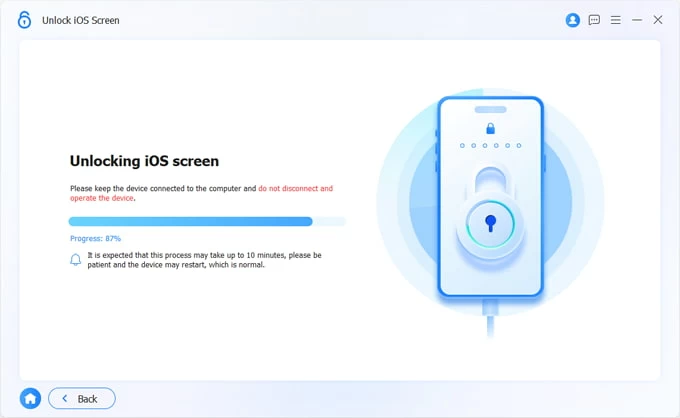 When the process is complete, the progress bar will go to 100%.
You can now unlock your iPhone and follow the setup assistant to set the phone up. If you have your data backed up to iCloud beforehand, you can restore it from a recent backup during the setup.
Also: How to transfer photos from SD card to iPhone
If your phone is active, online, and has Find My enabled, you can also unlock the passcode you forgot on iPhone from any web browser or another Apple device. This involves your Apple account and password, as well.
1. Navigate to iCloud.com/find or open the Find My app on an iPad or computer.
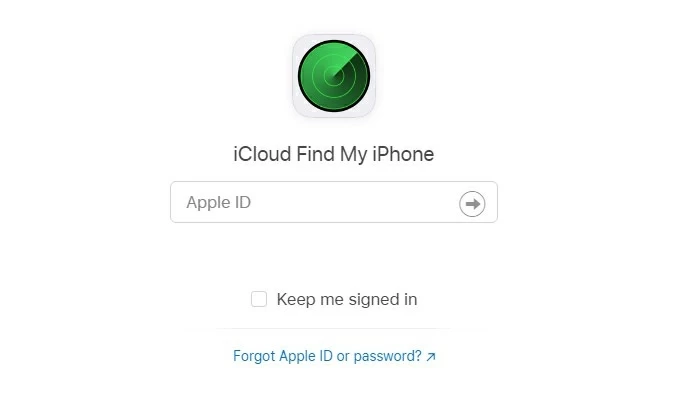
2. Log in with the exact Apple ID credentials associated with the locked iPhone.
3. Select your phone from the list of registered Apple devices.
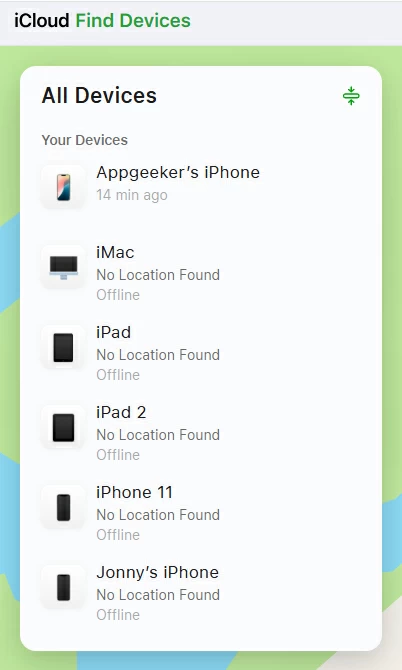
4. Choose the Erase This Device action command.
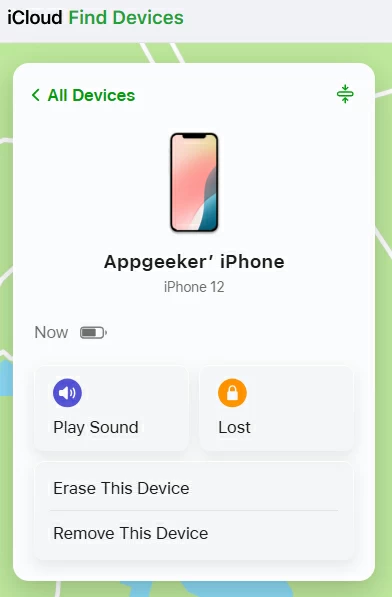
5. Follow the remaining steps to finish wiping the iPhone remotely.
Now, look closely at how this resolves the unlock forgot iPhone passcode without restore problem: while performing a remote erase removes the lock screen configuration, it bypasses the need to tether the phone to a computer and go through an operating system reinstall.
As soon as the command executes over the cloud, the device reboots into an activation screen. If you have automatic iCloud backups turned on, the setup assistant will instantly ask you to pull down your photos, messages, app configurations, and account profiles from the cloud. The device is essentially unlocked and restored to its exact previous state within minutes, fulfilling the practical goal of unlocking forgot iPhone passcode without data loss.
Related: iPhone call history recovery
If you have historically synchronized and backed up your iPhone with a specific Mac or Windows PC running iTunes or Finder, that computer holds a trusted cryptographic certificate. This relationship can be leveraged to unlock your iPhone and passcode without data loss.
1. Connect your iPhone to the computer you backed up data to before via a USB cable.
2. Open Finder (on macOS Catalina or later) or iTunes (on Windows).
3. If the historic trust relationship is still active, the computer will recognize the phone without asking you to type in a passcode on the iPhone screen.
4. Navigate to the device summary page and select Restore Backup immediately.
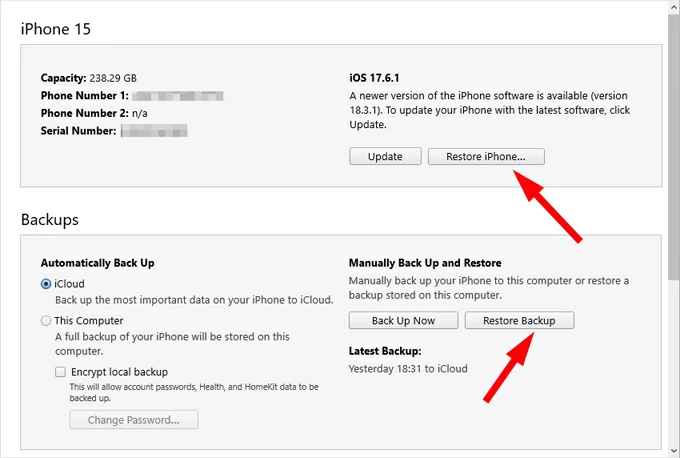
5. Pick the most recent backup that includes your important data from the list.
6. Choose Restore.
Once your data is safely copied onto your computer's hard drive, you can proceed to clear the passcode layer confidently, knowing that you can reinstall your entire digital life onto the device immediately afterward.
Once you navigate your way through a device lockout and solve "unlock a forgotten iPhone passcode without restoring" problem, your priority must immediately shift to absolute prevention. Do not treat backing up as an administrative chore you have to perform manually.
Go to Settings > [Your Name] > iCloud > iCloud Backup and toggle the "Sync This iPhone" feature to On. Ensure your phone is connected to power and a stable Wi-Fi connection overnight. This turns your device into a rolling mirror of your digital presence.
If you ever have to wipe your screen lock configuration in the future or have forgotten the passcode that requires a factory reset, you can do so freely, knowing your data loss is limited to the last 24 hours of your timeline.




