How to add music from computer to iPhone


Deleted the wrong thread on an iPhone 18? Here's how to get those lost text messages and iMessages back before they're gone for good — step by step, no tech degree required.

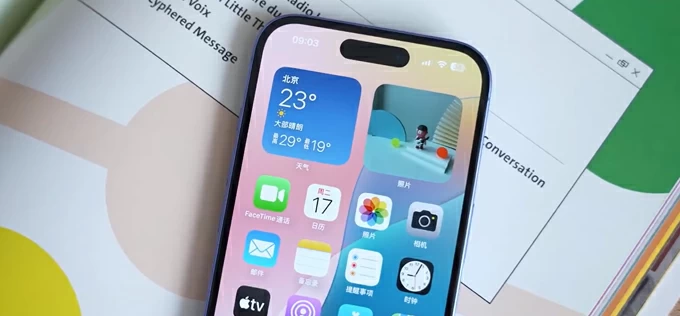
You can retrieve text messages deleted on iPhone 18 with Apple's own recovery options or using purpose-built tools.
Sometimes, you clear out Messages inbox on your iPhone 18 to avoid the clutter of useless spam text messages. Yet the irony is that you inevitably end up regretting it, as you later find yourself needing some of those very texts.
Much like photo recovery, Apple offers several methods to recover deleted messages on iPhone 18. For anyone attempting this for the first time, it's a welcome relief — no need to make a trip to an local Apple Store or professional data recovery center.
This tutorial covers the recovery of both regular SMS and Apple's native iMessages for iPhone 18 models. We'll walk you through Apple's built-in methods as well as the reputable third-party message recovery tools like Appgeeker iPhone Data Recovery, which is a complete recovery that can retrieve deleted SMS, iMessage, photos, contacts, and app data from the iPhone itself or from iTunes/iCloud backups—with preview and selective export.
If this is your first time trying to recover deleted iPhone 18 messages, you might be wondering where those accidentally deleted texts actually go. In fact, Apple knows you might swipe away something important by mistake, so it provides a temporary folder to hold your deleted messages — giving you a grace period to change your mind and avoid the hassle of a more complicated recovery process later.
But once that window closes, it's essentially the same as losing data on a computer: you'll need to rely on a backup or use specialized tools to perform a deep scan of the device's storage and trace what's left behind.
Apple introduces a "Recently Deleted" folder inside Messages since iOS 16: when you delete a thread, it's moved to a hidden staging area where it remains for 30–40 days with a visible countdown timer. It's essentially a soft-delete buffer designed for human error, giving you a grace period to undo a rushed swipe or mis-tap. This is the fastest way to recover your deleted messages from iPhone 18.
This in-app recovery path is the lightest option available — no backups, no third-party tools, no cable required. You can preview deleted threads and restore them (attachments included) directly back to your iPhone 18's inbox. That's why the first rule is always check Recently Deleted.
1. Launch the Messages app from your Home Screen. You'll land on your main conversation list.
2. Tap Edit in the top-left corner of the conversation list.
3. A menu appears — tap Show Recently Deleted.
4. You'll now see a list of message threads that were recently deleted.
5. Tap a conversation to preview its contents — you can scroll through messages and check that it's the right one.
6. To restore a single thread: swipe right on it and tap Recover. To restore multiple threads: tap Select (top-right), check the boxes next to each conversation you want back, then tap Recover at the bottom-left.
7. Confirm the recovery.

The thread(s) will immediately reappear in your main Messages list on the iPhone 18, complete with all text, photos, videos, and attachments that were present at the time of deletion.
See also: How to transfer videos from laptop to iPhone
The built-in "Recently Deleted" folder is a great first stop — but only within its 30–40 day window, and only if the thread is still listed there. Once that grace period expires, or if you never made an iCloud/iTunes backup, Apple leaves you with no native path back. The text messages aren't necessarily gone from the iPhone 18 right away, though: iOS simply marks that storage space as reusable, so the raw text fragments can linger until new data overwrites them. That's where a deeper recovery approach comes in.
Appgeeker iPhone Data Recovery is a desktop application that scans your iPhone 18 directly — no full-device restore required — to surface recoverable SMS, iMessages, and attachments, with free preview and selective export. Beyond messages, it also pulls data from existing iTunes/iCloud backups, handles photos, contacts, call logs, and social-app chats (WhatsApp, LINE, Viber, etc.), and pairs with its broader toolkit for backup, system repair, and device management — making it a practical Plan B when the simple in-app undo isn't enough.
Follow these steps to recover your text messages deleted from iPhone 18 through Appgeeker iPhone Data Recovery app.
Step 1. Launch the iPhone Data Recovery on your computer and select Recover from iOS Devices.
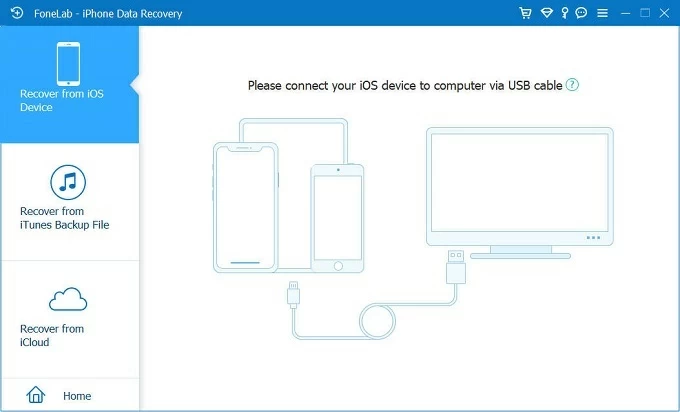
Step 2. Connect your iPhone 18 via a USB cable. If this is your first time connecting, tap Trust on the iPhone screen and enter your passcode to authorize the connection.
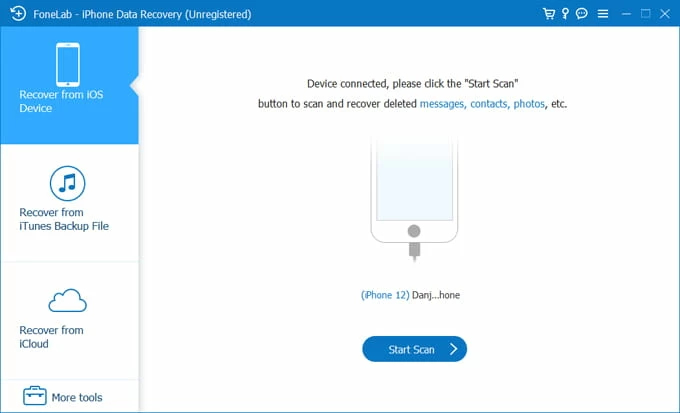
Step 3. Click Start Scan at the bottom-right. The software performs a deep scan of your iPhone 18 storage, searching for deleted message fragments that haven't been overwritten yet. This typically takes 3–10 minutes depending on device storage size.
You can pause the scan if you spot what you need early, but letting it finish yields the most complete results.
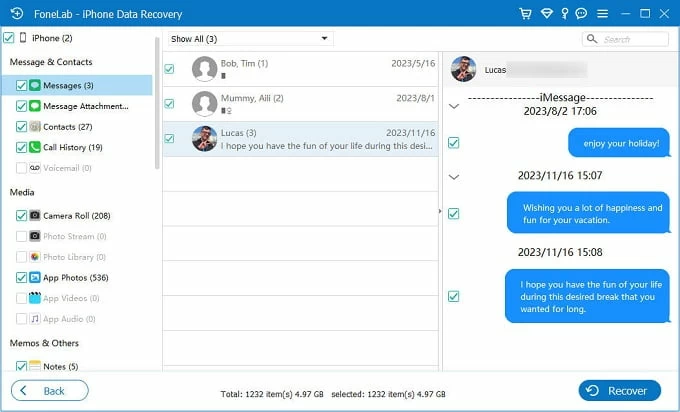
Step 4. Once scanning finishes, results are organized by data type in the left sidebar. Click Messages to expand conversations. Each thread shows contact name or number, message content, attachments (photos, videos, audio).
Click any conversation to preview full content, including timestamps.
Step 5. Check the boxes next to individual messages, entire threads, or specific attachments you want to restore, then select Recover at the bottom right corner to export selected messages as HTML, CSV, or VCF files — viewable in any browser or spreadsheet.
Tip: HTML format preserves conversation layout (sender bubbles, timestamps) — best for reading. CSV is better if you need to search or archive.
If you have an existing backup that predates the deletion, in Appgeeker iPhone Data Recovery main menu, choose "Recover from iTunes Backup File" or "Recover from iCloud."
See also: Apple ID locked for security reasons
This method only works if you've backed up your iPhone 18 to computer with iTunes or Finder beforehand. Having a backup is essentially a second chance — a safety net. If you're in the habit of backing up regularly, all it takes is restoring the iPhone 18 to that earlier backup point, and all your lost messages will come back.
The trade-off, of course, is that anything created after that backup will be wiped out. So the one real drawback is that you'll need to make sure your most recent data is backed up first.
Here's how to recover deleted iPhone 18 messages from computer with iTunes or Finder:
What you'll need:
1. Plug your iPhone into the same computer you used to create the backup.
2. In Finder or iTunes, look for the Backups section.
Finder: Under the General tab, you'll see a "Manage Backups" button — click it to view a list of all backups with dates and times.
iTunes: Go to Edit > Preferences > Devices (Windows) to see your backup list.
Identify the backup that was created before you deleted the text messages.
3. Click Restore Backup… at the bottom right corner.

4. A dropdown appears showing available backups. Select the one dated before the message deletion.
5. Your computer will begin transferring data to the iPhone 18.
6. Once the restore completes, your iPhone will restart. Unlock it and open Messages.
Your deleted conversations should now be back in your inbox, exactly as they appeared at the time of the backup — including photos, videos, and attachments sent or received before that date.
See also: How to get into a locked iPad
Unlike a computer-based restore that requires a cable and desktop software, iCloud Backup offers a wireless path back — but it comes with the same all-or-nothing trade-off. When you restore texts from iCloud, your iPhone 18 is wiped and rebuilt from a single point in time, meaning every message, photo, and app from before that backup returns, while anything created after it is gone.
The advantage is convenience: no computer needed, just a Wi-Fi connection and enough iCloud storage. The catch is that, like iTunes/Finder restores, this method doesn't let you pick and choose — it's a full-device rollback. It's best reserved for situations where the deleted messages matter more than whatever data has accumulated since.
1. Go to Settings > [Your Name] > iCloud > iCloud Backup, tap Back Up Now to back up your current data.
2. Go to Settings > General > Transfer or Reset iPhone.
3. Tap Erase All Content and Settings.
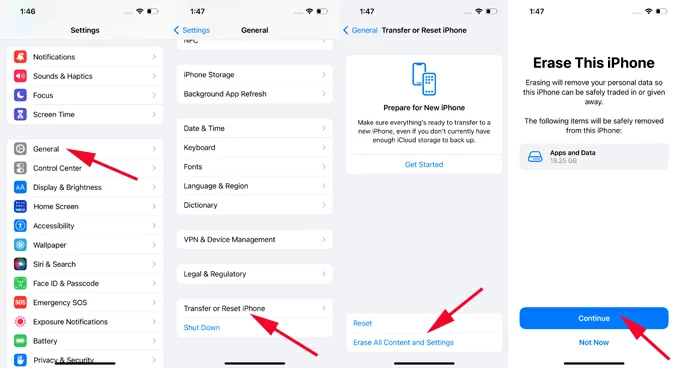
4. Wait for the iPhone 18 to wipe and restart to the Hello screen.
5.Follow the on-screen steps to set up the phone: choose language, region, and connect to a stable Wi-Fi network.
6. When you reach the Transfer Your Apps & Data screen, tap From iCloud Backup.
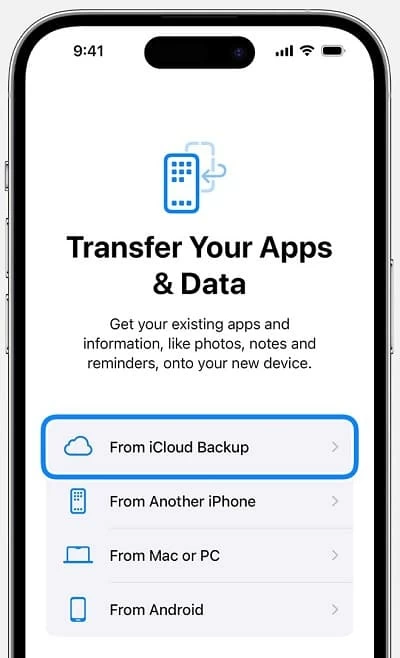
7. Sign in with your Apple Account and pick up your backup file.
8. Wait for the restore to complete
Restore time varies from 30 minutes to several hours, depending on backup size and network speed. Apps, photos, and messages keep downloading in the background even after you reach the Home Screen.
Open the Messages app on your iPhone 18. Your deleted conversations should be back, exactly as they were at the backup point — including iMessages, SMS, photos, and attachments.