
How to Transfer Music to iPhone without iTunes


Easily transfer MP4 videos from PC to iPhone without compression. Supports USB and wireless transfer, large files import at fast speed, and no loss of existing iPhone data.

Apple doesn't make it hard to move a MP4 video from a PC to iPhone.
You've got MP4 videos on your Windows PC—maybe a 4K movie, a screen recording, a drone clip, or a work presentation—and you want them on your iPhone. It's a simple request, but there're times you're struggling to transfer MP4 videos from a PC to an iPhone.
Whether you are a content creator trying to move your footage or just a movie lover taking your library on the go, you'll be here to learn how to transfer MP4 from Windows computer over to the iPhone, while keeping the quality 100% intact, and—most importantly—not wiping your current media content during the video transfer process.
This guide explores the best ways to send your MP4 files from your PC to an iPhone of all models, from lightning-fast USB connections to seamless wireless clouds.
Table of Contents
Each MP4 transferring tool works effectively to get your small videos or long movies to your iPhone from your PC as quickly as possible. We'll explain how you can attempt a cable-based or wireless transfer, preserve original bitrates, avoid deleting or overwriting existing phone data, optimize transfer speed especially for copying ultra-HD files or entire video folder, as well as decide whether videos go to the Photos app, Apple TV app, or Files app within iOS device.
A direct USB cable transfer of MP4 videos between PC and iPhone without using iTunes or iCloud storage, and instant access to the videos in iDevice's Photos or Apple TV.
If you regularly transfer MP4 videos from a PC to an iPhone, using a dedicated transfer tool can save you time, prevent data loss, eliminate compatibility issues entirely. One of the most reliable options is Appgeeker iPhone Data Transfer.
Unlike iTunes or cloud-based solutions, the software is designed specifically for direct, lossless media transfer between PC and iPhone. Equipped with the powerful transfer techniques, users can transfer MP4, MOV, M4V from PC's hard drive straight to iPhone without compression. Even the videos in AVI, MKV can be moved to the iOS device as the inbuilt converter potentially converts them into iOS-friendly formats during the transfer process.
Plus, any transferred MP4 files integrate seamlessly into your iPhone's Photos library for instant playback, editing, and sharing, or Apple TV (or Videos app).
Sounds great? Now download Appgeeker iPhone Data Transfer software, install it ad launch it. The user-friendly interface along with the onscreen instructions will guide you on how to send MP4 video from any PC to your iPhone hassle-free and without quality loss.
Step 1. When you open the program, you will be asked to connect your iPhone to your computer via a lightning cable.
Make sure to keep your phone unlocked and trust the computer.

Step 2. Click Photos or Videos from the left sidebar. This lets you decide to where do MP4 videos go on your iPhone.
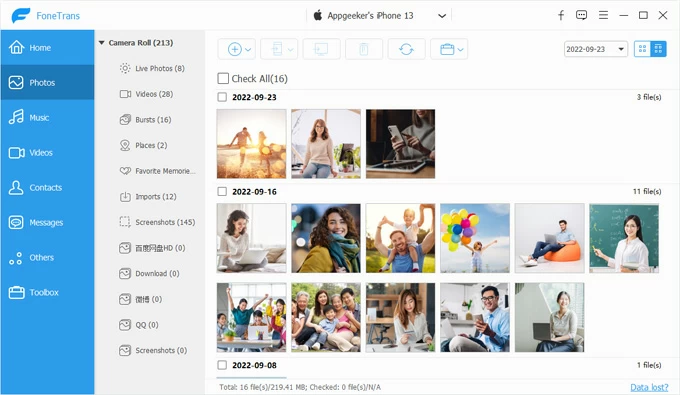
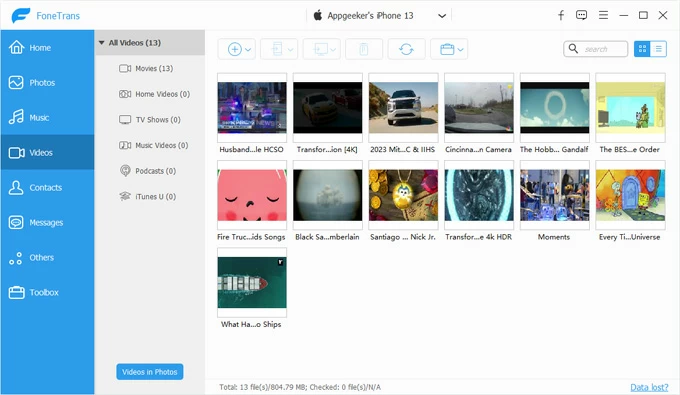
Step 3. Add your computer MP4 video files back to iPhone without iTunes. You can transfer a single video, or batch transfer multiple videos or entire folder of clips.
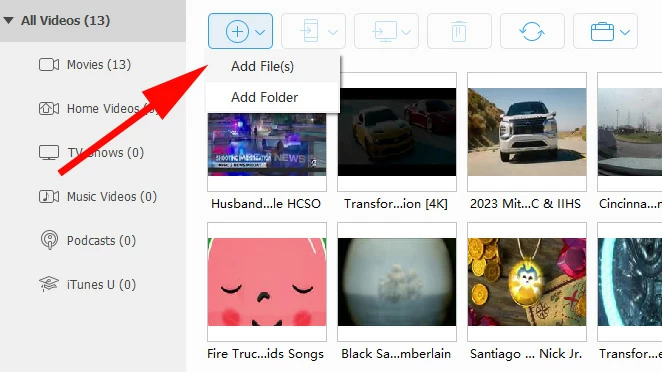
Even though Appgeeker iPhone Data Transfer utility can help with transferring videos of any size without file limits, you have to confirm that your iPhone has enough space to store the videos moved from your computer. You don't have to wait long time for the import to complete.
Also: How to transfer photos from PC to iPhone
Apple's official way to share the MP4 videos on the PC with iPhone for free and without data loss; transferred videos save to a certain app.
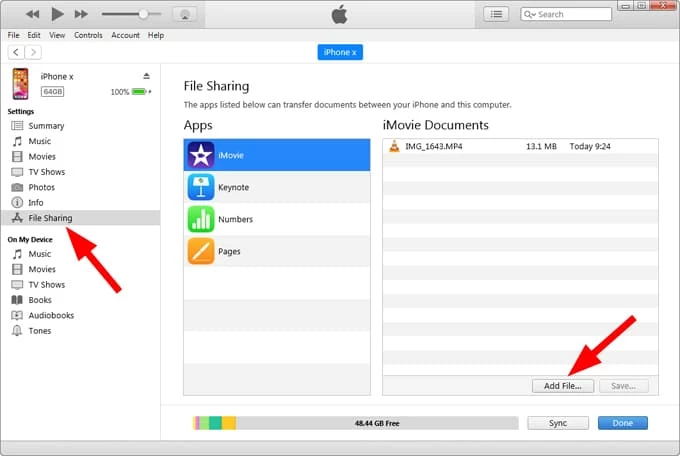
Another USB cable transfer for MP4 videos in H.264 or H.265 (HEVC) is using iTunes. Instead of syncing the media from your computer which will cause data loss, the File Sharing feature allows you to copy the videos or movies to an app like iMovie, VLC player on the iPhone - not directly to the Photos Library.
If you need to transfer large MP4 videos from a Windows PC to a specific app on an iPhone without the need of the internet, simply follow these steps.
1. Open iTunes on your computer, and update it to its latest version to avoid a failed MP4 video transfer.
2. Plug your iPhone to your PC via a USB cable.
3. When a tiny Device icon appears at the top left corner of iTunes window, click on it.
4. From the left column, choose File Sharing.
5. In the Apps list, select an app on your device that you want to move an MP4 video to.
6. Drag and drop the video file from any folder or location into the Documents list to copy it over to your iPhone immediately.
You can also click Add Files under Documents section, then find the video(s) you wish to move from your computer, then click Add to let iTunes transfer MP4 to the certain app you selected on the phone via the USB-C or lightning cable.
Tip: The File Sharing feature also works for migrating files from an iOS device to your computer.
A full synchronization of movies from a Windows computer to an iPhone TV app through USB transfer; existing media will be overwritten.
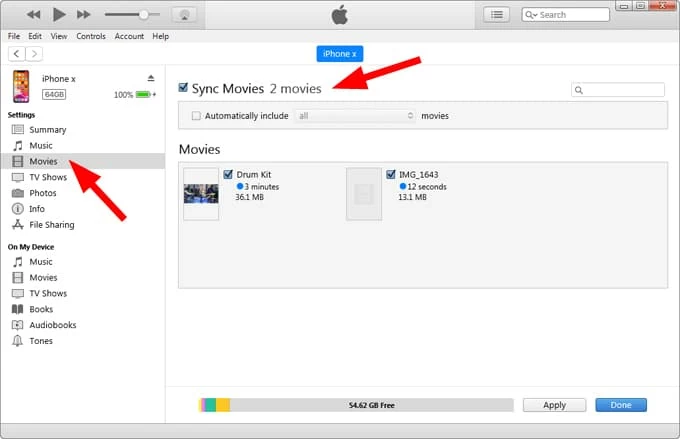
iTunes Sync Movies feature facilitates the process of transferring MP4 video files from a local PC and syncing them to iPhone's TV app rather than an app. The catch is that syncing videos to an iOS device with iTunes overwrites the existing video library.
Step 1- Import MP4 videos to iTunes library.
Step 2- Sync MP4 videos to your iPhone.
A replacement of iTunes in Windows 11 or 10 to send MP4s to the iPhone from PC in a wired way without quality loss.
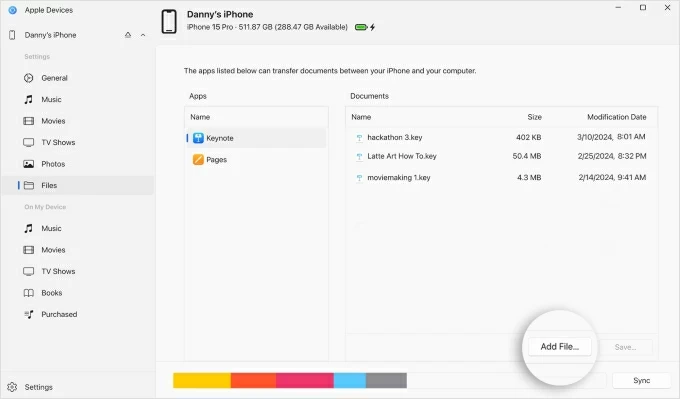
If your PC is operating with Windows 10 or Windows 11, Apple Devices is also your way to go with a MP4s transfer from computer to iDevice - either using the File Sharing or Sync Movies.
Whether you want to move your video files to a specific app storage on the iPhone or sync the MP4s to the native iOS TV app from a modern Windows PC, the process is exactly the same as when you're using iTunes for the task.
The File Sharing won't delete any content, while Sync Movies will.
A cloud-based option to add the local videos to the server and add to iPhone; Imported MP4s can be viewed in Files and allowed for saving back to Photos.
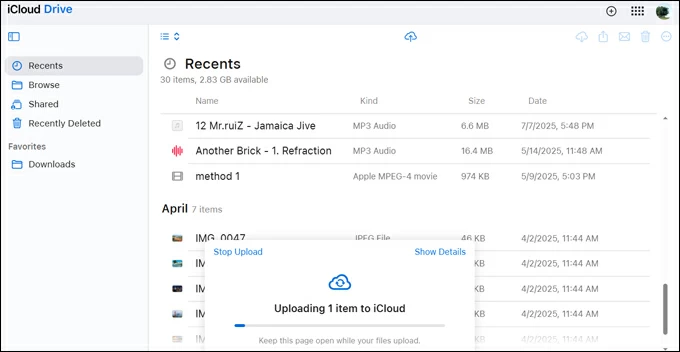
In case you don't want cables, wireless transfer through iCloud Drive can work. It lets you transfer MP4 videos between PC and iPhone by first uploading the file stored locally in the hard drive to iCloud Drive and then syncing to iPhone File app wirelessly - if both iCloud service and the device are signed in with the same Appe Account.
There are some downsides to iCloud Drive wireless MP4 import, though. These include Limited free storage (5 GB only), slow upload for a long MP4 movie, and Internet speed dependent. So, if you have a small MP4 file and a strong network connection, continue to see how to get MP4 video from your PC to your iOS device via iCloud Drive without syncing with iTunes.
1- Visit iCloud.com on a browser, and log into the iCloud account you used on your iPhone.
2- Once logged in, click Drive to access iCloud Drive.
3- Click the Upload icon in the middle at the top, then choose to upload your desired MP4 videos to iCloud Drive online. If you're dealing with a massive 4K movie, the uploading process should take a few minutes.
4. Now, on your iPhone, navigate to Settings > [your name] > iCloud > Drive, then toggle on the Sync this iPhone switch.
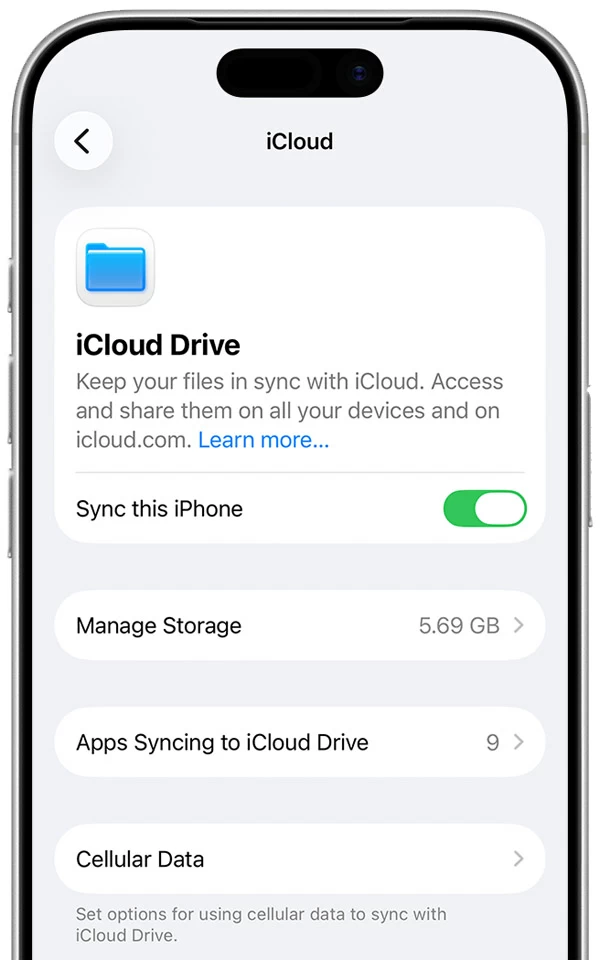
5. Keep your iPhone connected to an active Wi-Fi network and wait for your PC's MP4 videos to be sent to the Files app in iOS.
The videos don't appear in Photos automatically, but Files app have an option to let you import the MP4s back to Photos app for convenient viewing or editing. If necessary, open the video, long-press it and tap Share > Save Video from the menu. This way, your favorite MP4 video or movies from the hard drive of your PC should smoothly come to your iPhone without a cable.
Other cloud-based services like Google Drive, Dropbox, etc. can also work as an alternative to iCloud Drive for a Windows to iOS MP4 transfer. It's an easy upload-and-download process via the internet, but after transferring, sometimes you will return a video with compressed resolution. In the event that you prefer to preserve the original MP4 quality, try the USB cable transfer instead.
Q1- Why won't my iPhone read MP4 files?
iPhone can only play MP4 videos as long as the codec is in H.264 or H.265.
Q2- Why doesn't my MP4 show up in Photos?
Not all tools are worked to get your MP4 files directly to Photos app. Depending on which method you're using to transfer your videos from the computer, the media can go to Photos app, Files app, or TV app within iPhone.
Q3- Can I transfer MP4 from my computer to my iPhone without iTunes?
Absolutely. If you don't want to go through iTunes File Sharing or Syncing Movies process, you can use Appgeeker iPhone Data Transfer software to complete a wired transfer of your long MP4 videos from your computer to your iPhone without risking at data or quality loss. For a wireless transfer, or iCloud Drive is a great option especially for short clips.




