Forgot iPhone Passcode? How to Unlock


Forgot passcode and can't get into the locked iPhone 18? Here are 4 proven methods to reset and unlock the device and its passcode - with or without a computer.

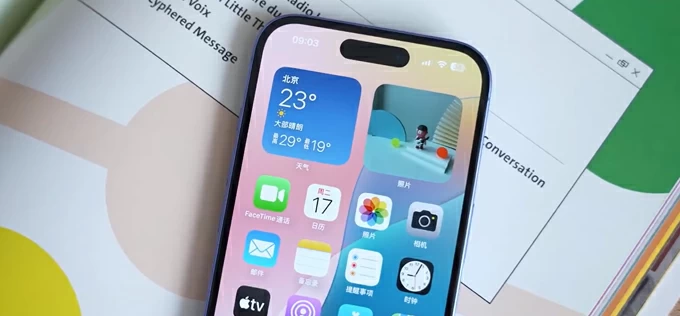
If you forgot the passcode on iPhone 18, take these easy steps to get in a locked device.
If you've locked yourself out of your iPhone 18 (Pro, Pro Max) because you forgot your passcode, don't panic. Whether you're dealing with the standard lock screen, an 'iPhone Unavailable' warning, or a disabled device, getting back in a locked iPhone 18 without passcode is entirely possible.
In most cases, you can't simply bypass the lock screen. If the passcode is genuinely forgotten to the locked iPhone 18, the practical solution to regain access is to reset the device and erase its current contents. Apple provides several ways to do this, including the built-in Lock Screen Reset, Recovery Mode restore, and iCloud Find My remote erase. A third-party tool such as Appgeeker iPhone Unlocker can also be used to remove the passcode, letting you get into your locked iPhone 18 when Apple's routes aren't available.
This guide walks you through four foolproof methods of how to get into locked iPhone 18 - even when you've forgotten the iOS passcode, and open the device again.
Yes. You can regain access to iPhone 18 when it's locked due to a forgotten screen passcode.
However, Apple's security system prevents unauthorized users from simply bypassing the iPhone lockout and accessing personal information. You have to erase and restore your device to remove the forgotten screen passcode and start it fresh.
Whether you prefer a wireless or wired reset, you'll eventually get back into your locked iPhone 18 in minutes. Be sure that, during the resetting process, all data stored locally on the device will be wiped off as well. But don't worry—If you have an iCloud or computer backup, you can restore your information after resetting the device.
Apple offers two methods for users to wirelessly reset an iPhone 18 and unlock the locked screen if the passcode has been forgotten: Forgot Passcode and iCloud Find Devices. The former is performed directly on the device, while the latter requires signing in to the iCloud Find Devices website to remotely erase the locked iPhone. Both methods rely on the linked Apple ID to reset the device and remove the passcode. A prerequisite for using either method is that the locked iPhone 18 is connected to a network and has Find My enabled.
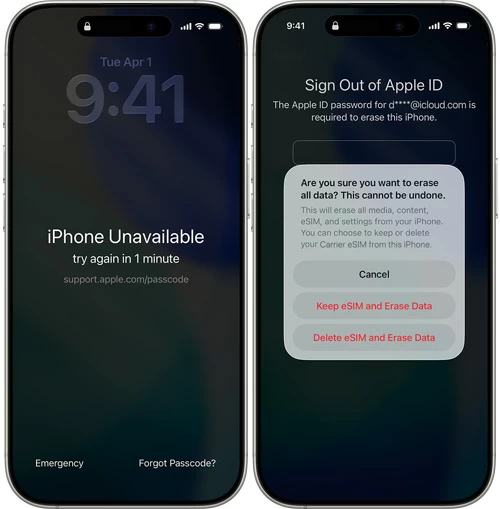
The Forgot Passcode option is one of the easiest wireless ways to regain access to a locked iPhone 18 if forgotten the passcode. Introduced in iOS 17, this feature allows you to reset your iPhone directly from its Lock Screen without connecting it to a computer. Even, you don't need iTunes, Finder, or additional unlocking software.
Once you enter the passcode incorrectly too many times and your iPhone 18 is locked at the iPhone Unavailable screen, you can initiate the reset using your Apple Account credentials to remove a forgotten passcode and recover access. Do the following to unlock the iPhone 18 that's locked without a passcode or computer.
1. On the iPhone Unavailable screen, tap Forgot Passcode? in the bottom corner of the screen. (In iOS 15.2 through iOS 16.4, it appeared as Erase iPhone option.)
2. Select Start iPhone Reset button allow your locked iPhone to be erased and reset to factory settings, removing the forgotten passcode as well as all content and settings.
3. When prompted to sign out of your Apple Account, enter the associated password to verify ownership.
4. Tap Erase iPhone to confirm the reset. If you use an eSIM, just choose Keep eSIM and Erase Data.
A progress bar should appear as your iPhone resets itself to factory settings and erases the lock screen passcode that you can't remember. Wait for a moment until the device restarts, showing the Hello screen. Follow the prompts to set up a new passcode and restore your iPhone from a backup that was created before lockout, and get back to the Home screen.
If the lock screen reset isn't working for getting you back in your locked iPhone 18—for instance, your device is running an older iOS version, then you can head to iCloud Find Devices website and sign in with the associated Apple Account, in an attempt to remotely erase the iPhone and forgotten passcode via the internet connection, bypassing the iPhone passcode lock barrier.
This can be done on a computer, or any mobile phone or tablet—even an Android device! Alternatively, if you have another accessible iPhone or iPad that's linked to the same Apple Account, utilize the Find My app to kick off a remote reset to open the locked iPhone 18 quickly with no need to provide the code any more.
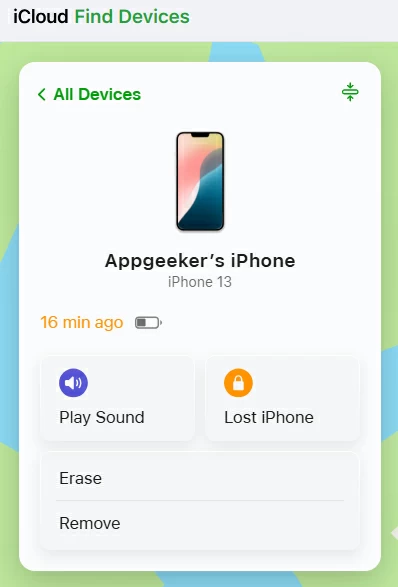
1. Open a browser and visit icloud.com/find.
2. Sign in using the Apple Account associated with your locked iPhone 18.
3. From the All Devices panel, select your locked iPhone 18.
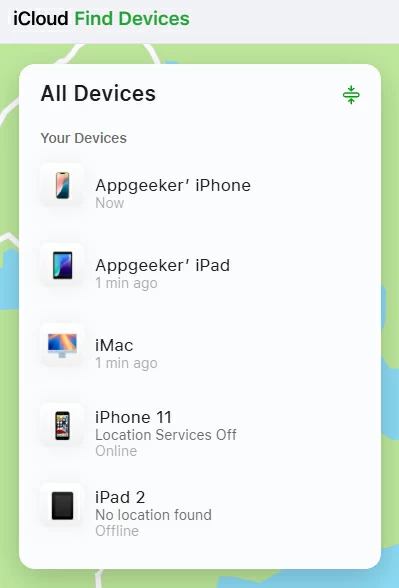
4. Click on Erase.
5. When prompted, enter your Apple Account password to start erasing the device data and lock screen.
As convenient as those two wireless methods are, they won't work for everyone. If you don't remember your Apple Account password, if Find My was turned off, or if your phone isn't connected to the internet, you may need to use a computer to restore locked iPhone 18 if you can't remember the passcode through a cable connection.
The computer-based reset tool that can get you back into a locked iPhone 18 without knowing the password includes Appgeeker iPhone Unlocker and Apple Recovery Mode.
When you forgot iPhone 18 passcode and unable to get to the device, your best bet is to try Appgeeker iPhone Unlocker.
It's a desktop-based iOS unlocking utility designed to fix the lockout issues by removing forgotten passcode, including 4-digit, 6-digit code, Face ID, Touch ID. Whether your iPhone is disabled to locked, displays iPhone Unavailable, or you completely forget the device's passcode, the software can help resetting the device to restore access within minutes—even without Apple ID.
With a streamlined, user-friendly workflow, getting into an iPhone 18 that's locked without passcode, iTunes, or Apple ID is a painless process. Here's how.
To unlock a locked iPhone 18 Pro, 18 Pro Max, 18, first, download Appgeeker iPhone Unlocker program on a Windows PC or Mac, and install it properly.
Step 1: Launch the software and choose Unlock iOS Screen mode.
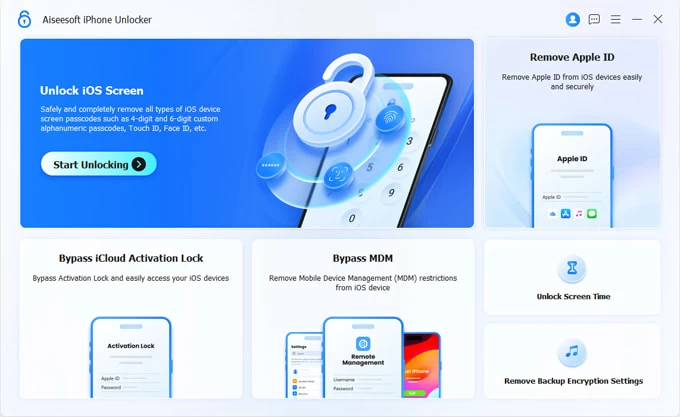
Step 2: Plug a lightning cable into the computer and your locked iPhone 18.
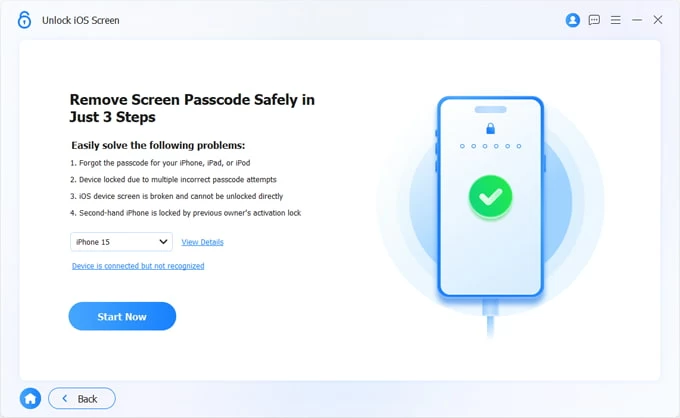
If the software cannot communicate with your device, follow the on-screen instructions to enter Recovery Mode.
Step 3: Once the tool detects your phone, hit Start Now button.
Step 4: Let the tool download the appropriate firmware package before it carries out a reset on your locked iPhone.
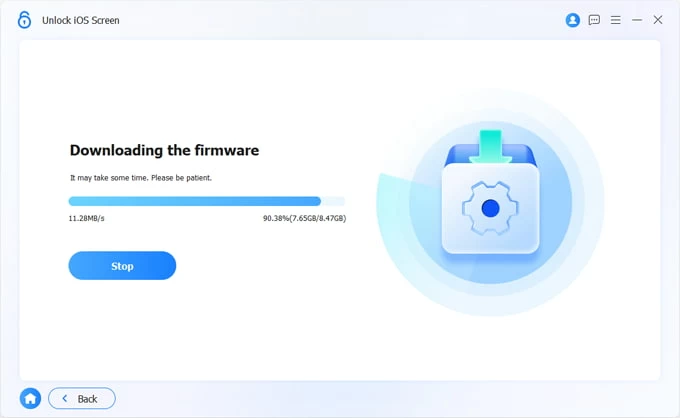
Step 5: After the firmware download finishes, review the warnings. Remember that getting into an iPhone 18 when it's locked down with a passcode you forgot will factory reset the whole device and wipe off anything.
If you're ready to proceed, click OK button to confirm, and press the Confirm Again button to start removing the locked screen.
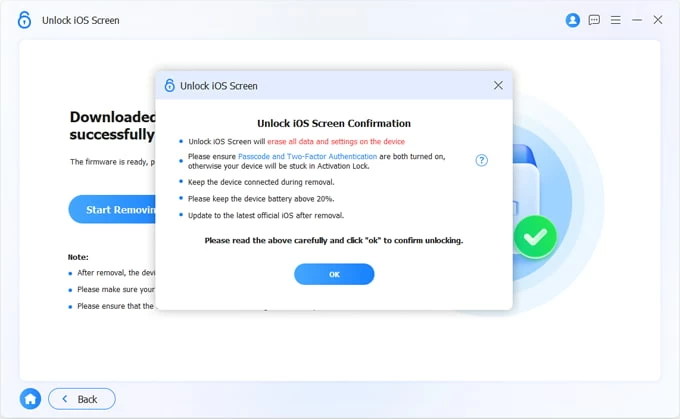
Don't disconnect the iPhone while the process is running. Within minutes, your lock screen passcode, 4-digit/6-digit code, Face ID, or Touch ID will be completely removed.
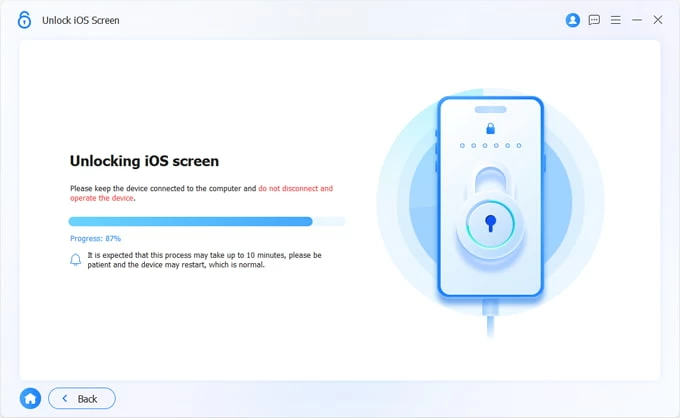
Once the reset is complete, the forgotten screen passcode will be removed. Follow the on-screen setup instructions to configure your iPhone 18 again. You can then create a new passcode and restore your iPhone from an available iCloud or computer backup.
In case you see "Locked to Owner" screen, you'll also need the original Apple Account credentials to sign back in and bypass Activation Lock for full access. Related: How to delete Apple ID without password
Putting iPhone into recovery mode and restoring via iTunes, Finder or Apple Devices app on the computer is Apple's wired route for those who need to access the locked iPhone 18 after forgetting the password.
Here are the general steps on how to get in to locked iPhone 18 with a computer using Recovery Mode.
1- Turn off your iPhone 18 completely.
2- Gab the USB cable and plug one end of it to the computer.
3- Put your locked iPhone 18 into recovery mode.
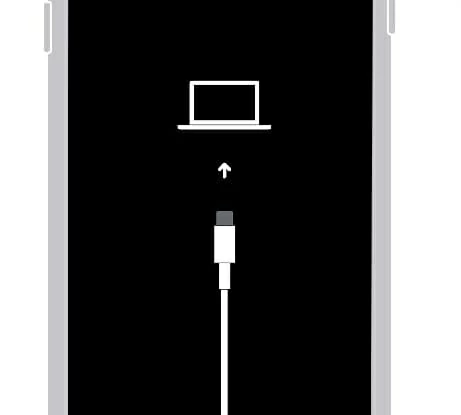
4- On a Windows computer, open iTunes or the Apple Devices app. On a Mac, open Finder.
5- Your computer should detect the iPhone in Recovery Mode and display an option to Restore or Update the device. If nothing happens, locate your iPhone 18 first.
6- In order to unlock the iPhone 18 without the passcode and bypass the lock screen, click Restore button, followed by Restore and Update.
7- The computer will download the software and restore it to its factory settings, bringing you back to your iPhone 18 again.
If the software download takes longer than 15 minutes and your iPhone exits Recovery Mode, let the download finish. Then turn off your iPhone and repeat the Recovery Mode steps.
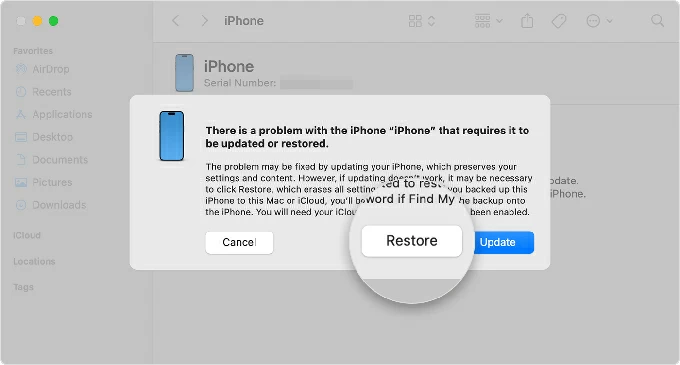
This full restoration will erase the iPhone data, wipe the forgotten passcode for unlocking the screen, as well as return the device to the initial Hello screen.
Disconnect it from your computer and follow the setup instructions. You can create a new screen passcode and restore your data from an available backup.
So, that's how you can get into a locked iPhone 18 if you forgot the passcode—through a wireless reset or using a computer.