How to Get Into Locked iPhone without Passcode


Discover the best ways to transfer videos from Windows 10 PC & laptop to iPhone, including USB and wireless transfer—no data loss or complicated syncing.

Looking for a way to move large video files without size limits or format restrictions? Download Appgeeker iPhone Data Transfer now and enjoy quick, safe, and hassle-free video transfers from Windows 10 to iPhone while preserving original quality.

Five practical migration tools will help you transfer videos from PC to iPhone with or without iTunes.
If you struggle with transferring videos from Windows 10 to an iPhone, you've come to the right place. Whether you're trying to move a large 4K movie file, a personal recording, or a downloaded clip, Apple's ecosystem often makes simple video file transfers across PC and iOS feel unnecessarily complex.
Luckily, there are several easy and reliable ways to transfer videos from Windows 10 computer to iPhone smoothly for offline playback anywhere. Rather than simply dragging and dropping a video into your iOS device's storage - which you can't, we break down the best methods and step-by-step instructions on how to send videos from PC in Windows 10 to iPhone directly - either using a USB cable or wirelessly.
If you've ever tried copying a video directly from your PC to your iPhone (iPhone 17 or newer, 16, 15, 14, 13, 12, etc.), you may find Windows-to-iOS video transfer so tricky. iPhones do not support direct drag-and-drop file transfer from Windows Explorer into Camera Roll. Apple's closed ecosystem means you must rely on a specific middleman to move the videos over—either an official Apple tool to high-speed third-party alternatives.
Depending on your video size, format, internet access, and whether you want it stored in Photos or Files, here are the top five approaches to have your favorite video files transferred to your iPhone from a Windows 10 computer without compressing video quality.
Wired transfer with a USB cable
Wireless transfer with cloud storage services
Here is your pre-transfer checklist to ensure the process goes smoothly. These simple checks can save you from failed transfers, missing files, or compatibility issues.
Check your iPhone storage space
Videos—especially HD or 4K files—take up a lot of space. If your iPhone doesn't have enough free storage, the transfer may fail or stop halfway.
Go to Settings > General > iPhone Storage to ensure you have at least double the space of the file size you are transferring.
Verify video format compatibility
Not all video formats play natively on iPhone. To avoid "video not supported" errors, make sure your files are in an iPhone-friendly format. iOS natively supports H.264 and HEVC (H.265) in .mp4, .mov, and .m4v containers.
If your video is in AVI, MKV, WMV, or FLV format, it would refuse to play once they arrive on your iPhone. Convert the media beforehand using a video converter or using a tool something like Appgeeker iPhone Data Transfer that supports on-the-fly conversion to help automatically convert incompatible media file into an iPhone-friendly format before transferring.
Update iOS and Windows 10
Outdated system drivers are the leading cause of "Device Not Found" errors and failed migration on Windows 10.
Windows 10: Run Windows Update to ensure your USB drivers are current.
iPhone: Update your iPhone to the latest iOS version.
Prepare a stable USB cable or Internet connection
The transfer method you choose determines what you need. If you're using a USB transfer for copying a video to iPhone from Windows 10, prepare an original or MFi-certified Lightning cable. For wireless transfer, ensure a fast and stable Wi-Fi connection.
If you plan to transfer your videos from your Windows 10 desktop or laptop to your iPhone to watch or edit the content at any time anywhere, Apple's iTunes is a reliable option. The inbuilt File Sharing function provides a convenient solution to get videos from computer on the iPhone, and works to sync videos into a media player app, not directly into Photos. This means that you will need compatible app (like VLC, Infuse, PlayerXtreme, etc.) on the iPhone to receive the video clips.
Quick steps on how to transfer videos from Windows 10 to iPhone with iTunes.
1. Begin by opening iTunes and checking whether it's running latest version in Help > Check for Updates.
2. Plug your iPhone to the computer via the lightning cable. Unlock your device and tap "Trust" when prompted to allow access.
3. Click the tiny Device icon at the top left corner of iTunes window.
4. On the left pane, choose File Sharing.
5. From the Apps list, choose an app to which you'd like to migrate your video.
6. Click Add File... button, then browse to the folder and select the videos to import to your iPhone. Alternatively, you can drag the video files from your computer into the document list.
The transferring process may take some time if you move over large 4K MP4, MOV videos, movies, TV shows. Done! You can now access the video on your iPhone by opening the corresponding app.
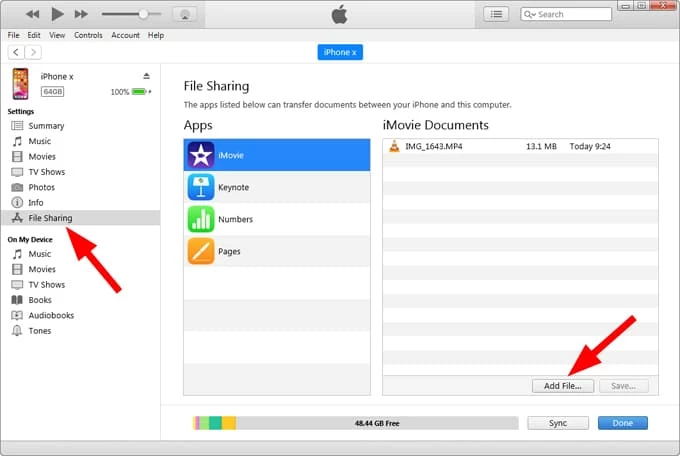
iTunes File Sharing bypasses the need to use iTunes Sync Movies feature that overwrites your existing media library on the iOS device while syncing videos from Windows 10 computer.
If you're tired of dealing with iTunes sharing errors, slow iCloud uploads, or videos that won't show up on your iPhone, there's a faster and much easier option.
Appgeeker iPhone Data Transfer is a professional all-in-one tool designed to help you transfer small clips and large videos from Windows 10 to iPhone effortlessly — without data loss or quality loss. Unlike iTunes File Sharing - which can only send the video files to a third-party app, this software lets you move the videos straight into iPhone's Photos app.
What you can do with Appgeeker iPhone Data Transfer software:
Follow these instructions to get videos from a Windows 10 PC and put onto iPhone storage without iTunes. The process should be at highest transfer speeds using Appgeeker iPhone Data Transfer, even it's a batch transfer.
Step 1. Launch the software and plug your iOS device into your computer via lightning cable.

Step 2. On the left sidebar that displays, click on Videos tab. This reveals the media on your iPhone.
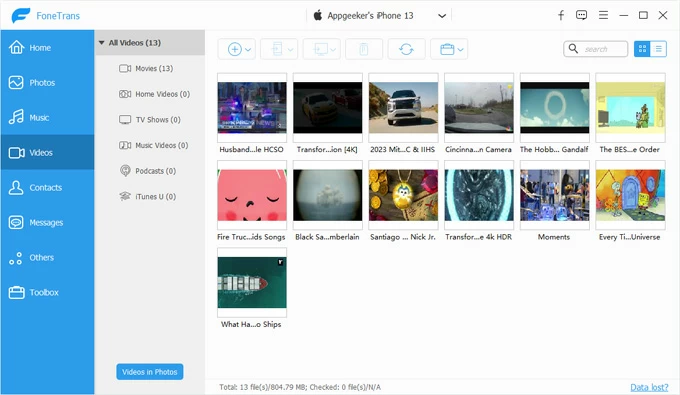
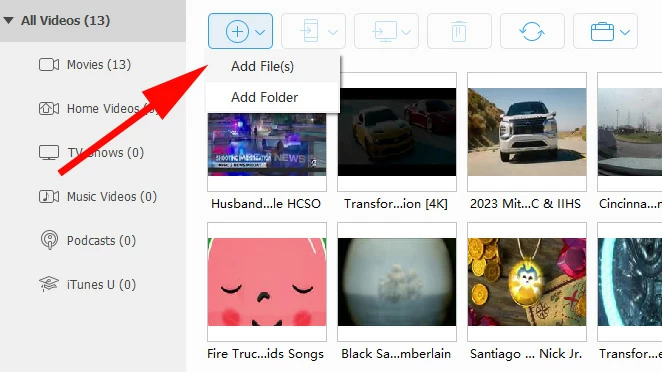
Step 3. To transfer videos from your Windows 10 hard drive, click Add icon at the toolbar, then choose Add File(s) or Add Folder, and browse to the movies, camera videos or other footages you need to copy to iPhone.
Once you've completed your selections, click Open to start adding video files onto your iPhone storage in batches while keeping the original quality.
Also: How to transfer photos from PC to iPhone quickly
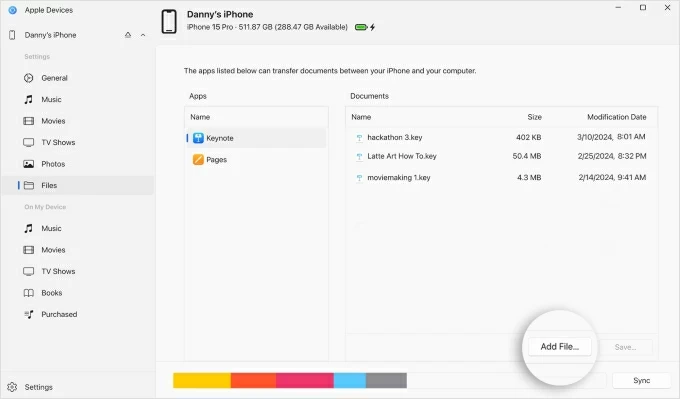
For Windows 10 and Windows 11 users, Apple is in favor of the Apple Devices app as a modern, streamlined replacement for iTunes. Similar to iTunes, Apple Devices app lets you share the videos files that are on a computer to your iPhone without syncing or overwriting any current data.
To perform a Windows 10 to iPhone video file transfer, do the following with a wired migration. Ony MP4 and MOV video clips can be transferred through Apple Devices app.
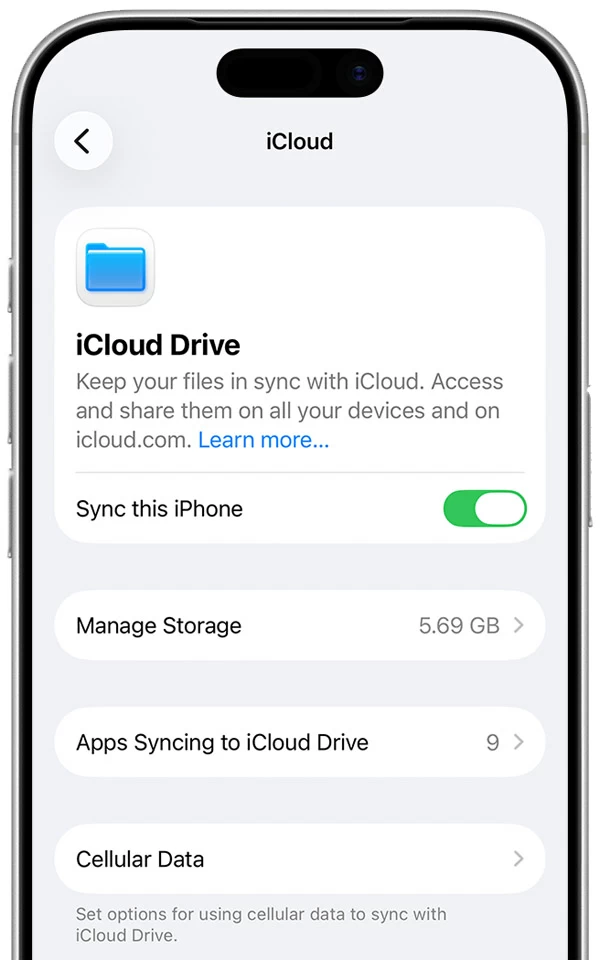
iCloud Drive is convenient if you want wireless transfer, but storage limits can be an issue due to restricted 5GB of free storage space. If you have fast Wi-Fi connection and videos in small size, you can upload videos from Windows to iCloud and sync them on your iPhone wirelessly for instant access.
Once you're sure that you have enough iCloud storage, learn how to copy all your video files over from Windows 10 computer to an iPhone without USB cable. Note that the transferred videos will be saved into Files app in iOS instead of Photos app.
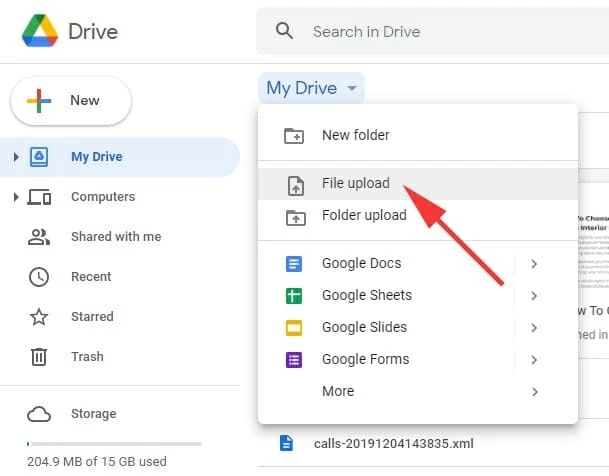
1- Sign into Google Drive with the Apple Account that's used on iPhone.
2- Upload videos from any folder of your Windows 10 PC or laptop.
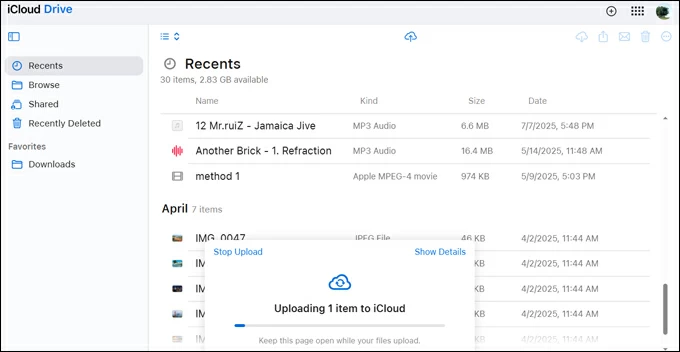
3- Enable iCloud Drive on your iPhone to sync the video from Win 10.
4. Access Windows 10's videos in iPhone Files app.
Tip: If you want to import the video to Photos app, long-press the video to trigger a menu, from which you can choose Share > Save Video. Now, the videos on your Windows 10 computer have been successfully transferred back to Photos library in iPhone.
Google Drive is an excellent cross-platform workaround for wireless video transfer across Windows computer, iOS, Android and the web, so you can easily share your own videos between devices sharing the same Google account. You can also use Dropbox or other cloud services.
With no iTunes and cable required, copying videos to your iPhone from a Windows 10 desktop over the air is pretty simple. The process just involves upload and download and relies on the internet connection, that is, uploading the video files from the PC onto drive.google.com, then syncing them back to the iOS device. Videos must be manually saved to Photos.
The catch is that, Google Drive offers 15 GB free storage, so if you're transferring long videos or a larger video library, make sure you have enough space or upgrade the plan.
Enjoy your stunning videos with your iPhone!
Transferring videos from Windows 10 to iPhone doesn't have to be complicated. Whether you want to move movies, personal recordings, or downloaded clips, you will find several wired & wireless solutions that fit your needs to initiate a direct PC-to-iPhone video import without compromising the original quality or touching your current device data.