
How to remove screen time passcode


By choosing the right tool, whether it's an macOS preinstalled app or third-party solution, you can get your photos on iPhone 15 to your Mac quickly and securely. Here's how.

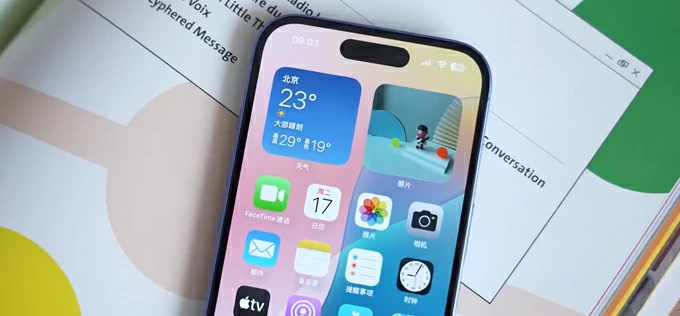
There are a few ways and tools to help you copy iPhone 15 pictures to Mac folder.
The iPhone 15 makes it incredibly simple to capture stunning photos of everything around you and, unsurprisingly, the Photos app takes up a considerable amount of storage on the device when more and more high-quality pictures flood into the album. As it starts hogging all your storage, you'll probably want to import and back up that library to your Mac or any other place.
The best method for transferring photos from an iPhone 15 to a Mac depends entirely on your volume of media and your need for speed. You can use AirDrop for a few snapshots, iCloud Photos for seamless syncing across both devices, or through the iPhone 15's USB-C connection combined with the Mac's Photos app or Image Capture for bulk transfer.
If you require granular control over file structures and get the most stable and straightforward wired transfer of the photos, videos, and music, third-party data management utilities like Appgeeker iPhone Data Transfer offer the most flexible alternative.
Here's what you need to know about importing your pictures from iPhone 15 to Mac computer.
If you're running out of iPhone 15 storage or the pictures are valuable for you, one of the first things you should try is back up your photos from iPhone 15 to Mac and then free up space on the device.
What is the macOS Photos app and why use this method?
The macOS Photos app is the preinstalled utility for managing, editing, and organizing photos and videos It's the most traditional and reliable method to for bulk transfers of your iPhone15 photos and other media where data integrity and speed are guaranteed.
After importing your iPhone 15 pictures to you Mac, it even allows you to delete photos from the phone automatically.
How to transfer photos from an iPhone 15 to a Mac:
1. Connect the device to your Mac using a USB-C cable. If possible, opt for a cable that supports USB 3.0 transfer to take full advantage of the hardware.
2. If prompted, tap Trust and enter your passcode or Face ID to unlock your iPhone. This allows the Mac access to your media.
3. Open the Photos app from the dock or Application folder.
4. In the sidebar of the Photos app, you should see your iPhone name under Devices, select it.
5. Before downloading your photos from the iPhone 15, select where you want them to be saved. Head to Import to at the top center of the window, select an existing album or create a new one.
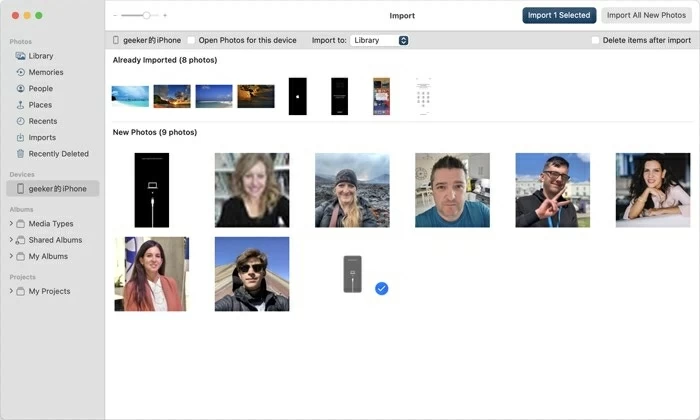
6. Manually select specific pictures one by one in the list, then click Import [x] Selected in the upper right corner; if you want to grab the whole library, simply click Import All New Photos.
See also: How to transfer music from Mac to iPhone
That's it! Give it a few minutes until all your precious images appear on the album you specify before.
If you don't like the way that the Photos app does for importing photos, or find it too restrictive, third-party media management suites like Appgeeker iPhone Data Transfer offer the flexibility and control you're actually looking for.
What is iPhone Data Transfer and why use it?
Appgeeker iPhone Data Transfer is a popular third-party management suite for iOS and iPadOS devices. It's designed to give users more granular control over their media files and device management than Apple typically allows.
With it, you can move music, photos, and videos directly to and from your iPhone without overwriting anything, and extract and save SMS, iMessage, contacts, notes, and other personal information locally. Additionally, it comes with a set of tools to manage your phone library.
How to transfer photos from iPhone 15 to Mac:
Copying photos to Mac from iPhone 15 is straightforward because it bypasses the syncing logic, treating your phone more like an external drive. The steps in this instruction should be the same for other iPhone models.
1. Connect your device to the Mac, then open the application.
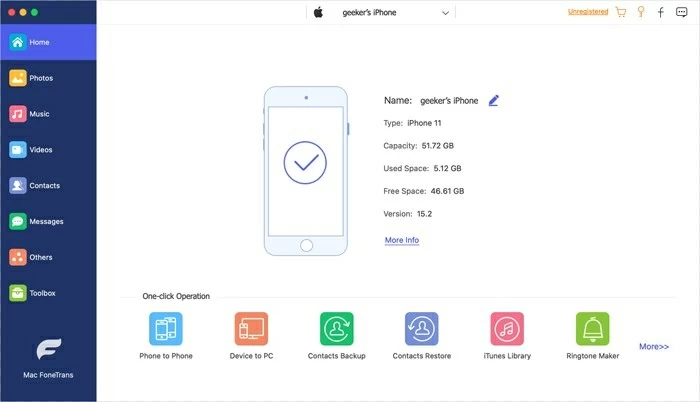
2. After connection, click on Photos in the sidebar. The software will then load your library.
You can use the library sidebar to filter by Live Photos, Videos, Busts, Places, or specific albums you created.
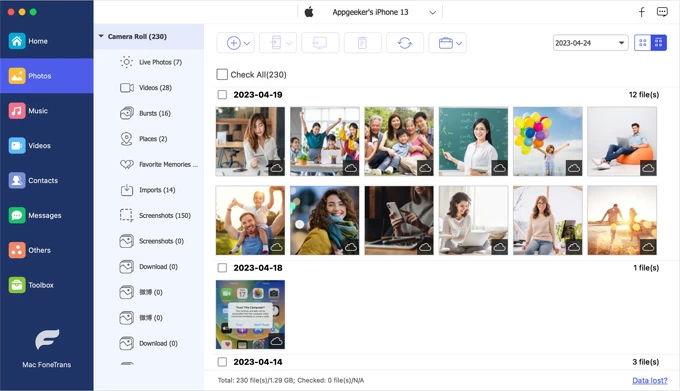
3. Select the individual photos you want from the list, look for the Export to Mac button in the top toolbar, click it.

A window will appear asking where to save the items, select a folder on your Mac and followed by OK.
An operations window will show the transfer progress. Once finished, you can click Open Folder on the window to view your photos that are transferred to Mac.
You can also one-click to download all photos from a specific album on your iPhone 15. To do this, simply right-click on an album, from the context menu, select Export to Mac.

See also: How to transfer videos from iPhone to laptop
For those who just want to move a handful of images between iPhone 15 and Mac, AirDrop should be the most efficient way to go.
What's AirDrop and why use this method?
AirDrop is a convenient feature ithat allows instantly and wirelessly moving photos, videos, documents from one Apple device to another. It's built in every iPhone and Mac machine.
It uses a direct Wi-Fi connection and performs fast, high-speed transfers without needing to hunt for a cable or using cellular data.
How to use AirDrop to sharing photos from iPhone 15 to Mac:
1. Ensure AirDrop is set to "Everyone" or "Contacts Only" in the Control Center on your Mac.
2. Open the Photos app on your iPhone 15.
3. Select the pictures you wish to share with Mac.
4. Tap the Share icon (the square with an upward arrow) in the bottom left.
5. Tap AirDrop and then select your Mac's icon when it appears.

6. If both devices are signed into the same iCloud account, the selected photos will typically land in your Downloads folder on the Mac automatically. If not, click Accept on the Mac to save your photos.
See also: How to bypass passcode on iPhone
Many of Mac users forget that it can be used to put your iPhone 15 photos to Mac. Compared with Photos app, Image Capture allows for moving photos directly into specific folders in Finder rather than library system.
What is Image Capture and why use this method?
Image Capture serves as an alternative to the Photos app and enables you to transfer images and videos from iPhones, iPads, cameras, and scanners.
One benefit of using it is it doesn't force you to use the .photoslibrary format, and provides clear metadata views (file size, resolution, EXIF data) before you import.
How to download photos from iPhone 15 to Mac:
1. Plug your iPhone 15 into the computer via USB-C cable.
2. Open Image Capture.
3. When you see your iPhone 15 in the sidebar of the windows, click it.
4. In the Import To menu at the bottom, select a local folder to store the photos.
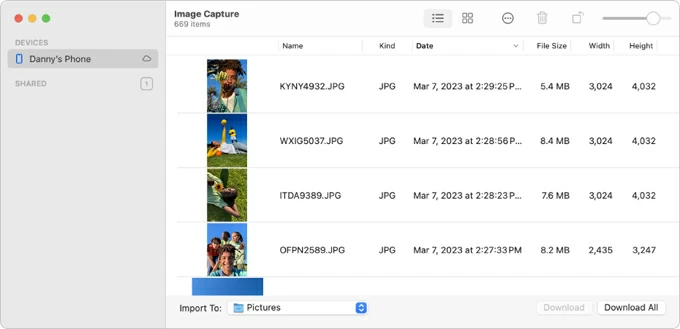
5. Select your photos and click Download to begin transfer your photos from iPhone 15. As you see in Photos app, you have a Download All option there to export all your photos.
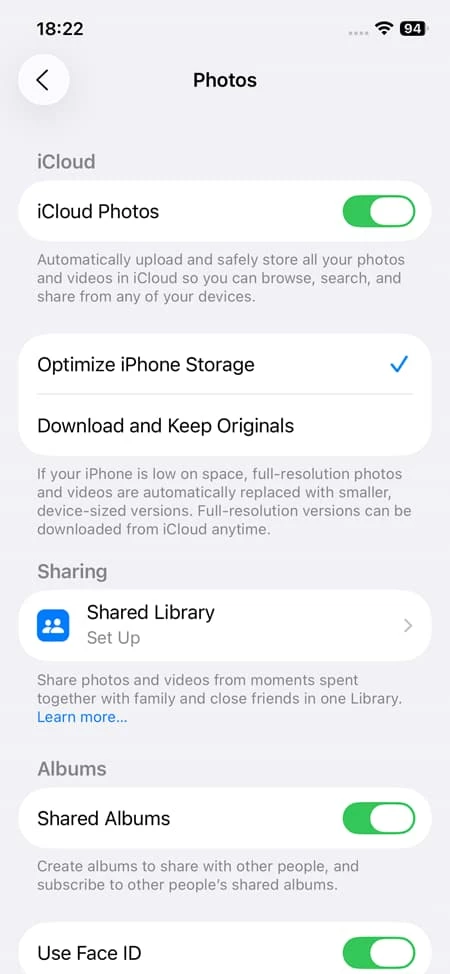
Rather than functioning as a manual file transfer tool, iCloud Photos operates as a real-time synchronization service. If you have enough cloud storage in iCloud, syncing photos on iPhone 15 with Mac is pretty easy.
Something to note:
You will likely need to upgrade to an iCloud+ plan (50GB, 200GB, or 2TB) to house a modern photo library if there are a huge number of pictures.
How to sync photos between iPhone 15 and Mac:
Unlock the iPhone 15, go to Settings > Photos > toggle iCloud Photos to ON.
Power on your Mac, open Photos > Settings > iCloud > tick the box for iCloud Photos, then enable Sync this Mac.

After you have enabled iCloud Photos on your iPhone 15 and Mac, it automatically syncs your photos and videos across both devices in real-time or near real-time, provided both are connected to Wi-Fi and power.
See also: How to recover deleted photos on iPhone 17
Does the iPhone 15 come with a cable fast enough for USB 3 transfers?
No. The USB-C cable included in the box with the iPhone 15 and iPhone 15 Pro is a USB 2.0 cable. you must purchase a separate USB 3.1 or USB 4 compatible cable to achieve the 10Gbps transfer speeds.
Why do my photos look different on my Mac than they do on my iPhone 15?
Your iPhone may be displaying low-res proxy files to save space, whereas your Mac is likely viewing the full-quality assets if you have "Optimize iPhone Storage" feature enabled on the phone.
Can I transfer photos from my iPhone 15 to a Mac using an external drive?
Yes, you should use Image Capture or the reputable tool like Appgeeker iPhone Data Transfer.
I see "Preparing to Import" for a long time in the Photos app. What's wrong?
Don't worry. If you have thousands of photos or many high-resolution ProRAW files, the Mac must index the metadata and generate thumbnails for every single item before it allows you to import them. You may use a more neat tool like Appgeeker iPhone Data Transfer to enhance the load and import experience.




