How to bypass Windows 11 password if forgotten - 9 ways


This guide covers multiple ways to factory reset a Windows 11 /10 PC without a password, whether you forgot your credentials, are locked out, or inherited a locked computer.

There are possible ways to factory reset a Windows PC even without a password.
Resetting a PC without a password can restore your Windows 11/10 system to its default state, removing all accounts, apps, and personal data. This is particularly useful if you've forgotten your login password, inherited or purchased a locked computer, or need to wipe all personal information before selling or donating the machine.
This guide will show you how to reset PC without password in various ways. You'll also know what to do afterward to secure your system. Depending on your configuration, you have the options to keep your files or remove everything during the PC reset process. While it may result in data loss, it lets you regain control of your PC and start fresh.
Please note: These password-free methods should only be used to reset your own PC, after considering the potential data loss.
Table of Contents
If you're locked out and have forgotten your login password, there's no need for a full PC reset. With Appgeeker Windows Password Recovery, you can easily reset the password and regain access without resetting the PC or reinstalling the system, no data loss involved.
Before performing a factory reset on your PC without a password, it is important to understand when a reset is appropriate and the consequences that may follow.
There are several scenarios where resetting your PC without a password may become necessary:
To regain access to a locked PC without password, a reset is not your only option. You can instead use a Windows Password Recovery method to reset your Windows password without resetting the PC or reinstalling the entire system.
When you perform a factory rest on your PC without knowing the password, the following occurs:
In short, a factory reset provides a totally fresh start for your PC, even if you forget the Windows password or get completely locked out.
While a factory reset can unlock a PC without a password, it also removes all existing data, applications, and settings. If your goal is simply to regain access to your PC after forgetting the password, Appgeeker Windows Password Recovery can be an alternative solution.
Whether you're locked out due to a forgotten or inaccessible login password, this tool allows you to bypass, remove, or reset the PC password without reinstalling the Windows or deleting data.
Compatible with Windows 11, Windows 10, and other major Windows versions, it works for both local and Microsoft accounts. Without requiring a password or a full reset on PC, here are the quick steps to reset your Windows password and regain full access:
Step 1. Create a Windows password reset disk for your locked PC.
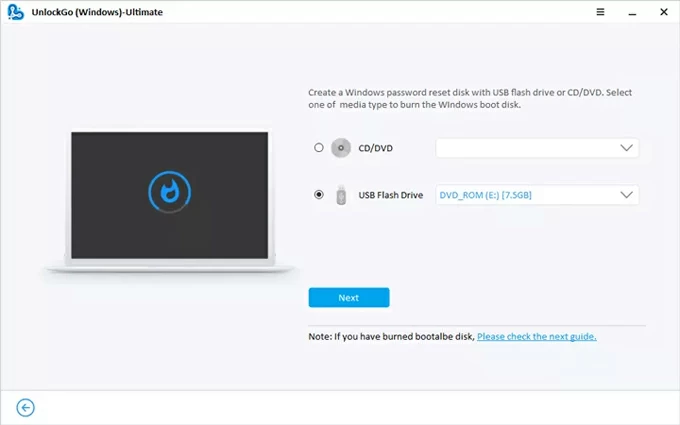
On another accessible PC, install and open Appgeeker Windows Password Recovery tool; click Start and insert a USB flash drive or CD/DVD to the computer.
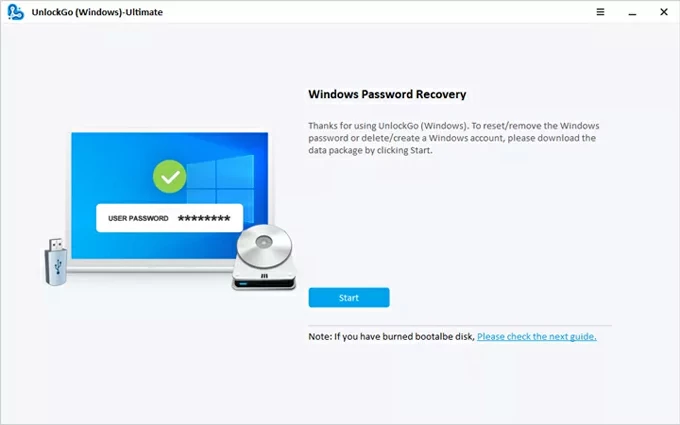
Select the device from the provided menu and click Next to confirm. Then, let the program burn it into a Windows boot disk. Once complete, remove the USB drive.
Step 2. Boot your locked PC from the password reset disk.
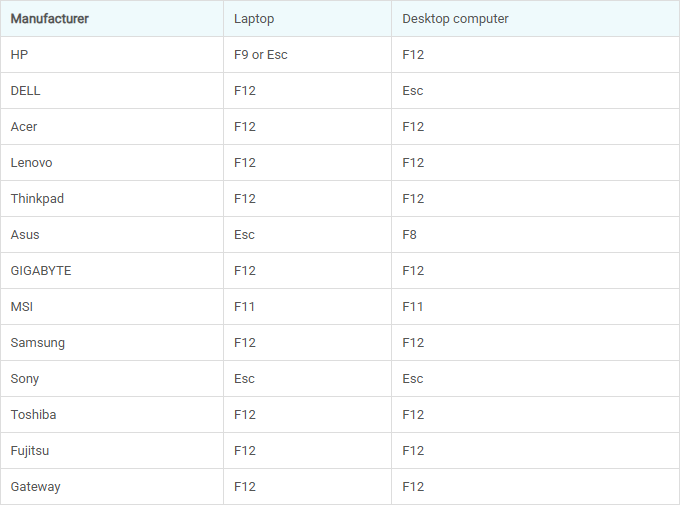
Insert the reset disk to the locked PC, then restart the machine while pressing the corresponding boot key repeatedly. The common key is F12, ESC, F10, F9, etc. See more details as below:
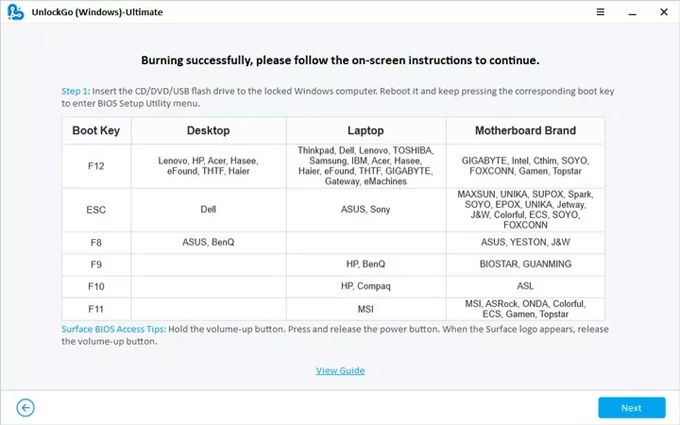
When your PC enters the Boot Menu / BIOS successfully, use arrow keys to scroll down and select the password reset disk. Set it as the top boot option on your PC.
If you have no idea on how to change the boot order, check the links below carefully.
Step 3. Reset password to unlock your PC without factory reset.
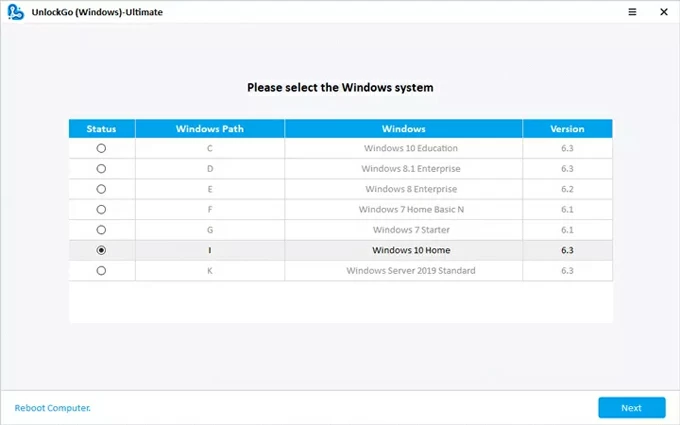
Once the PC boots from the reset disk, the Windows Password Recovery screen should appear automatically. Check the Windows system of your computer and go Next.
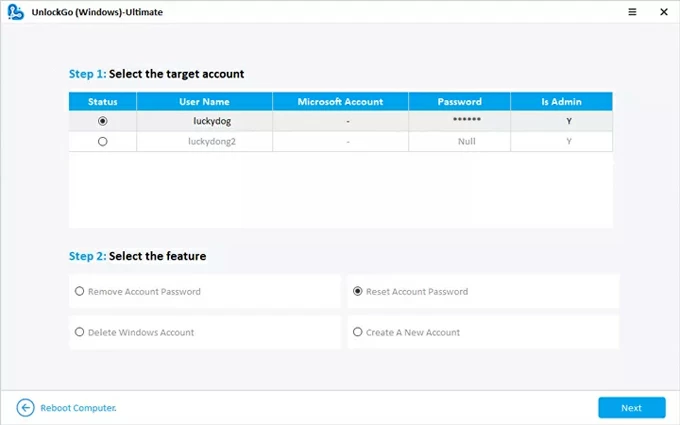
Select your local or Microsoft account, then choose Reset Account Password and hit Next.
In the pop-up box, create a new Windows password for your PC and enter it again to confirm.
Once done, you can use the new password to sign in without having to factory reset this PC, — no data loss or system reinstallation needed.
It's quite easy to reset your Windows PC without a password if you're already signed in. While the steps may differ slightly between Windows 10 and Windows 11, the process is similar. After the reset, your PC will restart in a clean state with no password required, making it ready for a fresh start or recycle. Here's what to do for a full rest on PC without password via Settings:
1. Open the Start menu and select Settings (the gear icon). You can also press Win + I button.
2. Choose to reset this PC.
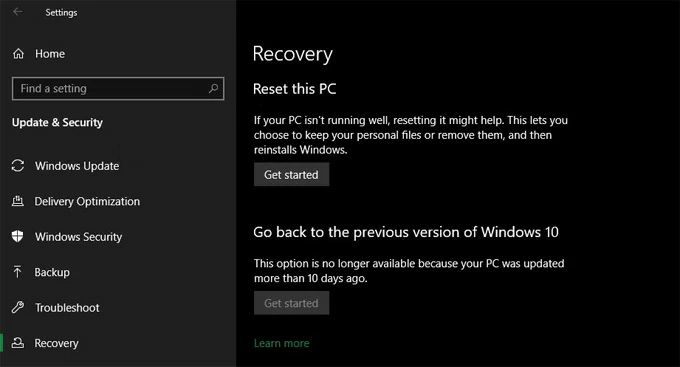
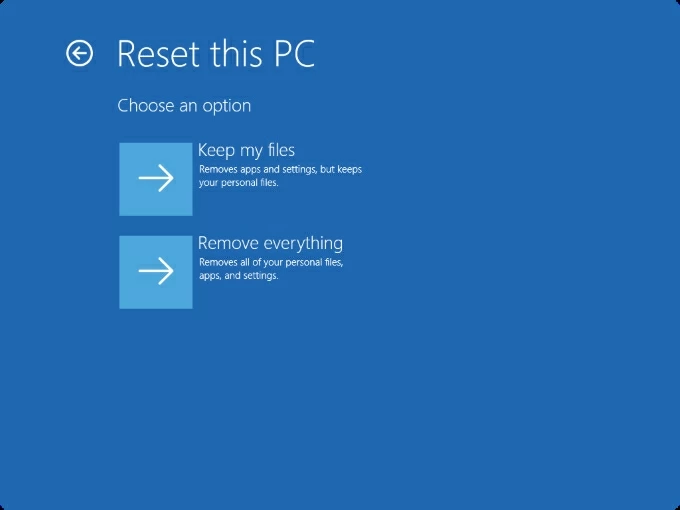
3. When the blue Choose an option screen appears, select Keep my files or Remove everything to proceed.
TIP:
4. Select how you would like to reinstall the Windows files: Cloud download (from Microsoft) or Local reinstall (from this device).
5. Follow the onscreen prompts and click Reset to confirm.
This will perform a full factory reset on this PC, removing the password from your Windows 11 / 10 along with everything else. Afterwards, you can set up your computer again and create a new user account & password.
Even if you are locked out and don't have the password, there are still ways to factory reset your PC and regain control.
To factory reset a PC without password, the easiest way is to enter Windows Recovery Environment (WinRE) from the sign-in screen by using the Shift + Restart trick. This will erase data and reset your PC to its original state, allowing you to set it up again with a new user account.
These steps will guide you into the Windows Recovery Environment and initiate the process to reset a locked PC without password:
1. Turn on your PC and ensure you're on the login screen.
2. Click the Power icon in the bottom-right corner.

3. While holding the Shift key, select Restart and do not release the Shift key until your PC displays the blue Choose an option screen.
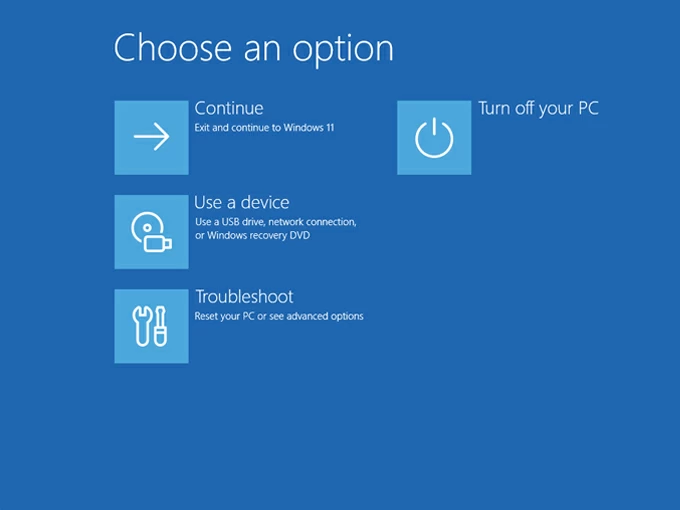
4. Select Troubleshoot and choose Reset this PC on the next screen.
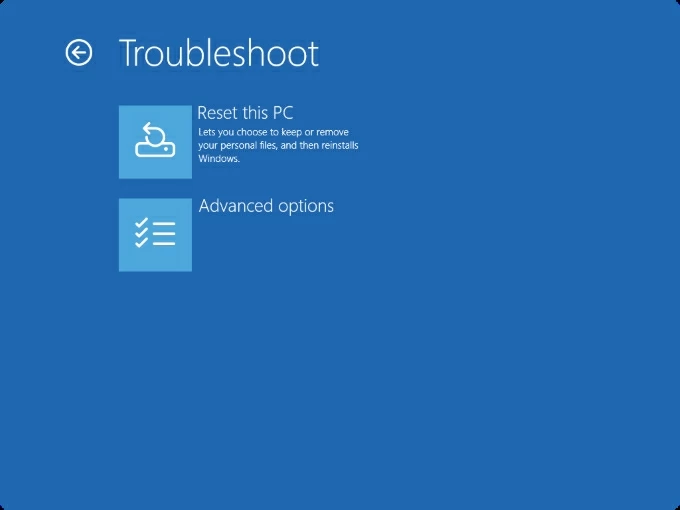
5. From the given two options, choose how you prefer to reset your PC:
6. When prompted, choose your preferred way to reinstall your Windows system.
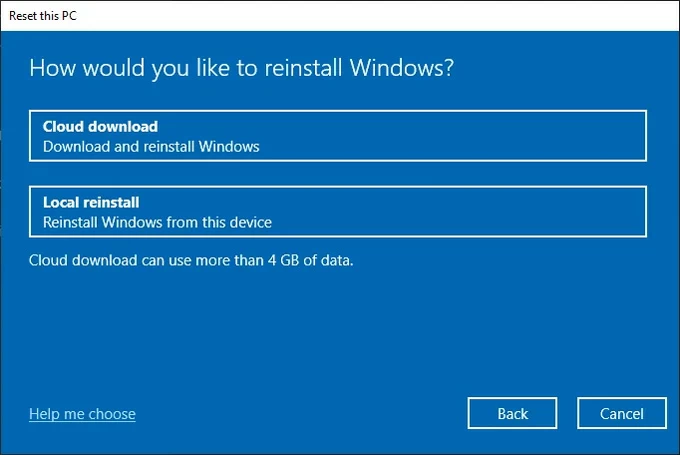
7. Follow the onscreen prompts and confirm the Reset option. This will start a full factory reset on your PC with no password needed.
It may take a while, and your PC may reboot several times during the process. Once reset, your PC will start up with the initial Windows setup screen, ready for a user account and password.
Note: If BitLocker or device encryption is enabled, your PC may require the BitLocker recovery key before completing the reset. Without it, the reset may fail or data may remain inaccessible.
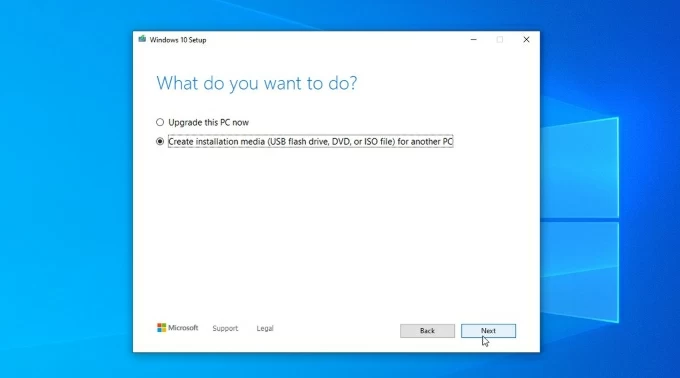
If the Shift + Restart method doesn't work, another reliable way to reset a locked PC without password is to use Windows installation media for a clean install. This process requires a separate working computer, a USB flash drive with at least 8 GB of storage, and Microsoft's Media Creation Tool.
Compatible with both Windows 11 and Windows 10, the following steps explain how to factory reset a PC without password using Windows installation media.
Step 1. Create Windows installation media.
Step 2. Boot the locked PC from the USB drive.
Step 3. Perform a Windows reset on your PC without password.
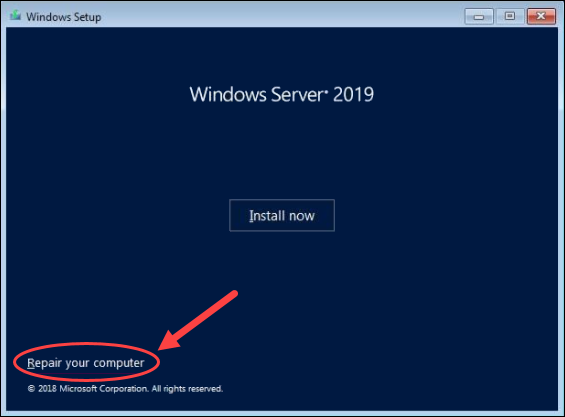
Windows will automatically reinstall itself on your PC, without requiring the previous password.
Alternative step: If the PC reset option is not available or fails
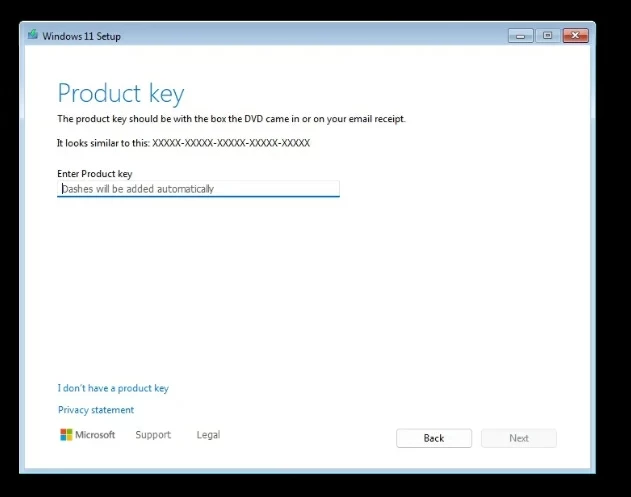
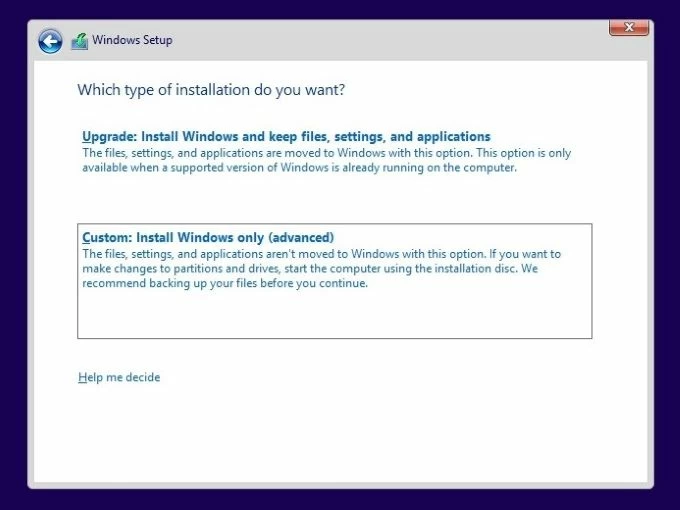
The computer will restart multiple times. Once done, the PC will be reset to factory settings without any password. All previous data and settings are removed. You can then set it up again from the scratch and create a new user account.
Q1 — Will a factory reset remove everything from my PC?
During a factory reset, Windows may allow you to choose between Keep my files or Remove everything, depending on your system configuration. However, if you do not know your password, the Keep my files option may fail and data loss is likely. Hence, if possible, always back up your important files before resetting your PC.
Q2 — How can I force my Windows PC to a factory reset?
If you're signed in, you can easily perform a factory reset on PC through Settings > System > Recovery > Reset this PC and follow the prompts.
If you're locked out, select the Power icon on login screen, hold the Shift key, and choose Restart. Release the key when the Troubleshoot > Reset this PC menu appears, then complete the on-screen instructions to begin the PC reset process.
Q3 — Can I reset my password without resetting my PC entirely?
Yes. Tools such as Appgeeker Windows Password Recovery allow you to remove or reset the password on Windows 11 / Windows 10 directly from the login screen, enabling you to regain access to your PC without performing a full system reset.
Q4 — Is it possible to reset a PC without losing data?
Yes. Windows PC offers a Keep my files option during the reset process, which preserves personal files while removing apps and system settings. However, this option may require access to the existing account and is not always available if you don't remember the password.
Q5 — How do you factory reset a Windows PC without logging in?
You may factory reset a Windows PC without login by accessing the Windows Recovery Environment. From the login screen, select the Power icon > Restart while holding the Shift key. This will take you to Troubleshoot > Reset this PC screen, where you can initiate the reset process on your locked PC.
Alternatively, you can create Windows installation media from Microsoft on another computer. Boot the locked PC from the installation USB, select Repair your computer, and choose the option to remove everything for a full reset.