
iPhone Unavailable No Erase Option


Erasing your iPhone 18 back to factory settings sounds drastic, and Apple doesn't make every path obvious. Here's how to do it safely, no matter which situation you're in.

This guide show you how to factory reset your iPhone 18 — even if you can't remember the screen lock passcode.
Maybe you started using your iPhone 18 before you ever really felt ready — and now you want to reset it to factory settings and start fresh. Maybe you're handing it off to a family member or selling it to someone else, so you've decided to wipe it clean. Or maybe your device ran into a serious issue, and a factory reset feels like the best fix.
Apple actually gives you more than one way to reset an iPhone 18 completely, and the right one depends on your situation — whether you can still get into the phone, or you've forgotten the passcode and are locked out. One thing to keep in mind: factory-resetting wipes the device back to factory settings, so it's worth backing up everything important first.
If you have forgotten your screen passcode and need to factory reset your iPhone 18 in a hurry, Appgeeker iPhone Unlocker is worth a look first. It's built for exactly this situation — a streamlined way to wipe a locked or unavailable iPhone and get back to Home screen without digging through tedious steps.
Table of Contents
The most common and easiest way to wipe your iPhone 18 clean is right inside the Settings app. Just head to the "Transfer or Reset iPhone" option, follow the on-screen prompts, and you're done. One thing to expect: you'll be asked to enter your screen passcode to confirm it's really you.
Use this when you can still unlock your iPhone and get around the home screen.
1. Go to Settings > General > Transfer or Reset iPhone.
2. Tap Erase All Content and Settings. A summary sheet appears showing what's about to go: photos, messages, apps, accounts, and settings.
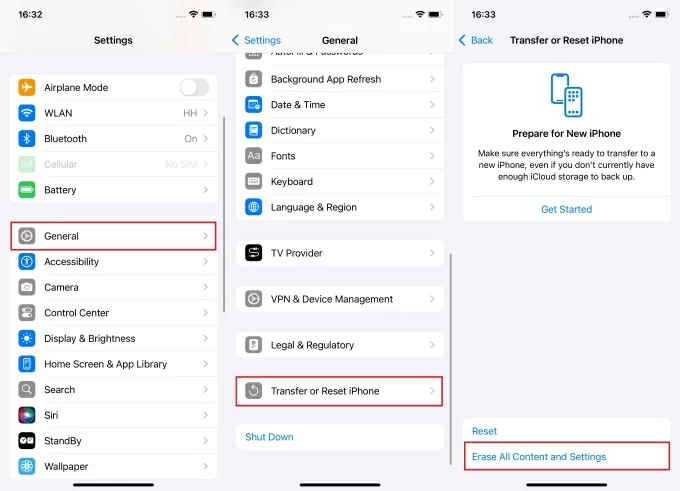
3. You'll be asked to enter your device passcode — the one you use to unlock the screen. This is Apple's "yes, it's really you" gate, so nobody picks up your phone and wipes it in two taps.
4. If you're signed in with an Apple Account (the former Apple ID), you'll now be prompted for that password. This step is for turning off Find My and Activation Lock, and makes sure the person setting up the phone after you doesn't hit a "this device is linked to another account" wall.
5. Tap Erase iPhone, then confirm. The screen goes black, the Apple logo appears, and the phone reboots into the hello-screen setup. Depending on storage fullness, give it a few minutes.
After iPhone 18 reset, Walk through the setup screens and restore from your backup when asked. If you're selling or gifting it, don't sign back in. Just swipe to power off at the hello screen, or hand it over as-is.
See also: Missing text messages on iPhone
If the Settings route freezes, the erase button is greyed out, or the phone is acting up mid-reset, a tethered erase works just as well. Like the previous method, this one also asks for your passcode to verify your identity before the reset can go through.
1. Connect your iPhone 18 to a Mac (Finder) or a Windows PC (Apple Devices app) with a cable you trust.
2. Tap Trust This Computer on the phone, then enter your passcode when prompted.
3. Open Finder, select your iPhone in the sidebar; or, on PC, open the Apple Devices app and select your iPhone.
4. In the General (or Summary) panel, click Restore iPhone. .
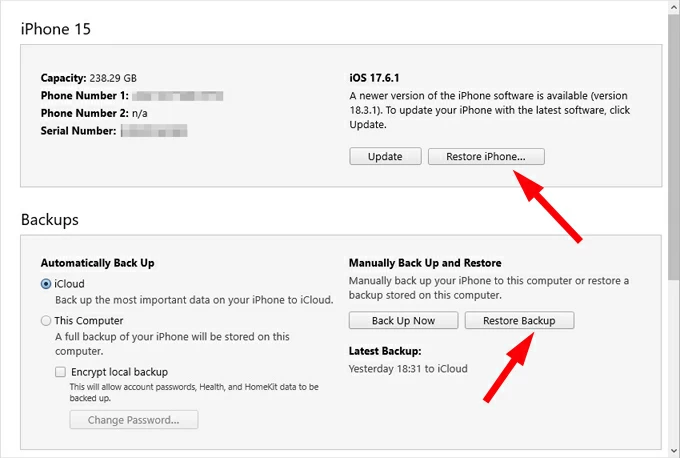
The app downloads the latest signed firmware for the iPhone 18 and erases the device in one pass. Don't unplug during the restore phase. Interrupted firmware writes are exactly how a phone ends up in recovery-mode loop.
If you've forgotten your passcode, the whole flow changes — you can't just tap through Settings or "Reset iPhone" option anymore. Your options narrow to two: authenticate with your Apple Account, or boot into a special mode and restore from a Mac or PC.
For anyone after the fastest, most beginner-friendly route, Appgeeker iPhone Unlocker (iKnockin) is the tool most people reach for — it walks you through a short wizard, downloads the firmware for you, and resets the device to factory settings in one go.
Download Appgeeker iPhone Unlocker from the link above — grab the Windows or macOS build, depending on your computer.
Step 1: Launch iPhone Unlocker
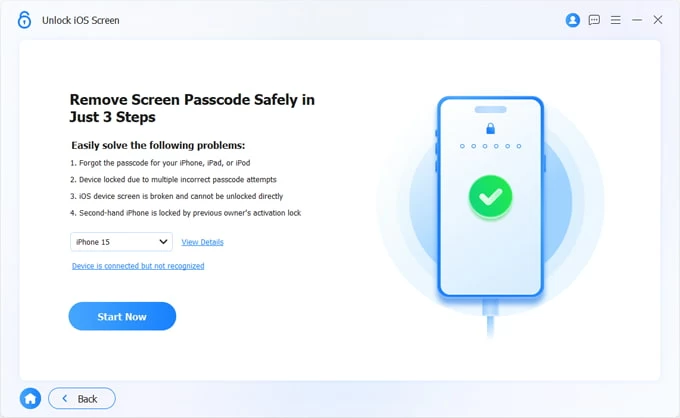
Install and launch it. On the home screen you'll see several tiles. Click Unlock iOS Screen (the one labelled Start Unlocking).
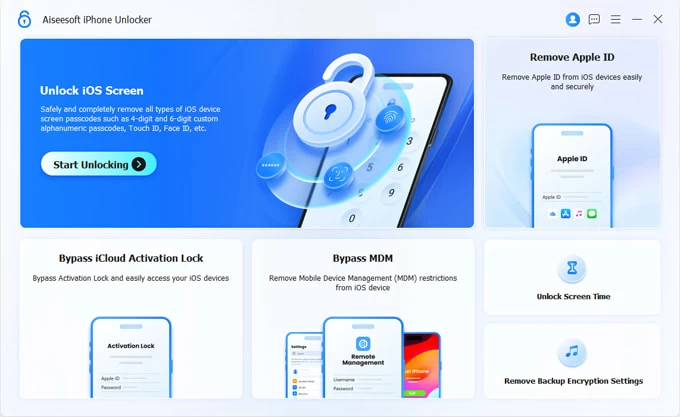
"Remove Apple ID" is for signing an account off the device, and mixing them up is how people hit the iPhone Locked to Owner screen.
Next, connect your iPhone 18 into computer.
The app tries to recognise the device. If it says "Device is connected but not recognized," follow the on-screen prompt to boot it into restore mode.
Step 2: Verify your phone info
Once detected, the app shows a card with Model, iOS version, jailbreak status, IMEI, etc. Double-check the model is your iPhone 18.
Step 3: Download firmware
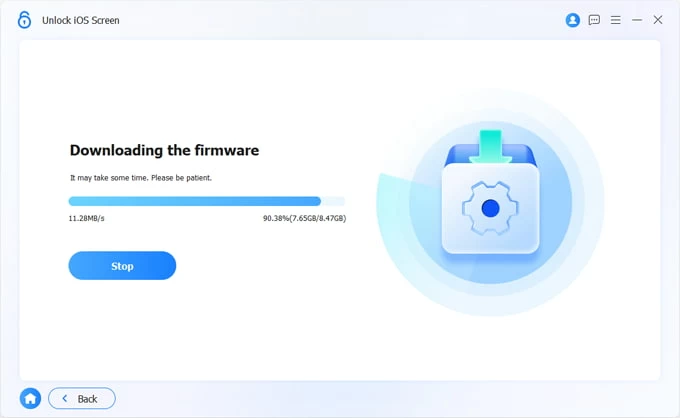
Click Start Now. The app fetches the matching iOS firmware package for that exact model — several GB, so this is where a flaky Wi-Fi hurts. You'll see a progress bar with speed and percentage.
Step 4: Begin resetting iPhone 18
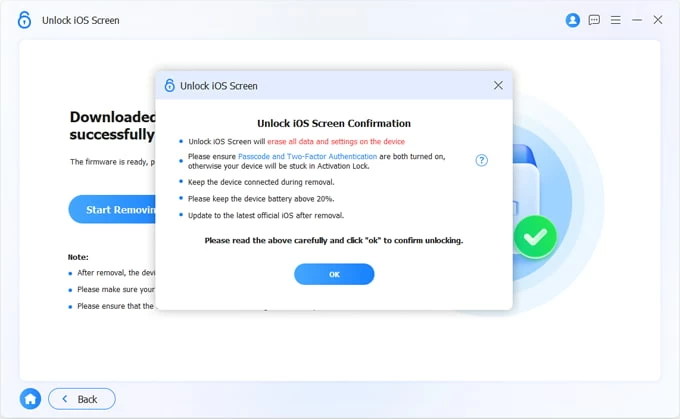
When the download finishes, a confirmation dialog pops up. Read the warning: it spells out that the device will be restored to factory settings. There's no going back.
Click OK, then Confirm Again.
The app unpacks the firmware and reinstalls iOS on your iPhone 18. A progress bar appears on both the computer and the device. Keep the iPhone connected until it reboots itself and the success screen appears in the app.
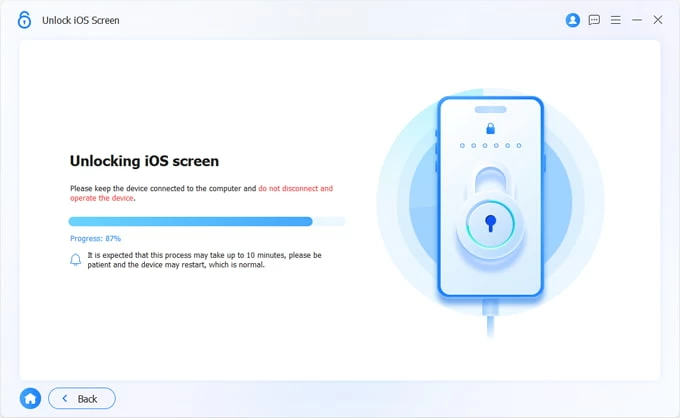
The iPhone restarts to the "Hello" setup screen, with the passcode, Face ID and all your data gone.
You've got the phone back to a clean slate — now the choice is yours. Set it up again and start fresh, or power it off right there on the hello screen and hand it over to its next owner.
See also: How to delete Apple ID without password
Apple designed iCloud Find My for a darker scenario: your iPhone 18 is gone, and it isn't coming back. Its two jobs are to pinpoint the device while there's still hope, and to wipe it remotely the moment you accept it's lost for good.
But here's the useful twist: a remote erase on iPhone 18 is technically a factory reset, just delivered over the air, from whatever browser you happen to be at.
To remotely reset iPhone 18, do the following:
1. On another iPad or iPhone, open Find My app (or go to icloud.com/find on a web browser) and sign in with the same Apple Account that's on the locked phone.

2. Select your iPhone 18 from the Devices list.
3. Tap Erase This Device, then confirm by entering your Apple account.

4. The iPhone 18 resets itself the next time it has network.
When it reboots, it's at the hello screen — and because the reset was triggered through your Apple Account, Activation Lock stays off for you, so you can set it up again cleanly.
See also: How to transfer photos from iPhone to Mac
If everything above has failed, it's time for Apple's last resort. This is the same playbook Apple technicians reach for: force the iPhone 18 into recovery mode, then reset it from a Mac or PC. No menus, no passcode, no account prompt on the phone itself. Just the device, a cable, and a computer that rewrites iOS from scratch.
Here's how to enter recovery mode to factory reset an iPhone 18:
Step 1: Get the computer and the right app ready
Make sure the app is up to date, and that the Mac/PC itself has a decent internet connection. The restore downloads several gigabytes of firmware.
Step 2: Force the iPhone 18 into recovery mode
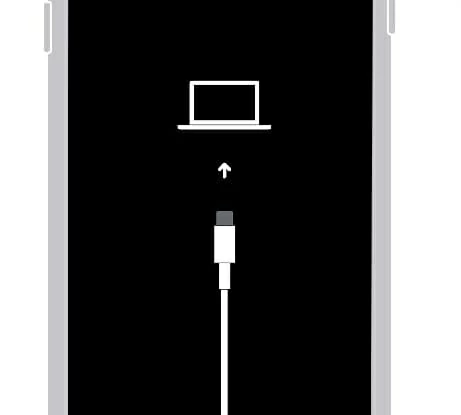
Plug the device into the computer, Press and quickly release the Volume Up button. Press and quickly release the Volume Down button. Press and hold the Side button. Keep holding the button, even when the screen goes black.
Keep holding until you see the recovery mode screen: a computer icon and a cable.
Step 3: Restore the iPhone 18
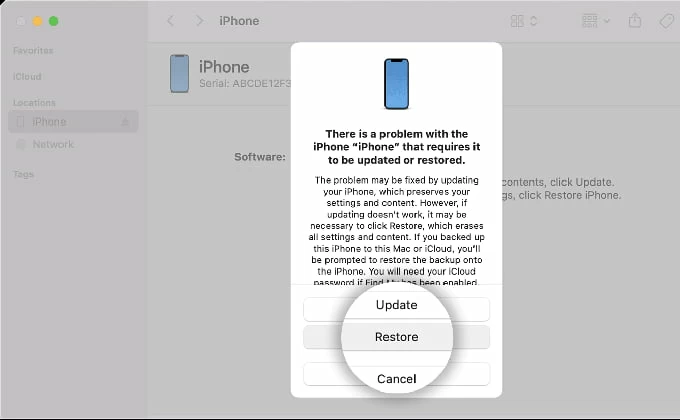
On the Mac/PC, a dialog pops up within a few seconds, and you get two buttons: Restore or Update.
Click Restore. If a second confirmation appears, click Restore and Update to confirm.
Step 4: Wait for the firmware download and the restore
The computer now fetches the latest signed iOS firmware for the iPhone 18, and reinstalls the software on your device.
Leave it alone. This runs 10–30 minutes depending on the firmware package size and your connection.