How to transfer music to iPhone 17 — From iOS, PC, Mac, & Android


This guide explores multiple wired and wireless methods that can help transfer iPhone videos to a Windows or macOS laptop easily and efficiently.

Quick and safe transfer: Appgeeker iPhone Data Transfer is a trusted tool that supports bidirectional video transfers, allowing you to transfer iPhone videos to and from Windows or macOS laptops without requiring a network.
Explore convenient methods for iPhone-to-laptop video transfers, whether with or without a cable.
To edit, play, or back up your iPhone videos, transferring them to your laptop is often a good idea. However, due to platform restrictions, especially outside Apple's ecosystem, moving videos from an iPhone to a laptop is not always as easy as you might think.
Thankfully, there are still several cable-based methods and cloud services that can help transfer videos from iPhone to laptop, whether they are saved in your Camera Roll or downloaded through specific apps. In this guide, we'll explore these wired and wireless methods with detailed steps, so you can transfer iPhone videos to a Windows or macOS laptop and access them seamlessly.
Table of Contents
While there are multiple options for video transfer from iPhone to laptop with or without a cable, it's important to know what video files you can and cannot transfer before starting the process.
TIP: For smooth playback on laptop, set your iPhone to save videos in most compatible format via Settings > Camera > Formats > Most Compatible.
For video files encrypted and locked within specific apps on iPhone, the transfer is not allowed.
In short, you can only transfer the videos that you personally created or saved to your iPhone. Content from subscription-based apps is excluded due to copyright and digital rights protections.
If you're looking for an all-in-one solution to transfer videos from an iPhone to a laptop across iOS and Windows/macOS, Appgeeker iPhone Data Transfer is an efficient option for both directions.
This tool supports almost all iPhone models and laptop brands, letting you transfer not only the Camare Roll videos and screen recordings, but also the movies, TV shows, music videos, Home videos, iTunes U, and other data files like photos, music, ringtones, contacts, etc.
Whether you're using a macOS or a Windows laptop, it enables you to transfer videos directly from your iPhone without any quality loss. The high-speed transfer support makes it especially suitable for handling large, long videos.
Via a cable connection, the software can automatically load your iPhone videos with the original album structures, allowing you to preview all content and easily locate the videos you want to transfer. Here are the simple steps for iPhone-to-laptop video transfers:
Step 1. Open iPhone Data Transfer on laptop and connect your iPhone via a USB or Lightning cable. If prompted, trust this computer by verifying your passcode.

Step 2. Select Videos from the left-side menu. This will load your iPhone videos and sort them by Movies, Music Videos, Home Videos, TV shows, iTunes U and Podcasts.
TIP: To transfer the videos taken with iPhone camera, select Photos on the left pane and access your Photos Library with full album structures.
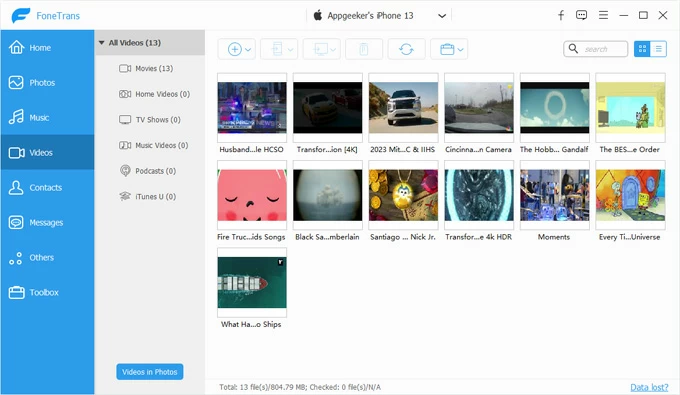
Step 3. Preview and select the iPhone videos you prefer to transfer to your laptop, then click the Computer icon at the top toolbar and select Export to PC.
Step 4. In the pop-up window, choose a laptop folder to save these iPhone videos locally.
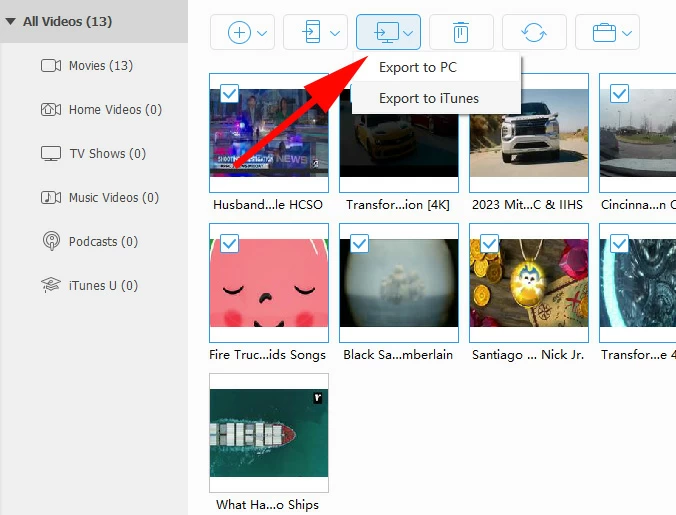
This way, you can get iPhone videos to your laptop for seamless playback, editing, or sharing. It also supports the reverse process, enabling you to drag and drop photos and videos from your laptop back to your iPhone when needed.
A physical connection is often the most straightforward way for video transfers from iPhone to laptop, especially when dealing with a large media library.
For better compatibility with your laptop, empower your iPhone to automatically convert videos during the transfer by enabling Settings > Photos > Transfer to Mac or PC > Automatic.
When using a USB cable to transfer videos from your iPhone to a Windows 11/Windows 10 laptop, the pre-installed Photos app allows you to import videos directly from a connected device. You can preview and select the videos on your iPhone before saving them to a laptop folder.
1. Connect your iPhone to laptop with a USB or Lightning cable. When prompted with Trust This Computer, tap Trust and enter your passcode to allow data access. See what to do if you forgot your iPhone passcode.
2. On your laptop, press WIN key to open Start menu and search for Photos app to access it.
3. When Photos app opens, select Apple iPhone in the left sidebar. Or, click the Import button at the top-right corner and choose Apple iPhone from the list.
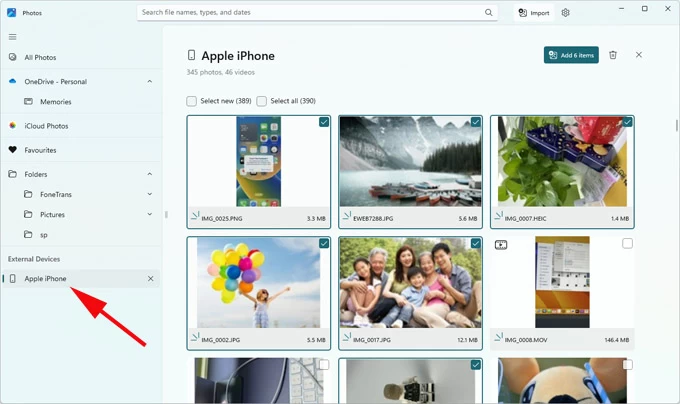
Note: The laptop will automatically scan your iPhone for all available photos & videos and sort them by date. However, the original album structure won't be preserved.
5. Select the videos you want to transfer. Optionally, check Select new or Select all at the top.
6. After selection, click Add [X] items button and choose a laptop folder in the pop-up box. If needed, create a new folder as you want.
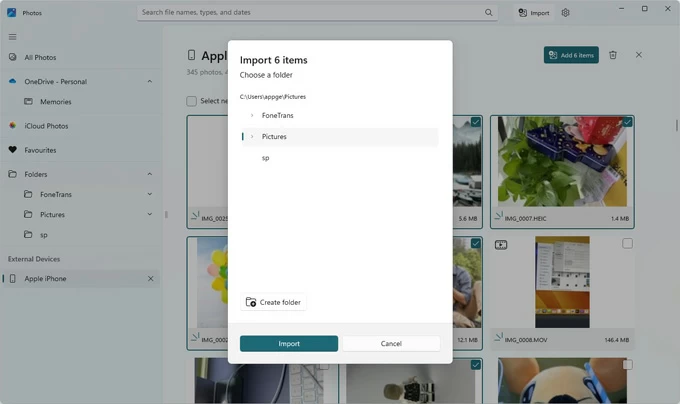
7. Confirm the Import option and wait for the process to complete. It may take a longer time if you're transferring large videos.
All selected iPhone videos will be transferred to your laptop folder, allowing you to access and manage them at any time.
The native File Explorer on Windows can also be used to transfer videos from an iPhone to a laptop. With a USB cable connection, it lets you access iPhone's DCIM storage, so you're able to copy and paste Camera Roll videos and screen recordings to a local laptop folder.
Instead of preserving album structures, File Explorer organizes iPhone videos and photos into monthly folders, which may take additional time to locate specific videos.
1. Connect your iPhone to your laptop using a suitable cable.
2. When asked, tap Trust and verify your iPhone passcode to proceed.
3. Double-click This PC on your laptop and select Apple iPhone under Devices and drives.
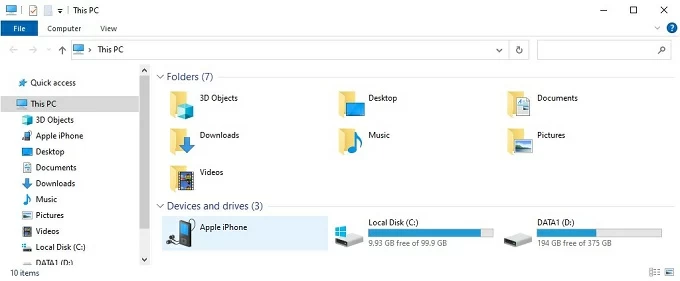
4. Navigate to DCIM folder. Your iPhone photos and videos will be sorted to monthly sub-folders
5. Locate your desired videos and select them. You may press Ctrl key to choose multiple files.
6. Right-click on the selected videos and select Copy in the drop-down menu.
7. Switch to a local folder on your laptop where you want to save these iPhone videos, then right-click and select Paste.

If the media folders don't load up, try reconnecting the iPhone and starting the transfer again.
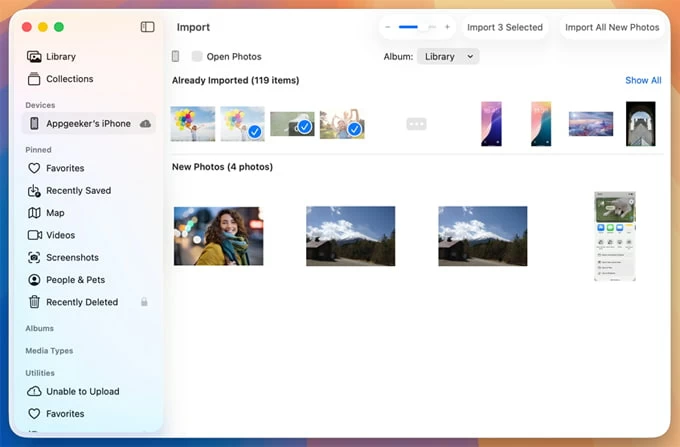
Apple's ecosystem enables you to import your videos from an iPhone to a macOS laptop easily. The default Photos app on MacBook is the way to go.
1. Plug your iPhone into your MacBook with a USB or USB-C cable; tap Trust if prompted.
2. Open the native Photos app and select your iPhone under Devices on the left.
3. At the top of Import screen, select where you prefer to import your iPhone videos by checking the Album box. You can either choose an existing album or create a new one.
4. Select the iPhone videos you want and click Import Selected button.
Once done, open that album on your laptop and all transferred iPhone videos should appear.
If your videos are stored in Photos Library, such as recordings or downloaded video clips, you can transfer these iPhone videos to your laptop wirelessly using iCloud Photos. It works by syncing your entire photo and video library to Apple's cloud storage, and allows you to access them across all your devices, laptops, and on iCloud.com when signed in with the same Apple ID.
This method relies on a stable network and sufficient cloud storage. Each iCloud account includes 5 GB of free cloud storage by default; however, if you're transferring long videos or your iPhone records videos in HEVC format, the available storage can be used up quickly.
Once iCloud Photos is enabled on iPhone, the syncing process runs automatically in the background. After that, you can download iPhone videos from iCloud to your laptop directly, without using a cable.
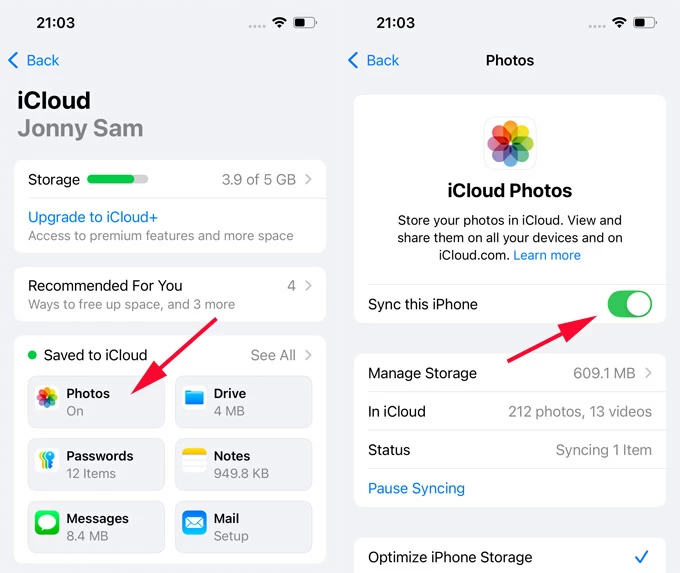
To avoid interruption, consider upgrading to iCloud + for more cloud space if you have many large videos to transfer.
The steps vary depending on whether you're transferring iPhone videos to a Windows or macOS laptop.
Set up iCloud Photos on Windows laptop
Optional: Check Download High-Efficiency format photos and videos or Download HDR videos (available in iCloud for Windows 14.2 or later) for better quality; turn on Shared Albums if you want to access iCloud Shared Albums on your laptop.
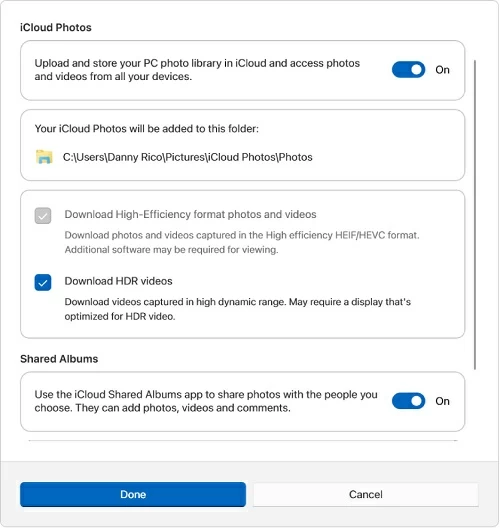
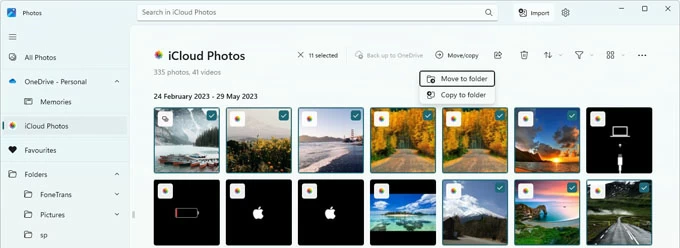
Set up iCloud Photos on macOS laptop
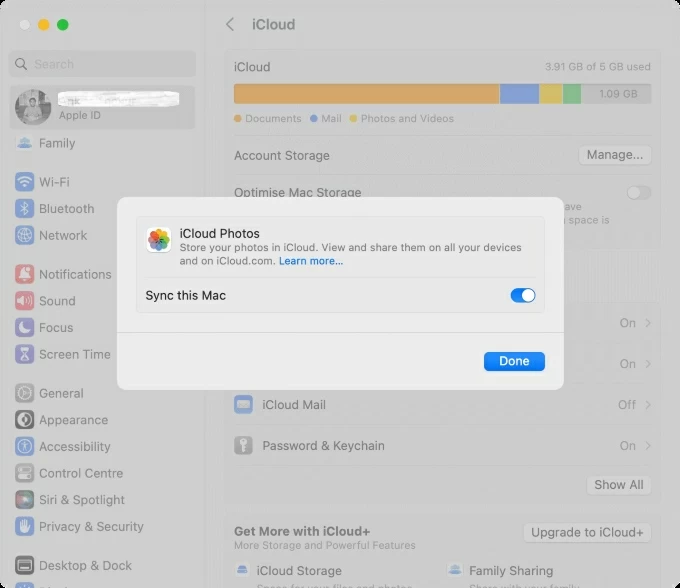
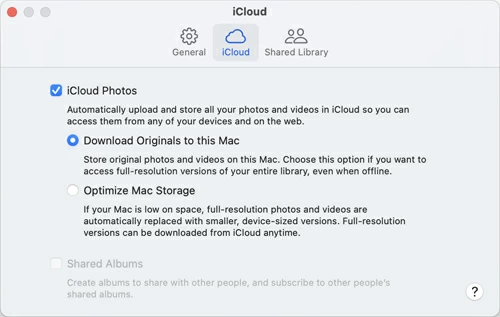
Accessing iCloud.com is an alternative way to move iPhone videos onto your laptop without cable or additional configurations.
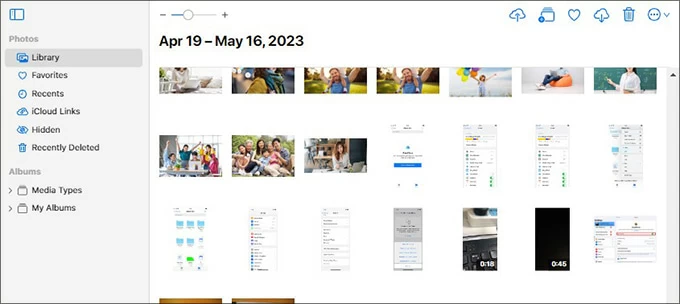
Besides iCloud Photos, cloud services like Google Photos, OneDrive, and Dropbox also supports the wireless video transfers from iPhone to laptop, or vice versa.
Q1 - How can I send long videos from my iPhone to my laptop quickly?
Wired transfer methods generally provide faster and more stable performance when sending long videos from iPhone to laptop. Connect them using a compatible USB cable, then choose one of the following options:
To a Windows laptop:
To a macOS laptop:
For a more convenient solution that supports fast transfers of long videos, Appgeeker iPhone Data Transfer is a reliable tool for both Windows and macOS.
Q2 - Is there any tool that can transfer videos from an iPhone to a laptop both ways?
Yes. Cloud services, such as iCloud Photos and Google Drive, support cross-platform transfers of videos, letting you wirelessly move videos from an iPhone to a laptop or vice versa.
Additionally, third-party tools like Appgeeker iPhone Data Transfer provides a more direct and efficient way to transfer videos between an iPhone and a Windows/macOS laptop, without relying on cloud storage.
Q3 - How can I transfer iPhone videos to a Windows laptop without using a cable?
Apple's iCloud Photos offers a wireless option for transferring iPhone videos to Windows laptop without a cable. However, if only offers 5 Gb of free cloud storage. If you're transferring large video files, you may need to upgrade to iCloud + for additional storage or use a wired transfer method with a USB cable.
Q4 - How can I save iPhone videos directly to my laptop?
When iCloud Photos is enabled on both your iPhone and laptop, videos recorded with your iPhone camera or stored in the Photos Library are automatically synced to your laptop over the internet, allowing you to access and save them locally.