
iPhone Unavailable no timer? How to fix it


Have accumulated lots of videos and photos on your iPhone over years and want to access them on PC? You're not alone. Here's how to access videos on iPhone from PC.

To access videos on iPhone from PC:

Click Unlock button to begin the process.
Nowadays, the iPhone is no longer just a phone; it is a professional-grade cinema camera that happens to fit in your pocket. The average user can capture high-speed 4K at 60 fps action shots or cinematic mode family memory.
Sometimes, you might want to access these iPhone videos on your PC. Maybe you need to clear space on the phone, or begin the post-production process through desktop-based editing suites like Adobe Premiere or DaVinci Resolve, or anything else.
Whatever the reason, there are a few ways to get the Windows environment to see the videos on your iPhone and ensure those files are usable once they arrive.
Table of Contents
File Explorer is the old-school way of doing things. It's gritty, manual, and gives you a peek into the internal storage of the iPhone. This method is best if you only need to view and grab one or two specific videos and don't want to wait for a full library scan.
1. Connect your iPhone to PC, and tap Trust and enter your passcode to unlock the device when prompted.
2. Windows usually installs the Apple Mobile Device USB Driver automatically. If the iPhone doesn't appear in File Explorer under "This PC," you may need to update your Windows drivers.
3. Click your phone under "This PC." you'll see its Internal Storage, and inside that, a folder named DCIM (Digital Camera Images).

4. Inside DCIM, you'll see multiple folders such as: 100APPLE, 101APPLE, 102APPLE...
5. Open each folder and view any videos there.
You can double-click the video to play it in a media player, or transfer it to your PC.
See also: How to Fix iPad Security Lockout
The Windows Photos app has undergone a significant evolution in Windows 11. It is designed to be a more "Apple-like" experience, offering a visual interface for viewing and importing videos (or photos) from your iPhone.
1. Launch the Photos App from your Start menu.
2. Connect the iPhone to the PC.
3. On the top-right (or left sidebar depending on your version), you will see an "Import" button.

4. Click it and select "From a connected device." The app will begin scanning your iPhone. Once finished, it displays a grid of all your photos and videos.
5. Click "Select All" or manually toggle the checkmarks on the videos you want to access on PC.
Videos missing? If you can see some videos but not others, you might have "Optimize iPhone Storage" enabled. This means the high-resolution version of the video is in the cloud, and only a tiny thumbnail is on your phone. To fix it, you may go to Settings > [Your name] > iCloud > Photos, and change the checkmark from "Optimize iPhone Storage" to "Download and Keep Originals."
Accessing your iPhone photos via a dedicated tool like Appgeeker iPhone Data Transfer is a straightforward process that offers more flexibility than the standard Windows Photos app. Whether you want to view, delete, or export them to your computer, here are the detailed steps.
Tips: The tool enables you to transfer media files (music, photos, videos) to and from iPhone, and has a set of options to manage your phone.
First of all, download and install the tool on your Windows PC.
1. Connect your iPhone to the PC and open iPhone Data Transfer. The tool should automatically detect your device and show a summary of your iPhone's storage.

2. Click the "Videos" icon on the left sidebar. You will now see various sub-categories on the center pane, such as Movies, Home Videos, TV Shows, Music Videos, Podcasts.
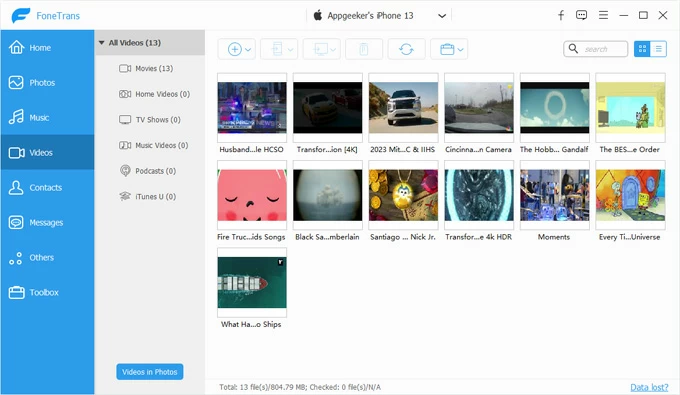
3. Click any category to load and preview the thumbnails.
4. If you want to move those videos from iPhone to your PC for later view or editing, select any items you want, then click "Export to PC" button on the top menu.
In the opening dialog box, select where the videos will save on your computer.
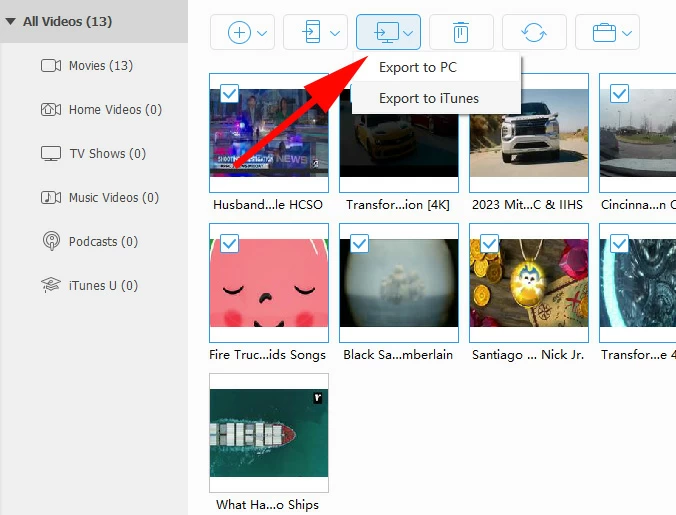
That's it! You can also go for the similar steps to transfer your pictures, music, contacts, and other important files.
See also: How to Add Music to iPhone without iTunes
For wireless access, you can also use Apple's iCloud for Windows or third-party cloud services like Google Photos or OneDrive. Here we take iCloud as example.
Steps to view videos on iPhone in Windows computer through iCloud:
1. Download and install iCloud for Windows from Microsoft Store.
2. Sign in with your Apple ID and select "Photos" to sync.
3. On your iPhone, go to Settings > [your name] > iCloud > Photos, then turn on "Sync This iPhone."
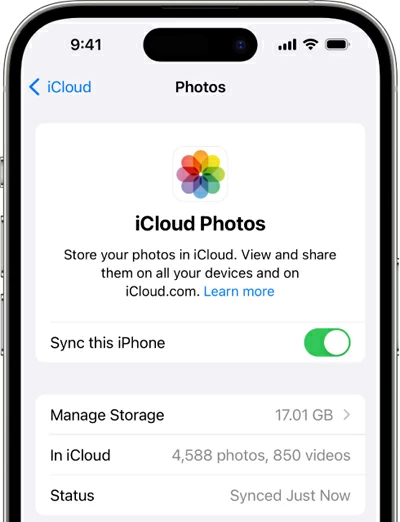
4. iCloud will start downloading your iPhone videos and photos to your PC automatically.
5. Open File Explorer, go to iCloud Photos folder in the left sidebar, then select "Downloads."
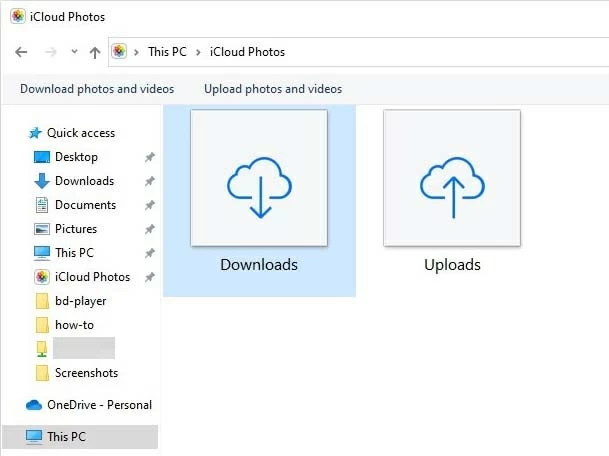
You can now view your videos on your PC.




