
How to transfer videos from iPhone to laptop


With the sync feature in iTunes, your movies stored on your PC's media library can be played on your iPhone. Here's how to use iTunes to transfer movies from PC to iPhone.

Summary: To transfer movies from a PC to an iPhone using iTunes, add movies to the iTunes library first, then connect the iPhone to your computer, go to Movies tab in the sidebar, and check "Sync Movies" to sync with your iPhone. If you want a more straightforward way, which allows for drag-n-drop, go for dedicated tools like Appgeeker iPhone Data Transfer.
You will need to import movies into iTunes library and then perform a sync with your iPhone.
While high-speed streaming has taken over the world, there's still something satisfying about having your favorite movies saved locally on your iPhone for a long flight or a commute with spotty signal.
Since 2024, the process on Windows has evolved slightly with the introduction of standalone apps like Apple Devices, but the classic iTunes method still works for many. Here is your complete guide to transferring movies from your PC to your iPhone.
Table of Contents
The Apple Devices app was officially released in its final, stable version on February 7-9, 2024, as part of Apple's initiative to replace iTunes on Windows with standalone apps. It is designed for Windows 10 and 11 to manage iOS devices (iPhone, iPad, iPod).
If you haven't installed the new Apple Devices app, or if you are on an older version of Windows, iTunes remains your reliable way to sync movies from a PC to an iPhone.
1. First of all, open iTunes. Go to File > Add File to Library. Navigate to your movie and click Open. This will import your movie files into iTunes' library. (If nothing happens, the file is likely an unsupported format like MKV, WMV)
2. Connect your iPhone to the PC with a USB-C or Lightning cable. If prompted on your iPhone, tap Trust and enter your passcode.
3. Click the small device icon near the top-left of the iTunes window to locate your iPhone.
4. In the left-hand sidebar under "Settings," click Movies.
5. Check the box for Sync Movies, then check the specific movies you want to move.
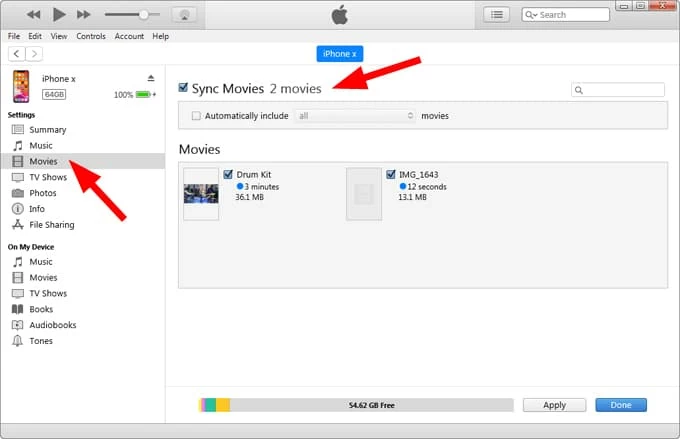
6. Click the Apply or Sync button at the bottom right. Wait for the progress bar at the top to finish.
Tip: In the iPhone TV app, transferred movies usually don't appear in the "Watch Now" tab. You must go to Library > Home Videos. This is the default location for any video file not bought directly from the iTunes Store.
See also: How to Add Ringtone to iPhone without iTunes
If you have updated to the latest Windows 11 suite, Apple may have prompted you to replace iTunes with the Apple Devices app. The steps are nearly identical, but involves a "tag-team" between the Apple TV app and the Apple Devices app.
1. Install both Apple TV and Apple Devices app on your Windows PC.
2. Launch the Apple TV app on your Windows PC.
3. Go to the Library tab, then drag and drop your movie file (must be .mp4, .m4v, or .mov) directly into the window.
4. Connect your iPhone to your PC using a USB-C to USB-C cable.
5. Open the Apple Devices app.
6. Select your iPhone in the sidebar.
7. Click on Movies in the sidebar.
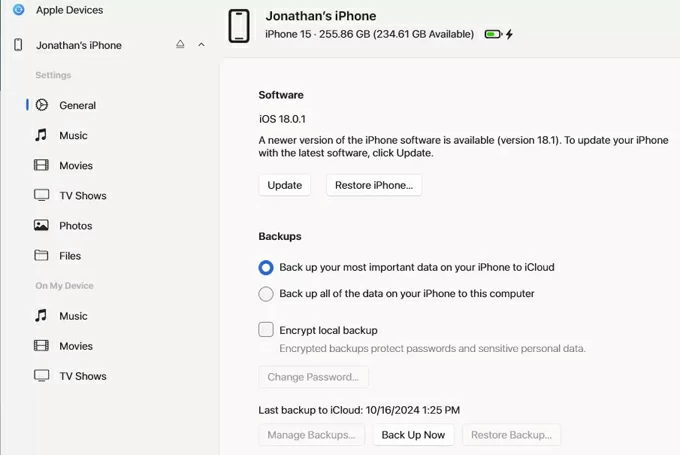
8. Check the box that says Sync movies onto [device name].
9. Choose specific films you just added to your Apple TV library, or select "Automatically include all movies."
10. Click the Apply button in the bottom right corner to start the transfer.
The progress bar at the top will indicate the transfer status.
If you hate cables, go to the General (or Summary) tab in iTunes/Apple Devices and check "Sync with this iPhone over Wi-Fi." As long as your PC and iPhone are on the same network, you can run these transfers wirelessly in the future.
See also: Forgot iPad Passcode
If you don't like the way that iTunes or Apple Devices app offers to transfer movies from your PC to your iPhone, there are many of third-party dedicated file transfer tools available to accomplish the task.
One of the reputable is Appgeeker iPhone Data Transfer. Transferring movies through it is a straightforward process that bypasses the need for iTunes syncing. Sure, iTunes is reliable. But it's also limited, and not particularly flexible. iPhone Data Transfer fills that gap — giving you more control, more visibility, and more options for transferring and managing your iPhone or iPad data on your terms.
The tool also automatically converts incompatible video formats (like MKV or AVI) into iPhone-friendly formats during the transfer.
Here's how to transfer movies on PC to iPhone without syncing.
Step 1: Connect your iPhone
Open the tool on your PC once installed, and then connect your iPhone via a cable.

Step 2: Access videos library
On the left sidebar, click the Videos category icon. This will load your video library on the iPhone. As you can see in the image shown below, all your videos are sorted by different albums such as Movies, Home Videos, TV Shows, Music Videos, etc.
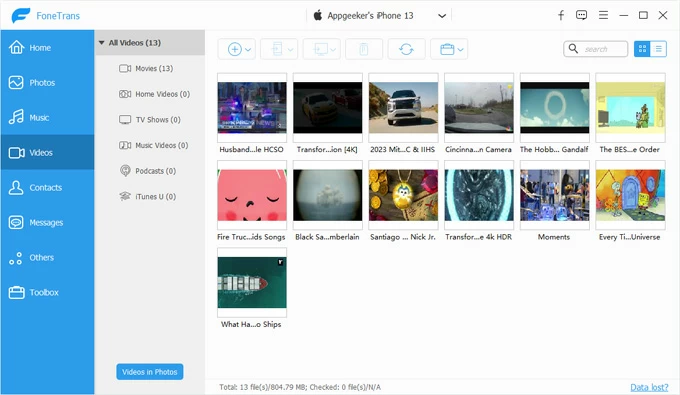
Step 3: Add movies to iPhone
To transfer movie files from your computer to iPhone, open the folder where saves your movies locally, drag them and drop to the tool's window.
Or, click the Add button located in the top menu bar. A file explorer window will pop up. Navigate to the folder on your PC where your movies are stored, select the files you want, and click Open.
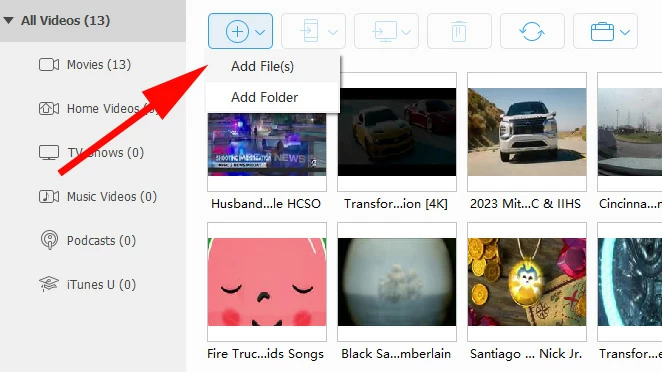
The tool will begin the transfer. A progress bar will appear; once finished, you'll see a "Transfer Completed" message.
See also: How to Recover Call History from iPhone
Device Not Found
If the Apple Devices app or iTunes doesn't see your iPhone, ensure you are using a high-quality data cable. Many cheap cables are charged only. Also, check the iPhone screen for a "Trust This Computer?" prompt.
Sync Session Failed to Start
This is usually a ghost in the machine. Unplug the iPhone, restart the Apple Devices app, and try again. If it persists, a full reboot of the PC often clears the sync cache.
Movies Won't Play
If you see the movie thumbnail but it won't play, you likely transferred a file with a resolution or profile higher than what your specific iPhone model supports.




