
How to recover iMessages from iPhone 14


Lock yourself out of iPad because you forgot the passcode? If you're lucky enough, it's possible to bypass or reset your passcode on iPad without data loss. Here's how.

In most cases, Apple routes below should bypass iPad passcode on the lock screen if you forget it. If they don't help, go with Appgeeker iPhone Unlocker. Despite the name, the software is versatile, allowing for quick detection and direct removal of screen locks on iPad and iPhone.
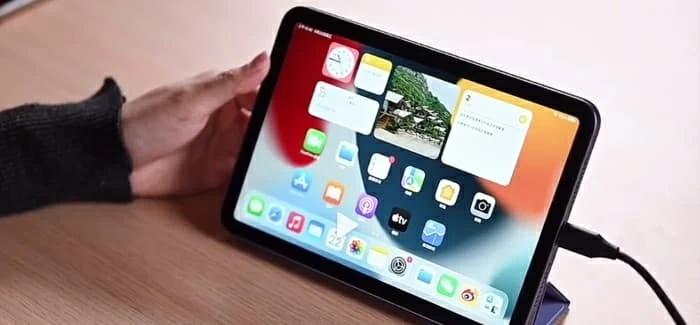
Unless you have an old passcode changed within 72 hours, you'll have to reset the iPad to bypass the passcode.
It's an all-too-common scenario: you update your passcode on the iPad, forget the new combination a few hours later, or enter the wrong numbers one too many times until your screen displays the dread-inducing security lockout message.
Fortunately, getting locked out of the iPad doesn't mean your device is permanently useless. By using built-in Apple mechanisms or dedicated unlocking tool like Appgeeker iPhone Unlocker, you can bypass iPhone passcode security locks, regain control of your hardware, and restore your device to working order.
If you're lucky enough, you can even bypass the iPad passcode and screen lock without data loss. Here're reliable methods to bypass iPad passcode when you are completely locked out.
See also: How to transfer music from Mac to iPhone
While Apple routes and third-party tools make it possible and easy to bypass iPad screen when you forgot passcode details, Apple's underlying encryption architecture dictates that bypassing a passcode requires wiping the iPad's local data. Additionally, if Find My was enabled prior to locking out, you will still need to enter your Apple ID credentials to verify your identity during the initial setup phase after the passcode is cleared.
If you want to bypass your passcode on the iPad without resetting the device that results in loss of data, the only official way is to make use of what Apple is calling "Passcode Reset" option. This option is additional bonus for people who recently changed passcodes within 72 hours before the iPad locked up. It allows using old passcode to sign into iPad temporarily and then setting a new passcode again.
Keep in mind that Passcode Reset feature only works in an iPad based on iPadOS 17 or later.
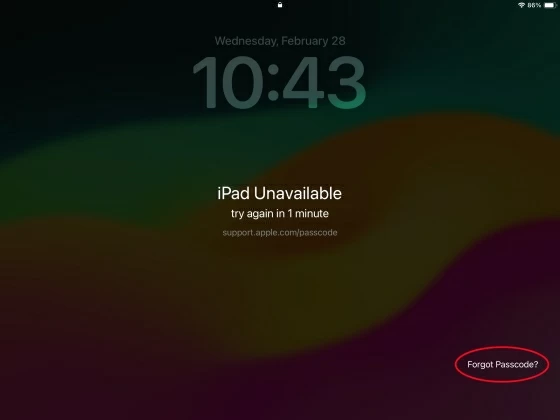
To bypass passcode on iPad without losing data, you can simply enter any passcode to your iPad more than 5 times until you see an iPad unavailable on the screen, then follow the steps below:
1. Tap Forgot Passcode? in the bottom right corner of the screen.
2. Tap Enter Previous Passcode.
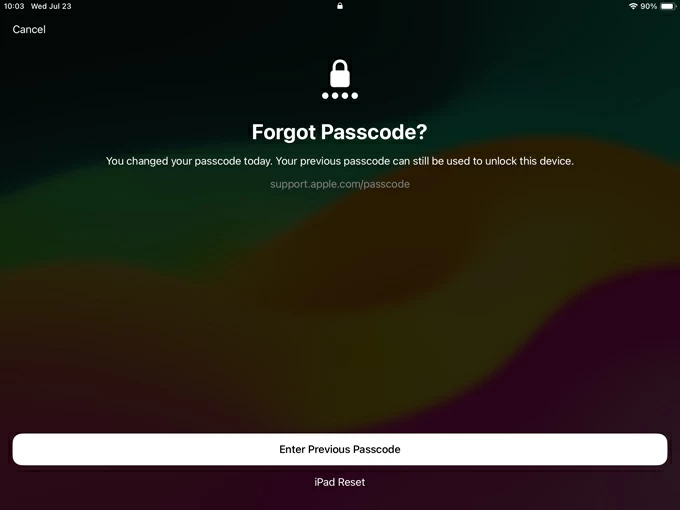
3. In "Passcode Reset" page, enter your previous passcode and then create a new one.

That's it! You've bypassed your iPad passcode successfully without losing data. You can now unlock the device with the new passcode.
Also: How to recover external hard drive on Mac
If you're on an earlier version of iPadOS software, there is no way to bypass an iPad passcode and you only option is erase and restore it.
While Apple does not leave a lot of room for users to bypass a forgotten passcode on iPad, it still offers wireless recovery mechanism that allow you to wipe your locked tablet directly from the lock screen. All data will still be erased though - the only way to get past the passcode is to know it or erase it.
After you go through 5 timeouts then you'll get an option that says "Erase iPad" or "Forgot iPad" and you can reset the passcode and the device by putting in your Apple ID password.
Benefits: you don't have access to a computer
1. Make sure your iPad is running in iPadOS 17 or later version, and remains connected to a cellular or Wi-Fi network.
2. Tap Forgot Passcode? or Erase iPad at the bottom right.
3. Select Start iPad Reset.
4. Enter the Apple Account password that's used to set up the iPad to confirm.
5. Tap Erase iPad to initiate the wireless factory reset.
When you're unable to bypass passcode on iPad directly from the lock screen ("no erase option" problem) or you have a computer nearby, a specialized software utility like Appgeeker iPhone Unlocker offers the most straightforward path forward.
Don't let the name fool you, the software is comprehensive and elegance, and packed full of features to tackle remove 4-digit/6-digit passcodes, Touch ID, Face ID, and other types of screen locks on both iPhone and iPad. It simplifies the lock-screen removal process into a guided desktop interface.
Here's how to bypass iPad and iPhone passcodes using iPhone Unlocker. You will need to download and install the software on your either Mac or PC first.
Step 1: Launch iPhone Unlocker
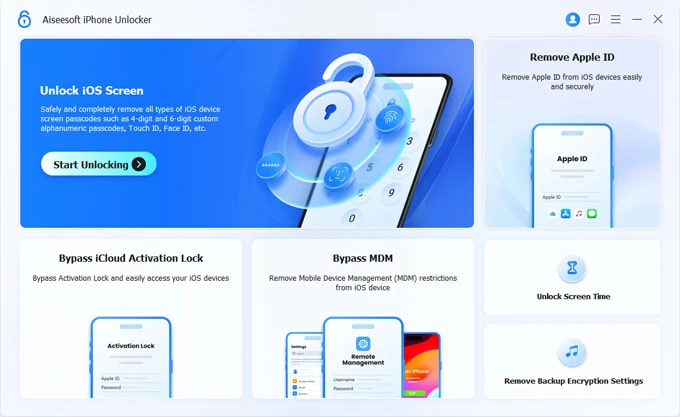
Open the software, you should see the interface as below. Click "Unlock iOS Screen" to proceed.
See also: iPhone Unavailable no timer
Step 2: Device information
On the next screen, you will need to connect the iPad that you want to bypass passcode into your computer.
If the device isn't detected, follow the onscreen prompts to enter restore mode.
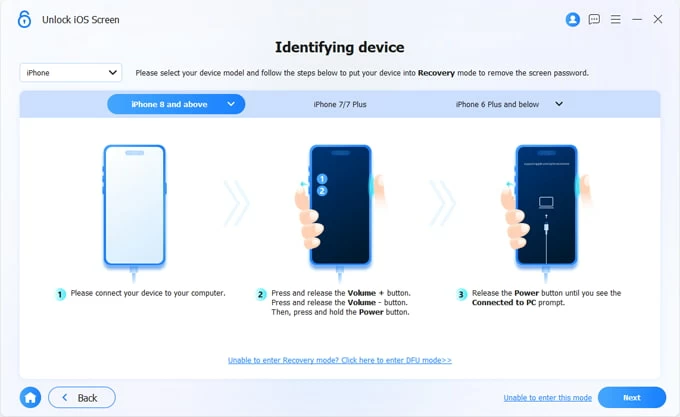
Then, confirm the device model and click on "Start Now" button to go on.
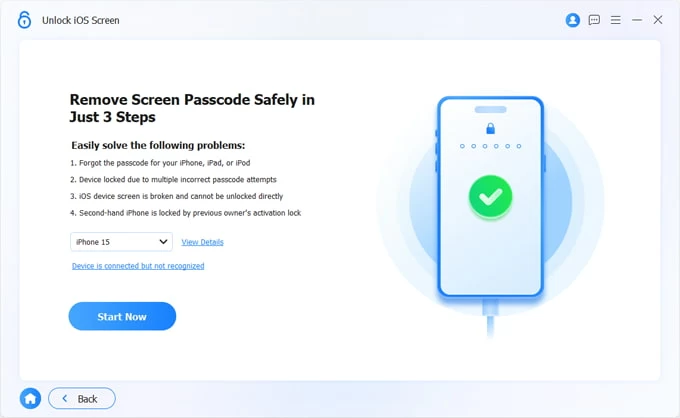
Step 3: Download iPad firmware
Wait for the software to download iPadOS firmware for your iPad model.
As the package is being downloaded, you will be able to see its progress as it is downloaded. The time required will vary based on the speed of your computer and the file size.
Step 4: Begin resetting iPad and passcode
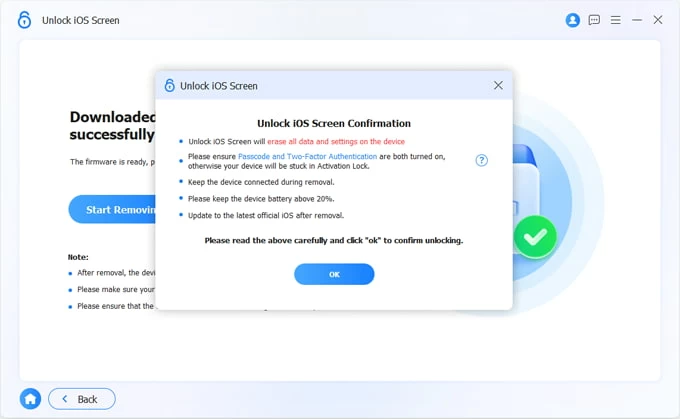
Once the firmware download finishes, click Start Removing button.
When a warning message pops up, read it carefully, then click OK to confirm it. You're good to go.
The utility will begin extracting the firmware and clearing the device's passcode system. Keep your device securely connected throughout the entire process.
Once the removal finishes, your device will reboot into the initial setup screen, allowing you to configure new credentials or restore a backup.
See: How to get into a locked iPhone
You have forgotten the passcode for your iPad, and the iPad says disabled and need to connect to iTunes? If you own a computer with iTunes installed, Apple's built-in Recovery Mode allows you to bypass iPad passcode and restore to factory settings directly.
1. Start by connecting your iPad to your Mac or PC with a cable.
2. Place your iPad into recovery mode.
For iPads without a Home button: Press and quickly release the Volume Up button, then press and quickly release the Volume Down button. Press and hold the Top button until you see the recovery mode screen.
For iPads with a Home button: Press and hold the Home button and the Top button at the same time until the recovery mode screen appears.
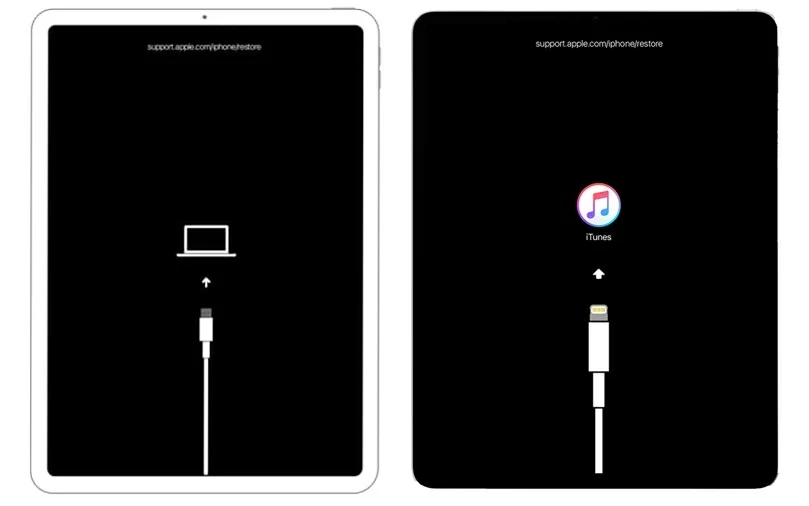
3. Select your iPad on the top center of your iTunes Window, or left sidebar of Finder window.
4. A pop-up dialog will appear stating that there is a problem with the device requiring it to be updated or restored. Click Restore.
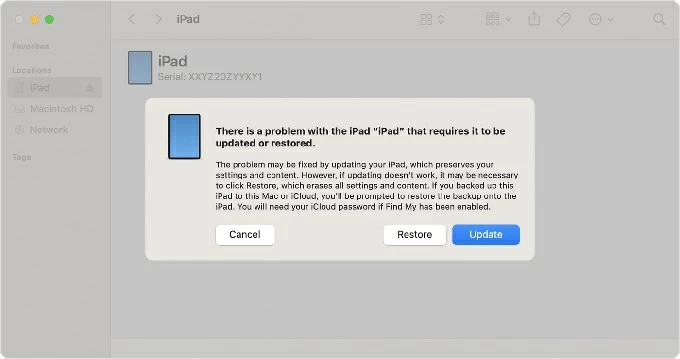
5. Finder or iTunes will download the latest software for your device. If the download takes longer than 15 minutes, your device may exit Recovery Mode; simply wait for the download to finish and repeat the button combination.
6. Follow the onscreen prompts to complete the restore process. Once done, your device will restart, allowing you to bypass the passcode on the iPad and begin fresh setup.
Also: How to transfer photos from iPhone to PC without iTunes
You can also any browser to get iPad passcode bypassed. The downside to this method is that it only works if you already set up the Find My iPad feature.
iPad bypassing lock screen through iCloud Find My iPad will also erase and reset the device completely, though.
Step 1. Open iCloud.com on another mobile device or computer and sign in with the same Apple credentials.
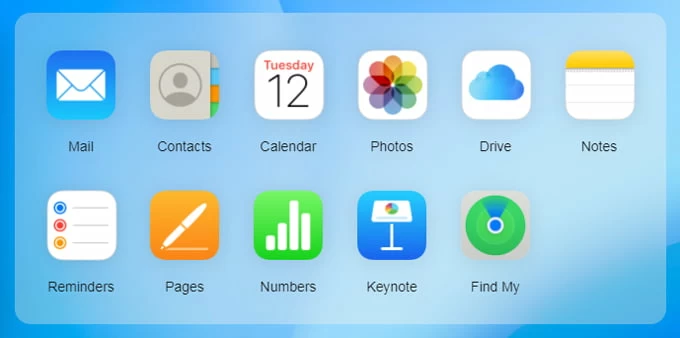
Step 2. Click Find My from iCloud menu.
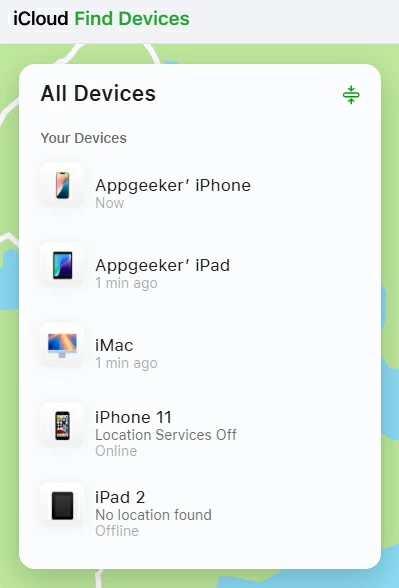
Step 3. Select your locked iPad from All Devices list at the top.
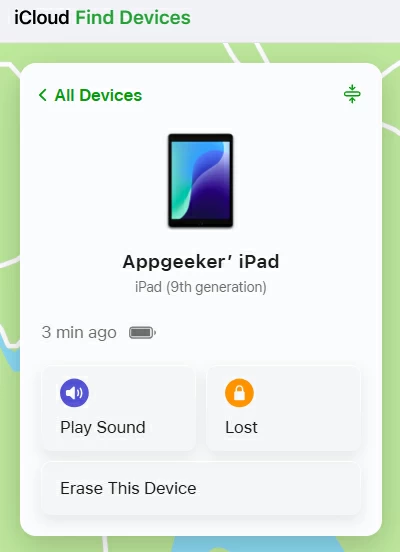
Step 4. Choose Erase This Device.
Step 5. Input your Apple Account password to initiate a remote wipe.
After the iPad is reset remotely, the screen lock information will be deleted. This could be the passcode, Face ID, or Touch ID that you originally set up.
Once the wipe completes and the device reboots, you can set it up as new or restore your latest iCloud backup.
Related: How to recover deleted photos on iPad
Getting locked out of an iPad can be stressful, but Apple's built-in recovery protocols—combined with dedicated desktop solutions like Appgeeker iPhone Unlocker—ensure you are never permanently locked out of your tablet. By following these steps to bypass iPad passcode barriers and restore your software, you can regain control of your device in just a few minutes.
Q1. Can I bypass my iPad password without data loss?
It depends. You can sign in to your iPad with your old passcode that you changed within 72 hours to unlock the iPad when locked. This won't erase all your data and reset the iPad.
However, if you don't have an old passcode available, Bypassing or removing a forgotten passcode requires resetting the iPad to factory settings, which wipes all local storage. You can restore your data afterward only if you have an iCloud or computer backup.
Q2. How do I turn off lock screen passcode on iPad?
Go to Settings > Face ID & Passcode (or Touch ID & Password for older models) > Turn Passcode Off > enter your current passcode > Turn Off > enter your Apple ID password > Turn Off.
Q3. How to bypass passcode on iPad when it says disabled?
If your iPad is disabled and locks you out, you may plug it into your computer and use iTunes to restore from Recovery mode. Or use Appgeeker iPad Unlocker to bypass the passcode.