
Can't Transfer Music to iPhone with iTunes? Fix!


Forgot iPhone passcode and stuck at iPhone Unavailable screen? Here are proven ways to unlock the unavailable iPhone after forgetting passcode with or without reset.

Quick Answer: When you're looking to unlock an unavailable iPhone without a passcode, the only option is to erase and reset the device, removing the code completely - with or without a computer. This can be done using the on-device Forgot Passcode option, iOS Recovery Mode, or a dedicated tool like Appgeeker iPhone Unlocker. If you changed your passcode recently on iOS 17 or later, Apple lets you use the previous passcode within 72 hours to open the unavailable iPhone without erasing data.

With the best iOS unlocking tools, you can easily get into your unavailable iPhone when you forgot the passcode or entered wrong passcode too many times.
Forgot your iPhone passcode and entered the incorrect code too many times in a row? Now, you're stuck on the "iPhone Unavailable" screen. Don't worry—there's still chance you can unlock your unavailable iPhone without passcode and regain access.
When it comes to how to unlock unavailable iPhone if forgotten passcode, the practical solution - except for the Passcode Reset feature on newer iOS versions, is to reset the device, erasing its current contents & settings and removing the screen lock barrier.
This guide explains both factory-reset and non-reset routes to unlock iPhone Unavailable without passcode so you can use your phone again with ease.
Table of Contents
Yes, but usually by resetting the unavailable iPhone rather than simply bypass the device's security if you can't remember the passcode.
The "iPhone Unavailable" message generally appears after repeated incorrect passcode attempts. Depending on your iOS version and the state of the device, you may see a timer - Try again in [X] minutes or hour, as well as a Forgot Passcode? button or an Erase iPhone option.
If you still know the correct passcode, waiting for the timer to expire may allow you to try again and get the iPhone unlocked. However, if you've completely forgotten the passcode on the iPhone, resetting the whole device is normally required for unlocking screen that says iPhone Unavailable without passcode.
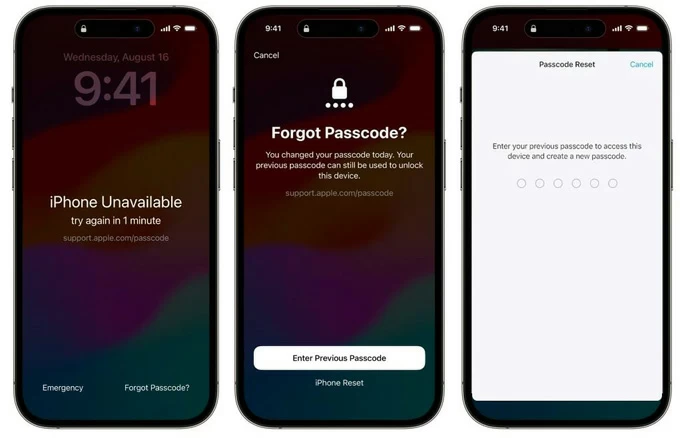
There is one important exception: if you changed your passcode in the past 72 hours and still remember the previous one, iOS 17 and newer can let you use the old passcode to create a new one and bypass the unavailable screen without resetting iPhone. This is also the only way for iPhone unlock without data loss when in iPhone Unavailable status.
A factory reset can help effectively erasing unavailable iPhone and removing the forgotten passcode, but many of users concerned about if there's any solution to unlock iPhone without losing data.
Unfortunately, resetting an iPhone to unlock unavailable screen without knowing the passcode doesn't magically preserve data that wasn't backed up. This means that you can only get data from unavailable iPhone by restoring a previously-made iCloud or computer backup after the reset.
When your iPhone is unavailable and you forget the passcode, you can use the built-in reset feature to wipe your locked device directly from the lock screen without connecting to a PC or Mac. In iOS 17 and newer versions, this may appear as "Forgot Passcode?". In iOS 15.2 - iOS 16, you may see "Erase iPhone" instead.
For the reset to work, your iPhone needs to be connected to an active cellular or Wi-Fi network, you know your Apple Account credentials linked to the device, as well as Find My is enabled. Here's how to unlock an unavailable iOS device without passcode and restore access to the device without computer, iTunes, Finder or third-party tool.
Reset unavailable iPhone without passcode or computer for iOS 17 or higher
The process is exactly the same if you see "Erase iPhone" option after a few failed passcode attempts. To reset and unlock iPhone via Apple ID:
1. Tap Forgot Passcocde? option at the lower right corner of the iPhone Unavailable screen.
2. Choose Start iPhone Reset button to ensure that you want to erase your iPhone.
4. Input your Apple Account password when requested.
5. Tap Erase iPhone to get your iPhone to start resetting and removing the forgotten passcode.
6. Wait for the reset to finish.
7. Go through the normal setup process and restore a backup if one is available.
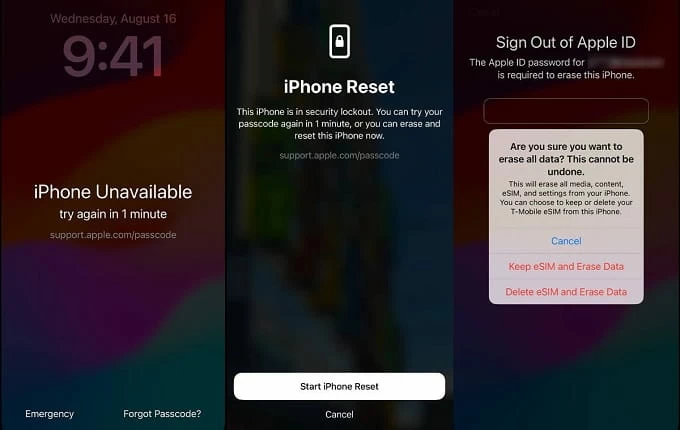
What if there is no Forgot Passcode or Erase iPhone option? Move on to use a computer to trigger the reset and have your unavailable iPhone unlocked if the passcode was forgotten.
Apple provides its own computer-based reset method, but it sometimes fails. For users experiencing issues with iTunes error codes, or stuck at recovery mode screen, desktop software like Appgeeker iPhone Unlocker simplifies the process to unlock iPhone without passcode when it's unavailable or locked.
Whether you forgot iPhone passcode, or your device is locked with iPhone Unavailable or Security Lockout alert due to too many wrong passcode attempts being made, this dedicated iPhone unlocking utility works by resetting the iOS device even without Apple ID and erase the screen locks including 4-digits or 6-digits passcode, Face ID and Touch ID, with a good result that you're able to get into the unavailable iPhone without security restrictions.
Likewise, this method doesn't retain current data, but it helps you effortlessly unlock an unavailable iPhone if you don't remember the device's passcode and Apple Account password.
Step 1. Launch Appgeeker iPhone Unlocker > Click Unlock iOS Screen
Once you open the program from your PC or Mac and choose Unlock iOS Screen mode.
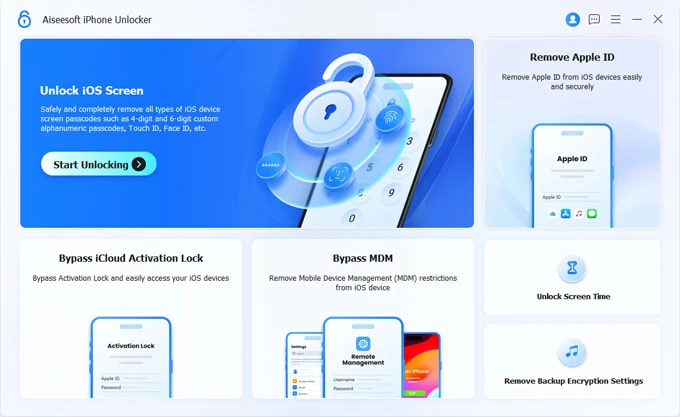
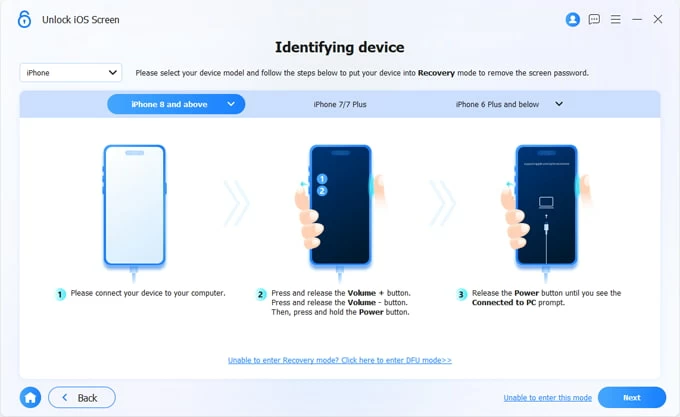
Step 2. Connect your iPhone to computer > Place iPhone into recovery mode
Use a lightning cable to plug your unavailable iPhone to your computer. Make sure it's connected successfully.
If it can't be detected, follow the on-screen wizard to boot it into Recovery Mode.
Step 3. Confirm your iPhone information > Click Start Now to download iOS firmware
When iPhone enters recovery mode, check the device info, and click on Start Now button to move on.
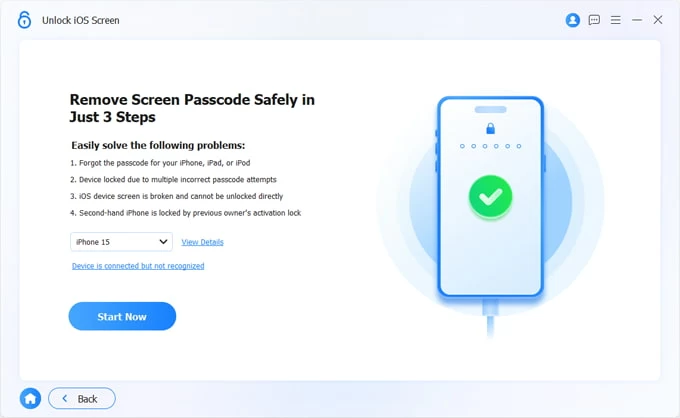
Wait for a couple of minutes to let iPhone Unlocker utility download the iOS firmware for your phone and get ready for the full restore process.
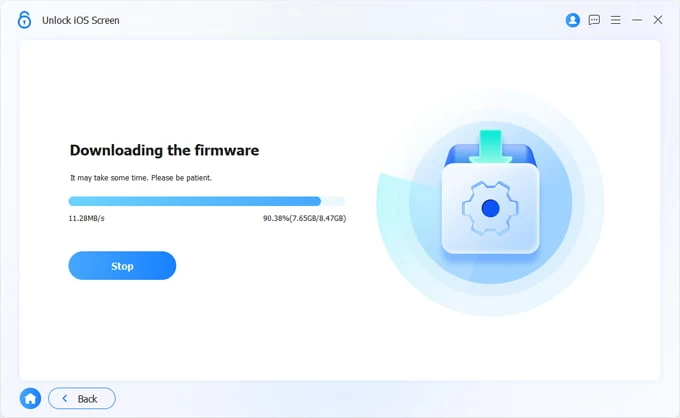
Step 4. Confirm to unlock unavailable iPhone passcode
A dialog window opens. Press OK button to confirm that you really need to restore your unavailable iPhone to factory settings without struggling to remember the passcode lock.
Hit Confirm Again to kick off the passcode removal process.
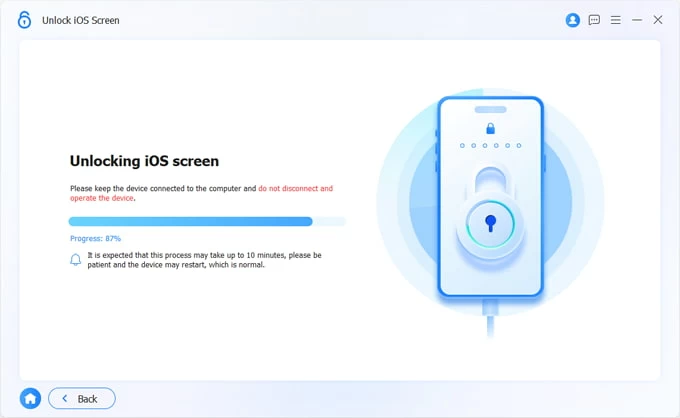
When done, iPhone restarts. You're guided through the standard setup process including the part of setting a new passcode and restoring a previous backup to get your data back.
[Don't Miss: How to transfer photos from Windows PC to iPhone seamlessly]
When you've forgotten your iPhone passcode and can't reset the device from the Lock Screen, Apple suggests you using a computer to put the unavailable iPhone into recovery mode and restoring it via iTunes, Finder or Apple Devices app. The process erases the iPhone and deletes everything including the passcode.
Follow these steps to unlock a forgotten passcode when iPhone is unavailable after entering the wrong passcode repeatedly and bypass the lock screen.
1- Power off the locked iPhone completely.
2- Connect a workable cable to your Mac or PC.
3- Then connect the cable to your iPhone while holding on a specific button until you see the recovery mode screen - an image of a computer and a cable.
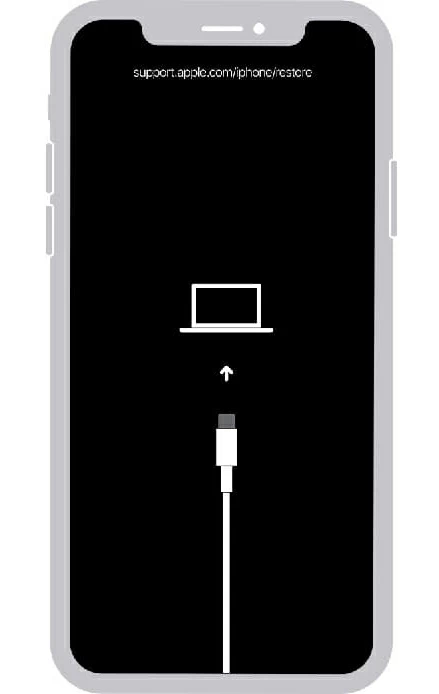
4- Now open Finder on your Mac; or open iTunes or Apple Devices from your Windows PC.
5- When you're asked to Update or Restore your iPhone, choose Restore to reset your unavailable device without a passcode.
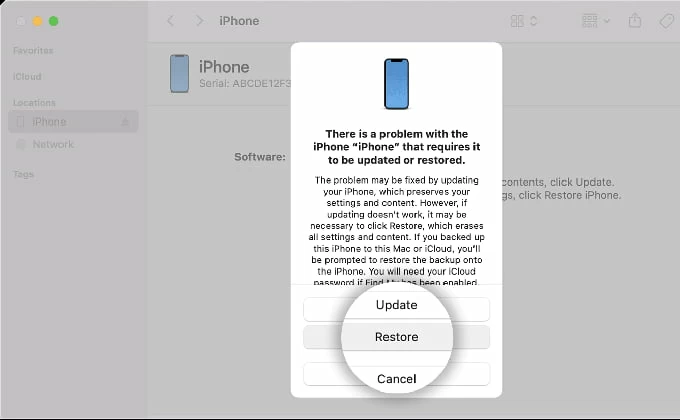
6- Your Mac or PC will download the latest version of iOS software for your iPhone. If the download takes more than 15 minutes and your phone gets out of the recovery mode, let the download complete, and then turn off your phone, re-enter recovery mode, and repeat the process to have your iPhone restored.
7- Once done, swipe up the Hello screen to get into your unavailable iPhone without the passcode, and set it up from an iCloud or iTunes backup you've created before lockout.
If your iPhone runs iOS 17 or later and you changed your lock screen code within the last 72 hours, Apple allows you to use your old passcode to bypass iPhone Unavailable without erasing your data and set up a new passcode to open the device again.
So, when you're locked out after recent passcode change, try Passcode Reset feature to unlock unavailable iPhone without needing to reset via computer or iTunes or Apple ID.
Q1- Can I unlock an unavailable iPhone without losing my data?
Usually not if you've completely forgotten the passcode to iPhone. Apple's encryption security requires erasing the phone to remove the lock code.
There's one major exception that makes it possible to unlock unavailable iPhone without passcode or data loss: Apple's Passcode Reset feature. It only works if you updated to iOS 17 or above, changed your passcode within the last 72 hours, and remember your previous passcode.
Q2- How to fix iPhone Unavailable screen without the passcode?
Unavailable iPhone can be unlocked without passcode if you do a factory reset to erase anything on the device. There're a few practical iPhone unlocking tools and ways to restore the unavailable iPhone if you forgot the passcode.
Q3- iPhone Unavailable. There's no option to unlock with passcode. How to fix?
If an iPhone shows 'iPhone Unavailable Try again in X minutes', it means that you're temporarily locked out. If you know your phone passcode, simply wait for the timer to expire, and then enter the code to unlock the unavailable iPhone.
However, if you iPhone Unavailable appears with no timer, it's likely that the wrong passcode has been entered ten times, and the device is locked out permanently. The only option to unlock it is to perform a factory reset to format the system and erase data together with passcode and unavailable screen. If you don't have any backup made before, anything will be lost and cannot be recovered.