
How to Fix iPhone Security Lockout


Learn the fastest way to access and open your iPhone videos from your Mac for viewing, editing, sharing or local backup - with or without importing.

If you want direct, flexible, and full control access to your iPhone videos on Mac, a dedicated solution like Appgeeker iPhone Data Transfer makes sense. It gives you true file-level access to any videos on your iPhone, allowing you to manage, view, and transfer iPhone videos to computer all in one stop.

Discover fast ways to help Mac users to access iPhone videos files and import them to the computer - with or without AirDrop.
If you record videos on your iPhone every day — from 4K family moments to slow-motion clips and screen recordings — you may eventually need to access those iPhone videos on your Mac. Whether it's for a better viewing experience, keeping a backup, freeing up storage, editing or making professional production, there're different ways to make your iPhone videos accessible on a Mac machine (iMac, MacBook Air/ Pro), and the process is pretty simple.
In this in-depth guide, you'll learn how to access iPhone videos on Mac via wired or wireless solutions, ensuring instant viewing of your iPhone videos on macOS of all versions.
Table of Contents
Accessing a video on iPhone from Mac doesn't always mean "transferring" it back to the computer. Depending on your goal—editing, viewing, or archiving—different tools serve different needs.
iCloud Photos
With iCloud Photos enabled, your iPhone uploads entire media library to the cloud and your Mac's Photos app can automatically see your iPhone videos, and lets you download them wirelessly for local access if needed.
Photos app
The built-in Photos app on the Mac computer includes the ability to access your iPhone videos and import them via a USB cable connection.
Appgeeker iPhone Data Transfer
By connecting the iPhone to Mac via data cable, this third-party tool facilitates direct access to your videos in iPhone's Camera Roll or Videos app for seamless viewing or management, and offers means to export the video(s) to your Mac folder.
AirDrop
AirDrop enables wireless file sharing between Apple Devices, allowing you to access your iPhone videos from Mac machine without a cable. This method may stall with very large video files or more than 100 videos at once.
iCloud Drive
iCloud Drive lets you upload individual iPhone videos or video folder directly from Files app and download them to Mac for full access.
Image Capture
Image Capture on Mac works with a wired connection, making it easy to access and view the videos stored within your iPhone. You can also export the files to any folder of your computer or to a connected external drive.
Let's break down each tool below so you don't need to worry about how to access your iPhone videos on the Mac, iMac, MacBook Air, MacBook Pro, including all videos saved in Photos app, as well as downloaded TV shows, music videos in Apple TV app, and more. You will also figure out the solutions to access videos on your Mac from someone else's iPhone.
By using a data cable to build the connection, accessing your videos on the iPhone from any Mac is a simple task - especially you have a large 4K video or don't want to pay for iCloud storage. Official tools like Photos, Image Capture, as well as third-party file management tool can help you viewing your device's video clips on the computer without requiring a network or stalling by the internet speed.
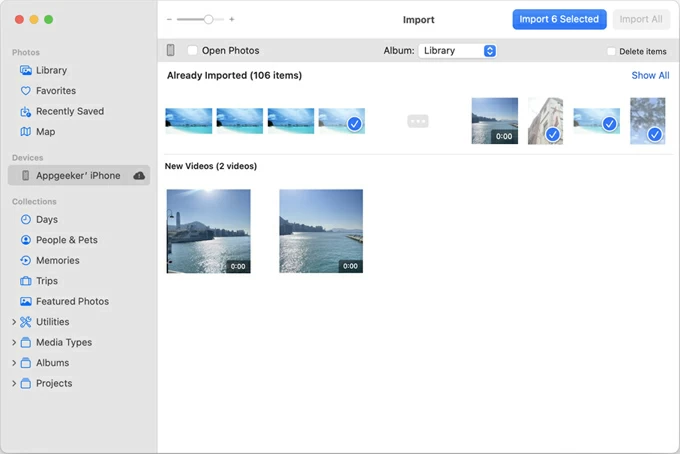
The Photos app on macOS is the most robust way to access iPhone videos with a physical connection. This native service allows you to view your videos coming from an iPhone and import them to Mac's Photo Library effortlessly.
The catch is that, Photos app only provides access to the videos in iPhone's Cameral Roll. Once ready, do the following to get to your iPhone video library and locate the videos you want.
1- Plug your iPhone into your Mac using a USB-C or Lightning cable.
2- On Mac, launch Photos app.
3- Click [your iPhone] under Devices from the sidebar. The iPhone library of photos and videos are accessible now.
4- Preview the videos, and for future access on Mac's inbuilt Photos app, you can select the specific videos, and click Import button at the upper right corner.
You can also take advantage of the native Image Capture - another cable-based transfer tool - to access iPhone video clips from Mac. Unlike Photos that restricts video access inside the app, Image Capture allows you to view and export the videos to any location of the computer.
Also: What happens after 10 failed passcode attempts at unlocking iPhone
Whether you would like to access your iPhone video files from Mac or Windows computer, the reliable Appgeeker iPhone Data Transfer comes in handy. This comprehensive software features with user-friendly interface to let you manage, view and transfer videos between iOS and macOS without quality loss or compression, enabling a full control and faster access to your iPhone photos on Mac machines.
It supports various types of videos on the iPhone to be viewable on Mac without syncing, facilitating an instant access to Camera videos in HEVC (H.265)/MOV or H.264/MP4, or M4V, Slo-mo videos, screen recordings, downloaded or app-generated video files inside Photos app, and to Movies, TV shows and more in Videos app. You can either simply take a look at the iPhone videos directly on the software interface without exporting, or copy the videos files onto Mac for local access.
Compatible with all iPhone and Mac models and OS versions, use these simple steps to simplify iPhone video access from Mac through a cable.
Step 1. Run Appgeeker iPhone Data Transfer utility on your Mac computer.
Step 2. Attach your device to the computer via the charging cable.
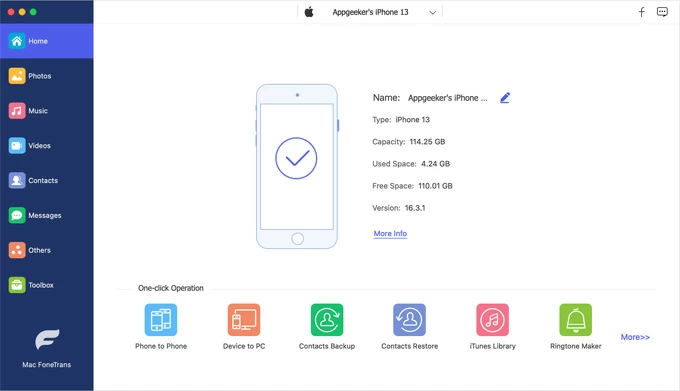
Step 3. Once recognized, access your videos in iPhone's Photos app or Videos app.
If your videos are stored in your iOS Photo Library or Camera Roll, click Photos tab on the left sidebar.
If your videos (e.g. movies, TV shows, Home videos, music videos, etc.) are kept in Videos app, click Videos tab instead from the left column.
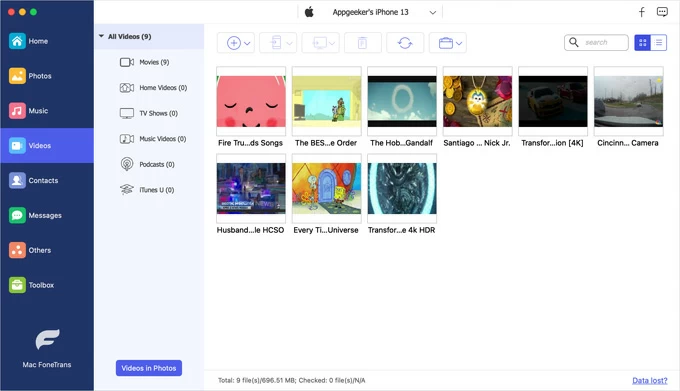
Step 4. Transfer raw videos from iPhone for direct access on Mac. You can move the files individually or in bulk.
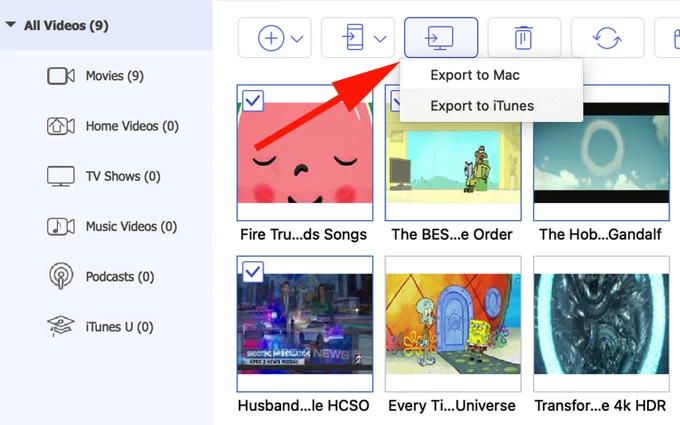
Choose the videos you need, hit the Export to Mac icon at the toolbar, and then designate any folder to get all your videos to copy over to your computer at once.
The above wizard via Appgeeker iPhone Data Transfer also works for accessing someone's iPhone videos on your Mac—if permitted to share with you, and accessing iPhone photos on a Windows PC.
If you don't have a cable nearby or prefer wireless methods, your videos on your iPhone are still accessible on your Mac. Apple includes several tools to move the videos from iPhone straight to the Mac so you can view the video files across the platform hassle-free.
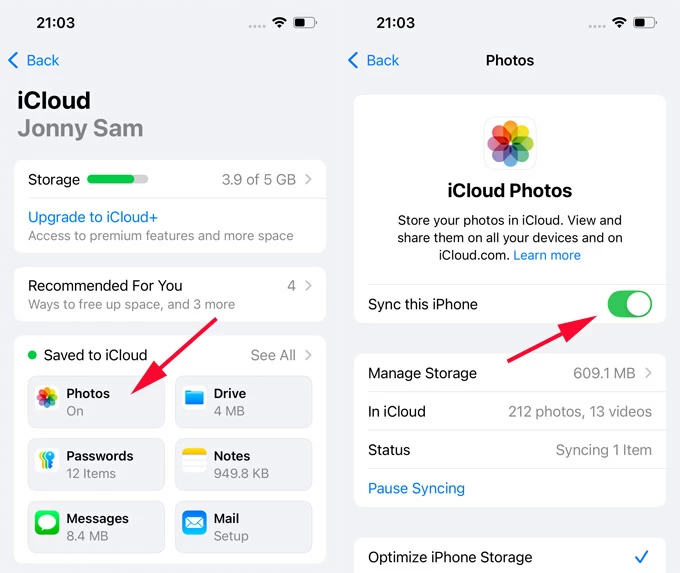
iCloud Photos is the easiest way to gives you real-time access to the iPhone videos from Mac computer wirelessly. As an Apple cloud-based service, iCloud Photos bypasses the need to manually import the video from one device to another, and instead, it automatically syncs your original photos and videos across devices and keeps them up to date, so you can watch iPhone videos on your Mac or any other Apple device associated to the same Apple account.
Make sure that you have enough space in iCloud and a strong Wi-Fi network. Then, follow these steps to see and access iPhone video collection from a Mac by enabling iCloud Photos on both devices.
On iPhone: Settings > [your name] > iCloud > Photos, and turn on Sync this iPhone.
On Mac: Apple menu > System Settings (or Preferences) > Apple ID > iCloud > Photos, and then switch on Sync this Mac.
Wait for the synchronization to complete - the process will take a few minutes or even an hour if you have large library. Once synced, you iPhone videos will appear inside Photos app on Mac.
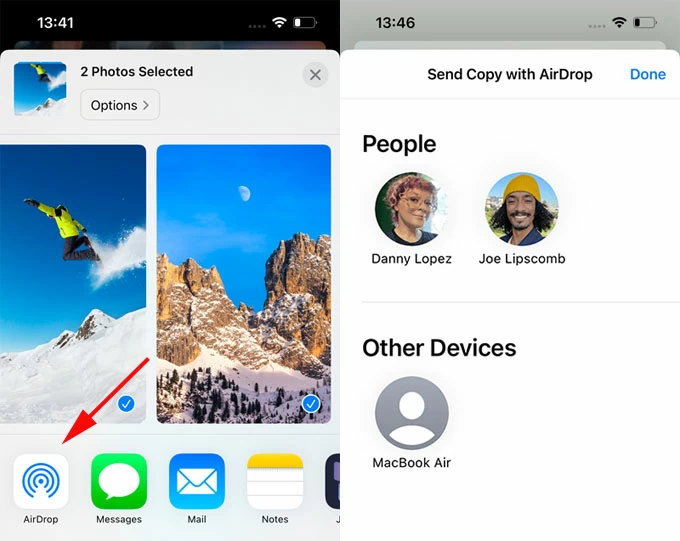
If you only need access to a few clips with original quality, AirDrop is your best bet. It's Apple's built-in wireless file-sharing feature that lets you instantly transfer videos (and other files) between your iPhone and Mac without cables, apps, or internet uploads.
Simply put the two devices nearby, locate your desired video file(s) - whether it's in Photos app, Files app or Videos app, and then trigger the AirDrop to share the videos wirelessly before accessing or watching with your Mac.
Related: Where do AirDrop files go on iPhone, iPad or Mac
Without having to sync the whole large Photos library to access your iPhone videos on the Mac, iCloud Drive offers a convenient option to upload a single video or some of videos to its server, letting you to access them online through iCloud website, and then download them onto Mac for viewing offline or archiving.
If the video file is large than the 5GB of free storage, you have to upgrade to iCloud+. Using iCloud Drive to access and get videos from an iPhone to a Mac device is a breeze. Here's how.
1. Enable iCloud Drive on iPhone and Mac.
On iPhone: Go to Settings > [your name] > iCloud, then under Saved to iCloud section, tap Drive, and toggle on Sync this iPhone.
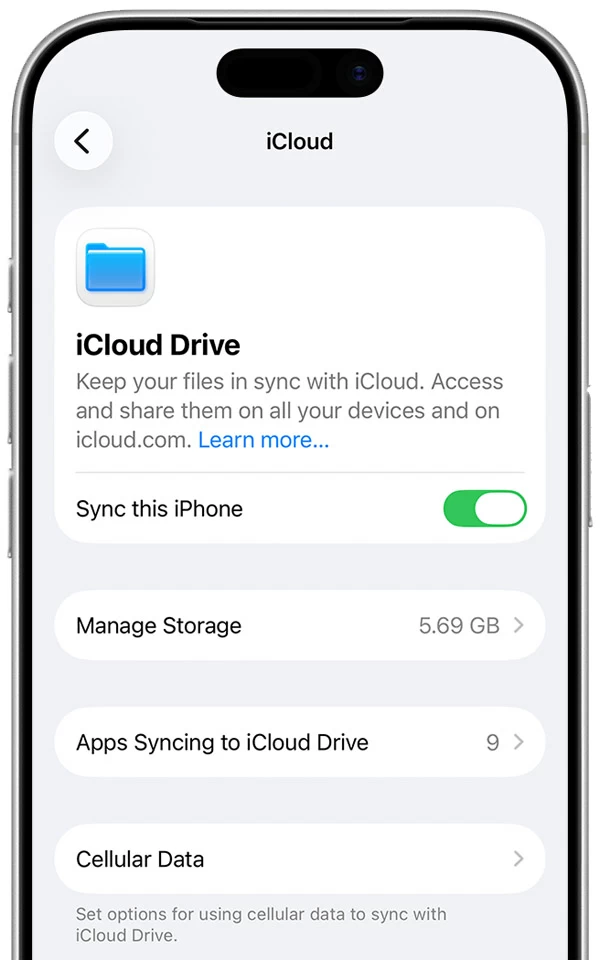
On Mac: Log into iCloud with the same Apple Account used on the iPhone. Go to System Settings > Apple ID > iCloud. Under Saved to iCloud section, click Drive, and then turn on Sync this Mac.
2. Upload iPhone videos to iCloud Drive.
Open Photos app, navigate to the video you need, tap Share. From the options menu, choose Save to Files, and select iCloud Drive as the destination. Now, your videos are automatically available on iCloud Drive and can be accessed in your Mac.
3. Access iPhone videos from iCloud Drive on Mac.
Open Finder on your computer. From the left sidebar, click iCloud Drive to browse through your video files you just uploaded from your iPhone. From there, you can organize, delete, open the videos directly from your Mac; or drag the videos to anywhere of your choice.
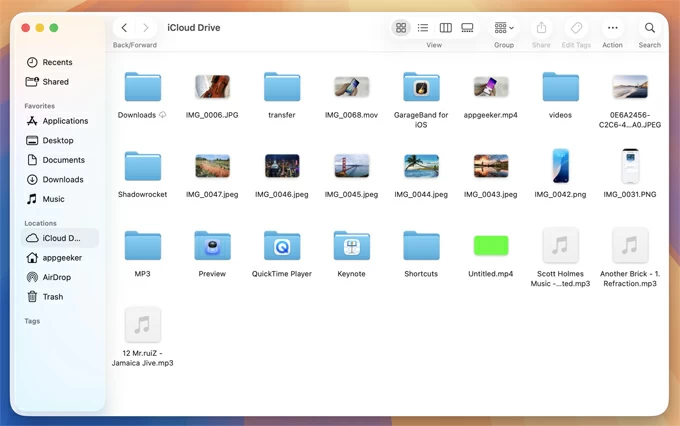
Alternatively, you can sign in to icloud.com for web access of your iPhone videos on your macOS computer. For a local archive or easy management, just enable the wireless video transfer from iPhone to Mac by downloading them back to a local folder.
In the event that you meet some unexpected issues with accessing videos on the iPhone from your Mac, here're the troubleshooting tips.
Videos are blurry on Mac
If you're using iCloud Photos to sync videos on iPhone with Mac and have Optimize Mac Storage enabled in macOS Settings, you would get a lower-resolution version of videos after importing to Mac.
To view your videos in full resolution, open Photos app, choose Photos > Settings > iCloud, and then click Download Originals to This Mac.
File format compatibility issue: HEVC vs H.264
Modern iPhones record in HEVC (High Efficiency Video Coding) to save space. If your Mac struggles with playback, you need to update macOS to it latest version, or set your iPhone to record the videos in Most Compatible mode (H.264) in Settings > Camera > Formats.
Videos won't transfer from iPhone to Mac
No enough storage, HEVC compatibility or corrupt file can cause moving videos from iPhone to Mac to fail. So, make sure that your video files are available, as well as that your Mac has sufficient storage and HEVC support before you can access your iPhone video from Mac.
Transfer is extremely slow
Large 4K HDR videos can be massive. If you need physical access to a large video on the iPhone from macOS computer, simply use USB transfer with direct file export like Mac's Photos app and Appgeeker iPhone Data Transfer software instead of wireless options.
Other fixes like avoiding background syncing, and closing heaving apps can make transferring videos that are on iPhone to view them on Mac as fast as possible.
1. Can I access iPhone videos on Mac without importing?
Yes. Mac's official Photos app, Image Capture and Appgeeker iPhone Data Transfer utilize a USB connection to let you directly access the iPhone memory and see the videos without transferring.
2. How can I access entire library with photos and videos on iPhone from Mac?
You can enable iCloud Photos for a full synchronization of your entire media library over to iCloud, and access all videos from any of your Apple devices that are sharing the same Apple Account.
3. Does AirDrop reduce video quality when sending videos from iPhone to Mac?
No, Airdrop keeps the original quality of the videos when transferring.
4. Is iCloud good for getting 4K videos from iPhone to Mac?
No. It's time-consuming because iCloud Photos can only sync the entire library with all your photos and videos in Camera Roll, and 5 GB of the free storage fills up quickly until you upgrade your plan.
To transfer a single 4K video footage to quickly access on Mac, cable-based transfer remains the most reliable solution.




