
How to transfer pictures from iPhone to computer


First-timer to photos transfer from your iPhone 17 to laptop, or just need a handy path? Follow our ultimate step-by-step guide to back up your memories locally.

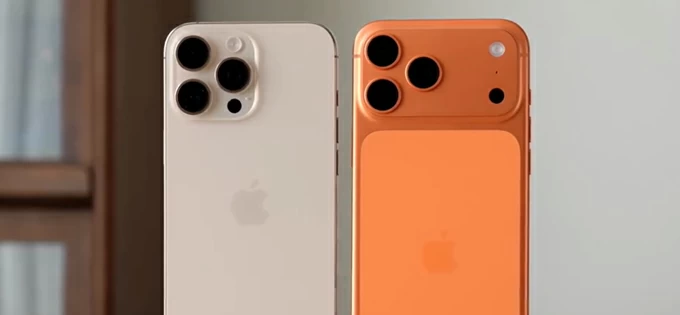
You can choose from a number of methods and tools to import your iPhone 17 pictures to a laptop.
There is no doubt that the iPhone 17 can captures image with stunning detail. However, at the same time, these high-quality files come with enormous file sizes, making it very easy to consume your phone's storage. Learning how to transfer photos from iPhone 17 to laptop is essential for keeping your device snappy and ensuring your memories are safely backed up.
In this guide, we'll explore the most efficient ways to manage your media, covering everything from traditional cable connections to seamless wireless syncs. If you need a reliable and simple method to move pictures from iPhone 17 to laptop, go with Appgeeker iPhone Data Transfer. It allows to transfer all media files (photos, music, videos) to and from iPhone, and offers a straightforward migration experience even for beginner.
Table of Contents
A local backup of your images provides several advantages, including:
1. You can keep a physical copy of your iPhone 17 picture on your laptop hard drive to ensure you have access to your media even without an internet connection.
2. If you are a professional photographer, it's much easier to edit large files, particularly ProRAW using desktop-grade software.
3. If you see "Storage Almost Full" message on the iPhone 17, It is often more cost-effective to backup photos to laptop than to continually pay for upgraded cloud storage tiers.
The most direct and reliable way to handle a large library is an iPhone 17 USB-C photo transfer. Since the iPhone 17 utilizes the universal USB-C standard, you can import your iPhone 17 pictures to laptop in a high speed by using a compatible cable.
Please ensure there is enough free storage on your laptop's hard drive to store those files.
How to move photos from an iPhone 17 to a laptop Windows:
1. Connect iPhone 17 to Windows laptop for photos using a high-quality USB-C cable
2. Tap Trust if you see a prompt on the phone. Then unlock it with passcode.
3. Open the Photos app on your Windows laptop. The preinstalled Photos app is the most streamlined tool in Windows for iPhone 17 to laptop photo transfer.
4. Select Import > From a connected device. Wait for it to scan your iPhone 17 for media.
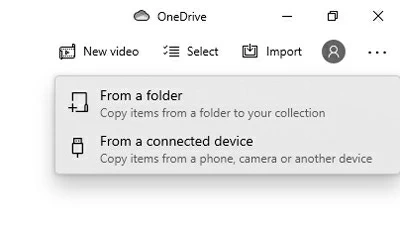
5. After your pictures are loaded, select the ones you want to store in laptop.
6. Choose your destination folder and click Import.
The iPhone 17 introduces even more complex file types, such as ProRAW and Spatial Video. These files are significantly larger than standard JPEGs. When you transfer iPhone 17 photos via cable, ensure your laptop has enough disk space to accommodate these multi-megabyte files.
See also: How to fix "Apple ID not valid or supported"
How to transfer photos from iPhone 17 to laptop Mac:
If you are using a MacBook, there is also a built-in Photos app or Image Capture to help import photos from iPhone 17 to laptop.
1. Connect your iPhone to MacBook and unlock it if prompted.
2. Launch Photos or Image Capture from Application folder.
3. Click on your device name in the sidebar.
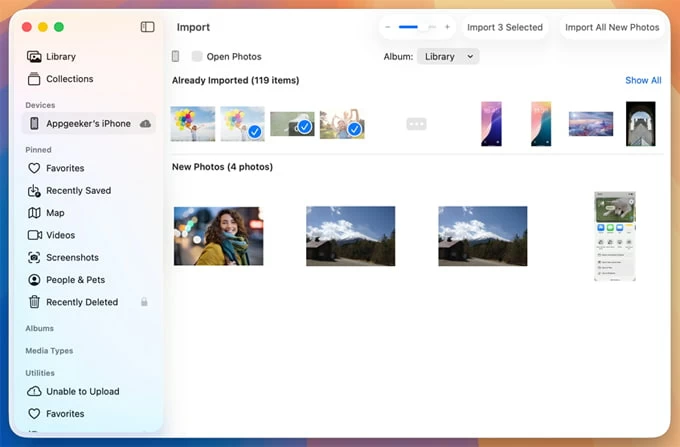
4. Select Import All New Photos in the upper right corner to download all pictures that are not saved on MacBook already.
5. Or, select specific images and click Import Selected.
You don't have to rely on pre-installed tools on the laptop to import your iPhone 17 pictures. There are several third-party file transfer tools available to choose from. To transfer iPhone 17 photos to laptop with cable, you can use app like Appgeeker iPhone Data Transfer. It features a very clean and friendly interface that allows users to easily transfer media files from iPhone to computer, and vice versa without computer skills.
Beyond simple file movement, the software includes a set of tools for device media library manage, custom ringtone creation, and personal info (messages, contacts, notes, etc.) backup.
Since Appgeeker iPhone Data Transfer runs locally and doesn't rely on cloud transfers, it's ideal for those who prefer keeping their data offline.
Here are the detailed steps to transfer your photos on iPhone 17 to laptop, regardless of what operating system, Mac or Windows.
Step 1: Initial connection and setup
Install the software on your laptop and launch it.
Use a high-quality USB-C cable to connect your iPhone 17 to the computer.

Step 2: Access the photos library
Once detected, click on the Photos icon in the sidebar.
Wait a moment for it to load your library. If you have a large library or use iCloud Photos with "Optimize Storage" turned on, it may take a few minutes to fetch the thumbnails.
Next, you can browse by media types (e.g., Live Photos, Videos, Bursts, Places) using the secondary sidebar.
Step 3: Select photos to save into laptop
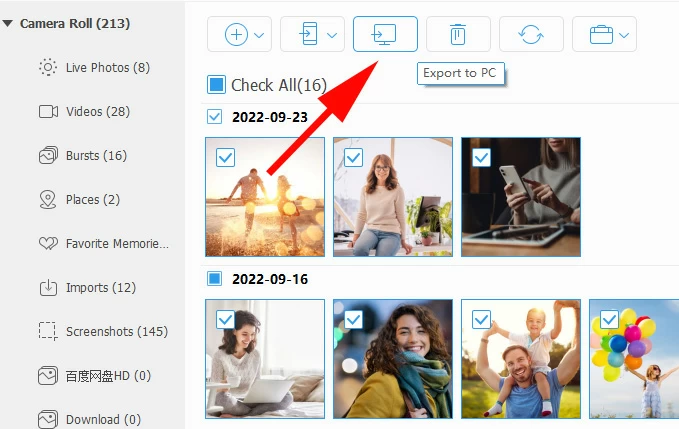
Check the boxes next to the specific photos you want to download.
Click the Export to PC (or Export to Mac) button located in the top toolbar. Select a folder on your laptop where you want the photos to be saved in the pop-up dialog.
For Mac users, you should see a similar interface above.
Tip: You can also right-click on a specific album to export all photos in it instantly.

See also: How to put music onto iPhone without iTunes
If you prefer a cable-free experience and have a laptop that's running macOS, AirDrop is ideal for moving photos from iPhone 17 to laptop (MacBook) through the sharing menu. Since both devices are in Apple ecosystem, you will get a very fast transfer experience.
Here is how to use AirDrop to perform a wireless photo transfer iPhone 17 to laptop:
1. Open the Photos app on your iPhone 17.
2. Select the images you want to send to laptop.
3. Tap the Share icon and select AirDrop.
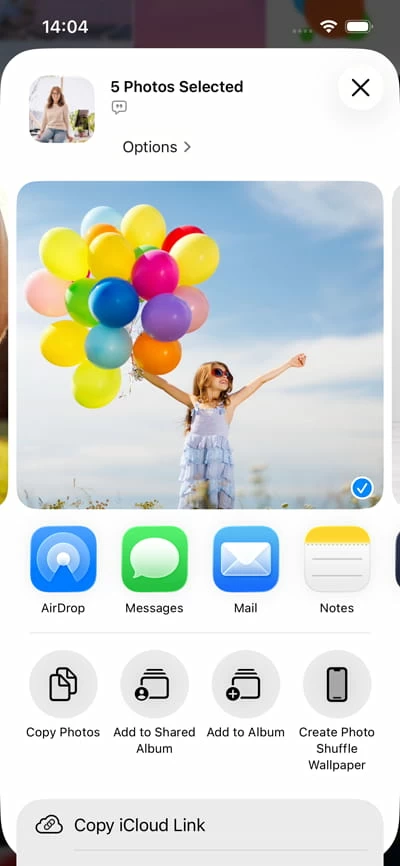
4. Choose your laptop from the list of available devices.
You will see the photos in your Downloads folder instantly.
See also: Forgot iPad passcode
Apple also enables users to iCloud photo sync iPhone 17 to laptop. This method ensures that every photo you take is automatically accessible on your laptop.
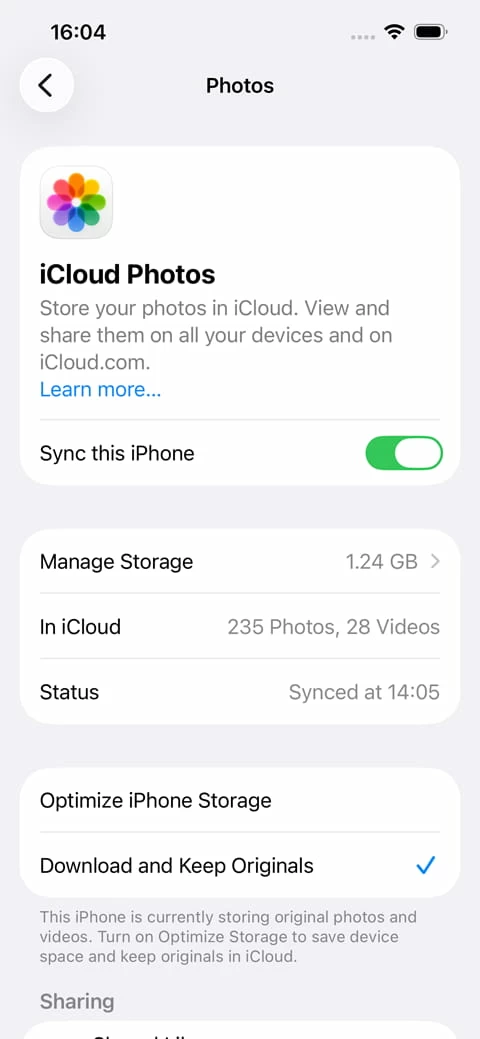
1. On your iPhone, go to Settings > [Your Name] > iCloud > Photos, toggle on Sync This iPhone.
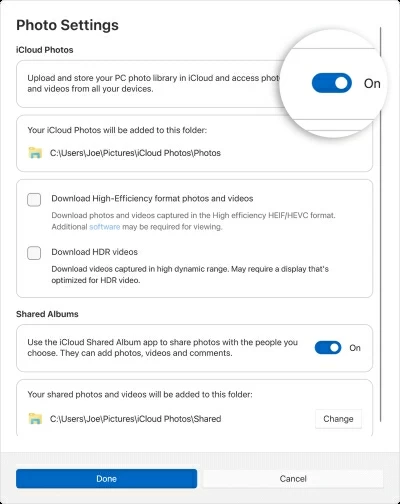
2. On your laptop, download iCloud for Windows from Microsoft Store.
3. Sign in with the same Apple ID and check Photos box, then enable iCloud Photos option.
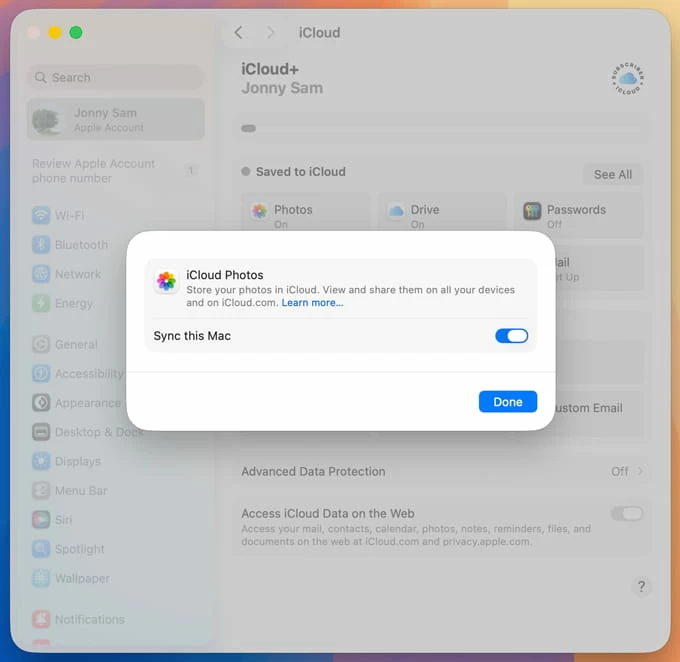
For Mac, go to System Settings and click Photos in the Saved to iCloud heading. Then turn on Sync This Mac option.
5. Your media will automatically sync, allowing you to transfer pictures from iPhone 17 to laptop in the background.
See also: How to recover deleted iMessages on iPhone
Mastering the iPhone 17 transfer to laptop is about finding the balance between speed and convenience. If you're transferring a large number of photos, a physical cable remains the most robust choice, such as Photos app or the reputable Appgeeker iPhone Data Transfer app. For importing a few specific pictures from an iPhone 17, AirDrop offers a seamless experience in Mac laptop. For day-to-day convenience, Apple's iCloud sync offers wireless access if you have sufficient cloud storage available.
By following these steps, you can ensure your iPhone 17 remains clutter-free while your photos are preserved on your laptop safely.
Is iCloud the best way to backup iPhone 17 photos to a laptop?
It is the most convenient way to backup iPhone 17 photos to laptop automatically. However, if you have a very large library, you may need to pay for extra iCloud storage, whereas a cable transfer to your laptop's hard drive is free.
Does transferring photos via AirDrop reduce the image quality?
No, when you AirDrop iPhone 17 photos to laptop, they are sent in their original resolution and format.
Why are my iPhone 17 photos not showing up on my laptop after connecting?
This often happens if you haven't "Trusted" the computer on your iPhone screen or if you are using a charge-only cable.
How do I transfer photos from my iPhone 17 to my laptop using a cable?
You can use the Photos app that's pre-installed in your Windows or macOS based laptop to import your iPhone 17 photos and videos, or use a dedicated file transfer tool like Appgeeker iPhone Data Transfer.




