How to See Blocked Messages on iPhone


This article focuses on iPad-to-iPhone data transfer needs, listing multiple methods to help you move data from iPad to iPhone, whether you have a data cable or not.

With professional Appgeeker iPhone Data Transfer tool, you can batch transfer data from your iPad to an iPhone quickly without the need to reset your device.
In short, transferring data from iPad to iPhone is a migration strategy, not just a drag-and-drop operation.
Although iPad and iPhone share the same Apple ecosystem, transferring data from an iPad to an iPhone goes far beyond simple file copying. It involves reconstructing your entire personalized environment—including app preferences, messages, health data, home screen layouts, and even subtle accessibility adjustments—while avoiding data loss, missing items, or prolonged downtime.
There are several methods to transfer data from your iPad to your iPhone, but the key is choosing the best way to make sure your data migrates securely and completely without unexpected loss. This article will guide you on how to transfer data from iPad to iPhone, divided into wireless methods and wired methods, giving you more options.
Whether you're upgrading to the latest iPhone or simply switching usage habits between your iPad and iPhone, these techniques ensure a safe and seamless transition of your data from iPad to iPhone for your immediate use.
Table of Contents
Before you begin moving data from your iPad to your iPhone, make the following preparations to ensure a smooth transfer process:
For WhatsApp data transfer, you can refer to how to transfer WhatsApp to new iPhone.
For transferring large data files or complete databases from an iPad to an iPhone, a wired physical connection offers greater stability and gives you more control over the process.
By using a Windows PC or Mac as a temporary staging area, you can create a local backup of your iPad data and then restore it to your iPhone. This allows you to fully transfer all data from your iPad to your iPhone—including your personalized environment (settings, layouts, apps) and media files. It enables you to transfer data offline, with no reliance on internet connectivity or cloud services.
To transfer iPad data to iPhone for free via a computer, you need an intermediary tool:
macOS Catalina or later - Use Finder
Windows - Use iTunes or the Apple Devices app
1. Use the appropriate data cable to plug your iPad into your computer.
2. Open Finder (Mac) or iTunes / Apple Devices app (Windows).
3. Select your device. If prompted, tap Trust on your iPad.
4. Click Back Up Now and enable Encrypt local backup to fully save all data, including sensitive information like health data and passwords.
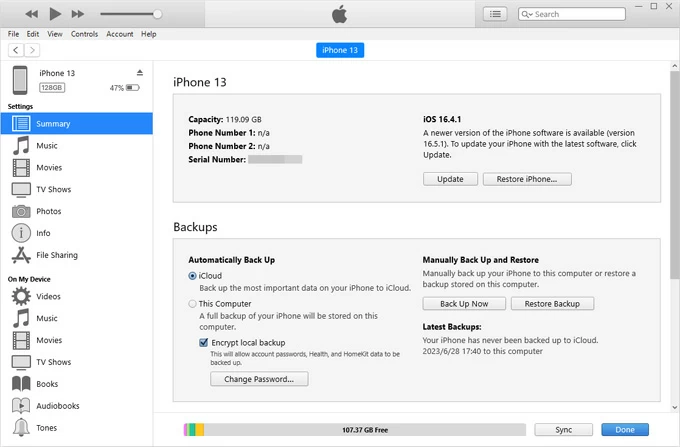
5. Once the backup is complete, disconnect your iPad and connect your iPhone.
6. Open the same interface in Finder, iTunes, or the Apple Devices app. In the Summary/General view, select Restore Backup.
7. Choose the iPad backup file you just created, click Restore, and enter your encryption password. This will begin the process of replicating your iPad data onto your iPhone.
Your iPhone will display the Restoring screen. Do not disconnect the cable until your iPhone restarts and the computer indicates that the restore process is complete.
Note:
If you want to transfer your iPad data without the cost of resetting your iPhone—especially if your iPhone is new and already activated—Appgeeker iPhone Data Transfer software is your best alternative for moving your data from iPad to iPhone.
This software supports direct data migration between iPad and iPhone without erasing everything on the target iPhone. It allows you to preview, selectively choose, and transfer specific categories of data while keeping all existing content on your iPhone completely intact. With excellent handling of large databases, iPhone Data Transfer can effortlessly get your iPad's data onto your iPhone.
Supported data types:
1. Connect both your iPhone and iPad to your computer using compatible data cables.
2. Launch the program, and from the dropdown menu at the top of the main interface, select your iPad as the source device.
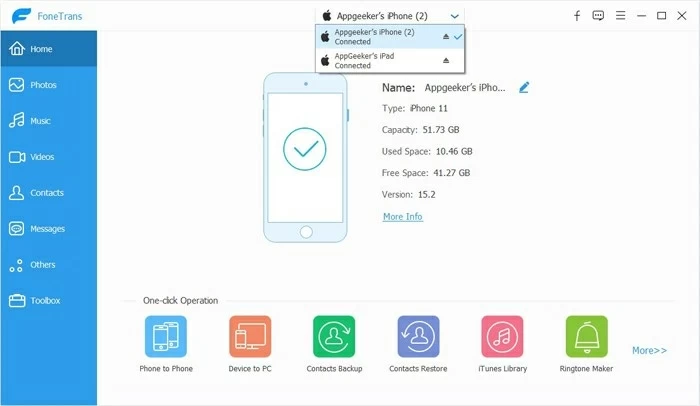
3. Your iPad's data will be organized into different categories, such as Photos, Music, Videos, Contacts, Messages, and more. Navigate to the specific data type tab you wish to transfer.
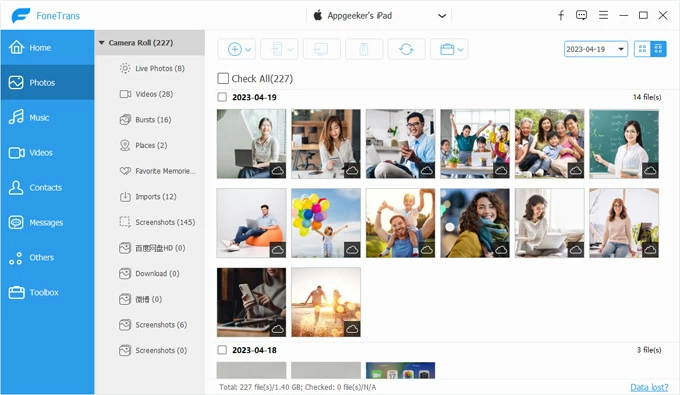
4. Select the individual data items you want to move, then click the device icon [Export to Device] on the taskbar and choose your iPhone as the target device.
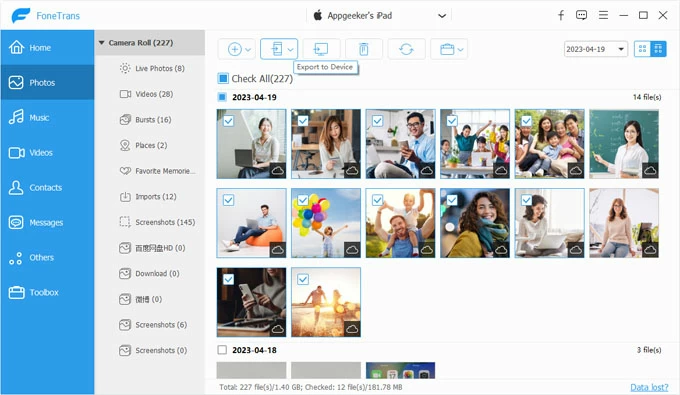
Once confirmed, the transfer will begin, with a dynamic progress bar clearly displaying each stage of the process. After the transfer is done, you will be able to access and retrieve your iPad data directly on your iPhone. You can also use it to transfer photos from iPhone to PC.
Wireless data transfer from iPad to iPhone prioritizes flexibility. No cables required, no dependence on a computer—just a seamless operation across devices within the Apple ecosystem.
Quick Start is Apple's intuitive setup wizard designed for new devices. If you have a brand-new, unactivated iPhone and want to migrate data from your iPad, Quick Start is one of the most convenient methods.
This process can reconstruct your iPad's entire environment on the iPhone. But note that this feature only works during the initial setup phase of an iPhone. If your iPhone has already been set up and configured, you will need to erase your iPhone to its factory state first.
Additionally, to use Quick Start to transfer data from an iPad to an iPhone, you must place both devices close to each other, ensure they are connected to Wi-Fi, and have Bluetooth turned on.
1. Activate your new or erased iPhone and place it next to your unlocked iPad.
2. Follow the on-screen instructions on your iPhone to set your language and region until you reach the "Quickly Set Up iPhone" step.
3. A "Set Up New iPhone" prompt will pop up on your iPad. Tap Continue and complete the Face ID authentication or enter your lock screen passcode.
4. An animation will appear on your iPhone. Use your iPad's camera to scan this animation to establish a secure connection.
5. On your iPad, select the Apple account you want to use to set up the iPhone, then enter your iPad's passcode on the iPhone as required.
6. Proceed with the on-screen setup until you come to the "Transfer Your Data" screen.
7. Choose the Transfer from iPad option to kick off the core migration. Both devices will then enter a dedicated transfer mode.
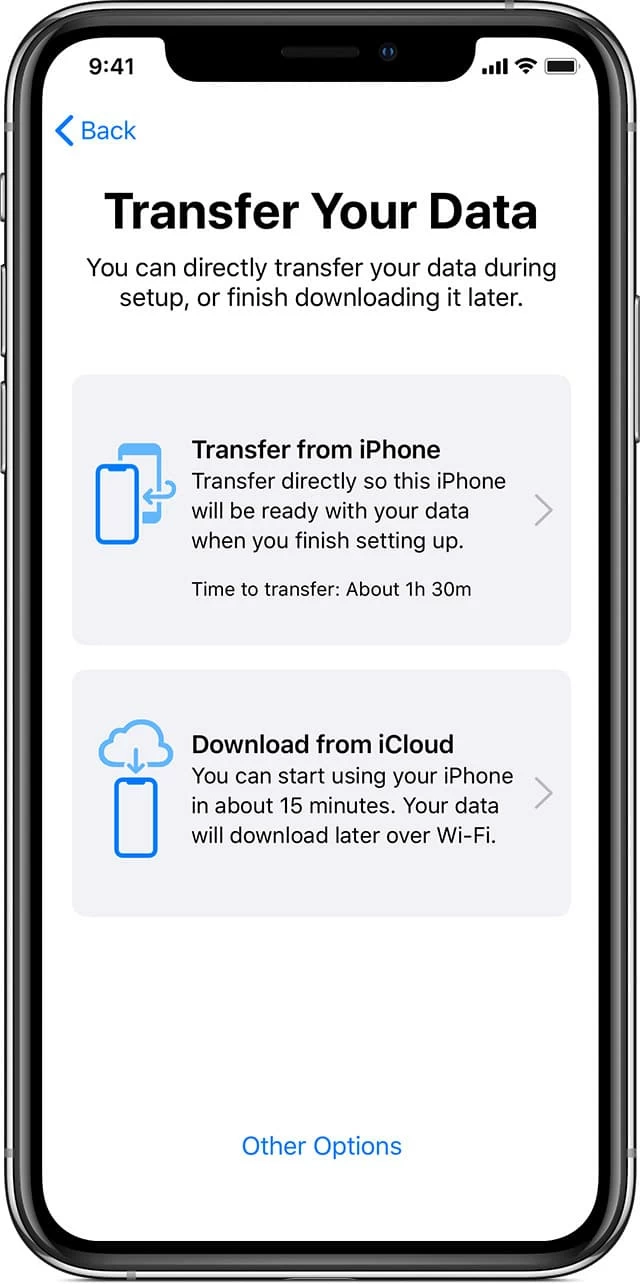
Keep both devices charging and within range. A progress bar will be displayed on the screens, transferring everything from your custom home screen layout to the deepest system settings.
If you have sufficient iCloud storage space, you can use iCloud Backup to transfer data from the iPad to an iPhone. iCloud Backup captures a structured snapshot of your iPad and stores it securely in the cloud. You can then restore that snapshot to your iPhone during setup. This method relies heavily on available iCloud storage capacity and a stable internet connection.
1. On your iPad, open the Settings app, tap [your name] > iCloud > iCloud Backup, and then tap Back Up Now to create the most recent data archive.
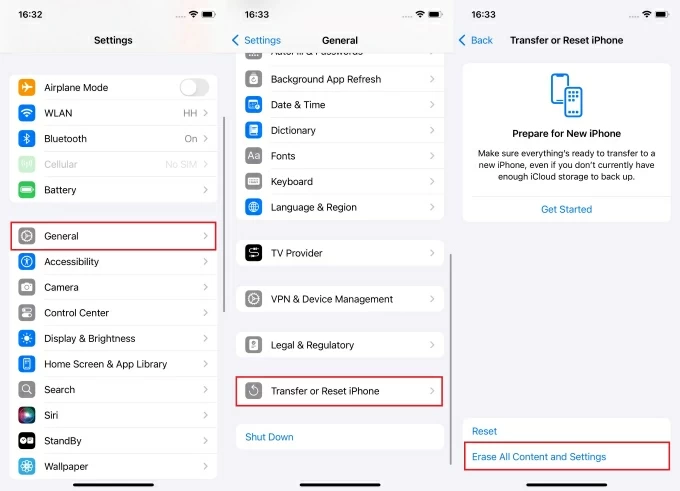
2. If you haven't yet reset your iPhone, go to Settings > General > Transfer or Reset iPhone > Erase All Content and Settings to restore it to factory settings.
3. Follow the guided steps on the Welcome screen until you reach the "Transfer Your Apps & Data" screen.
4. Select From iCloud Backup and sign in with the same Apple ID credentials you use on your iPad.
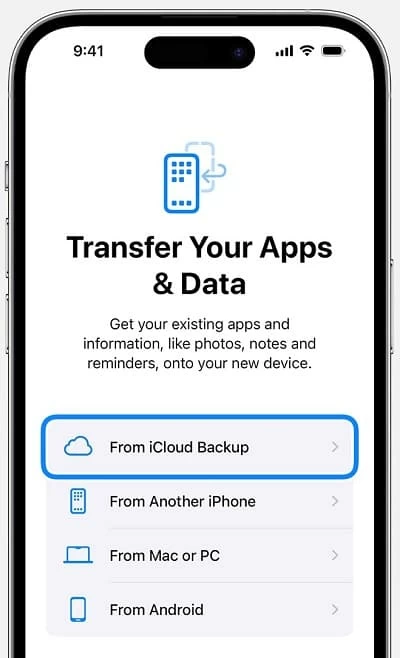
5. Pick the up-to-date backup from the list of available backups to begin the restoration process.
Note:
Tip: If you wish to avoid overwriting or losing current data on your iPhone, you should utilize the iCloud Sync feature instead of iCloud Backup to sync specific types of data from your iPad to your iPhone.
Also see: How to restore data from iPhone without backup
AirDrop is not designed for migrating an entire device's data. Instead, it facilitates rapid, peer-to-peer file sharing between nearby Apple devices. If you only need to send a small number of photos, documents, videos, contacts or other data from the iPad to the iPhone, this is the most efficient solution.
The distance limitation is critical: both devices must remain within Bluetooth range (approximately up to 30 feet), and Bluetooth and Wi-Fi must be turned on on both the iPad and iPhone.
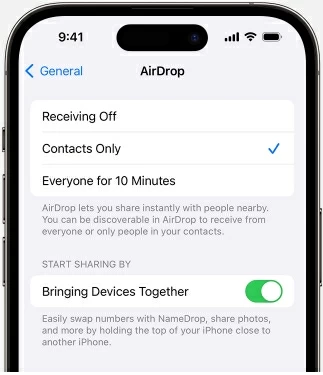
1. Navigate to Settings > General > AirDrop on both your iPhone and iPad, and select Everyone for 10 Minutes or Contacts Only on each device.
2. Locate and open the desired data files on your iPad, then tap the Share button.
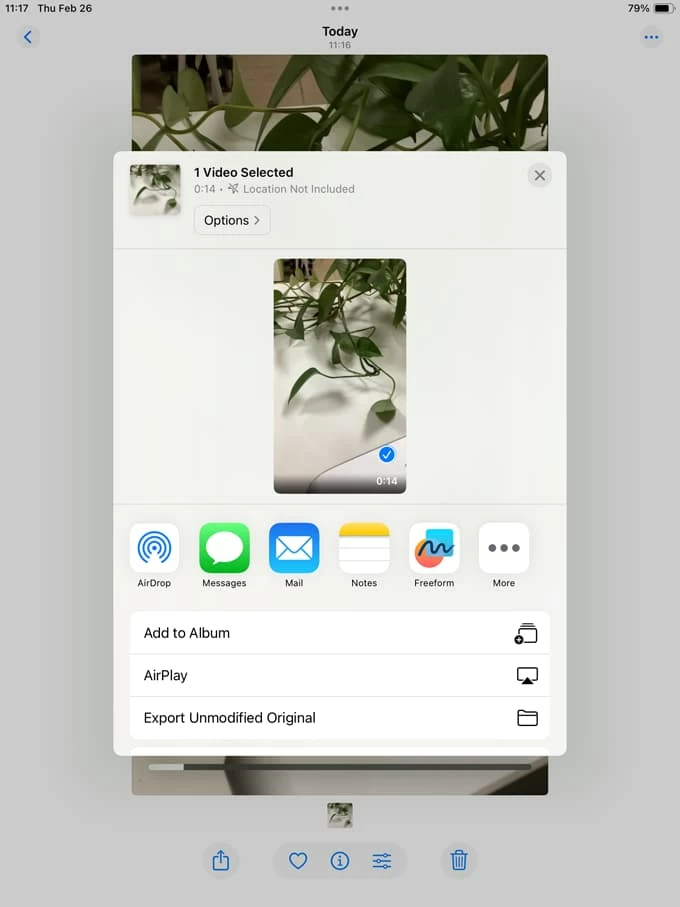
3. Select AirDrop, and then choose your iPhone from the list of available devices.
4. Accept the transfer on your iPhone, after which you can access the data transferred from your iPad within the corresponding apps.
Conclusion
Mastering the art of transferring data from an iPad to an iPhone—whether it is a complete clone of the entire device or the migration of specific data—can turn a tedious task into a seamless experience, ensuring your digital identity remains consistent as you switch between devices.
Whether you opt for the automation of Quick Start, the anytime-anywhere convenience of iCloud, the precision and flexibility of AirDrop, the stable speed of a wired computer backup, or the granular control offered by Appgeeker iPhone Data Transfer software, each method provides a tailored bridge across your devices to suit your specific needs.
1. Can I transfer data from iPad to iPhone without resetting my iPhone?
Yes, but only certain methods support this. Quick Start, iCloud Backup, and computer-based restore typically require erasing the iPhone first. If you want to keep your existing iPhone data, you can use Appgeeker iPhone Data Transfer tool for selective migration without a factory reset. Alternatively, use AirDrop or iCloud Sync to share certain data from iPad to iPhone.
2. What is the fastest way to transfer large data from iPad to iPhone?
For massive media libraries, a wired connection via computer or Appgeeker iPhone Data Transfer is generally faster and more stable than wireless methods. Wi-Fi-based transfers depend heavily on network speeds, and moving large volumes of data can take significantly longer over the air.
3. Can I transfer data from an old iPad to a new iPhone remotely?
Yes. iCloud Backup supports remote restoration. You can back up your iPad to iCloud and then restore that backup while setting up your new iPhone, even if the two devices are not in the same physical location.
4. What should I do if my iPhone runs out of storage during the transfer?
Insufficient space is a common obstacle, especially when dealing with large photo libraries or app data. Before starting the transfer, go to Settings > General > iPhone Storage to check your available capacity. You can free up space by offloading unused apps, deleting old messages/attachments, or removing temporary files.