8 Best Windows Password Recovery Tools


Deleting a Microsoft account in Windows 10 is not difficult. This article provides methods for deleting Microsoft account from Windows 10, whether or not you know the password.

With your Microsoft account credentials, you can easily delete the associated Microsoft account from Windows 10 PC/laptop.
You might need to sell or transfer your Windows 10 computer that's logged in with your Microsoft account to someone else, or perhaps you're no longer using that Microsoft account. In such cases, you'll need to delete the Microsoft account from your Windows 10 computer.
Deleting a Microsoft account in a Windows 10 is often considered a simple task. However, this view overlooks a crucial distinction that governs outcomes and consequences. This guide will clarify a fundamental conceptual fork: the critical difference between "disconnecting the account profile from the local operating system" and "permanently terminating your Microsoft global identity".
This article will cover the specific methods on how to delete Microsoft account in Windows 10, giving you complete control over your device. Additionally, if you've forgotten your Microsoft account password and are locked out of Windows 10, Appgeeker Windows Password Recovery tool can delete the locked Microsoft account from your Windows 10 without password.
Table of Contents
Deleting your Microsoft account from Windows 10 is not a single action, but rather a strategic choice between two distinct outcomes.
On one path, you remove the account's access and profile from your computer, thereby restoring local offline login. This severs the device's tether to Microsoft's cloud without erasing your broader digital identity.
On the other path, you close your Microsoft account forever—a global, irreversible termination of your email, services, and digital licenses across all connected device and service.
Confusing these two objectives is the primary cause of unexpected data loss and disruption. Before proceeding, one rule is absolute: safeguard your data. Back up files, note software licenses tied to your account, and disable syncing.
For most Windows 10 users, the safest way to delete a Microsoft account is not to erase it immediately, but to unlink it from Windows by switching to a local account. This method is particularly useful if you wish to unlock normal access to Windows without using a disk, reinstalling the system, or losing personal files. Instead of removing the user profile, Windows simply changes how you sign in.
This approach works entirely within Windows settings. After replacing your Microsoft account with a local account, your Windows 10 computer will subsequently not require the Microsoft account for login, effectively freeing Windows 10 from online account restrictions.
Step 1. Switch to a local account
1. Initiate the process by clicking the Start Menu, selecting the Settings, and then proceeding to Accounts > Your info. This panel is the central hub for identity management.
2. Locate and select Sign in with a local account instead.
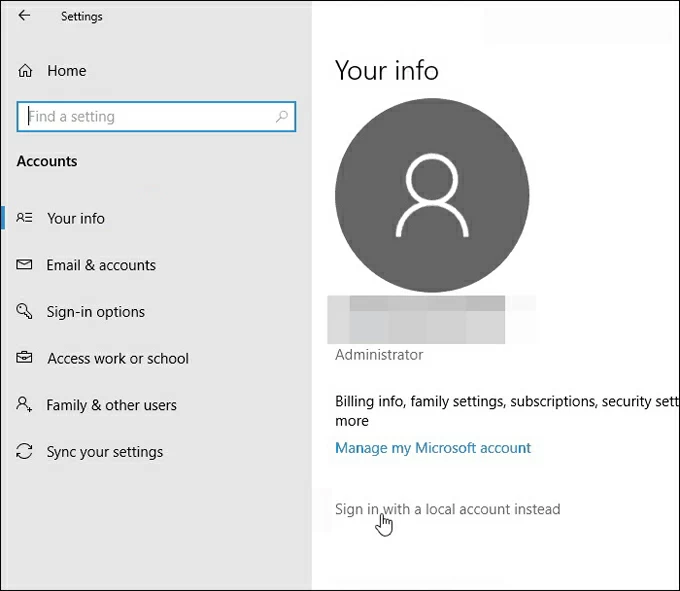
3. When asked, enter the current Microsoft account password or PIN to confirm identity.
4. You are guided to define the attributes of your new, self-governing local identity.
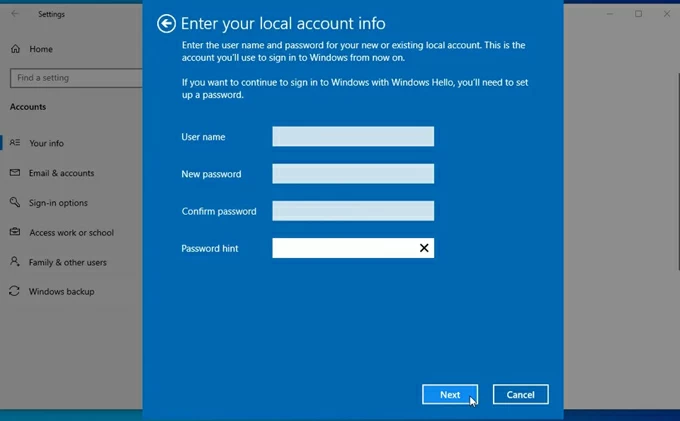
5. Click the Sign out and finish button.
Then you will sign out of your Windows 10 Microsoft account and be prompted to log back in using the newly created local account credentials, completing the de-linking process.
Step 2. Remove Microsoft account from Windows 10
The process is not over yet, as your Microsoft account information is still retained on your device. To clear the Microsoft account, you need to:
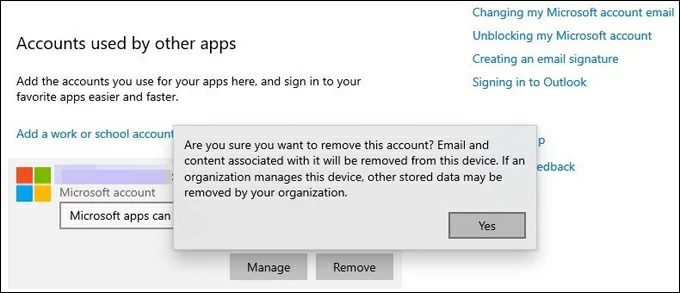
1. Open Stings app and go to Accounts > Email and accounts.
2. Locate your Microsoft account information and click the down arrow on the far right.
3. Select Remove and click OK to confirm.
Note:
Having the password makes deleting the account from Windows 10 relatively simple, but what if you forgot the password for Microsoft account and your Windows 10 computer is locked? Don't worry, professional Appgeeker Windows Password Recovery come into play at this time, letting you delete Microsoft account on Windows 10 without needing your login password.
The software does not require access to your locked Windows 10 system; instead, it boots from external media to reset credentials, delete accounts, or create new administrator profiles, fully preserving the underlying data while restoring access.
In addition to deleting Microsoft accounts, it can also reset or remove account passwords and add new Windows accounts to your Windows PC. These features work for all account types, including Microsoft accounts, local accounts, and administrator accounts.
Here are the steps to use Windows Password Recovery to delete the Microsoft account in Windows 10 after forgetting the password:
Step 1: Create the bootable media
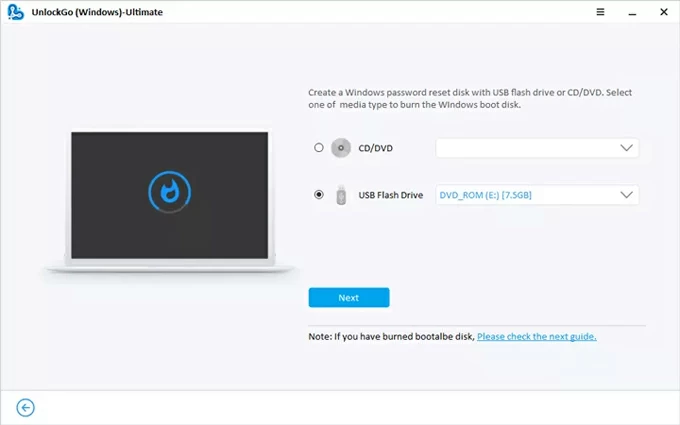
On a separate, accessible computer, download and launch the Windows Password Recovery software. Insert a blank USB drive or CD/DVD and select the corresponding media type. Click Next to begin creating the bootable password reset disk.
Step 2: Boot from the external media
Insert the prepared bootable media into the locked Windows 10 PC. Restart the computer and enter its BIOS/UEFI settings (usually by pressing F2, F12, Delete, or Esc during startup).
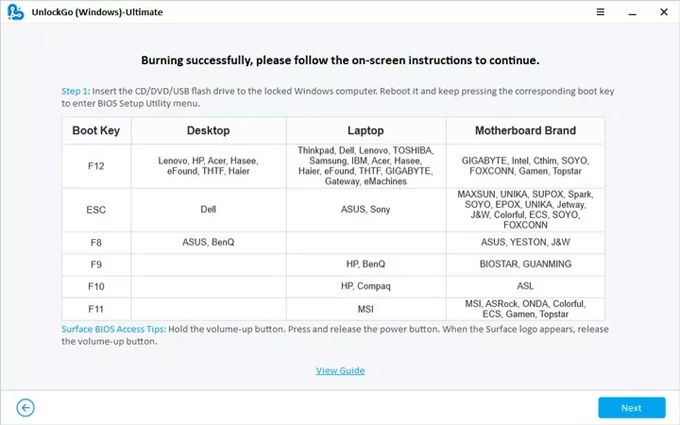
Modify the boot order to prioritize the USB or CD/DVD drive, save the changes, and exit. The PC will now boot from the external media, load the recovery tool's interface, and temporarily completely bypass the installed Windows system.
For steps on how to prioritize booting your Windows 10 from USB or CD/DVD, you can refer to the following link:
Step 3: Select the Microsoft account
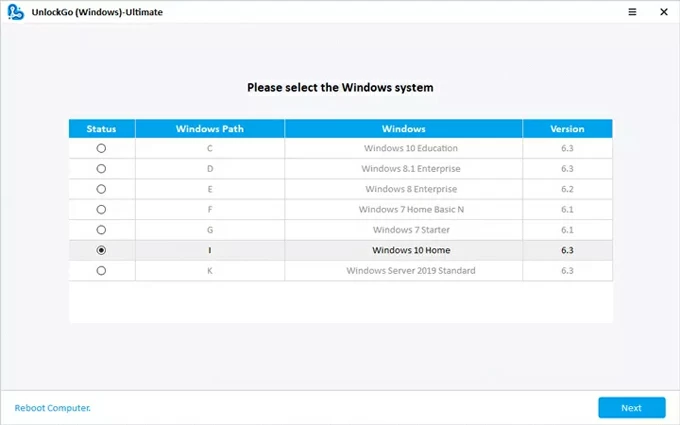
Once the tool menu loads, it will automatically scan for and list all installed Windows installations. Select the correct Windows 10 version.
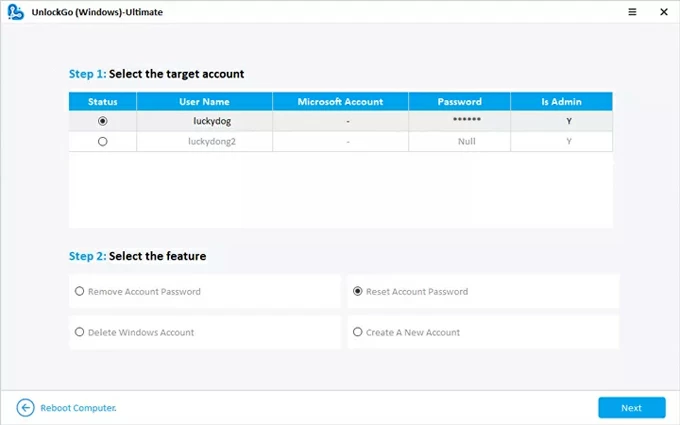
The tool will list all logins associated with your Windows 10; select the Microsoft account you want to delete.
Step 4: Delete the Microsoft Account
Click Delete Windows Account and follow the prompts to confirm your action. This will get the Microsoft account deleted from Windows 10, allowing you to unlock your device without the Microsoft account login.
Tip: If you do not wish to delete the account but instead want to regain access to it, you can select Reset Account Password to reset your Windows 10 password. You can then use the updated credentials to re-enter your Windows 10.
If your Windows 10 computer already has an administrator account logged in, you can use its admin privileges to delete the unwanted Microsoft account profile. This scenario is common on shared computers, second-hand laptops, or office PCs.
The key is being able to access the local administrator account. Windows does not allow users to delete the currently logged-in account and will also block standard (non-admin) users from attempting to delete accounts. By logging in as a local administrator, you can unlock Windows' full account management features, allowing you to delete your Microsoft account from Windows 10.
Also see: How to reset Admin password in Windows 10, even you forgot it
The Settings app clearly displays all user accounts on the device and explains the consequences of deletion before you remove anything. This method is ideal if you want a clean and straightforward way to disconnect a Microsoft account from your local Windows 10 computer without using advanced system tools.
1. Sign in to Windows 10 using a local administrator account.
2. Open Settings by pressing Win + I, then go to Accounts > Family & other people.
3. Scroll through the displayed list and click on the specific Microsoft Account profile you intend to delete from the Windows 10.
4. Select Remove, and then then confirm Delete account and data. This operation permanently eradicates all user files associated with that profile from the local machine's hard drive.
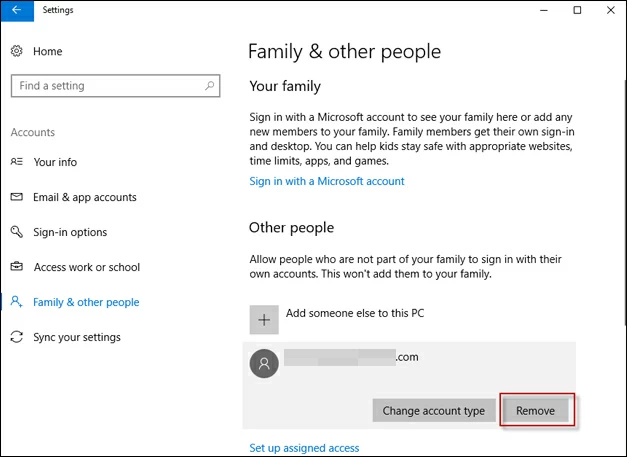
Once deleted, the Microsoft account cannot be used to sign in on this Windows 10 PC.
For administrators who prioritize reliability and are accustomed to the granular control afforded by the legacy interface, the Control Panel's "User Accounts" section provides a detailed alternative pathway for account deletion. Crucially, this method uniquely offers a choice between preserving the user's data or performing a comprehensive wipe.
1. Press the Windows key + R to open the Run dialog, type control panel and press Enter.
2. Navigate to User Accounts > Remove user accounts.
3. Choose the Microsoft-linked user account for deletion.
4. Select Delete the account.
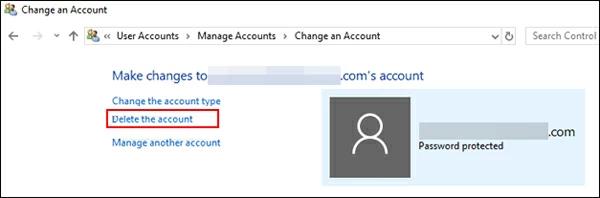
5. You will be presented with a critical choice: Delete Files (complete removal) or Keep Files (data preservation—the profile is deleted, but a folder of the user's data remains on the desktop). Make your selection carefully, and finally confirm the action with Delete Account.
The netplwiz utility is a lightweight but powerful user-management tool built into Windows. Often leveraged by system administrators and power users, this tool offers a concise, direct window into the underlying user account configuration database, making it the most expedited route for quickly viewing and initiating the unambiguous removal of any specified user profile.
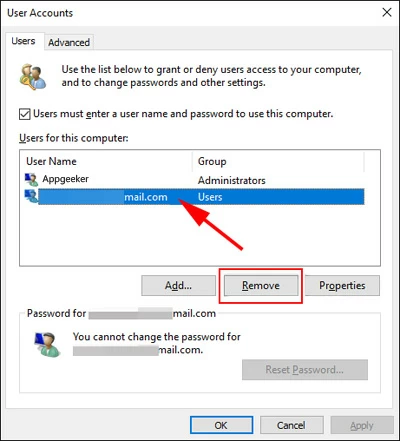
1. Open the Run dialog (Win + R), input the command netplwiz and click OK to launch the User Accounts window.
2. Ensure the Users tab is located, then choose the target Microsoft Account you need to delete from the list.
3. Click the Remove button. A warning box will pop up, click Yes to verify the permanent deletion of the user and their data from the Windows 11.
Read more: How to factory reset Windows 10 without password
If you intend to permanently delete your Microsoft account, removing it from Windows 10 is not enough. A full deletion must be performed online through Microsoft's official website. This is the step for total digital separation—the closure of your entire relationship with Microsoft services. This method is irreversible after the grace period and should only be done once the account has already been removed from all Windows devices.
Therefore, before closing your Microsoft account, ensure you cancel all recurring subscriptions and back up all data currently stored in the associated cloud services.
1. Visit the Microsoft account website and sign in to your account.
2. On the left sidebar, click Your info (the person icon).
3. Scroll down to the Account info section and select the Close account option to navigate to Microsoft's official guidance page.
4. Click the Close account button again.
5. Complete advanced identity verification, which usually involves sending a security code to your linked email or phone number. Enter the code, then click Verify.
6. Read the relevant notes and consequences of closing the account. Importantly, at the bottom, you can choose either a 30- or 60-day consideration period in case you regret the decision. Then, click Next.
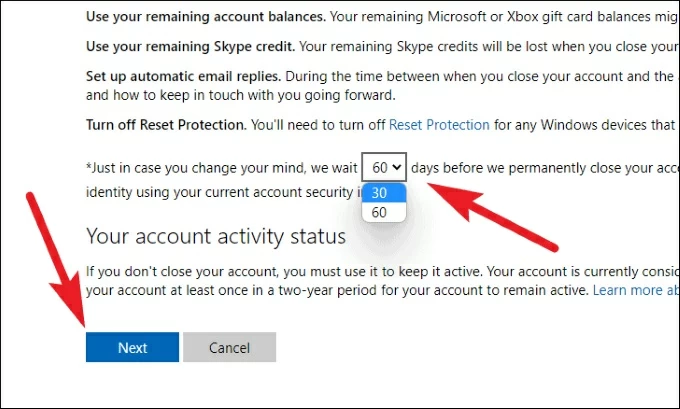
7. Check all the must-know items, then click Mark account for closure.
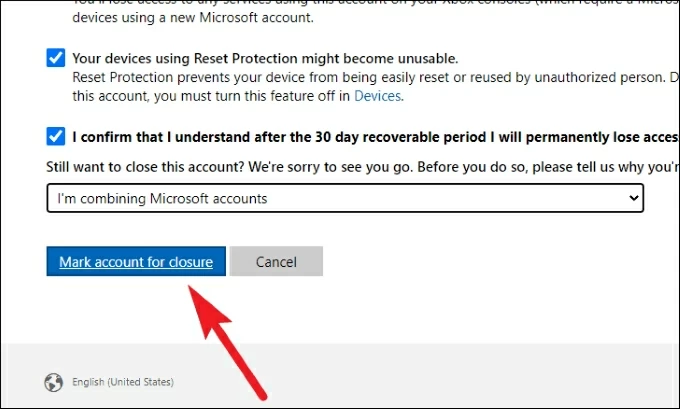
8. On the final Done page, you will see a prompt indicating the specific date when your account will be permanently closed, depending on the 30- or 60-day waiting period you selected.
Conclusion
The journey of digital Microsoft account deletion on Windows 10 is rarely a single, uniform action. You can remove it entirely from a specific PC, recover access when locked out, or permanently close the account online.
It's important to understanding what you hope to delete—the sign-in method, the local user profile, or the Microsoft account itself. By choosing the appropriate method, you stay in control of your data, avoid accidental lockouts, and prevent unnecessary system resets.
1. Does deleting a Microsoft account remove it from all Windows 10 PCs?
It depends on how the account is deleted. Deleting the account from Windows 10 using an administrator account, or substituting a local account for your Microsoft account on Windows 10, will only affect that specific device. The original Microsoft account remains active, intact, and accessible online for services like email, cloud storage, and gaming. You still have the option to log back into that Microsoft account on the computer later.
Only closing the Microsoft account via the official Microsoft website removes it from all devices. This disables all functions of the account and cuts off access to all associated services. That account can no longer be retrieved or logged into.
2. Can I delete a Microsoft account without logging into Windows 10?
Yes. If you are locked out of Windows 10, Appgeeker Windows Password Recovery tool can remove accounts without signing in. It also can help you reset the forgotten Microsoft account password.
3. What happens to my files after deleting the Microsoft account from Windows 10?
When a Microsoft account is deleted from Windows, the local user profile linked to that account is removed. This includes files stored in common folders such as Desktop, Documents, Downloads, Pictures, and Videos. However, files synced to OneDrive are not automatically erased online. They remain available through the Microsoft account unless the account itself is closed.
To avoid data loss, it is strongly recommended to back up local files or move them to another account before deleting the Microsoft account from Windows.