
How to Recover Windows 10 Password If Forgotten


Need to factory reset a Dell laptop without a password? Explore the easiest methods to reset Dell Windows laptop if you forgot the (Admin) password and can't sign in.

If you forgot your password to your Dell laptop, instead of conducting a factory reset of the whole system to remove the login, try Appgeeker Windows Password Recovery software to reset the password without logging on and recover full access while keeping all data intact.
You can force your Dell laptop to factory reset without needing the password in different ways, and start fresh new.
Few tech problems feel as frustrating as being locked out of your own laptop. When you forgot your Windows password on your Dell laptop computer, inherited a used device from someone who didn't wipe it, or can't log in due to a system error, everything stops—your work, your files, your productivity.
But there's good news: You can still factory reset a Dell laptop even without a password.
Dell computers include built-in recovery tools that allow you to restore the laptop to its original factory state, removing the password and all user data in the process. And whether you're using Windows 11, Windows 10, or an older Dell model with Dell Factory Image Restore (or Dell DataSafe Restore), there're several effective methods you can take for resetting your Dell without signing in.
In this detailed guide, you'll learn every safe way on how to factory reset Dell laptop without password, knowing exactly the practical tips to regain access to your computer—even if you cannot get past the Windows login screen.
Table of Contents
This Dell factory reset guide apply to all laptops, including Dell, Dell Plus, Dell Premium, Dell Pro, Dell Pro Plus, Dell Pro Premium, Dell Pro Max, Dell Pro Max Plus, Dell Pro Max Premium. They product lines formerly called Inspiron, XPS, Latitude, Vostro, OptiPlex, Precision.
Yes. Dell comes with recovery environments designed to help users repair or restore their devices in emergency cases. These environments are accessible before Windows loads, meaning that it's entirely possible to reset Dell laptop, even when you don't know the user password (admin, local) or Microsoft account password, or you can't access the desktop.
A factory reset is not just a password-removal method—it's a full system restoration tool. It completely reinstalls Windows and removes all data, apps, settings, and local user accounts & passwords.
Factory reset is a process of wiping the laptop clean and returning it to its original factory settings. Before you factory reset your Dell laptop that's locked with a forgotten or unknown password, it's important to know what happens during a factory reset, and will it delete the password for local account or Microsoft account.
Resetting a laptop to factory settings even you aren't signed in due to forgotten password or software issues do remove the password and recover the system back to life. In the event that your gold of attempting a factory reset on the Dell laptop is just for removing or resetting the password you forgot to local & Microsoft account, it's not necessarily erase everything—there are specialized Windows password recovery tools for the Windows password reset purpose.
Our favorite is Appgeeker Windows Password Recovery software. When you do not remember your password - whether you're using a Microsoft account or a local account in Dell laptop, the software bypasses the need of factory resetting the entire Windows system, and offers a straightforward solution to reset the password to something new and unlock your Dell computer. You can also remove the local user or admin password without reset, or even delete the account.
Instead of performing a hard reset to regain control, follow these simple steps of using Windows password recovering utility to reset forgotten password on Dell laptop in Windows 11, Windows 10, Windows 8, Windows 7, etc. and get back onto desktop without losing data.
Step 1. Create a password reset disk on another accessible computer
First, you'll need to download Appgeeker Windows Password Recovery program and install it on another Windows computer that you have access to.
Then, launch it, and click on Start button.
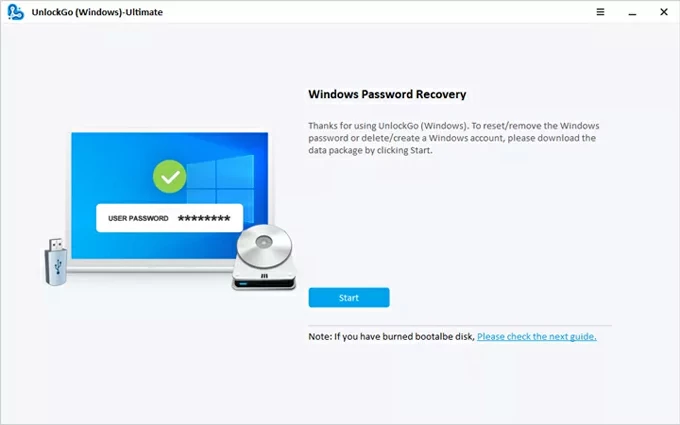
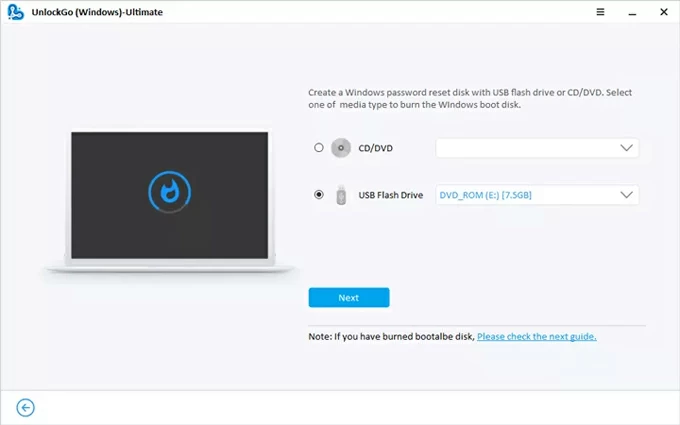
Next, insert a blank USB to the computer, then when it's detected, locate and select it. Click Next button to burn a bootable password reset disk for your locked Dell laptop. You can also use a CD/DVD disk to do this.
When done, unplug the USB drive.
Step 2. Set your computer to boot from Windows password reset disk USB
Now, plug the Windows password reset disk just burned into your Dell computer.
Restart your laptop, and while it's starting up, repeatedly press a certain boot key (like F2, F10, F11, ESC etc.) until you see the Boot Menu or BIOS/UEFI settings.
Use the arrow keys to navigate to Boot tab (or Boot Order or similar section), locate your USB or CD/ DVD from the list of bootable devices, then choose it as the first boot device. Confirm and save the operation.
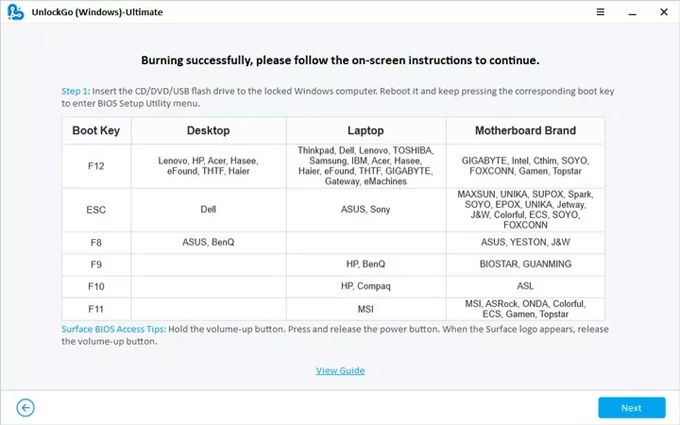
If you have no idea on how to change the boot order, check the links below carefully:
Step 3. Reset Dell password without factory reset
Now, your Dell will restart from the Windows password recovery disk. It's time to reset your Windows password without logging in or without wiping Dell laptop completely.
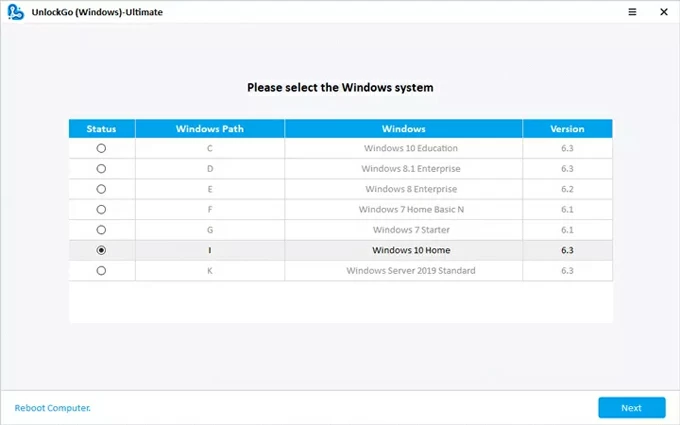
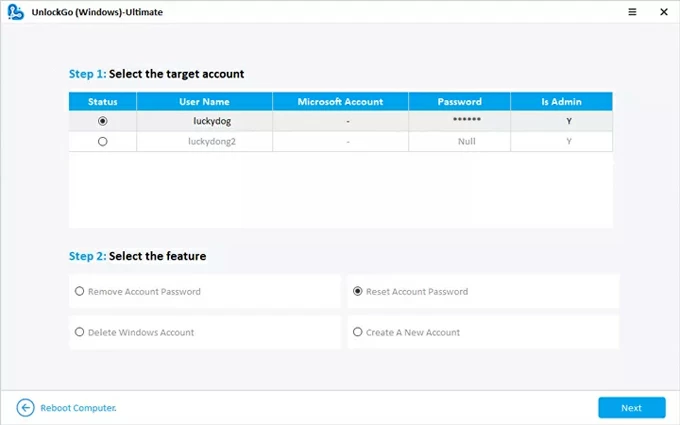
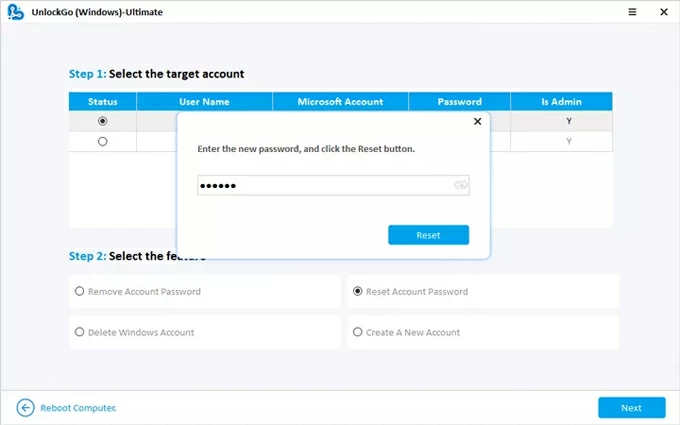
That's all for how to reset password when forgotten without need to factory reset Dell laptop or erase all files. You can now log back into your computer using the newly reset password.
If you're ready to factory reset your Windows Dell laptop without password login and set it up again, let's walk through each method step-by-step for a complete wipe by means of Windows Recovery Environment, Dell SupportAssist OS Recovery, Dell Factory Image Restore, Windows Installation USB.
So, when you encounter a locked system, below are the four proven ways to factory reset a Dell laptop without logging in. Which method you choose to use for resetting your laptop to factory settings depending on your Windows operating system.
This is the most common approach for restoring a Dell laptop to a state when you first turned it on - in case you get locked out of Windows 10 and Windows 11 with forgotten sign-in password, or your system is having stubborn issues.
Once you access Windows Recovery Environment or Advanced Startup, you'll take advantage of the Reset This PC option to have your Dell laptop clean wiped and revert to factory defaults without needing the account's password. Here's how.
1. At the login screen, press the Power icon in the bottom right corner, then hold Shift key and choose Restart to enter the Windows Recovery Environment (WinRE).

2. On the Recovery menu, choose Troubleshoot > Reset This PC.
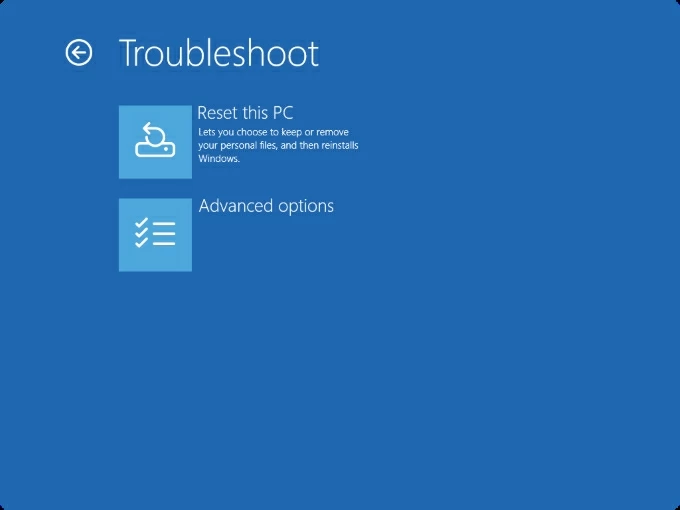
3. To restore Dell laptop to factory settings without password, choose Remove everything. This initiate a full reset and is often the last resort for password removal on Windows 10 or Windows 11 computer.
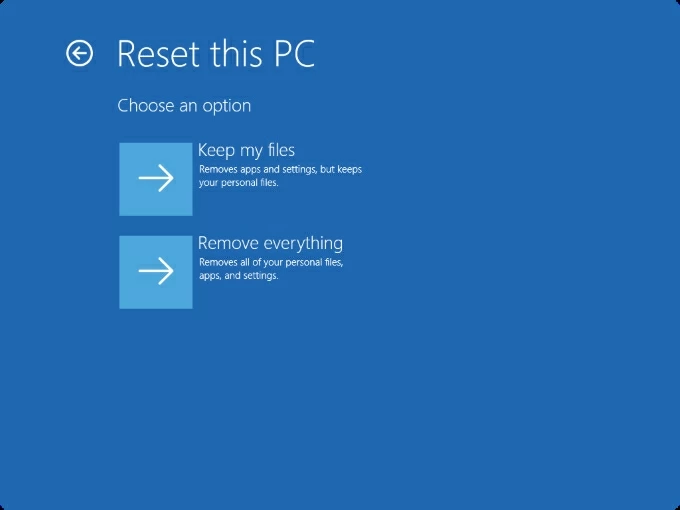
4. Decide how you would like to reinstall Windows:
5. Continue to choose Just remove my files option for a faster reset to remove the password obstacle if you're keeping your device. The Full clean the drive option is provided for those who is planning to sell or give away the laptop.
6. Hit the Reset button. The system will reboot and start reinstalling Windows. This can take 20–60 minutes depending on your model and drive speed.
When your laptop is reset, the setup screen appears. You're essentially working with a brand-new Windows installation—with no password and no previous data on the laptop.
Tip: This guide through WinRE is also for how to factory reset Windows 11 without password.
While you can use Windows' built-in option for a Dell laptop factory reset from boot, Dell comes with its own recovery tool named SupportAssist OS Recovery, enabling a factory reset without signing in, which resolves the login problem.
Here's how to factory reset Dell and regain entry without requiring a password. This is available for most modern Dell laptop since the year of 2018.
1. Power on Dell laptop.
2. As it starts and shows Dell logo, press F12 repeatedly.
3. From the One-Time Boot Menu, choose SupportAssist OS Recovery and press Enter.
4. Follow prompts to connect to the internet if needed.
5. BIOSConnect will automatically download the recovery program. This may take 5-10 minutes to complete depending on your network speed.
6. Once downloaded, the SupportAssist OS Recovery screen tool will start.
7. In the Reset module, choose Start Reset. Or choose Restore System.
8. Select a reset option, followed by Next.
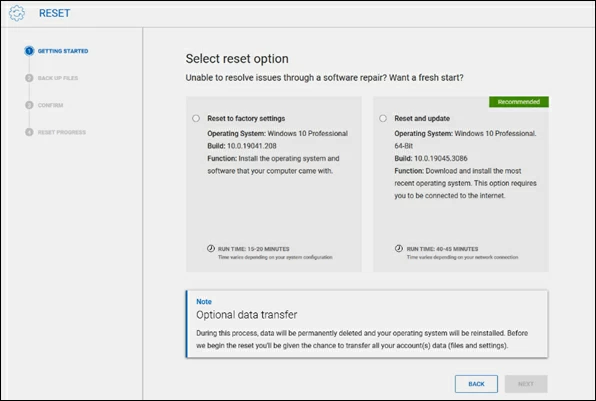
9. You will be asked whether you need to back up your files before restoring your system without logging into Windows.
10. On the Confirm your reset page, select the check box next to "I understand that the reset will delete all of my system data and personal files", then select Next.
The resetting process will begin, helping you recover full access when forgotten Windows password. You will see a progress bar indicating the different stages and remaining time. Within a few minutes, your Dell laptop has been restored to factory conditions along with all Windows user accounts removed. Set up the machine from the scratch and use it again.
For Dell laptops that is older than 2015 and is operating with Windows 8, Windows 7, or lower version, the official reset option is called Dell Factory Image Restore or Dell DataSafe Restore, which can be accessed via F8 or F11 depending on your model.
To use Dell Factory Image Restore to perform a system reset without Dell laptop password, do the following:
This restores the laptop to its out-of-box state, and result in lost files including the lock screen password, personal files, apps and settings.
If all above methods for wiping your Dell laptop password doesn't work for you, or your device has a damaged recovery partition or won't boot correctly, the next option is to create a Windows Installation Media on another working PC and reinstall the system for a full factory reset even you can't remember the password or can't access Windows settings.
Use these instructions on how to factory restore Dell laptop without password. The process may be complicated as it requires technical skills.
1- Download Microsoft's Media Creation Tool.
First, create a Windows installation flash drive free from Microsoft's website in order to wipe and reinstall Windows on your Dell laptop for password removal.
Click the Download Now button under the "Create Windows 11 installation media" section.
2. Run Media Creation Tool and create bootable USB drive.
3- Boot your Dell laptop from the USB drive.
4- Reinstall Windows on Dell
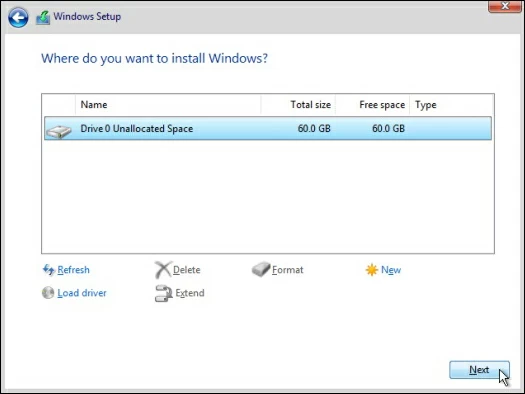
Once the reset is finished, your laptop will boot as if were brand new—clean, password-free, and ready for setup. All files have been deleted.
Done! A clean and fresh install of Windows 10 or 11 system can reset a Dell laptop without Windows password to get back the access, saving you from the situation where you you're completely locked out and stuck on login screen.
Factory resetting Dell laptop without knowing user password is absolutely possible. Whether your goal is to regain access, prepare the laptop for a new user, or fix system errors, Dell and Windows provide several powerful tools for safely recovering your system without administrator password (Microsoft & local).
By following the step-by-step instructions in this guide, you can successfully:
Rather than doing a full restore of entire Dell laptop to recover user accounts, you can also employ Appgeeker Windows Password Recovery software to reset the password without signing in. This is a useful solution to unlock Dell laptop without losing data by using a password reset disk - assuming you don't even have a previously-made Windows built-in password reset disk. In addition, remember to write down the password after resetting it or save it with a password manager to avoid forgetting it again.