How to Factory Reset iPhone 17 without Passcode


Locked out of Gateway laptop with no login password? This article will show you how to reset your Gateway laptop without a password, so you can freely access the device again.

Before proceeding with a password-free reset on your Gateway laptop, see if a password reset works.
When you find yourself locked out of your Windows 10 / 11 Gateway laptop—for instance, due to forgetting the login password, a locked local account on a second-hand computer, or revoked access rights caused by a Windows update failure—performing a factory reset without a password on your Gateway laptop becomes an effective way to regain access.
Don't worry. Since Gateway laptops run on a standard Windows OS, there are multiple ways to reset you Gateway laptop without a login password when locked. But you must be prepared for the fact that all existing files, data, and settings on the device will be lost during the process.
This guide provides several practical methods on how to factory reset Gateway laptop without password, ranging from Gateway's built-in recovery tools to utilizing the Windows installation media. Additionally, we introduce a Appgeeker Windows Password Recovery tool that allows you to reset a forgotten password on your Gateway laptop without wiping the entire device, helping you choose the least disruptive and most efficient solution based on your situation.
Table of Contents
Before jumping into a full factory reset on a Gateway laptop without password, it is essential to identify exactly what is preventing you from logging in. A forgotten local account password, a Microsoft account sign-in issue, and a system that fails to boot are three very different problems. A factory reset may solve all of them, but in some cases, a simple password reset or recovery option is enough to restore access without touching your files.
Resetting a Gateway device without password may use an original factory image, Windows' built-in reset feature, or a clean reinstall through installation media. This restores the laptop to its original out-of-the-box state, which permanently deletes all personal files, applications, and settings. Once the process begins, it cannot be undone. If your laptop is running slowly or you intend to sell it, a thorough factory reset is your best option.
Also see: How to Remove Microsoft Account from Windows 11
For many older Gateway laptops, especially models running Windows 7/8/10, the motherboard logic includes a built-in hidden security mechanism—by activating the manufacturer's recovery partition, it completely bypasses the Windows login screen.
If your operating system is severely damaged and you can't even access the login interface, this is the most reliable route for resetting a Gateway laptop to its factory state without a password.
1. Power off the Gateway laptop completely and disconnect all non-essential peripherals.
2. Press the Power button to turn the laptop back on, and immediately begin pressing Alt + F10 repeatedly before the Windows logo appears.
3. Wait patiently while the Gateway Recovery Management loads, when prompted, choose Restore system to factory default from the recovery menu.
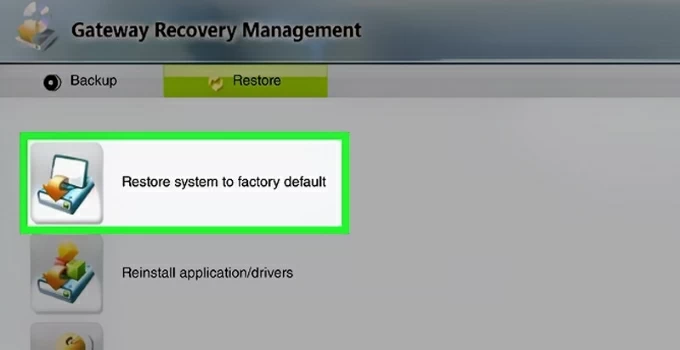
4. Carefully review the on-screen warning explaining that personal data will be deleted, then confirm your choice.
5. Allow the recovery process to run uninterrupted. The laptop may restart multiple times during restoration.
Note:
On modern Gateway laptops running Windows 10 or Windows 11, Gateway now relies primarily on native Windows tool — the Windows Recovery Environment (WinRE) — rather than Gateway Recovery Manager. This environment allows you to factory reset your Gateway laptop without logging in, including preinstalled drivers and bundled software.
1. Turn on the Gateway laptop and allow it to begin loading Windows.
2. As soon as the Windows logo appears, hold the Power button to force a shutdown.
3. Repeat this startup interruption process three times until Automatic Repair shows up.
4. Select Advanced options to continue.
Tip: If your laptop can reach the login screen but you have forgotten your Windows 11 password, you can still enter the Windows RE by holding down the Shift key while clicking the Power button and selecting Restart.
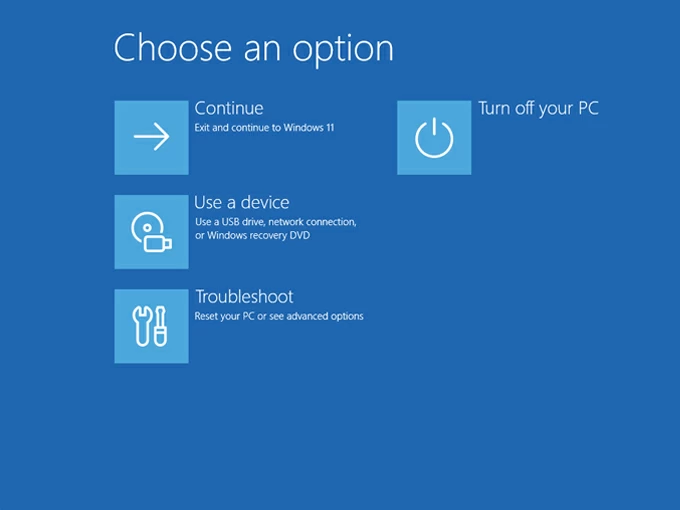
5. When the "Choose an option" blue screen appears, navigate to Troubleshoot > Reset this PC from the available options.
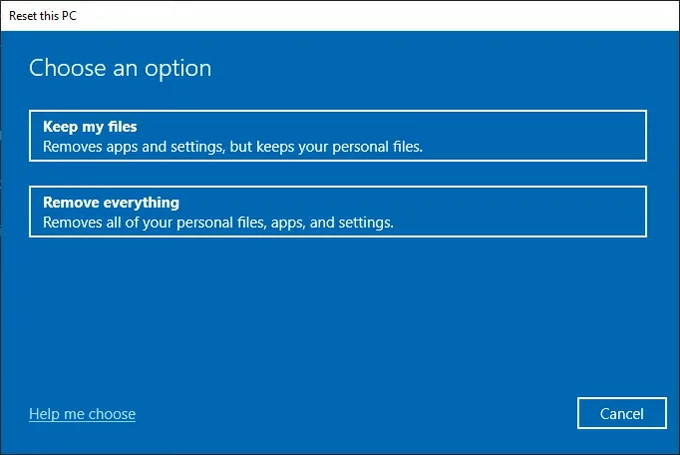
4. When asked how you want to proceed, select Remove everything to perform a complete reset.
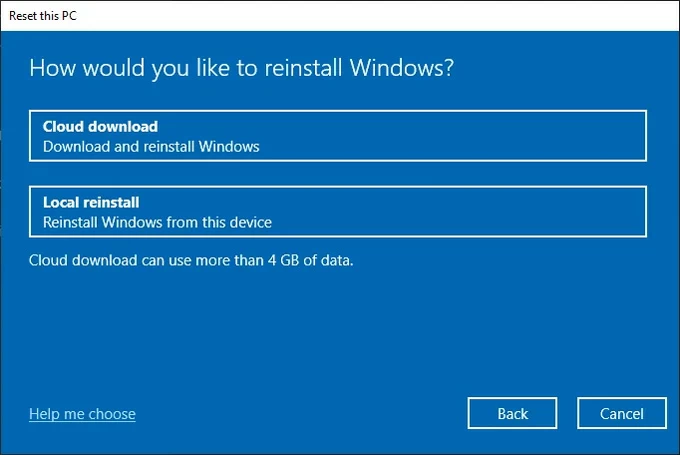
5. Decide whether to reinstall Windows using a Local reinstall or Cloud download, depending on internet availability.
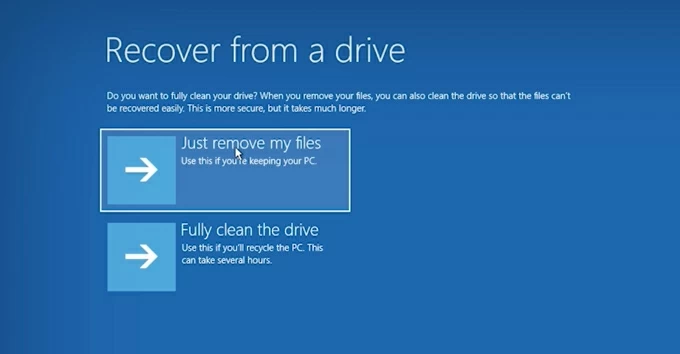
6. Choose between Just remove my files and Fully clean the drive tailored to your data erasure needs. It is recommended to select "Fully clean the drive" to reinstall a fresh Windows system and remove all account passwords bound to your device.
7. Windows will warn you that your personal files and accounts will be deleted. Click Reset to commence the automated wipe.
Resetting your entire Gateway laptop just because of a forgotten password is hardly worth the trouble, as there is a far superior way to unlock your device—using Appgeeker Windows Password Recovery tool. This allows you to precisely reset the password while preserving all your photos, documents, applications, and other data.
The software operates outside the Windows environment, so even if login attempts fail, it can unlock Microsoft accounts, local accounts, or administrator accounts, letting you avoid data loss and quickly restore system access.
By creating a bootable password reset disk, you don't need to reset your Gateway laptop to its initial state without password; instead, you modify the account credentials to get into your device, making factory reset an optional rather than mandatory operation.
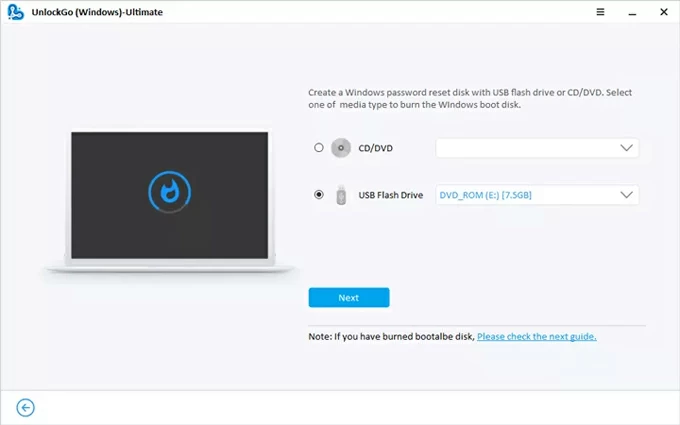
1. On a normally functioning computer, download and install the Windows Password Recovery tool. Insert a USB drive or CD/DVD to burn the ISO file. In the software interface, select your media type and click Next. This will create a dedicated boot environment capable of reading the Windows security database.
2. Plug the password reset disk into the locked Gateway laptop. Immediately upon powering on, press the F12 key repeatedly to bring up the Boot Menu. Then, select the USB/CD/DVD from the boot list to load the recovery environment.
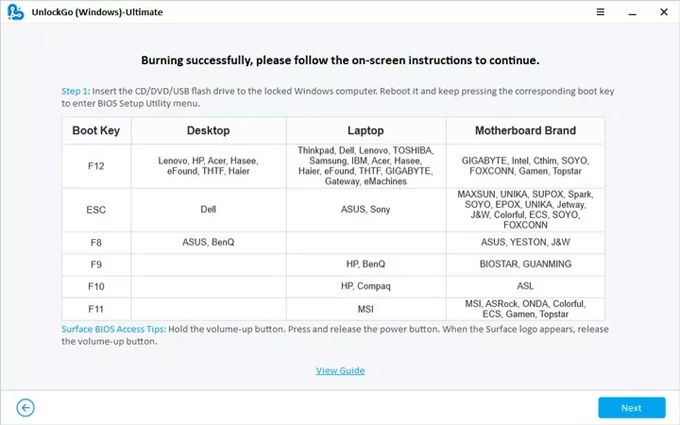
For detailed instructions on how to set the Windows password reset disk as the first boot priority, read the following article:
3. The recovery tool will load its own mini operating system. Select your Windows system and then locate your target account from the user list.
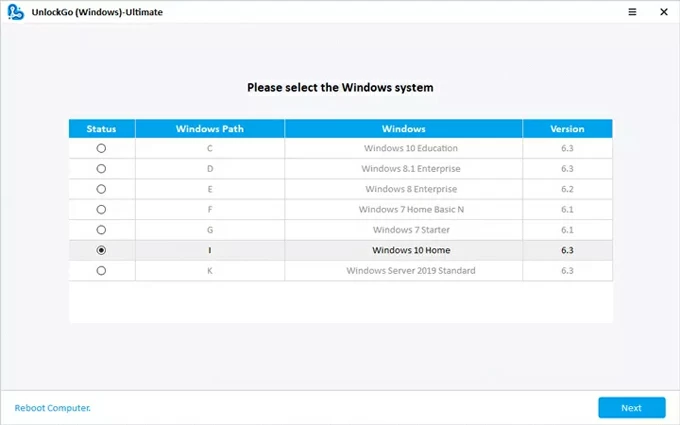
4. Choose the Reset Account Password option, enter a new password, and then click Reset to make the changes.
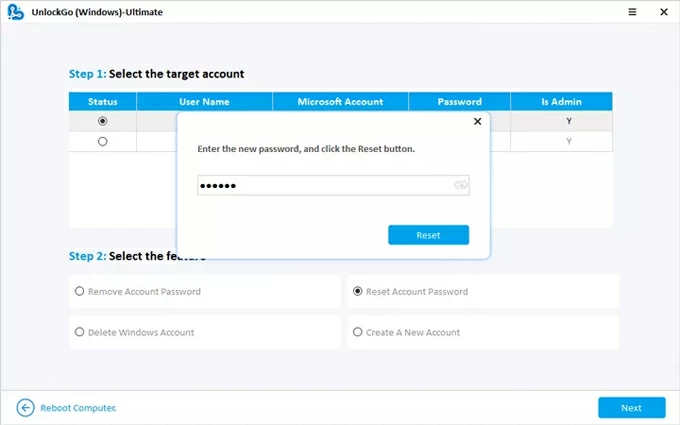
Remove the media and restart your computer. You can now use the new password to unlock your laptop at the login screen.
This is the ultimate solution when the recovery partition is corrupted or you desire a system even cleaner than it was out of the factory—free from Gateway's pre-installed bloatware. This process involves overwriting the entire hard drive using official Microsoft installation media. It will factory reset your Gateway laptop without needing a password and build a brand-new, optimized operating system from scratch.
1. Visit the Microsoft Windows download page on a working computer. Use the Media Creation Tool to turn a blank USB drive into an official Windows 10/11 installer.
2. Insert the USB drive into the Gateway laptop and restart. Press F12 to enter the BIOS menu, then set the USB drive as the primary boot device.
3. When you see Windows setup screen, configure your language and preferences, then click Install now.
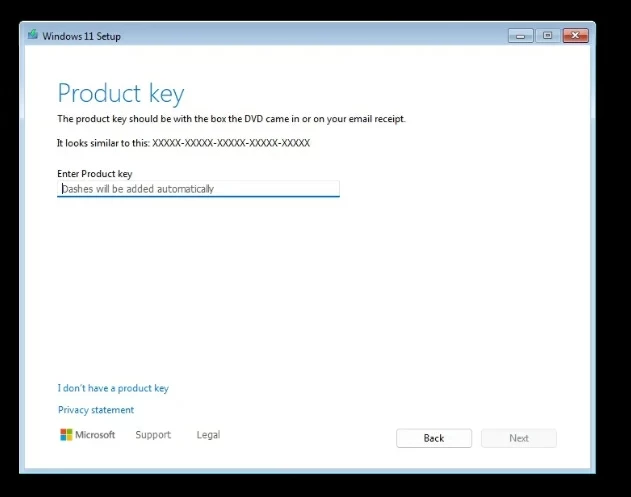
4. Enter the product key. If you don't have one, click the I don't have a product key link in the bottom right.
5. Pick the Windows operating system you want to install, then click Next.
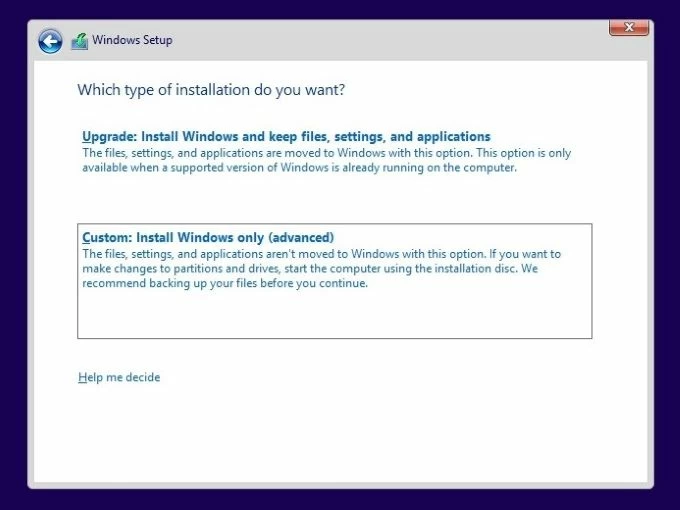
6. When the installer asks "Which type of installation do you want?", choose Custom: Install Windows only (advanced).
7. You will see a list of drive partitions. Select each one and click Delete until you are left with "Drive 0 Unallocated Space." This ensures the old, locked system is 100% gone.
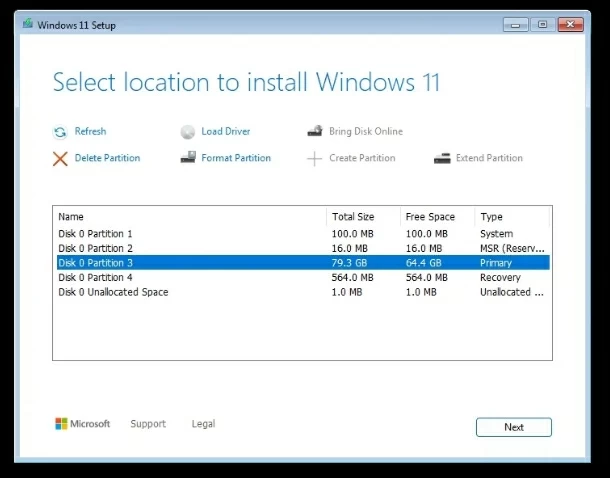
8. Hit the Next button to begin formatting your hard drive, resetting your Gateway laptop to a password-free state
Read more: How to bypass Windows 10 password
Conclusion
Understanding the various methods—Gateway Recovery Manager, Windows Recovery Environment, and installation media—enables you to choose the approach that best fits your situation to reset your inaccessible Gateway laptop without the password and regain full control over your device. Additionally, you can utilize Appgeeker Windows Password Recovery tool to flexibly reset the password for the locked account instead of erasing your device, enabling you to re-enter your laptop.
1. Can I reset a Gateway laptop without a password if Windows won't load at all?
Yes. Even if Windows fails to start, you can still reset the system using Gateway Recovery Manager (if available) or Windows installation media booted from a USB drive.
2. Is it possible to back up files before factory resetting without logging in?
Yes, in some cases. If you unlock the laptop using password recovery software like Appgeeker Windows Password Recovery, you can access and back up files normally. Or, advanced users can back up data through recovery environments using external storage.
3. How to factory reset a Gateway laptop from Settings?
You can factory reset a Gateway laptop directly from Windows Settings as long as you can access the system or reach Windows Recovery from Settings.