
How to remove Windows 10 password with/without login


This guide will show you how to turn off the Windows 11 password, even if you're locked out. Be sure to disable your password only in a trusted, secure environment.

Windows 11 is designed to protect your computer and data by requiring a password during sign-in. While this security measure is important, some users may prefer to turn off password on Windows 11 for quicker access, especially on their trusted, personal PC or laptop. If that is your goal, Windows 11 provides several ways to disable the password requirement.
Before proceeding, be aware that turning off Windows 11 password reduces protection for any important files stored on your machine. Anyone with physical access to the computer will be able to open and use it without restriction.

This guide covers multiple methods for Windows 11 users to turn off the login password on their PC or laptop.
To turn off the password, Windows 11 typically requires you to verify your current credentials. This can be easy if you are already signed in and know the existing password. If not, there are also effective methods to turn off the login password on Windows 11 even when you are locked out or cannot recall the correct sign-in credentials.
In this guide, we'll walk through every practical way for turning off the Windows 11 login password — whether you have access to the original password or not, so you can choose the approach that best fits your situation.
Table of Contents
For users who are locked out, Appgeeker Windows Password Recovery enables you to efficiently remove the Windows 11 password from login screen, even if you have forgotten the credentials or lost access.
The Windows 11 password is a critical safeguard designed to prevent unauthorized access to your computer. Once you turn off your Windows 11 password, anyone with physical access to your PC or laptop can open it and view your personal files without restriction. For this reason, ensure you only disable the Windows 11 password if your computer is located in a safe place.
If you still want to turn off the Windows 11 login password, there are several built-in options to disable it. Once done, you (or anyone else) will be able to unlock your PC with no password.
If you are able to sign in and still remember your current password, the most straightforward way to turn off the Windows 11 login password is through the Settings app. Simply log in with a local account and follow these steps:
1. Press Win + I to open the Settings app on Windows 11.
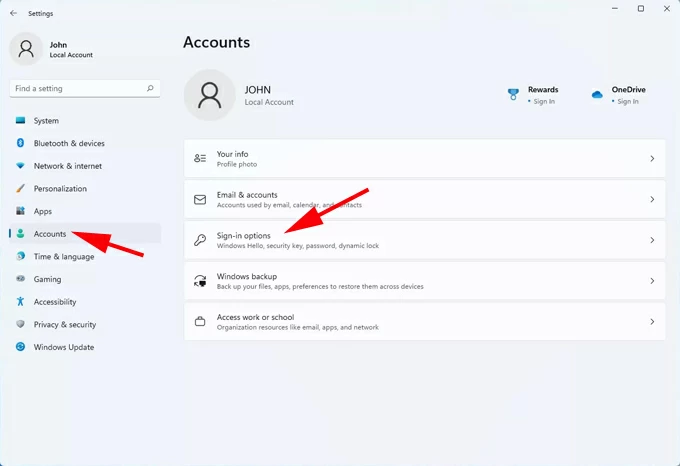
2. Select Accounts on the left and choose Sign-in options from the right-side section.
3. Check Password and click the Change button.
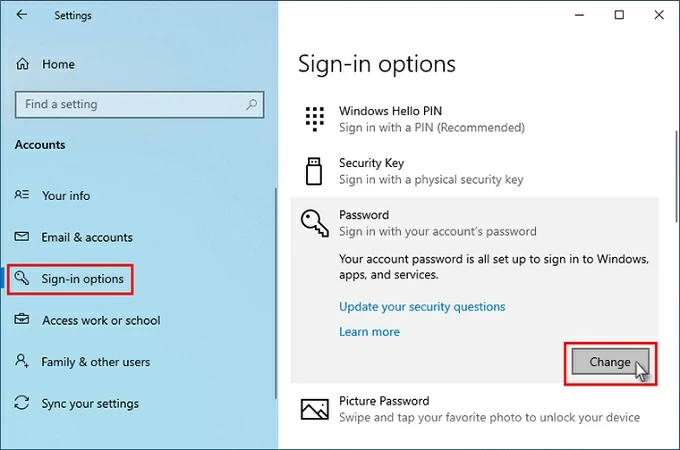
4. When prompted, enter your current password to verify your identity.
5. In Change your password window, you'll be asked to create a new password for this account.
6. Leave all password-related options blank, and click Next.
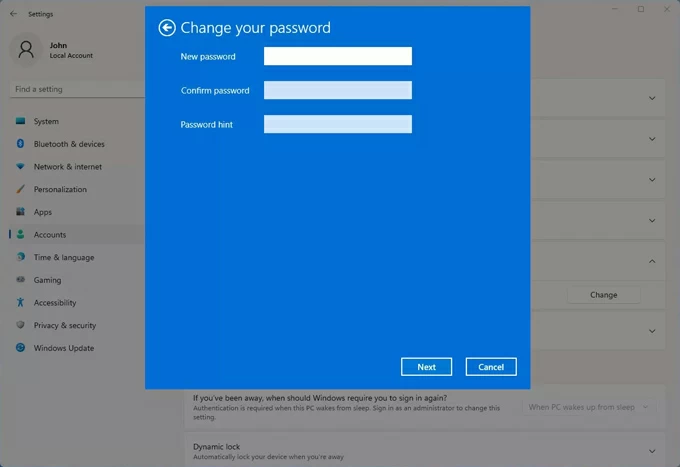
7. Hit Finish and your Windows 11 password will be turned off immediately.
This saves your Windows 11 password as an empty one, so that you will get instant access to your computer with no need for entering a password.
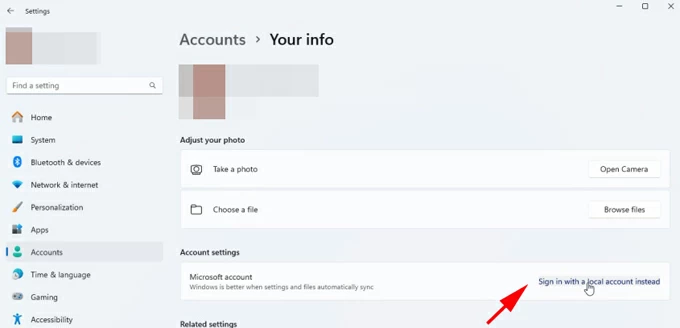
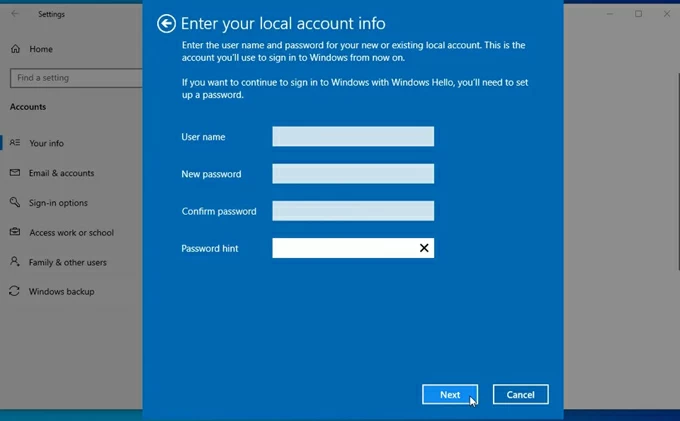
Alternatively, if you are signed in with a Microsoft account, you'll need to switch to a local account before turning off the password. Microsoft credentials are managed online, and Windows 11 does not allow you to disable or create a blank password for a Microsoft account directly.
If you only want to stop your computer from asking for a password after periods of inactivity, you can adjust the sign-in settings instead of turning off the Windows 11 password entirely.
1. Open the Settings app from Start menu.
2. Select Accounts > Sign-in options, then scroll down to Additional settings.
3. Ensure "For improved security, only allow Windows Hello sign-in for Microsoft accounts on this device" is turned off.
4. Check the drop-down box next to "If you've been away, when should Windows require you to sign in again?" and select Never.
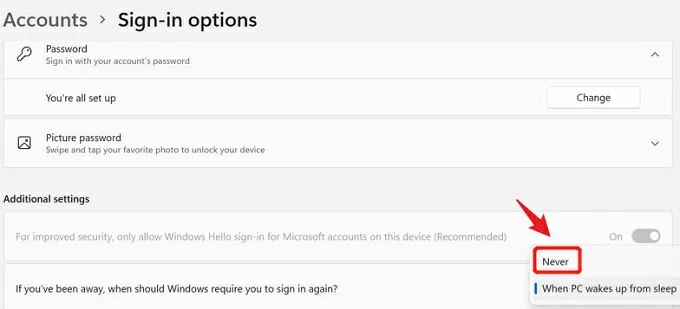
Windows 11 will no longer prompt for a password when it wakes from sleep or resumes activity.
Another way for Windows 11 to turn off login password is by using the netplwiz tool. Rather than removing the Windows 11 password completely, this approach enables automatic sign-in whenever you start your PC or laptop. It works for both local accounts and Microsoft accounts.
1. Open your computer and sign in to your Windows 11.
2. Press Win + R and type netplwiz in the provided filed.
3. Press Enter, then a User Accounts window will open.
4. In the middle section, select the local or Microsoft account that you want for automatic login.
5. Deselect Users must enter a user name and password to use this computer at the top.
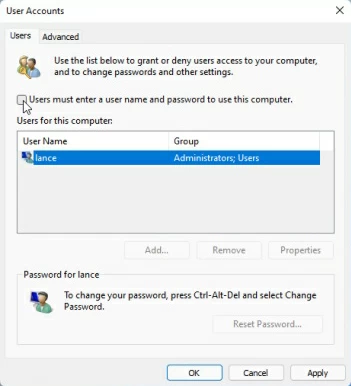
6. Confirm the option by clicking Apply at the bottom.
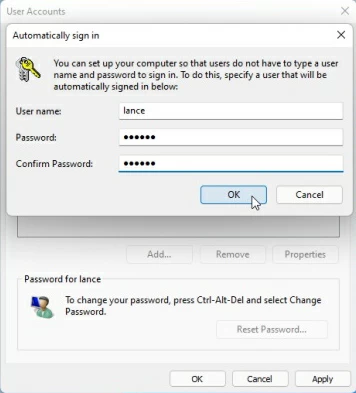
7. In the pop-up box, enter your user name and password to verify.
8. Check the OK button and click it again to confirm.
Quick Fix: If you cannot open the User Account window, go to Settings > Accounts > Sign-in options and ensure the "For improved security, only allow Windows Hello sign-in for Microsoft accounts on this device" is turned off. Then, reopen netplwiz applet to turn off your password.
If you're using an administrator account, the built-in Command Prompts in Windows 11 allows you to turn off the login password.
1. When you're signed in with an admin account, open Start menu on Windows 11.
2. Type Command Prompt in the search bar and select Run as administrator to run it.
3. In the opening window, type the command net user and press Enter. All user accounts on your system should be listed.
4. Type net user USERNAME and press Enter key. Make sure to replace the USERNAME with the target account name.
5. Press Enter and then press it once again.
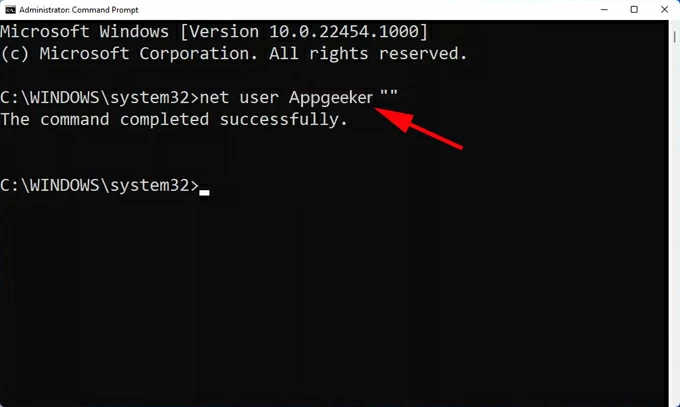
This will mark your Windows 11 password as blank, so that you're able to access your account without a password.
Additionally, you can use Command Management to remove the login password from a local account on Windows 11. Here are the quick steps:
1. Press Win to open Start menu on your Windows 11.
2. Search for Computer Management in the task bar and open it from the results.
3. From the left panel, navigate to System Tools > Local Users and Groups > Users.
4. Locate the user account whose password you want to turn off, then right-click on it.
5. Select Set password... option in the expanded menu and click Proceed.
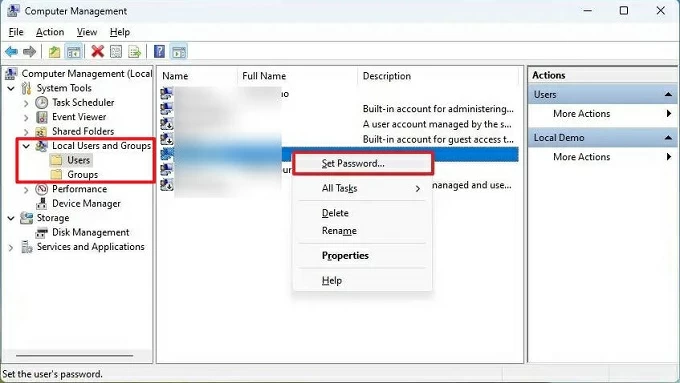
6. When prompted, leave the New password and Confirm password filed blank.
7. Confirm OK to turn off the sign-in password for your Windows 11 local account.
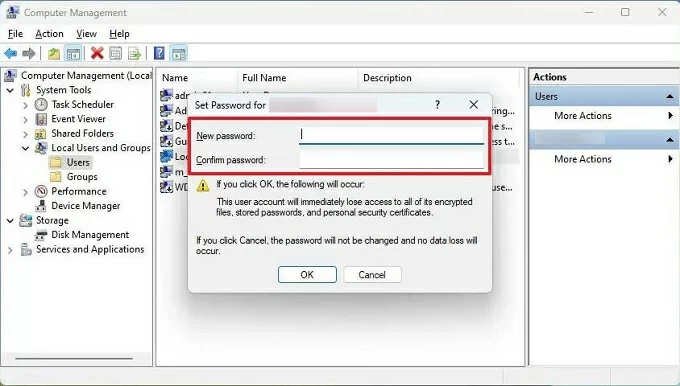
Afterwards, you can skip the password to access your Windows 11 account with ease.
To turn off the login password when you're locked out of Windows 11, there are reliable ways available — even if you have forgotten your password or cannot access the system normally.
If you're looking to turn off the login password on a locked Windows 11 PC or laptop, Appgeeker Windows Password Recovery can be a practical solution. It offers password-removal and reset capabilities that allow you to disable a Windows 11 password from the login screen directly.
Whether your system uses a local account or Microsoft account, and whether you have forgotten the original password or are fully locked out, this tool can help you remove the password from Windows 11/10 sign-in screen and regain access to your computer instantly.
It works for a wide range of Windows versions and computer brands. The process requires a spare PC and an empty USB flash drive. Here are the steps to turn off password in Windows 11, without logging in or losing data:
Step 1. Create a password removal disk for Windows 11.
On another accessible Windows PC or laptop, install and run the Appgeeker Windows Password Recovery tool, and click Start to begin.
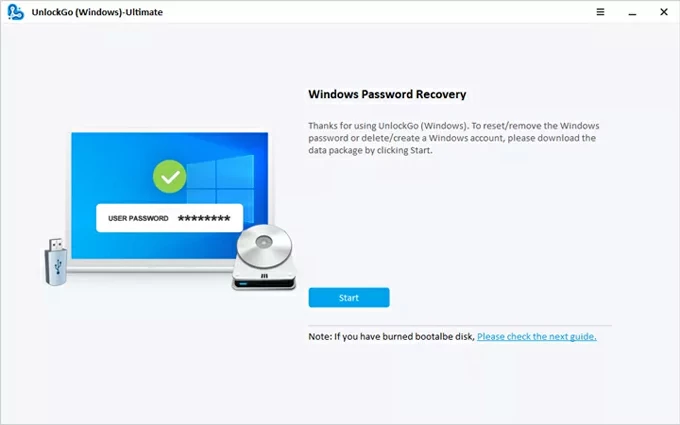
Insert a USB flash drive or a CD/DVD to your computer and select it from the drop-down menu. Then, click Next and wait for the program to burn it into a Windows boot disk. Once done, remove the disk.
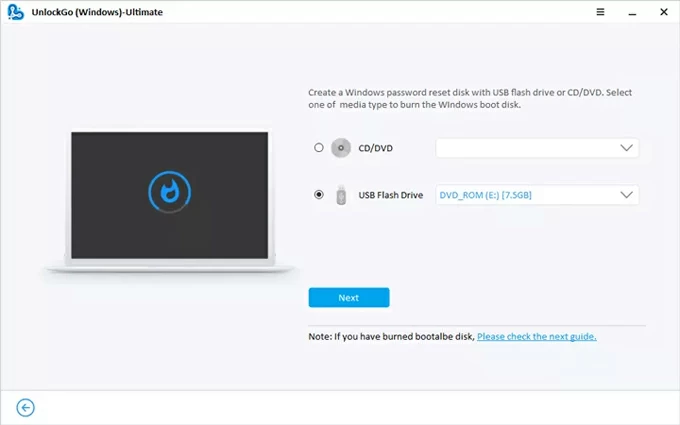
Step 2. Reboot Windows 11 from the password removal disk.
Insert the password removal disk to your locked Windows 11.
Then, restart the system while keeping pressing the boot key repeatedly. Depending on your manufacture, the common key to use would be F12, ESC, F8, F9, etc.
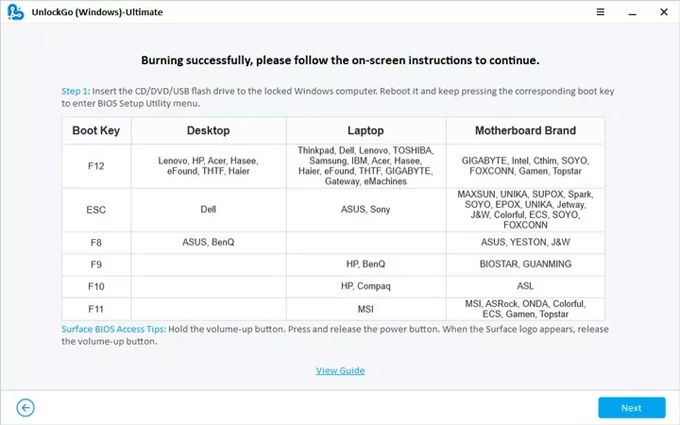
Once reboot successfully, the Boot Menu should appear. Use arrow keys to scroll through and select your disk drive as the top boot option; then the Windows 11 system will restart again.
If you have trouble in changing the boot order, follow the links below carefully:
Step 3: Turn off password for your Windows 11 user account.
The Windows Password Recovery tool launches automatically when your computer restarts.
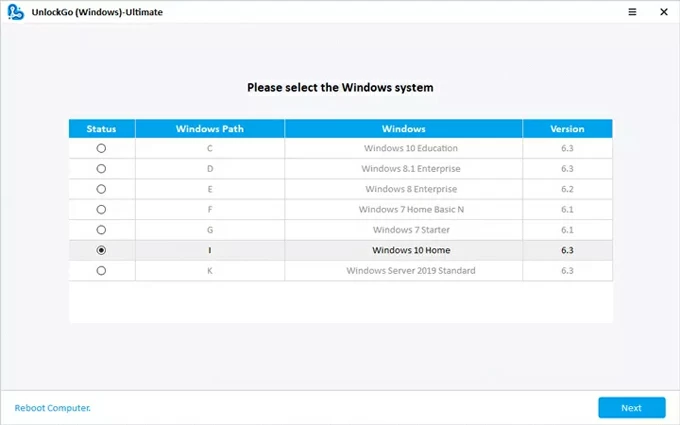
Select your Windows 11 system and click Next.
Choose the target account that you want to access with no password, then select Remove Account Password and hit the Next button.
Let the program turn off the account password on your Windows 11.
Extra tip: You can also choose Reset Account Password to reset your Windows 11 password without logging in, which is useful if you've forgotten the original one.
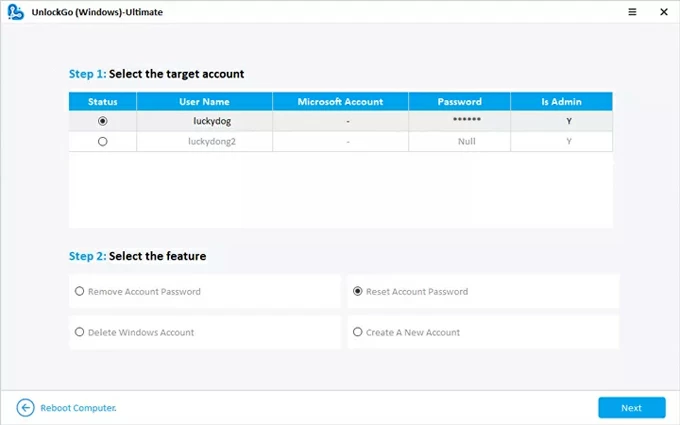
That's it! The Windows 11 password will be turned off right away. You can then log in to your system account with no password required.
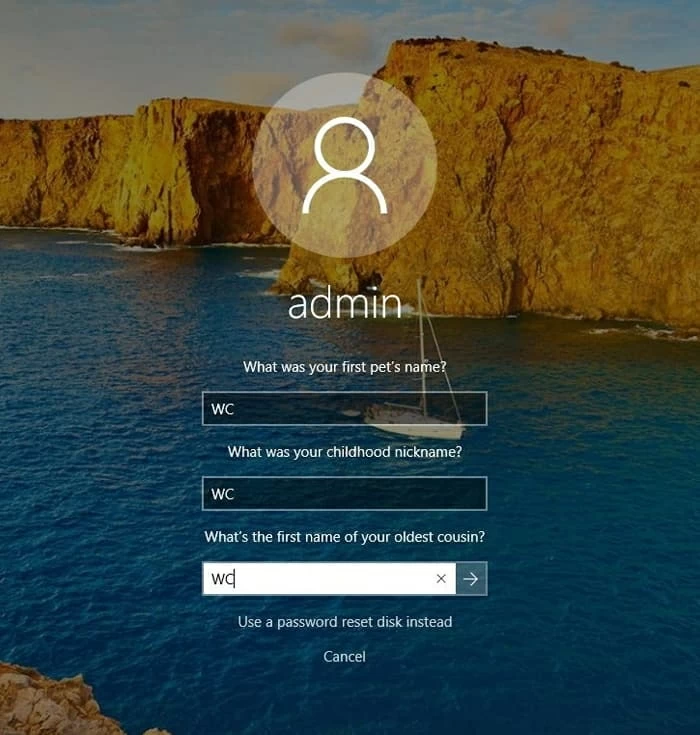
If you've previously set up security questions or created a password reset disk before losing access to your Windows 11 system, turning off the password can be straightforward using the Reset password link on the sign-in screen.
These options work even if you forgot your Windows 11 password, but they apply only to local accounts. When you're able to, follow the steps to disable Windows 11 password on login screen:
1. Enter an incorrect password on Windows 11 login screen until your see a Reset password link.
2. Click Reset password link when it appears.

3. Depending on what you've configured previously, you have the options to:
Answer the Security questions:
Insert a password reset disk:
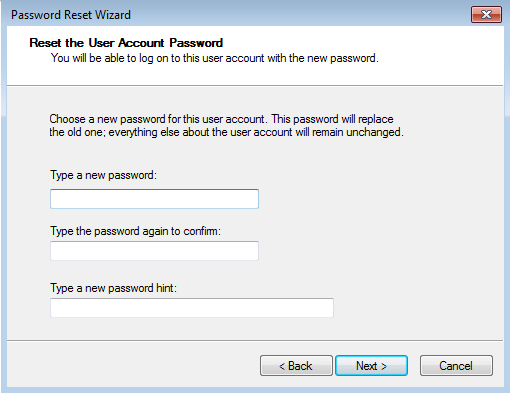
4. Windows 11 will save the blank password as the new sign-in requirement.
After this, you will no longer be asked for a password when opening your Windows 11 system.
Once the Windows 11 login password is turned off, you can access your system without interruption. Ensure that your PC or laptop remains in a secure environment, as anyone with physical access will be able to use your computer.
If you want a balance between convenience and security, consider enabling Windows Hello. Features such as a PIN, fingerprint authentication, or facial recognition provide fast access while still protecting your data.
Q1 - Is it safe to turn off my login password on Windows 11?
Turning off Windows 11 password can be convenient in a trusted, secure environment. However, it is not recommended for shared computers or systems used in public, as it significantly reduces protection against unauthorized access.
Q2 - What happens if I turn off my Windows 11 password entirely?
If you disable all password requirements in Windows 11, anyone with physical access can sign in to your PC and view your personal files without verifying identity. This exposes the system to potential privacy and security risks, especially if there are sensitive data stored on your computer.
Q3 - Can I turn off the password on my Windows 11 if I have already forgotten it?
Yes, there are several ways to turn off a Windows 11 password even if cannot remember it:
Q4 - How do I stop Windows 11 from asking for a password every time I open it?
You can prevent Windows 11 from requiring a password at startup by going to Settings > Accounts > Sign-in options > Password > Change, and then creating a blank password.
If you just want to skip the password after a short period of inactivity, open Sign-in options and go to Additional settings. Then set "If you've been away, when should Windows require you to sign in again?" to Never. This turns off password prompts when waking the Windows 11 from sleep.