How to Reset Windows 10 Password If You've Forgotten It


Learn how to create and use a Windows 11 password reset disk, recover locked local accounts, and explore alternative recovery options if you're already locked out.

A Windows 11 password reset disk can help you unlock a local account if you've forgotten the original password.
Forgot your Windows 11 password and can't sign in? A password reset disk can help you regain access if you've created one beforehand.
A Windows 11 password reset disk is a precautionary measure that allows you to recover access to your PC or laptop without reinstalling the system or losing any data. Typically, it's a physical, removable USB drive created for local accounts, giving you a quick way to reset a forgotten password directly from Windows 11 login screen.
In this guide, we'll explain what a Windows 11 password reset disk is, how to create one, and how to use it if you ever forget your password and get locked out. If you didn't set up one in advance, there are also alternative password reset tools for Windows 11 to sign back in.
Table of Contents
With NO pre-created reset disk required, Appgeeker Windows Password Recovery helps you generate a new one to reset Windows 11 password even after lockout.
A Windows 11 password reset disk is a recovery tool you create in advance to reset the password for a local account if you ever forget it. It's typically stored on a USB flash drive and contains encrypted backup key linked to your user profile.
When you get locked out of your Windows 11 PC, you can use the disk to reset your login password and regain access to the system without reinstalling Windows or losing your files.
Important:
If you still have access to your Windows 11, you can easily create a password reset disk to avoid being completely locked out in the future.
What's needed creating a password reset disk in Windows 11:
Step-by-step guide to create a reset disk for Windows 11 password:
1. Open your Windows 11 and log in with your local account.
2. Insert a USB drive to your computer.
3. Click the Start button and type Control Panel in the task bar, then open it from the results.
4. In the Control Panel, type create password reset disk in the search box.
5. Select Create a password reset disk, and click Next.
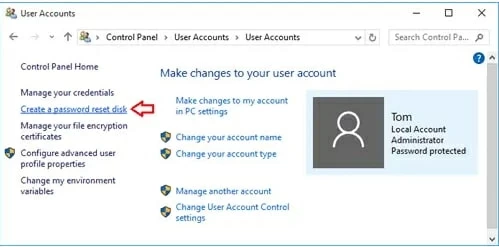
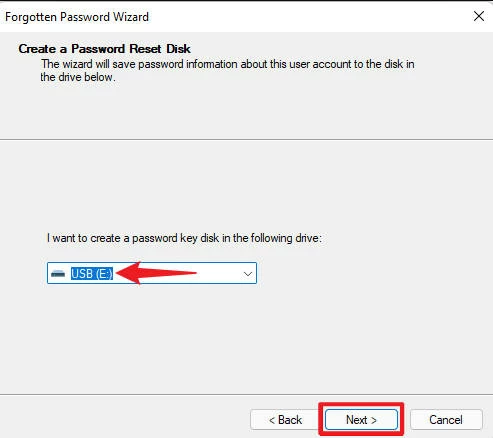
6. Select your USB flash drive from the drop-down menu and click Next.
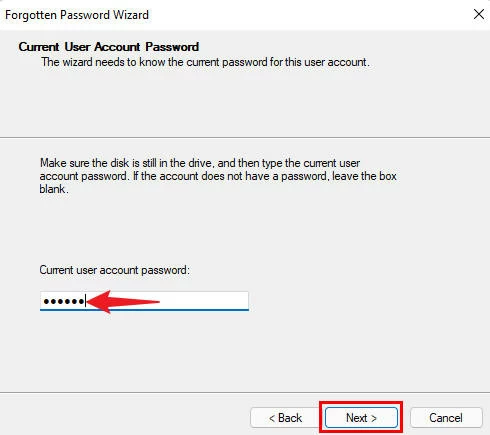
7. Enter the current password for your local account and hit Next.
8. If prompted, confirm Yes to update password reset information for your account. This process will overwrite existing data on your disk.
9. Wait until the process is 100% complete, then click Next > Finish.
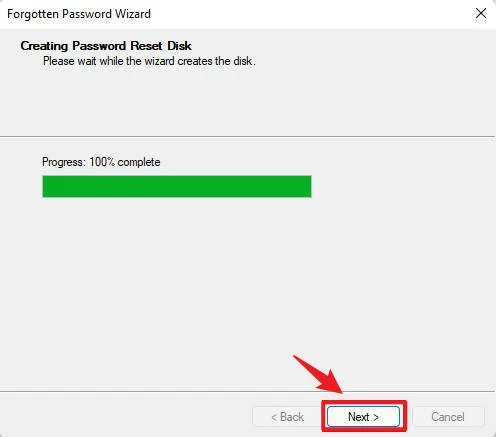
Once done, unplug the drive and keep it on a safe place. If you forgot your local account password, you can use the disk to reset your password on Windows 11 and regain login access.
With an available password reset disk, your Windows 11 will never be completely locked. When you forget your local account password — whether due to a recent change or you haven't use it for a long time — simply insert the disk to your Windows 11 for password reset. Here's how:
1. Power on locked PC and select your local account from the lower-left corner on login screen.
2. Enter an incorrect password multiple times until you see a Reset password link.

3. Click Reset password link and insert the Windows 11 password reset disk previously created.
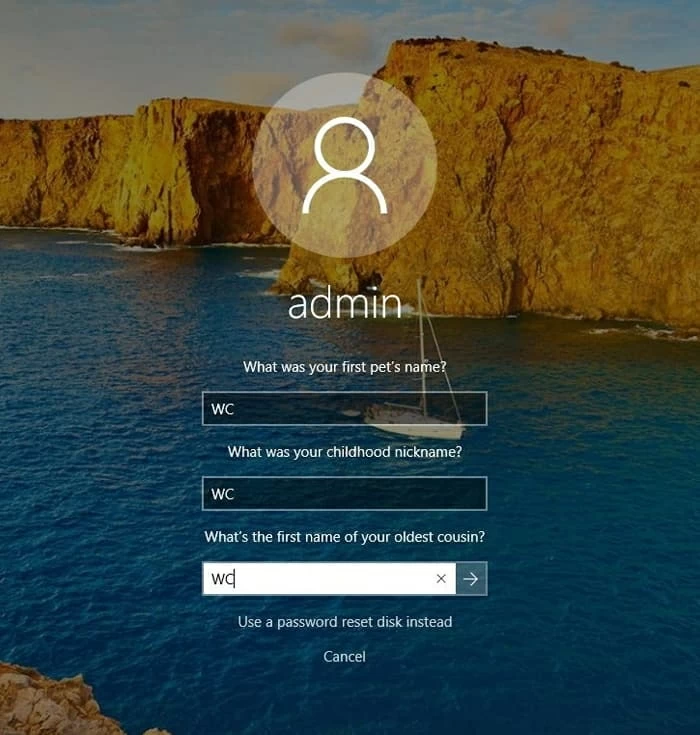
TIP: If you're prompted with Security questions, you can also answer the questions correctly for Windows 11 password reset. Or, click Use a password reset disk instead at the bottom.
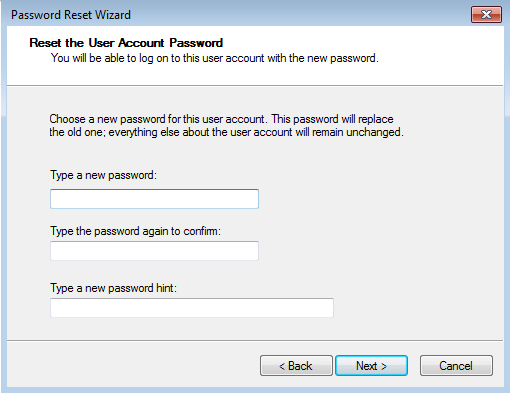
4. A Password Reset Wizard will open; click Next to go on.
5. Check the drop-down box and select your inserted USB drive from the list.
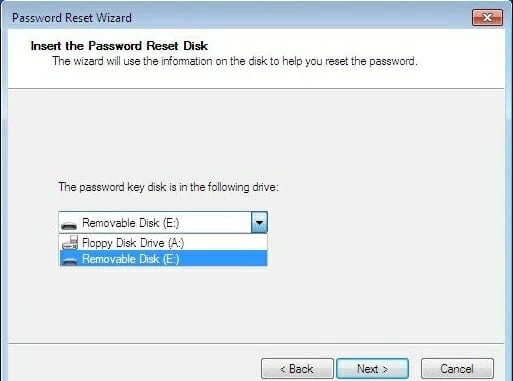
6. Create a new password and enter it again to confirm it. If necessary, add a password hint.
7. Click Next > Finish to complete password resetting.
8. Go back to Windows 11 sign-in screen and enter the new password to log in.
After that, you'll regain full access to your local account without losing any user data.
While a password reset disk can help you regain access to Windows 11 if you forget your local account logins, it also has some limitations.
Pros
Cons
For those who didn't create a password reset disk for their Windows 11 local account, the methods below can help create a recovery media after lockout or reset Windows password without a disk.
A previously-created password reset disk lets you easily recover a Windows 11 local account without logging in. If you're already locked out and don't have a prepared password disk, Appgeeker Windows Password Recovery can help you create a new one and regain access.
The tool supports a wide range of Windows versions, including Windows 11, 10, 8.1, 8, 7, Vista, and XP. Whether you're using a local or Microsoft account, an admin or guest account, it allows you to create a password reset disk even after a lockout. Then, you may follow its user-friendly interface to use the disk and reset your Windows 11 password directly from the login screen.
Best of all, it also helps if you're using a Microsoft user account and don't remember the login details. The recovery process is designed to preserve all your existing data. You'll get back to your system without any data loss.
Use this Windows 11 password reset tool if:
When you're ready, the following steps will help you create an efficient Windows 11 password reset disk to unlock your account for full access:
Step 1: Create a password reset disk for your locked Windows 11.
Install and open Appgeeker Windows Password Recovery tool on another spare Windows PC, then click Start button.
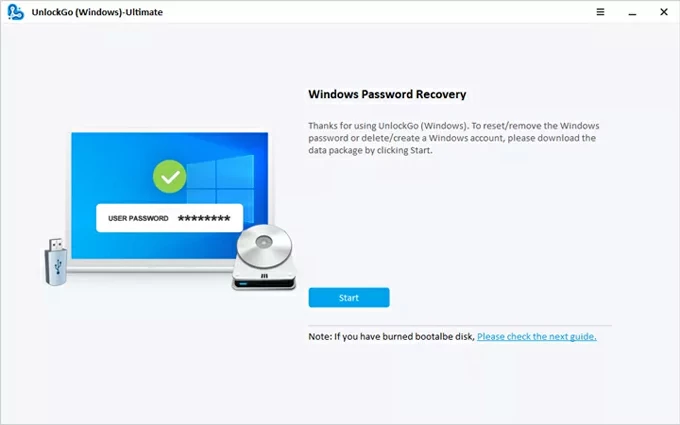
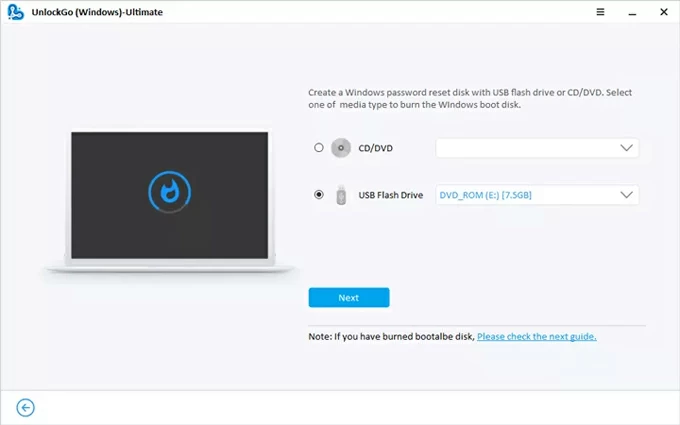
Insert an empty USB flash drive or CD/DVD and select your media device accordingly.
Click Next and the tool will burn it into a password reset disk for Windows 11.
Once complete, remove the password reset disk and insert it to your locked computer.
Step 2. Set your Windows 11 to boot from the password reset disk.
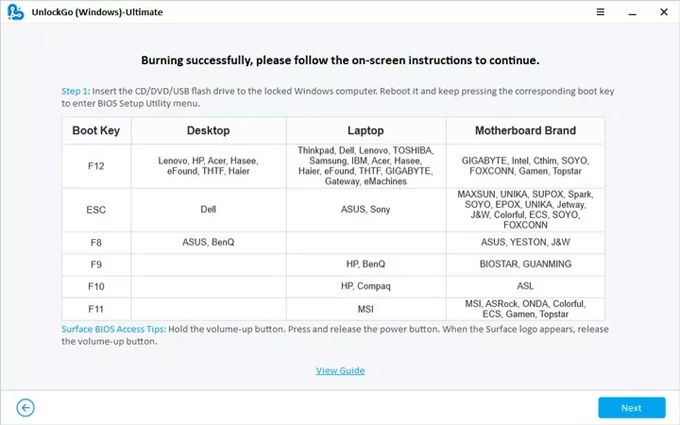
Restart your PC while pressing the corresponding boot key repeatedly. The common key is F12, ESCC, F8, F9, F10, etc. See as below:
When the Boot menu appears, use arrow keys to scroll and select your USB or DVD disk as the top boot option, then save the settings and restart your computer.
If you have trouble in changing the boot order, check the links below:
Step 3: Reset password for your Windows 11 user account.
Upon restarting, the Windows Password Recovery will launch automatically.
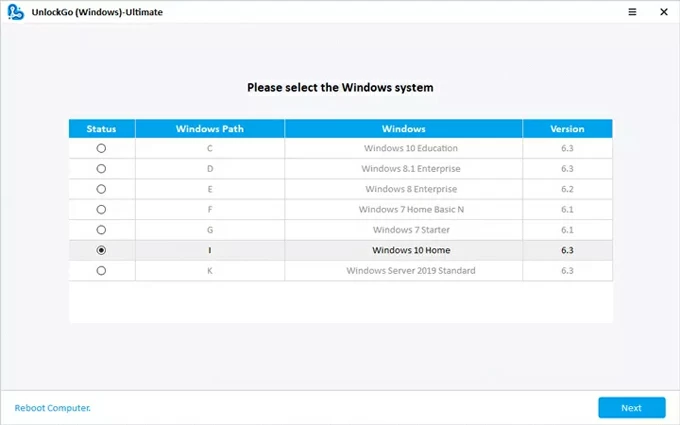
Select Windows 11 system and continue with Next.
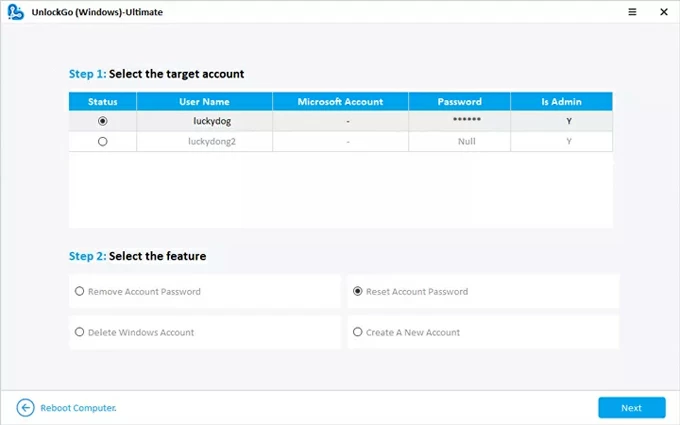
Pick the local user account and check Reset Account Password option, then hit Next.
When prompted, create a new password and enter it again to confirm the Reset.
After reset, sign in to your Windows 11 with the new password, no system re-installing needed.
If you don't have a previously-created password reset disk for Windows 11, there are still alternative ways to reset a forgotten password and recover access to your PC.
Without requiring a recovery disk, you can reset a Windows 11 password easily if you've set up security questions when creating the local account. Simply answer the questions correctly on the sign-in screen to create a new password and get back into your system.
1. On Windows 11 login screen, select your local account and enter a wrong password repeatedly.
2. When a Reset password link appears, click it to activate security questions.
3. Answer the security questions that you've set up when creating the account.
4. After verifying the correct answers, you'll be able to set a new password for the local account.
5. Once reset, return to login screen and enter the new password to unlock your Windows 11 PC.
If you're able to sign in with another administrator account on the same PC, you can use it to reset the password for a Windows 11 local account without needing a password reset disk.
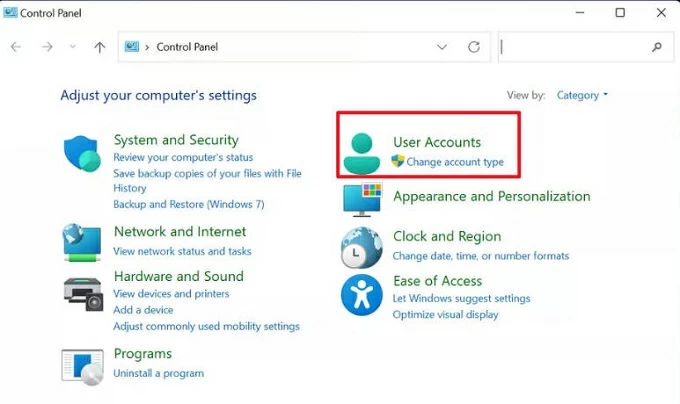
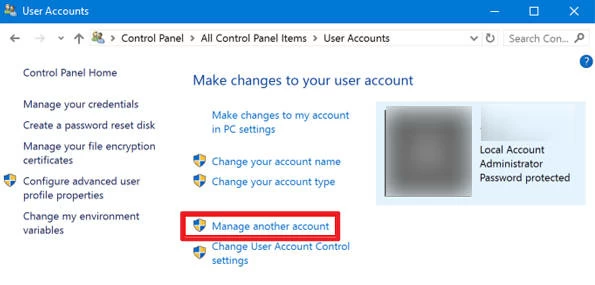
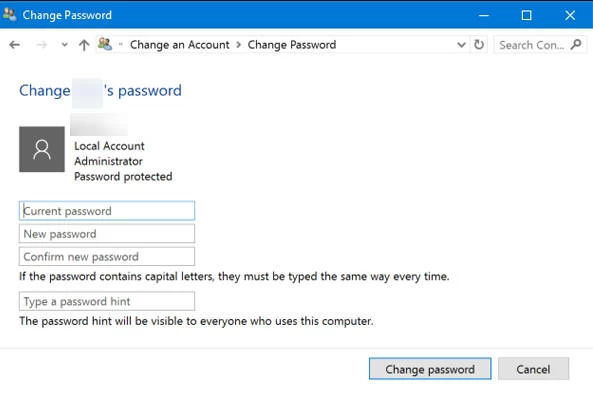
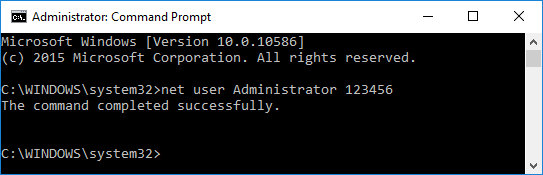
An administrator account has privilege to manage other user accounts, allowing you to change the Windows 11 password for a locked local account directly through system Settings, Control Panel, or Command Prompts, no reset disk required.
Reset password in Windows 11 Settings
Use Control Panel with Administrator account
Use Command Prompts for password reset
Note: Make sure to replace
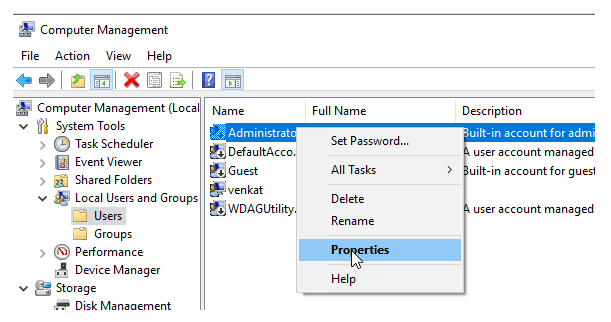
Use Local Users and Groups on Windows 11
For Windows 11 Pro, Enterprise, and Education versions, you can use Local Users and Groups to reset Windows 11 password without a disk.
By following the methods above, you're able to reset the forgotten Windows 11 password, then switch to that local account and sign in using the new password.
Q1 - Does a password reset disk work for Microsoft accounts?
No. A Windows password reset disk works only for local accounts. Microsoft user accounts will need to reset password online through Microsoft Account Recovery process.
Q2 - Can you create a Windows password reset disk after forgetting the password?
Normally, Windows requires you to enter your current password before you can create a password reset disk. If you've already forgotten the password or can't sign in, you may not be able to create one using the built-in features.
In that situation, third-party software such as Appgeeker Windows Password Recovery is designed to help you create recovery media and regain access to your Windows PC even after you forget the password and get locked out.
Q3 - Can one reset disk recover password for multiple user accounts?
No. Each password reset disk can only recover a specific local account on your Windows PC.
Q4 - Can I unlock my Windows 11 without a password reset disk?
Yes. If you have access to another account with administrator privileges on your PC, you can sign in with that account and reset the password for the locked local account using built-in Windows tools such as Command Prompt, Control Panel, or Local Users and Groups.
If no other administrator account is available, consider using a trusted recovery solution such as Appgeeker Windows Password Recovery to unlock your Windows 11 for instant access.