
How to Bypass FRP on Android Device


Forgot your passcode for iPhone and now find yourself locked out? Learn the proven ways to bypass lock screen on iPhone without passcode and open the device again.

If you forgot your iPhone passcode and need a way to quickly bypass the lock screen, Appgeeker iPhone Unlocker is famous for its lightweight design and versatile unlock capabilities, making it one of the most-used lockout removal tools for bypassing the lockscreen and unlocking an iPhone without passcode.
The only way to bypass iPhone screen lock if you've forgotten the passcode is erase the device and restore from backup.
By default, if you set a passcode, one moment you're picking up your iPhone, and the next you have to enter the correct passcode to bypass the lock screen for an instant unlock.
However, bypassing the locked screen on iPhone becomes tricky if you're locked out and forgot the passcode. Breaths easy. Apple offers a few legitimate ways for iPhone lock screen bypass by means of resetting the device and erasing the passcode completely.
Whether you're staring at the passcode-locked screen, or the iPhone Unavailable or Security Lockout screen, this guide will walk you through how to bypass an iPhone lock screen if you have forgotten the passcode, bringing you back to your device effortlessly.
In the context of Apple's security protections, "bypassing the lock screen when iPhone is locked" generally means gaining access past the lock screen with or without a passcode. This often falls into three completely different categories:
If you remember the passcode - data intact
After a passcode is entered correctly, you can slip past the lock screen directly into the user's home screen to access photos, messages, and apps without erasing the device.
If you truly forget the passcode - device reset
You forgot your passcode and can't bypass the lock screen, so you reset the iPhone, which removes the lock screen and forgotten passcode entirely rather than just going around it. This makes the device becomes usable again, but at the cost of completely wiping the storage clean.
If you forget the newly-changed passcode but know the old one - passcode reset
This is what many people hope "bypass" means. In iOS 17 and later, when you changed the passcode and forgot it, Apple allows you to use the old passcode - which remains active for up to 72 hours - to bypass the lock screen without erasing data and set up a new code.
Below, we'll discuss five methods for bypassing lock screen to iPhone—with or without a computer. Starting with the easiest solution that involves just resetting the iPhone passcode without removing the lock screen or losing data. The remaining 4 passcode bypass strategies are an erase-and-restore process, requiring a factory reset to delete all data including the lock screen passcode, and then restore data from a recent backup or set it up as new.
How you get pass the iOS lock screen without passcode when locked will depend on which version of iOS you phone is running, whether you have Find My iPhone enabled or not, whether you have an old passcode available to use, or whether you know the associated Apple Account.
Technically, this is not bypassing the locked screen—iPhone is simply accepting the previous passcode to unlock iPhone during a limited recovery window. Apple refers to this safety net as Passcode Reset for iOS 17 and newer, and it functions as a temporary 72-hour grace period.
In the event that you change your passcode only to immediately forget the new sequence, simply use the Passcode Reset trick to bypass the forgotten passcode and create a new one immediately. The process is not a full passcode removal trick, but it makes it possible to get into a locked iPhone without erasing data.
1. Input the wrong passcode five times until you get to the "iPhone Unavailable" screen.
2. Tap Forgot Passcode? in the bottom right. A Forgot Passcode screen appears.
3. Tap Enter Previous Passcode button.
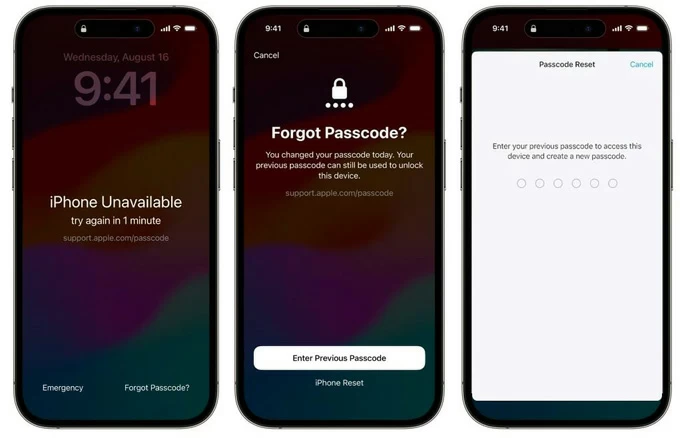
4. Enter the old passcode and, when prompted, set a new passcode.
Now, you can use the new passcode to unlock the screen lock and access the iPhone.
If your iPhone is unavailable, Apple allows for erasing the iPhone to bypass that security screen - once the Apple Account is verified. You don't even need a computer or a connecting cable to break through a lockout.
Depending on the exact operating system version your device is currently running, this on-device reset option appears differently on the lock screen. On devices running iOS 15.2 through iOS 16, the system displays an Erase iPhone option. On newer devices running iOS 17 or higher, the text has been updated to read Forgot Passcode?. The mechanical steps for bypassing the passcode on an iPhone without a computer using Apple ID, however, remain identical.
1. To bypass screen lock, keep entering wrong passcodes until the iPhone says Unavailable, along with a "Forgot Passcode?" option at the bottom right.
2. Tap Forgot Passcode? button (or Erase iPhone button).
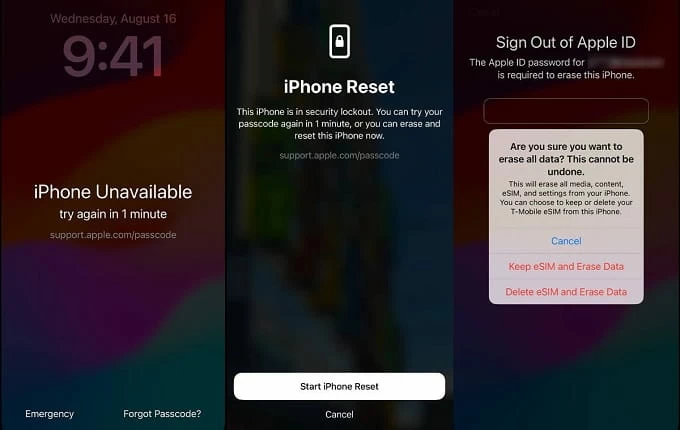
3. Select Start iPhone Reset.
Here you will see a screen saying "This iPhone is in security lockout" appears, warning you that you can reset the iPhone if you're forgetting the passcode and remove the screen lock.
4. Enter your Apple Account password if prompted.
5. Complete the rest of the reset process. Once the iPhone is erased and restarts, you can set it up and use it, no more lock screen passcode.
If you cannot use that on-device reset with the Forgot Passcode feature, try the computer-based solution in case your iPhone is locked permanently. One dedicated screen lock removal tool is Appgeeker iPhone Unlocker.
This desktop utility is reliable and efficient in feature set, but also simple to use. It's designed to wipe the passcode when forgotten to get past the lockout, remove Apple ID, remote management lock, reset Screen Time passcode, and even bypass iCloud Activation Lock without password — it can get rid of just about everything you can think of about screen locks.
Whether you can't remember your device passcode or stuck at the iPhone Unavailable or Security Lockout screen, resetting and bypassing an iPhone screen lock is breeze, and can be completed in an easy-to-follow wizard after choosing "Unlock iOS Screen."
If you haven't the software on your computer, click the link above to download and install on your either Mac or PC. Then follow the steps below to learn how to bypass screen lock on an iPhone without iTunes or passcode.
Step 1: Launch iPhone Unlocker
After running it, select "Unlock iOS Screen" mode to begin.
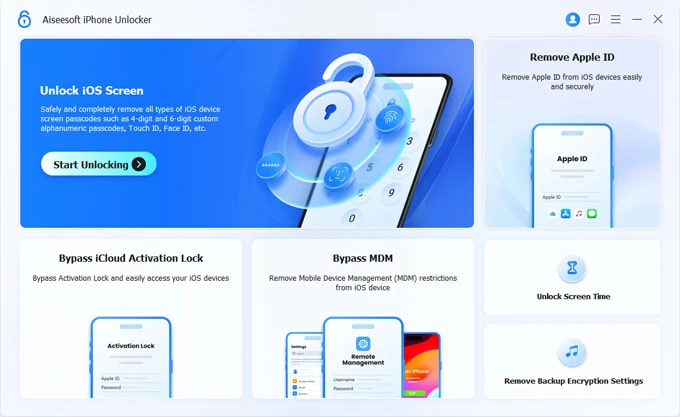
Next, connect your iPhone to your computer with a working cable. When prompted, follow the onscreen step to place your phone into recovery mode.
Step 2: Confirm the iPhone information
Once connection, review your phone model.
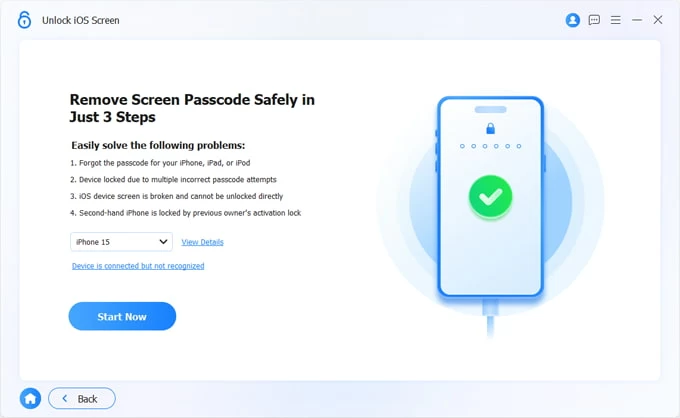
Step 3: Download firmware package
Click the "Start Now" button to begin downloading iOS firmware for your iPhone after the software detects the device info.
The download may take a few minutes. Wait patiently.
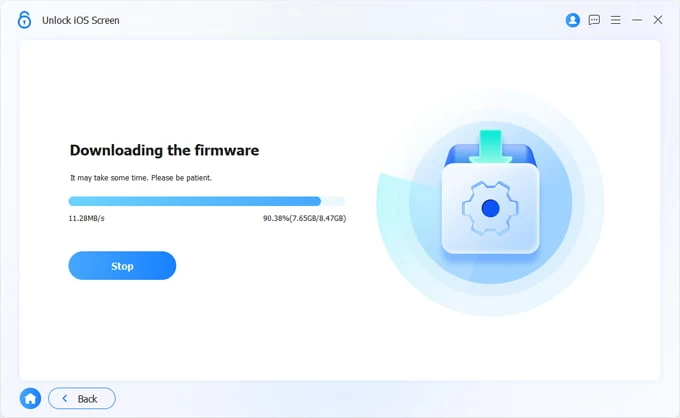
Step 4: Begin resetting the iPhone and remove the lock screen
After download, confirm your unlock decision, press OK button, and then click Confirm Again button to initial the process.
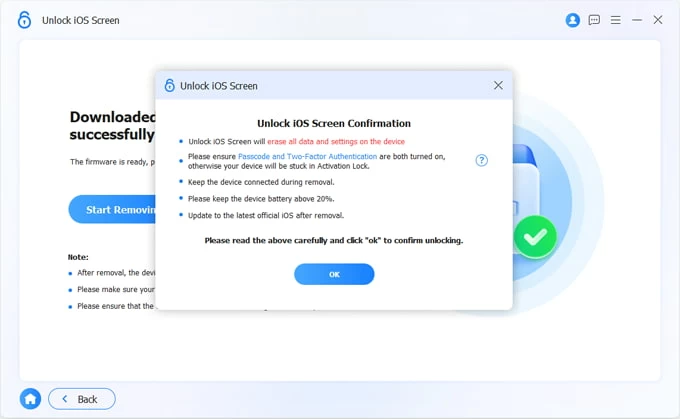
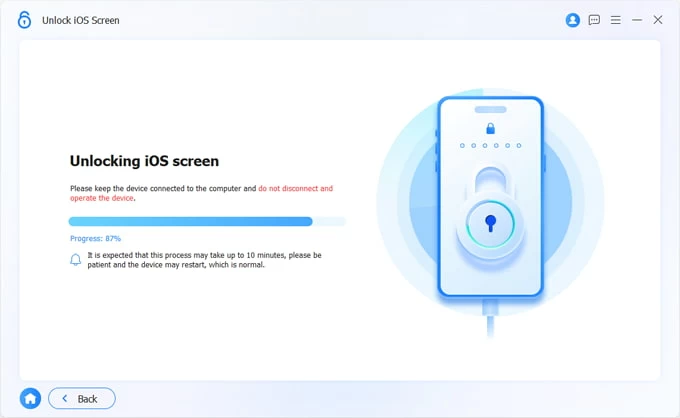
Your iPhone may restart 1-2 times while it resets to factory defaults. All content and settings including the iOS lock screen are deleted, in a way to let you unlock your iPhone without passcode.
Once done, you'll be shown a Hello screen. Simply set it up and sign into your Apple credentials when prompted. If you have a backup, restore your data and then sync your files from iCloud.
Also: How to transfer data from iPhone to PC
If you have Find My enabled on your iPhone before forgetting your passcode and the device has an active internet connection, you can sign into iCloud Find My website to reset the passcode and clear the device remotely from there. You will need to know your Apple Account details to access and bypass a locked or unavailable iPhone, though.
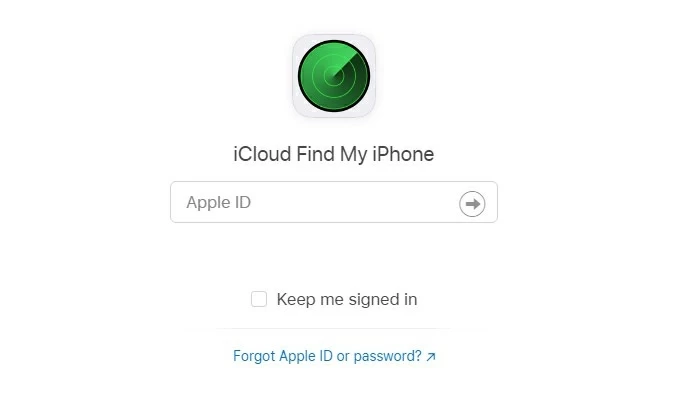
Step 1. Open icloud.com/find on any web browsers and sign in.
Note that the iCloud login information must be the one signed with your iPhone already. If you've forgotten the Apple ID password, you can Reset your password at iforgot.apple.com, but we'll assume you don't need to do that here.
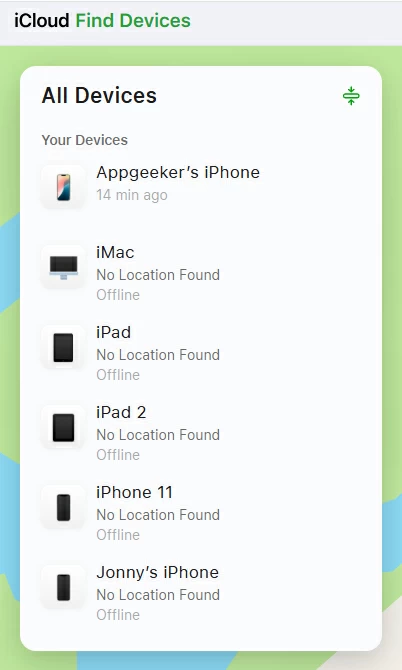
Step 2. Select your iPhone you want to get past the passcode locked screen from "All Devices" panel.
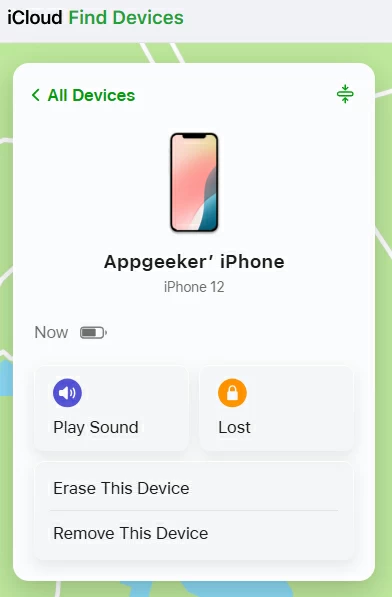
A new menu appears with option for resetting iPhone and screen lock.
Step 3. Choose Erase This Device.
Step 4. Input your Apple Account password to verify your identity.
Step 5. Click Next button if warned that it will delete everything on the device.
iCloud will take a few minutes to remotely wipe the iPhone and restore to its factory settings. When it's done, you will return a fresh new iPhone without screen lock passcode.
When it comes to enabling an iPhone lock screen bypass due to a forgotten passcode, Apple's main fallback is recovery mode. This traditional system restore approach forces your iPhone's hardware components to communicate directly with a computer through a physical cable connection, overriding the lock screen interface entirely.
Apple's support instructions say to turn off the iPhone, place it into recovery mode - which requires precise button combinations depending on device model, then restore it to factory settings from Finder on Mac or the iTunes/ Apple Devices app on Windows to have the lockscreen passcode removed.
How to get past the iPhone passcode lock via Recovery mode on computer:
1. Start by turning off the iPhone.
2. Connect the device to your computer. Either a PC or Mac can be fine.
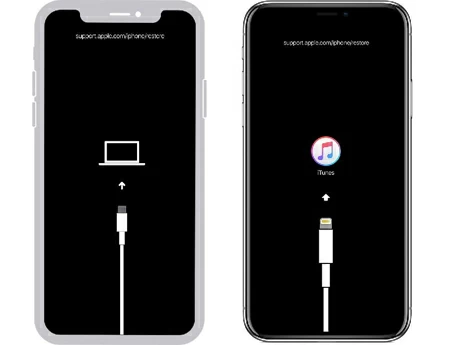
3. Enter recovery mode.
For iPhone 8 and later: Press and holding the Side button for a while. Even if you see an Apple logo, don't release the button. When you see an image of a computer and a cable appears on the screen, you're in Recovery mode. Release the button.
For iPhone 7: Press and hold the Volume Down button. Keep holding it until you see the Recovery mode appear.
For iPhone 6 and earlier: Press and hold the Home button until the device enters Recovery mode.
4. Launch iTunes on your Windows computer and select the device icon in the top of window. For Mac, click the iPhone name under Locations in the sidebar of Finder app.
5. Click Restore.
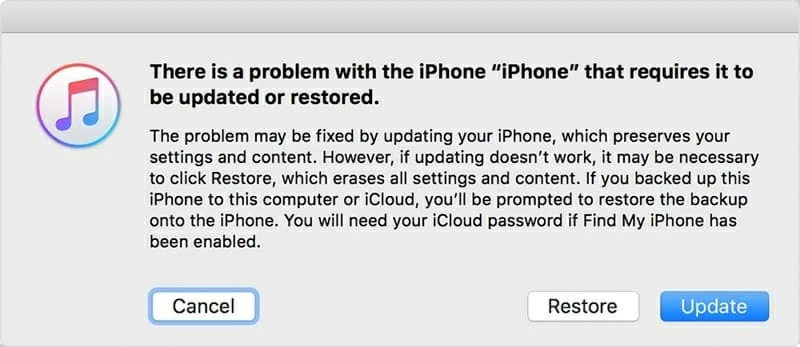
6. After it completes the restore process, your screen lock has been bypassed and you can set the iPhone up again.
Also: How to bypass Google verification on Samsung phone
Important! If you still can't find a way to bypass the lock screen on iPhone without passcode, your only option is consider bringing your device to an Apple Store to get help.
As you can see, Apple won't let you force a simple bypass when the screen passcode was forgotten. To regain access, the only way is to wipe and reset the locked device, which removes all data, settings as well as the security passcode, and enables you to set up a new code.
Q1. How can I bypass iPhone lock screen without losing data?
You can only bypass iPhone lock screen without erasing your device when you changed the passcode within 72 hours and you remember the old passcode. If this is the case, visit the method 1 in this article to bypass the lock and unlock your iPhone.
Otherwise, your locked iPhone needs to be erased first.
Q2. Can I bypass the lock screen iPhone without entering Recovery Mode?
If you're locked out of iPhone, you won't be able to bypass the screen lock without the passcode, but you can reset the device to get access back. One official alternative to Recovery Mode is iCloud Find My's remote reset.
Simply go to iCloud.com, log in with your Apple Account, and then go to Find My > All Devices > select your iPhone > Erase This Device.
Q3. How do I turn off screen lock on an iPhone?
You should secure your phone with a passcode to keep your data safe. But you can turn the lock screen off in Settings. Go to Settings > Face/Touch ID & Passcode > Turn Passcode Off. You'll need to enter the existing passcode or iCloud password to turn off the screen protections.