iPhone Unavailable No timer. The Fix


This guide breaks down everything about deleting a Microsoft account off Windows 11 - even you forget the password, as well as closing the account for permanent deletion.

While Windows 11 encourages users to sign in with a Microsoft account during setup for enhanced security and unlimited online services' access, there may come a time when you need to delete the Microsoft account on your computer—maybe you prefer to remove Microsoft account from Windows 11 for switching to a local login, troubleshooting a locked-out system due to forgotten password/ PIN, or clearing away old school or work accounts; Or perhaps you plan to permanently close your MS account (Outlook, Xbox, Hotmail, etc.).
Luckily, learning how to delete a Microsoft account on a Windows 11 computer is pretty straightforward. This article covers every scenario and walks you through exact steps on deleting Microsoft account from PC or laptop - whether or not you're signed into Windows 11 system.

Keep reading this Windows 11 guide to see how you can delete your Microsoft account, and what else is deleted from your device after sign-out or closure.
If your ultimate goal of deleting a Microsoft account is just for resetting the password you've forgotten, Appgeeker Windows Password Recovery is your best bet. Instead of deactivating or removing your Microsoft account profiles in Windows 11, the tool lets you change the password to something new without logging in and regain immediate access to your locked computer.
Table of Contents
When dealing with deletion of Microsoft accounts on Windows 11, it's vital to understand the difference between removing the account from your specific Windows device, and closing your Microsoft account forever.
Removing an account from Windows 11 means you only unlink the Microsoft account login from your device user profile and switch PC login to a local account. Your actual Microsoft account and services (Outlook, Xbox, OneDrive) remain active and accessible via the web and other devices.
A removal of Microsoft account will just get rid of the associated data and sign-in information from your computer, but it will not cause you to lose any files or data that are stored locally.
Closing Microsoft account is a complete process that deletes Microsoft email address (@outlook.com, @live.com, or @hotmail.com), OneDrive files, Xbox profile, Skype history, and any purchased digital content. After a mandatory closure window (usually 30 or 60 days), all data and services tied to the account will be permanently deleted from Microsoft's servers.
Before you start with the Windows 11 Microsoft account removal or deletion process, it's always a good idea to back up your important data just in case.
Whether you prefer to log in with a local account instead of an online Microsoft account for more privacy, or would like to disconnect a secondary or unused account, there's no need to worry about how to delete a Microsoft account on Windows 11 without losing data or breaking system access. If you have physical access, go straight to Settings app and find the options to remove your personal MS account, or a school/ work account.
Windows 11 won't let you directly delete your Microsoft account if it's your primary sign-in account. The account removal process involves switching to a local account login, after which the hidden Remove option unlocks and serves for deleting your person Microsoft account and data easily.
Step 1. Switching from primary Microsoft account to a local account
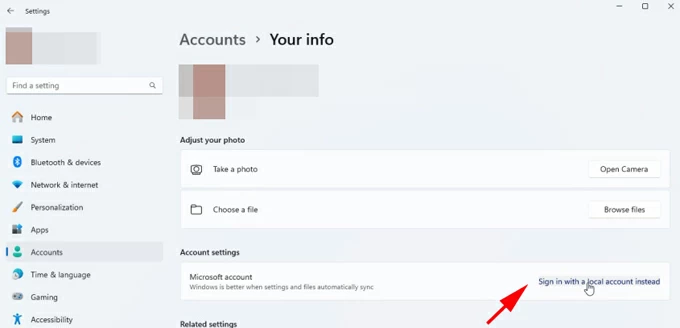
Your PC will immediately sign out. Use the local account credentials to log back in.
Step 2. Removing Microsoft account in Windows 11 system
Once logged out, it's time to entirely remove the Microsoft account from your PC - whether it's your primary account or a secondary account linked to a Microsoft email.
Windows 11 does NOT delete the Microsoft account online—it only removes from this PC along with profile-associated credentials, files, application data and settings.
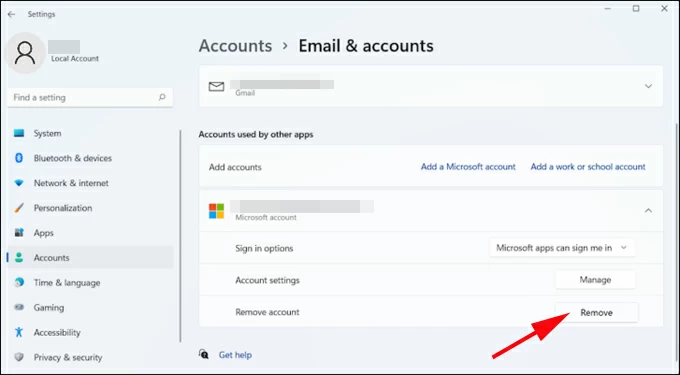
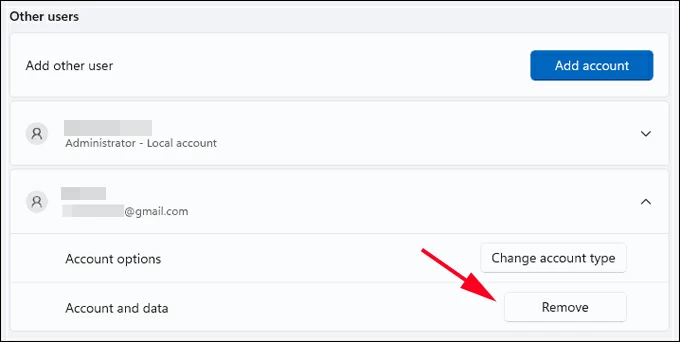
You can also delete a secondary Microsoft user account from your PC after ensuring your primary Microsoft account has been switched to a local administrator.
Deleting old work or school Microsoft accounts from a PC in Windows 11 and clearing the cached login credentials can be done through "Access work or school" section of Settings - when you graduate or change institutions.
To complete the Microsoft account deletion, make sure that you're not signed into your school or work account, and instead, you need to log in with your personal administrative local account or MS account. This is also the remedy if there is no Disconnect option offered to get rid of your Microsoft school & work account. To do this:
1- On your computer, open Settings app and choose Accounts.
2- Scroll down the right-hand panel and click on Access work or school.
3- Find the school or work email address you want to remove in the list, then click the small arrow to expand the options for deleting your account.
4- Hit Disconnect. A warning prompt will appear stating that your access to school or work resources will be removed.
5- Click Yes to verify that you're sure to disconnect an old Microsoft account even without access to the sign-in email & password.
6- When done, restart your computer. This ensures all background sync processes and cached credentials for that previous school or work account are fully cleared from a Windows 11 operating system.
It couldn't be a daunting task to delete a Microsoft live account from a Windows 11 desktop or laptop if you're able to reach Settings. What if you forgot your Windows 11 password and can't log in? If this is your case, continue to read on how to remove the Windows 11 Microsoft account when your computer is locked without knowing the login credentials.
When you cannot remember the login password after frequent changes or on a long-unused/ second-hand computer, rather than doing a factory reset or clean reinstall, you can reset it to delete your Microsoft account from your Windows 11. The quickest way to reset Microsoft password is to use Appgeeker Windows Password Recovery, which features with a powerful password reset ability allowing you to reset the password for both Microsoft account and local account, and thereby recover instant access to a locked Windows PC or laptop.
The software bypasses the need to verify the recovery email or phone number of Microsoft account login reset, and works to create a Windows password reset disk with another computer to change the Windows 11 password to a new one. Once you're signed back in, switch to local account and delete the Microsoft account from your Windows 11 via Settings hassle-free.
Here's how to delete Microsoft account in Windows 11 computer after forgetting password. You'll need another accessible machine and a blank USB drive (or CD/DVD) to complete the Microsoft password reset process before the removal of the online account.
This also works if you bought or received a computer from someone else and it's still logged into their Microsoft account, since the process doesn't require any form of authentication.
Step 1. Download Windows Password Recovery software on a working computer, install it, and then launch it. Click Start button.
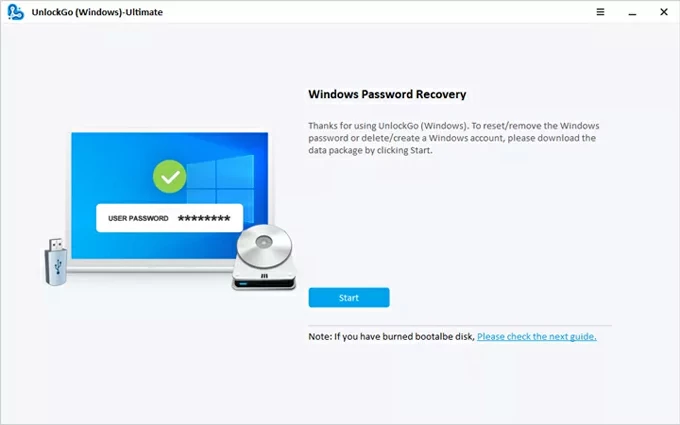
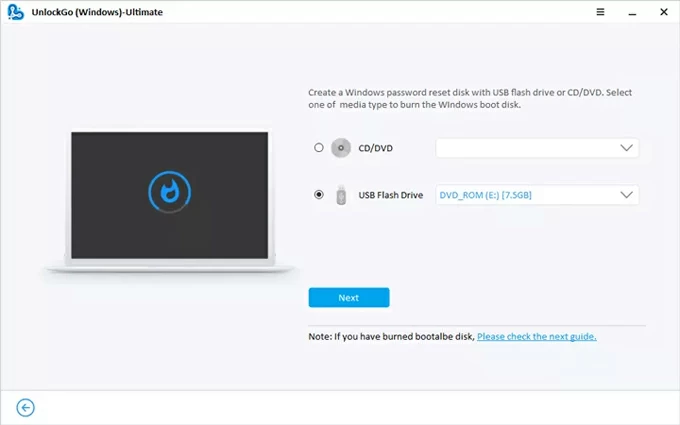
Step 2. Insert the USB flash drive to the computer and choose it from the pull-down menu. Then click Next button to create a bootable Windows 11 password reset disk to resolve the login issue.
After that, unplug the USB.
Step 3. Insert the USB reset disk to your locked Windows 11.
Reboot your computer. As soon as you see the brand logo, repeatedly press corresponding key (e.g. F12, ESC, F10, etc.) to enter BIOS Setup Utility menu, where you can set your machine boot from the password reset disk to recover your Microsoft account.
Your computer will then restart itself.
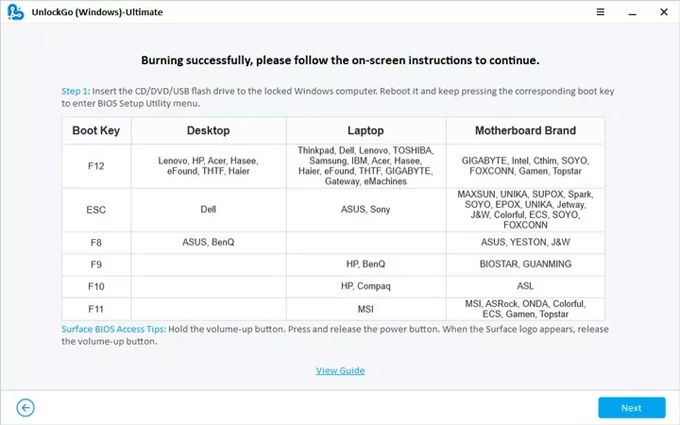
If you have no idea on how to change the boot order, check the detailed guide via the links below:
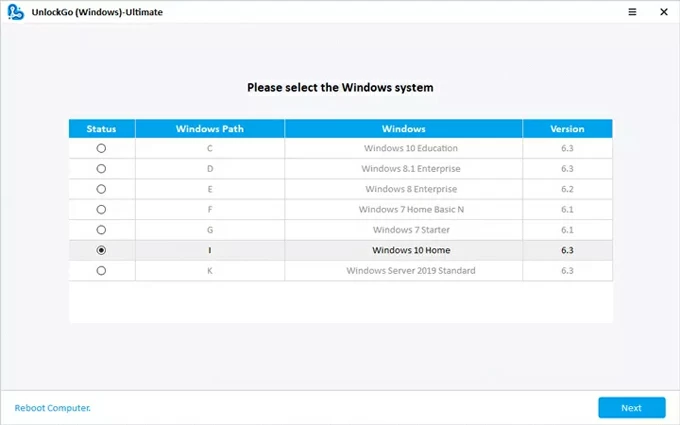
Step 4. When Windows Password Recovery tool opens, choose your Windows 11 operating system, and click Next button.
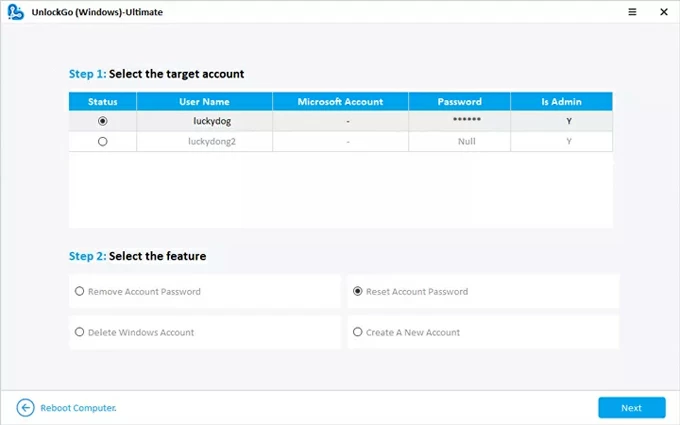
Step 5. Proceed to choose [your account] you're locked out of, and check Reset Account Password. Click Next button.
Step 6. When asked to reset your locked Microsoft sign-in password, enter the new one you desire, and then hit Reset button to kick off the password change and computer unlock.
Your computer will then reboot. Use the newly reset password to bypass Windows 11 login screen and get onto desktop for full use.
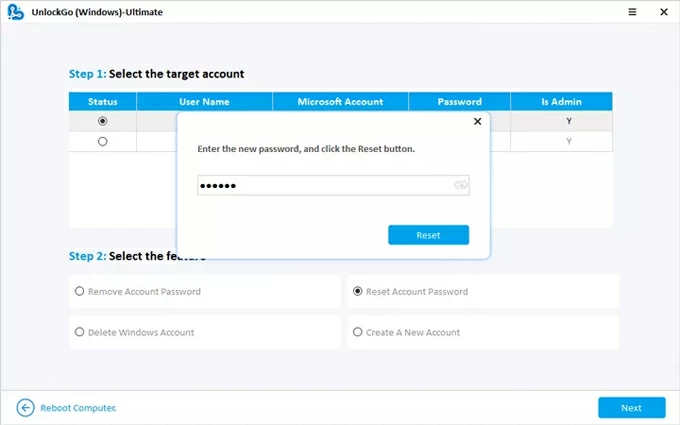
Now that you can sign into your Microsoft account, deleting your Microsoft account is relatively easy as long as you know how to change it to a local login.
That's done. The ultimate solution to bypass Windows 11 password even you forget it and remove the MS account comfortably.
If your goal is to permanently delete the Microsoft account itself, not just temporarily remove it from Windows 11, you can quickly and easily delete your Microsoft ID on official website — simply log in from any device and submit a request to delete your personal Microsoft account. Microsoft will verify your identity and process the permanent deletion or deactivation after the chosen grace period (30 or 60 days).
Deleting your Microsoft account is permanent — so be sure to back up your data first. Unlike removing or unlinking your account, having the entire Microsoft account profile deleted ensures your data is wiped form Microsoft server, and all Microsoft services and subscriptions tied to that email are canceled.
Have an old or unused Microsoft account you've thought about deleting but don't know how? We'll show you the ropes for how to delete a Microsoft user account:
Note: If this live account was linked to your Windows PC, switching to a local account before closing Microsoft account is highly recommended to avoid any issues with your PC's access.
1. Open a web browser, and visit Microsoft Live "Close my account" website.
2. Sign in with the email address and password linked to your Microsoft account you're going to delete.
3. If asked, verify your login request via code sent to your email or phone number.
4. Read the information about what you'll lose after deactivating your account.
5. Choose a grace period between 30 days and 60 days of when your account gets permanently closed.
6. Confirm for Microsoft account closure by clicking Next at the lower left corner.
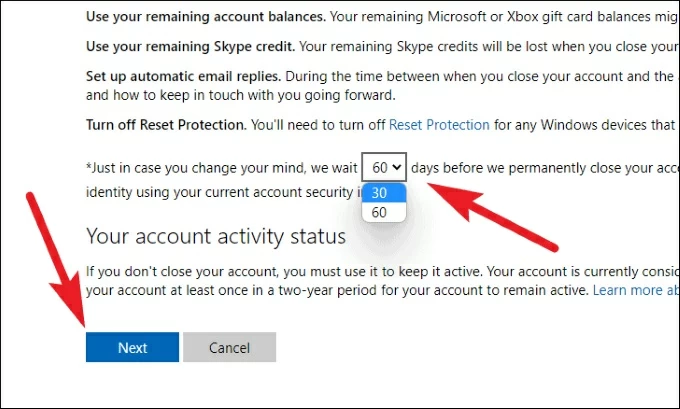
7. Review the checklist and check all items that informing you again what will happen once Microsoft user profile is deleted.
8. Choose the reason from the drop-down menu for deleting or quitting the Microsoft account.
9. Hit Mark account for closure button to deactivate the entire account profile.
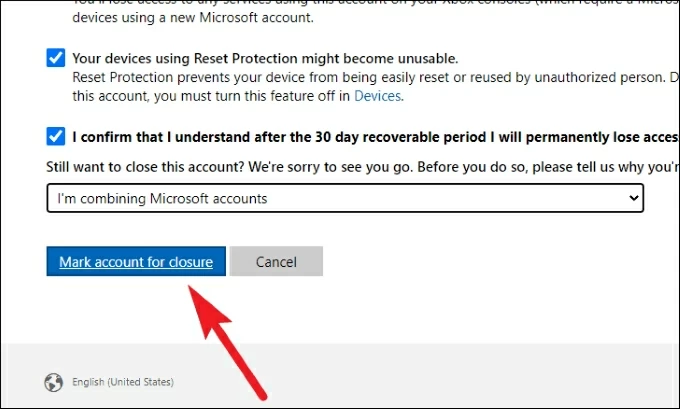
Done! Your Microsoft account is mark for deletion, and will be permanently deleted after the 30- or 60-day waiting period you've selected. If you sign in to the account during this time, the closure is canceled.
Once your Microsoft account deletion is complete, it cannot be used as a login to Windows 11 computer.
Q1- Does a factory reset delete a Microsoft account?
Yes. Factory reset a Windows computer will remove all data, apps and settings, as well as delete all user accounts, returning it to its original status.
During the Windows initial setup, you can bypass Microsoft account login and create a local account instead.
Q2- Can I delete my Microsoft account from my computer with no access to Windows Settings?
Yes. Microsoft's website offers option to remove a computer that you don't own or use anymore from Microsoft account list without needing to go to Windows Settings app.
Q3- Can I add the Microsoft account back later after it's removed from my Windows 11 PC?
Absolutely. Go to Settings > Accounts > Your info and sign in again.
Q4- Is deleting a Microsoft account reversible?
Only within Microsoft's recovery window (usually 30–60 days). After that, it's permanently deleted and closed.
Q5- Can I delete my Microsoft account from Windows 11 without a password?
To remove a Microsoft account without password when locked out of Windows 11, you can first reset the password to something new and regain access, then go to Settings app, switch MS account to a local account, and then sign it out for removal. To reset a forgotten or unknow password of your Microsoft account, consider using a dedicated & effective application called Appgeeker Windows Password Recovery, in a way to resolve login issue and get access back.
If you have another administrator account on your PC, sign in it and remove your Microsoft account effortlessly.