
8 Best Windows Password Recovery Tools


Forgot HP laptop password and don't have a useful Windows password disk? This article offers ways to unlock your HP laptop forgot password without a physical recovery disk.

Without a Windows password reset disk, the Appgeeker Windows Password Recovery tool is undoubtedly the most convenient way to unlock HP laptop when you forget the password, as it can directly reset your forgotten password, regardless of whether you are locked out of a Microsoft account or a local account, and re-enter the system without losing any data.
The method for a diskless unlock when the HP laptop password is forgotten varies depending on the account type.
When you forget the login password for your HP laptop and are locked out, a pre-created Windows password reset disk allows for a quick unlocking. But if you didn't prepare a Windows password reset disk in advance, unlocking your HP laptop without a disk after forgetting the password is not difficult either.
Modern Windows systems and HP devices offer multiple built-in and online options to unlock an HP laptop without using any reset disk if you've forgotten your password—whether it's for a Microsoft, local, or administrator account. This guide provides clever, disk-free unlocking solutions to bypass the forgotten password on HP laptop, letting you easily regain access and ensure your valuable data preserves safely.
Table of Contents
Unlocking a password-forgotten HP laptop without disk does not automatically mean your data will be erased. In fact, most methods—such as Microsoft account recovery, answering security questions, using an existing admin account, or resetting the password through professional Windows Password Recovery software—restore access without touching your files.
Data loss only occurs with methods that reinstall or restore Windows, such as WinRE's Remove everything reset or HP Recovery Manager's full system recovery. As long as you choose a password-reset or account-based unlock method instead of a complete system wipe, your personal data remains intact.
When your HP laptop is connected to a Microsoft account, you're in luck—this is one of the simplest ways to unlock the HP laptop with the forgotten password without using disk.
Because Microsoft passwords are stored online rather than locally, you can reset the login credentials from any internet-accessible device, and the updated password syncs back to your laptop automatically. This method is ideal for users who remember their email but simply can't recall the password tied to it.
1. Open any browser on your phone or another computer and go to Microsoft's official password reset page.
2. Enter the email address, phone number, or Skype name associated with the locked Microsoft Account. This initiates the remote verification sequence.
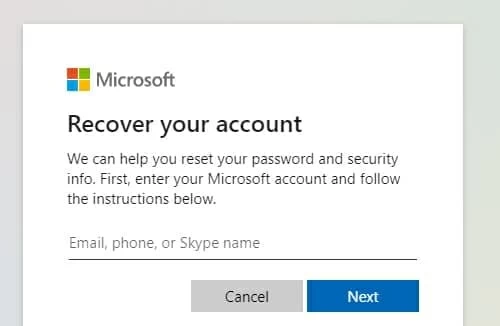
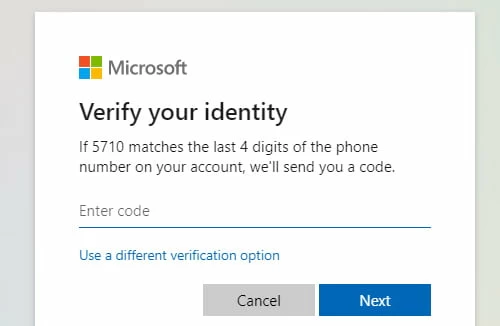
3. Choose the verification option—SMS code, alternative email, or Microsoft Authenticator, then click Get code.
4. Complete the security challenge, then type the code you receive.
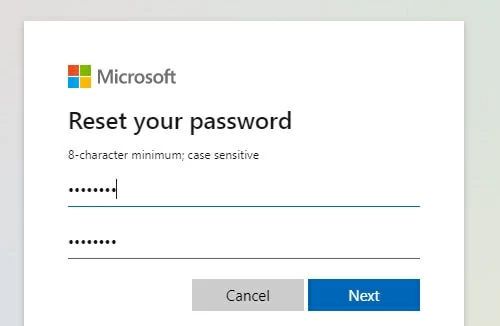
5. Set a new password, confirm it, and wait a moment for the change to be saved.
6. Return to your HP laptop, restart it, and unlock it using the newly created password.
Note:
Want to break free from the constraints of your Microsoft account on your computer? See How to Remove Microsoft Account from Windows 11.
Local Windows accounts created in Windows 10 and Windows 11 often include security questions. If you configured the three required security questions when setting up their local account initially, they become an incredibly convenient way to unlock the HP laptop when you forget the local account password without needing a disk, recovery tool, or reinstall.
1. On the login screen, enter any incorrect password.
2. Windows will detect the failed attempt and display a Reset password or I forgot my password link—select it.

3. You'll now see your three security questions. Answer each one carefully.
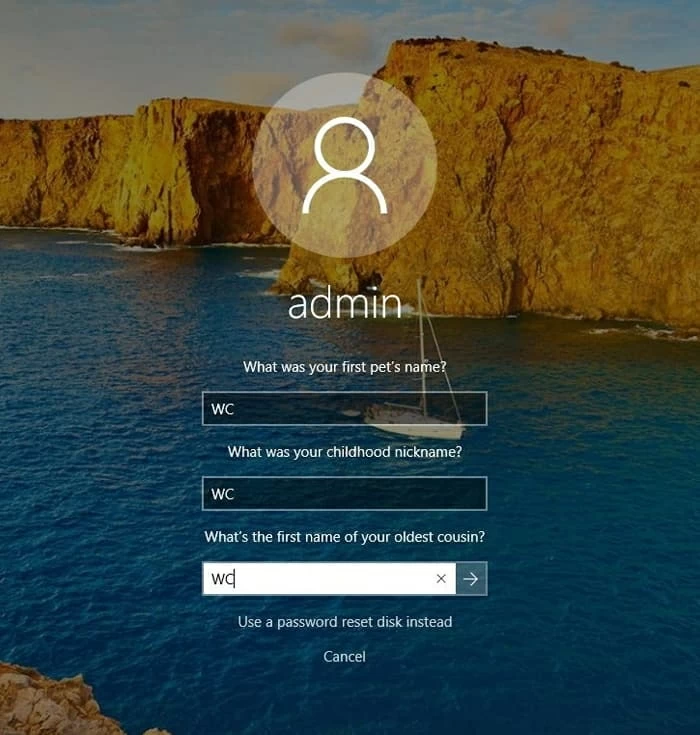
4. Once verified, Windows allows you to create a new password for the account.
5. Confirm the new password, return to the login screen, and unlock your HP laptop immediately.
The Windows password reset disk is designed for one specific local account and must be created while logged into that account. Without the official Windows password reset disk, professional Appgeeker Windows Password Recovery tool serve as the most direct and reliable alternative for unlocking your HP laptop without needing the login password.
Unlike reinstalling Windows, this method focuses solely on resetting the password and does not reset the device or delete applications, files, and system settings. Most importantly, it works for all mainstream account types—Local Account, Administrator Account, or Microsoft Account—and is compatible with virtually all HP models and Windows versions.
Therefore, consider trying Windows Password Recovery tool to get into your HP laptop after a password lockout.
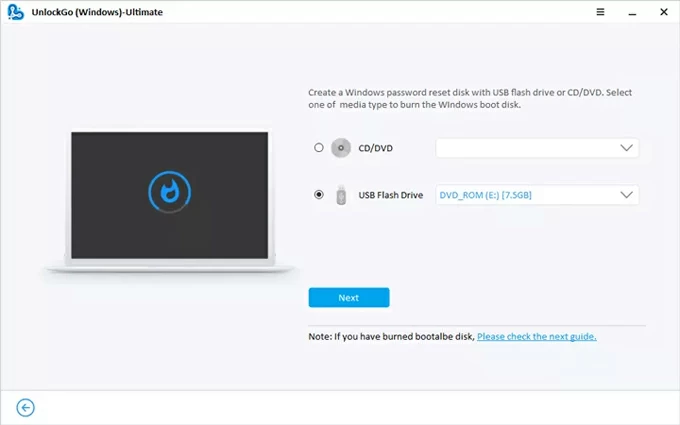
1. Download and run the Windows Password Recovery software on another working computer. Insert a USB drive or CD/DVD, select your media, and click Next. The software will efficiently format the USB and write the necessary boot files, creating a specialized dis.
2. Insert the newly created password disk into the locked HP laptop. Turn on the laptop and repeatedly press F9 to open the boot menu. Then, use the arrow keys to select the USB drive or CD/DVD and press Enter. This forces the laptop to start the specialized recovery environment instead of Windows.
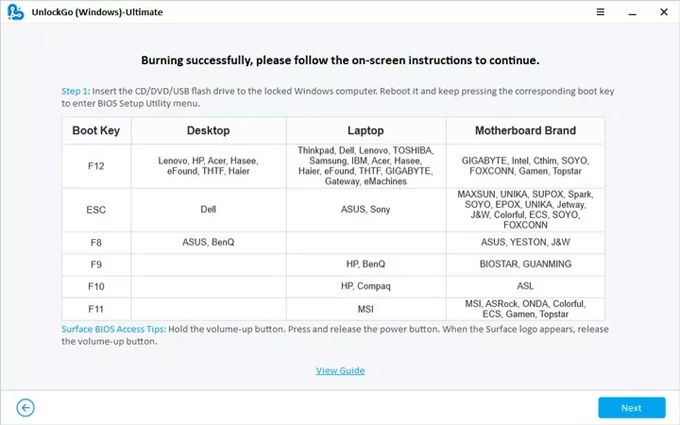
If you're unsure how to set the USB/CD/DVD as the first boot priority, you can refer to:
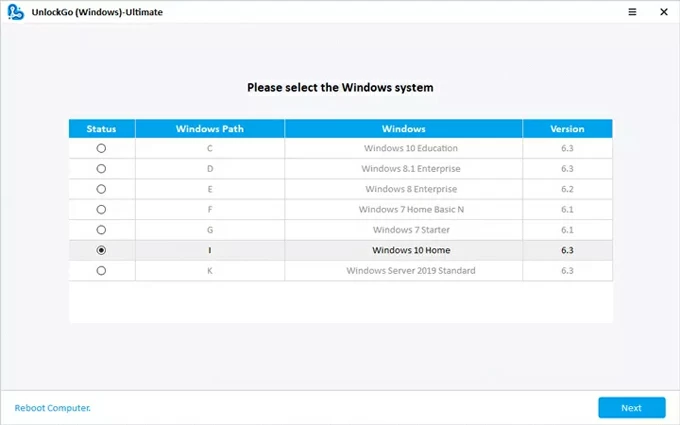
3. The software will load its interface and list the available Windows installations. Select the Windows system on your HP laptop, and then choose the locked user account from the list (which can be a Microsoft Account, Local Account, or Administrator Account).
4. Click the Reset Account Password option, enter your new password, then hit the Reset button. The utility will instantly edit the account files, clear the forgotten password, and overwrite it with the new one.
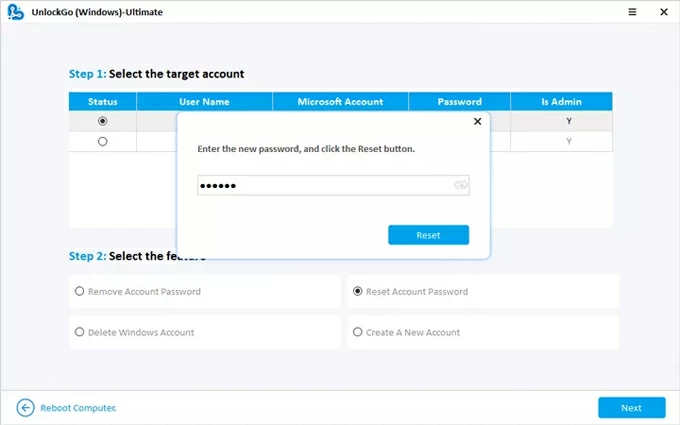
Once finished, remove the drive and restart the HP laptop normally. You will now be able to log in successfully using the newly reset credentials, having achieved a complete unlock without disk or data loss.
You can also use this software to reset admin password in Windows 10 if you forget the password.
Many HP laptops have multiple accounts, and occasionally another administrator account remains active. If that admin profile is still accessible, it can be used as a powerful tool to unlock the account whose password you forgot without a disk on your HP laptop.
This solution makes use of Windows' built-in account management to gain full control over all user profiles on the system, letting you change the password of the locked account from within Windows without needing to bypass anything.
1. On the HP laptop's login screen, switch to your administrator account and enter the correct password to log in.
2. Open the Control Panel by searching through the Start menu, and then locate the User Accounts.
3. Click Manage another account to view all user profiles.
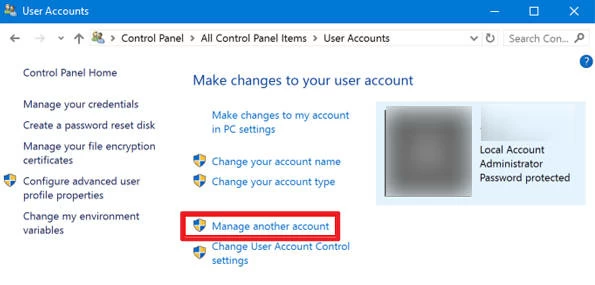
4. A list of all user profiles will appear; select the specific account you need to unlock.
5. In the account management options, select Change the password.
6. Input a new password for the locked user and confirm it. This action forces a password change and ensures the main account is ready to be unlocked the next time it's used.
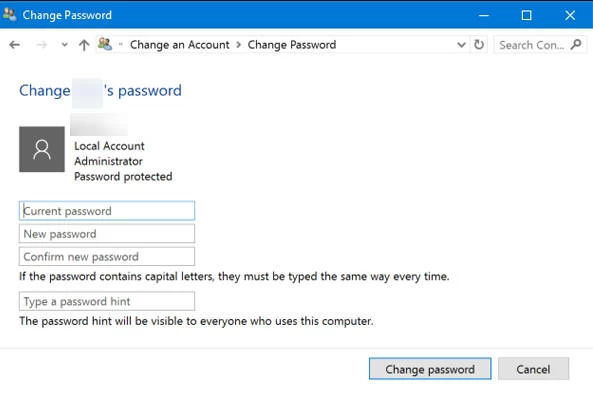
Advanced users who are comfortable using command-line tools can unlock their HP laptop through Safe Mode with Command Prompt, which provides a way to reset the forgotten password without disk or additional software. This method grants the user administrator-level access to the command prompt, which can rescue systems where normal login fails.
1. At the login screen, press and hold the Shift key while clicking the Power icon and selecting Restart. This forces the machine into the Windows Recovery Environment (WinRE).
2. Once in WinRE, navigate to Troubleshoot > Advanced options > Command Prompt.
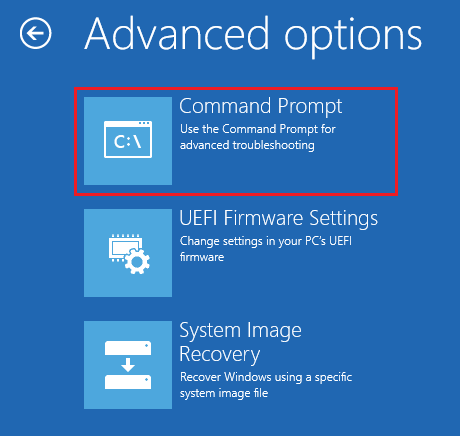
3. When the Administrator window appears, type the following command to reset the password for the locked user account: net user [Username] [NewPassword].
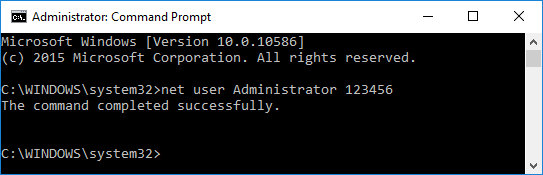
4. Replace [username] with the account name and [newpassword] with your new password. Press Enter.
5. Exit Command Prompt, restart the laptop, and unlock the previously inaccessible account with the fresh password.
If none of the safer unlock strategies work, you can still regain access by reinstalling Windows using the Windows Recovery Environment (WinRE). This is the most drastic method because it unlocks the laptop by wiping existing data and restoring the operating system to factory condition.
Although not ideal, it is a guaranteed way to bypass the forgotten password and unlock the HP laptop without an installation disk.
1. Trigger WinRE by powering the laptop on and interrupting the boot process repeatedly (usually three times).
2. Select Troubleshoot from the options presented, then go to Reset this PC.
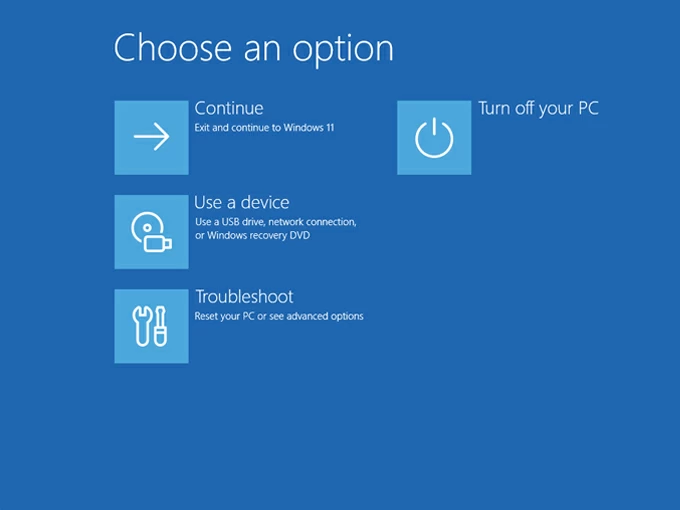
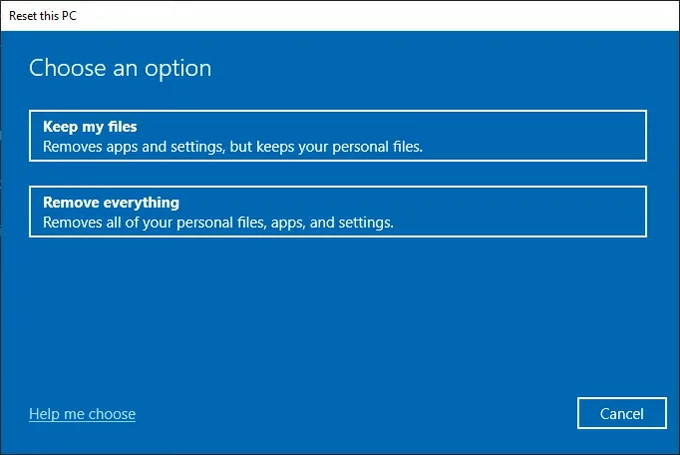
3. Choose Remove everything to wipe the entire drive, installing a pristine copy of Windows. It completely eradicates the old password barrier and guarantees a successful unlock of the device, albeit at the cost of erasing your existing data.
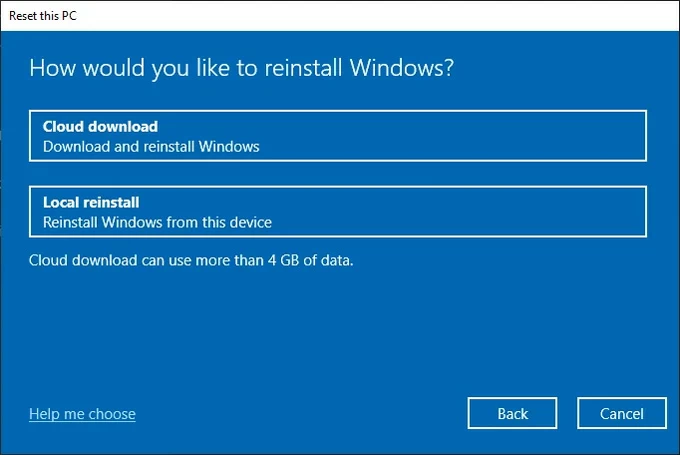
4. Select your preferred reset type: Local reinstall or Cloud download.
5. Click the Reset to confirm the action. The system will handle the rest, leaving you with a fresh, unlocked machine.
Read more: How to Factory Reset Windows 11 without Password
Some older HP laptops come with HP Recovery Manager, a proprietary tool designed to restore factory settings. Although it serves as a last-resort solution, it still provides a reliable way to unlock an HP Recovery without password, no password reset disk required, especially on machines running Windows 7, Windows 8, or early builds of Windows 10.
1. Turn off the HP laptop completely.
2. Power it back on and immediately press F11 repeatedly to open the recovery environment.
3. Choose HP / Windows Recovery Environment from the menu and click OK.
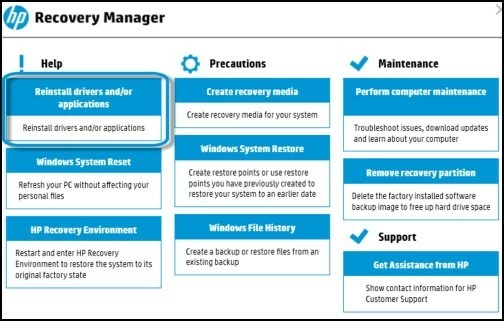
4. Click Troubleshoot > Recovery Manager to continue.
5. Select Recover without backing up your files to begin restoring the system.
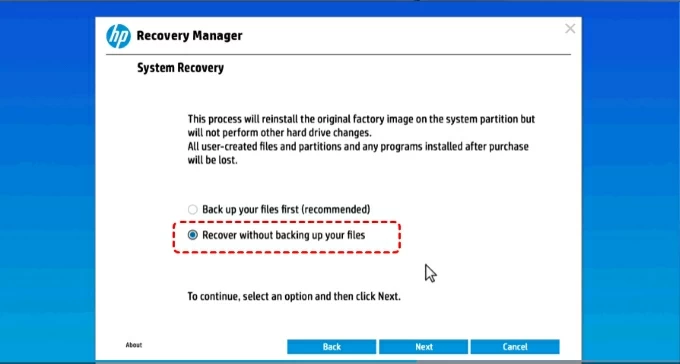
6. Follow the prompts to return the laptop to factory state.
7. Once the reset is complete, configure your new login details and unlock the refreshed system.
Conclusion
Losing access to your HP laptop doesn't mean you're stuck or forced to use a reset disk. From online Microsoft recovery to security questions, admin accounts, Safe Mode commands, and the professional Appgeeker Windows Password Recovery tool, there are plenty of ways to unlock the HP laptop without erasing anything. And even if those routes fail, system recovery options like WinRE or HP Recovery Manager still let you regain control.
In the end, unlocking your HP laptop after forgetting the password without a disk is entirely achievable—you just need to choose the method that fits your situation.