How to Factory Reset iPhone 17 without Passcode


Want to reset your ASUS laptop but don't have the login password? Don't worry—this article will tell you how to factory reset your ASUS laptop without a password.

Methods to reset an ASUS laptop without password will erase all data and settings on your device.
When you forget the password for your ASUS laptop or encounter an account issue that prevents access, in such situations, resetting your ASUS laptop without a password is no longer just a technical procedure; it becomes your reliable path back into the system.
Fortunately, ASUS provides multiple mechanisms that allow you to factory reset an ASUS laptop even if you cannot log in with a password, helping you regain access.
From Windows recovery tools and factory partition options to external installation media, the device is built with several fallback paths designed precisely for scenarios where you need to reset ASUS laptop to factory settings due to inaccessible account credentials. Even better, modern Appgeeker Windows Password Recovery tool lets you directly reset your account password after forgetting it, without requiring a full system reinstall.
This guide focuses entirely on those practical, password-free reset options for ASUS laptop, empowering you to regain control of your laptop.
Table of Contents
If your ASUS laptop is locked because you have forgotten your account password, before attempting to reset the entire ASUS laptop without a password, you can opt to reset your forgotten password using Windows Password Recovery, effectively walking back into your account without touching any data.
Through a dedicated bootable utility created externally, the software runs outside the Windows environment. It expertly navigates the core Windows security files to either clear the existing password or reset it to a new value without erasing the entire hard drive.
It supports resetting passwords for various account types on Windows computers, including Microsoft accounts, local accounts, and Admin accounts. More importantly, its operation steps are very simple and highly user-friendly for tech novices.
Here are the steps on how to use a Windows password recovery tool to reset the password for the inaccessible account on your ASUS laptop:
Step 1. Create the password reset media
On another computer that is working properly, download and install the Windows Password Recovery Tool. Insert a blank USB drive or CD/DVD, then run the software, select your media type, and click Next to start burning a Windows password reset disk to your media.
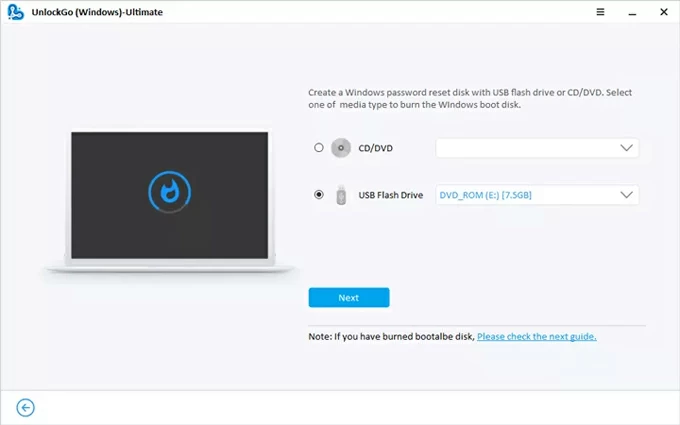
Once finished, eject your USB drive or CD/DVD.
Step 2. Change the boot order on your ASUS laptop
Go to your locked ASUS laptop and plug the USB drive or CD/DVD into any port. Power on the device and immediately start pressing the ESC key to enter the BIOS/UEFI Setup Utility menu. Then, adjust the boot order so that the system attempts to boot from USB/DVD before loading the Windows system on the hard drive.
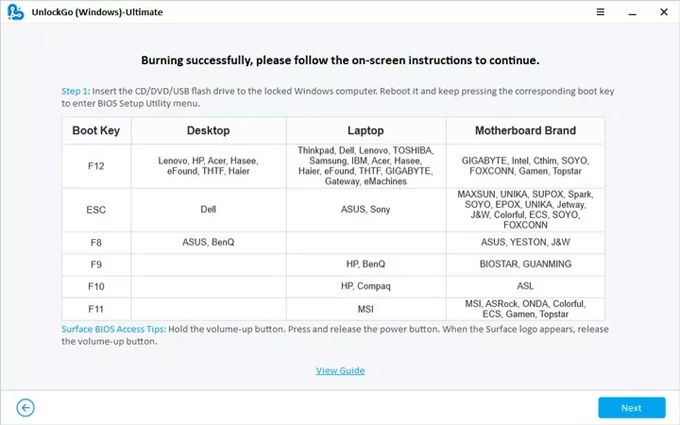
You can refer to the specific operation steps here:
Step 3. Execute the password reset on ASUS laptop
After the program loads, view the Windows systems detected on the device. Select the Windows operating system running on your ASUS laptop from the list, then identify the specific account whose password needs to be reset.
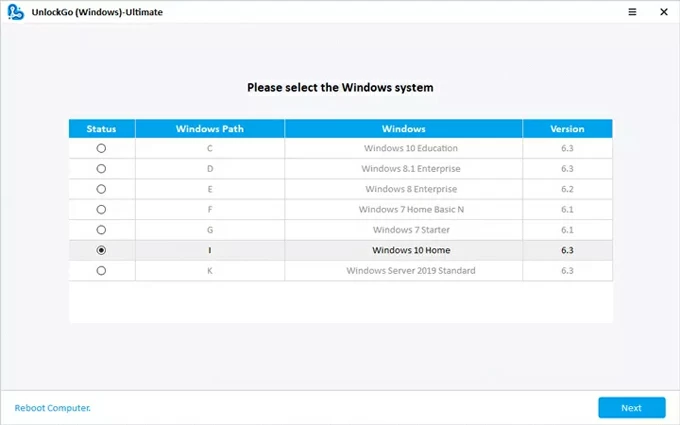
Select the Reset Account Password function, then set a new password according to the prompts and click Reset to confirm.
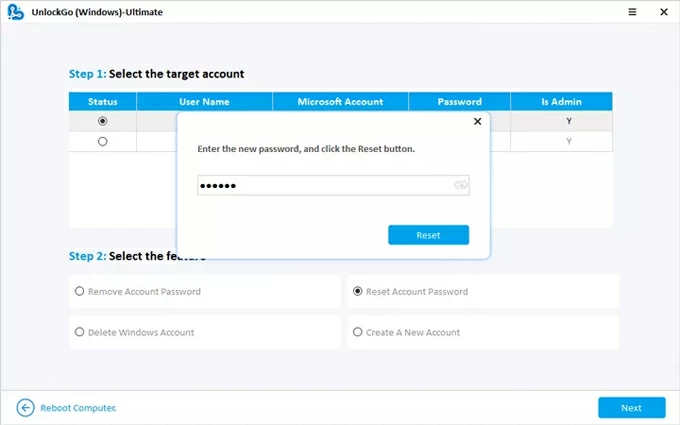
Afterward, restart the laptop. The previous password will have been removed, and you can now log in using the updated password and access your laptop again. This software also can reset admin password in Windows 10.
When you want to perform a full ASUS laptop reset without login password, the login screen itself still provides a backdoor into Windows Recovery Environment (WinRE). WinRE is essentially an independent toolkit that forces the operating system to bypass the normal boot sequence, allowing you to reinstall Windows, refresh the system, and complete the reset without needing a password on an ASUS laptop.
However, note that restoring your ASUS laptop to default settings will result in the loss of all your original personal files and data.
1. On the login screen, locate the Power icon in the bottom right corner. Then, hold down the Shift key on your keyboard while selecting Restart. Your ASUS laptop will reboot and automatically load the Windows Recovery Environment.
Tip: If Shift + Restart doesn't trigger WinRE, force-power your device off during boot three times. Windows should enter recovery mode on the next startup.
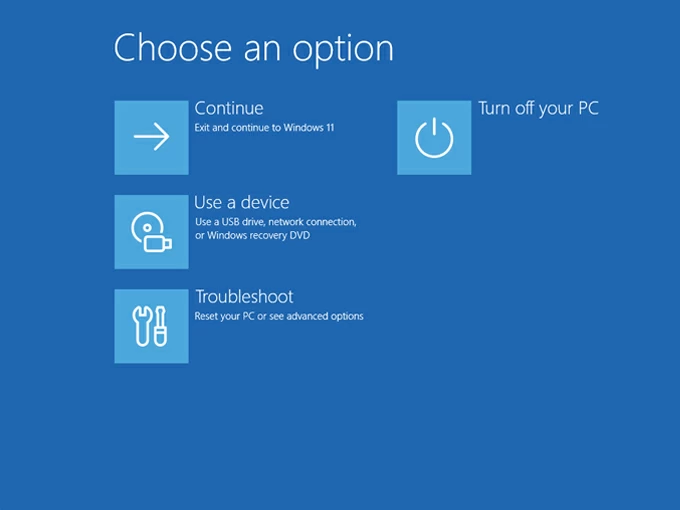
2. Once in WinRE, select Troubleshoot > Reset this PC on the "Choose an option" screen.
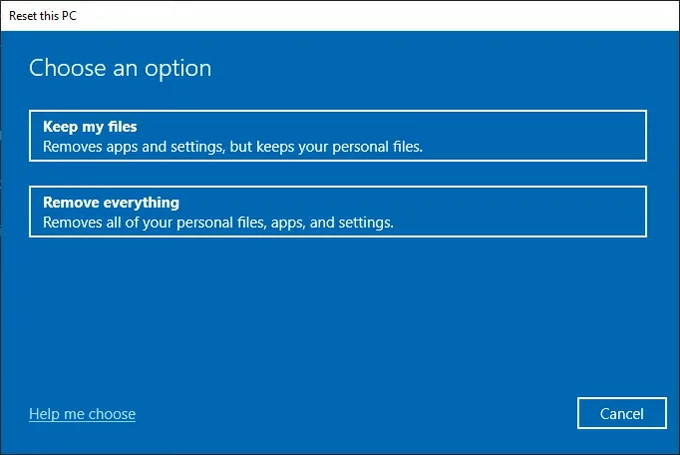
3. The system will give you two options. Choose Remove everything to perform a full system reset without entering password. (Choosing "Keep my files" will almost certainly prompt you for a password.)
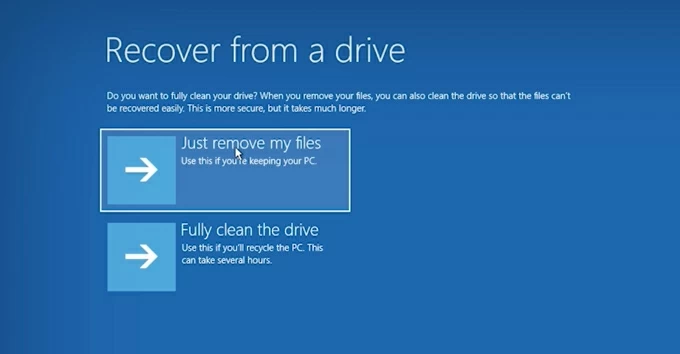
4. Select Just remove my files or Fully clean the drive based on your needs to define the scope of the erasure.
5. Click the Reset button to initiate the system-wide recovery process, which will clear all personal data and install a fresh copy of Windows.
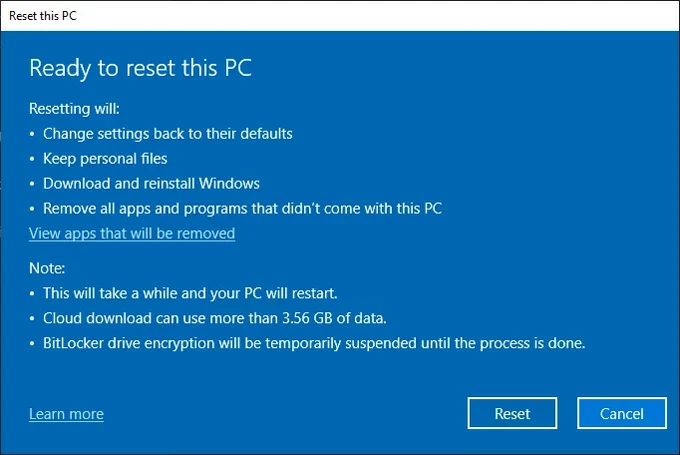
Once the reset is complete, you can set it up like a new laptop from scratch, with no account credential input required. You can add a new Windows local account or Microsoft account as needed.
Read more: How to recover Windows 10 password if you forgot it
In fact, for ASUS laptops running Windows 10/11, Microsoft also offers an official method to reset the ASUS computer without a password: using Windows installation media. This method gives you full control over the reset process, as it directly uses a fresh copy of Windows from a USB drive. It's also extremely useful when the operating system is corrupted or WinRE is broken.
What you need:
1. On another accessible computer, utilize Microsoft's Media Creation Tool to download the appropriate Windows image (10 or 11) and create a bootable USB installation drive.
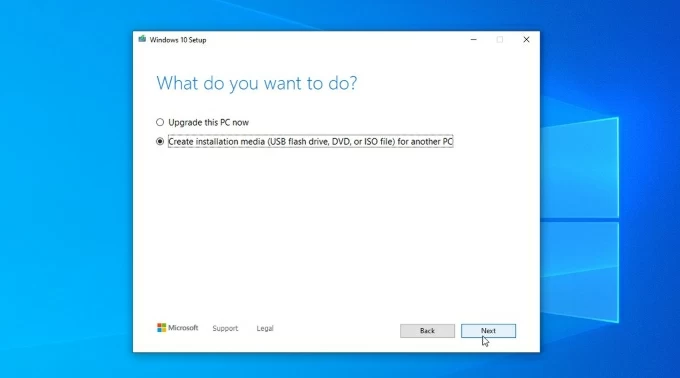
2. Insert the Windows installation media into your ASUS laptop. Start the computer and enter the BIOS/UEFI setup (usually by pressing the ESC or F2 key). Set the USB drive as the first boot device.
3. The Windows Setup program will appear shortly on the screen. Select your region/language.
4. Click Install now (for Windows 10) or Install Windows 11.

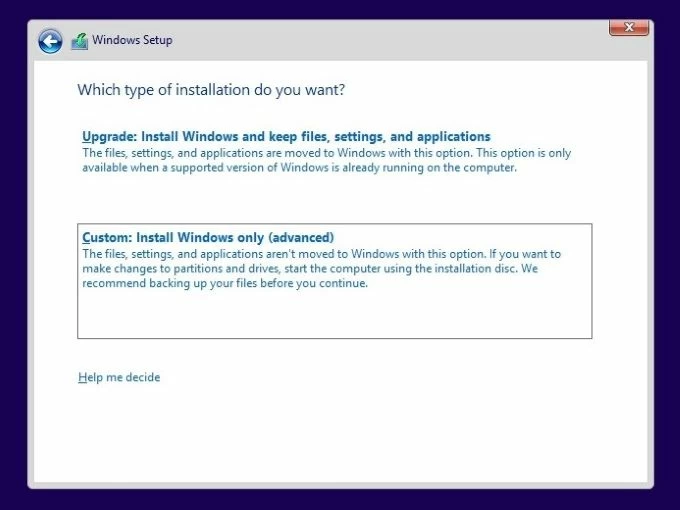
5. Agree to the relevant terms and select Custom: Install Windows only (advanced), which allows you to format the drive and start fresh.
6. The screen will display all the drives and partitions on your laptop. To perform a clean installation (wiping the old system and all data), you need to delete all existing Windows partitions. Select each old partition, and then click Delete.
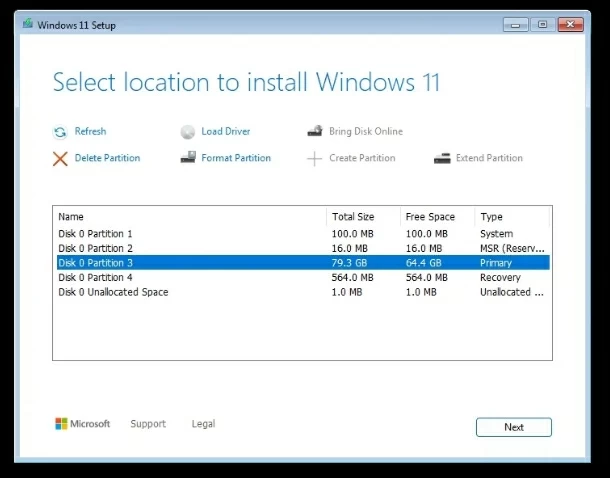
7. After deletion, you will see Unallocated space. Select it, and then click Next > Install. The installer will begin resetting your ASUS laptop without the password and installing new Windows. This will take some time, and your laptop will restart several times.
Also see: How to remove Microsoft Account from Windows 11
Like many manufacturers, ASUS embeds a hidden partition in the laptop, which contains the image of the system as it left the factory, drivers, and pre-installed utilities. If you want to completely format your ASUS laptop to the original configuration without the password, the ASUS Preload Wizard is the quickest and most authentic reset method—no downloads or external tools required.
1. Fully shut down your ASUS laptop. After powering it on, immediately and continuously press the F9 key as the ASUS logo appears.
2. When the Windows Boot Manager window appears, Windows Setup [EMS Enabled] will be highlighted. Press the Enter key.
3. Wait for the ASUS Preload Wizard interface to load completely. Select the appropriate language and click Next according to the instructions.
4. The wizard usually offers several reset options. Select Recover Windows to the first partition only and click Next to start reapplying the factory image.
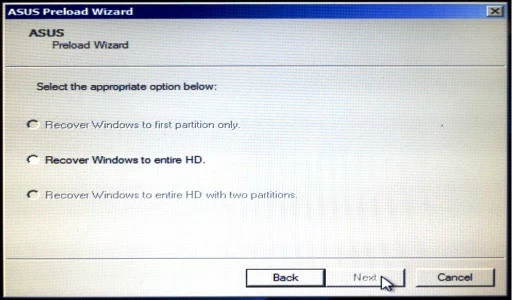
Allow the process to continue until the laptop restarts and enters the ASUS setup interface. Your ASUS laptop will be reset to its original state, displaying the initial Windows setup process, completely free of any old passwords.
Conclusion
Resetting an ASUS laptop without the original password isn't a dead end—it's a process with multiple pathways, each designed for different situations. Whether you lean on a professional recovery tool to unlock the system without erasing your data, or rely on the built-in recovery partition for a complete system refresh, you always have a workable solution.
Remember, if you're locked out of your Windows ASUS laptop and want to ensure data integrity, first try Appgeeker Windows Password Recovery to reset the password. However, when the laptop requires a thorough reset and new Windows system installation, existing data on your device will be wiped clean, including your login password.
How to reset PC without password — If forgotten or locked out