How to Factory Reset Windows 11 without Password


Forgot password and can't log into Windows PC & laptop? Explore possible ways to reset computer without password, wiping your system clean for full password-free access.

Resetting a Windows computer can be pretty simple—until you're locked out. Maybe you completely forgot your password, or the password you thought you remembered doesn't work. Perhaps you purchased a used device that wasn't signed out properly, or you encountered a stubborn system error resulting in a login barrier.
Whatever the reason, there're still options for a factory reset on your computer without logging on, attempting to help you get past the lock screen and restore the whole system to its original default state.
If you've been wondering how to reset a computer without password, don't worry—it's easier than it sounds. Despite what your Windows version and brand is, the process looks mostly the same, and this guide will walk you through every step to factory reset PC/ laptop without needing the login password effectively.
Memory fog locking you out of your old computer? We'll show you how to reset a locked computer without a password.
If you don't want to reset your computer to factory settings to erase the password you've forgotten as well as any other data, that's fine too, because we'll also offer a specialized tool called Appgeeker Windows Password Recovery to reset your password for local & Microsoft account and recover access before you decide to wipe entire drive.
Table of Contents
Tip: Performing a factory reset without computer password facilitates the ability to regain control of your Windows 11, Windows 10, Windows 8, Windows 7 or earlier Windows systems in all PCs and laptops: HP, Dell, Acer, Asus, Lenovo, Samsung, Toshiba, Vaio, etc.
When you cannot remember the Windows computer's password, you don't have to do a factory reset in the first place; In the event that you just want to regain access to a locked computer, Microsoft includes several built-in, non-destructive tools as the proactive measures to reset or recover forgotten password in Windows 10, 11 or other platforms without having your computer restored to its out-of-box slate, whether it's a local login or a Microsoft login.
If those Microsoft's proprietary Windows password reset solutions are exhausted and you still have no access, your only recourse to bypass the password lockout is to factory reset the computer and start fresh. This will erase all user data, applications, and settings including the sign-in password that's blocking your way, as well as eliminate the software bugs, returning your laptop or PC to its original factory settings—the way it was when it first the manufacturer.
So, in this Windows reset or clean install guide, we cover how to change the password to something new or to blank before factory resetting the computer without logging on, and then break down the exact steps to follow using Windows Recovery Environment (WinRE), Windows Installation USB, and brand-specific zero-password factory reset tools to remove the user accounts & passwords entirely.
Forgetting password doesn't mean your computer is useless, and it definitely doesn't mean you're forced to reset your computer to factory settings - even when none of Windows built-in password reset solutions work (for instance, if you forgot the local account password and never created a reset disk or didn't set security questions).
With Appgeeker Windows Password Recovery software, you can quickly reset the forgotten password on a computer and get back into the locked system without losing any data. Whether you need to recover a Microsoft account or a local account, the utility works to create a Windows password reset disk, letting you change the password without login or without reset in clicks.
Plus, if you're a local user, you can remove the account password, and delete the profile completely while preserving your data.
Follow the instructions below to reset your password you forgot, bypassing the need of a full computer reset and wipe.
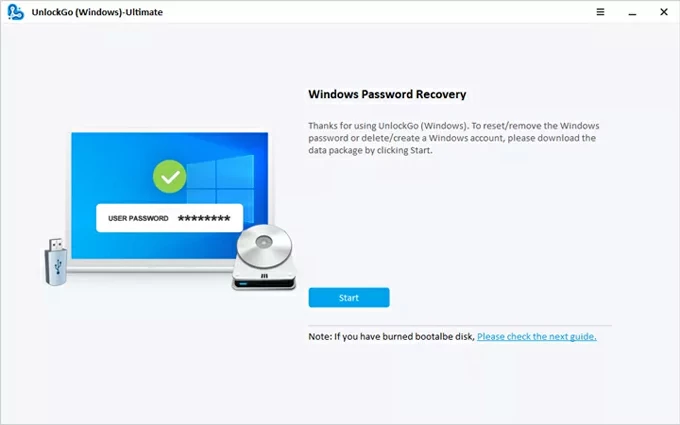
Step 1: Prepare another computer and download Windows Password Recovery utility
On another accessible computer that is connected to internet, download the software and then install it properly.
Then launch it, and click on Start button.
Step 2: Create a Windows password reset disk
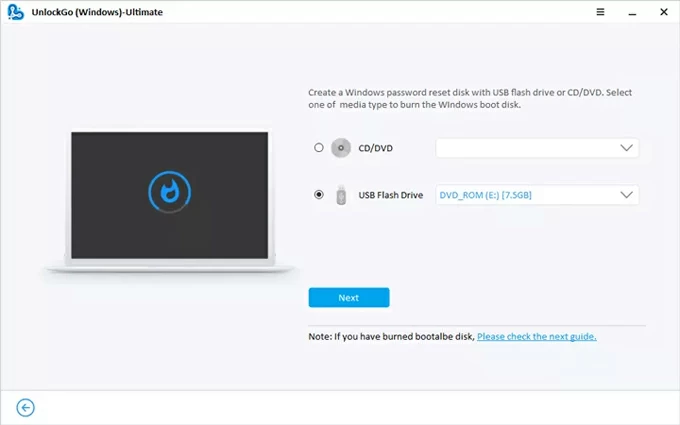
Insert a blank USB or CD/DVD into the computer, select it, and click Next button. The tool starts burning a bootable password reset disk for your locked computer.
When done, unplug it.
Step 3: Boot your locked computer from the Windows password reset disk
Plug the burned reset disk into your target computer.
Restart the computer, and while it's starting up, repeatedly press a certain boot key (usually F2, ESC, F12, F10, etc.) until you see the BIOS SETUP Utility menu.
Then, navigate to Boot tab and set the bootable password recovery disk as the first boot order. Save the changes and exit. Your computer will then reboot itself.
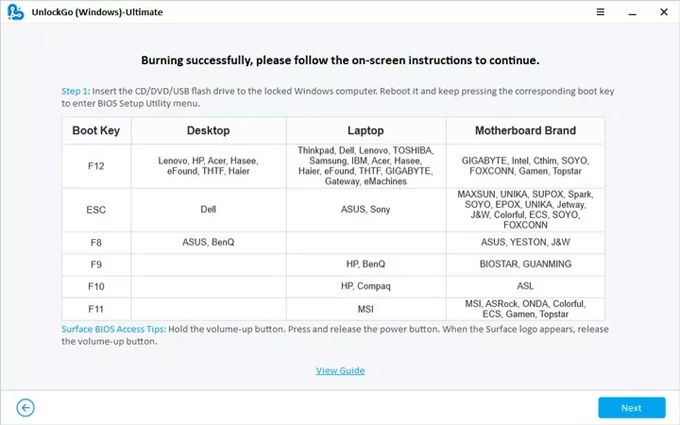
If you have no idea on how to change the boot order, browse to the guides below:
Step 4: Reset your Windows password without signing in - Windows 11, 10, etc.
Now, Windows password recovery utility should appear, letting you reset the old, forgotten password to a new one without resetting your PC.
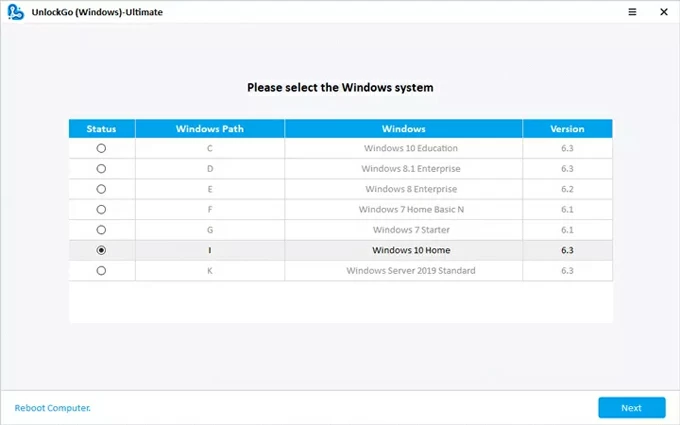
To do that, choose your [Windows system], and press Next button.
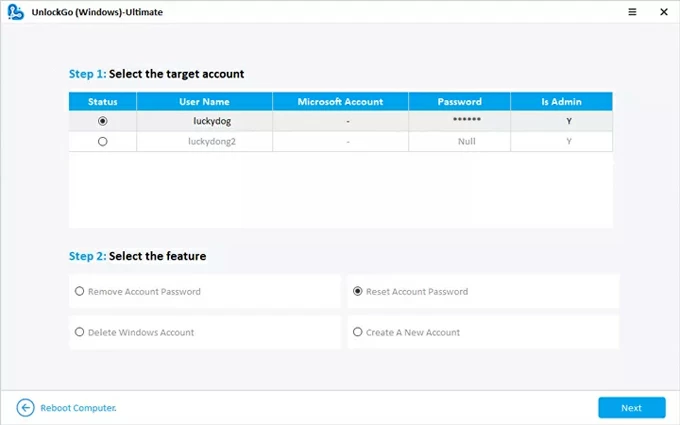
Next, choose your [user account] you'd like to reset the password for, then select Reset Account Password option. Click Next button to proceed.
On the pop-up window, input your new password that you know you won't forget. To confirm the login reset, hit the Reset button.
The password for unlocking your computer should be changed and updated in no time.
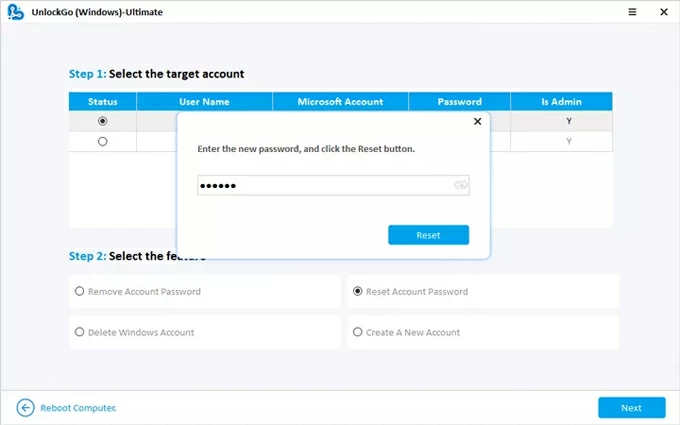
It's all that easy to bypass your password in Windows 11, Windows 10, etc. by just changing it to a new one without wiping a locked computer to factory settings.
Go ahead. In case you acquired a used computer that's still locked by the previous owner, or you plan on selling or donating your old PC, performing a factory reset without a password to make your computer to feel like new again is a useful skill to have. Below are different approaches you can reset any Windows PC or laptop even when you don't know the original password or the device is inaccessible.
Ideally, you can see the Windows logon screen with password or PIN prompt, which makes it easy to trigger Windows Recovery Environment (WinRE) to factory reset Windows from login screen with no admin password required.
After Shift + Restart shortcut is performed on the login screen, WinRE will give you Reset This PC option, letting you bypass Windows password barrier and reset your computer if you aren't logged in and can't access Settings app. This Microsoft-approved no-password reset is universal for Windows 10 and Windows 11.
1- Once you're on the login screen, click on the Power icon at the lower right corner.
2- Press the Shift key on the keyboard, hold it down and click Restart in the Power menu.

Keep hold the Shift key until you see the screen change to a blue menu titled "Choose an option." The Windows reset tool WinRE is now activated without involving a password login.
3- Click on Troubleshoot.
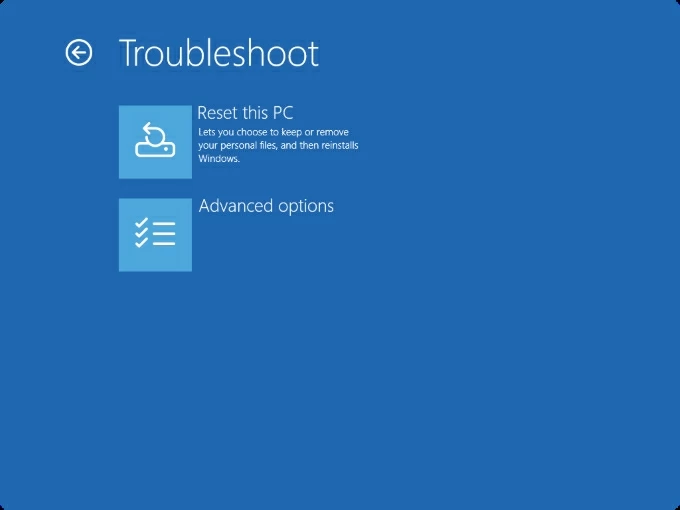
4- To carry on a lock screen reset and resolve the login issue, select Reset this PC.
5- Choose your factory restore option between Keep my files and Remove everything. For a true factory reset and password bypass, you need to opt for the Remove everything. This will direct your computer to permanently wipe the drive, removing all personal files, apps, settings, and the old user profiles so you can get into your account without the password.
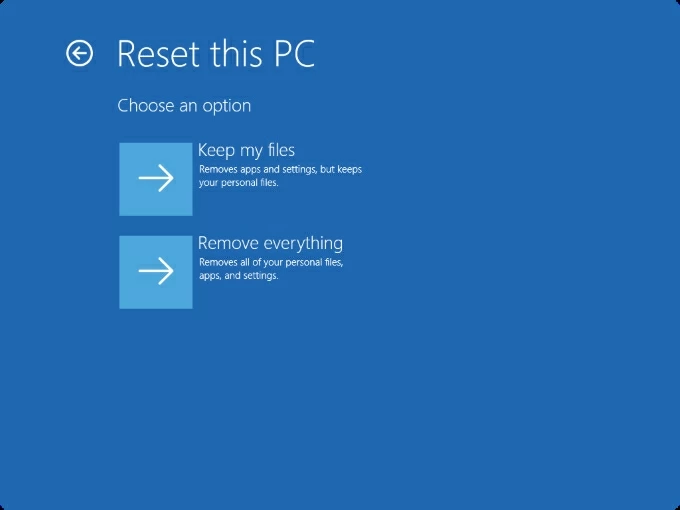
6- Windows 10/ 11 will now how to reinstall the operating system: Cloud Download, Local Download. If you have an active internet connection, it's recommended choosing Cloud Download to obtain a fresh copy of Windows from Microsoft server while resetting the computer.
7- Determine how thoroughly your computer and data is cleared:
8- Now, make your confirmation for your choices of factory resetting your computer that's locked with forgotten password, and click Reset.
The computer will now begin wiping the system and reinstalling Windows. The PC will restart multiple times as part of the Windows 11/ Windows 10 factory reset from boot process. Once that's done, it will boot into the standard Windows setup screen, where you select your region, keyboard layout, and, most importantly, create a brand-new user account and password.
Manufacturer also eases the pain of how to reset a locked computer without password, in case you forget or don't know the sign-in credential. Most major PCs and laptops are featured with a hidden recovery partition that allows you to perform a Windows factory reset without logging into the computer, so as to get rid of the user profiles & passwords from the lock screen and revert the device back to a state when it was unboxed.
Manufacturer's recovery image runs outside of the standard Windows login sequence, which means it doesn't need the old password to start bypassing the login screen for a factory restore. While the exact names vary by manufacturer, here are the common zero-password reset options for various computer brands, together with the access keys typically used to access them at startup:
Once you reach the recovery environment, resetting a Dell, HP, Lenovo, etc. computer to factory will be straightforward. Simply follow the onscreen instructions to delete everything from the PC and restore it to its factory default condition.
If both the Shift+Restart trick and the manufacturer's recovery tool still lead to a password prompt, or if the recovery partition is corrupted, the only remaining option is typically a clean install of Windows using a bootable Windows Installation Media, which requires access to a separate working computer to create the media (USB drive or DVD.)
If you are ready to reclaim your machine and banish the login screen lockout forever, proceed to the following wizard where we detail how to factory reset a Windows 10 or Windows 11 computer without knowing the user password, granting you access back into the system.
1. Head to Microsoft website to download Media Creation Tool on the secondary PC.
2. Run the Media Creation Tool, then choose Create installation media (USB flash drive, DVD, or ISO file) for another PC option, and follow the prompts to create bootable USB drive.
3. Insert the bootable USB to your locked computer you want to reset and wipe clean.
4. Boot from the installation USB. This is an essential step to factory reset PC from BIOS or UEFI settings or Boot Menu.
5. Factory restore computer and bypass the password entirely. You will be taken to Windows Recovery Environment (WinRE) for restoring your system and remove the password from Windows 10, Windows 11 or older OS.
By far, you don't need the password to factory reset your desktop computer when you aren't signed in and get it back to its out-of-factory status. This gets around your login problem and software errors.
Having your computer reset without a password can be tricky. Here's how to handle some common issues when you fail in factory resetting your locked or nonfunctional desktop or laptop.
In the event that you cannot get to the sign-in screen, Shift + Restart method is not working for you (due to system configuration issues). Instead, you can force WinRE access by interrupting the normal boot process - a hard reset PC process.
Once you're in the WinRE environment, force a factory reset and password removal when you're locked out of Windows 10 computer or other devices by clicking Troubleshoot > Reset this PC > Remove everything.
Some computers have BitLocker encryption enabled. If you experience with a prompt for a BitLocker recovery key in the resetting progress via Shift + Restart method, it's not necessarily leaving the drive inaccessible - you can retrieve the key from your Microsoft account, a printed key, or USB backup.
Even you don't have that active recovery key, you're still in luck. By using a bootable Windows Installation USB or DVD/CD for a clean install, you can reset the computer back to factory with no password and no recovery key, and get it up and running again.
Q1- Can I factory reset computer without losing files?
A full factory reset erases everything, including files, apps, and settings. The Reset this PC function in Windows RE offers the "Keep my files" option to avoid data loss during the reset. However, this option is generally NOT recommended when the goal is full access without the previous password.
Q2- Does factory reset remove the admin password?
Yes, after reset, all accounts and passwords are erased. You'll set up Windows as if it were brand new, creating a new admin account during setup.
Q3- What if "Reset this PC" option still asks for a password?
When forgotten the login password on Windows 11, 10, 8, 7, etc. and embrace Windows Recovery Environment to reset PC to factory settings, you have to choose the "Remove everything" instead of "Keep my files". This is only option to effectively bypass the need for the login password and regain control of a locked computer.
Q4- How long does it take to reset a PC?
A Windows reset with or without password would usually complete anywhere from 30 minutes, 1 hour to several hours, depending the reset option you choose (Just remove my files or Fully clean the drive, Cloud Download or Local Download), the speed of your storage drive, and how much data is on the system.
Q5- Is factory reset better than password recovery tools?
If you forgot the computer password, the best way to recover full physical access is to just reset the password while keeping your data intact. Windows has several password reset utilities enabling you to change the sign-in password for Microsoft account online, or local account - if you're proactively set up the recovery tools before the lockout. To simplify the process, you can use an all-in-one tool named Appgeeker Windows Password Recovery for resetting both local and Microsoft account password and unlocking the computer in minutes.
Doing a total reset of your computer only if it's frozen or unresponsive due to system errors. The system will return to a clean slate, with any existing files deleted for go.