How to Recover Windows 11 Password for All Users [8 Ways]


A forgotten password doesn't mean permanent lockout. Explore these Windows password recovery tools and methods to regain access for both Microsoft & local accounts.

A Windows password is essential for protecting your personal files and preventing unauthorized access to your computer. However, if you forget your Windows password and cannot sign in, you may find yourself completely locked out of your system. Losing access can be stressful, but the good news is that Windows password recovery is possible.
A forgotten Windows password is recoverable when you use the correct tools and recovery methods.
In this guide, we cover various practical Windows password recovery tools and methods to help you regain control of your computer. The approach for recovering a Windows password depends on whether you are using a local account or a Microsoft account, as each account type follows a different recovery process.
We'll explain Windows' built-in recovery features, Microsoft's online password reset option, and advanced third-party Windows password recovery tools. With these reliable solutions, you can safely recover your Windows password and regain access to your locked PC or laptop, without unnecessary data loss.
Table of Contents
No matter your Windows version or account type, Appgeeker Windows Password Recovery serves as an all-in-one solution to reset any Windows password and restore full system access efficiently and securely.
Windows password recovery refers to the process of resetting Windows password and regaining access to a PC or laptop when you forget login credentials or are locked out of your account.
Before diving into the Windows password recovery tools and methods, it is important to identify the type of your locked account, as this helps determine the most effective recovery approach.
Microsoft accounts sync credentials online, offering cloud-based password recovery services for Windows users. If you sign in with an email address like @outlook.com or @gmail.com, your system is linked to a Microsoft account. It's the default for most Windows 10 and 11 systems.
A local account exists only on the computer itself. It is not linked to an email address, and you sign in using a username and password stored locally on the PC or laptop. For local account users, Windows provides built-in options that allow you to recover a password offline.
Best for: Windows users with Microsoft or local accounts who are locked out of their system after forgetting their login password and want to recover access without data loss.
Being locked out of your computer is more than an inconvenience, especially if you've forgotten the password. Thankfully, with Appgeeker Windows Password Recovery, you can quickly bypass, remove, or reset Windows password and regain full access to your PC/laptop with minimal effort.
Compatible with all Windows versions, this recovery tool works with both Microsoft and local accounts, whether you have administrator privileges or not. Also, it supports all major PC and laptop brands, including HP, Dell, Lenovo, ASUS, Acer, Sony, and more, letting you recover a password directly from the Windows login screen.
Steps for quick Windows password recovery on PC or laptop:
This Windows password recovery process is safe and non-destructive, ensuring that none of your files or data are erased. Its user-friendly interface will guide you to recover a forgotten Windows password without data loss.
What you need: Another working computer and an empty USB flash drive or CD/DVD.
Step 1: Create a password recovery disk for Windows.
On any accessible PC, install and open this Windows Password Recovery tool.
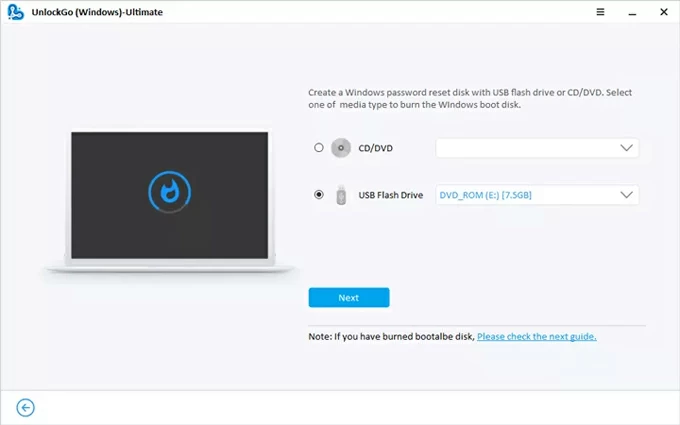
Then, click Start to begin and insert your USB drive or CD/DVD into the computer.
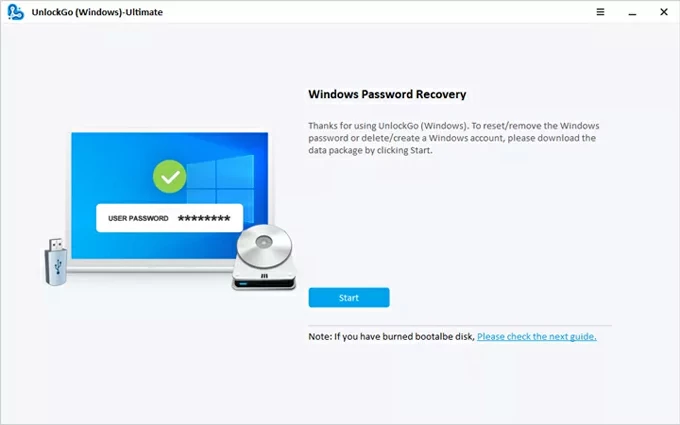
Select the device accordingly, and click Next to burn it into a password recovery disk. Do not remove it until the burning process is complete.
Step 2: Set your Windows system to boot from the password recovery disk.
Insert that disk drive to your locked Windows PC or laptop; then restart your computer while pressing the boot key (often F12, ESC, F8, F9, F10, F11, etc.) repeatedly.
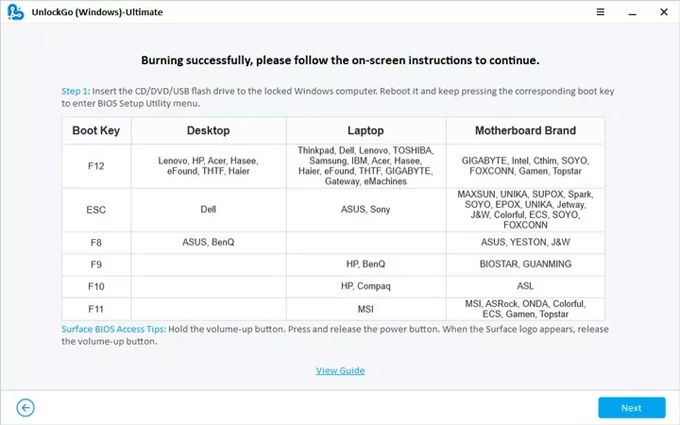
When the Windows enters Boot Menu or BIOS, use arrow keys to scroll through and select your USB drive or CD/DVD as the primary boot option.
Save the changes and exit. Wait for your computer to reboot.
TIP: If you have no idea on how to change the boot order, check the links below carefully.
Step 3: Choose your Windows operating system.
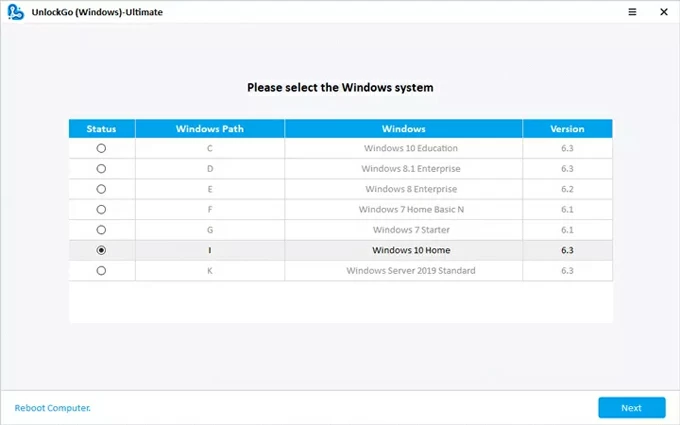
The Windows Password Recovery software will automatically activate. Select the Windows system of your computer, and click Next.
Step 4: Recover the Windows password for your account.
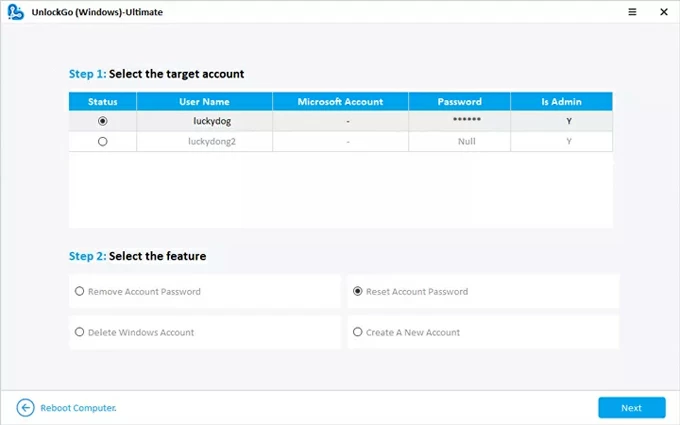
Select the target account that locks you out; then choose Reset Account Password > hit Next.
In the pop-up box, create a new password for your Windows account, and enter it again to confirm the password recovery.
Why use it:
Not recommended for: Users who are able to the Microsoft online password reset or Windows' built-in recovery features.
Best for: Users signed in with a Microsoft account who still have access to the linked email address or phone number for identity verification.
This is the golden standard for Windows 11 and Windows 10 users. When your PC or laptop is linked to a Microsoft account, the password recovery process can be completed entirely online.
Microsoft provides a dedicated account recovery webpage, allowing you to reset your password without needing to access the locked Windows computer. On any other device with internet access, you're able to recover a forgotten Windows password after successfully verifying your identity.
Steps for online password recovery via a Microsoft account:
1. On another internet-connected computer or device, visit Microsoft password reset website.
TIP: You can also enter an incorrect password on the locked Windows system and follow the I forgot my password link to recover access.
2. Enter the email address of your Microsoft account and click Next.
3. On the next page, click Forgot password? link under the password blank.
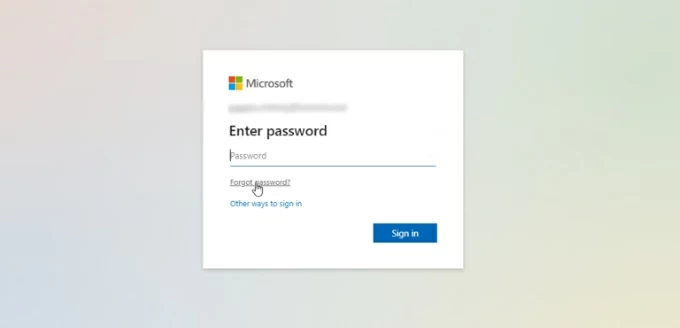
4. Before recovering your Windows password, verify your identity by getting a security code. You have the option to use either your associated phone number or an alternative recovery email.
5. Select your email or phone number and click Get code.
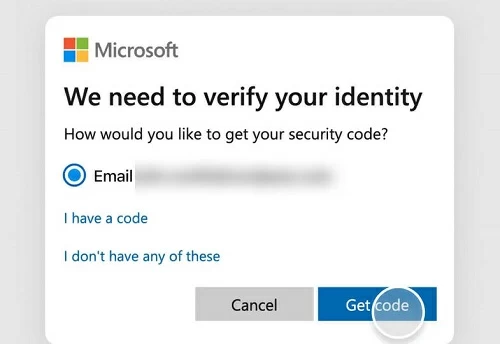
TIP: If you have no access to a recovery email or phone number, click I don't have any of these, then follow Microsoft's onscreen prompts to enter a new email, complete the CAPTCHA, and get a verification code.
6. Check the recovery code in your inbox and enter it into the provided field on Microsoft page, then click on Next.
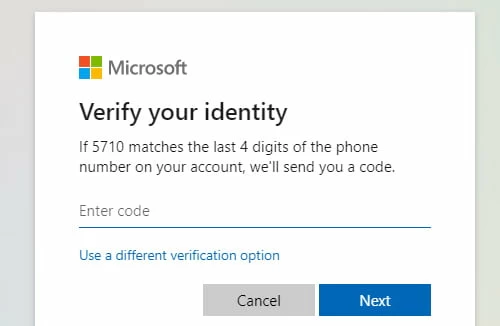
7. When prompted, create a new password and enter it again to confirm the reset.
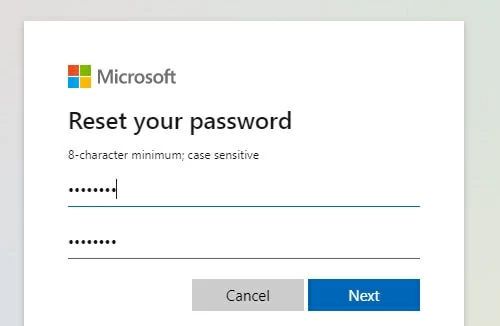
Once reset online, the recovered password automatically syncs with your Windows 10/11 PC the next time it connects to the internet, allowing immediate login.
Why use it:
Not recommended for: Local account users, devices without internet access, or situations where the Microsoft account recovery information is no longer available.
Local accounts do not rely on Microsoft's cloud identity. Your password is stored only on computer. When you forgot the password and be locked out of Windows 10 or Windows 11 system, these built-in recovery options would be your first choice to regain access.
Best for: Local account users who created a Windows password reset disk in advance and want the easiest built-in recovery method.
A password reset disk is a physical safeguard you create before you forget your password. It's stored on a USB drive that acts as a backup key to recover the Windows password for a specific local account.
Steps for local accounts to recover Windows password with a reset disk:
1. On Windows login screen, enter an incorrect password randomly until the Reset password link appears.

2. Click Reset password to trigger the Password Reset Wizard.
3. Insert the Password Reset Disk to your computer, then select it from the menu and click Next.
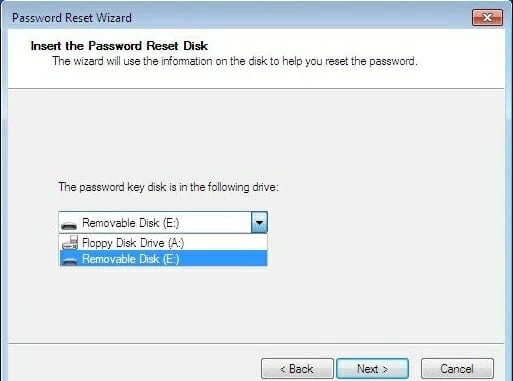
4. Type a new password, and type it again to confirm. If you prefer, add a new password hint.
5. Click Next. Your Windows password is recovered immediately.
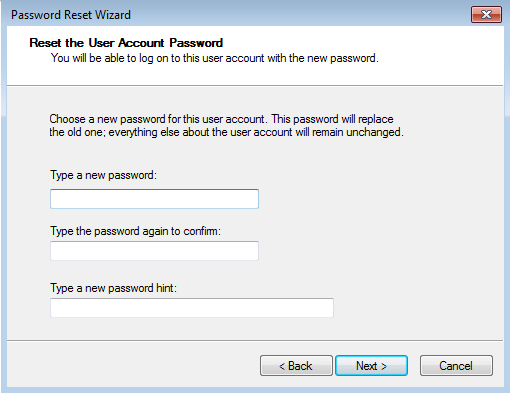
After the recovery, go back to Windows login screen and enter the new password to access your local account without restrictions.
Why use it:
Not recommended for: Users who don't have a previously-created reset disk or those using Microsoft accounts.
Best for: Windows 10 and Windows 11 users who previously set up security questions and need a quick, onscreen password recovery after local account lockouts.
When creating a local user account, you're prompted to set security questions for password recovery. Once configured, these questions allow you to recover your password directly from the Windows login screen without using additional tools.
Steps to recover local account password on Windows 11/10 via Security questions:
1. After several failed login attempts, a Reset password link appears on Windows sign-in screen.
2. Click the Reset password link.
3. If previously configured, Windows will present the three security questions you set up.
4. Answer these questions correctly. You'll be prompted to set a new password.
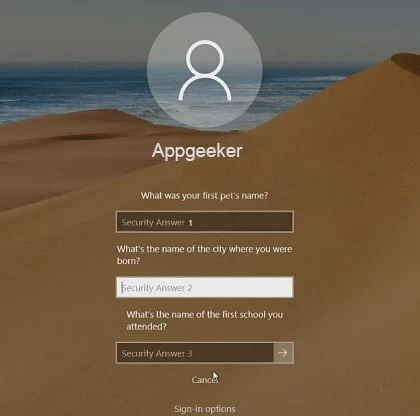
5. Create a new password and re-enter it to confirm, then press Enter.
Windows will accept the recovered password in no time. You can then return to the login screen and use the new password to unlock your account.
Why use it:
Not recommended for: Microsoft account users or Windows systems where security questions were never configured.
Best for: Advanced users who are locked out of a local account and are familiar with Windows recovery environments and command-line operations.
If you don't have any previously enabled password recovery options on your Windows system, another advanced approach is using the Shift + Restart method to access the Command Prompt. This solution is more complex and requires certain technical knowledge. However, when performed correctly, you'll be able to recover Windows password even without login.
Steps for recovering Windows password with Command Prompt:
1. Turn on your PC and laptop and click the Power icon at the login screen.
2. Hold the Shift key and select Restart option from the expanded menu.

3. Do not release the Shift key until the Windows reboots into a blue Choose an option screen.
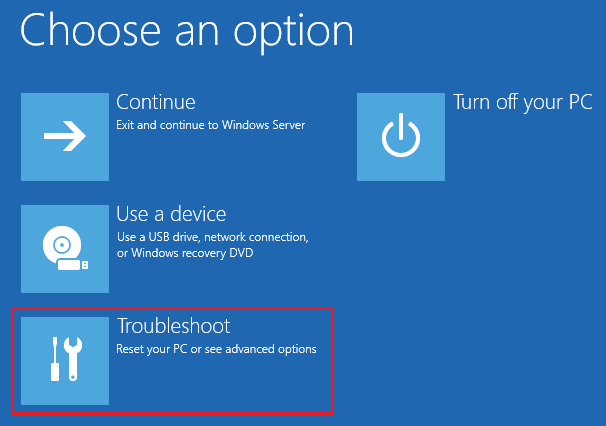
4. Select Troubleshoot and choose Advanced options in the next menu, then click Command Prompt to proceed.
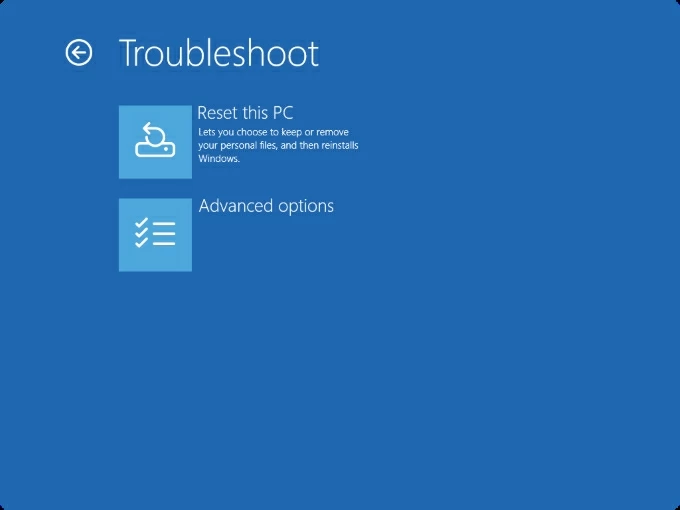
5. In the Command Prompt window, type net user and press Enter to find all local accounts on this computer.
6. Type net user [username] [newpassword] into the Command Prompt and press Enter to confirm the quick recovery.
Note:
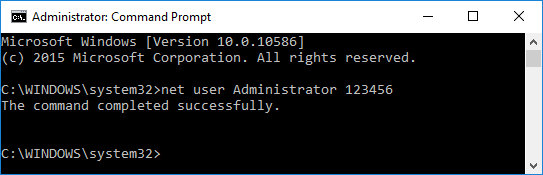
Once done, Windows system recovers the password for your local account automatically. You can then log in with the new credentials.
Why use it:
Not recommended for: Beginners, Microsoft account users, or systems secured by enterprise policies or full-disk encryption.
While these tools and methods can help recover a forgotten Windows password, prevention remains the best strategy to avoid future lockouts.
Set a Windows password that is easy for you to remember but difficult for others to guess, and manage it securely to avoid future lockouts.
Ensure your Microsoft account has a verified phone number, a backup email address, and two-factor authentication enabled. This ensures you can use Microsoft's online password recovery portal if you forget your login credentials.
Creating a password reset disk in advance can save significant time and efforts if you are ever locked out of your Windows system.
Security questions provide a quick and easy recovery option for local accounts, letting you reset a Windows password directly from the login screen.
Windows Hello allows you to sign in using a PIN, fingerprint, or facial recognition for quicker and more convenient access. Even if you forget your password on Windows 10 or Windows 11, you can still log in using your PIN or biometric authentication.
Q1 - How can I recover my Windows password without login?
It's possible to recover a Windows password without logging in by using supported recovery options, such as the Microsoft account online password reset, a reset disk or security questions for local accounts, Windows Recovery Environments (Command Prompt), or authorized third-party Windows password recovery tools.
Q2 - How to unlock a Windows PC if you forgot your password?
The solution depends on your account type and usually involves a password reset:
If none of these works, Appgeeker Windows Password Recovery allows for quick password reset for both account types, so you can create a new password to unlock your PC easily.
Q3 - Is there any free password recovery tool for Windows 10?
Yes. Microsoft provides free online password recovery if your Windows 10 PC is linked to a Microsoft account.
Additionally, Windows includes free built-in recovery options like password reset disks, security questions, and command-line tools like the net user command for local account recovery.
Q4 - How to recover access if I don't have a Windows password reset disk?
If no password reset disk is available, you can use security questions (if previously set) or administrator commands to recover access. Alternatively, approved third-party tools like Appgeeker Windows Password Recovery can help you create a new password reset disk and regain control of your system and accounts.