Factory Reset iPad without Password Or Computer


Forgotten login password on your laptop? These simple tricks will show you how to reset computer to factory settings without password, and fully wipe it clean.

Forgetting your Windows password or dealing with a malfunctioning laptop isn't uncommon. Whether you're completely locked out of an old laptop, preparing a used laptop for sale, or tackling system errors, factory resetting the computer can quickly restore performance and give you a clean slate. The challenge? Standard reset requires logging in with the password to access Settings—which is exactly what you can't do.
Don't worry. Regardless of your Windows platform and manufacturer, you can factory reset a laptop without the password, bypassing the login screen entirely and restoring your computer to its original, out-of-the-box state.
In this comprehensive guide, we are going to walk you through all Microsoft-approved methods on how to reset laptop without password, which work across HP, Dell, Lenovo, Asus, Acer, Samsung, Toshiba, Vaio and more that's running Windows 11, Windows 10, and earlier Windows OS versions.

It's not difficult to restore a Windows laptop after forgetting the password. This removes the password and all other data.
Tip: Before attempting a complete factory reset on a locked laptop, it's wise to reset your password to regain access without wiping entire device. If you just forget your password, Appgeeker Windows Password Recovery tool enables you quickly reset Windows password without logging in and recover your user account (local & Microsoft).
Table of Contents
Not necessarily. A factory reset is not the only option to recover access to your HP, Dell or other laptops if you've forgotten the sign-in password. There are several official methods to effectively reset or bypass a forgotten Windows password without restoring the computer or losing your data, depending on whether you are using a Microsoft Account or a Local Account.
If the built-in Windows password reset tools are useless - especially your computer can't boot onto the login screen, or the recovery email or phone number is long gone, your last resort is to restore your laptop to its original settings and start fresh, which erase all your personal data, files, applications and settings including the user accounts and passwords.
With that in mind, we'll first cover an all-in-one password reset utility to help change the password to something new if you still keep your laptop; and in the event that you want a clean-wiped computer with no passwords and no information, skip to the next part for a detailed guide on fully resetting laptop to factory without a password.
Even if the Microsoft's inbuilt " Reset your Windows password" routes aren't working for you since most of them need to be set up before the lockout, you don't necessarily go through a dreaded Windows reset in order to remove the account password and lock screen from your laptop.
Thanks to Appgeeker Windows Password Recovery, resetting the password on a laptop is easier than ever before. No matter what your account type is (Microsoft online account, local user/ admin/ domain account), the software offers a comprehensive solution that lets you reset or change the password in Windows 11, 10, 8, 7, etc., ensuring that you can unlock the computer and regain full access without erasing data.
Plus, you can also remove the password for local account so you can get into the computer password-free, or even delete the user accounts.
To reset your laptop password that you have forgotten or you don't know it by changing it to a new one, follow these simple steps. We take Windows 10 password reset for all laptops or PCs as an example, and the process is exactly the same on any other operating system.
Step 1- Create a password reset disk on another working computer
On a secondary computer, download the tool and install it properly, then launch it.
On the main interface, click Start button.
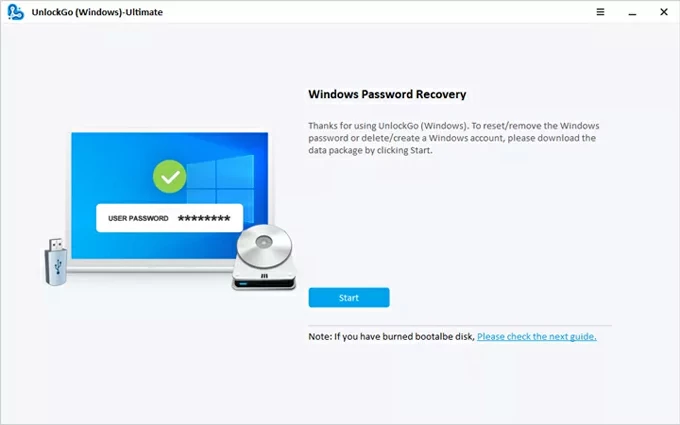
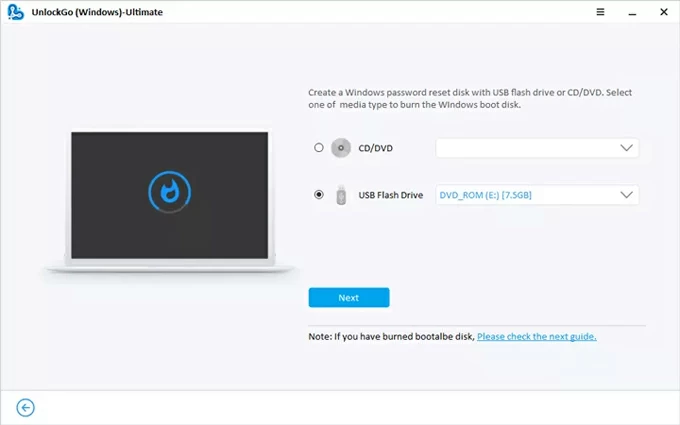
Then, you need to use a blank USB drive or CD/DVD and insert it into the computer.
Locate the drive and click Next button to burn a bootable password reset disk. When done, unplug it.
Step 2- Set your locked laptop to boot from the bootable USB or DVD disk
Restart your laptop that you want to reset the password for. As it starts up, repeatedly press the certain boot key (usually F2, ESC, F12, F10, etc.) until the system triggers BIOS SETUP Utility menu.
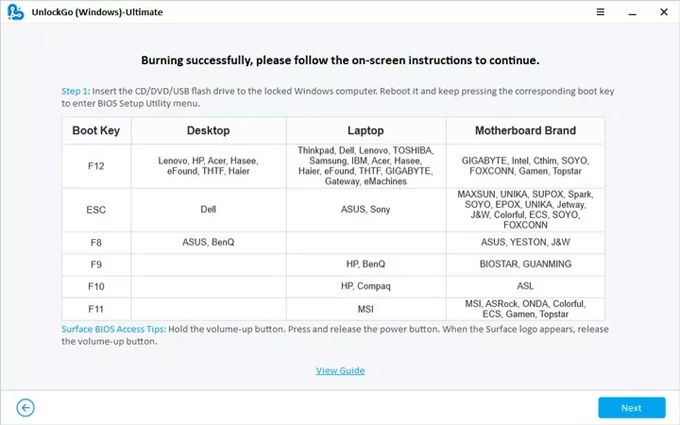
Next, configure the bootable reset disk USB or CD/DVD to the first order so your computer boot from it. Confirm and save the actions. Your computer will then turn off and turn back on.
For detailed steps, check the links below:
Step 3- Reset password on Windows laptop without logging in
Now, Windows password recovery utility opens, granting you to reset the account password that locks you out without having to restore the whole laptop system.
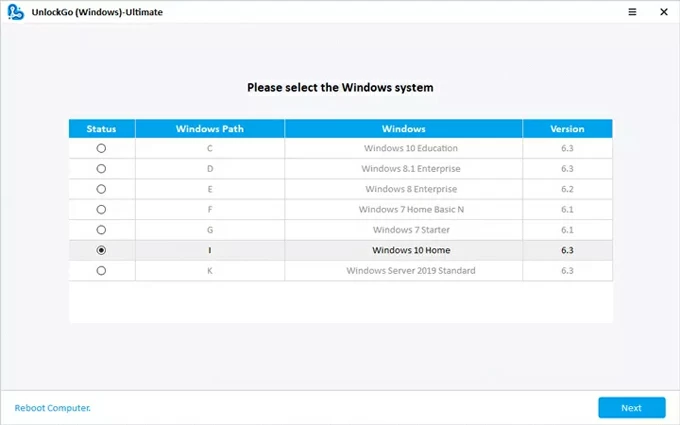
Simply select your [Windows system] your computer is running on, and then click Next button.
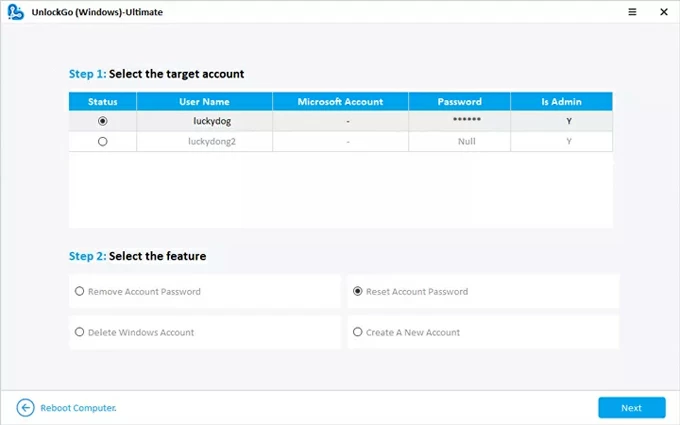
On the window that follows, choose your [user account] with a forgotten or unknown password. This could be Microsoft account, or local account.
Next, opt for Reset Account Password option, and click Next button.
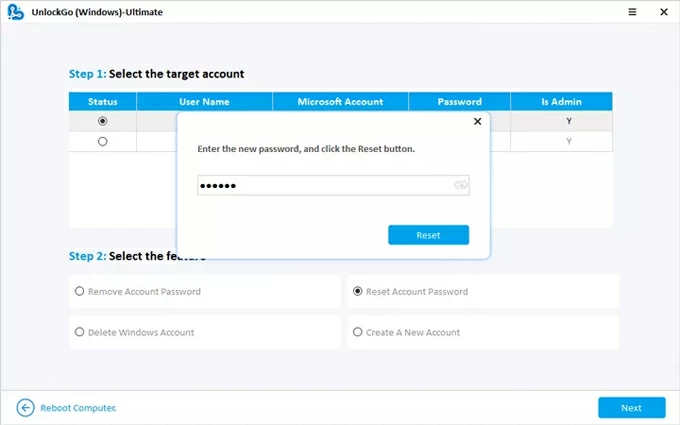
In the pop-up box, input your [new password] that you won't forget. This replaces the previous sign-in credentials completely.
To confirm, hit Reset button.
That's it! Your old password has been reset without wiping your computer. Log back onto the laptop's desktop and use it again.
The factory reset process will completely clean your entire hard drive and restore the laptop to default conditions. It's essentially a Fresh Start, returning the computer to how it was when first unboxed. All data, login screen credentials (password, PIN, fingerprint, Face ID), as well as system errors and corrupted partition will be eliminated. That's why we recommend trying resetting the forgotten Windows password first when you can't log in.
Proceed with the Windows laptop password-free factory reset only if you accept the complete loss of your existing data.
You don't have to worry about how to reset computer without password when locked out, since most major manufacturers like HP, Dell, Lenovo, Acer, Samsung, Asus, etc. store a clean Windows copy on a hidden recovery partition that lets laptop factory restore without logging in and thereby removes the lock screen and account password, as well as gets your device running like new again.
Brand-specific no-password factory reset tools & common access key at boot:
Below are the proprietary recovery tools for popular laptop brands through which to carry on the factory reset when you forget Windows login password and resolve the startup issues or software bugs. The recovery utility does not require password to access; by pressing the certain boot key on startup, you can easily restore your computer to its original, out-of-the-box slate.
Read also: How to factory reset Dell laptop without password
Despite the brand, the general approach of factory resetting a Windows laptop without a password involves accessing Microsoft's built-in recovery tools like Windows Recovery Environment (WinRE), Advanced Startup Options, or Windows Media Creation Tool.
These are the mechanisms by which the password requirement is bypassed, as the entire operating system is reinstalled to its original state. After your laptop's system is reset and wiped off, you should be granted immediate access to set up a brand-new user profile and password.
The Windows Recovery Environment (WinRE) is a powerful tool designed for troubleshooting and resetting—a safe mode that requires no password to enter. If you see the Windows login screen but are unable to enter the correct password, then use these steps to reset your laptop when you aren't signed in.
The process works for performing a complete factory reset for Windows 10 with no password, as well as for Windows 11 and 8.
1. At the logon screen of your laptop, click the Power icon at the bottom right corner.
2. Press and hold the Shift key and choose Restart from the Power menu.

3. The laptop begins to restart and eventually shows a "Choose an option" blue screen, meaning that you have successfully entered WinRE.
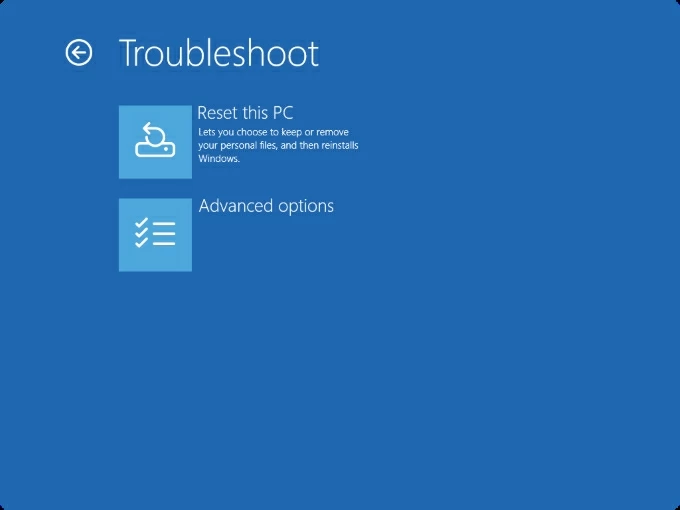
4. Click on Troubleshoot.
5. In the next menu, choose Reset this PC.
6. On the "Reset this PC" screen, choose Remove everything. This option signals the system to completely wipe all personal files, applications, and user accounts from the drive, which is the only way to regain access without the password.
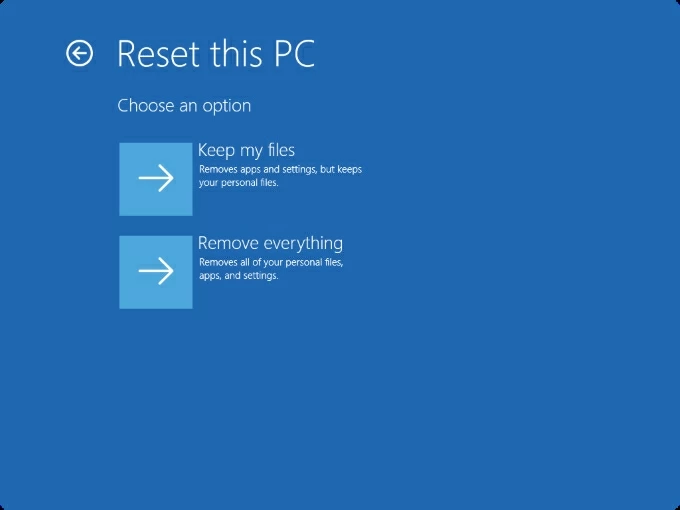
7. Windows will now ask you how you want the operating system reinstalled: Cloud Download, Local Download. To ensure a successful and reliable reset of your Windows computer, select Cloud download unless your internet access is impossible.
8. Decide how thoroughly the drive should be cleaned:
9. The last step is to confirm you're really sure to restore your laptop and permanently erase all data. Review the selections and click Reset.
The laptop will now begin the long process of erasing the drive and reinstalling Windows. Do not unplug the laptop or interrupt the process, as this could render the device unbootable.
Once the process is complete, the laptop will reboot into the initial Windows setup screen, allowing you to create a brand-new user account and password.
Related: How to recover files on computer after emptying Recycle Bin
If you cannot access the login screen or the system freezes before loading, use hardware shortcuts to boot directly into Advanced Startup Options (WinRE) menu for a factory reset, giving you complete control of your laptop again—without needing the old password.
1- Power off the laptop completely, and then turn it back on.
2- As soon as the Windows logo appears on the screen, repeatedly press the key manufacturer's recovery key to force your laptop to load Advanced Startup (WinRE). The exact keys often vary by computer brand (HP, Dell, Lenovo, ASUS, etc.)
3- Go to Troubleshot > Reset This PC.
4- Follow the Reset This PC instruction to finalize the reset on your laptop when you encounter a locked-out system or unresponsive screen.
If the built-in Microsoft recovery solution fails, you can manually create a Windows Installation USB by which to reinstall Windows and factory reset a laptop when you are locked out of Windows 10 or Windows 11 and the password was forgotten and you have no recovery key.
The process is a bit complicated, and what you need is an 8GB USB drive and another working computer to create the bootable media. Here's how a Windows laptop reset without remembering the login password work by using a Windows installation USB.
1. Download the Media Creation Tool from Microsoft on a working PC.
2. After downloaded, run it, insert the USB drive, and then follow the onscreen prompts to create a bootable media.
3. Plug the bootable USB flash drive into the locked laptop.
4. Boot the computer from the USB drive.
5. Reset your locked laptop and remove the password.
On the Windows Setup screen, select Next, then click Repair your computer instead of Install Windows (This leads directly to the same WinRE.)
Follow the steps from Option 1 - Troubleshoot > Reset this PC > Remove everything to trigger the thorough reset so as to unlock your laptop and bypass your password in Windows 10, Windows 11 system.
When done, go through the Windows setup process to choose your region, keyboard layout, and finally, create a brand-new user account and password. Congratulations, You are back in - a true, fresh start!
Q1- Will resetting my laptop remove the password?
Yes. Performing a factory reset on a laptop will delete all user profiles & passwords. It'll also fully erase all your personal files, apps, and settings, returning your laptop to its original settings.
Q2- Does a factory reset remove Microsoft account from computer?
No. When you reset your computer with or without the password, it just signs you out of your Microsoft account - the login details are erased. The account itself still exists online.
If the device was synced with a Microsoft Account, you will need the account to log in again after reset; or you can choose to create a new local account.
To actually remove or unlink a device from Microsoft account, sign in account.microsoft.com/devices, then find your device you want to remove, and click Remove device.
Q3- Can I factory restore laptop without password or without losing data?
Unless you have regular backups in either OneDrive, external hard drives, or cloud storage services that were created before you're forgetting your password, you'll lose everything on your device. Resetting requires clean wiping the computer to make it feel like new again.
Q4- I have an old Windows 11 laptop and forgot what the password is. How can I reset it with no password or no recovery key?
There are several ways available to factory reset Windows 11 without login password, such as Windows Recovery Environment by accessing from the logon screen or using recovery key, Windows Installation USB, as well as laptop manufacturer's recovery tools. Remember that, all your photos, videos, files, user accounts & passwords and more will be deleted for go.
Q5- Can I reset my laptop password when I'm locked out? I don't want to factory reset my laptop or lose data.
Yes. When you can't sign into your laptop due to forgotten password, you don't have to reset the entire system. Instead, you can reset the login password, whether you use a local account or Microsoft account. Appgeeker Windows password recovery software is a one-stop solution for Windows password reset without signing back into the computer.